A supplier sends a new price list, or your stock count lives in a sheet. You do not need to change each product by hand, or rebuild the catalogue: import the file with Only update existing, find the products by SKU, and update only Price, MRP and Stock. Every other field of the product stays as it is, a row whose SKU your store does not have is skipped, and nothing new is made.
You need the right to import products. The file can be a CSV or an Excel workbook with a column of SKUs and the columns you want to change; its other columns are ignored. How matching works in general is in Import Any Spreadsheet by Matching Its Columns.
Get the File Ready
Step 1 of 1
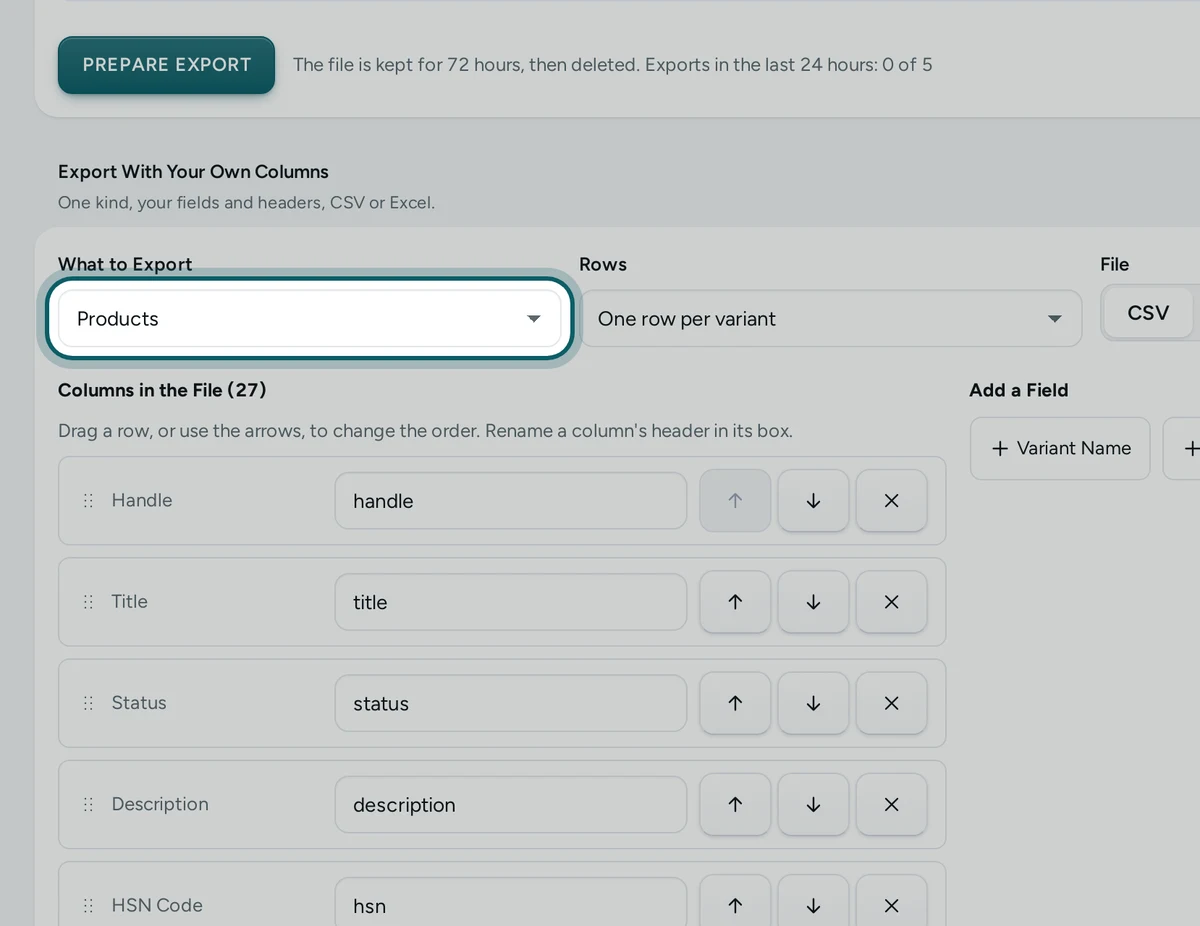
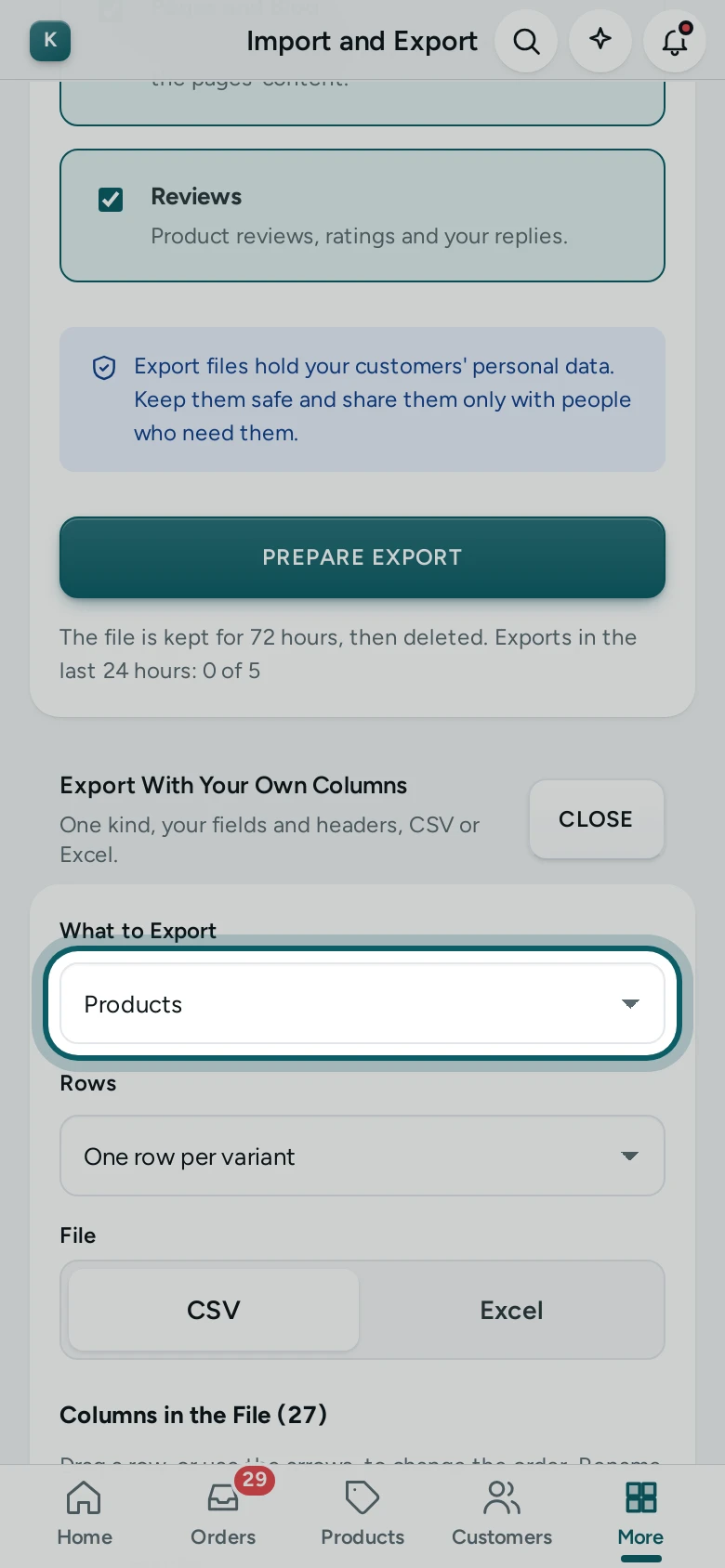
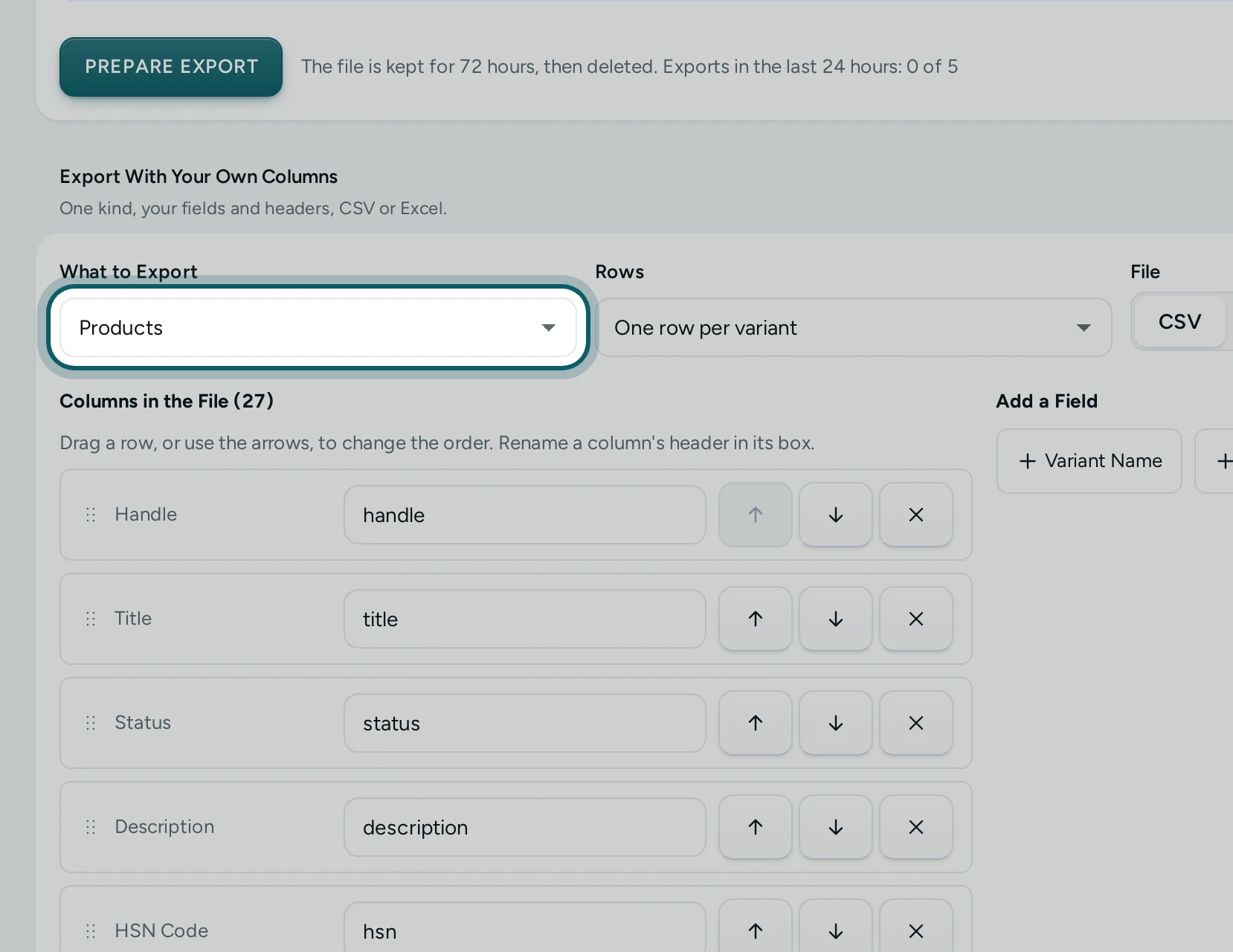
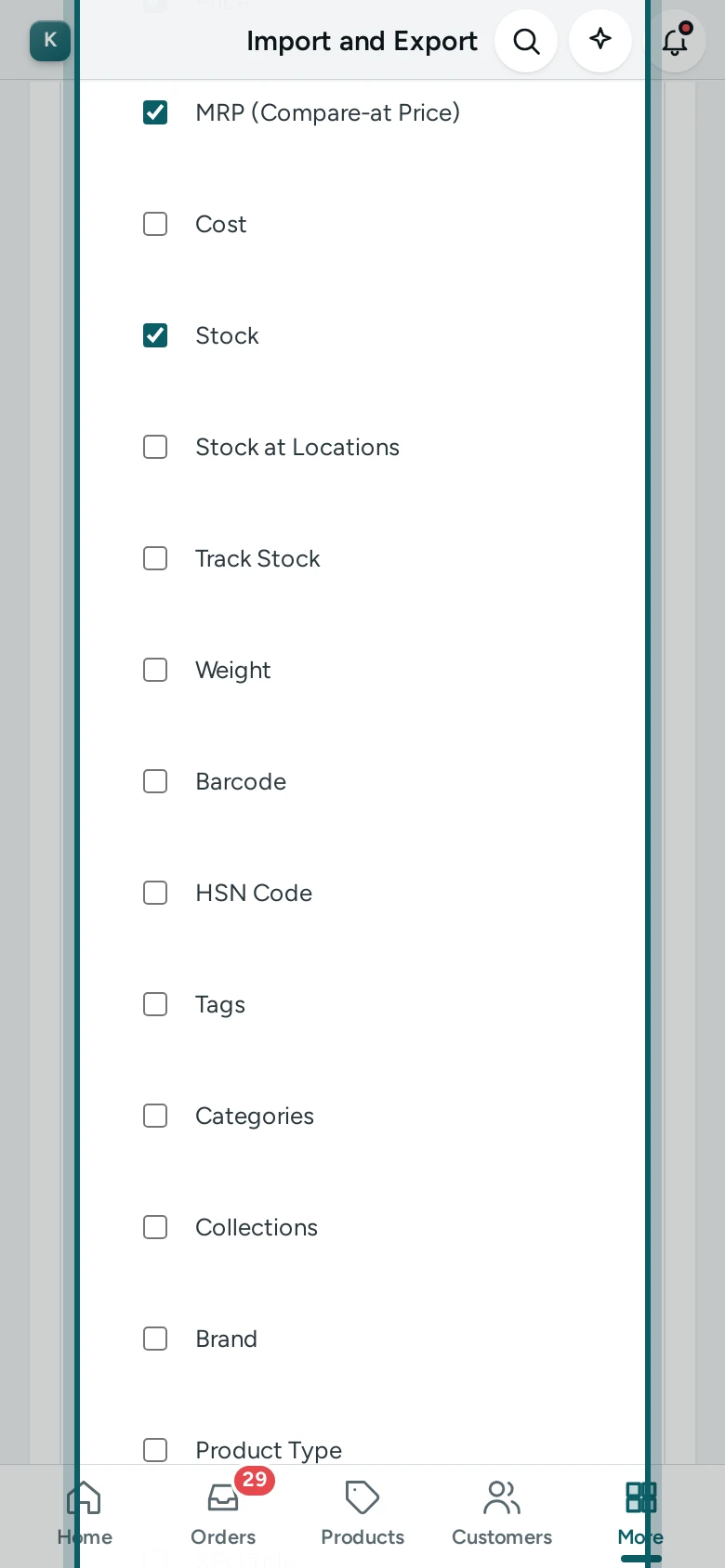
A file with SKUs. Use the supplier's list, or make one from your store: on the Export tab, CHOOSE COLUMNS, then Products with One row per variant, and the fields SKU, Price, MRP (Compare-at Price) and Stock (Export With Your Own Columns). Change the numbers in your spreadsheet and save it.
Import It by SKU
Step 1 of 9
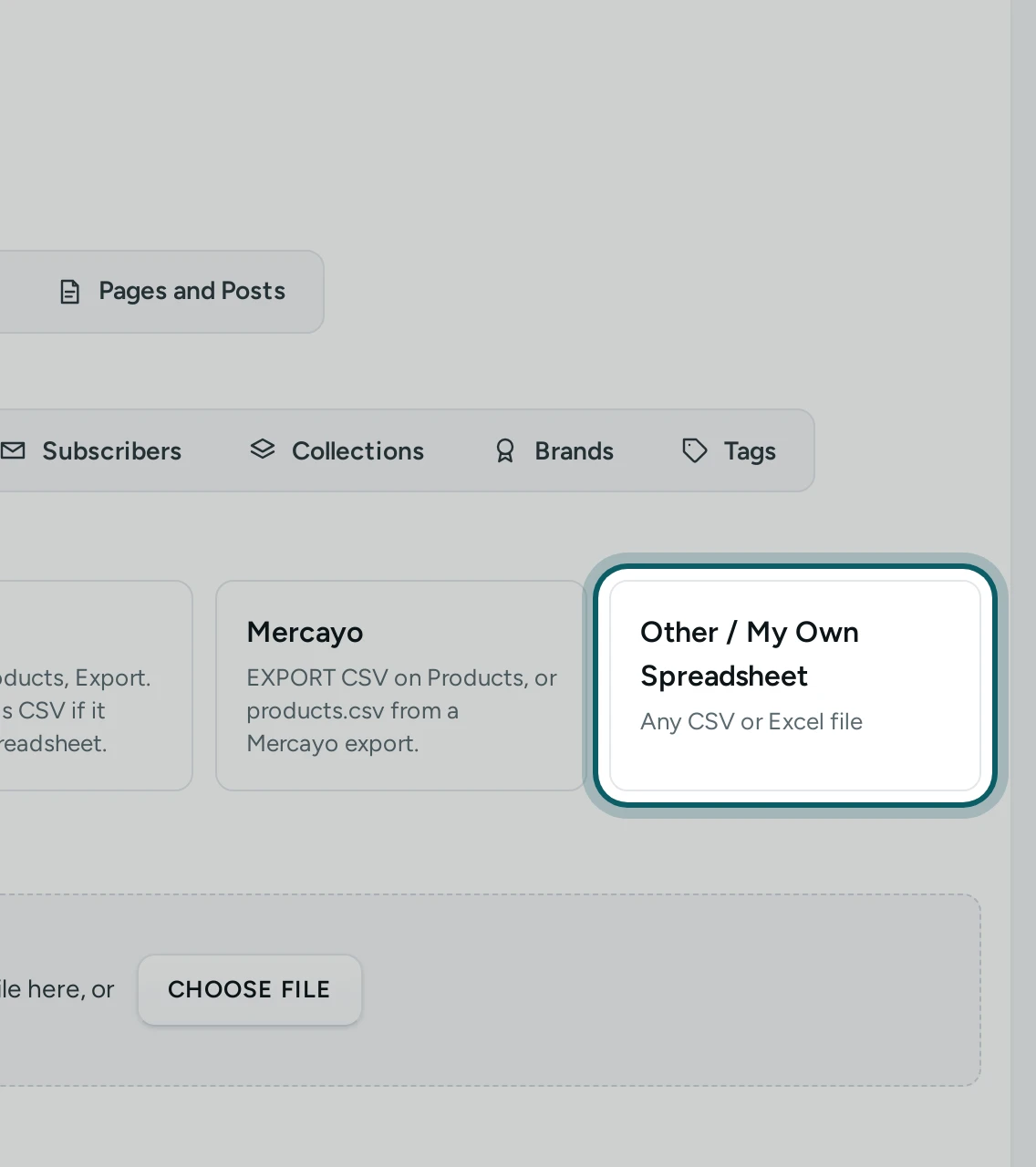
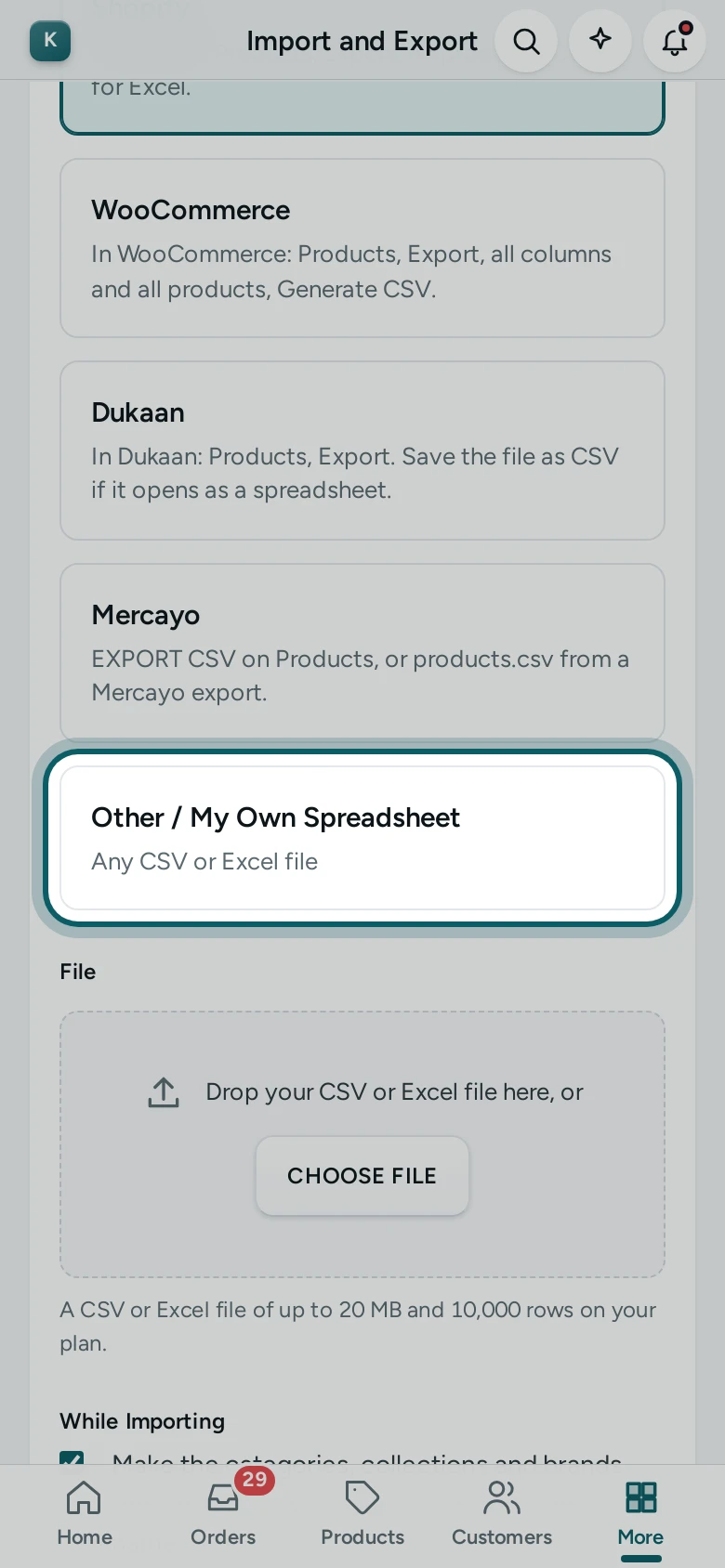
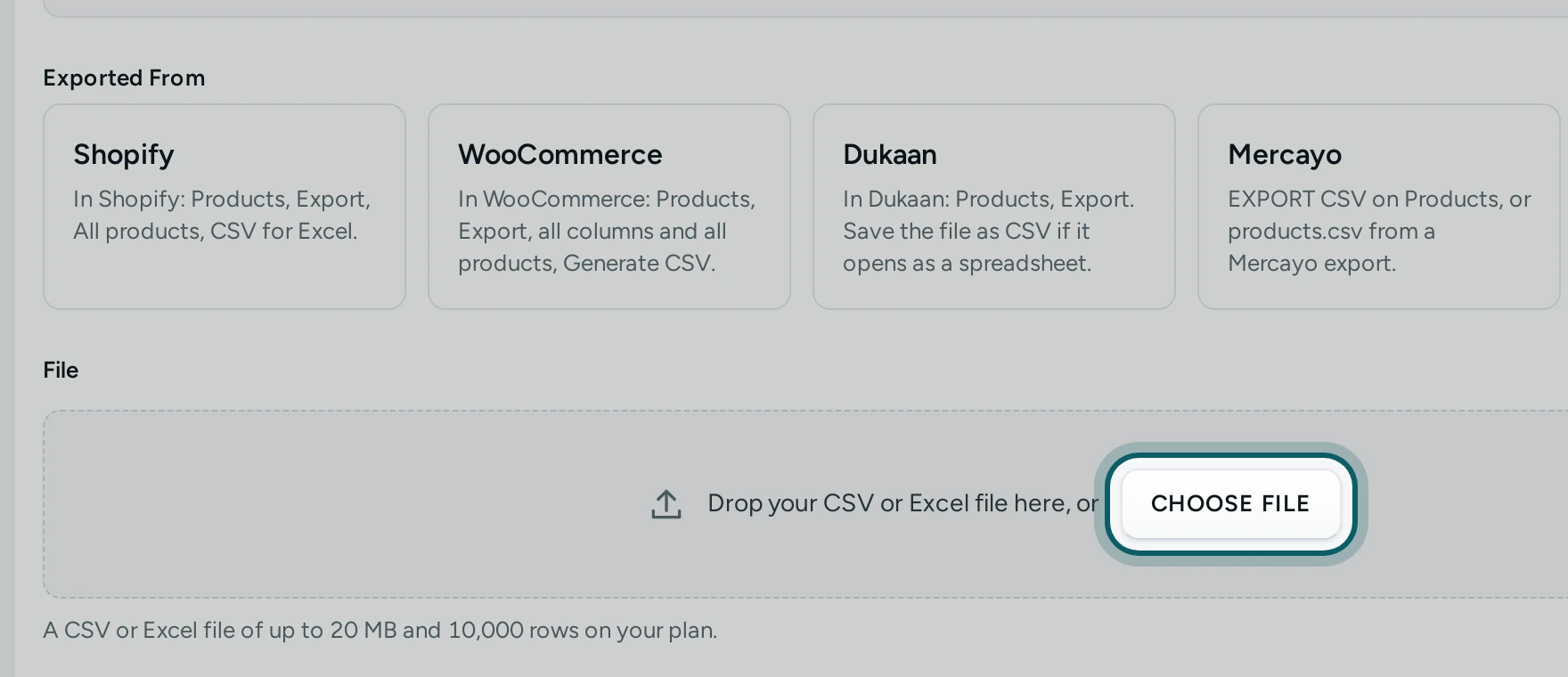
Products from your own spreadsheet. On the Import tab, choose Products, then Other / My Own Spreadsheet under Exported From.
Step 2 of 9
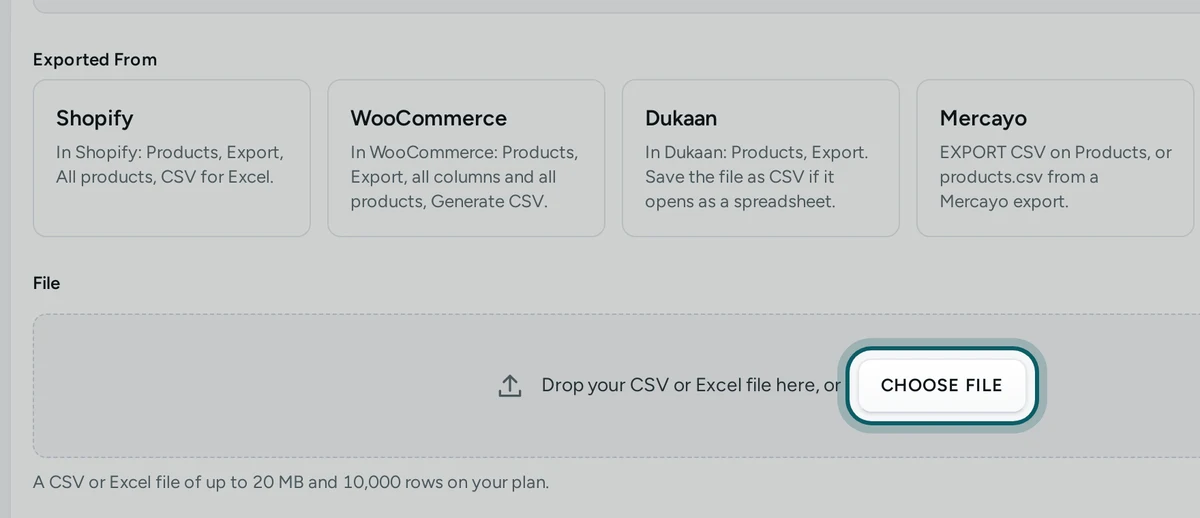
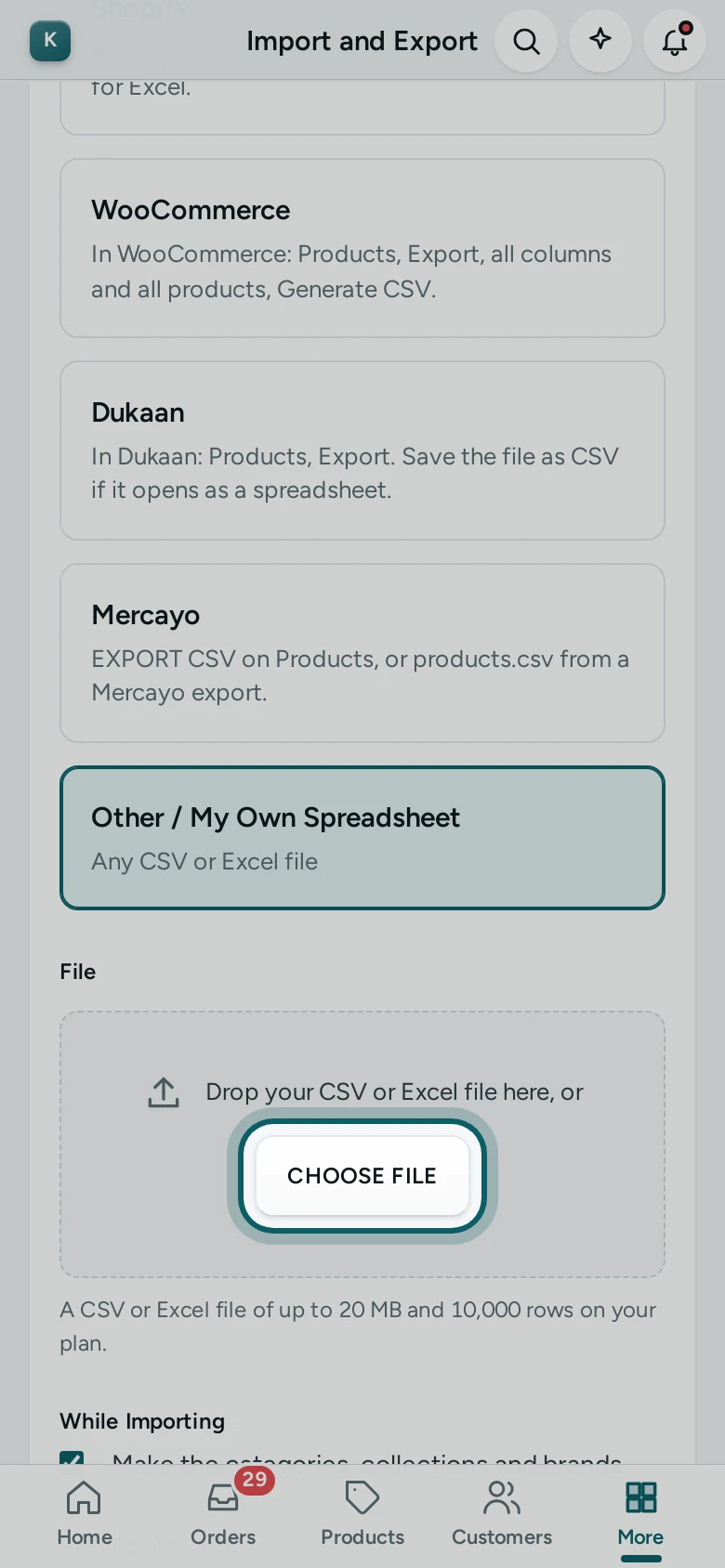
Add the file. Drop it in, or press CHOOSE FILE. Match Your Columns opens with Mercayo's guesses filled in.
Step 3 of 9
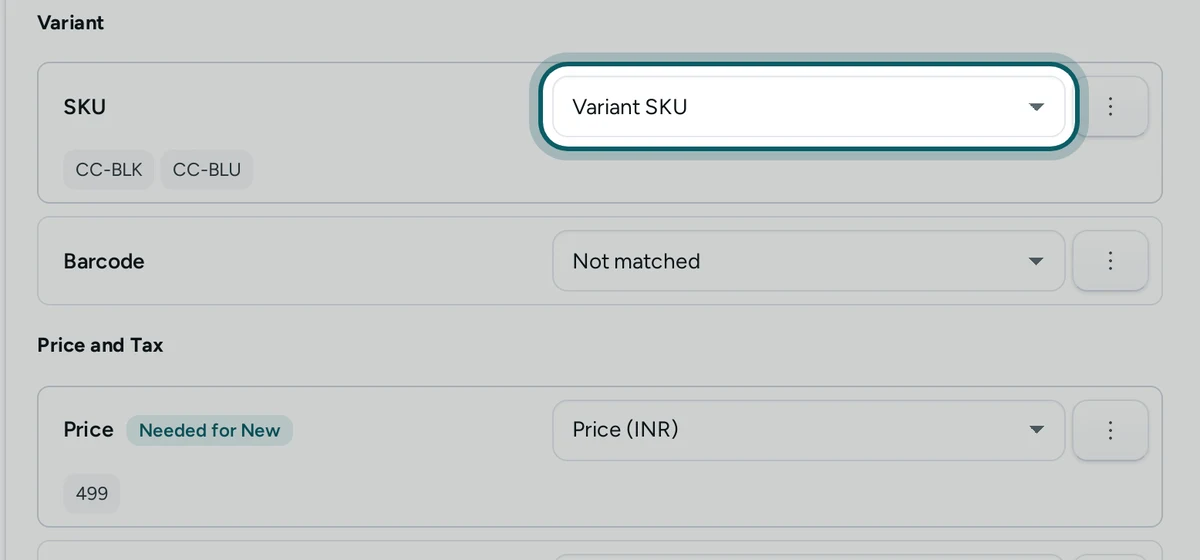
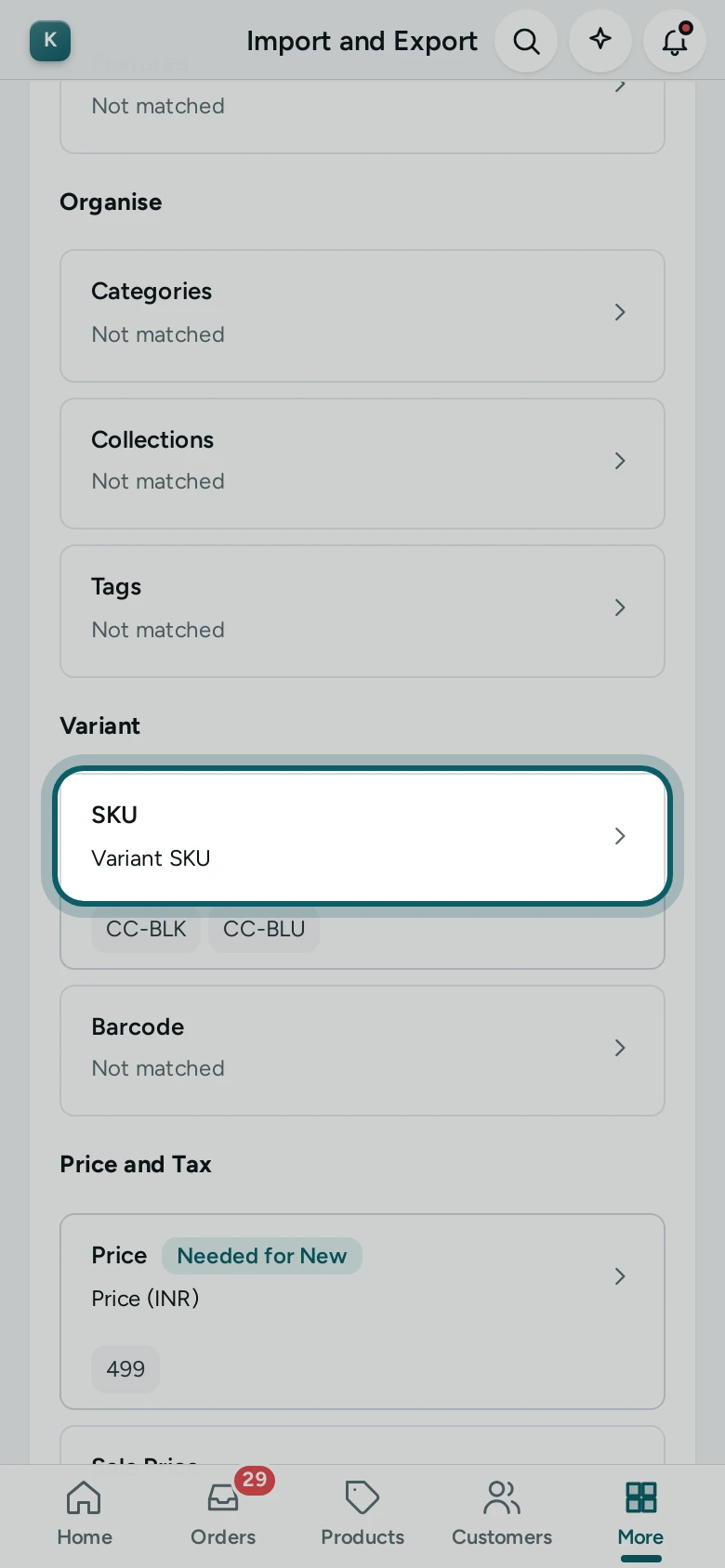
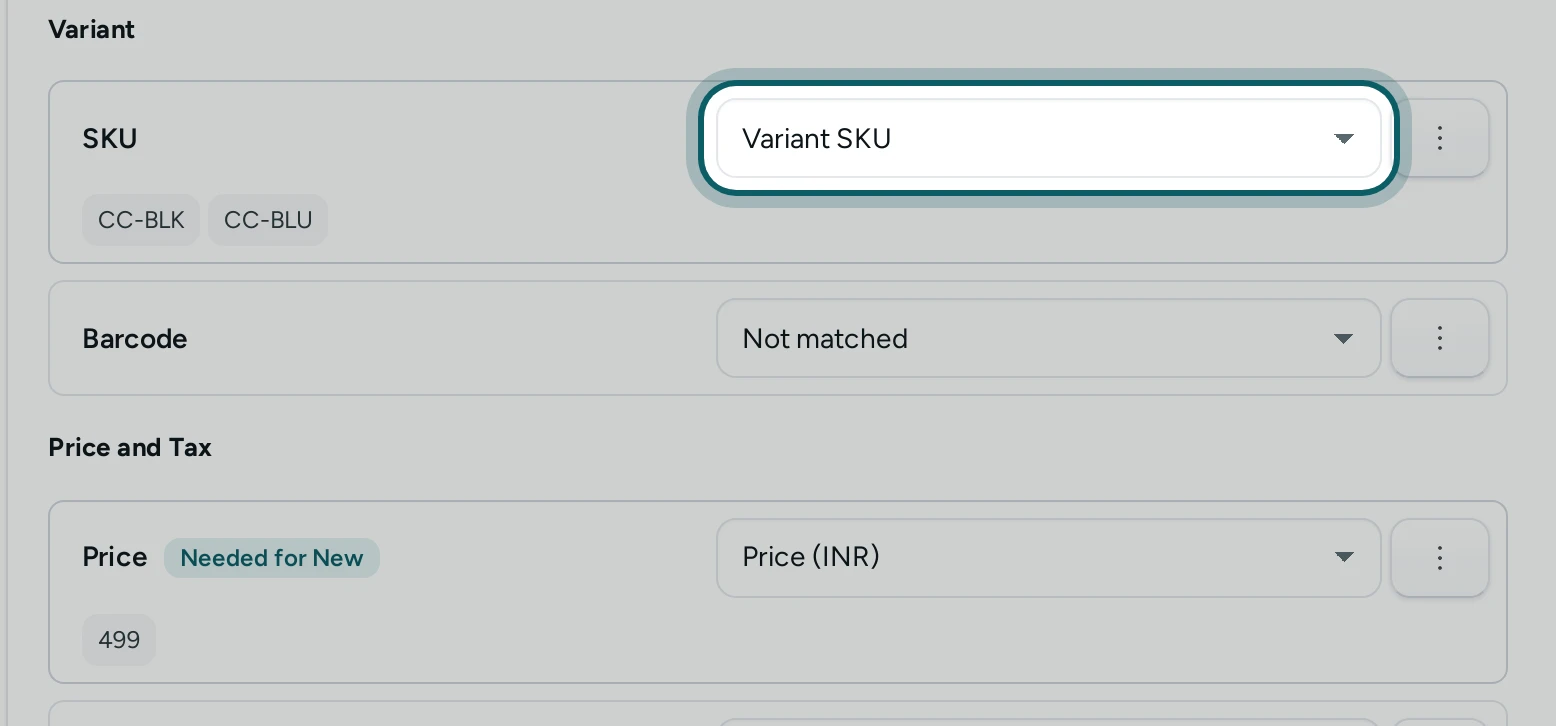
Check the four columns. Make sure SKU, Price, MRP (Compare-at Price) and Stock each take the right column (on a phone, press a field's row to change it). Leave the rest Not matched. If prices are written with a comma for decimals, or in paise, say so under How Your File Writes Things.
Step 4 of 9
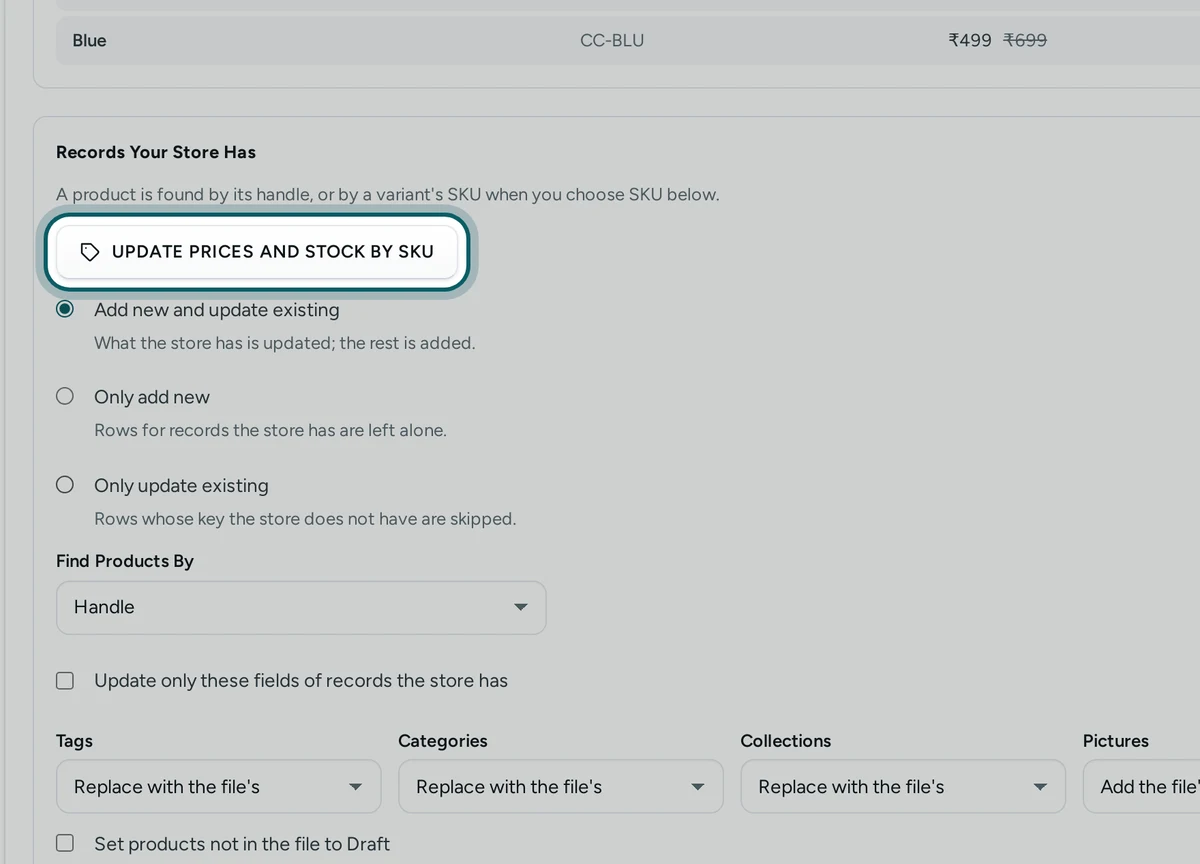
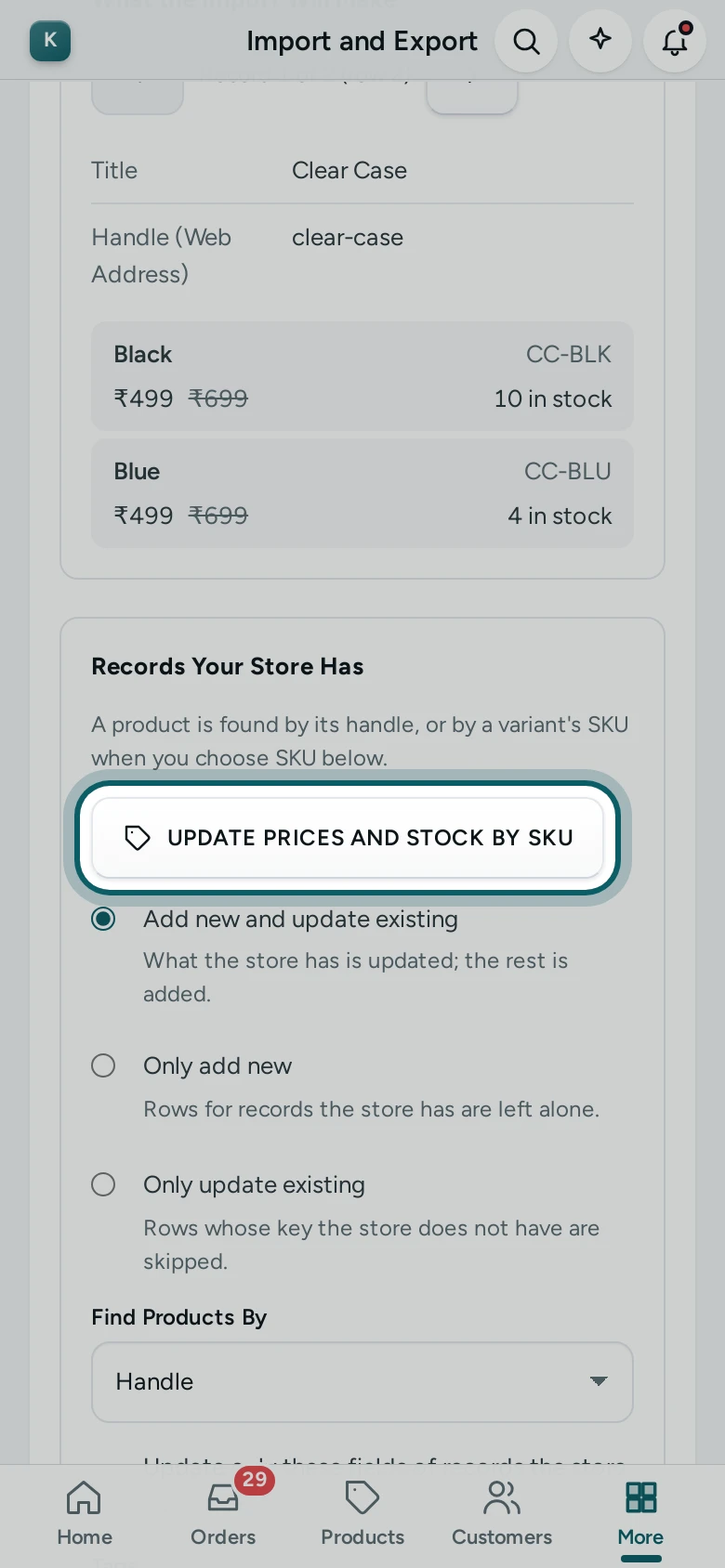
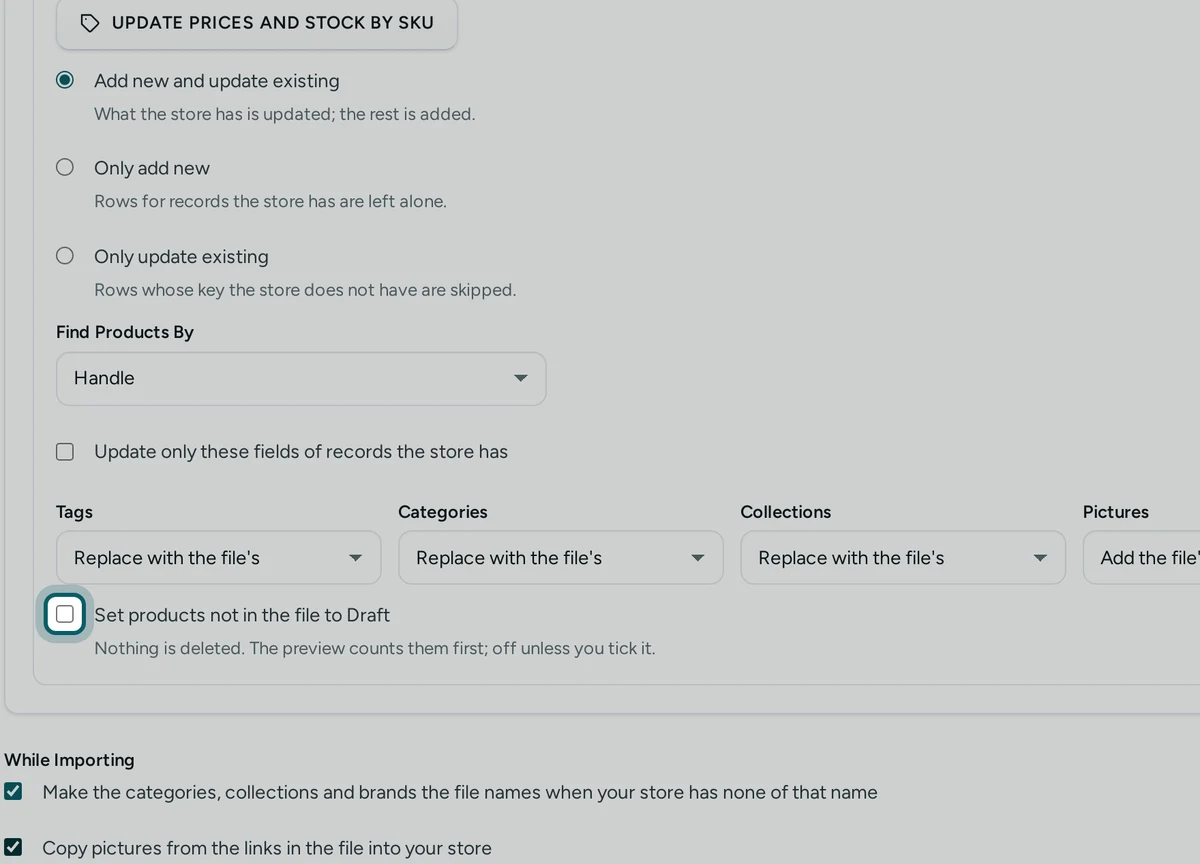
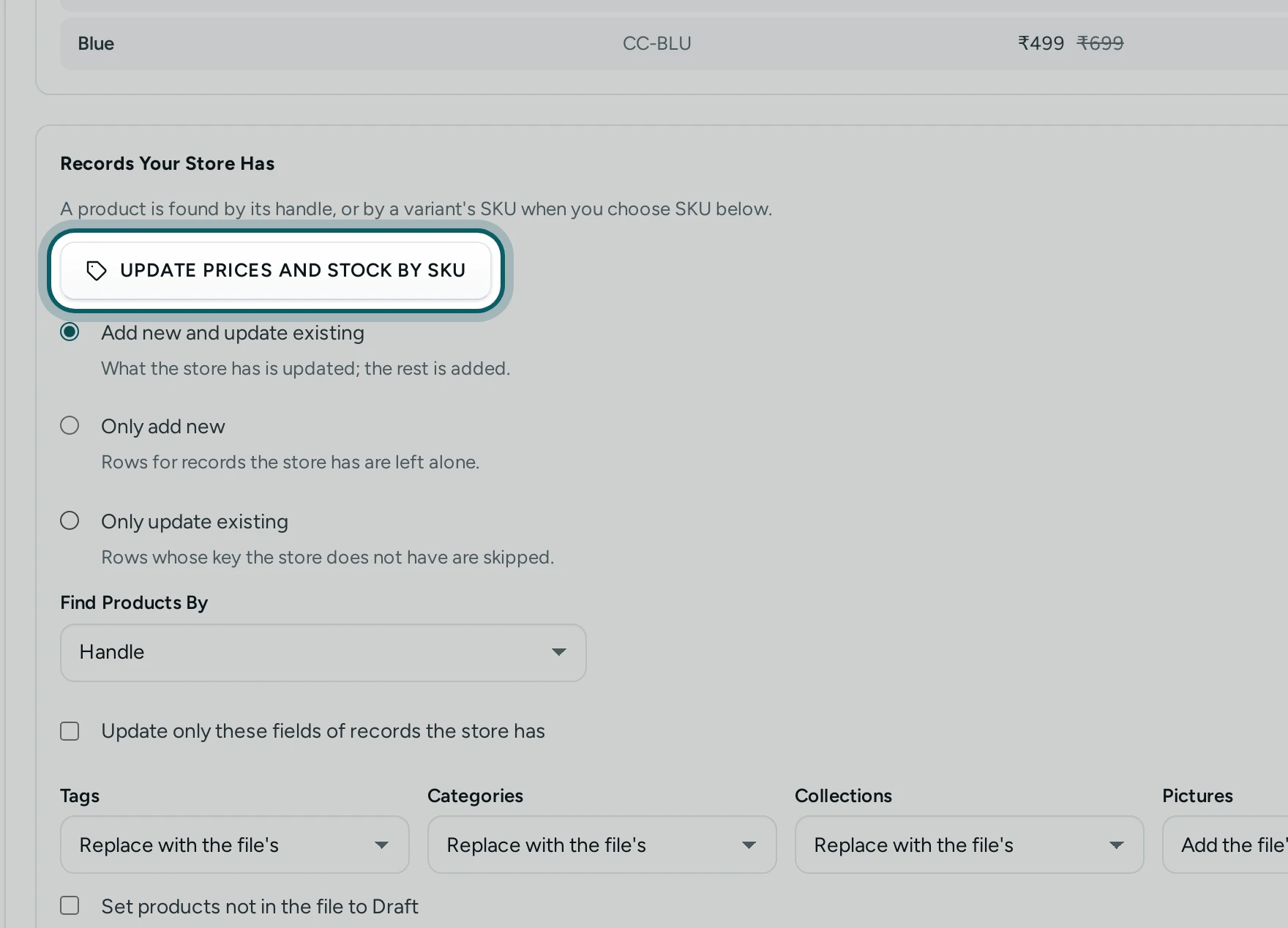
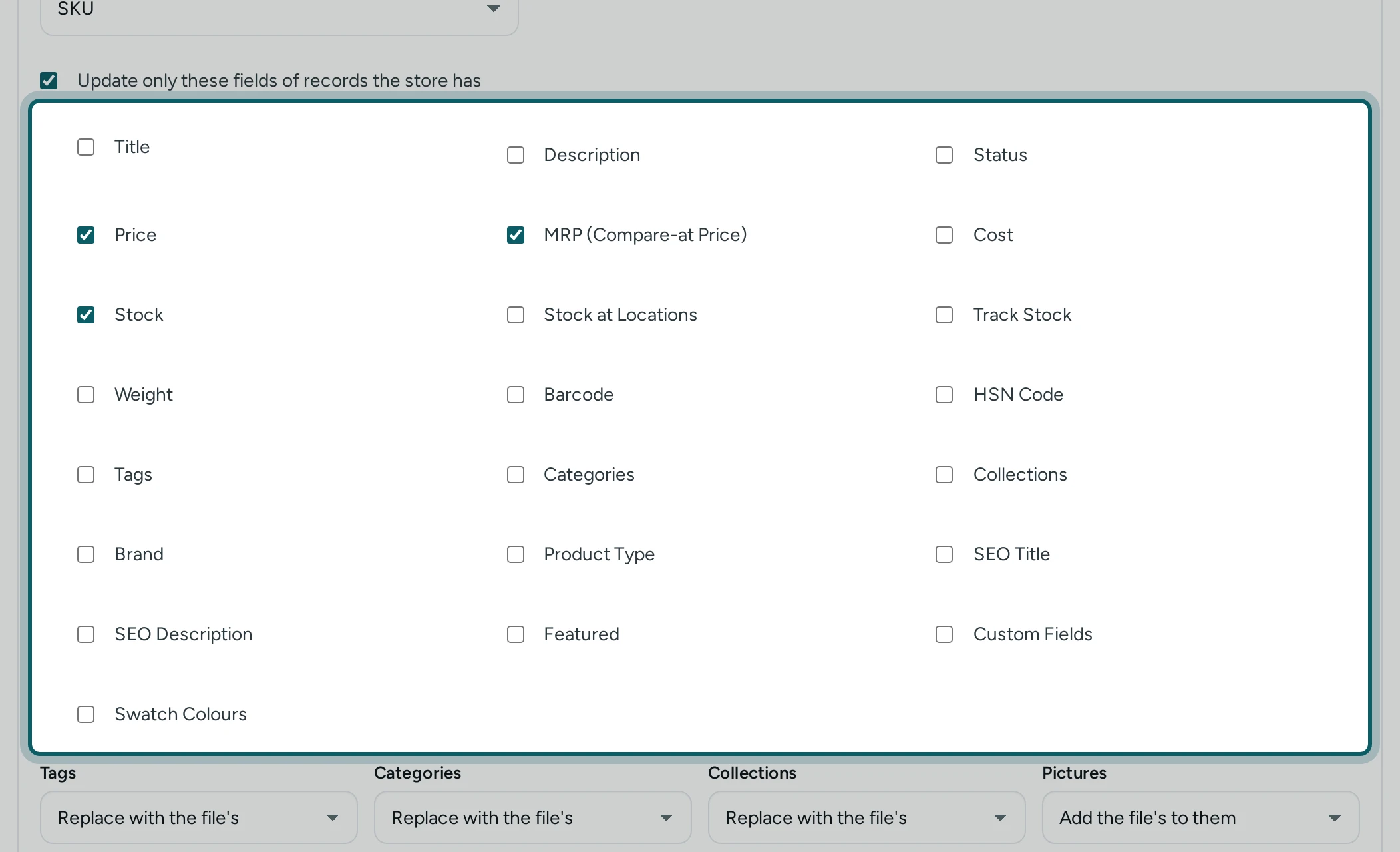
Press UPDATE PRICES AND STOCK BY SKU. Under Records Your Store Has, the button sets everything at once: Only update existing, Find Products By SKU, and Update only these fields of records the store has with Price, MRP (Compare-at Price) and Stock ticked.
Step 5 of 9
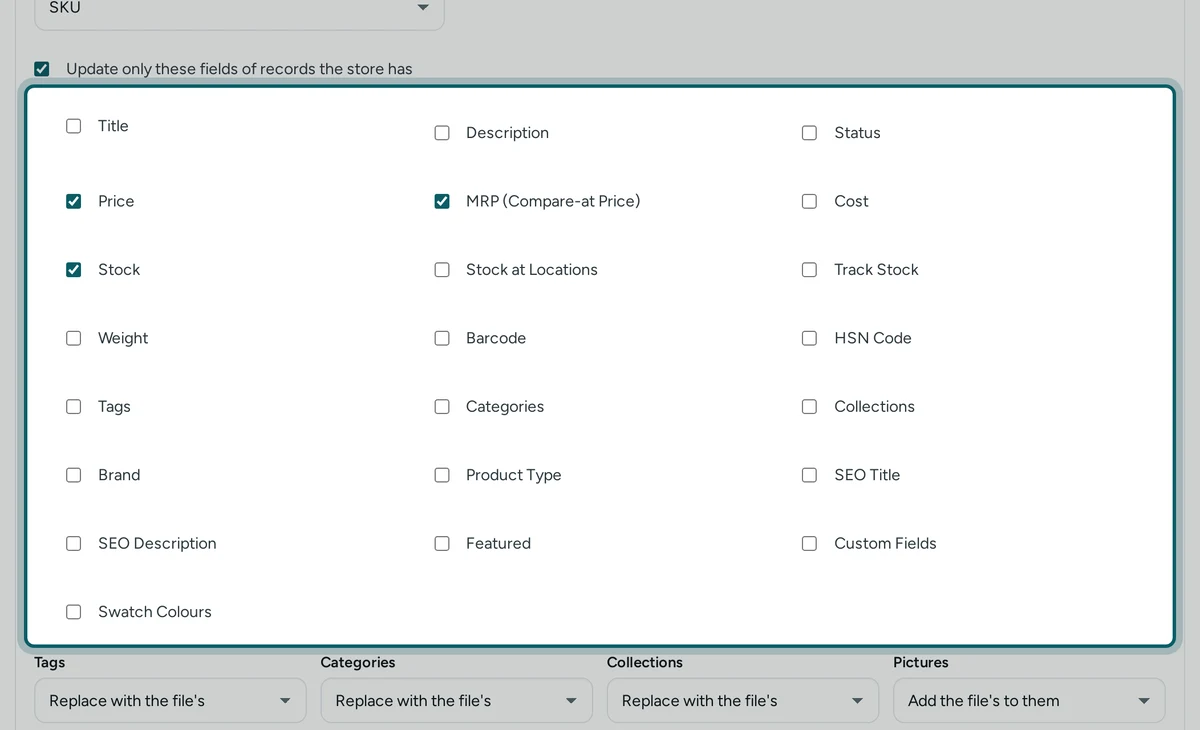
Add or take out fields. The ticked fields are the only ones changed. Tick Sale Price or Cost too if the file has them; untick Stock to change prices only.
Step 6 of 9
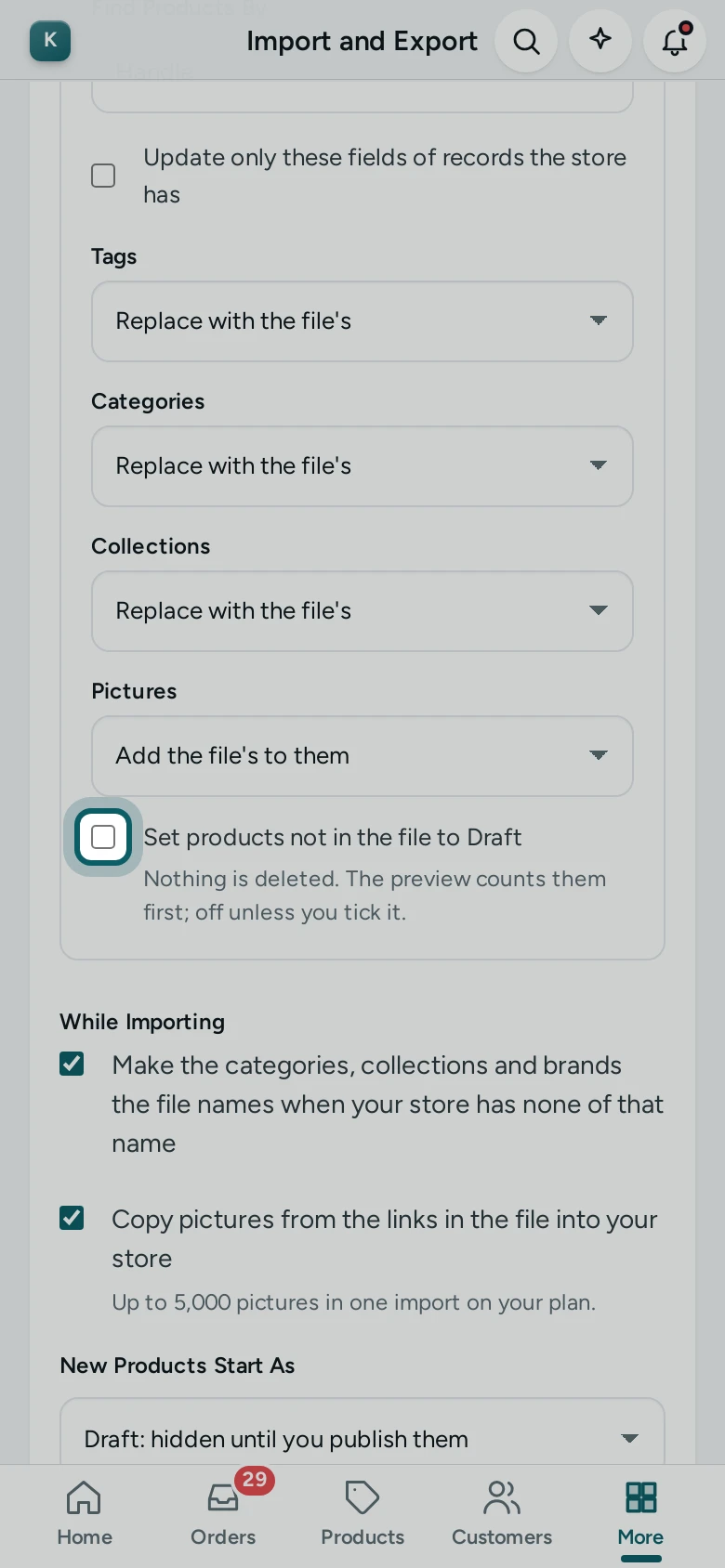
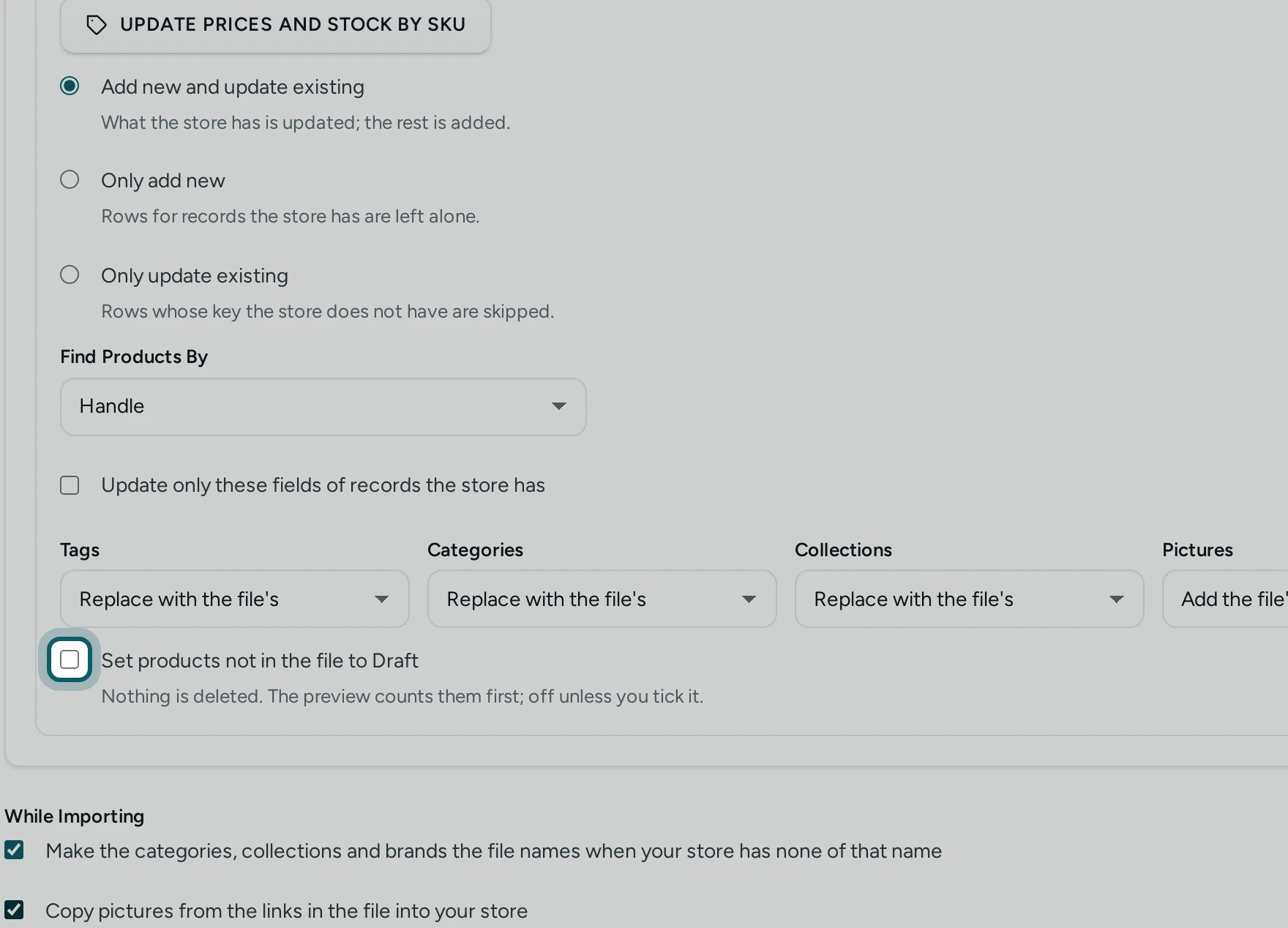
Leave products not in the file alone. Set products not in the file to Draft stays off for a price list that names some of your products. Tick it only when the file is your whole range and anything missing should be hidden: nothing is deleted, and the preview counts them first ("12 products the store has are not in the file: IMPORT sets them to Draft.").
Step 7 of 9
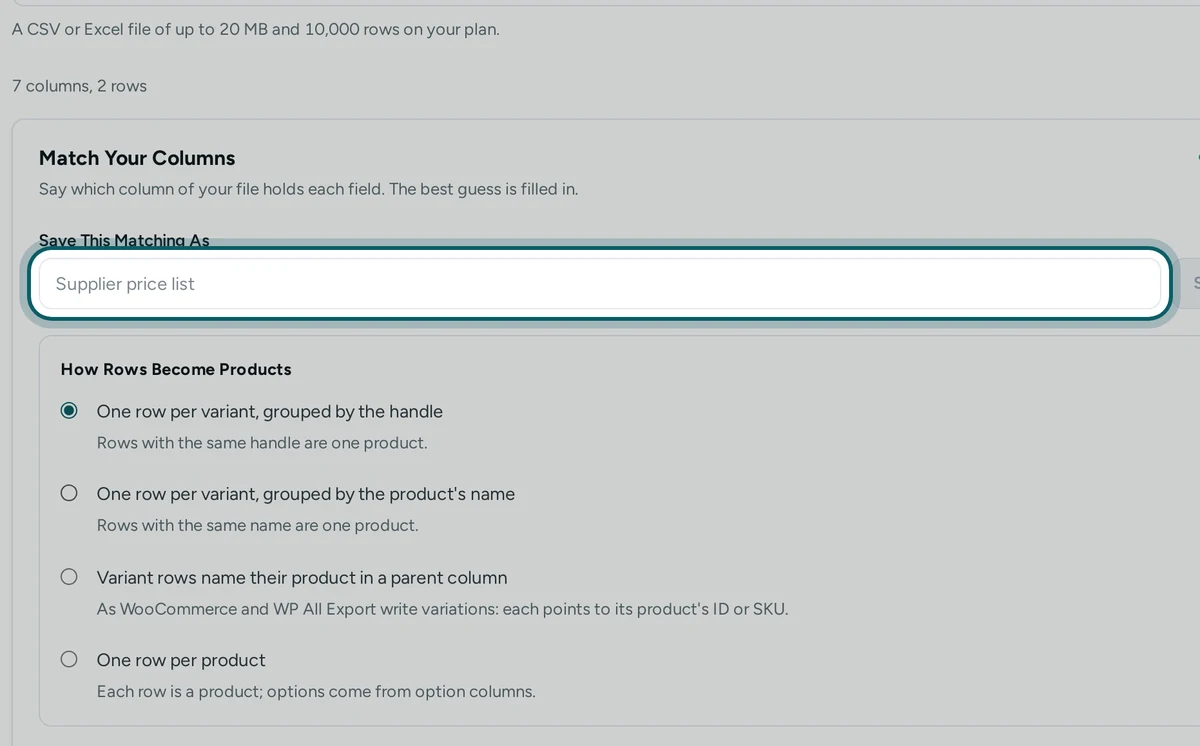
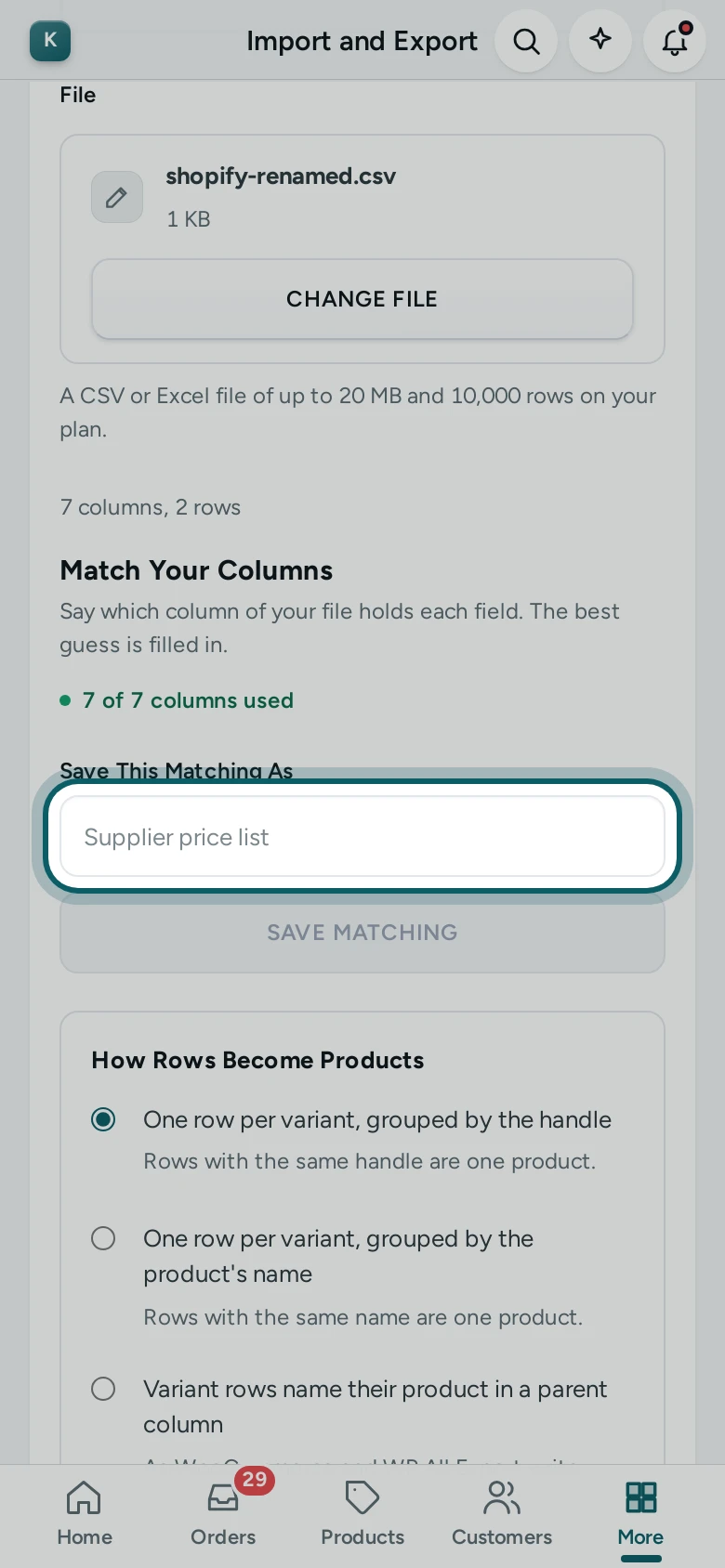
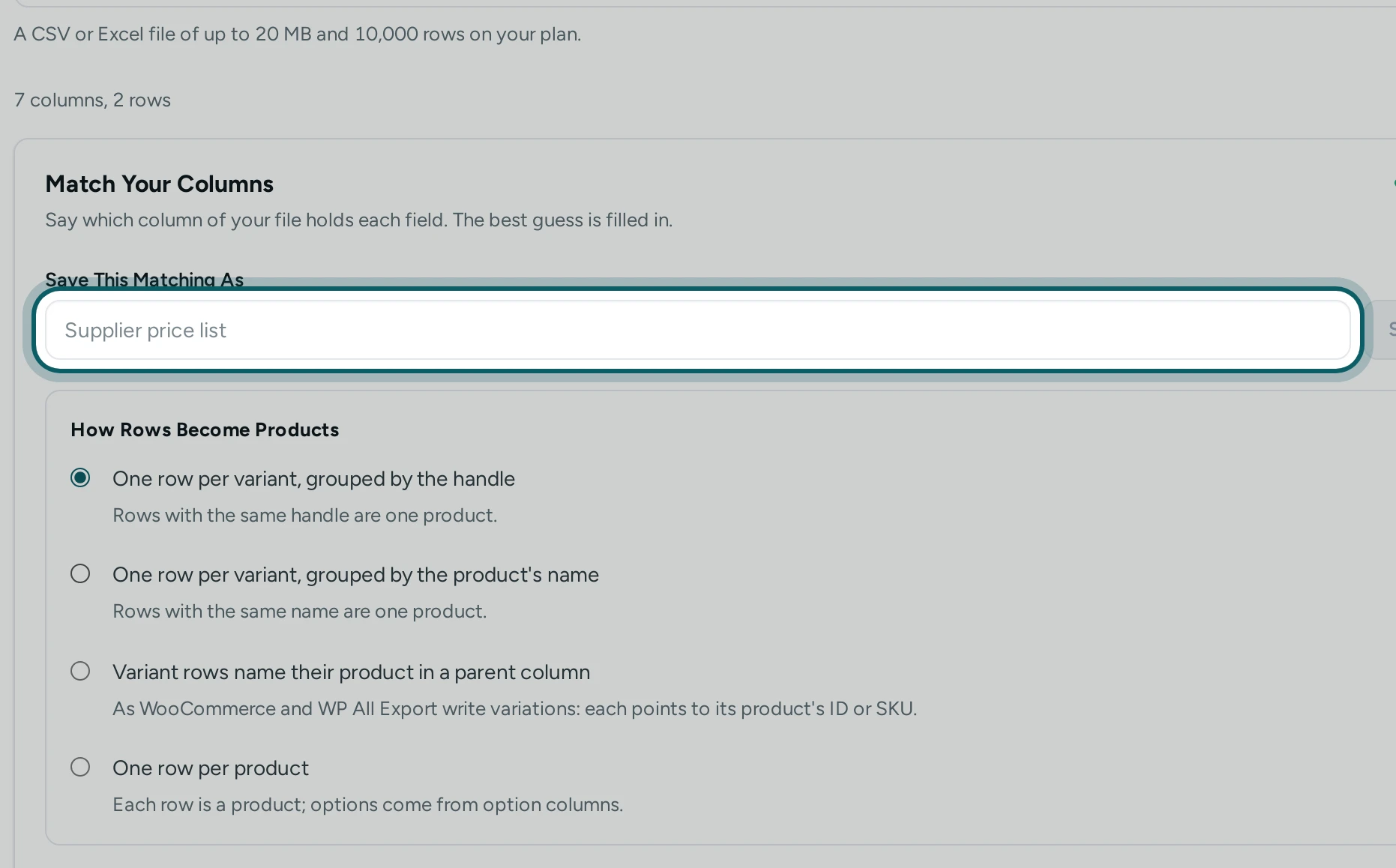
Save the matching. Name it after the supplier, such as "Supplier price list", under Save This Matching As, and press SAVE MATCHING. The record options are saved with it.
Step 8 of 9
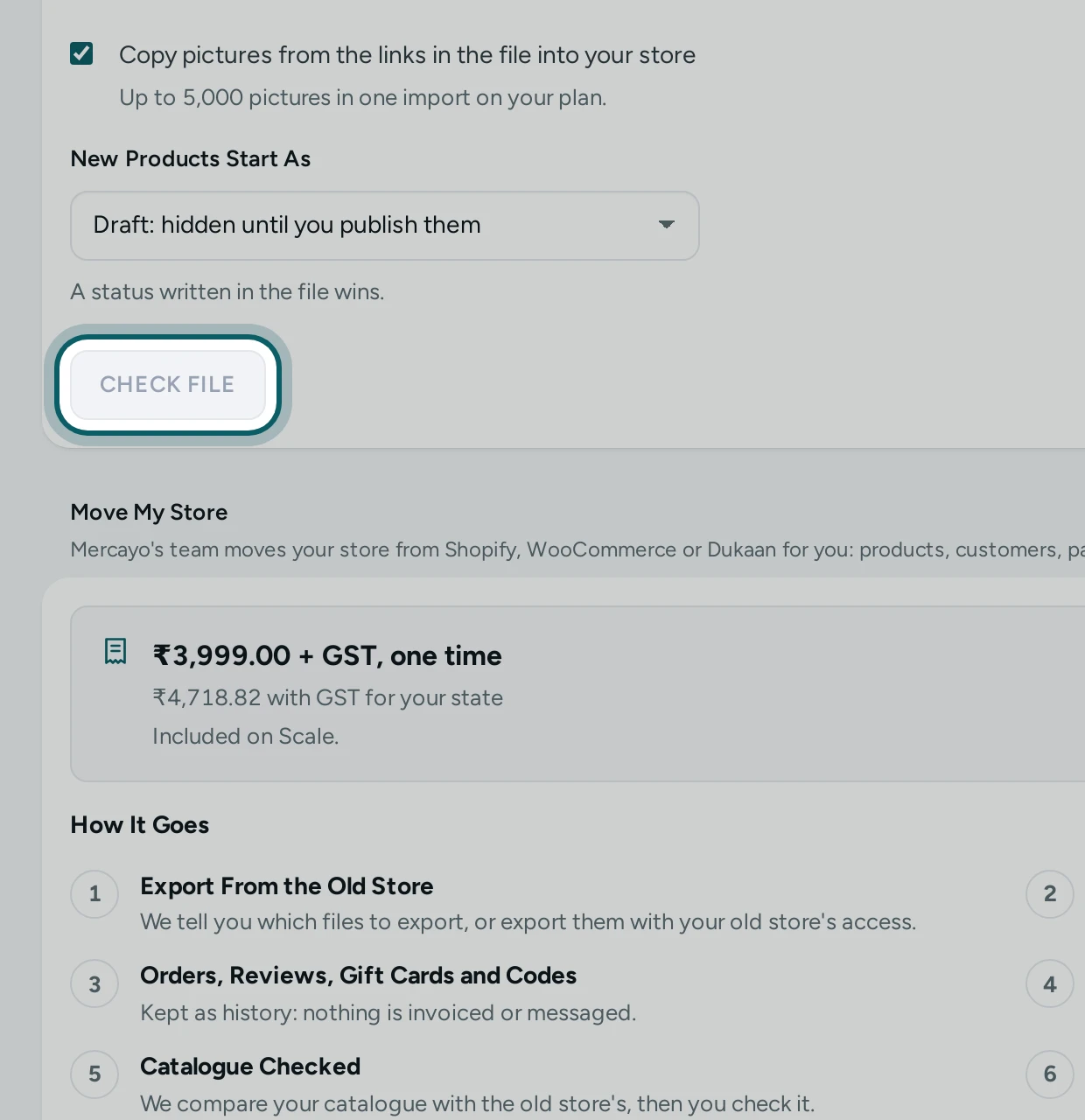
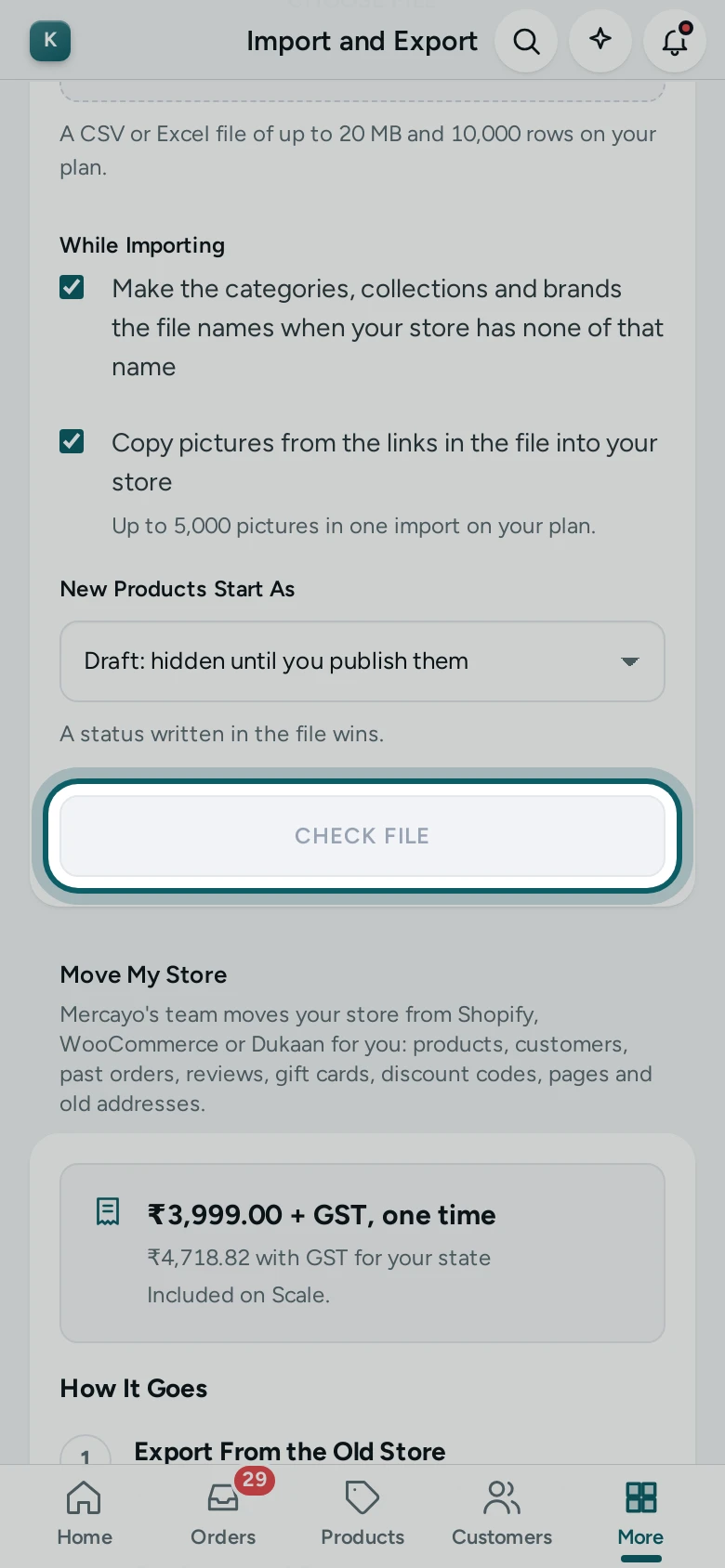
Check the file. Press CHECK FILE. The preview counts what Will Be Updated; a row whose SKU your store does not have is listed with "Your store has no record with this key, so the row was skipped." Nothing has changed yet.
Step 9 of 9
Import. Press IMPORT. The prices and stock change as the import runs, in the background; you can leave the page. The import is in the activity log.
Next Time
- Use the saved matching. When the next list comes with the same columns, choose Products, Other / My Own Spreadsheet and the file. Mercayo says "Your saved matching “Supplier price list” fits this file." Press USE IT, then CHECK FILE and IMPORT.
Questions
What if two variants have the same SKU?
Give each variant its own SKU first, in the product editor or the products list. A SKU that is not unique cannot say which variant to change.
Can I update by the product's handle instead?
Yes. Choose Handle under Find Products By. A handle names a whole product, so use it for a product with one variant.
Does it change stock at my other locations?
Stock sets each variant's stock, as the products CSV does. When you keep stock at several locations, match a column to each location under Stock at Each Location instead.
Will new products in the supplier's list be added?
Not with Only update existing. To add them as well, choose Add new and update existing: a new product then needs its title and price columns too.