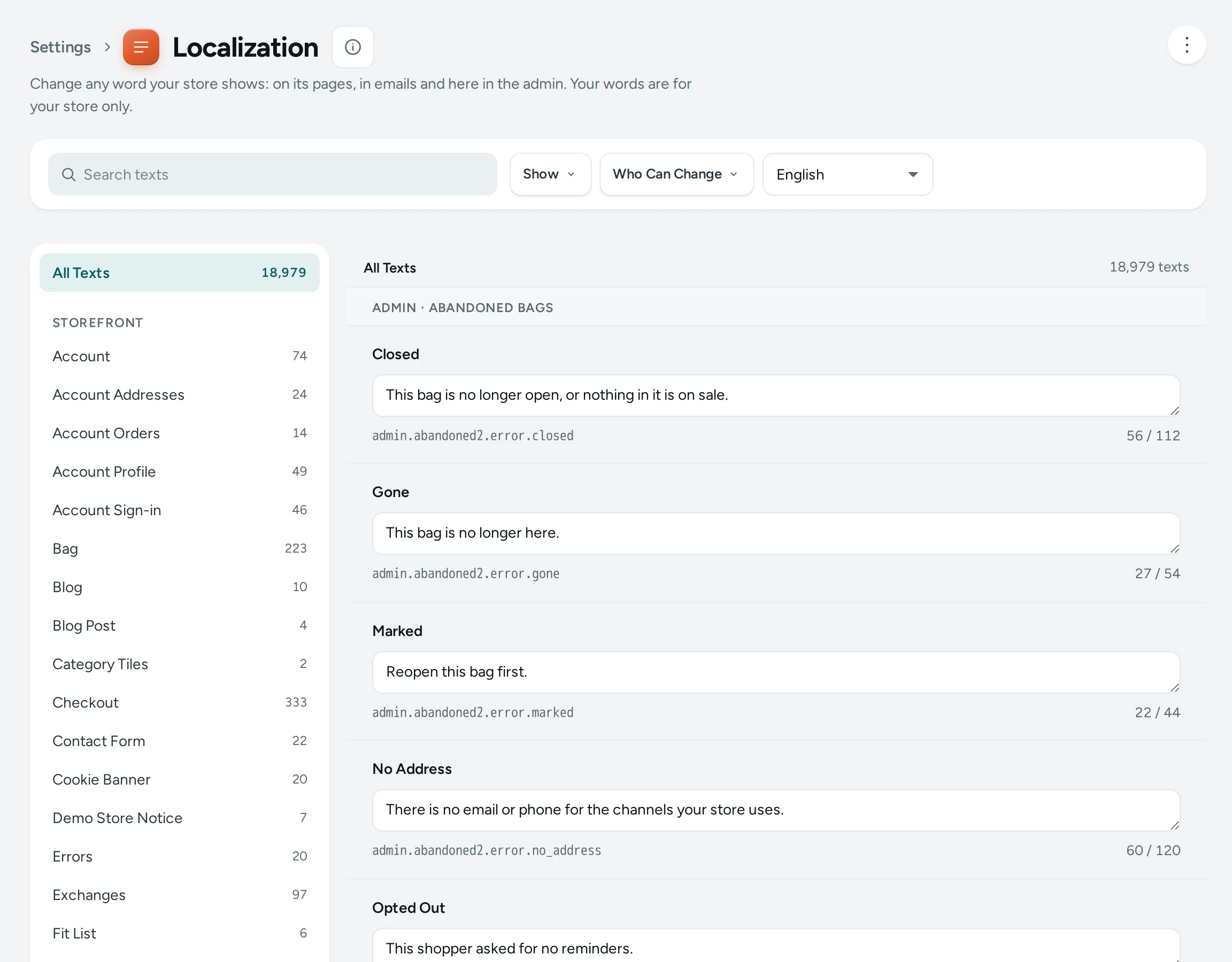
Every word Mercayo shows for your store can be yours. Call the bag a "Cart", make ADD TO BAG say "ADD TO CART", reword the order email, or translate a button into Hindi. "Change any word your store shows: on its pages, in emails and here in the admin. Your words are for your store only." Open Settings › Localization. Anyone who can see settings can look; changing needs the settings right ("You can see these texts. Changing them needs the settings right.").
How Words Are Chosen
For each text your store shows, in each language:
- Your store's text, if you changed it, wins.
- Otherwise Mercayo's text for all stores.
- Otherwise the standard English.
So your change applies only to your store, and stays when Mercayo improves the standard wording.
Finding a Text
- Search texts: type words you see on the screen, for example "add to bag" or "out of stock".
- Show: All Texts or Changed only ("12 changed").
- Groups of Texts: by area, Storefront, Emails, Messages and Admin, then by page (Checkout, Product page, Order placed email…). Group picks one.
- Language: which language's words you are editing (your main language and the others you offer). Save or discard first before switching ("Save or discard your changes first.").
- CLEAR FILTERS starts again.
"No texts found: Try another word, area or language."
Changing a Text
- Click the text and type your words. The field shows "Instead of:" with the standard words.
- Keep every placeholder exactly: the parts in two curly brackets, like
{{amount}}or{{store}}, are filled in by Mercayo (an order number, a price). Put in adds one at the cursor. - Changed texts are marked Not Saved. Press SAVE 1 TEXT (or SAVE 5 TEXTS): "Saved 5 texts. They show now."
What Is Checked
| Message | Fix |
|---|---|
Put back {{amount}}. | A placeholder is missing |
Remove {{x}}: this text cannot fill it in. | A placeholder that does not belong |
| Type each placeholder exactly as shown, with two curly brackets on each side. | A broken placeholder |
| Keep it to … characters. | Too long for its place |
| Plain text only: remove < and >. | No HTML |
| Links and web addresses are not allowed. | No links in texts |
| Remove the special characters. | Invisible or control characters |
"1 text needs a fix before anything is saved." Nothing is saved until all changes are valid.
Reset and Undo
- UNDO drops your unsaved change.
- RESET puts a saved text back to the standard words ("Goes back to:" shows them).
Texts Only Mercayo Can Change
Some texts are locked: "Only Mercayo can change this text: it is legal, money or security wording, or an approved message." For example the wording of consent, invoices and payment, and SMS texts approved under India's DLT rules ("This SMS is fixed. It is the wording India's DLT rules approved, and a changed text would not be delivered."). Who Can Change says You can change, or shows it is Set by Mercayo. A Machine translation mark shows Mercayo's machine-translated words in another language: check and improve them.
Good to Know
- Your saved words show on your store at once; pages kept ready for speed are refreshed for you.
- The words of your own content (products, pages, menus) are edited where they live, and translated in Translate.
- If a teammate saved the same text meanwhile: "Someone else changed this text since you opened the page. Reload to see it, then edit again."
Questions
How do I change "Bag" to "Cart" everywhere?
Search "bag" in the Storefront area and change each text you want, keeping placeholders. Check the Theme editor too: the bag's name may also be a store setting there.
Can I change the words of my order emails?
Yes, in the Emails area. The parts the law or payments require are locked.
Will my changes be lost when Mercayo updates?
No. Your words win over Mercayo's for your store. If a text is retired by Mercayo, it is marked "This text is no longer used."