Checkout and COD is the page that decides how your checkout behaves and how cash on delivery works in your store. For most Indian stores this is the most important settings page: COD brings orders, but it also brings fake orders and parcels refused at the door, and this page holds every tool Mercayo has against that, from a fee and a limit to a confirmation code on the shopper's phone, a staff call, part payment online and the automatic cancelling of orders nobody confirms. It also holds the checkout's own options (landmark, saved addresses, GST invoices for businesses, gifts and gift wrap, rounding to the rupee), online payments and the thank-you page. Open it from Settings › Checkout and COD. Anyone who can see settings can open the page; changing it needs the right to change settings, which the store's owner and admins have.
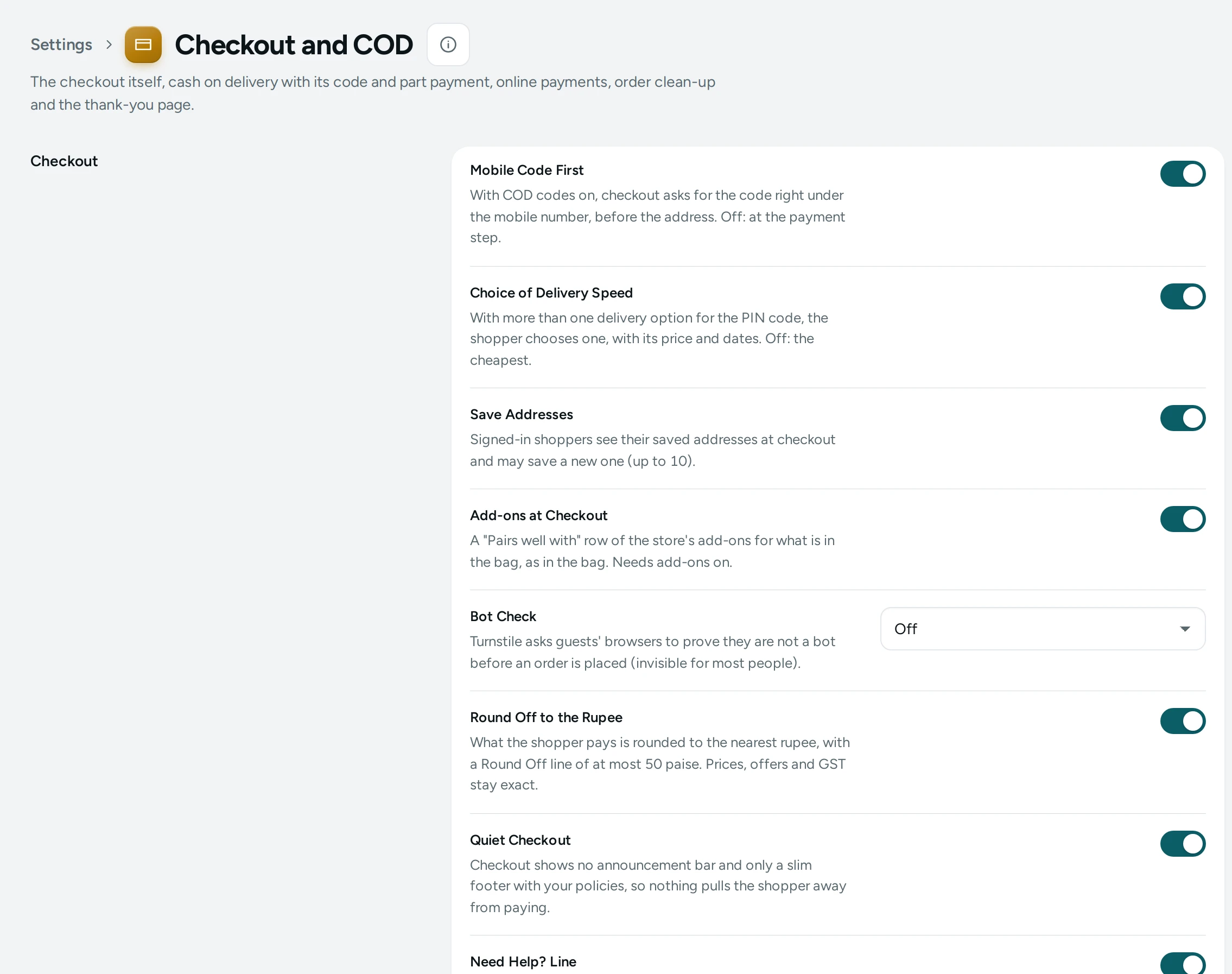
How the Page Is Laid Out
The title reads Checkout and COD, with "The checkout itself, cash on delivery with its code and part payment, online payments, order clean-up and the thank-you page." Below it are eight rows, one per feature, in this order:
- Checkout
- Cash on Delivery
- COD Confirmation Code
- Part Payment for COD
- RTO Shield
- Online Payments
- Order Clean-up
- Thank-You Page
Each row has the feature's name and one sentence on the left (with an On or Off pill for the features that have a main switch: Cash on Delivery, COD Confirmation Code, Part Payment for COD and RTO Shield) and a card with its settings on the right. Every setting shows its help text, and number settings show their limits, like "Between 50 and 500."
There is one save for the whole page. Change anything and a bar appears with Unsaved changes, DISCARD and SAVE. SAVE saves every change on the page together, or none if one value is wrong ("Some values need a look. Nothing was saved yet."). The page says Settings saved. when it is done. A setting you have changed from Mercayo's default shows USE DEFAULT beside it.
Checkout
The options of the checkout page itself.
| Setting | What It Does | Default |
|---|---|---|
| Mobile Code First | With COD codes on, checkout asks for the code right under the mobile number, before the address. Off: at the payment step. Has an effect only while Confirm COD Orders by Code is on. | On |
| Choice of Delivery Speed | With more than one delivery option for the PIN code, the shopper chooses one, with its price and dates. Off: the cheapest. | On |
| Save Addresses | Signed-in shoppers see their saved addresses at checkout and may save a new one (up to 10). Works only while shopper accounts are on in Shopper Accounts Settings. | On |
| Add-ons at Checkout | A "Pairs well with" row of the store's add-ons for what is in the bag, as in the bag. Needs add-ons switched on in Bag and Wishlist Settings. | On |
| Bot Check | Off or Cloudflare Turnstile. Turnstile asks guests' browsers to prove they are not a bot before an order is placed (invisible for most people). Signed-in shoppers are never asked. It works only once Mercayo has set up Turnstile on its servers; until then checkout behaves as if it were off. | Off |
| Round Off to the Rupee | What the shopper pays is rounded to the nearest rupee, with a Round Off line of at most 50 paise. Prices, offers and GST stay exact. | On |
| Landmark | An optional landmark field ("near the metro station") under the address, up to 120 characters. It goes on the order and the courier's label. | On |
| Home, Work or Other | The shopper names the address Home, Work or Other. It goes on the order and on a saved address. | On |
| GST Invoice for Businesses | Shoppers may add their GSTIN and business name; the GST invoice then names the business, for its input tax credit. | On |
| Gift Option | Shoppers may mark the order as a gift: a message on the packing slip, and its prices hidden on the slip. | On |
| Longest Gift Message | The most characters a gift message may have. Between 50 and 500. | 300 |
| Gift Wrap | Shoppers may ask for gift wrap, for the fee below (with GST at the delivery rate). Off: not offered. Needs Gift Option on. | Off |
| Gift Wrap Fee | What gift wrap costs per order. 0: free. Between ₹0 and ₹1,000. | ₹49 |
| Free Gift Wrap Above | Gift wrap is free when the goods (after offers) reach this amount. Empty: never free. At least ₹1. | Empty (never free) |
How Rounding Works
With Round Off to the Rupee on, a bag that comes to ₹1,048.62 is paid as ₹1,049, with a Round Off line of +₹0.38; one at ₹1,048.40 is paid as ₹1,048, with −₹0.40. Half a rupee rounds up. Prices, discounts, delivery, fees and GST all stay exact to the paisa; only the final amount to pay is rounded, and the Round Off line is printed below the taxes on the GST invoice. A part paid online now (an advance, or a part paid with store credit or a gift card) is whole rupees too. Switch it off to charge exact amounts in paise.
How the Business GST Invoice Works
With GST Invoice for Businesses on, checkout offers fields for a GSTIN, the Business Legal Name and, if needed, a Billing Address. Mercayo checks that the GSTIN is valid (its shape, its state code and its check character) and that it belongs to the state the order is delivered to, because the GST charged is the delivery state's. A billing address must be in the GSTIN's state as well. The order's GST invoice then names the business, its GSTIN and billing address as the recipient, with the delivery address as "ship to". Your store must be registered for regular GST for a tax invoice to be issued at all; see Taxes.
How Gifts and Gift Wrap Work
With Gift Option on, checkout has a Gift and Note part with This order is a gift. The shopper may write a Gift Message (Optional) up to your Longest Gift Message, and choose Hide prices on the packing slip. The message is printed on the packing slip, and the prices and the cash amount are hidden on it when the shopper asked for that.
With Gift Wrap on as well, the shopper sees "Gift wrap for ₹49" (your fee), or "Free gift wrap" when the fee is 0 or the goods after offers reach Free Gift Wrap Above. The wrap is a charge on the order, like delivery: it is taxed at your GST on Delivery and Fees rate (Settings › Invoices, 18% unless you change it), shown on the GST invoice, and added to what is paid now (online) or in cash (COD).
Cash on Delivery
"Let shoppers pay in cash when the parcel arrives, with a fee and a limit if you want."
| Setting | What It Does | Default |
|---|---|---|
| Cash on Delivery | Let shoppers pay in cash when their order arrives. | On |
| Cash on Delivery Fee | An extra charge on orders paid in cash. ₹0 means no fee. Not used while Part Payment for COD is working (its own COD charge takes its place). | ₹0 |
| Cash on Delivery Limit | The most cash a courier may collect for one order, fee included. Larger orders must be paid online. Empty (shown as No limit) means no limit. | Empty (no limit) |
What Decides Whether a Shopper Gets COD
For each bag, Mercayo checks these in order, the same way in the bag's price and again when the order is placed (never only in the browser):
- Cash on Delivery is on for your store.
- The shopper's PIN code allows COD. A PIN rule can turn COD off for PIN codes starting with some digits.
- The chosen delivery method allows COD (Allow Cash on Delivery on the method).
- The total to collect, with the COD fee and its GST, is not above Cash on Delivery Limit.
If any check fails, checkout explains why in the shopper's words: "Cash on delivery isn't available for this PIN code.", "Cash on delivery isn't available with this delivery option." or "Cash on delivery is available for orders up to ₹5,000."
The COD Fee and GST
The fee is added only when the shopper pays by COD, as a "Cash on delivery fee" line. It is taxed at your GST on Delivery and Fees rate (Settings › Invoices). If your prices include GST (the default in Taxes), the fee you type already includes its GST; if GST is added on top of your prices, GST is added to the fee too. A store not registered for GST charges no GST on it.
COD Confirmation Code
"Ask for a code on the shopper's phone before a COD order is placed, to cut fake orders."
| Setting | What It Does | Default |
|---|---|---|
| Confirm COD Orders by Code | Shoppers confirm their mobile number with a one-time code before a Cash on Delivery order. Needs an SMS provider. | Off |
| Codes by WhatsApp Too | Shoppers may choose to get the code on WhatsApp instead of SMS. Needs a WhatsApp Business number. | Off |
How the Code Works
- The shopper presses SEND CODE. A 6-digit code goes to the mobile number they typed, by SMS (or on WhatsApp, if they chose it and you allow it).
- The code works for 10 minutes and allows 5 tries. A wrong try says how many are left ("Wrong code, 2 tries left").
- One number can ask for at most 3 codes in 15 minutes ("too many codes for this number; please wait 15 minutes").
- Once confirmed, the shopper must place the order within 15 minutes. Each confirmation is used up by one order.
- The code is never stored, only a secure fingerprint of it, and it is wiped from the message record once sent.
With Mobile Code First on (in the Checkout row), the code is asked right under the mobile number, before the address; off, it is asked at the payment step. Online payments never need a code.
The code message is listed as COD Confirmation Code on Notifications, with what each SMS or WhatsApp message costs your notification credits. See COD with Confirmation Codes and COD Codes Not Arriving.
Part Payment for COD
"Take part of a COD order online first, so fewer parcels come back unpaid."
| Setting | What It Does | Default |
|---|---|---|
| Part Payment for COD | Cash on delivery shoppers pay a small part online first: a COD charge on small bags, an advance on larger ones. Needs Razorpay connected. | Off |
| Small Bag Below | Bags below this pay the COD charge online; bags at or above it pay the advance. At least ₹1. | ₹499 |
| COD Charge on Small Bags | Paid online when the order is placed. The whole bag is then paid in cash. Between ₹0 and ₹1,000. | ₹69 |
| Advance on Larger Bags | This share of the bag is paid online now; the rest in cash on delivery. Between 0% and 50%. | 10% |
| Round the Advance To | The advance is rounded to a multiple of this, e.g. ₹129.90 becomes ₹130. Between ₹1 and ₹100. | ₹10 |
| Rounding | Up or Nearest: round the advance up, or to the nearest amount. | Up |
| Refund the Part Paid When a Parcel Is Refused | Off: the part paid online covers the return trip when a shopper refuses the parcel. On: it is refunded. | Off |
Under the card, while Razorpay is not connected, the page says "Part payment for COD works only once Razorpay is connected: the advance is paid online." with Open Payments (or "Ask the store owner to connect it in Payments." for people who cannot open Payments).
How the Amounts Are Worked Out
The "bag" here is the goods after discounts, plus delivery, plus GST: what the shopper would otherwise pay in cash.
- Below Small Bag Below: a "COD charge" line (your COD Charge on Small Bags, with GST at the delivery rate when prices exclude GST) is added and paid online now. The whole bag is paid in cash on delivery. Checkout shows "₹69 COD charge, paid now · ₹399 in cash".
- At or above Small Bag Below: no charge. The advance is the bag times Advance on Larger Bags, rounded to Round the Advance To as Rounding says, and never more than the bag. It is paid online now; the rest is paid in cash. Checkout shows "Pay ₹130 now, ₹1,169 in cash on delivery".
Worked examples with the defaults (₹499, ₹69, 10%, round up to ₹10):
| Bag | Paid Online Now | Paid in Cash |
|---|---|---|
| ₹399 | ₹69 (COD charge) | ₹399 |
| ₹1,299 | ₹130 (10% is ₹129.90, rounded up) | ₹1,169 |
| ₹2,450 | ₹250 (10% is ₹245, rounded up) | ₹2,200 |
With Rounding set to Nearest, ₹2,450 gives ₹250 and ₹1,234 gives ₹120 (₹123.40 to the nearest ₹10).
What Happens to the Order
The order waits for the part paid online, with its stock held. Once paid, it is confirmed and the stock is committed. If the shopper does not pay within Time to Pay (Online Payments row, default 30 minutes), the order is cancelled and its stock and offer uses go back. The courier is asked to collect only the cash part. If the order is cancelled, what was paid online is marked for a refund (see Refunds); if the shopper refuses the parcel at the door, Refund the Part Paid When a Parcel Is Refused decides whether it is refunded or kept.
RTO Shield
Scores every cash on delivery order from 0 to 100 for the risk of it coming back undelivered, with the reasons, and can hold risky orders for a call or ask the shopper for more. The whole feature is explained in RTO Shield.
| Setting | What It Does | Default |
|---|---|---|
| Score COD Orders for RTO Risk | Each cash on delivery order gets a risk score with its reasons: the PIN code's returns, the phone's past refusals, the address, the value and the hour. | On |
| Medium Risk From | Orders scoring this or more are medium risk. Between 1 and 99. | 35 |
| High Risk From | Orders scoring this or more are high risk; never below the medium score. Between 2 and 100. | 65 |
| Hold for a Call | Off, Medium and High Risk or High Risk Only: such orders are marked Unconfirmed until staff phone the shopper. | Off |
| Ask for the Code | Risky shoppers confirm their mobile number with a code before ordering. Until SMS codes can be sent, such orders are held for a call. | Off |
| Ask for Part Payment | Risky shoppers pay part online now (your Part Payment for COD amounts). Needs Razorpay; without it they are held for a call. | Off |
| High Order Value From | A COD order of this value or more adds to its score; twice this adds more. | ₹3,000 |
| Use Returns Across Mercayo | With few parcels of your own to a PIN code, use how many came back at other Mercayo stores (counts only, never who ordered). | On |
Online Payments
"Cards, UPI and net banking through your Razorpay account."
| Setting | What It Does | Default |
|---|---|---|
| Time to Pay | Minutes a shopper has to finish an online payment before the order is cancelled and its stock goes back. Between 10 and 1,440. Also the time to pay a COD order's part paid online. | 30 |
| Online Payments | Shoppers can pay by UPI, card, netbanking or wallet through your own Razorpay account (Settings → Payments). | Off |
Under the card, while Razorpay is not connected: "Online payments work only once Razorpay is connected." with Open Payments. Shoppers see online payment only when this switch is on and Razorpay is connected. See Payments.
When an online order runs out of time and is cancelled, and you use Bag Reminders, the shopper can get one bag reminder for it, under the same rules as every reminder.
Order Clean-up
"What happens to COD orders nobody confirms."
| Setting | What It Does | Default |
|---|---|---|
| Cancel COD Orders Nobody Ships | Cancel a cash-on-delivery order that has not been shipped or paid for the number of days below, unless staff have marked it confirmed. If Staff Call to Confirm COD Orders is on, only orders still waiting for that call are cancelled. Its stock and coupon uses go back. | Off |
| Days Before They Are Cancelled | How many days a cash-on-delivery order may wait before it is cancelled. Counted from when it was placed. Between 1 and 30. | 7 |
| Staff Call to Confirm COD Orders | New cash-on-delivery orders are marked Unconfirmed until staff phone the shopper and press MARK CONFIRMED. Orders already placed are not changed. | Off |
| Tell the Shopper When an Order Expires | Send the shopper an order-cancelled message (email, and SMS when your SMS sender is set up) when an order is cancelled automatically because it was not paid or confirmed in time. | Off |
| Notes the Shopper Can See | Staff may write a note on an order that the shopper reads on their order page. Off: every note stays inside the admin. | On |
| Create Orders in the Admin | Staff can make an order for a customer (by phone, WhatsApp or in person) and send them a payment link. See Draft Orders and Payment Links. | On |
| Largest Staff Discount | The most a staff discount on an order made in the admin may take off its items, as a share of their price. | 20% |
| Hours a Payment Link Stays Open | An order waiting for its payment link keeps its stock for this long; then it is cancelled and the stock goes back. Between 1 and 720. | 48 |
| Edit Orders Before They Ship | Staff can change the items, the address and the delivery of an order that has not been handed to a courier. See Edit an Order. | On |
| Offer Order Updates on WhatsApp | On the thank-you and order pages the shopper may ask for shipped and delivered updates on WhatsApp. Shown only where WhatsApp messages are set up. | On |
| Shoppers Can Cancel Within (hours) | Hours after placing an order in which the shopper may cancel it themselves, as long as no courier label has been made. 0 means only your team can cancel. Between 0 and 168. | 24 |
How Automatic Cancelling Decides
Mercayo looks regularly for COD orders that are still unpaid, have no shipment (a cancelled shipment does not count) and are older than Days Before They Are Cancelled. Then:
- With Cancel COD Orders Nobody Ships off, nothing is ever cancelled, whatever the other settings say.
- With it on and Staff Call to Confirm COD Orders off, every such order that staff have not marked confirmed is cancelled.
- With both on, only orders that needed the call (placed while the call was switched on) and are still unconfirmed are cancelled. Orders placed before you switched the call on are left alone.
An order staff have marked confirmed is never cancelled this way. A cancelled order gets the reason "Not confirmed in time" in its history, its stock goes back to your inventory, and its coupon uses are released.
When a Shopper Cancels
Within Shoppers Can Cancel Within (hours), the shopper's order page shows Changed Your Mind? with CANCEL ORDER, while the order is waiting for payment or confirmed and has no courier label yet. Their cancel works like yours: the stock comes back, offers are released, money paid online is marked for a refund, and the cancelled email and the credit note follow. See Cancel an Order.
Thank-You Page
"What a shopper sees right after placing an order."
| Setting | What It Does | Default |
|---|---|---|
| Suggest Products | Show a row of your best sellers on the thank-you page. | On |
| Invite Guests to Sign In | Ask a shopper who checked out as a guest to sign in with their phone, so the order is in their account. | On |
| Share the Store | Show a SHARE button on the thank-you page. | On |
How to Set Up Cash on Delivery with a Fee and a Limit
A phone-case brand in Jaipur wants COD with a ₹49 fee, and no COD on orders over ₹5,000.
- Open Settings › Checkout and COD.
- In Cash on Delivery, check that Cash on Delivery is on.
- Type
49in Cash on Delivery Fee. - Type
5000in Cash on Delivery Limit. - Press SAVE. The Settings home tile now reads COD on · ₹49.00 fee.
To stop COD for remote PIN codes or one delivery method, use PIN rules and the method's Allow Cash on Delivery in Shipping and Delivery.
How to Cut Fake COD Orders
Use one or more of these, from lightest to strongest:
- A confirmation code. In COD Confirmation Code, switch on Confirm COD Orders by Code (and Codes by WhatsApp Too if your WhatsApp is set up). Every COD order then comes from a real phone the shopper holds.
- A staff call. In Order Clean-up, switch on Staff Call to Confirm COD Orders. New COD orders wait in the Orders list's Unconfirmed tab until someone calls and presses MARK CONFIRMED. See Unconfirmed COD Orders.
- Automatic clean-up. Switch on Cancel COD Orders Nobody Ships and choose Days Before They Are Cancelled (for example 3), so stock is not held for orders nobody will take.
- Money up front. Switch on Part Payment for COD (Razorpay needed): the shopper pays a small part online, which stops most fake orders and covers the return trip if the parcel is refused.
- A bot check. Set Bot Check to Cloudflare Turnstile to stop automated orders from guests.
- Press SAVE.
How to Set Up Part Payment for COD
- Connect Razorpay in Payments.
- Open Settings › Checkout and COD.
- In Part Payment for COD, switch on Part Payment for COD.
- Set Small Bag Below (for example
499), COD Charge on Small Bags (69) and Advance on Larger Bags (10). - Choose Round the Advance To (
10) and Rounding (Up). - Decide Refund the Part Paid When a Parcel Is Refused: leave it off to keep the part paid when a shopper refuses the parcel.
- Press SAVE, then place a test COD order on your store to see the split. See Partial COD.
How to Offer Gift Wrap
- In Checkout, check that Gift Option is on.
- Switch on Gift Wrap.
- Type the Gift Wrap Fee (for example
49;0for free wrapping). - If you like, type Free Gift Wrap Above (for example
999). - Press SAVE.
What Shoppers See
- The mobile number first: checkout starts with the shopper's mobile number. With COD codes on and Mobile Code First on, the code is asked right there ("We'll text a 6-digit code to +91 98765 43210 to confirm your cash on delivery order.").
- The address: the PIN code fills in the city and state; a Landmark (Optional) field and Save As with Home, Work and Other appear when switched on; signed-in shoppers pick from Saved Addresses.
- Delivery Speed: with more than one delivery option for the PIN code, the shopper picks one, each with its price and dates ("Arrives 12 Oct – 15 Oct").
- Payment: Cash on delivery ("Pay in cash when your order arrives · ₹49 COD fee", or the part-payment line), and Pay now when online payments are on. When COD is not possible, the reason is shown under it.
- Gift and Note: This order is a gift, the message, Hide prices on the packing slip and gift wrap; and the business GST fields when switched on.
- Price Details: items, discounts, delivery, fees, GST and the Round Off line, then what to pay now and in cash.
- After the order: the thank-you page with your best sellers, the sign-in invitation and SHARE, as switched on; the WhatsApp updates card; and on the order page, CANCEL ORDER within your cancel window.
Mercayo Controls
Every setting on this page can be set or limited by Mercayo for your store. A locked setting shows Locked and "Set by Mercayo for your store." (with the reason when given) and cannot be changed; a limited one shows, for example, "Mercayo allows up to 20% for your store." For example, Mercayo can turn on COD codes for a store with many refused parcels, or cap the advance. The setting then follows Mercayo's choice, whatever the store chose.
Good to Know
- Online Payments is off by default, even after you connect Razorpay. Switch it on here.
- The COD Confirmation Code needs a working SMS sender; if codes do not arrive, shoppers cannot place COD orders, so test it with your own phone after switching it on.
- The limit, the fee, the code, part payment and the PIN rules are all checked again when the order is placed, so a shopper cannot get around them by changing the page in their browser.
- Changes apply to the next bag a shopper prices; orders already placed keep the charges they were placed with.
- Staff Call to Confirm COD Orders affects only orders placed after you switch it on.
- With Cancel COD Orders Nobody Ships on, check the Unconfirmed tab daily: an unconfirmed order is cancelled once it is older than your days.
- Every change on this page is recorded in the Activity Log.
- If someone else saved the page after you opened it, your save is refused with "Someone else saved these settings after you opened the page, so yours were not saved. Reload to see theirs." Press RELOAD and make your change again.
Questions
Should I charge a COD fee?
It is your choice. A small fee nudges shoppers towards paying online and can cover what your courier charges for collecting cash. If you use Part Payment for COD, its own charge on small bags takes the fee's place.
Why does a shopper see "Cash on delivery isn't available for this PIN code"?
A PIN rule in Shipping and Delivery turns COD off for that PIN code. Use Test a PIN Code there to see which rule applies.
Does the COD limit include delivery and the fee?
Yes. The limit is the most cash a courier may collect for one order: goods after discounts, delivery, the COD fee and GST.
Can a shopper pay the whole order online and skip the advance?
Yes, when Online Payments is on. The advance applies only to shoppers who choose cash on delivery.
What happens to an order nobody confirms if clean-up is off?
Nothing: it stays in your Orders list until you ship or cancel it. Switch on Cancel COD Orders Nobody Ships to have such orders cancelled after your days, with their stock returned.
Will the shopper know their order was cancelled automatically?
Only if Tell the Shopper When an Order Expires is on. Then they get the order-cancelled email (and an SMS where your SMS sender is set up).
Is the round off taxed?
No. The round off is not a supply, so no GST is charged on it. It is printed below the taxes on the invoice.
Do I need GST registration for the business invoice option?
The business invoice is a GST tax invoice, so your store must be registered for regular GST in Taxes. This is general guidance, not tax advice; ask your CA.