Labels and Pickups holds the rules Mercayo follows when you make shipping labels through your courier account: whether the courier integration is on at all, which courier each parcel goes to, whether the pickup is booked straight away, and the box size and weight to send when a product has none. Connect your Shiprocket account first in Courier Accounts; this page decides what happens when you press GENERATE LABELS on the Orders list. Open it from Settings › Labels and Pickups, or from Labels, Couriers and Pickups on the Courier Accounts page. Anyone who can see settings can open it; changing it needs the right to change settings, which the store's owner and admins have.
What You See
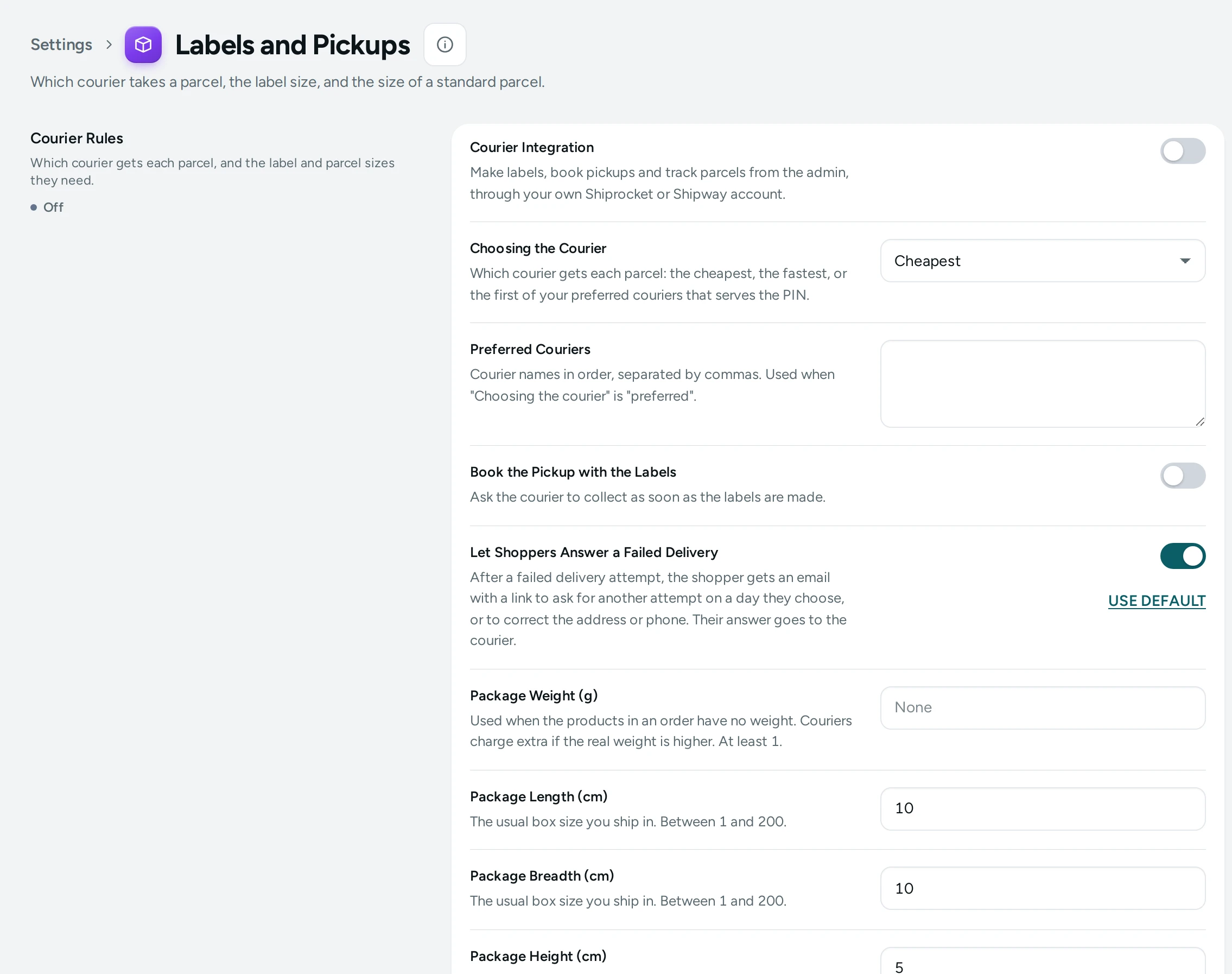
The title reads Labels and Pickups, with "Which courier takes a parcel, the label size, and the size of a standard parcel." The page has one row, Courier Rules: "Which courier gets each parcel, and the label and parcel sizes they need." One save bar (DISCARD, SAVE) saves the whole page.
Courier Rules
| Setting | What It Does | Default |
|---|---|---|
| Courier Integration | Make labels, book pickups and track parcels from the admin, through your own Shiprocket or Shipway account. While it is off, the label run refuses with "The courier integration is off." | Off |
| Choosing the Courier | Cheapest, Fastest or Preferred: which courier gets each parcel. | Cheapest |
| Preferred Couriers | Courier names in order, separated by commas, for example Delhivery, Blue Dart, Xpressbees. Used when Choosing the Courier is Preferred. | Empty |
| Label Size | A4 sheets for an office printer, or Thermal 4x6 inch labels for a thermal printer. | A4 |
| Book the Pickup with the Labels | Ask the courier to collect as soon as the labels are made. | Off |
| Let Shoppers Answer a Failed Delivery | After a failed delivery, the shopper gets a link to ask for another attempt or correct the address. | Off |
| Package Weight (g) | Used when the products in an order have no weight. Couriers charge extra if the real weight is higher. At least 1. | Empty |
| Package Length (cm) | The usual box size you ship in. Between 1 and 200. | 10 |
| Package Breadth (cm) | The usual box size you ship in. Between 1 and 200. | 10 |
| Package Height (cm) | The usual box size you ship in. Between 1 and 200. | 5 |
How the Courier Is Chosen
For each parcel, Mercayo asks your courier account which couriers serve the delivery PIN code for that weight and payment type, with their rates and days, and then:
- Cheapest: the lowest rate. On a tie, the faster one, then by name.
- Fastest: the fewest days. A courier with no estimate comes last; on a tie, the cheaper one.
- Preferred: the first name on your Preferred Couriers list that serves the PIN code. A name matches without regard to capital letters, and also matches the courier's own variants that start with it: "Delhivery" matches "Delhivery" and "Delhivery Surface", and the cheaper of those is taken. When none on your list serves the PIN code, the cheapest courier is used.
Weight and Box Size
The parcel's weight is the total of the order's product weights (each variant's weight times its quantity). If that comes to nothing, because no product in the order has a weight, Package Weight (g) is used. If both are missing, the order is skipped with "Weight missing: add weights to the products, or a package weight in Settings → Shipping".
Every new parcel is recorded with your Package Length (cm), Package Breadth (cm) and Package Height (cm), and they are sent to your courier account with the parcel's weight when the shipment is created. Set them to the box you really use.
How to Get Ready to Make Labels
- Connect your account in Courier Accounts.
- Open Settings › Labels and Pickups.
- Switch on Courier Integration.
- Choose Choosing the Courier; for Preferred, type your couriers in order in Preferred Couriers.
- Switch on Book the Pickup with the Labels if you want the courier to come as soon as labels are made.
- Set Package Weight (g) if some products have no weight, and your usual box in Package Length (cm), Package Breadth (cm) and Package Height (cm).
- Press SAVE.
- On the Orders list, select orders and press GENERATE LABELS. See Packing Slips and Labels.
What Happens in a Label Run
- Up to 100 orders at a time. Each must be confirmed: one waiting for payment says "Not paid yet", a cancelled one "Cancelled", one already with a label "Already has a label (AWB …)".
- Each parcel gets a courier by your rule and an AWB, and the labels come back as one PDF.
- With Book the Pickup with the Labels on, a pickup is booked for each labelled parcel. If a booking fails, the label stays made and the order shows "Label made; the pickup was not booked:" with the reason.
- For COD orders, the courier is told to collect only what is left to pay in cash (after any part paid online).
- If your courier account stops accepting Mercayo's sign-in during a run, the run stops and the account is marked for reconnecting.
What Shoppers See
Nothing on this page shows on your store directly. Once a parcel has an AWB, the shopper's order page shows its tracking as the courier sends updates.
Mercayo Controls
Every setting here can be set or limited by Mercayo for your store; a locked one shows Locked and "Set by Mercayo for your store." For example, Mercayo can keep the integration off for a store whose courier account is under review.
Good to Know
- The courier rule, the preferred list and pickups are read when you press GENERATE LABELS, so a change applies to the next run.
- Label Size is saved with your settings, but the label run does not send it to the courier account: the PDF is the label Shiprocket or Shipway makes.
- With Let Shoppers Answer a Failed Delivery on, the shopper gets an email after a failed attempt with a link to ask for another attempt on a day they choose, or to correct the address or phone; their answer goes to the courier. Your team answers the rest under Failed Deliveries.
- Labels go through Shiprocket or Shipway, whichever is marked Default in Courier Accounts.
- People who process orders (the Order Manager role, for example) can make labels; only people who can change settings can change these rules.
- Changes are recorded in the Activity Log.
Questions
Why does GENERATE LABELS say the integration is off?
Courier Integration is off. Switch it on here and press SAVE.
Why was an order skipped with "Weight missing"?
None of its products has a weight and Package Weight (g) is empty. Add weights in the product editor, or set a package weight here.
What if none of my preferred couriers serves a PIN code?
The cheapest courier that serves it is used, so the parcel still goes out.
Can I choose a courier for one order myself?
The label run picks by your rule. To use another courier for one parcel, change the rule (or the preferred list) before you make that label.
Does the box size change what shoppers pay for delivery?
No. Shoppers pay what you set in Shipping and Delivery. The box size and weight affect what your courier charges you.