"What each product page shows: offers, delivery dates, suggestions and more." Settings › Product Page switches the parts of every product page on or off, and holds the Catalogue card (collections by rules, the trash, custom fields). The page's layout and look are in the Theme editor (Product Page section).
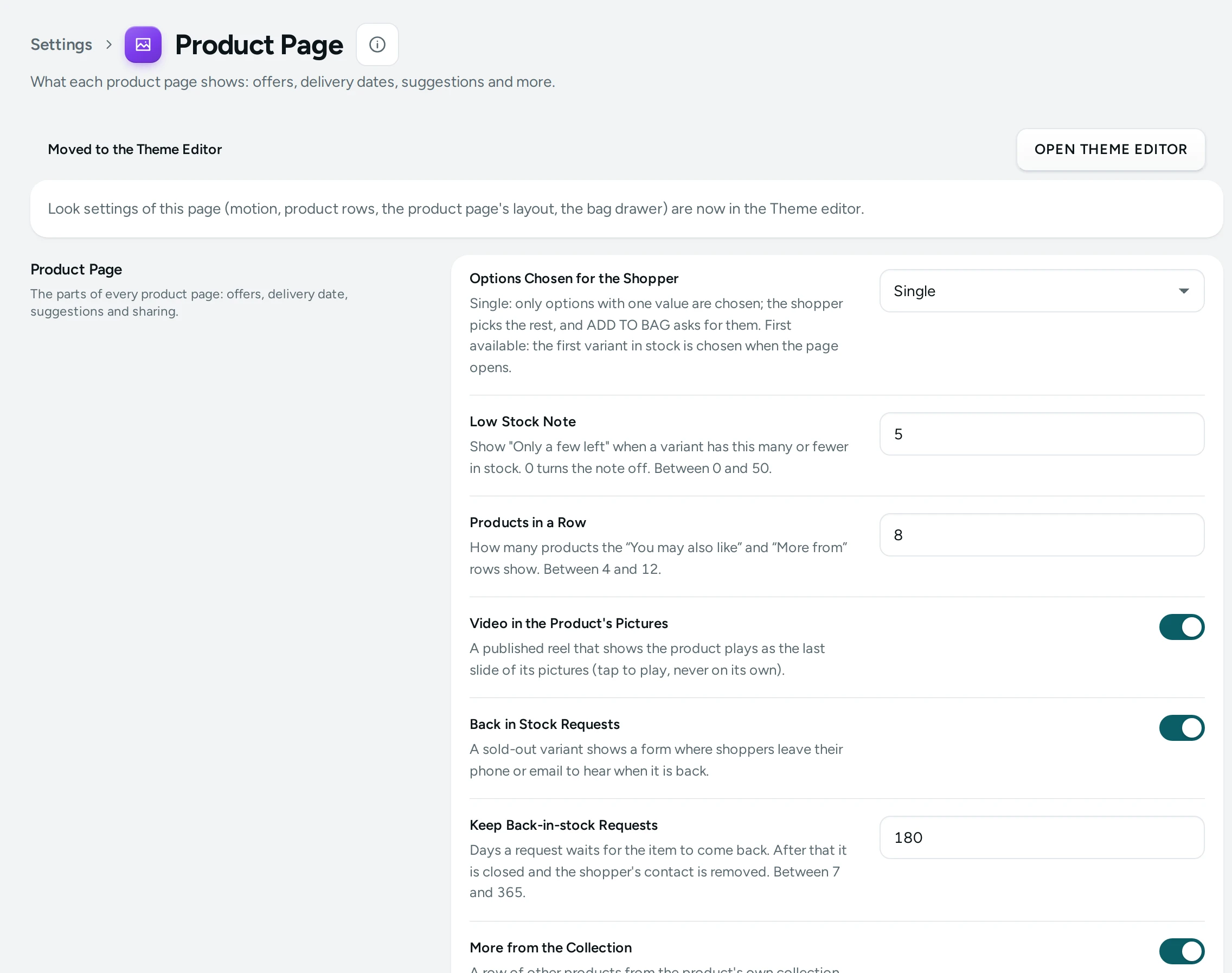
The Settings
Product Page
The parts of every product page: offers, delivery date, suggestions and sharing.
| Setting | What It Does | Default |
|---|---|---|
| Options Chosen for the Shopper | Single: only options with one value are chosen; the shopper picks the rest, and ADD TO BAG asks for them. First available: the first variant in stock is chosen when the page opens. Choices: Single, First available. | Single |
| Low Stock Note | Show "Only a few left" when a variant has this many or fewer in stock. 0 turns the note off. (0 to 50) | 5 |
| Products in a Row | How many products the “You may also like” and “More from” rows show. (4 to 12) | 8 |
| Back in Stock Requests | A sold-out variant shows a form where shoppers leave their phone or email to hear when it is back. | On |
| Keep Back-in-Stock Requests | Days a request waits for the item to come back. After that it is closed and the shopper's contact is removed. (7 to 365) | 180 |
| Pre-orders | Items you set up for pre-order can be bought while sold out, with the date they ship by. Off ends every pre-order. | On |
| More from the Collection | A row of other products from the product's own collection, like “More from Desi Edit”. | On |
| Delivery Date by PIN Code | Shoppers enter their PIN code on the product page and see when it can arrive and whether cash on delivery is available. | On |
| Frequently Bought Together | Manual: the products you pair with each product. From orders: products often bought in the same orders. Both: yours first, else from orders. Choices: Off, Manual, Auto, Manual then auto. | Manual then auto |
| Codes on the Product Page | Discount codes marked “Show on product pages” are listed under ADD TO BAG with a copy button. | On |
| Recently Viewed | A row of the products the shopper looked at last. Kept in their browser only; never stored by the store. | On |
| You May Also Like | Which products the “You may also like” row shows: from the same category, the same collections, or with the same tags. Choices: Off, Category, Collection, Tags. | Category |
| Share Buttons | WhatsApp, the phone's share menu and a copy-link button on the product page. | On |
| Bundle Prices on the Product Page | A product in an automatic bundle offer shows its sizes and prices (“Any 2 for ₹1,299”) to choose from. The bag applies the bundle by itself. | On |
Personalisation
| Setting | What It Does | Default |
|---|---|---|
| Personalisation | Products and collections may ask shoppers for details: a name to engrave, a choice, a date or a photo. Off: no product asks. | On |
| Fields per Product | The most fields one product or collection may ask for. (1 to 20) | 10 |
| Photo Uploads | Shoppers may upload a photo where a product asks for one. Off: photo fields are not shown. | On |
| Largest Photo | In MB, for each photo a shopper uploads. (1 to 20) | 10 |
Catalogue
| Setting | What It Does | Default |
|---|---|---|
| Collections by Rules | A collection can fill itself from rules, such as a tag, a price or a brand. Off: rule collections keep the products they have and stop changing. | On |
| Days in the Trash | A deleted product waits in the trash this many days, so it can be restored. Then it is removed for good. (1 to 90) | 30 |
| Custom Fields on the Store | Custom fields marked for shoppers show in the product page's specifications. Off: they stay in the admin. | On |
Mercayo sets how many custom fields (30) and collections by rules (100) a store may have.
Fixed Bundles
| Setting | What It Does | Default |
|---|---|---|
| Fixed Bundles | A product can be a kit of other products: its page lists what is inside. It has its own price and stock. See Fixed Bundles. | On |
| Show What the Items Cost on Their Own | When the items cost more separately, the bundle's page says how much they are worth on their own. | On |
Notes
- Options Chosen for the Shopper: Single (default) chooses only options with one value; the shopper picks the rest, and ADD TO BAG asks for them. This avoids a wrong size or model being ordered by mistake. First available chooses the first variant in stock when the page opens.
- Delivery Date by PIN Code: shoppers type their PIN code and see when it can arrive and whether cash on delivery is available, from your delivery settings.
- Codes on the Product Page: discount codes marked "Show on product pages" in the discount editor are listed under ADD TO BAG with a copy button.
- Frequently Bought Together: Manual (your pairings), Auto (from orders), Manual then auto (default), or Off.
- Back in Stock Requests: a sold-out variant shows a form for the shopper's phone or email. The requests, and who has been told, are in Products › Back in Stock; see Back-in-Stock Requests.
- Pre-orders: each variant is set up in the product's Pre-Order and Back in Stock card. See Pre-Orders.
- Personalisation: products may ask for a name to engrave, a choice, a date or a photo. See Personalisation.
How This Page Works
Settings pages share one way of working (see Settings Home):
- Each card groups the settings of one feature, with a line saying what it is for. Its main switch turns the whole feature on or off.
- Change what you need; a save bar appears with SAVE. "Settings saved." Nothing changes on your store until you save.
- USE DEFAULT puts a setting you changed back to Mercayo's default.
- A setting Set by Mercayo for your store shows Locked (with Mercayo's reason when given) and cannot be changed here; "Mercayo allows … for your store." shows a range Mercayo has set.
- If a teammate saved the page after you opened it: "Someone else saved these settings after you opened the page, so yours were not saved. Reload to see theirs."
- Anyone who can see settings can look ("You can see these settings. Changing them needs the settings right."); saving needs the right to change settings.
Questions
Can I hide the PIN code checker on some products?
It is a store-wide setting. Turn it off here to hide it everywhere.
Where do I choose a product's bought-together products?
In the product editor's Sold with It card. See Bought Together and Add-ons.