Taxes is where you tell Mercayo how GST works for your store: whether you are registered for regular GST, on the composition scheme or not registered, your GSTIN and state, whether the prices you type include GST, and the GST rate for each HSN code you sell. Every bag's price, every order and every GST invoice is worked out from these, and orders keep the tax they were placed with. Open it from Settings › Taxes. Anyone who can see settings can open it; changing it needs the right to change settings, which the store's owner and admins have.
This page explains what Mercayo does with your choices. It is general guidance, not tax advice: ask your CA which registration, HSN codes and rates apply to your goods.
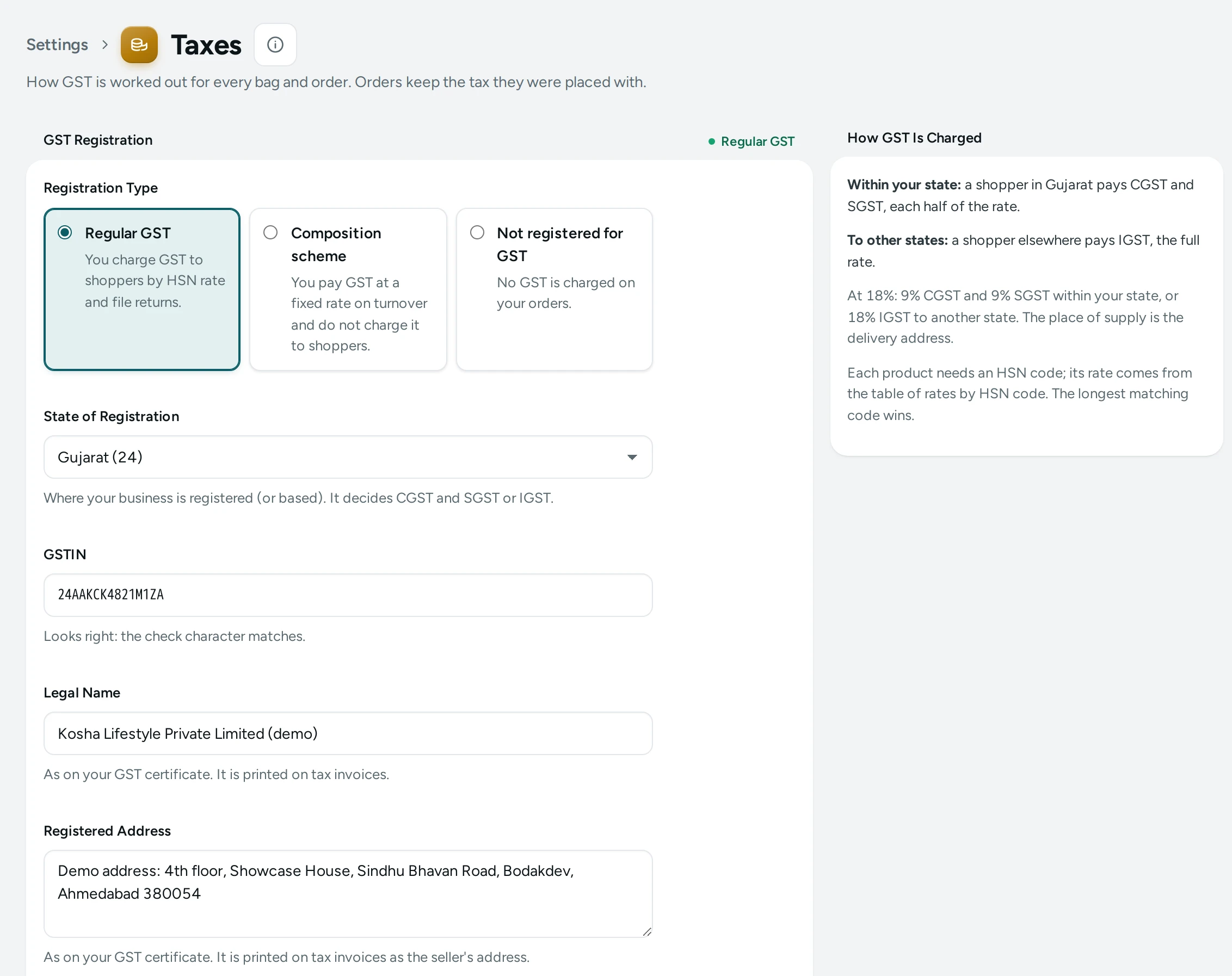
What You See
The title reads Taxes, with "How GST is worked out for every bag and order. Orders keep the tax they were placed with." There are two cards, GST Registration and GST Rates by HSN Code, and a side card, How GST Is Charged, that explains your current set-up in plain words.
GST Registration
The card's corner shows your registration type once saved (for example Regular GST).
| Field | What It Does | Default |
|---|---|---|
| Registration Type | Regular GST: you charge GST to shoppers by HSN rate and file returns. Composition scheme: you pay GST at a fixed rate on turnover and do not charge it to shoppers. Not registered for GST: no GST is charged on your orders. | Not registered for GST |
| State of Registration | Where your business is registered (or based). It decides CGST and SGST or IGST. Each state is listed with its GST code, like "Karnataka (29)". | Choose a state |
| GSTIN | Shown for regular and composition. 15 characters, starting with your state's GST code, for example 29ABCDE1234F1Z5. | Empty |
| Legal Name | Shown for regular and composition. As on your GST certificate. It is printed on tax invoices. Up to 200 characters. | Empty |
| Your Prices and GST | Prices I enter include GST: the price shoppers see is what they pay; GST is worked out inside it. GST is added on top of my prices: shoppers pay your price plus GST at checkout. | Prices I enter include GST |
Press SAVE under the form. The page says "GST settings saved. New bags and orders use them now."
How the GSTIN Is Checked
As you type, Mercayo checks the GSTIN the way the GST portal's format works:
- "A GSTIN has exactly 15 characters."
- "That is not a GSTIN: 2 digits, a 10-character PAN, an entity number, Z, then a check character."
- "The last character does not match the others. Check each character against your GST certificate."
- "A GSTIN registered in Maharashtra starts with 27. Check the state or the GSTIN."
When it is right: "Looks right: the check character matches."
When Another Store Uses the Same GSTIN
A GSTIN can belong to only one store on Mercayo unless Mercayo approves it (for example, two brands of the same company). If you enter a GSTIN another store already uses, nothing is saved yet: "This GSTIN is used by another store on Mercayo, so Mercayo has been asked to approve it. Your registration is saved as soon as they do; nothing was saved yet." The card then shows Waiting for Mercayo, with the date you asked, and a box Tell Mercayo why (optional) (for example "a second brand of the same company") with SEND. If Mercayo does not approve it, the card says so with their reason.
Changing Whether Prices Include GST
Switching Your Prices and GST changes what every shopper pays, so the admin asks first:
- To include GST: Include GST in Your Prices? "Shoppers will pay your prices as shown: a product priced ₹799 costs ₹799, and the GST is part of it. You receive less after tax."
- To add GST on top: Add GST on Top of Your Prices? "Shoppers will pay more: a product priced ₹799 costs ₹799 plus GST at checkout. Your prices stay as you typed them."
Both add: "Orders and invoices already made keep the way they were priced. Store pages show the change at once." Press CHANGE AND SAVE to go ahead.
How GST Is Charged
The side card explains your set-up:
- Regular GST: "Within your state: a shopper in Karnataka pays CGST and SGST, each half of the rate." "To other states: a shopper elsewhere pays IGST, the full rate." "At 18%: 9% CGST and 9% SGST within your state, or 18% IGST to another state. The place of supply is the delivery address."
- Composition scheme: "On the composition scheme you charge shoppers no GST, and invoices are bills of supply."
- Not registered: "Not registered: shoppers are charged no GST. Register when your turnover needs it, then enter your GSTIN here."
- Always: "Each product needs an HSN code; its rate comes from the table of rates by HSN code. The longest matching code wins."
The delivery state always comes from the delivery PIN code, never from what the shopper types.
GST Rates by HSN Code
"A product's HSN code picks its rate: 6109 covers 61091000. A product without a rate cannot be bought." On the composition scheme or unregistered, the card says instead "Rates are used only on regular GST. You can set them now for when you register."
Each rate row shows HSN 3926, its price band when it has one ("Unit price ₹0.00 to ₹2,500.00"), when it applies (Always or "From 2025-09-22"), and the rate as a pill (18%), with EDIT and a delete button. ADD RATE opens New GST Rate.
| Field | What It Does | Default |
|---|---|---|
| Find an HSN Code | Search by the kind of product or by code, like "phone case". Pick a suggestion and press USE CODE AND RATE to fill in the code and its rate, or USE THIS CODE for the code alone. | Empty |
| HSN Code | 2 to 8 digits. Shorter codes cover longer ones. | Empty |
| GST Rate (%) | The full rate, like 18 or 12. Up to 40. | Empty |
| From Unit Price (₹) and Up To Unit Price (₹) | Optional: for codes whose rate depends on the price, like clothing up to ₹2,500 at 5%. Leave empty for every price. | Empty (every price) |
| Applies From | Empty: always. Set a date for a rate change the government announced. | Empty (always) |
The HSN Finder
The finder suggests codes from the GST notifications, with what each code applies to and the notification it comes from. When different goods under one code have different rates, it says "Choose the rate that fits your product" and fills in nothing until you choose. A code with a price band fills in one band; add the other bands as their own rates. A rate change announced for a later date shows "From 22 Sep 2025 the rate becomes 18%." The finder's own note: "Rates are read from the GST notifications and may be out of date or not fit your exact goods. Confirm with your accountant."
How a Rate Is Picked for a Product
For each product in a bag, Mercayo takes the product's HSN code and finds your rate with the longest matching code, the right price band for the unit price, and the latest Applies From date that has started. Example: with rates for 61 at 12% and 6109 at 5%, a T-shirt with HSN 61091000 is taxed at 5%.
How to Set Up GST for a Registered Store
- Open Settings › Taxes.
- Choose Regular GST, your State of Registration, and type your GSTIN and Legal Name.
- Choose Your Prices and GST: Prices I enter include GST if the prices you type are what shoppers should pay.
- Press SAVE (and CHANGE AND SAVE if you changed how prices work).
- In GST Rates by HSN Code, press ADD RATE, search for your product in Find an HSN Code, press USE CODE AND RATE, check the rate and dates, and press SAVE. Repeat for each kind of product you sell.
- Make sure each product in the product editor has its HSN code.
- Set the GST rate on delivery and fees, and your invoice numbering, in Invoice Settings.
How to Change a Rate from a Date
When a rate changes from a set date, keep the old rate and add a new one:
- Press ADD RATE.
- Type the same HSN Code, the new GST Rate (%), and the date in Applies From.
- Press SAVE. Bags priced from that date use the new rate; orders already placed keep theirs.
What Shoppers See
- With Prices I enter include GST, shoppers see your prices as typed and pay them; checkout shows the GST within them in its price details.
- With GST is added on top of my prices, product prices are your prices, and checkout adds a GST line.
- A registered store's orders get a GST tax invoice (composition: a bill of supply) the shopper can download from their order page; see Invoice Settings.
- A business buyer can add its GSTIN at checkout when that option is on in Checkout and COD.
Good to Know
- On regular GST, a product with no HSN code, or whose HSN code has no matching rate, cannot be bought. Add HSN codes and rates before you launch.
- Orders and invoices already made keep their tax; changes apply to new bags and orders.
- GST on delivery, the COD fee and gift wrap is one flat rate, set in Invoice Settings (18% by default), not the goods' rate.
- Deleting a rate takes effect at once: "Products with HSN 3926 lose this rate at once; without another matching rate they cannot be bought until you add one."
- Changes to the registration and to rates are recorded in the Activity Log.
- Two rates cannot have the same HSN code, price band and start date.
Questions
I am not registered for GST. What should I choose?
Not registered for GST. Shoppers are charged no GST and no GST invoice is issued; the order page and emails are the shopper's receipt. When you register, come back, choose Regular GST and enter your GSTIN.
Should my prices include GST?
Choose Prices I enter include GST (the default) when the prices you type are the final prices shoppers pay. Choose GST is added on top of my prices if you quote prices before tax. Ask your CA if unsure.
Why can't a shopper buy one of my products?
On regular GST, a product needs a matching GST rate for its HSN code. Add a rate for that HSN code (or a shorter code that covers it).
What does "longest matching code wins" mean?
If you have rates for both 39 and 3926, a product with HSN 39269099 takes the 3926 rate, because it matches more digits.
What is the composition scheme?
A GST scheme where you pay tax at a fixed rate on turnover instead of charging GST to shoppers. Mercayo then charges shoppers no GST and issues bills of supply. Whether it suits you is a question for your CA.
Why is my GSTIN refused for its state?
The first two digits of a GSTIN are its state's GST code. They must match the State of Registration you chose, for example 27 for Maharashtra or 08 for Rajasthan.