Store Policies is where your store's six policy pages live: Terms of Sale, Privacy Policy, Shipping Policy, Returns, Exchanges and Refunds, Contact and Grievance, and Cancellation Policy. Mercayo writes all six for you in one tap from Mercayo's standard texts, your Store Details and your settings (your dispatch days, refund days, COD rules and so on). You read them, change what you need, and publish them; all six must be published before you can launch. Open it from Settings › Policies. Anyone who can see settings can open the list; creating, editing and publishing policies needs the right to edit pages, menus and the brand, which the owner and admins have.
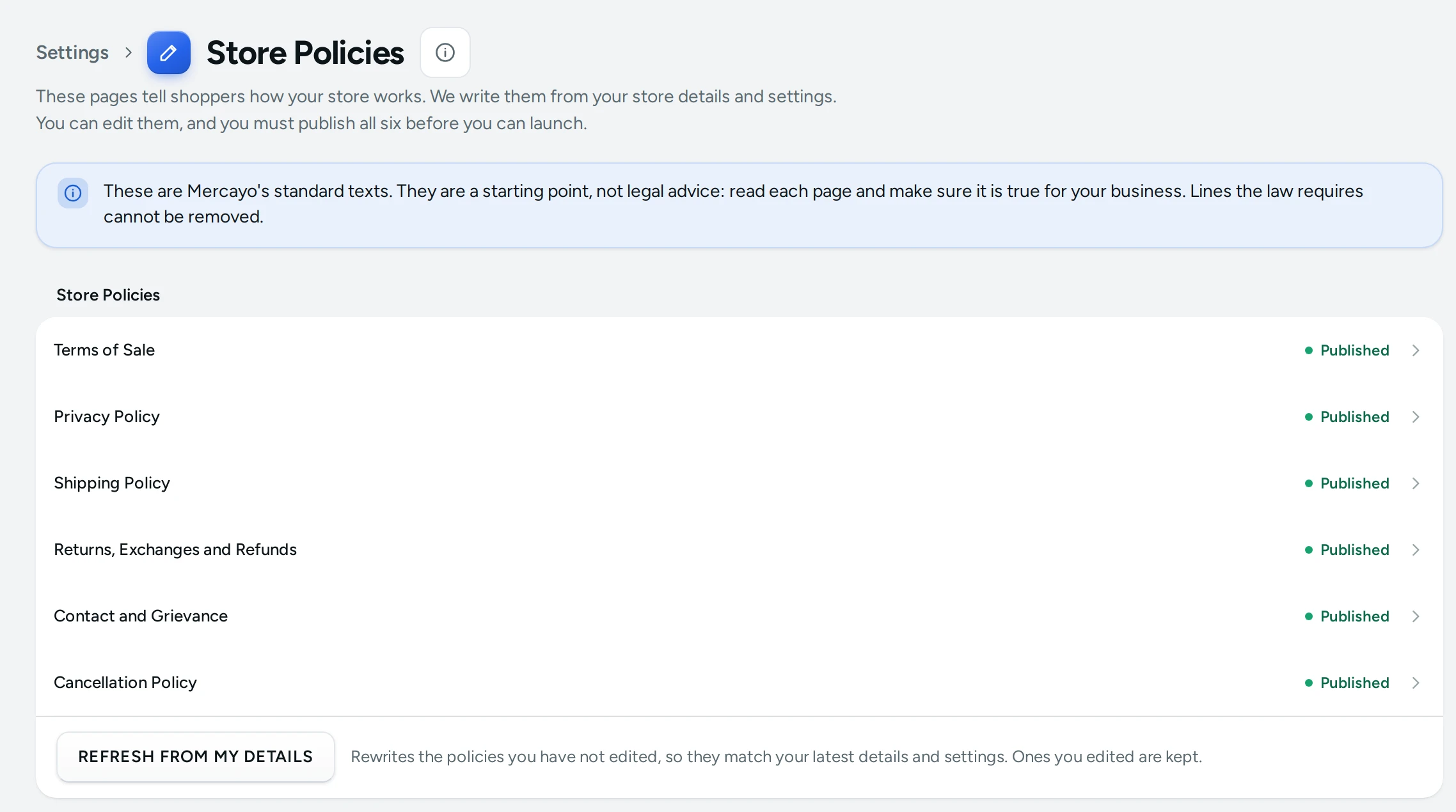
What You See
The title reads Store Policies, with "These pages tell shoppers how your store works. We write them from your store details and settings. You can edit them, and you must publish all six before you can launch."
If your store details are not complete, a banner says "Fill in your store details first. Still needed: legal name, address." with OPEN STORE DETAILS. Policies cannot be created, refreshed or published until those details are filled in.
Before Your Policies Exist
The card shows No policies yet: "Create all six in one tap. They start as drafts, so nothing is shown to shoppers until you publish." and CREATE MY POLICIES.
Once They Exist
The list shows each policy with its pills and EDIT:
| Pill | What It Means |
|---|---|
| Published | Shoppers can read it on your store. |
| Draft | Made, but not shown to shoppers yet. |
| Not created | Not made yet. |
| Edited | You changed its text from the one Mercayo wrote. |
Under the list:
- PUBLISH ALL, while any policy is a draft: publishes every draft at once ("All your policies are published.").
- REFRESH FROM MY DETAILS: "Rewrites the policies you have not edited, so they match your latest details and settings. Ones you edited are kept."
The Six Policies
| Policy | What It Covers | Address on Your Store |
|---|---|---|
| Terms of Sale | The terms shoppers buy under | /policies/policy-terms |
| Privacy Policy | What you collect from shoppers and why | /policies/policy-privacy |
| Shipping Policy | Dispatch days and delivery time | /policies/policy-shipping |
| Returns, Exchanges and Refunds | Your return window, exchanges, refund days and items that cannot be returned | /policies/policy-returns |
| Contact and Grievance | Customer care, hours and your grievance officer | /policies/policy-contact |
| Cancellation Policy | Until when an order can be cancelled, and refunds of money paid | /policies/policy-cancellation |
The Policy Editor
EDIT opens one policy. Its title is the policy's name, with a Published or Draft pill; Policies at the top goes back. The legal note repeats at the top.
| Part | What It Does |
|---|---|
| The Page Text | The whole policy as text. "Plain text with simple formatting: # for a heading, - for a list, ** around bold words." |
| SAVE DRAFT | Saves your text without showing it to shoppers (a published policy goes back to draft). |
| UNPUBLISH | Shown on a published policy: takes it off your store and keeps it as a draft. |
| PUBLISH | Saves your text and shows it on your store. |
The page says Saved. after each save.
Lines You Cannot Remove
Some paragraphs in each policy are there because Indian law requires them. If your text changes or removes one, the save is refused: "These lines are required by law and cannot be changed or removed:" followed by the start of the line. Put the line back as it was and save again. Everything else is yours to change.
How to Create and Publish Your Policies
- Fill in your needed Store Details and save.
- Open Settings › Policies and press CREATE MY POLICIES. "Your policies are ready. Read them, then publish."
- Press EDIT on each policy and read it. Change anything that is not true for your business, and press SAVE DRAFT.
- When all six read right, press PUBLISH ALL (or PUBLISH in each editor).
See Write Your Policies for a step-by-step guide.
How to Update Policies After a Change
When you change your store details or settings (for example your dispatch days, refund days or COD rules):
- Open Settings › Policies.
- Press REFRESH FROM MY DETAILS. "Updated. The ones you edited were kept."
- Open each policy marked Edited and update it by hand, since a refresh does not touch your own text.
A refreshed policy keeps its status: a published policy stays published with its new text.
What Shoppers See
Published policies are listed in your store's footer and open as their own pages at the addresses above. A draft or unpublished policy is not shown.
Good to Know
- Launch needs all six policies published. See Launch Your Store.
- A policy cannot be published while a needed store detail is missing, so a page never shows a gap.
- Your edits are kept: REFRESH FROM MY DETAILS only rewrites policies you have not changed.
- If someone else saved the same policy after you opened it, your save is refused: "Someone else changed this policy since you opened the page, so your change was not saved. Reload to see theirs, then try again."
- Policy changes are recorded in the Activity Log.
Questions
Do I have to use Mercayo's texts?
They are a starting point. You can rewrite any part except the lines the law requires, which Mercayo keeps in place.
My return window changed. Do my policies update?
Press REFRESH FROM MY DETAILS. Policies you have not edited are rewritten with the new window; edited ones keep your text, so update those yourself.
Why is CREATE MY POLICIES greyed out?
Some needed store details are missing. The banner above lists them; fill them in on Store Details.
Can I hide a policy from my store?
Open it and press UNPUBLISH. Remember that launch needs all six published, and Indian e-commerce rules expect these pages; ask your lawyer before removing any.
Can I add a policy of my own, like a warranty page?
The six policies are fixed. For other pages, use Pages.