Staff and Roles is where you bring your team into the admin and decide what each person may do. You invite someone by email or by mobile number, make them an Admin (everything except the plan, launching the store and handing it over) or Staff with one or more roles, and the screen shows each person's access, their two-step sign-in and when they last signed in. You can make your own roles from the store's permissions, and the owner can hand the store to someone else. Open it from Settings › Staff and Roles. It needs the right to see the team, which the owner and admins have; inviting people and managing roles needs the right to invite people and manage roles.
Owner, Admin and Staff
Every person on a store's team is one of three:
| Level | What They Can Do |
|---|---|
| Owner | Everything, including changing the Mercayo plan and billing, launching the store, closing it, and handing it over. A store has one owner. |
| Admin | "Everything in the store, except changing the plan or handing the store over." Launching the store also stays with the owner. |
| Staff | "Only what the roles you choose below allow." A staff member with no role sees nothing until you give them one. |
What You See
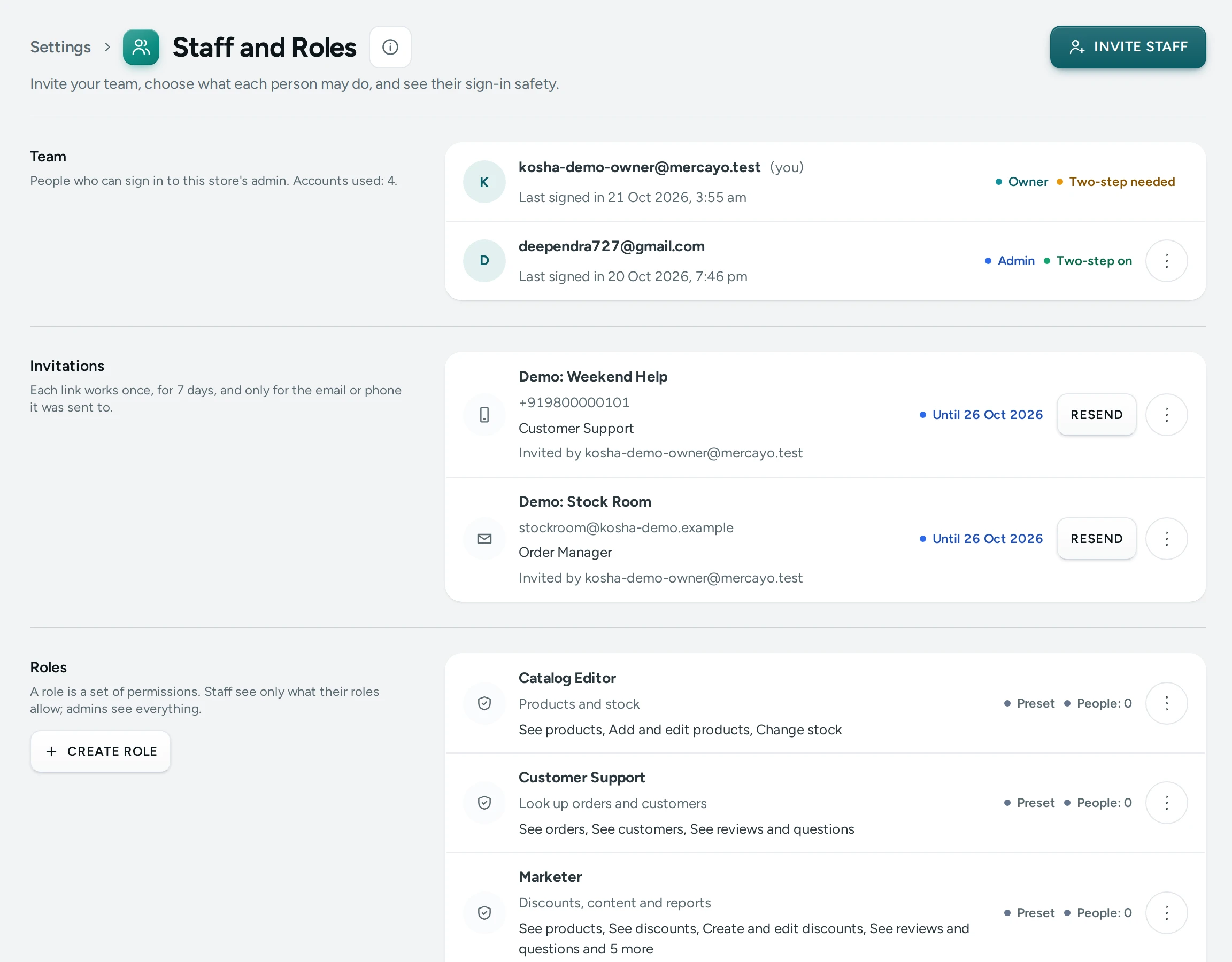
The title reads Staff and Roles, with "Invite your team, choose what each person may do, and see their sign-in safety." The main button is INVITE STAFF. The page has up to four sections.
Team
"People who can sign in to this store's admin. Accounts used: 3 of 5, open invitations included." Each person shows:
- their initials, name (or email or phone) and "(you)" on your own row;
- their email and phone;
- for staff, their roles (or "No role yet: they see nothing until you give them one.");
- "Last signed in" and when, or "Has not signed in yet";
- pills: Owner, Admin or Staff; Access off when turned off; and Two-step on, Two-step needed (required but not set up yet) or No two-step;
- a menu (the three dots) with Change Access, Turn Off Access or Turn Access Back On, Make Owner (owner only) and Remove from Team.
You never see the menu on the owner's row or your own.
Invitations
"Each link works once, for 7 days, and only for the email or phone it was sent to." (The days follow Invitations Work for (days) in Sign-In and Security.) Each open invitation shows the person, the access offered, "Invited by" whom, and Until 26 Oct 2026 or Expired, with RESEND and a menu with Cancel Invitation. With none: No Open Invitations, "People you invite show here until they accept."
Roles
"A role is a set of permissions. Staff see only what their roles allow; admins see everything." Each role shows its name, what it is for (or its permissions), a Preset pill for Mercayo's roles, and People: 2. Its menu has Edit (your own roles), Duplicate and Delete Role (your own roles). CREATE ROLE makes a new one.
Store Ownership
Only the owner sees this: "The owner alone changes the plan, closes the store or hands it over." with "You own this store. You can hand it to someone on your team; you stay on as an admin." and TRANSFER OWNERSHIP.
The Preset Roles
Mercayo gives every store four roles you can use as they are, or duplicate to change:
| Role | For | Permissions |
|---|---|---|
| Catalog Editor | Products and stock | See products, Add and edit products, Change stock |
| Customer Support | Look up orders and customers | See orders, See customers, See reviews and questions |
| Marketer | Discounts, content and reports | See reports, Edit pages, menus and the brand, See discounts, Create and edit discounts, See products, See reviews and questions, Approve reviews, answer questions, Edit page layouts (drafts) |
| Order Manager | Orders and customers | See orders, Process orders: ship, cancel, refund, See customers, See products |
A person with several roles has every permission of all of them.
The Permissions
A role is made from these permissions, grouped as the role editor shows them:
| Group | Permissions |
|---|---|
| Orders | See orders · Process orders: ship, cancel, refund |
| Products | See products · Add and edit products · Change stock · Approve and manage sellers |
| Customers | See customers · Edit customers · Export customer data · Give or take back store credit · See gift cards · Issue, adjust and cancel gift cards · Edit rewards tiers · Manage refer and earn |
| Marketing | See discounts · Create and edit discounts · See reviews and questions · Approve reviews, answer questions |
| Online Store | Edit pages, menus and the brand · Edit page layouts (drafts) · Publish page layouts |
| Analytics | See reports |
| Settings | See settings · Change settings · Change payment settings |
| Team | See the team · Invite people and manage roles · See the activity log |
| Plan and Credits | See the plan and invoices · See notification credits |
The owner's own powers (changing the plan and billing, handing the store over, closing the store) are never part of a role. "You can only give permissions you have yourself."
How to Invite Someone
- Press INVITE STAFF.
- Under Invite By, choose EMAIL or PHONE.
- Email: "We email them a link. They sign in or make an account with this email to accept."
- Mobile Number: a 10-digit mobile number, or one with its country code. "You get a link to share on WhatsApp. They accept with an account on this number."
- Type their Name (Optional).
- Under Access, choose Admin or Staff. For staff, tick one or more Roles.
- Press SEND INVITATION (email) or CREATE LINK (phone).
- The dialog shows the Invitation Link ("Only the invited person can use it. Keep it private."), with COPY LINK and, for a phone invitation, SHARE ON WHATSAPP, which opens WhatsApp with "You're invited to help run Kosha on Mercayo. Accept here:" and the link.
- Press DONE. The invitation shows under Invitations until it is accepted.
The person accepts as described in Accepting an Invitation.
How to Resend or Cancel an Invitation
- RESEND opens Send a New Invitation with the same details. Sending it replaces the old invitation, whose link stops working.
- Cancel Invitation asks Cancel This Invitation? ("The link stops working. You can invite them again later.") Press CANCEL INVITATION.
How to Change What Someone Can Do
- Open the person's menu and choose Change Access.
- In Access for Asha Rao, choose Admin or Staff and tick the roles.
- Press SAVE. "Access changed."
How to Turn Off or Remove Someone
- Turn Off Access: "They keep their account and roles but cannot do anything in this store until you turn access back on." Press TURN OFF ACCESS. Use Turn Access Back On later.
- Remove from Team: "They can no longer sign in to this store. Their past changes stay in the activity log." Press REMOVE FROM TEAM.
How to Make a Role
- Press CREATE ROLE, or Duplicate on a preset to start from it (named, for example, "Order Manager (copy)").
- Type its Name (up to 60 characters) and What It Is For (up to 200).
- Tick its permissions.
- Press SAVE ROLE. "Role saved."
How to Hand the Store Over
Only the owner can do this.
- Under Store Ownership, press TRANSFER OWNERSHIP, or choose Make Owner on an active member's menu.
- Read the dialog: "The new owner gets the plan, billing and the power to close the store. You become an admin. Only they can hand it back."
- Choose the New Owner (an active member of the team).
- Type your store's handle in Type kosha to Confirm (your own handle).
- Press TRANSFER OWNERSHIP. "Ownership transferred. You are now an admin."
Good to Know
- Accounts. Your plan includes a number of staff accounts, owner included (Mercayo sets it per plan). Members, turned-off members and open invitations all count. When all are used, INVITE STAFF is off and the page says "All 2 staff accounts of your plan are in use. Remove someone or cancel an invitation to invite another person."
- Rules the database keeps. No one can change the owner's access or their own. Only the owner or an admin can change, turn off or remove an admin. A person who manages staff cannot give a permission they do not have ("That includes a permission you do not have, so you cannot give it.").
- Preset roles stay as they are. "Preset roles stay as they are. Duplicate one to change it."
- Deleting a role takes its permissions away at once from everyone who has it. A role cannot be deleted while it is the only role of some staff member: "Give them another role first."
- Two-step sign-in. Whether people must use two-step sign-in is set in Sign-In and Security. Two-step needed means the person must set it up. See Two-Step Sign-In.
- Invitations are single use and work only for the email or phone they were sent to.
- Everything is logged. Invitations, access changes, removals, roles and ownership transfers are recorded in the Activity Log.
- Rights come from the database, not from the screen: hiding a button is only for convenience; the store refuses anything a person's role does not allow.
Questions
What is the difference between an admin and the owner?
An admin can do everything in the store except change the plan and billing, launch the store, hand the store over, or close the store. Those stay with the owner.
Can I invite someone without an email address?
Yes. Choose PHONE, type their mobile number, and share the link with them on WhatsApp. They accept with a Mercayo account on that number.
The invitation link expired. What now?
Press RESEND on the invitation. A new link is made and the old one stops working.
Why can't I invite more people?
All staff accounts of your plan are in use, open invitations included. Remove someone, cancel an invitation, or move to a plan with more accounts in Plans and Billing.
Can a person work in more than one store?
Yes. One Mercayo sign-in can be on several stores' teams, with different access in each. See Switching Stores.
Why can't I edit a preset role?
Preset roles are Mercayo's and stay the same for every store. Press Duplicate and change the copy.