Moving to Mercayo brings more than your catalogue. Your old store's past orders, reviews, gift-card balances, discount codes and pages and blog posts come in through Settings › Import and Export, the same way as products and customers: every row is checked first and nothing changes until you press IMPORT. Beside the importers, the Move My Store card asks Mercayo's team to do the whole move for you. To go from nothing to your first imported order history, follow Move Your Store to Mercayo.
Import your products and customers first (Import and Export): past orders and reviews then match them.
Bring Your History In
Step 1 of 11
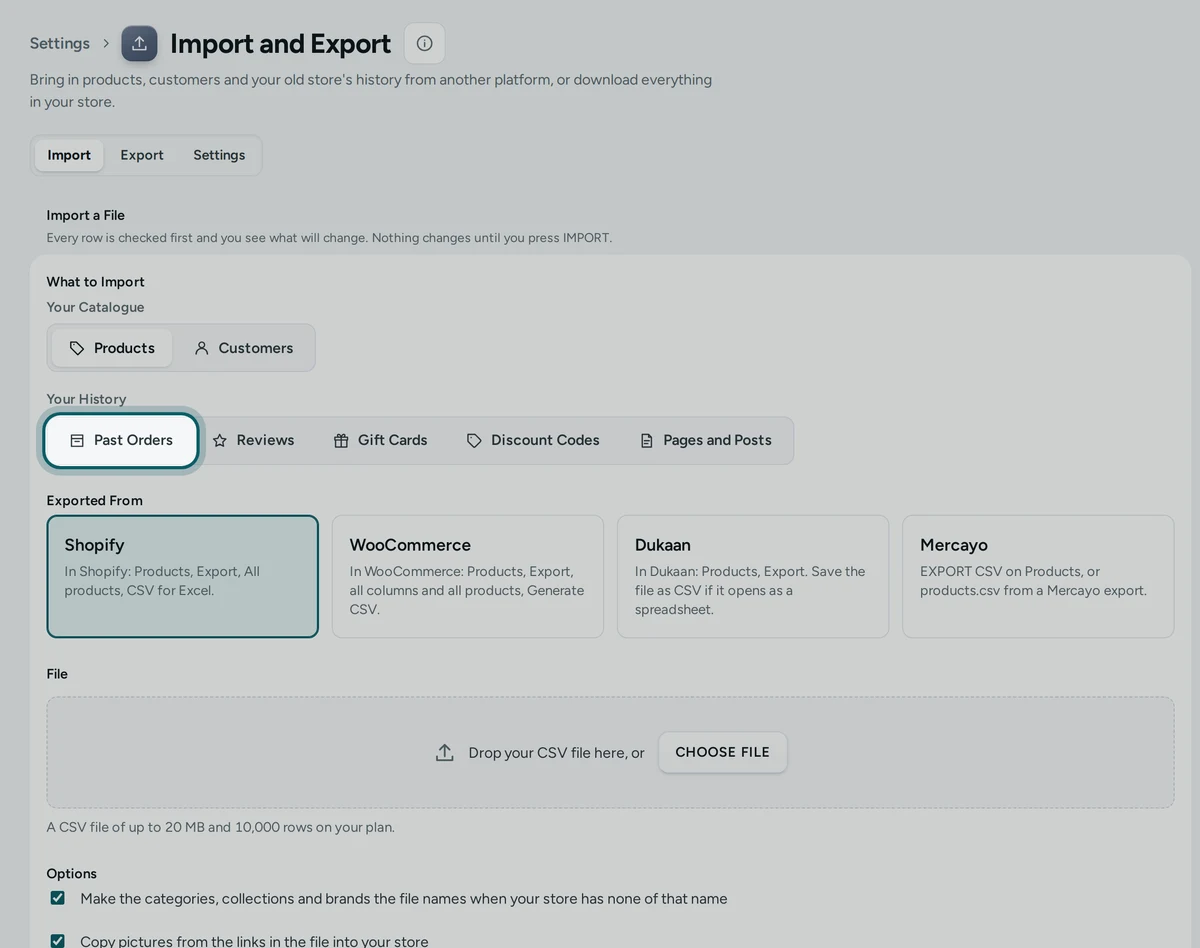
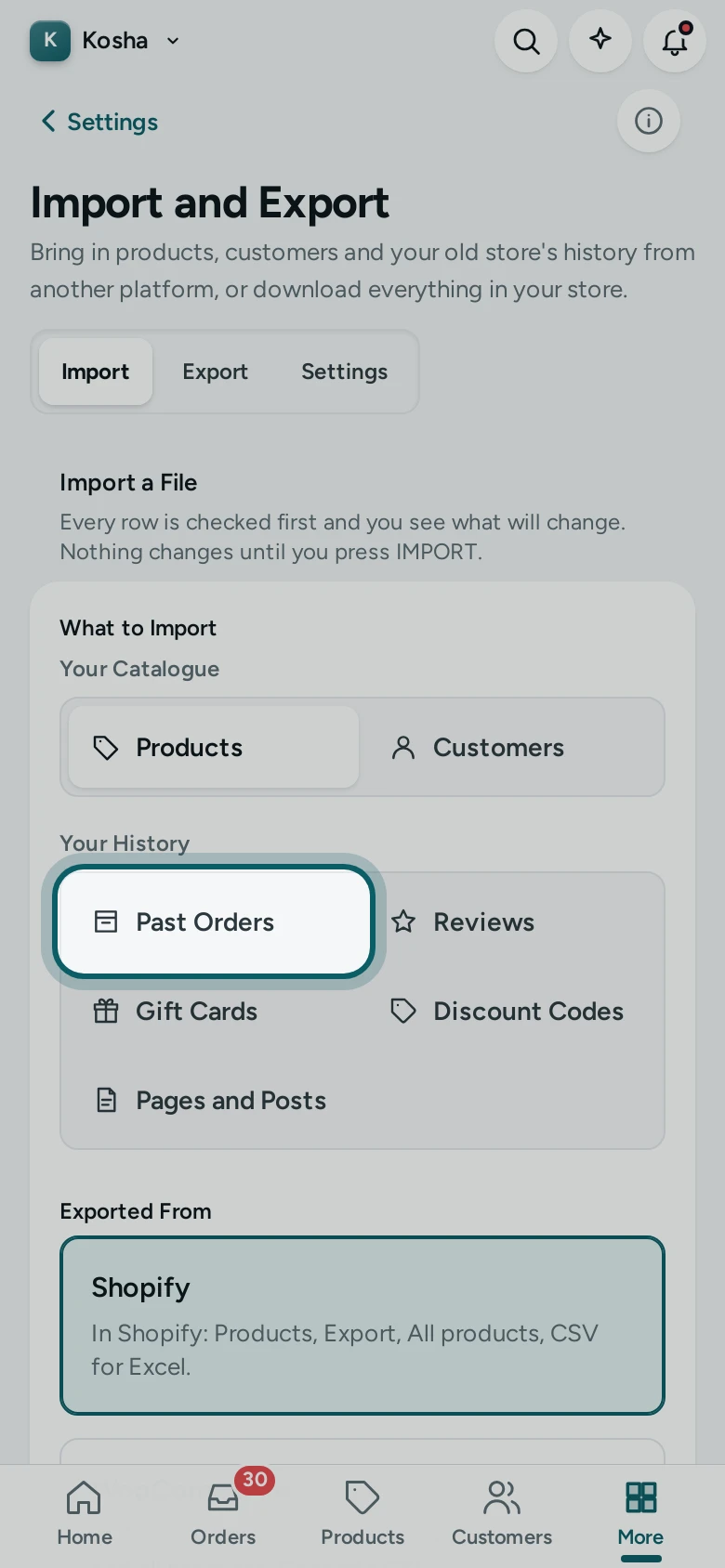
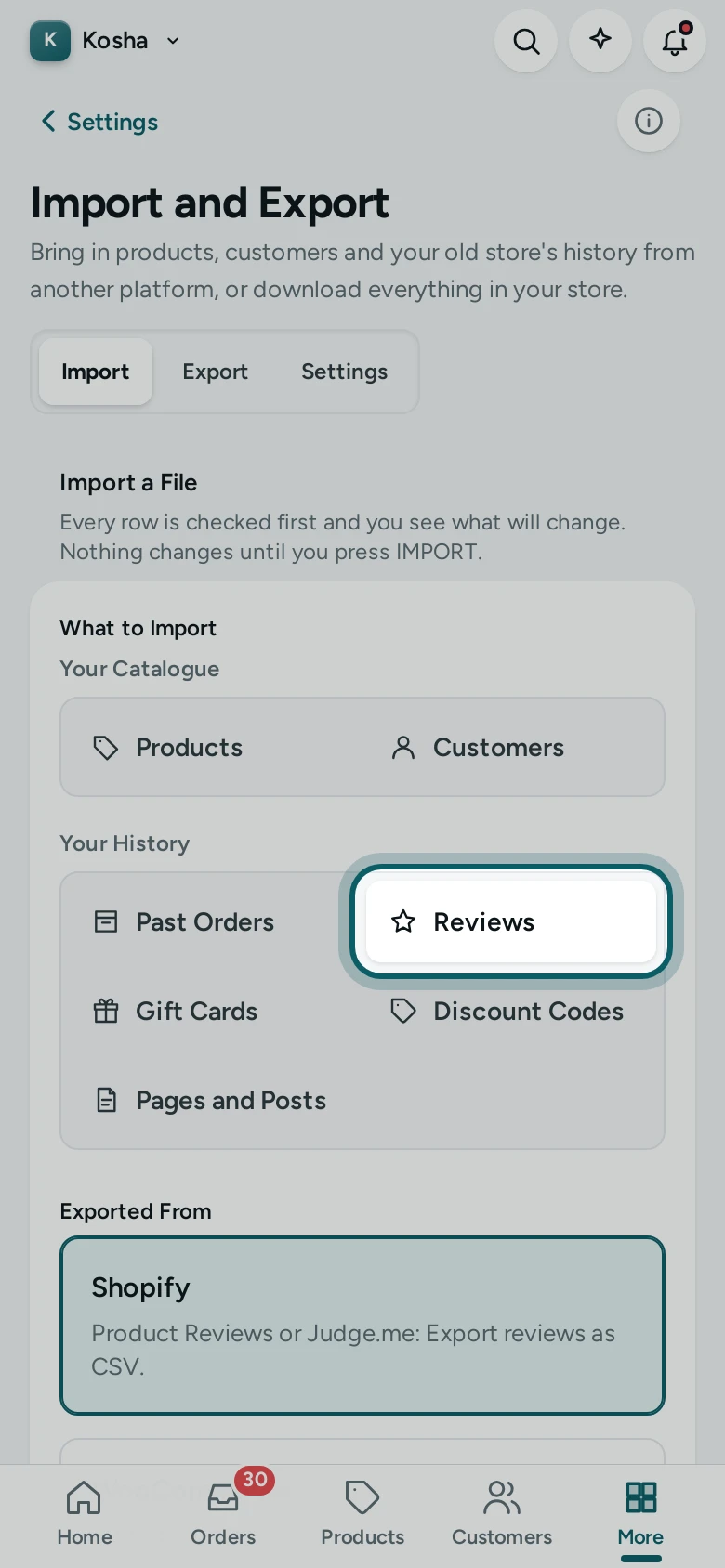
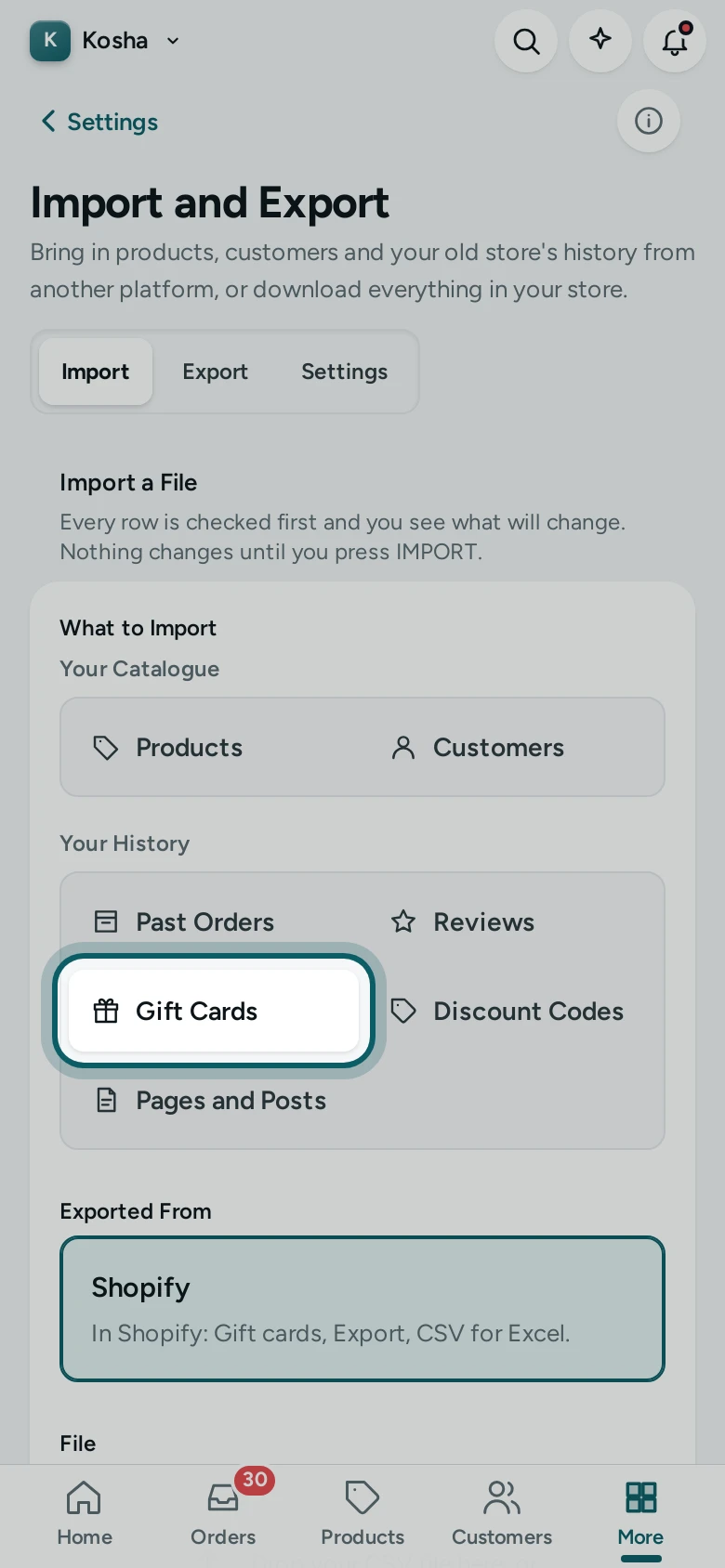
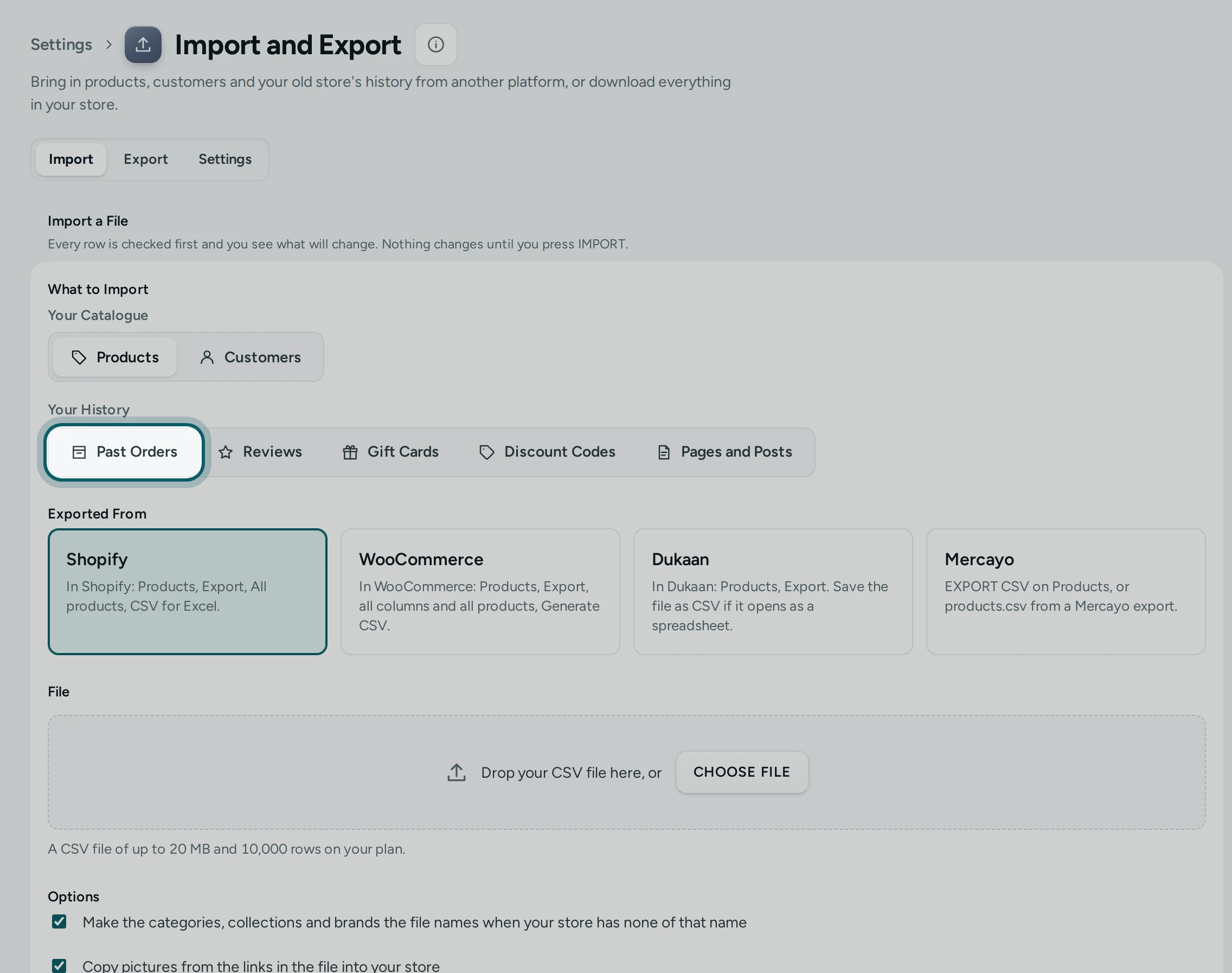
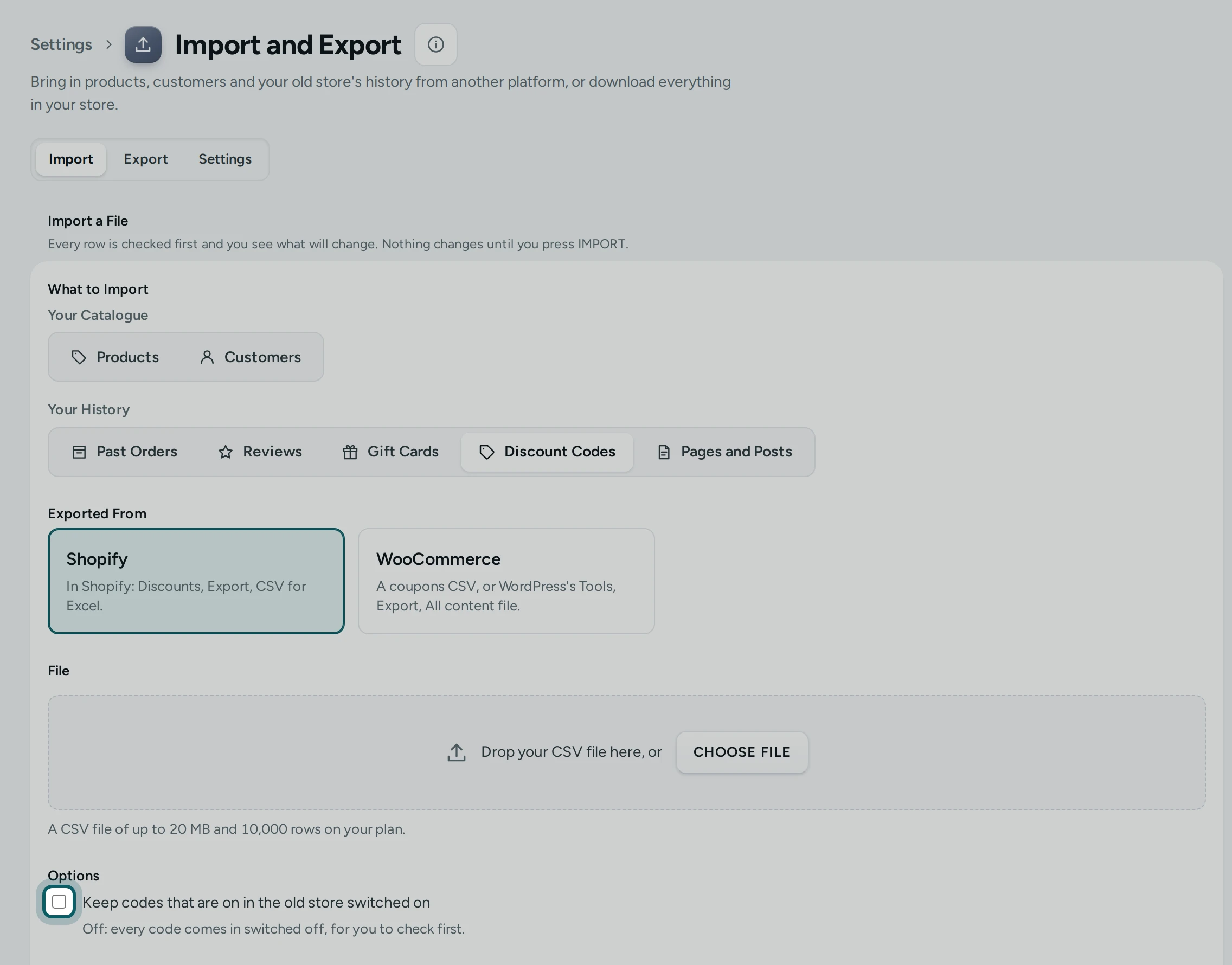
Open the importer. Open Settings › Import and Export, the Import tab. Under What to Import there are two groups: Your Catalogue (Products, Customers) and Your History (Past Orders, Reviews, Gift Cards, Discount Codes, Pages and Posts). On a phone the history's kinds sit two to a row.
Step 2 of 11
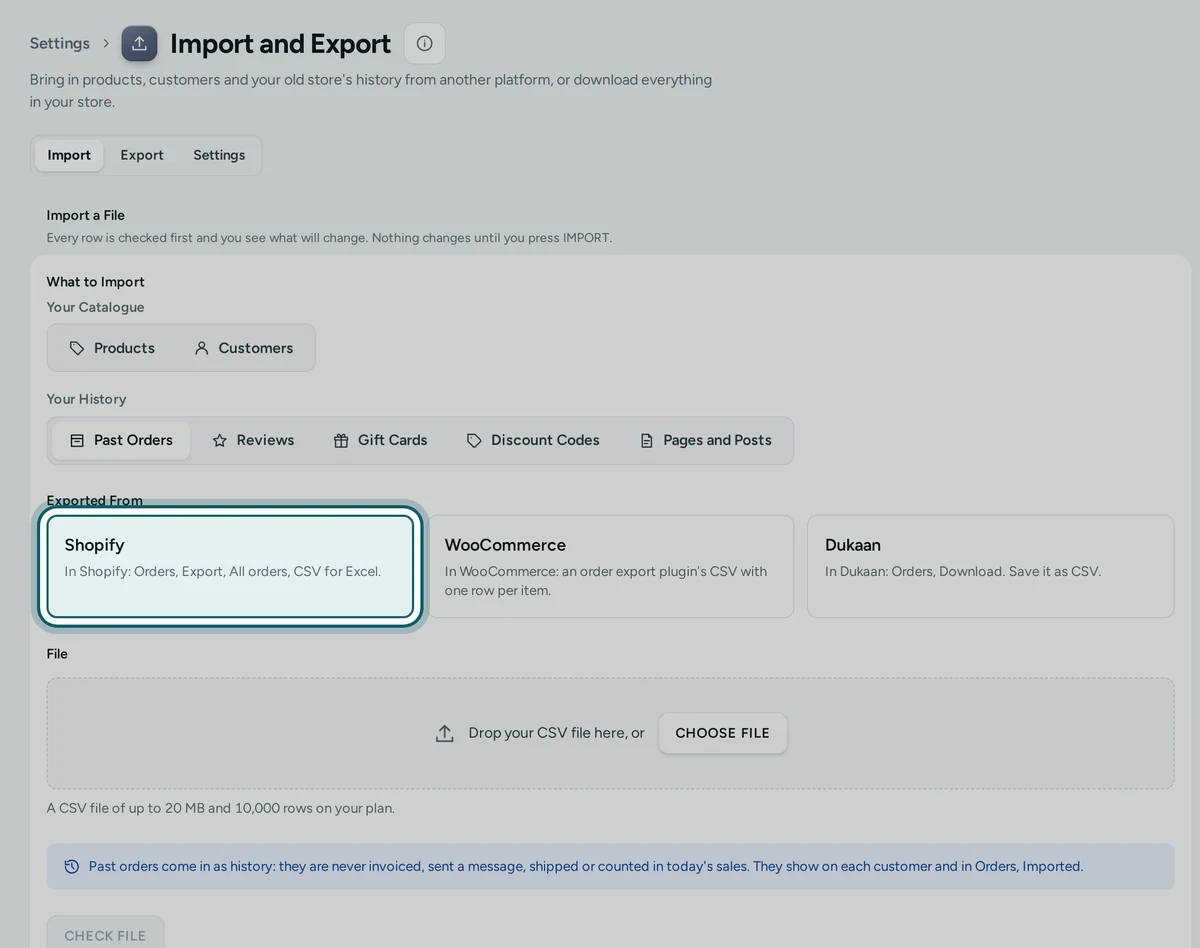
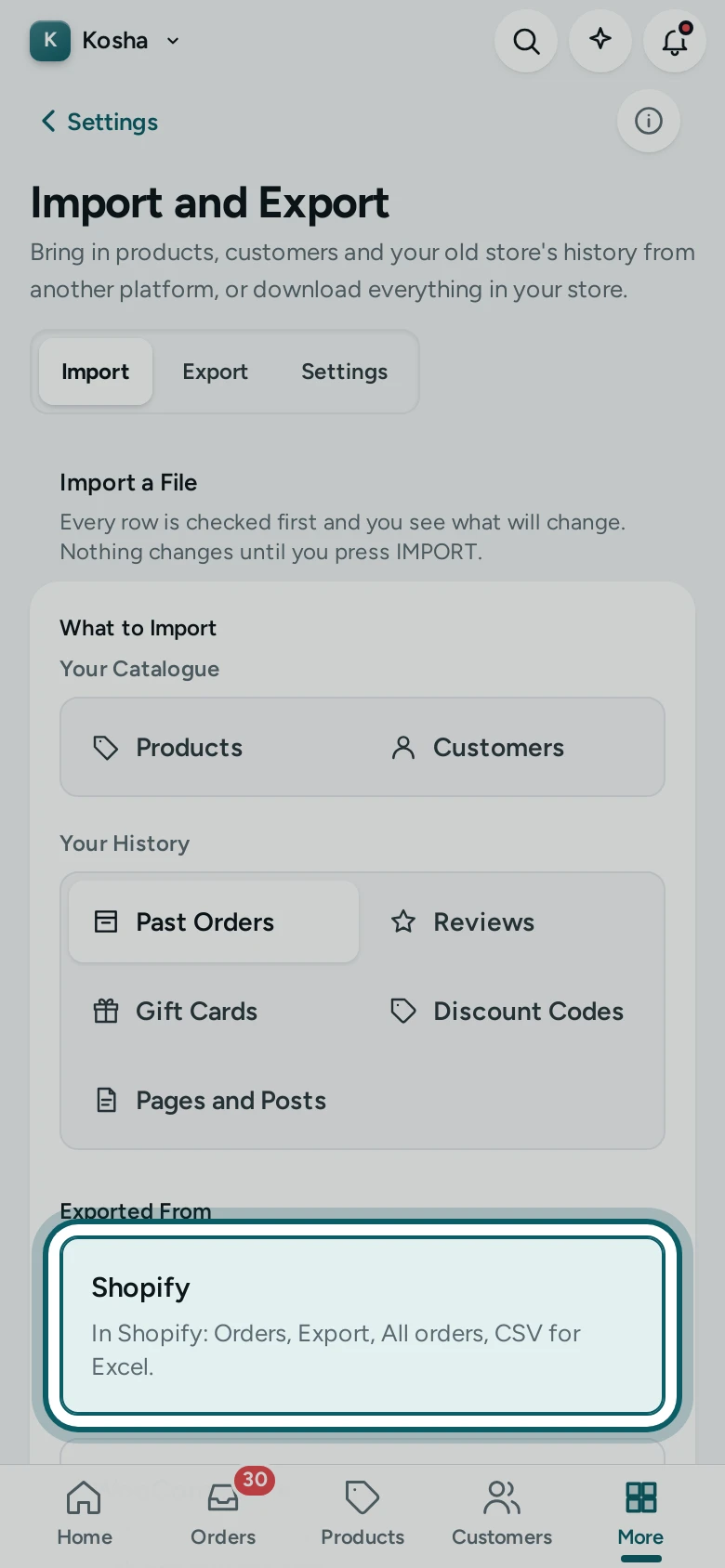
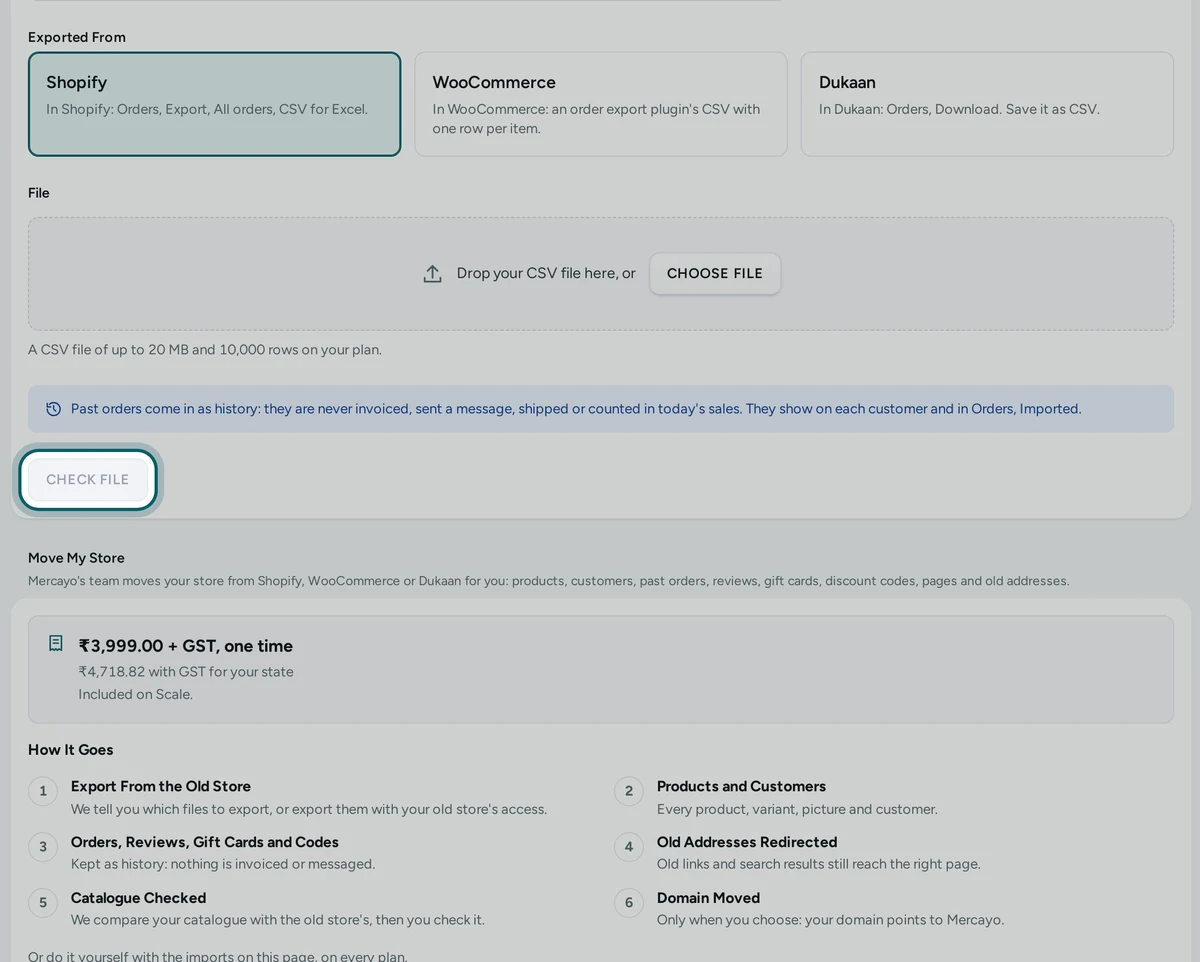
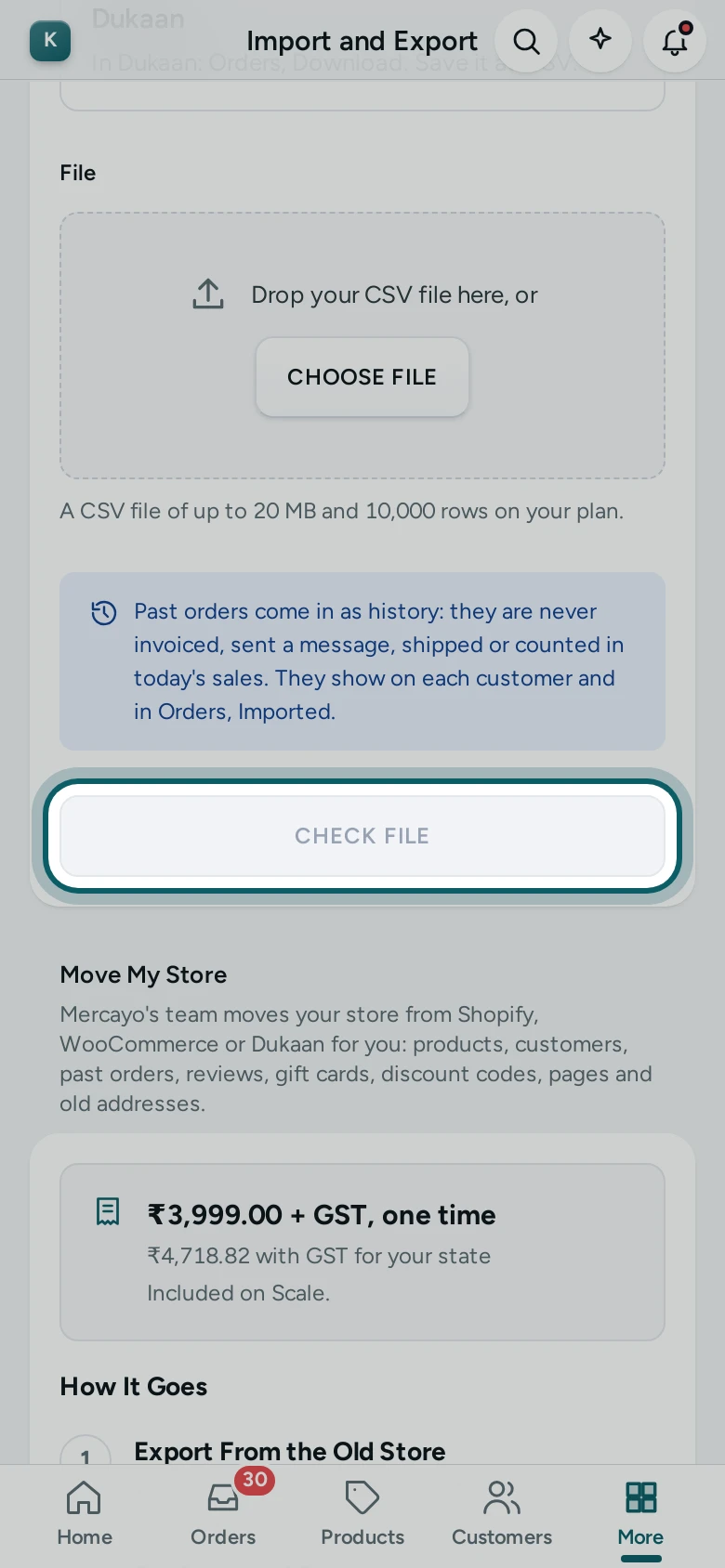
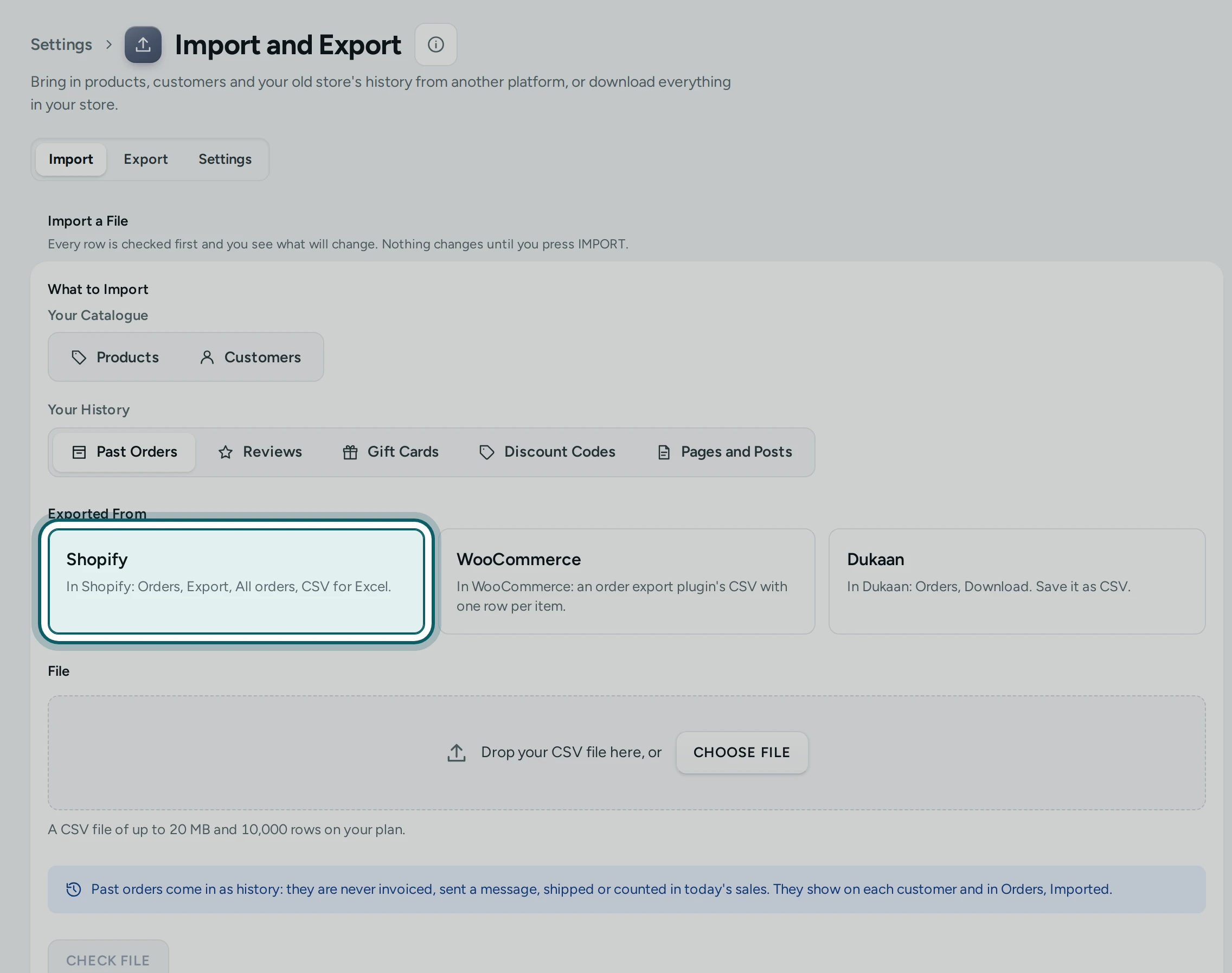
Choose Past Orders. Press Past Orders, then where they come from: Shopify ("In Shopify: Orders, Export, All orders, CSV for Excel."), WooCommerce (an order export plugin's CSV with one row per item) or Dukaan. The note under the file says what history means: "Past orders come in as history: they are never invoiced, sent a message, shipped or counted in today's sales."
Step 3 of 11
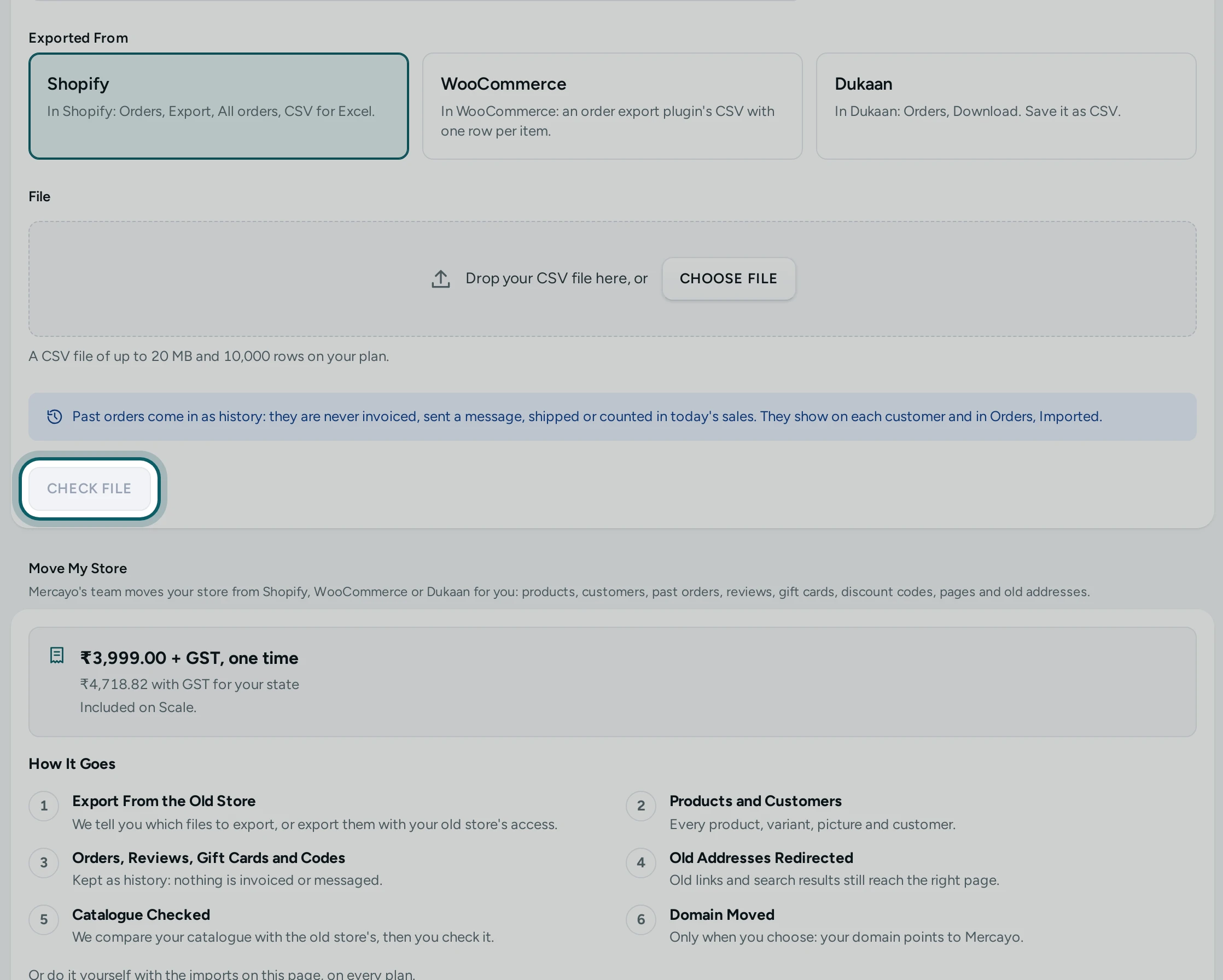
Check the file. Drop the file in, or CHOOSE FILE, and press CHECK FILE. The preview counts what Will Be Added and Will Be Updated, and lists rows With Problems and why: an order whose date or total cannot be read is left out; an order in another currency, an order without an email or phone, or items that are not products in your store come in with a note.
Step 4 of 11
Import. Press IMPORT. It runs in the background; you can leave the page. Import Finished shows what was added, with VIEW IMPORTED ORDERS. Importing the same file again updates the orders and never doubles them.
Step 5 of 11
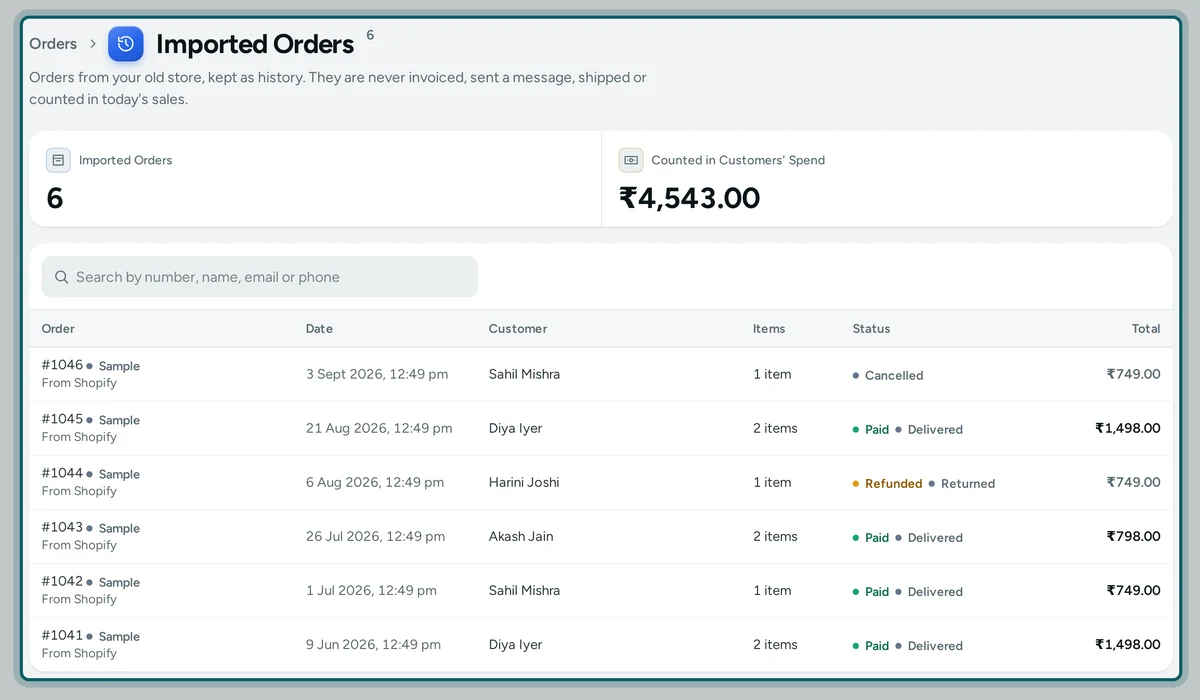
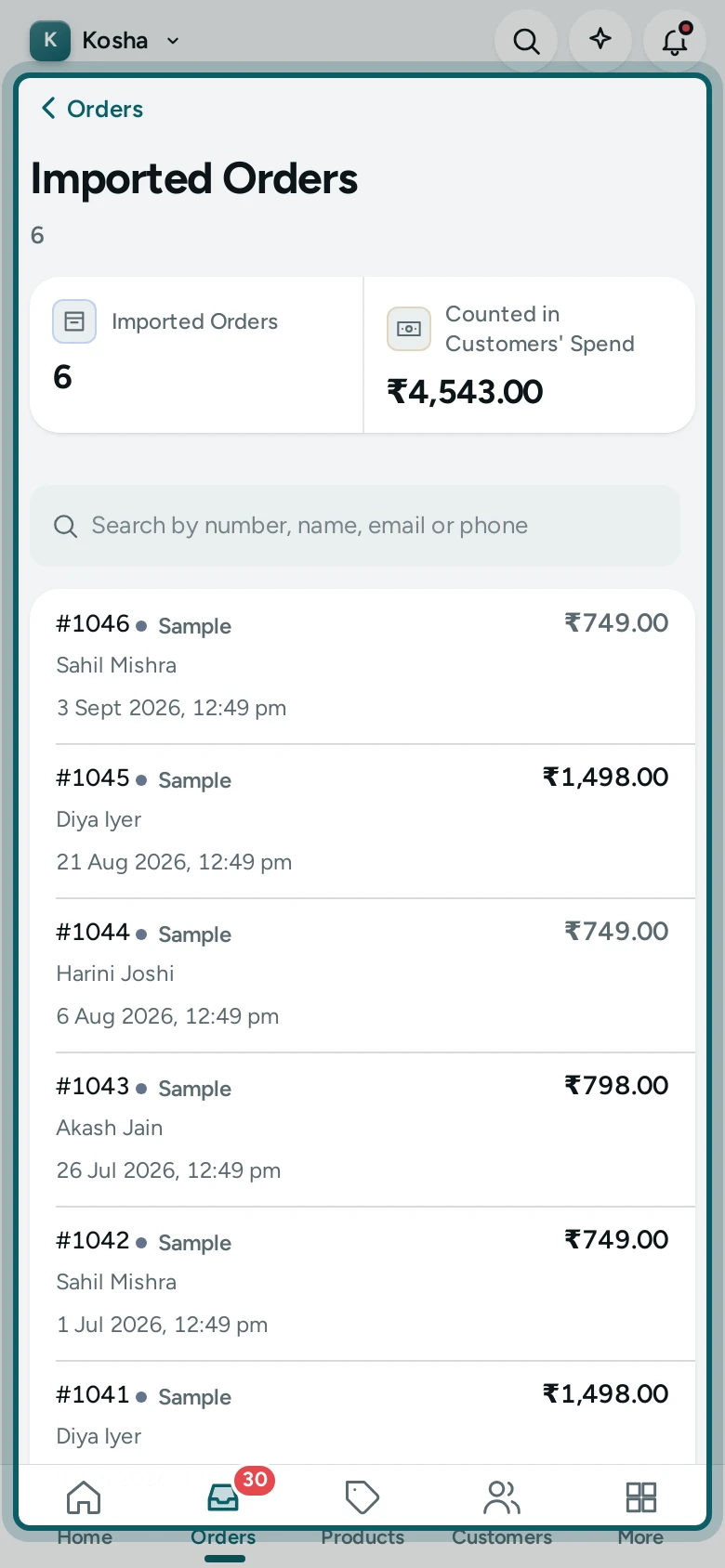
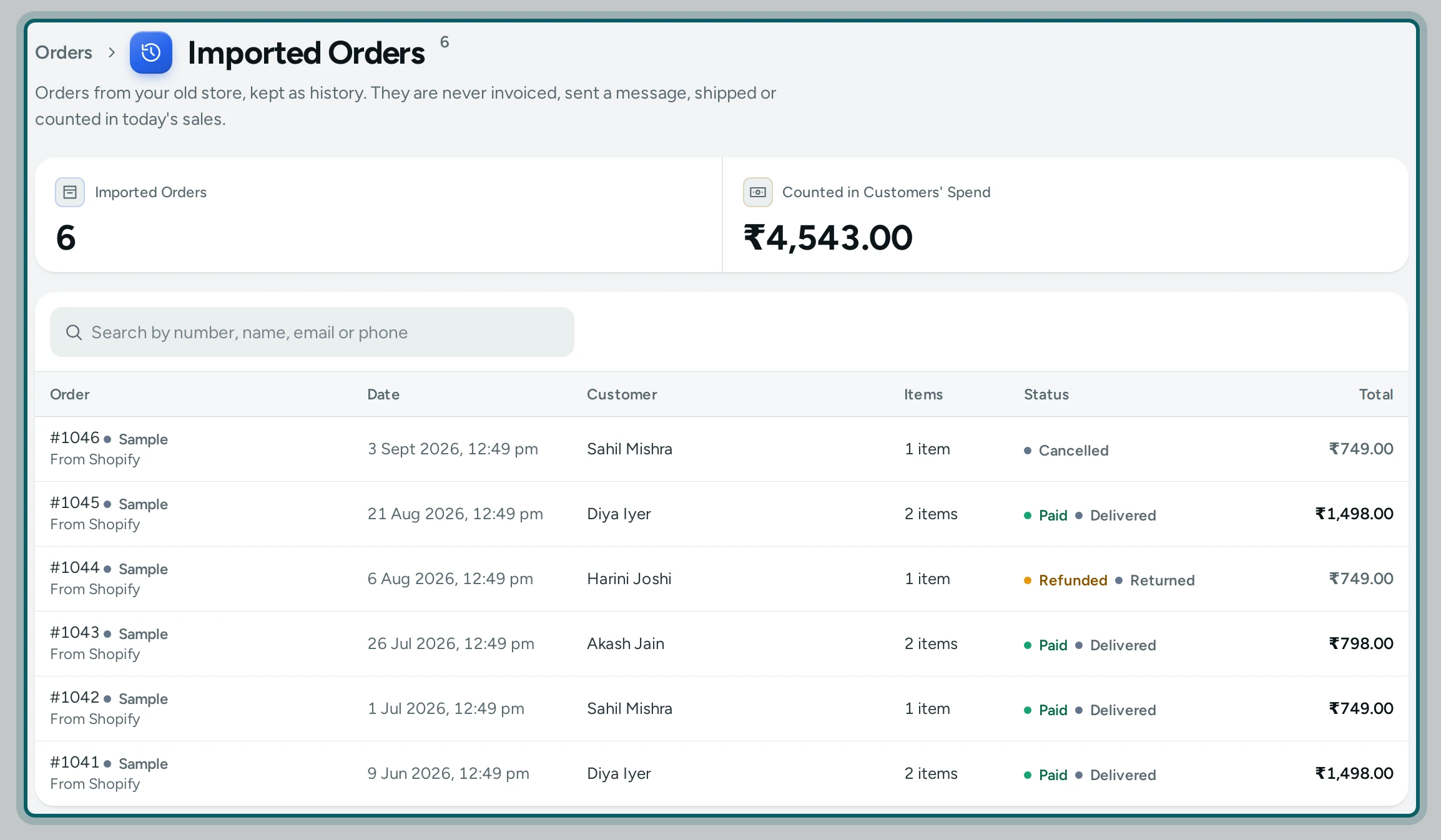
Orders → Imported. The orders list has IMPORTED (n) beside EXPORT CSV (in the menu on a phone). The list shows each old order's number, date, customer, items, status and total, with a search by number, name, email or phone. None of them is in your orders tabs, counts, reports or today's sales.
Step 6 of 11
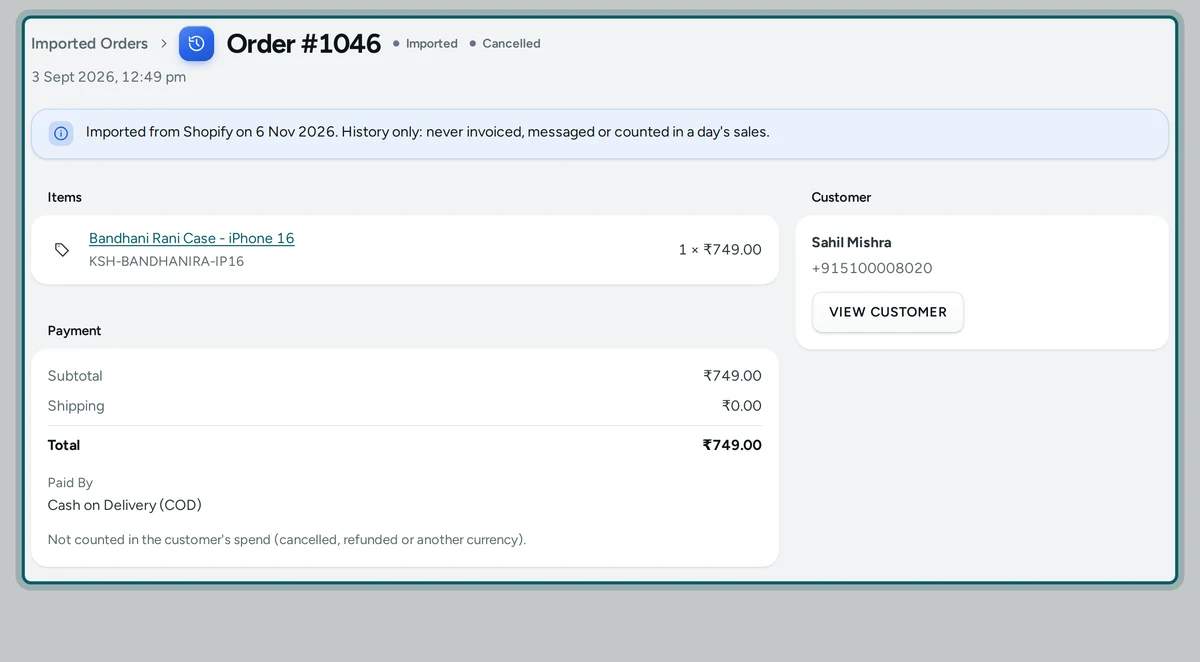
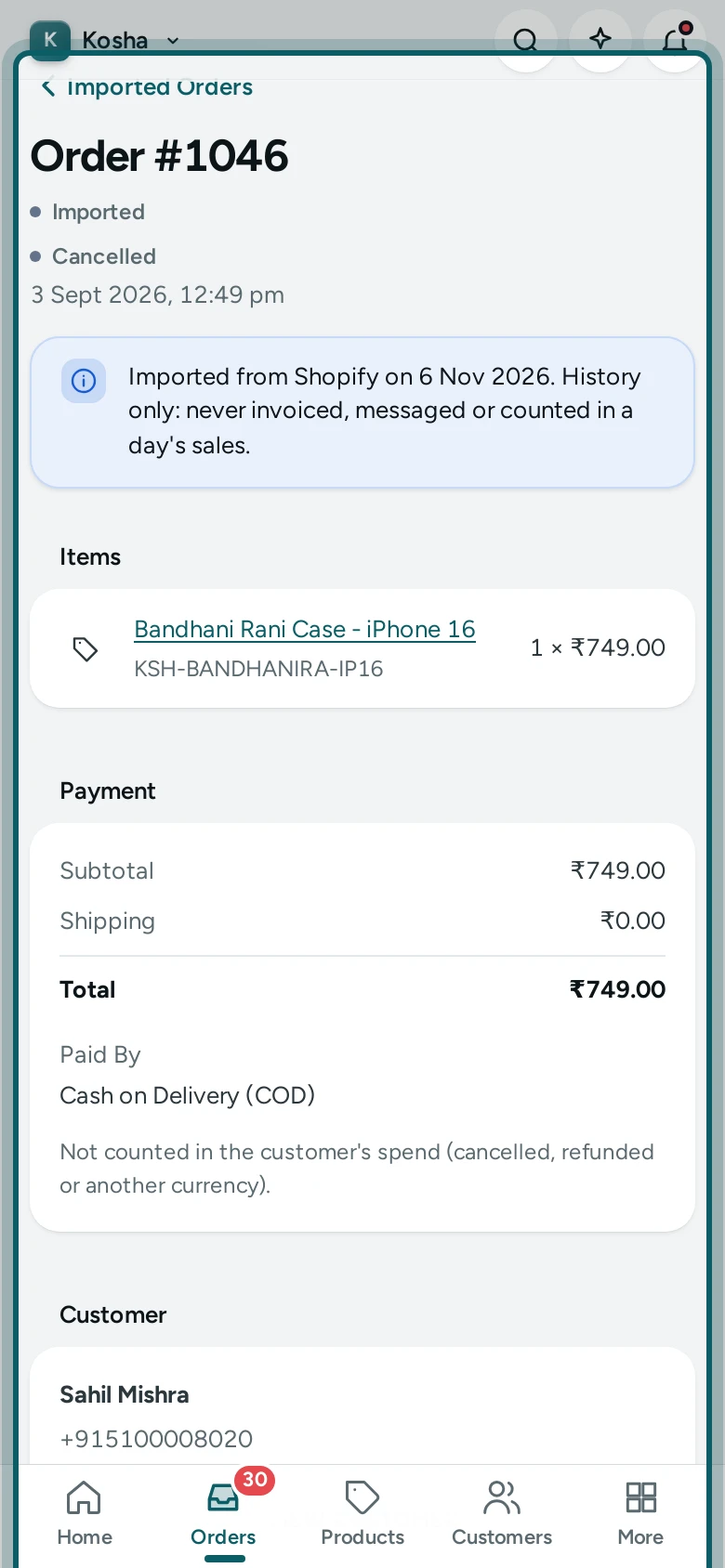
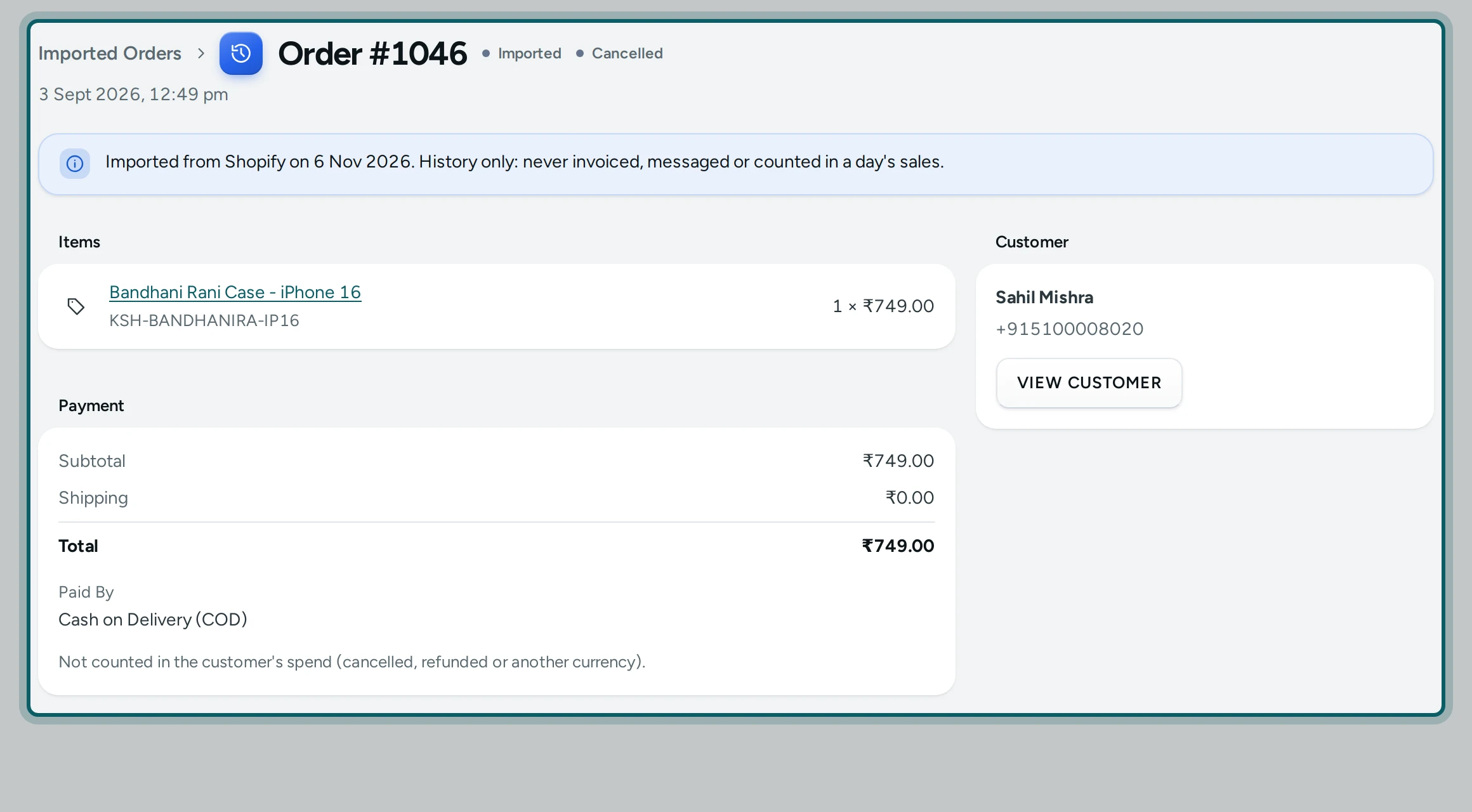
One imported order. Press a row: the items (each linked to the product when it is one in your store), the payment, the address and the note, and the line "Imported from Shopify on …. History only: never invoiced, messaged or counted in a day's sales."
Step 7 of 11
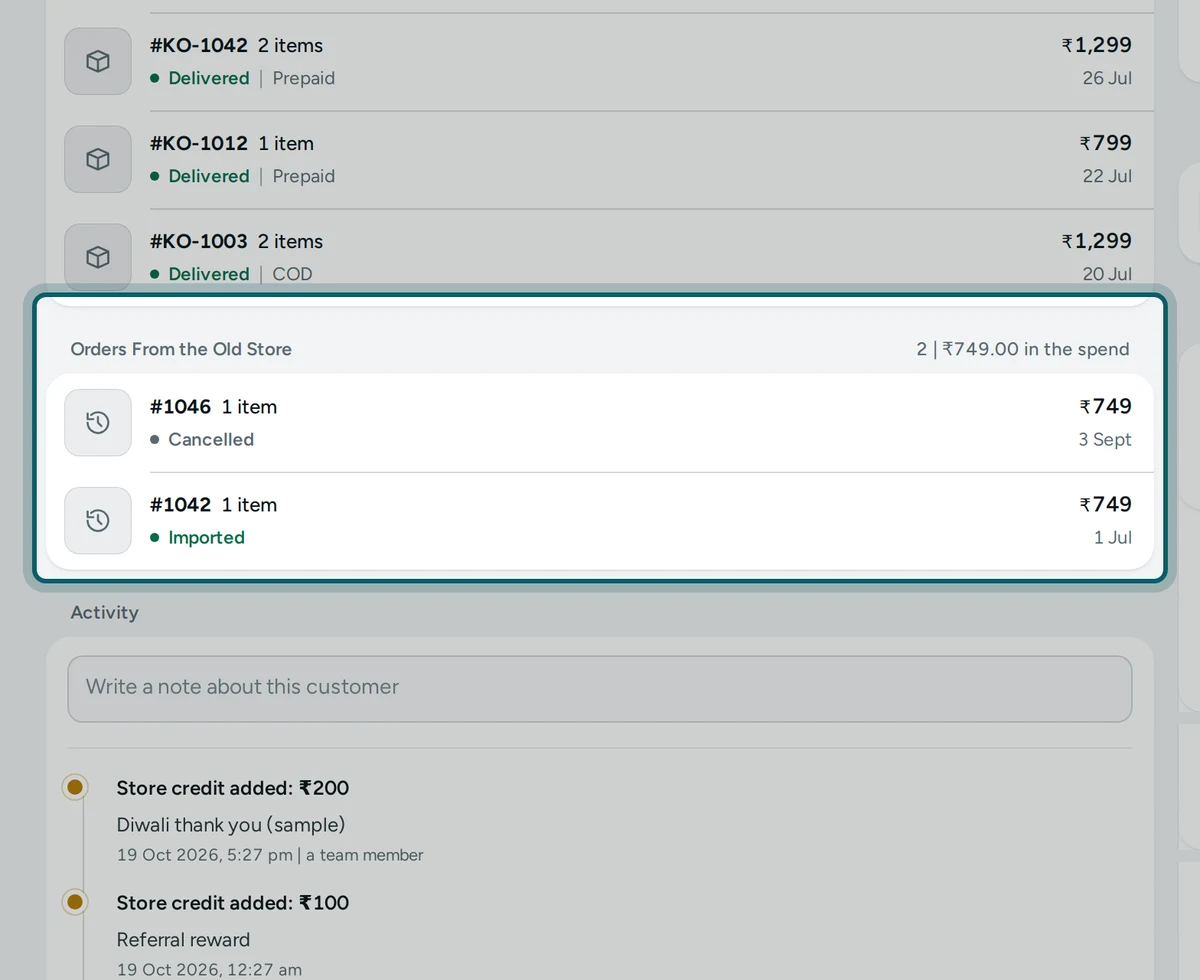
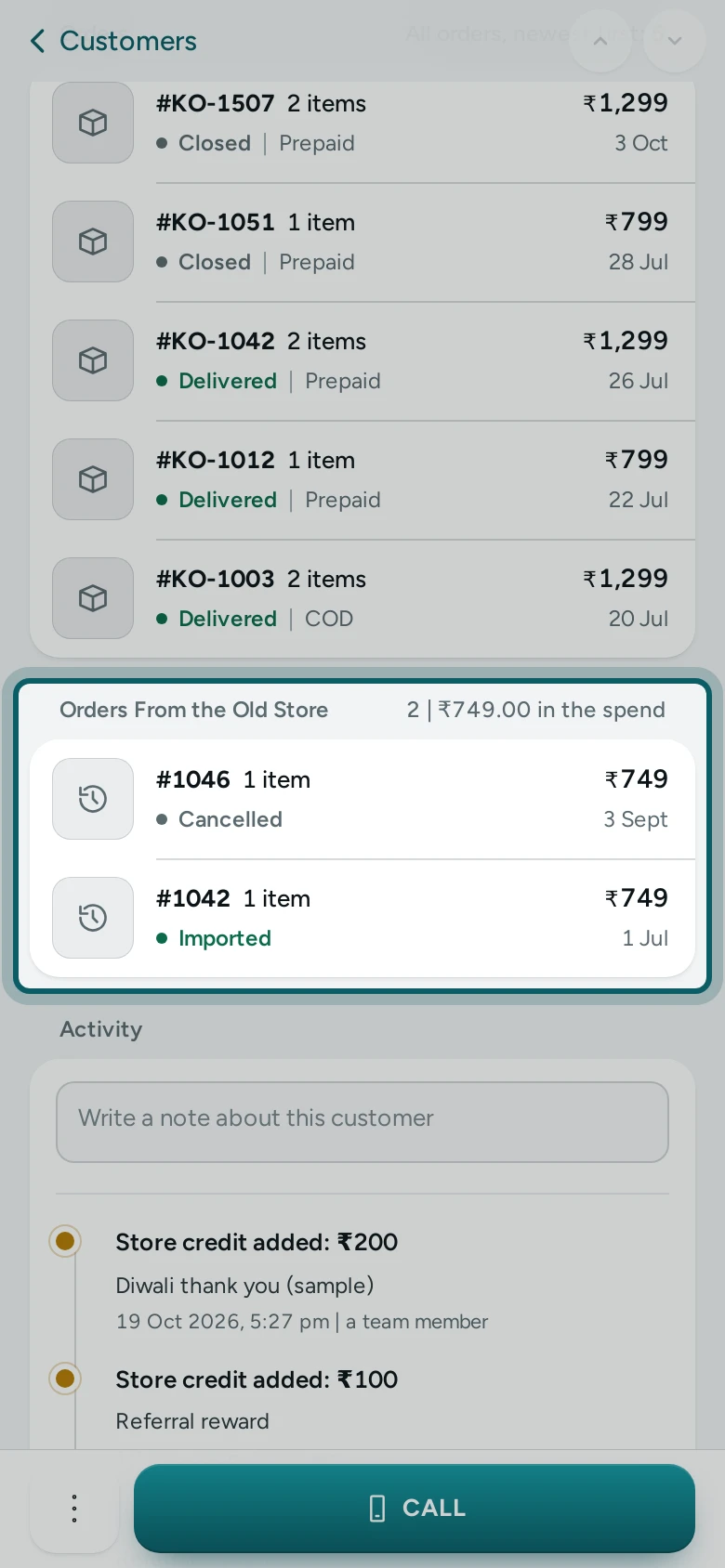
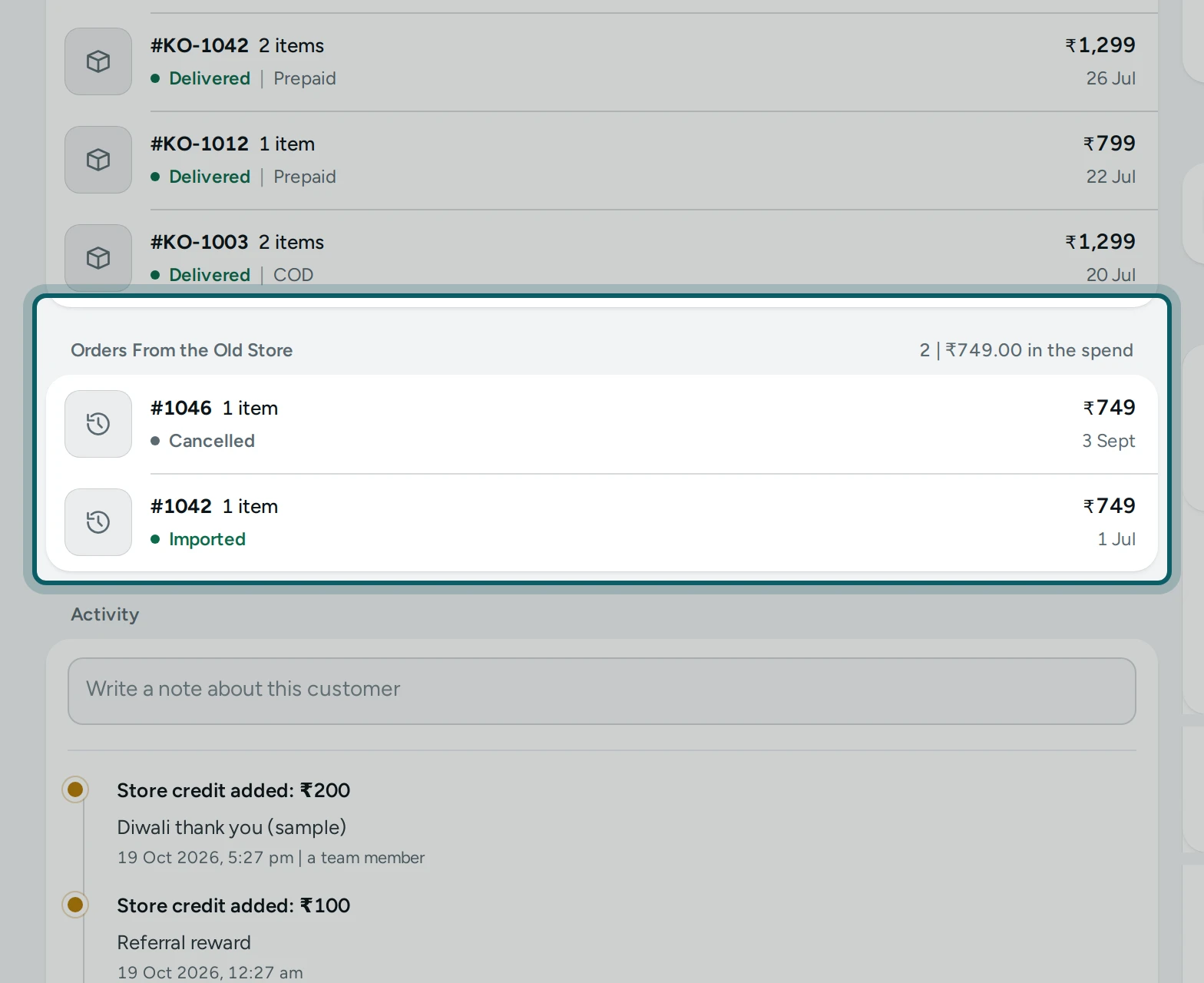
On the customer. Each customer's page has Orders From the Old Store: how many, and what of them counts in their spend. Their lifetime orders and spend in the customers list count them, so your repeat buyers and VIPs stay what they were. A cancelled or refunded old order counts in the orders, not in the spend.
Step 8 of 11
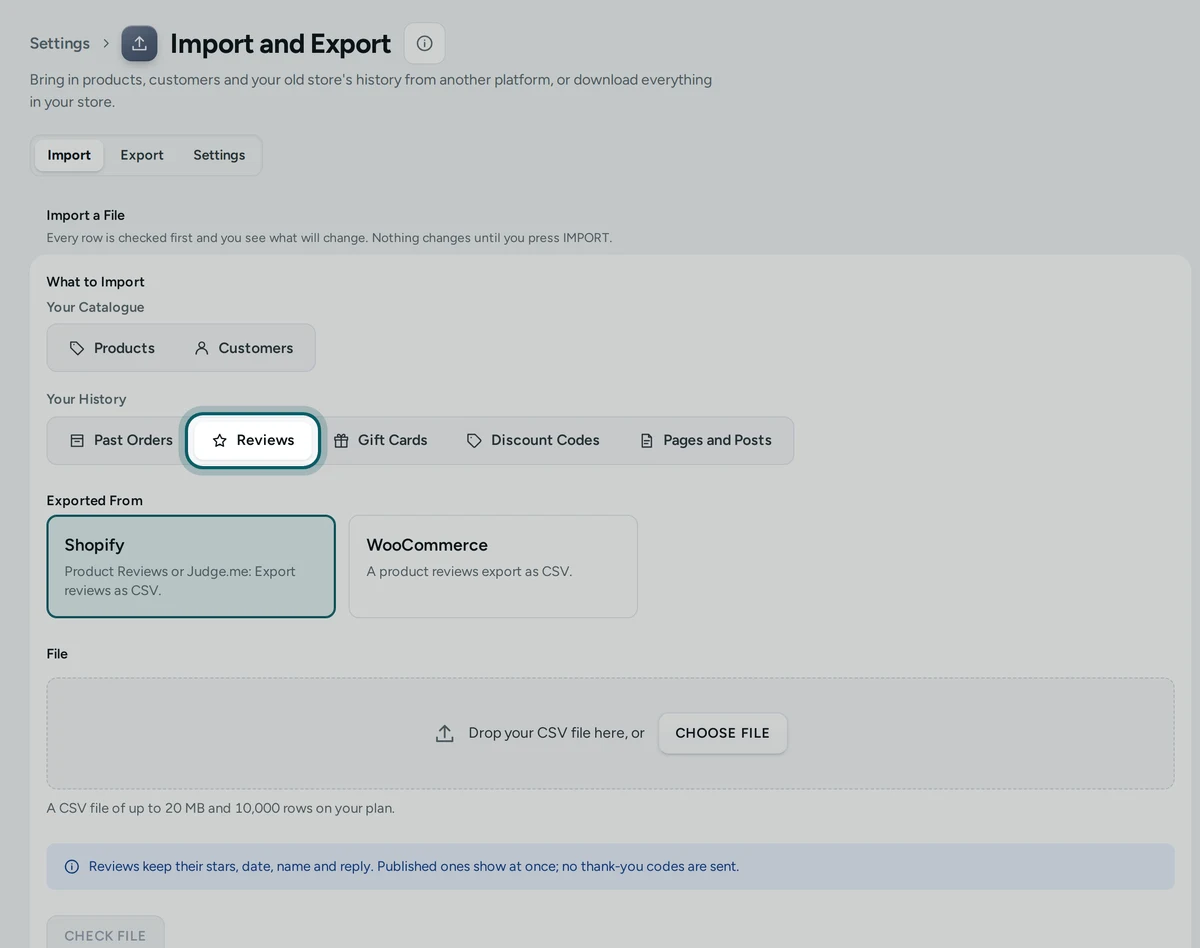
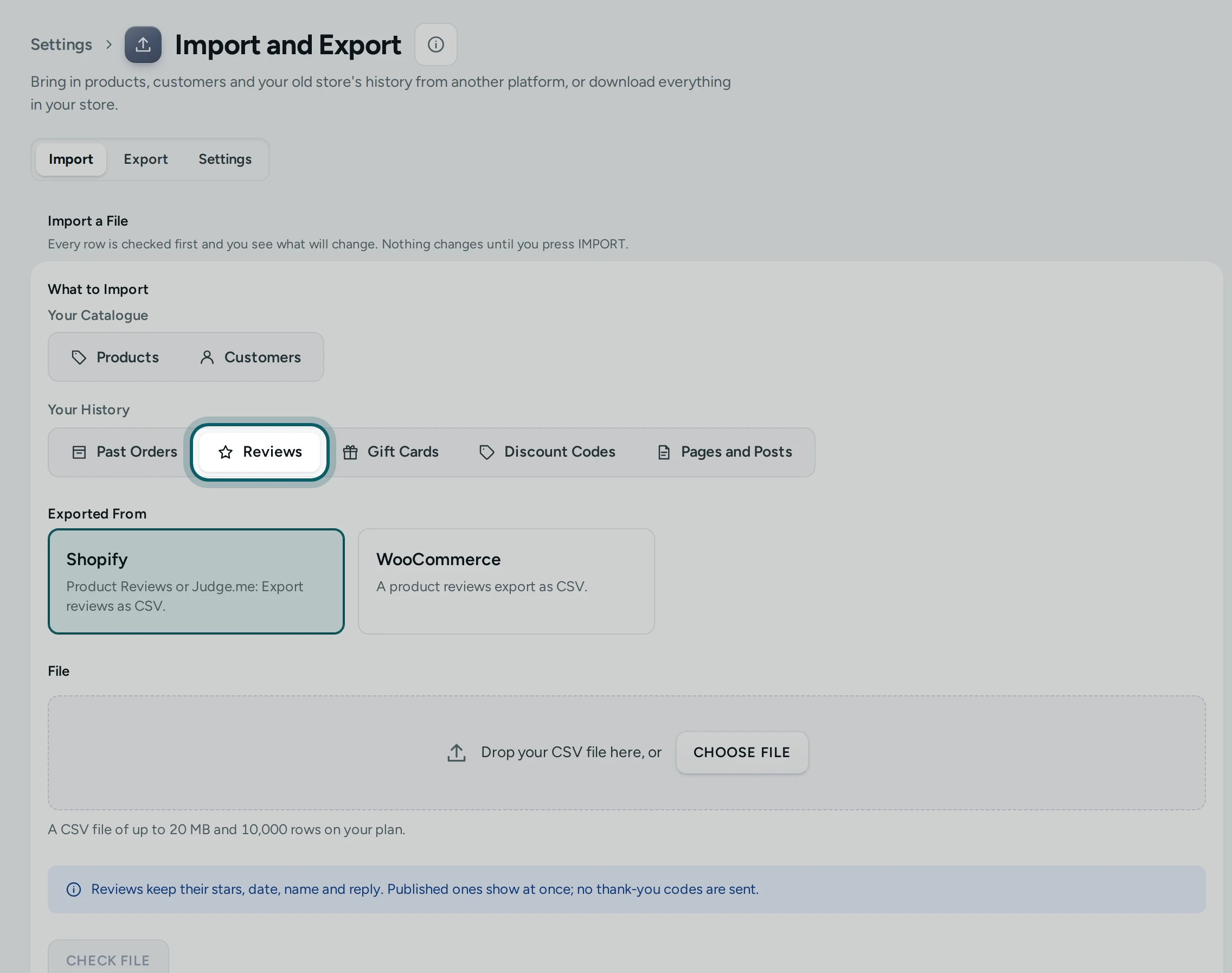
Reviews. Choose Reviews from Shopify (the Product Reviews app's or Judge.me's export) or WooCommerce. Each keeps its stars, date, name, title and your reply, and lands on its product by handle, SKU or name; a review of a product your store does not have is listed as a problem. Published ones show at once; the others wait in Reviews. No thank-you code goes out, now or when you approve one later.
Step 9 of 11
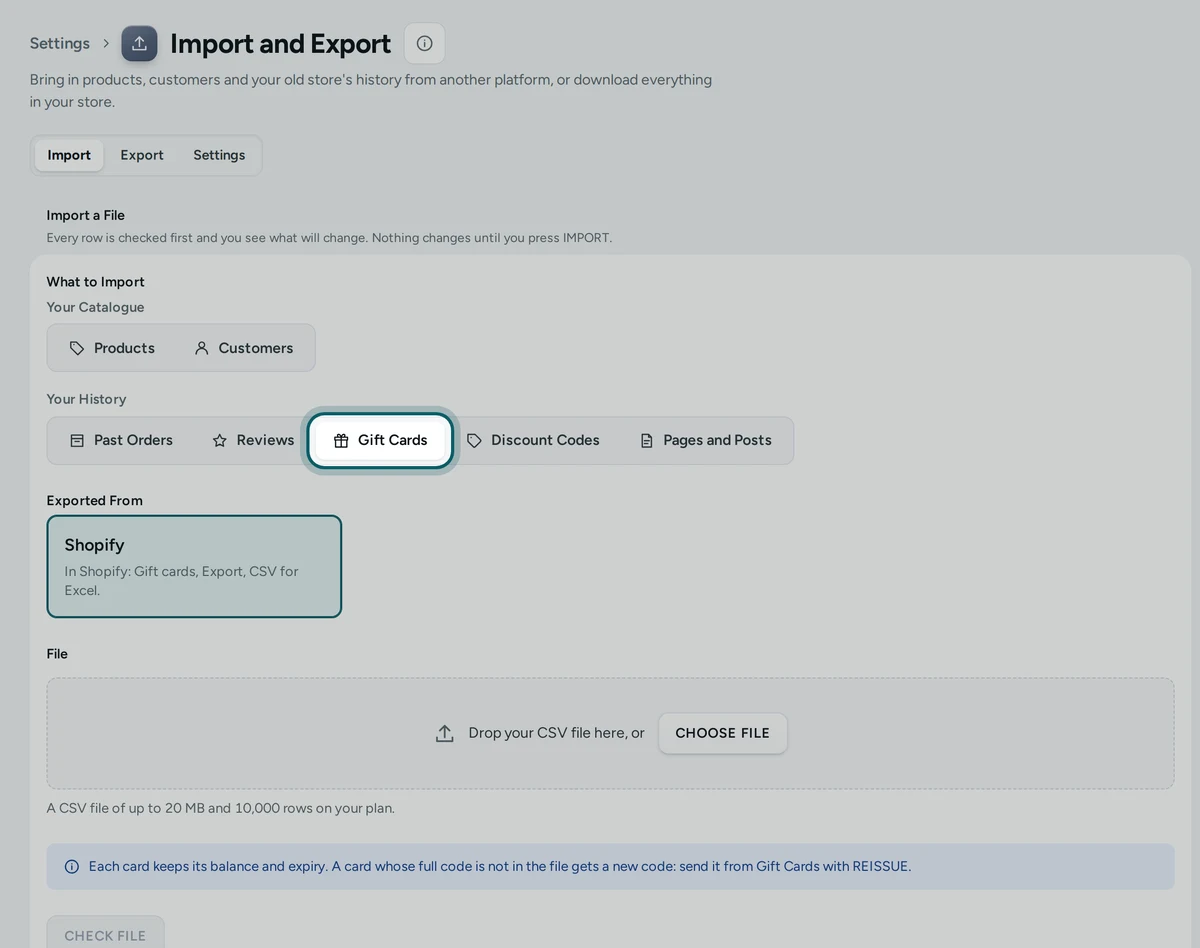
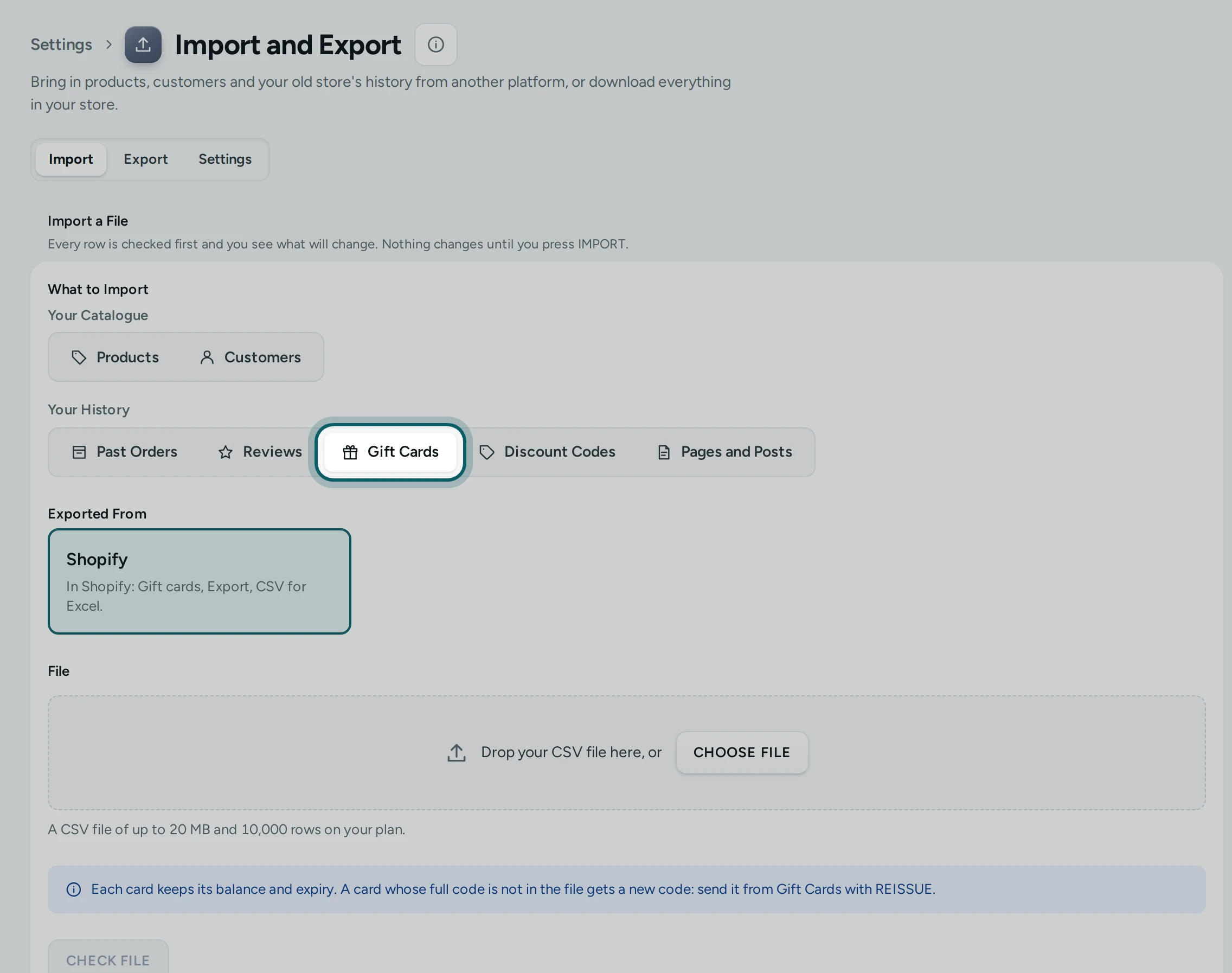
Gift cards. Choose Gift Cards from Shopify. Each card keeps its balance and expiry; an empty, switched-off or expired card is left out. Shopify's own export shows only the last characters of a code: such a card comes in with a new code nobody has yet. Open it in Gift Cards and press REISSUE to send the shopper their new code at the email the old store had.
Step 10 of 11
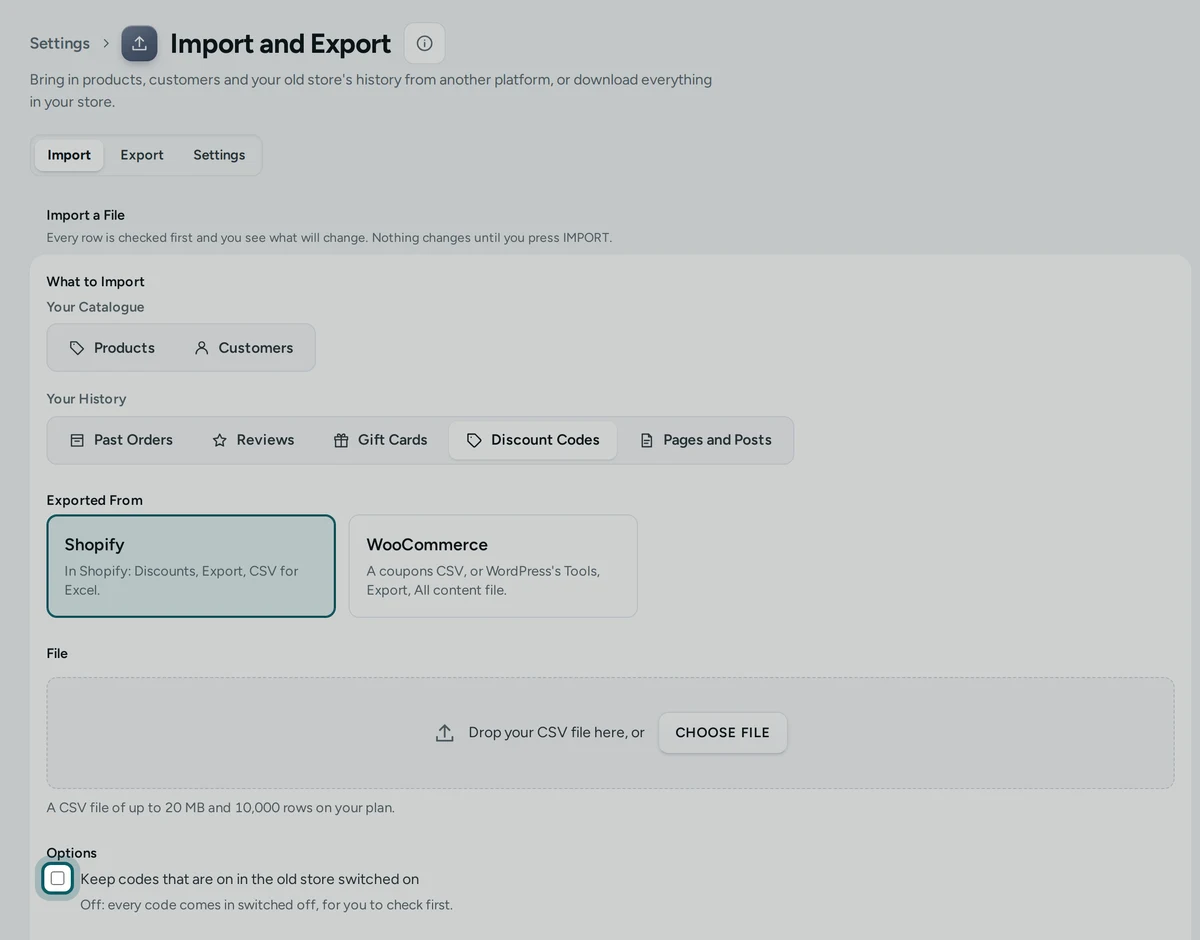
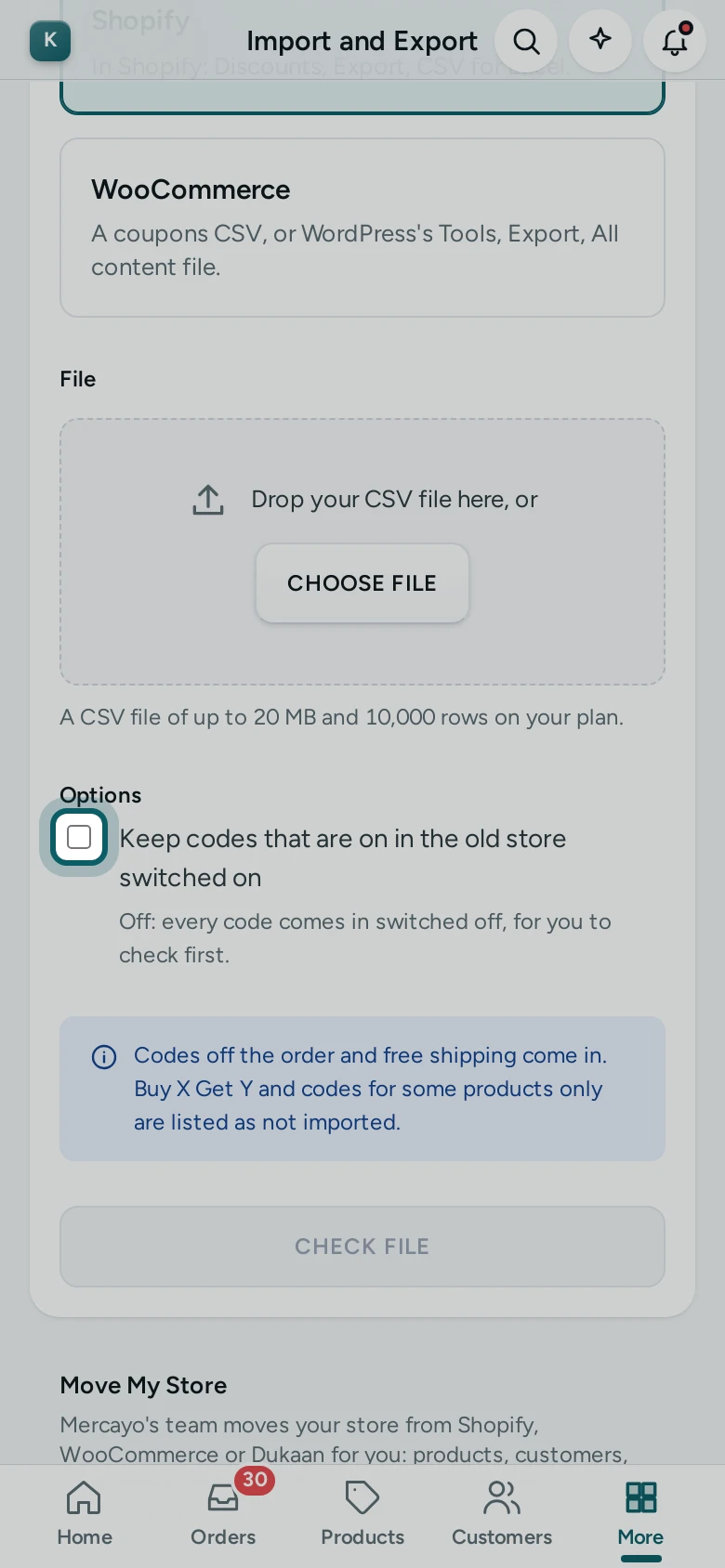
Discount codes. Choose Discount Codes from Shopify or WooCommerce (a coupons CSV or WordPress's export file). Codes off the order (a percentage or an amount) and free shipping come in, with their minimums, limits and how often they were used. They come in switched off, unless you tick Keep codes that are on in the old store switched on. Buy X Get Y, automatic discounts, codes for some products only, ended and used-up codes are listed as not imported, with why.
Step 11 of 11
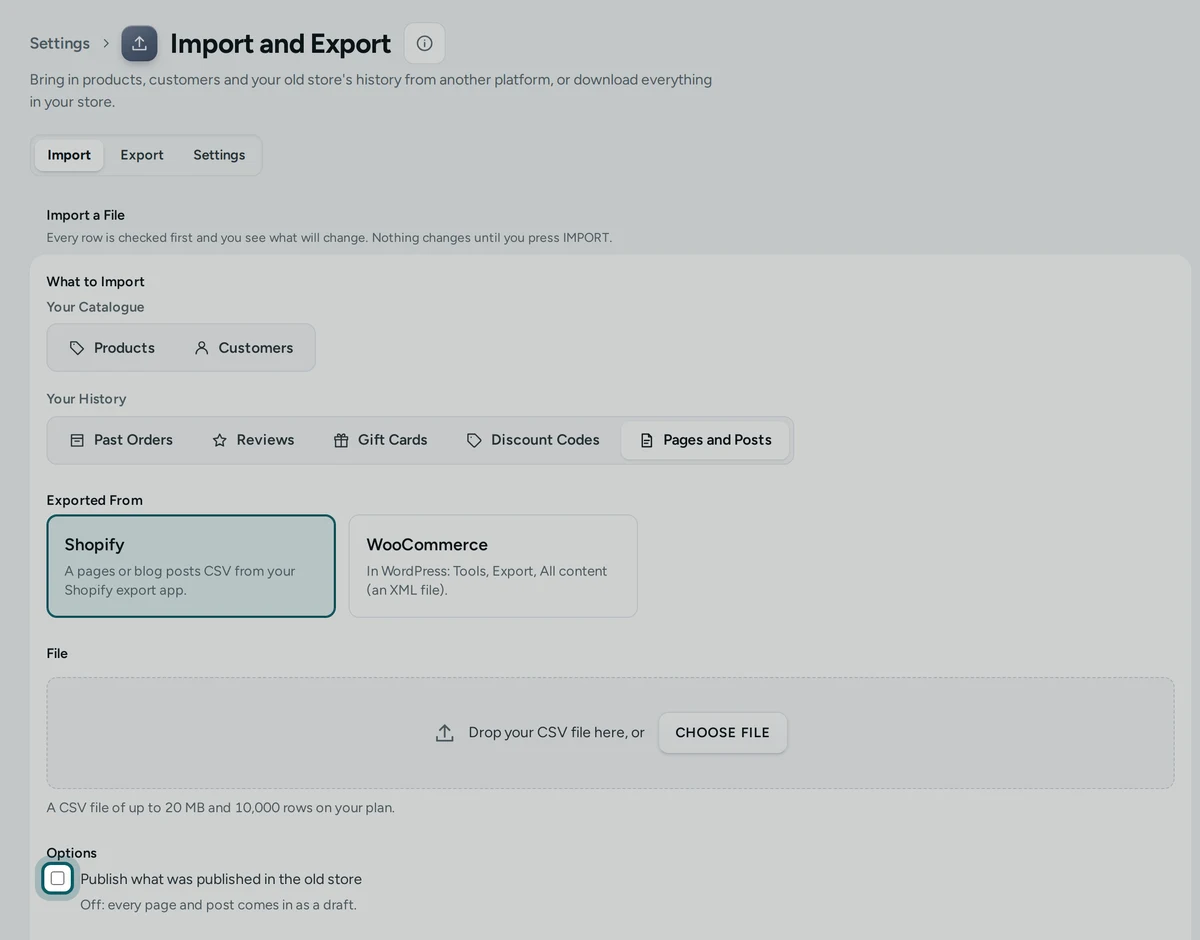
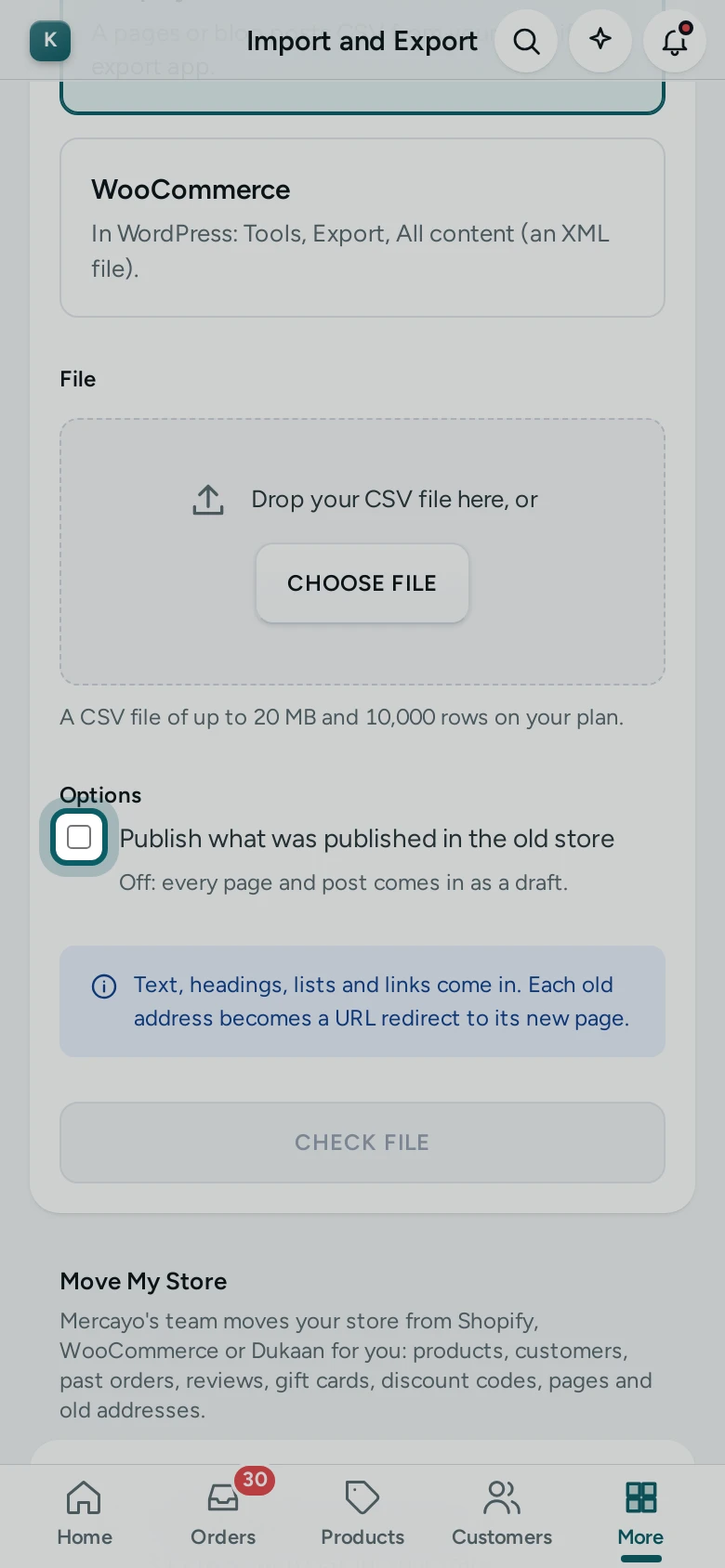
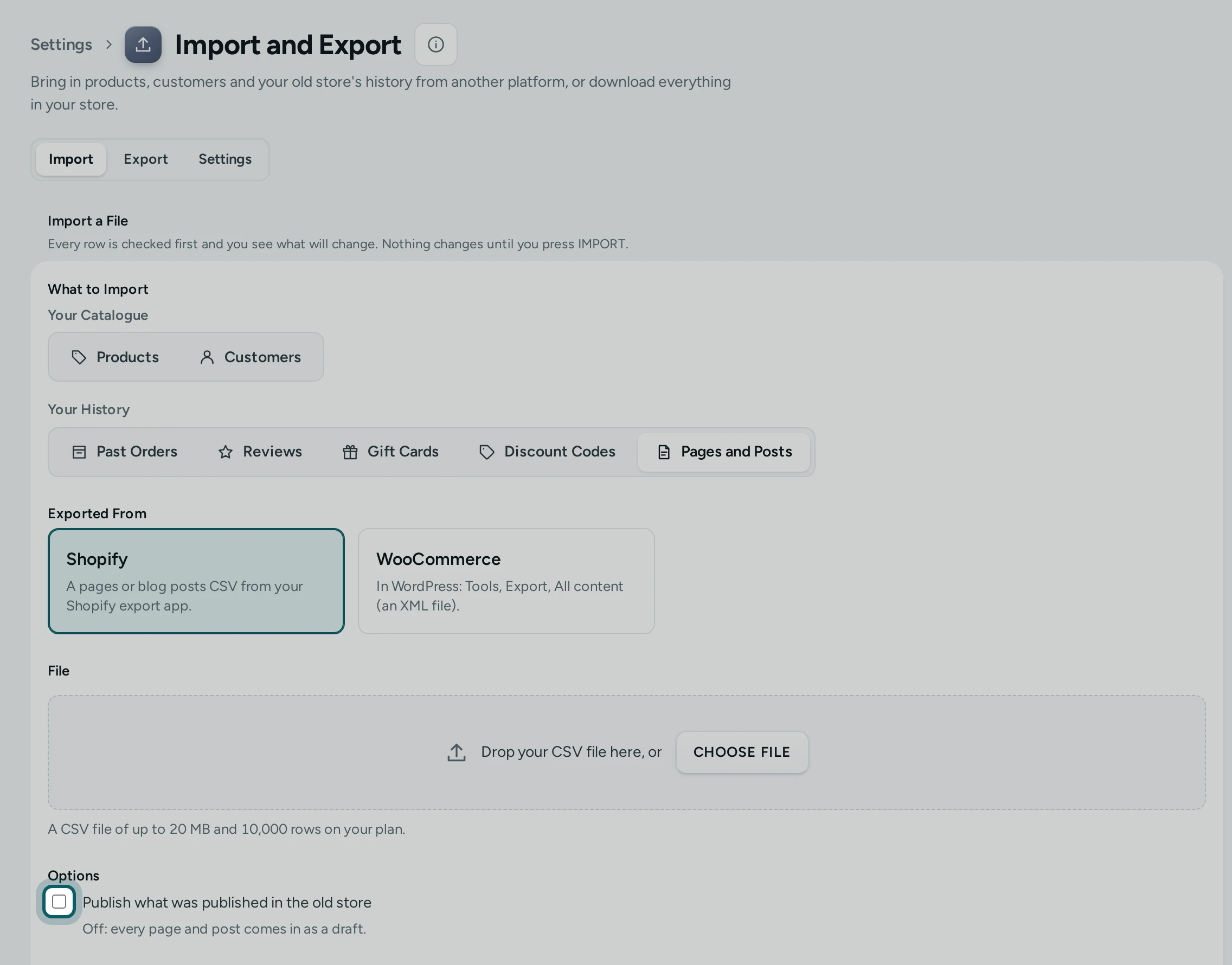
Pages and posts. Choose Pages and Posts from Shopify (a pages or posts CSV) or WooCommerce (WordPress's Tools, Export, All content: an XML file). Text, headings, lists and links come in; pictures inside the text are counted in a note for you to add in the page editor. Every page and post is a draft unless you tick Publish what was published in the old store, and each old address becomes a URL redirect to its new page.
Move My Store, Done for You
Step 1 of 3
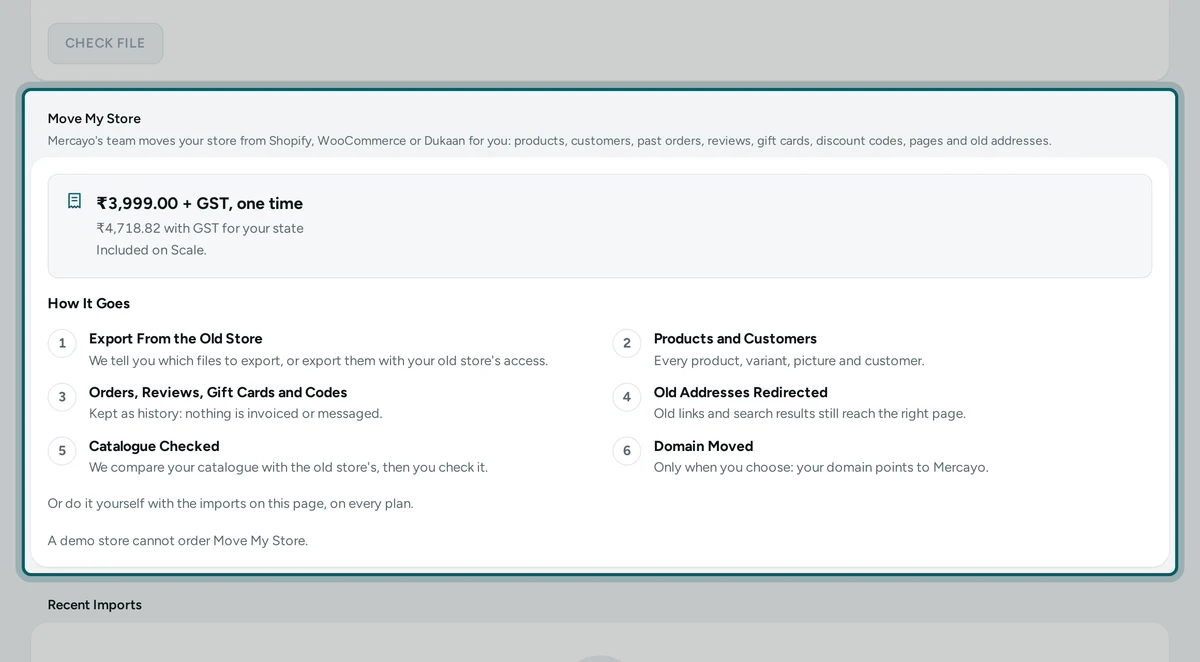
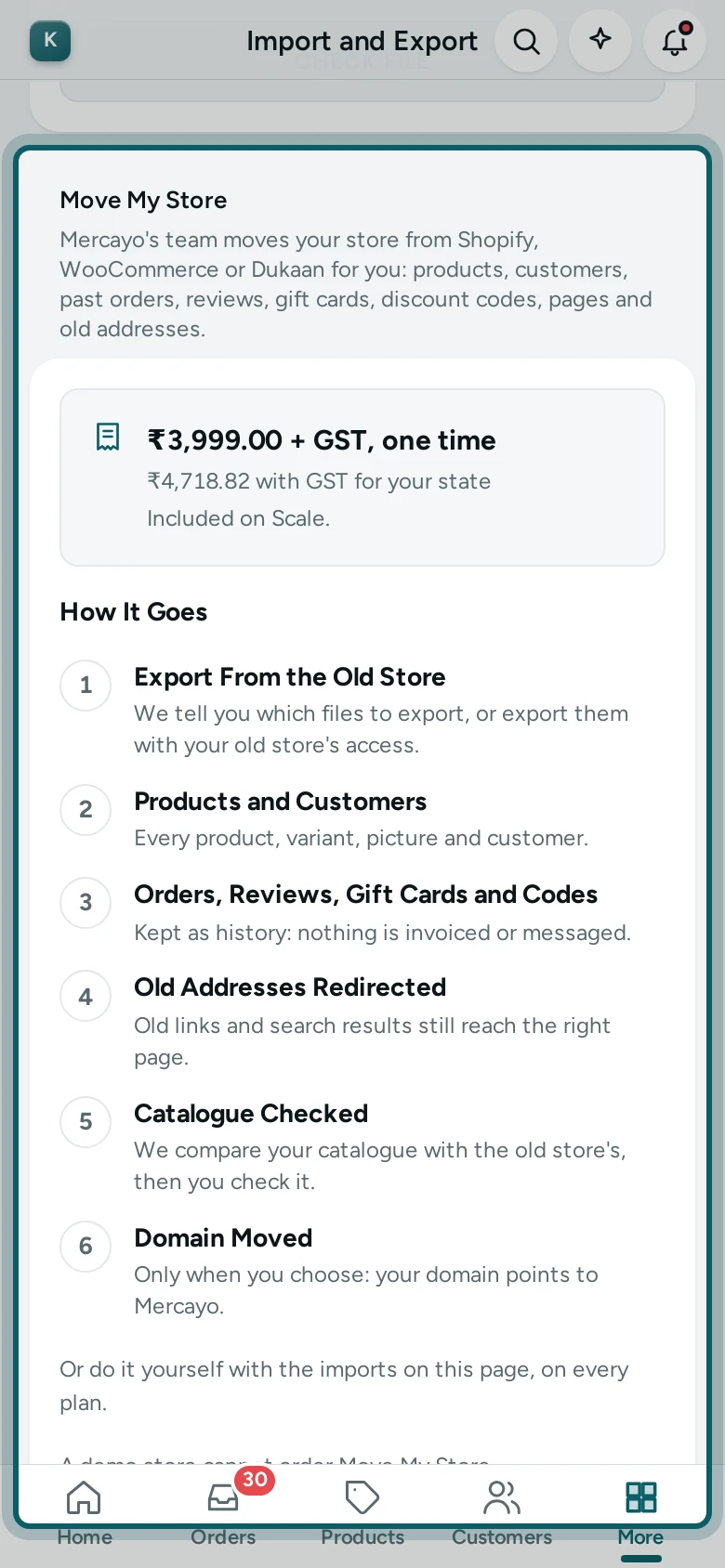
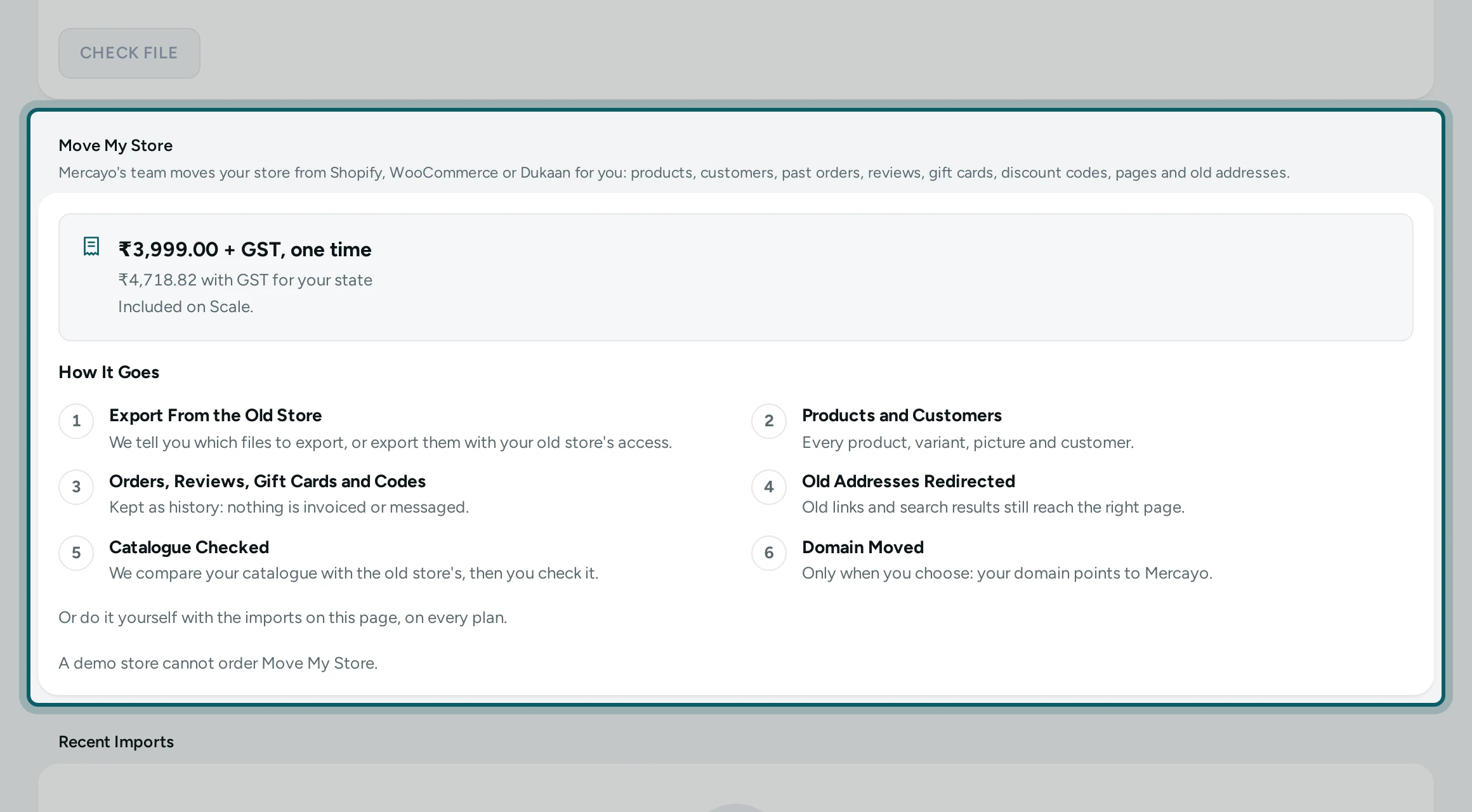
The card. Under the importers, Move My Store says what our team brings (products, customers, past orders, reviews, gift cards, discount codes, pages and old addresses) and its price: "Included with your plan" on Scale, else "₹3,999 + GST, one time" with the total for your state. How It Goes lists the steps.
Step 2 of 3
Order it. The store owner presses ASK MERCAYO TO MOVE MY STORE. The sheet asks Your Store Is On (Shopify, WooCommerce, Dukaan, Something Else), Your Old Store's Address, What to Move, whether to move your domain too when the store is ready, anything we should know, and whether Mercayo may open your admin to do the move (through Support Access). ORDER MOVE (or ASK FOR THE MOVE when it is included) sends it. A paid move opens Razorpay's page to pay; where paying online is not on, pay by bank transfer or UPI and Mercayo records it. Every payment gets Mercayo's GST invoice in Settings › Billing.
Step 3 of 3
Follow it. The card shows the move's number, its status (Waiting for Payment, With Mercayo, Moving, Ready for Your Check, Moved) and each step: Export From the Old Store, Products and Customers, Orders, Reviews, Gift Cards and Codes, Old Addresses Redirected, Catalogue Checked and Domain Moved (only when you asked). VIEW REQUEST opens the support request, where you and Mercayo write to each other. CANCEL ORDER works until it is paid or started.
Questions
Will my customers get emails about their old orders? No. An imported order never sends a message, takes stock, books a courier or uses an invoice number.
Do imported orders count in my sales? Not in today's or any period's sales or reports. They count in each customer's lifetime figures.
Who can import history? Past orders need the rights to change orders and customers; reviews the reviews right; gift cards the gift cards right; discount codes the discounts right; pages and posts the content right. Only the store owner orders Move My Store.