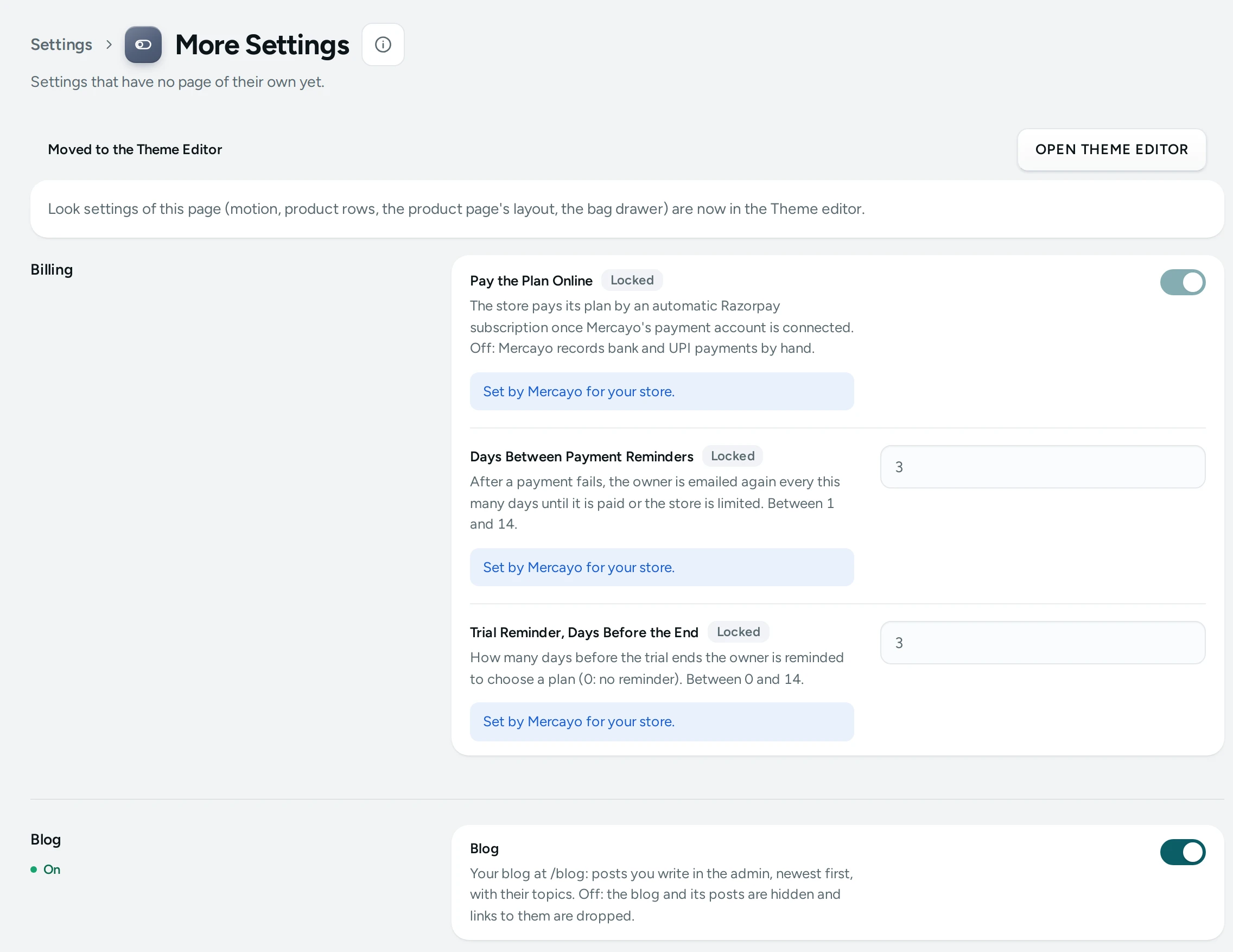
Settings without a page of their own yet: the blog, the contact form and its emails, the floating WhatsApp and back-to-top buttons, and the sign-up popup.
Last updated 19 October 2026In your admin: Settings › More Settings
"Settings that have no page of their own yet." Settings › More Settings gathers a few store-wide switches. Several are also on the screens where you use them (the popup and floating buttons on Popup and Forms).
Settings › More Settings
The Settings
Blog
Setting
What It Does
Default
Blog
Your blog at /blog: posts you write in the admin, newest first, with their topics. Off: the blog and its posts are hidden and links to them are dropped.
On
Contact Form
Setting
What It Does
Default
Contact Form
Shoppers can write to you from a Contact form section on your pages. Messages arrive in the Inbox.
On
Email Me Each Message
Each message is also emailed to the store owner and the extra addresses chosen for order alerts.
On
Floating Buttons
Setting
What It Does
Default
WhatsApp Chat Number
With the country code, like +91 98765 43210. A round WhatsApp button opens a chat with it. Empty: no button.
Empty
First Message
What the chat starts with, like "Hi, I have a question". The shopper can change it before sending.
Empty
Back to Top Button
A small button that appears after scrolling down two screens and takes the shopper back to the top.
On
Side for the Buttons
The corner of the screen the round buttons sit in. They always rise above the page's own sticky bars. Choices: Right, Left.
Right
Floating Link Label
A pill in the other corner on computers, like "Shop bestsellers". Empty: no pill.
Empty
Floating Link Goes To
A page of the store, like /collections/bestsellers. Hidden on that page itself and on product pages.
Empty
Sign-up Popup
Setting
What It Does
Default
Sign-up Popup
A window that asks shoppers to join the list, shown at most once a visit and never on the bag, checkout, account or policy pages.
Off
Popup Asks For
An email address or a WhatsApp number. Choices: Email, WhatsApp number.
Email
Show After Seconds
How long a shopper is on a page before the popup opens. 0: not by time. (0 to 300)
12
Or After Scrolling (%)
Opens once a shopper has scrolled this far down a page, if that comes first. 0: not by scrolling. (0 to 90)
0
When Leaving the Page (computers)
On computers, also opens when the pointer heads for the browser's tabs or address bar.
On
Show On
All shopping pages, the home page only, the home page and product lists, or product pages only. Choices: All shopping pages, Home page only, Home page and product lists, Product pages only.
All shopping pages
From Page Number
Opens only once the shopper has seen this many pages in the visit. 1: from the first page. (1 to 10)
1
Days Before It Shows Again
After a shopper closes it. 0: on their next visit. Never again once they have signed up. (0 to 365)
7
On Phones
On phones it rises from the bottom as a sheet that closes with one tap. Off: computers and tablets only.
On
Notes
Blog on: your blog at /blog with the posts you write in Blog. Off hides the blog and drops links to it.
Contact Form: messages from Contact form sections arrive in your Inbox; Email Me Each Message also emails them to the owner and your order-alert addresses.
WhatsApp Chat Number: type it with the country code, like +91 98765 43210, to show a round WhatsApp button on every page. First Message pre-fills the chat ("Hi, I have a question about…").
How This Page Works
Settings pages share one way of working (see Settings Home):
Each card groups the settings of one feature, with a line saying what it is for. Its main switch turns the whole feature on or off.
Change what you need; a save bar appears with SAVE. "Settings saved." Nothing changes on your store until you save.
USE DEFAULT puts a setting you changed back to Mercayo's default.
A setting Set by Mercayo for your store shows Locked (with Mercayo's reason when given) and cannot be changed here; "Mercayo allows … for your store." shows a range Mercayo has set.
If a teammate saved the page after you opened it: "Someone else saved these settings after you opened the page, so yours were not saved. Reload to see theirs."
Anyone who can see settings can look ("You can see these settings. Changing them needs the settings right."); saving needs the right to change settings.
Questions
Where did a setting I cannot find go?
Look settings (colours, fonts, motion, header, product rows) are in the Theme editor. Or search for the setting's name with Ctrl K.
Pictures show Kosha, a demo store on Mercayo. Its products, orders and customers are sample data.