Payments is where you connect your own Razorpay account. Once it is connected and online payments are switched on, shoppers can pay at checkout by UPI, cards, netbanking or wallets, and the money goes straight to your Razorpay account: Mercayo never holds it. A connected Razorpay account is also what lets you take part of a COD order online first (Part Payment for COD). Open it from Settings › Payments. Only people with the right to change payment settings can open it, which means the store's owner and its admins; no preset staff role has it.
What You See
The page title reads Payments. Once connected, a pill beside the title shows Test or Live.
The Razorpay Card
The card's corner shows Connected or Not connected.
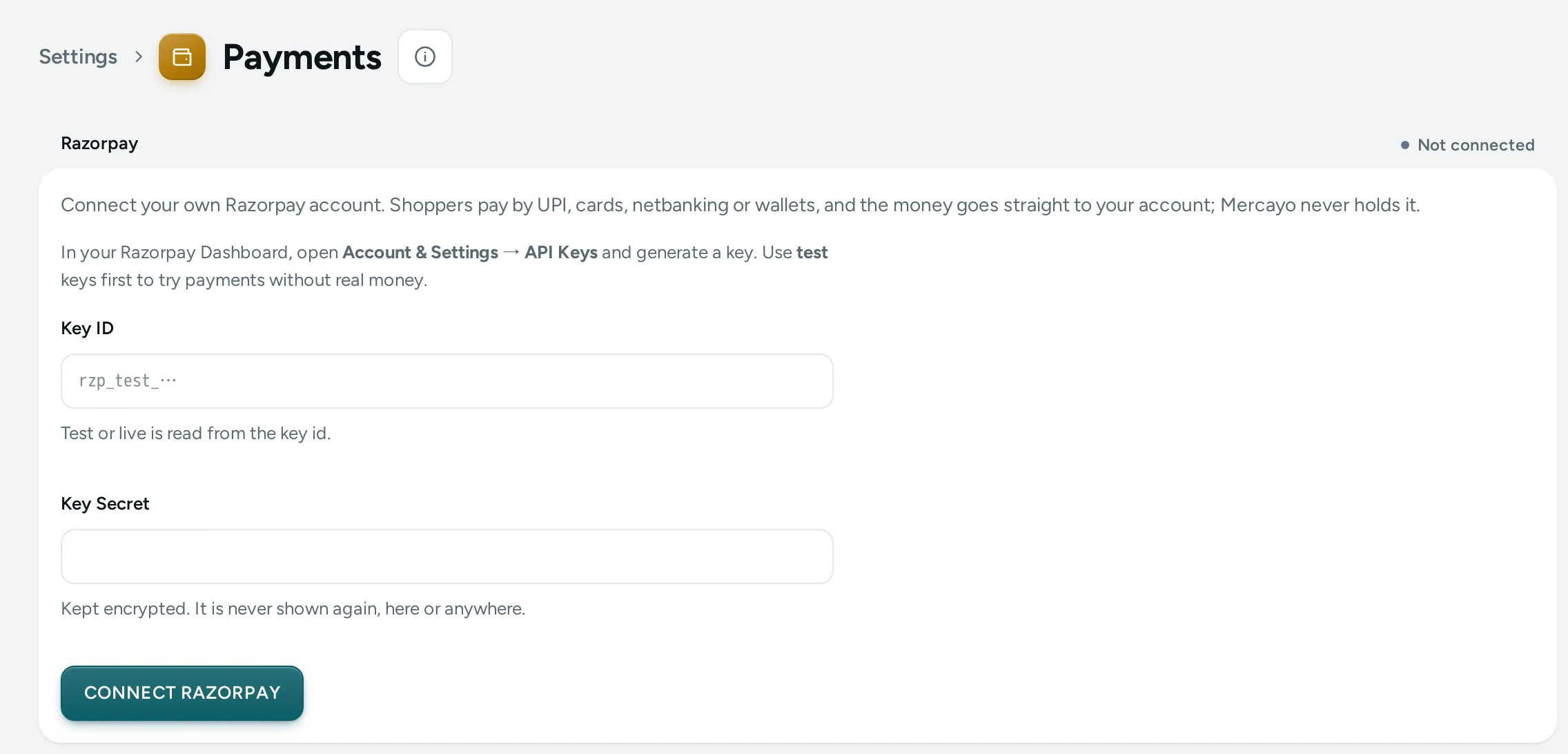
Before you connect, the card says: "Connect your own Razorpay account. Shoppers pay by UPI, cards, netbanking or wallets, and the money goes straight to your account; Mercayo never holds it." Below it is the connect form.
Once connected, the card lists:
| Fact | What It Shows |
|---|---|
| Key ID | Your key id, masked: rzp_test_••••3xyz. |
| Mode | Test ("No real money moves.") or Live ("Real payments."). |
| Connected | When the account was connected. |
| Webhook Address | The address Razorpay sends payment notices to, for your store. |
Under the facts: "The key secret and the webhook secret are kept encrypted and are never shown again." Two buttons follow: REPLACE KEYS and DISCONNECT.
The Connect Form
| Field | What It Does | Default |
|---|---|---|
| Key ID | The key id from Razorpay. It starts with rzp_test_ (test mode) or rzp_live_ (live mode); Mercayo reads the mode from it. The help under the box says which you typed: "Test key: payments are pretend, no real money moves." or "Live key: shoppers will pay real money." | Empty |
| Key Secret | The key secret from Razorpay. "Kept encrypted. It is never shown again, here or anywhere." | Empty |
The button reads CONNECT RAZORPAY, or CONNECT LIVE ACCOUNT when the key id is a live one.
The form checks your keys before sending them: an empty key id ("Paste the key id from Razorpay"), one that does not start with rzp_test_ or rzp_live_, or a key id or secret that looks cut short ("This does not look like a whole key id; copy it again from Razorpay").
How to Connect Razorpay
You need a Razorpay account first. Start with test keys, so you can try a payment without real money.
- In your Razorpay Dashboard, open Account & Settings → API Keys and generate a key. Use test keys first.
- In Mercayo, open Settings › Payments.
- Paste the Key ID and the Key Secret.
- Press CONNECT RAZORPAY.
- A Finish in Razorpay card appears with "Razorpay is connected in test mode. One step is left: tell Razorpay where to send payment notices." Follow its steps:
- In your Razorpay Dashboard, open Settings → Webhooks → Add New Webhook.
- Copy the Webhook URL with COPY and paste it into Razorpay.
- Copy the Secret with COPY and paste it into Razorpay's secret box.
- Under Active Events, tick
payment.capturedandorder.paid, then save.
- Press DONE, I HAVE ADDED IT.
- Open Settings › Checkout and COD and switch on Online Payments in the Online Payments card, then SAVE. See Checkout and COD Settings.
- Place a test order on your store and pay with Razorpay's test details. The order should show as paid.
How to Go Live
- In your Razorpay Dashboard, generate your live keys (Razorpay must have activated your account).
- In Mercayo, open Settings › Payments and press REPLACE KEYS.
- Paste the live Key ID and Key Secret. The button now reads CONNECT LIVE ACCOUNT; press it.
- The Finish in Razorpay card shows a new webhook secret: "Connecting again makes a new webhook secret, which you then update in Razorpay." In Razorpay's live mode, add the webhook (or update its secret) as in the steps above.
- Press DONE, I HAVE ADDED IT. The pill beside the title now reads Live.
To keep the keys you have, press KEEP THESE KEYS instead of connecting.
How to Disconnect
- Press DISCONNECT.
- Read the dialog Disconnect Razorpay?: "Shoppers will not be able to pay online until you connect again. Payments already confirmed stay as they are; a shopper paying at this moment may not be confirmed."
- Press DISCONNECT to confirm. The page says "Razorpay disconnected. Shoppers cannot pay online until you connect again."
- Remove Mercayo's webhook in your Razorpay Dashboard too.
What Shoppers See
While online payments are on and Razorpay is connected, checkout offers paying now by UPI, card or netbanking ("You pay ₹1,299 now, by UPI, card or netbanking.") beside cash on delivery, if COD is on. The shopper pays in Razorpay's own payment window. An order paid online is confirmed only when Mercayo's server has checked the payment, either from the browser's signed answer or from Razorpay's webhook, whichever comes first. A shopper who does not finish paying has the minutes in Time to Pay (default 30) before the order is cancelled and its stock goes back.
In test mode, shoppers see the same checkout, but no real money moves. Keep the store in test mode only while you are trying it out.
Mercayo Controls
Your Razorpay keys are kept encrypted and are never shown on any screen, Mercayo's console included. The Online Payments switch on the Checkout and COD page is a registry setting, so Mercayo can lock it for your store (for example, off while a store is being reviewed). A locked switch shows Locked with Mercayo's note.
Good to Know
- Mercayo saves your keys without trying them against Razorpay. A wrong secret shows up when a shopper tries to pay, so always place a test order after connecting.
- Your key secret and the webhook secret are encrypted and never shown again, to you or anyone. If you lose the webhook secret, REPLACE KEYS makes a new one.
- If Mercayo's secure storage for keys is not set up on a server, connecting is refused with "Payment keys cannot be saved on this server yet… Please contact Mercayo support." Nothing is saved.
- Refunds of online payments go back through your Razorpay account. See Refunds.
- Connecting, replacing keys and disconnecting are recorded in the Activity Log; the keys themselves are never written there, only that "the keys" changed.
- Razorpay's fees and payouts are between you and your Razorpay account.
Questions
Do I need Razorpay to sell on Mercayo?
No. A store can sell with cash on delivery only. Razorpay is needed for online payments and for part payment on COD orders.
Why don't shoppers see online payment after I connected Razorpay?
Check that Online Payments is switched on in Settings › Checkout and COD and saved. Both the switch and a connected account are needed. See Payments Not Working.
Can I use someone else's Razorpay account?
The money goes to whichever account you connect, so connect the account of the business that sells. It should match the legal name in your Store Details.
I lost the webhook secret. What now?
Press REPLACE KEYS, paste your keys again and connect. Mercayo makes a new webhook secret; update it in Razorpay's webhook settings.
Is a test mode order a real order?
It is an order in your admin like any other, but no real money moved. Cancel test orders once you have checked them.
Can I switch between test and live?
Yes, at any time with REPLACE KEYS: paste test keys for test mode, live keys for live mode. Each time you connect, update the webhook secret in Razorpay.