Moving to Mercayo should not mean typing your catalogue again. Import and Export brings in products and customers from Shopify, WooCommerce, Dukaan or another Mercayo store, checking every row and showing what will change before anything does; and it downloads everything in your store as one ZIP file whenever you want a copy. "Bring in products and customers from another platform, or download everything in your store." Open Settings › Import and Export (or IMPORT in the setup guide). Importing products needs the products right; importing customers needs the customers right; exports need the right for each thing you export.
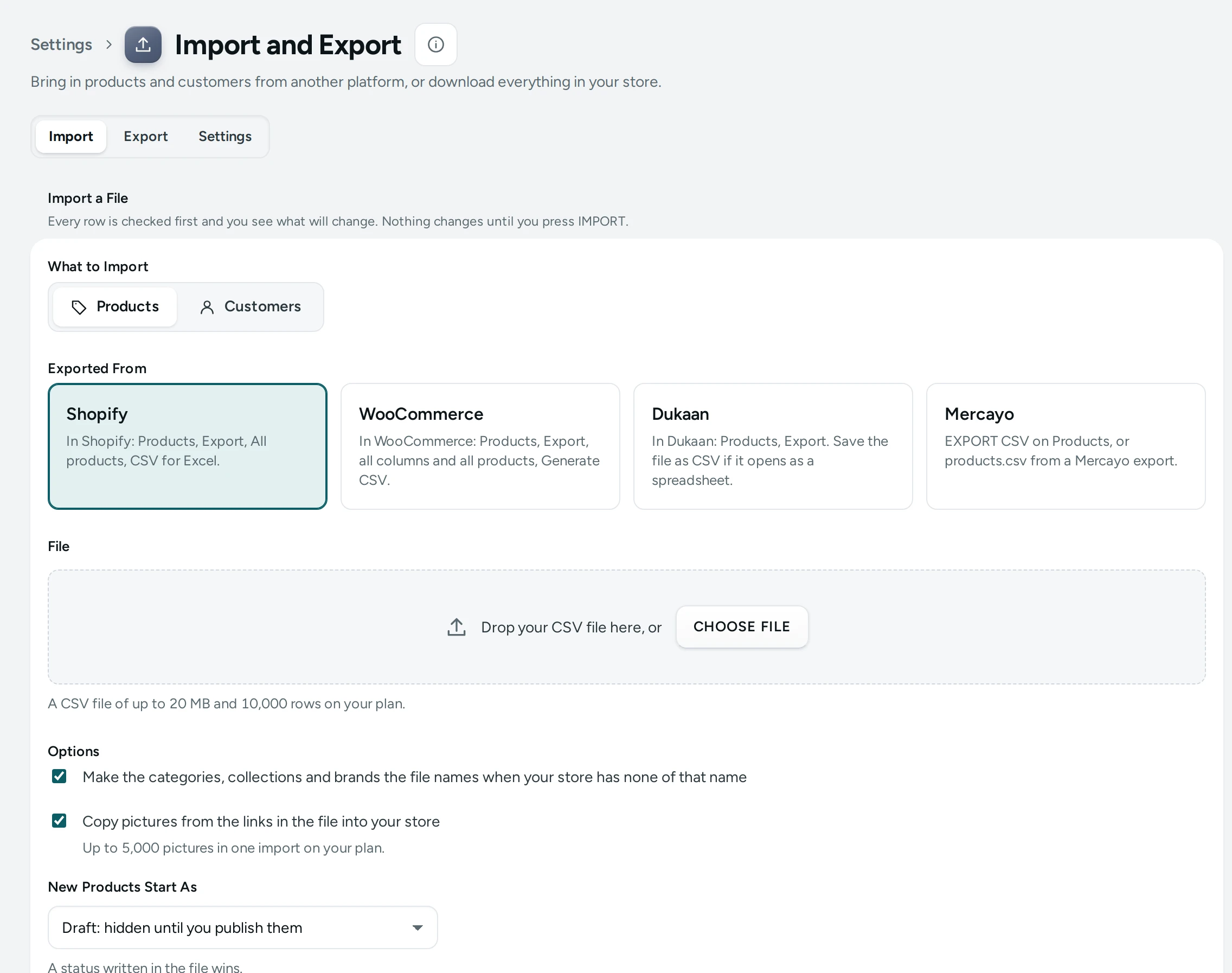
The screen has three tabs: Import, Export and Settings.
Import a File
"Every row is checked first and you see what will change. Nothing changes until you press IMPORT."
- What to Import: Products or Customers.
- Exported From: Shopify, WooCommerce, Dukaan or Mercayo for products; Shopify or Mercayo for customers. The screen tells you how to get the file there, for example "In Shopify: Products, Export, All products, CSV for Excel." or "In WooCommerce: Products, Export, all columns and all products, Generate CSV."
- Options (products):
- New Products Start As: Draft: hidden until you publish them, or Active: on sale at once. "A status written in the file wins."
- Copy pictures from the links in the file into your store ("Up to 5,000 pictures in one import on your plan." on Starter).
- Make the categories, collections and brands the file names when your store has none of that name.
- Drop the CSV file in, or CHOOSE FILE: "A CSV file of up to 20 MB and 10,000 rows on your plan." Then CHECK FILE.
- The check reads every row ("Checking rows: 1,200 of 3,400") and shows the preview: Will Be Added, Will Be Updated, With Problems and Pictures to Copy, any New categories, New collections and New brands, and notes such as "Descriptions simplified: 12. Paragraphs, headings, lists, bold, italic and links are kept."
- Rows with Problems lists what is left out and why ("Another product already has this handle."). DOWNLOAD REPORT has them all.
- Press IMPORT. "You can leave this page. The work goes on, and the result waits here." Progress: "Importing rows: …", then "Copying pictures: …".
- Import Finished: Added, Updated, Not Imported, Pictures Copied, with VIEW PRODUCTS or VIEW CUSTOMERS and IMPORT ANOTHER FILE.
Customers and Consent
"Marketing consent is copied as the file states it. A customer who said no in your store, or unsubscribed, stays that way. Import only people who agreed to hear from you."
File Problems You May See
| Message | What to Do |
|---|---|
| This is a spreadsheet file. Open it, save it as CSV (comma separated), and choose that file. | Save an .xlsx as CSV first |
| This looks like a file from Shopify. Choose Shopify above and try again. | Pick the right Exported From |
| The file has more rows than your plan allows (…). Split it into smaller files. | Split the file |
| The file is larger than 20 MB. | Split the file |
| Another import is under way. | Wait for it, or cancel it |
| Pictures not copied: … | Their links did not lead to a JPEG, PNG, WebP or AVIF picture, or were over your plan's limit |
Shopify gift card rows and WooCommerce grouped and external products are passed over, with a note.
Cancelling
CANCEL during an import: "Rows already imported stay as they are. Rows not yet imported are left out." A checked import nobody imports within a week expires.
Export Your Store
"One ZIP file with a spreadsheet (CSV) and a JSON file for each thing you choose. It is made in the background and you get an email when it is ready."
- Under What to Export, tick what you need, or SELECT ALL:
- Products: every variant with its price, MRP, stock, SKU, HSN, tags, categories, collections and picture links. The file can be imported again.
- Customers: names, emails, phones, marketing consent, tags, notes and addresses.
- Orders: every order and its lines, with amounts, GST, payment and delivery dates. Contact details only with the right to export customer data.
- Discounts: codes and automatic offers, their rules and their use.
- Pages and Blog: your pages and blog posts.
- Reviews: product reviews, ratings and your replies.
- Press PREPARE EXPORT. "Your export is being made. It shows below when it is ready, and you get an email."
- Under Recent Exports, press DOWNLOAD when it is Ready. "The file is kept for 72 hours, then deleted."
"Exports in the last 24 hours: 1 of 5" (the number a day depends on your plan: 5, 20 or 50).
Settings Tab
| Setting | What It Does | Default |
|---|---|---|
| Imports | Your team can bring products and customers in from a file made by Shopify, WooCommerce, Dukaan or Mercayo. | On |
| Copy Pictures from Import Files | Pictures named by a link in an import file are downloaded into your store's media. Off: the links are skipped. | On |
| Email When an Export Is Ready | The person who asked for an export gets an email when its file can be downloaded. | On |
| Keep Export Files for (hours) | A finished export can be downloaded for this many hours. Then its file is deleted. (1 to 168) | 72 |
Plan Limits
| Plan | Rows in One Import | Pictures Copied in One Import | Exports a Day |
|---|---|---|---|
| Starter | 10,000 | 5,000 | 5 |
| Growth | 50,000 | 25,000 | 20 |
| Scale | 100,000 | 100,000 | 50 |
Questions
Can I import orders?
Not today. Imports bring products and customers; your order history stays in your old platform's export.
Will importing twice create duplicates?
No. Products are matched by their handle and updated.
Can I import from Excel?
Save the sheet as CSV first. For products you make yourself, use the column names of a file made with EXPORT CSV on Products. See Products CSV.