The Products list is your whole catalogue in one table: every product with its photo, status, stock and price. From here you open a product, spot what is missing (no photo, no price, no HSN code), change the status, tags or collections of many products at once, and bring products in or out as a spreadsheet. It is Products in the side menu, under Sell; on a phone it is in the bottom bar. Inventory, Collections, Categories, Fit List and Gift Cards sit under it.
Anyone whose role includes the right to see products can open the list: the owner, admins and the Catalog Editor, Marketer and Order Manager roles. Adding, changing, importing and deleting need the right to edit products (the owner, admins and the Catalog Editor). Someone who can only view still sees everything and can export the CSV.
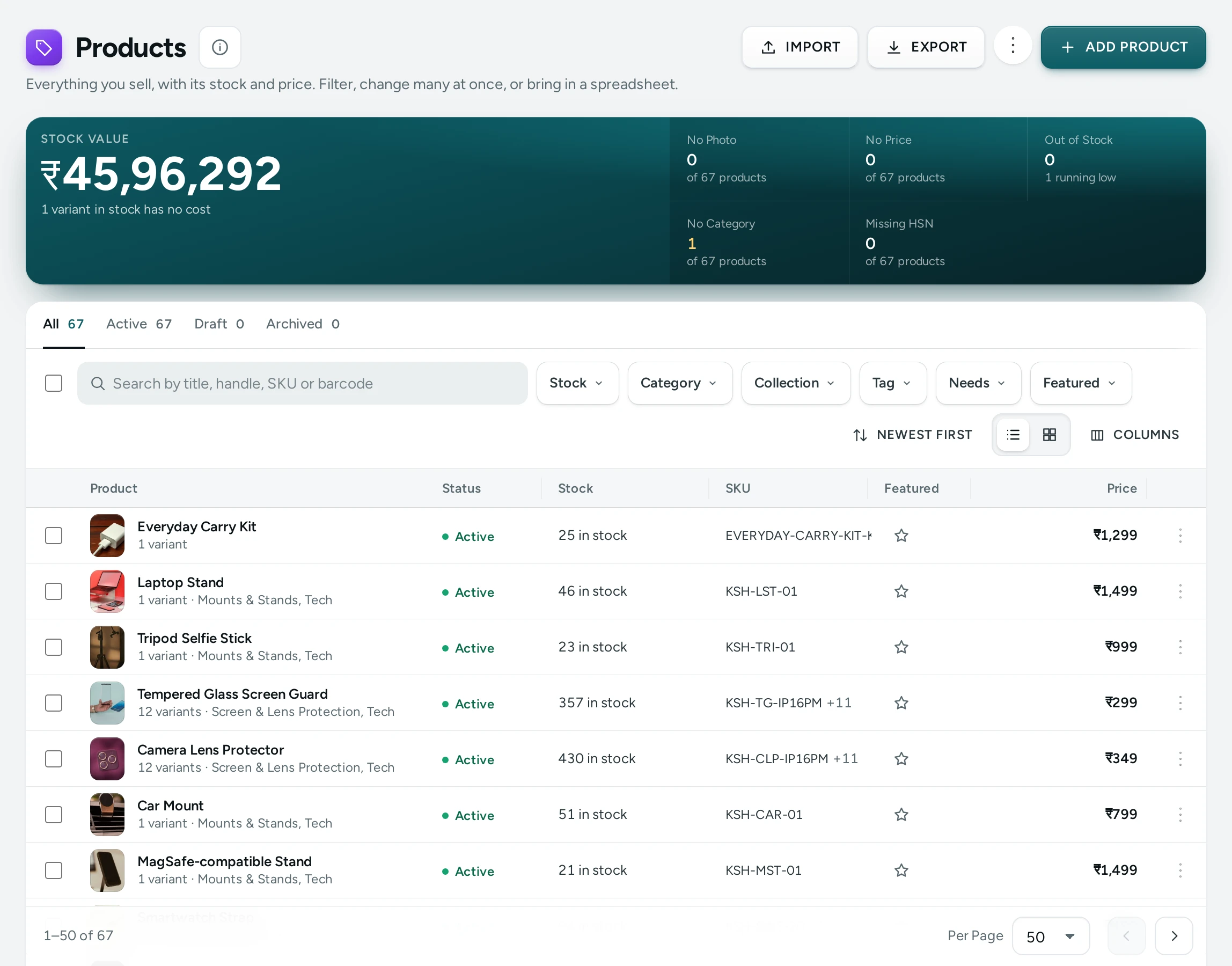
What You See
The Header
- ADD PRODUCT opens a new product in the Product Editor. On a phone it is the round + button at the bottom.
- IMPORT opens the CSV import (people who can edit products).
- EXPORT saves every product the list currently matches as a CSV file, one row per variant.
On a phone, EXPORT and IMPORT are in the header's ⋯ menu.
Catalogue Health
Once you have products, a strip of five numbers shows what needs work. Each number is a filter: click it to see those products, click it again to clear it. Hover over a name (or tap it on a phone) for its meaning.
| Number | What It Counts |
|---|---|
| No Photo | "Products without a single photo. Shoppers rarely buy what they cannot see." |
| No Price | "Products whose every variant is priced at zero." |
| Out of Stock | "Products shoppers cannot buy now: every variant that counts stock has none, and none takes orders without stock." Its note also says how many are running low. |
| No Category | "Products in no category, so shoppers browsing the store's menu do not find them." |
| Missing HSN | "Products without an HSN code. GST invoices need one for each item." |
Each shows "of 120 products" so you can see the share at a glance.
Tabs and Saved Views
The tabs across the top are All, Active, Draft and Archived, each with its count. After them come your store's saved views: a tab, filters and search you saved under a name (for example "Low stock" or "Diwali gifts"), with their own counts. Views are shared by everyone on your team.
Search, Filters and Sort
- Search by title, handle, SKU or barcode: part of the title, the web address, or a variant's SKU or barcode.
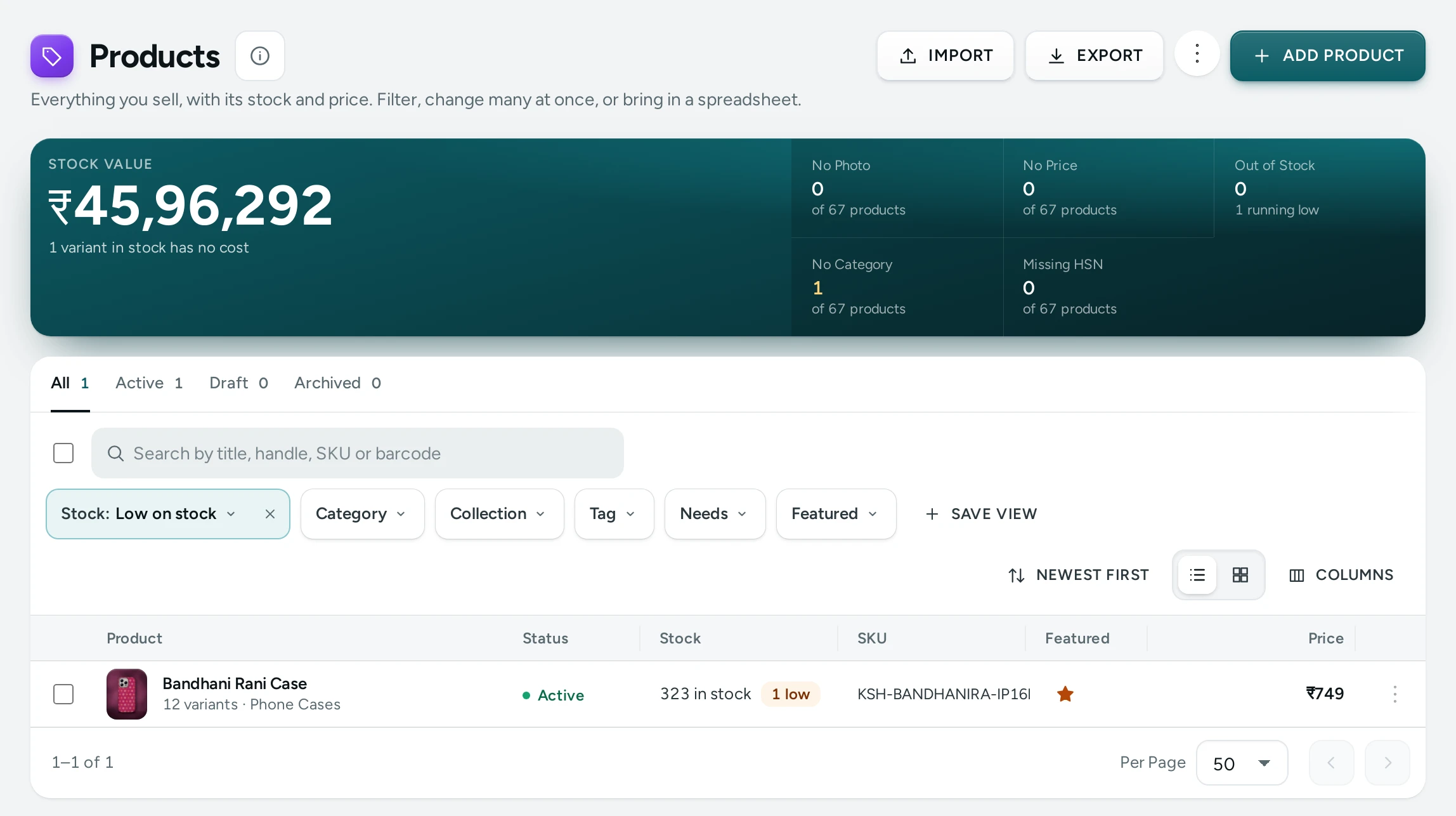
- Stock: In stock, Low on stock, Out of stock or Stock not tracked.
- Category, Collection and Tag: one or several at once (shown when your store has them; tags show how many products carry each).
- Needs: the same four health filters (No Photo, No Price, No Category, Missing HSN).
- Sort: Newest first (the default), Oldest first, Recently changed, Title A to Z, Title Z to A, Price, low to high, Price, high to low, Stock, least first, Stock, most first.
When a search or filter finds nothing, the list says "Nothing Matches" with CLEAR SEARCH AND FILTERS.
"Low on stock" uses one rule across the admin: a variant that counts stock, does not take orders without stock and has between 1 and the Running Low At number left (Settings › Admin and Reports › Home Dashboard, default 5).
Columns
| Column | What It Shows |
|---|---|
| Product | The main photo, the title (a link to the editor), the number of variants and the product's categories |
| Status | Active, Draft or Archived |
| Stock | Units in stock over all variants ("48 in stock"), or Out of stock, or Not tracked; a flag when some variants are out ("2 out") or low ("1 low") |
| Price | The price, or the lowest to the highest price when variants differ |
| Tags, HSN, Updated | Hidden at first; turn them on with Columns |
Pages hold 25, 50 (the default) or 100 products; change it with Per Page at the bottom. The bottom also shows "1–50 of 312" and the previous and next page arrows. On a phone each product is a card with its photo, title, status, stock and price.
A Row's Menu
The ⋯ at the end of a row offers Open Product, See Stock (Inventory, searched for this product), Duplicate and Delete (the last two for people who can edit products).
How to Find Products That Need Work
- Look at Catalogue Health above the list.
- Click Missing HSN (or any other number). The list shows only those products.
- Open each product, fix it and save. Back on the list, the count goes down.
- Click the number again to clear the filter.
How to Change Many Products at Once
- Tick the products, or tick the box in the header row to select every product on the page. The selection stays while you move between pages.
- A bar shows "12 selected" with the actions:
- SET ACTIVE, SET DRAFT, ARCHIVE: change the status.
- ADD TAG / REMOVE TAG: pick a tag the store uses or type a new one ("Tags are saved in small letters.").
- ADD TO COLLECTION / REMOVE FROM COLLECTION: pick a collection (shown when your store has collections).
- CHANGE PRICES, ADD TO CATEGORY / REMOVE FROM CATEGORY, SET BRAND, SET WEIGHT: see Bulk Editing and the Trash.
- EDIT IN BULK EDITOR: the selected products (up to 100) in a spreadsheet-like editor.
- EXPORT CSV: the selected products only.
- DELETE.
- After a change, a message says what happened, for example "12 products archived.", with UNDO.
UNDO puts back only what the change did, and only what is still as the change left it: if someone edited one of those products in the meantime, that product keeps their edit. A bulk change can be undone once, within an hour. If nothing needed changing (the products were already like that), the message says "Nothing to change: the products were already like that."
How to Delete Products
- Select the products (or use Delete in one row's menu).
- Press DELETE. The dialog says what happens: "The 4 products move to the trash, where you can restore them for a while. Shoppers stop seeing them at once." and "Orders keep their lines and invoices. To stop selling but keep the product, archive it instead."
- Press DELETE. The products leave the list and a message shows UNDO for about eight seconds. After that they are in the Trash (the ⋯ menu at the top of the list), for 30 days by default, where Restore brings them back. See Bulk Editing and the Trash.
You can delete at most 100 products at a time; with more selected, the bar says "Delete at most 100 products at a time."
How to Save a View
- Choose a tab and set the filters and search you want, for example Active with Stock set to Low on stock.
- Press SAVE VIEW, type a name such as "Reorder this week" and save.
- The view becomes a tab with its count. Open it any time to see the same products.
While a view is open, its button shows its name. If you change its filters it shows "(changed)" and its menu offers Save Changes to View. The menu also has Rename and DELETE VIEW ("The view … goes for everyone on your team. No product changes."). A store keeps up to 20 views, each with a unique name of up to 40 characters.
How to Export and Import
- EXPORT saves the products the list matches right now (its tab, filters and search), one row per variant. With products selected, EXPORT CSV in the selection bar saves only those. The message says how many rows were saved, for example "312 rows exported, one for each variant."
- IMPORT opens Import Products: choose a CSV file, see every row checked in a preview that changes nothing, then import the products without problems.
The file's columns, the rules and every problem message are in Products CSV.
Good to Know
- The admin remembers a page of the list for up to 30 seconds while you move around; any change you make to products clears it, so your own changes show at once.
- Search looks at titles, handles, SKUs and barcodes, up to 60 characters.
- Bulk changes and deletes are recorded in the Activity Log.
- Duplicating from a row opens the copy straight away; see The Product Editor.
Questions
How do I see only the products that are on my store?
Open the Active tab. Draft and archived products are not on the store.
I archived products by mistake. Can I undo it?
Yes, with UNDO in the message, within an hour of the change. After that, select them in the Archived tab and press SET ACTIVE.
Why does a product show "Out of stock" when one variant has stock?
It does not: a product is out of stock only when every variant that counts stock has none and none takes orders without stock. If some variants are out, the Stock column shows "2 out" beside the units in stock.
Can my Marketer change prices from this list?
No. The Marketer role can see products but not change them. Prices are changed in the product editor by someone with the right to edit products.
Are saved views private to me?
No. Saved views belong to the store and everyone on your team sees them.
Why is ADD TO COLLECTION missing from the bar?
Your store has no collections yet. Make one on Collections first.