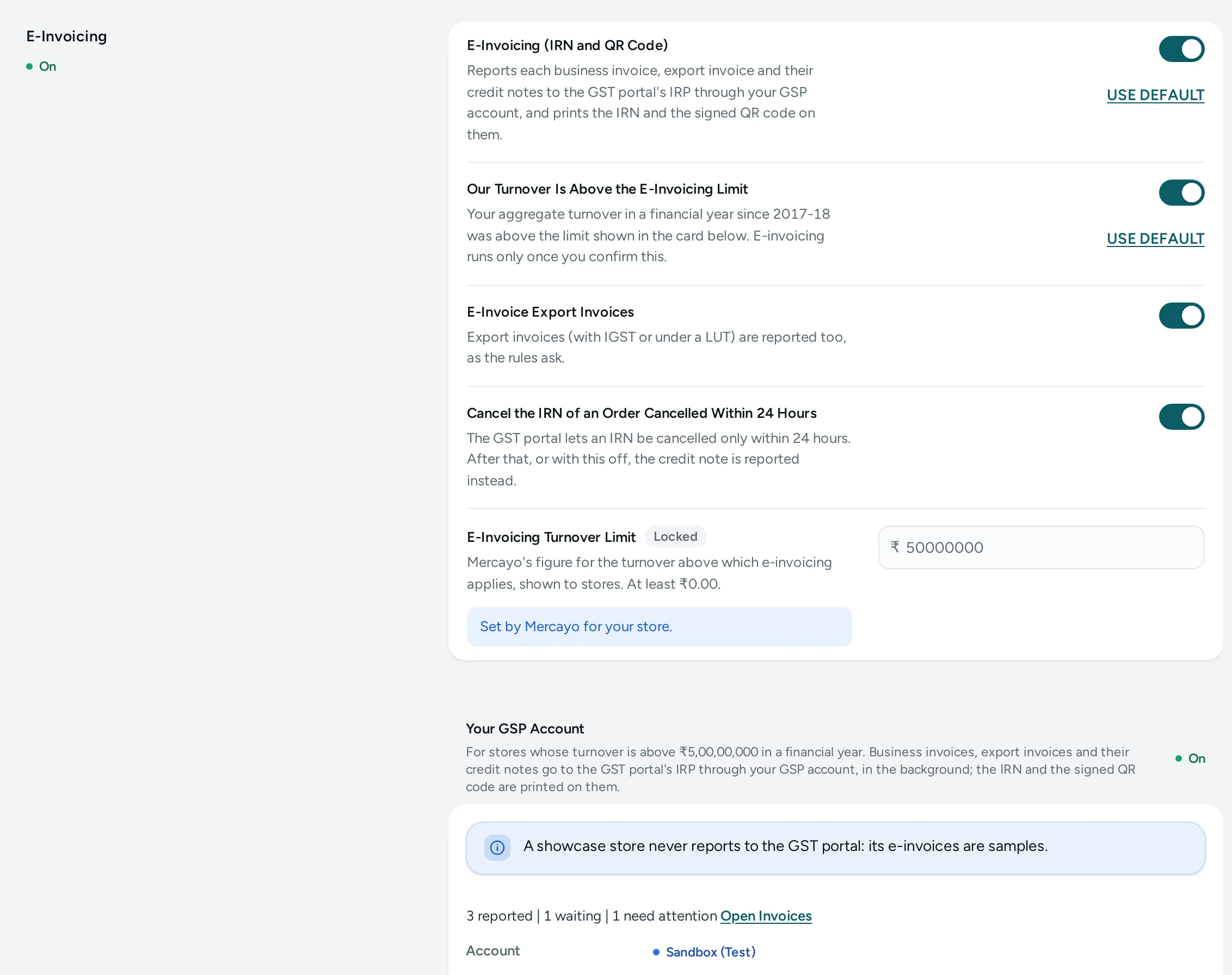
E-Invoicing reports your invoices to the GST portal's Invoice Registration Portal (IRP) and prints the IRN, the acknowledgement and the signed QR code the portal gives on them. You need it if your aggregate turnover in any financial year since 2017-18 was above the limit (₹5 crore today; the card shows Mercayo's current figure). It is on Settings › Invoices. Anyone who can see settings can open it; connecting an account needs the right to change settings, which the store's owner and admins have.
What Is Reported
- Invoices to businesses: a buyer who gave their GSTIN at checkout, or a trade buyer of your B2B store.
- Export invoices, with IGST or under a LUT (switch E-Invoice Export Invoices off to leave them out).
- Credit notes against those invoices.
Invoices to shoppers without a GSTIN, and bills of supply, are never reported. Documents issued before you switched e-invoicing on are not reported either.
Before You Start
- Register for the e-invoice API through a GSP (GST Suvidha Provider), on the e-invoice portal. Create an e-invoice API user name and password there, and note your GSP's client ID and client secret.
- In Settings › Taxes, check that your registered address ends with its PIN code and that your GSTIN is right.
- Check that every product has an HSN code of 4 to 8 digits (6 or more is the rule above ₹5 crore).
Connect Your Account
- Open Settings › Invoices and scroll to E-Invoicing.
- Under Account, choose Sandbox (Test) to try it, or Live.
- Type your GSTIN (your store's own, as in Settings › Taxes), the E-Invoice User Name and E-Invoice Password, the Client ID and the Client Secret.
- Press CONNECT AND TEST. Mercayo signs in at your GSP and looks your GSTIN up on the portal before saving anything. If the sign-in is refused, nothing is saved and the reason shows.
- Once connected, the card shows the account, your GSTIN, the name the portal knows it by and when it was last checked. The password, client ID and secret are sealed and never shown again.
Live accounts: Mercayo opens live GSTINs once it has checked its GSP with a real account. Until then the card says so, and you can connect a sandbox account to try every step. Invoices from a sandbox say "Test IRN from a sandbox account: not valid for GST".
Switch It On
- Switch on Our Turnover Is Above the E-Invoicing Limit. This is your confirmation: Mercayo does not know your turnover.
- Switch on E-Invoicing (IRN and QR Code).
- Press SAVE.
From then on, each business or export invoice is reported in the background a few seconds after it is issued. Nothing waits at checkout: a sale never stops for the portal.
Where You See It
- The order's page: under the invoice and each credit note, its state (Reported, Waiting, Needs Attention, IRN Cancelled), the IRN and the acknowledgement number.
- Orders › Invoices: an IRN column, and a Needs Attention card at the top for anything the portal refused.
- The invoice PDF: an e-Invoice block under the title with the IRN, Ack No., Ack Date and the signed QR code. Your business buyer's copy carries it too.
When the Portal Refuses a Document
The reason shows in the portal's own words, with its code (for example "Invalid HSN code(s) for the given item (IRP code 2172)").
- Fix the cause: the product's HSN, your address's PIN code, or ask the buyer about their GSTIN.
- Press RETRY on the order or in Needs Attention. Mercayo sends it again at once and shows the result.
If the portal is busy or down, Mercayo tries again by itself (after 1, 5 and 15 minutes, then 1, 3 and 6 hours) and only then asks you.
Cancelling an IRN
The portal allows an IRN to be cancelled only within 24 hours of its acknowledgement, and only as a whole.
- Cancel the order (or it comes back undelivered) within 24 hours: Mercayo cancels the IRN at the portal. The invoice then says "IRN cancelled on …", and the credit note Mercayo issues is not reported.
- After 24 hours, or when the portal refuses (for example because an e-way bill exists): the credit note is reported against the invoice, as the rules ask.
- Switch off Cancel the IRN of an Order Cancelled Within 24 Hours to always report the credit note instead.
GSTR-1
The portal fills your GSTR-1 from your e-invoices. EXPORT FOR GSTR-1 (Orders › Invoices) therefore puts e-invoiced documents in files of their own, einvoiced_b2b.csv, einvoiced_cdnr.csv, einvoiced_exp.csv and einvoiced_cdnur.csv, with their IRNs, to check against the portal, and leaves them out of the sheets you upload, so nothing is entered twice. An invoice whose IRN was cancelled is counted as cancelled in docs.csv. Ask your accountant to compare these files with the portal before filing.
Change or Disconnect the Account
- TEST AGAIN signs in with the saved login and shows the result.
- CHANGE ACCOUNT opens the form again; the new login replaces the old one once it signs in.
- DISCONNECT removes the account. Documents waiting are not reported until you connect again; they show in Needs Attention.
What Mercayo Can Change
Mercayo's team can switch e-invoicing on or off for your store, or set its other switches, with a reason your admin shows. Mercayo keeps the turnover limit up to date. On Mercayo's demo stores the IRNs and QR codes are samples, and nothing is ever sent to the portal.
Not Part of It Yet
E-way bills, debit notes, SEZ supplies, the dynamic QR code on invoices to consumers (for turnover above ₹500 crore), and a marketplace seller's own invoices.