"The page builder, product lists, the sale page, search, motion and carousels." Settings › Online Store holds how your store's lists, search and pages behave. How they look (colours, fonts, motion, the product rows' style) is in the Theme editor: the page says so in a Moved to the Theme Editor card with OPEN THEME EDITOR.
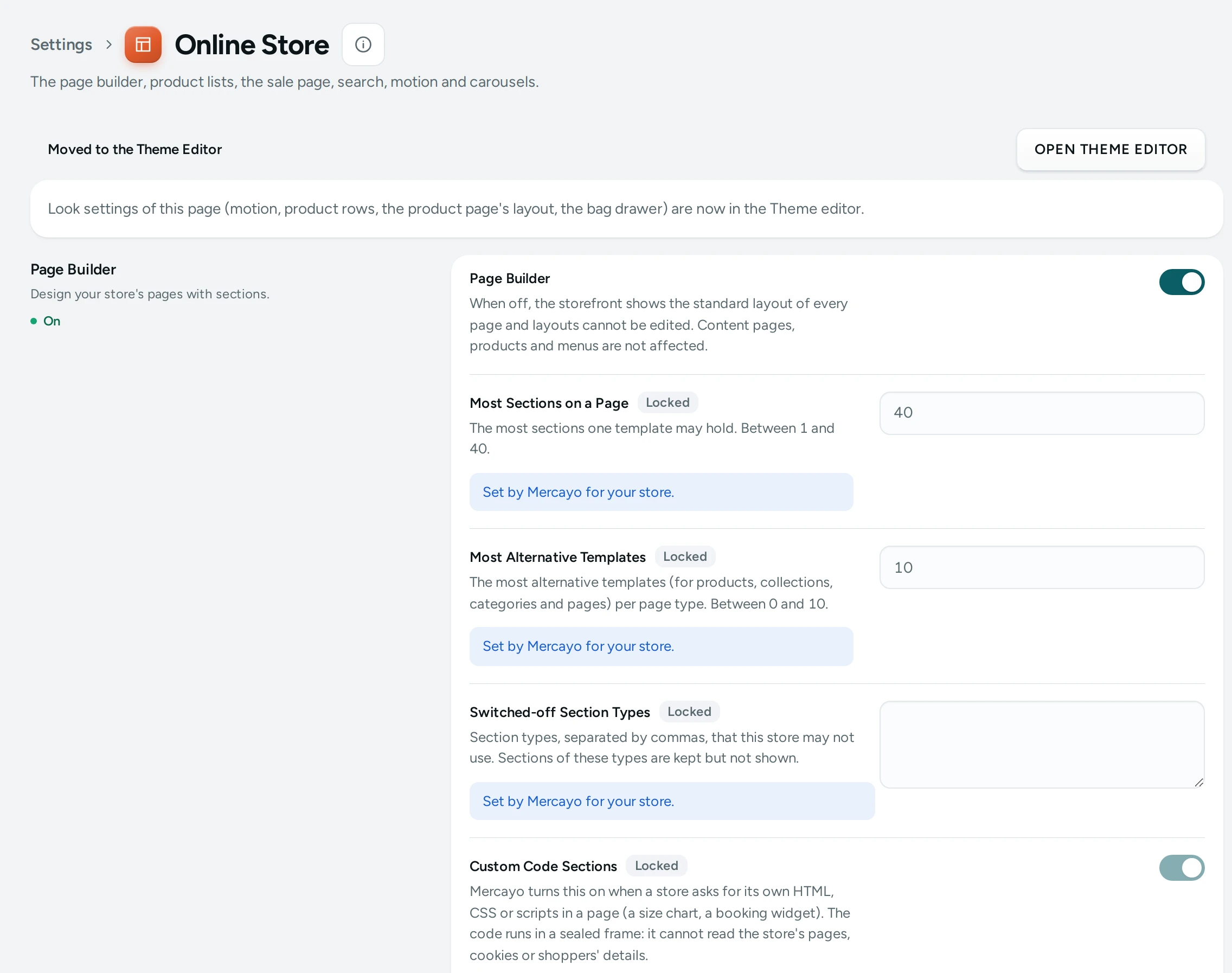
The Settings
Page Builder
Design your store's pages with sections.
| Setting | What It Does | Default |
|---|---|---|
| Page Builder | When off, the storefront shows the standard layout of every page and layouts cannot be edited. Content pages, products and menus are not affected. | On |
| Scheduled Publishing | Choose when a page's changes go live, and when the page goes back, for a sale day. See Page Editor. | On |
Product Lists
How collection and search pages show products.
| Setting | What It Does | Default |
|---|---|---|
| Filter Layout | Sidebar: the filters stay open beside the products. Drawer: a FILTER button opens them. Top bar: each filter group opens from a bar above the products, for big catalogues. Chips: one row of filter chips beside the sort, for small catalogues. On phones the sidebar and the drawer open from a FILTER button; the top bar and the chips keep their row. Choices: Sidebar, Drawer, Top bar, Chips. | Sidebar |
| Products per Page | How many products a list shows before LOAD MORE. (12 to 48) | 24 |
| Default Order | The order of all products, categories and the sale page until the shopper picks another. A collection keeps its own order. Choices: Featured, Bestselling, Newest, Price asc, Price desc, Rating. | Featured |
| Featured Order From | The address name of a collection whose order decides Featured outside collections; other products follow, newest first. Empty: newest first. | Empty |
| Sold-out Products Last | Products that cannot be bought move to the end of every list, whatever the order. | On |
| New Badge for Recent Products | Products added in the last this-many days show a New badge. 0 turns it off (badges from tags still work). (0 to 90) | 0 |
| Products Shown As | Grid: pictures side by side. List: one product per row with a smaller picture. Choices: Grid, List. | Grid |
| Grid and List Switch | Shoppers can switch between the grid and the list. | On |
| List Titles | Left: a large title on the left. Centred: a centred title with a short underline in your accent colour. Choices: Left, Centred. | Left |
| Filters on Product Lists | Shoppers narrow a list by price, availability, options, category and your own groups, with a count beside each choice. | On |
| Quick Filter Chips | The row of one-tap filters above the products (set them on the Product Filters screen). | On |
Sale Page
A page of everything on offer.
| Setting | What It Does | Default |
|---|---|---|
| Sale Page | The /sale page lists every product with a reduced price (a compare-at price above its price). | On |
| Offers on the Sale Page | The sale page also lists products in live automatic offers for everyone, with those offers at the top. Off: only products with an MRP above the price. | On |
Search
The search box and what it finds.
| Setting | What It Does | Default |
|---|---|---|
| Store Search | Shoppers can search your products. Off hides the search box and the search page. | On |
| Search Engine | Auto uses the fast typo-tolerant search and falls back to the basic one if it is down. Basic always uses the basic built-in search. Choices: Auto, Basic. | Auto |
| Suggestions While Typing | How many products the search box shows while a shopper types. (1 to 12) | 8 |
| Results per Search Page | How many products one page of search results shows. (12 to 48) | 24 |
Shop by Fit
Shoppers pick what they own (a phone, a car) and see only what fits it.
| Setting | What It Does | Default |
|---|---|---|
| Shop by Fit | Shoppers pick what they own (a phone, a car, a printer) once and see only what fits it, with a “Fits your …” mark. | Off |
| What Shoppers Pick | One of them, in lower case: phone, car, printer. Used in “Which phone do you have?” and “Shop by phone”. | model |
| More Than One | The same word for several: phones, cars, printers. | models |
| Remember the Shopper's Pick | On: kept on their device for a year (they can untick it), so every list shows what fits it. Off: until they close the browser. | On |
| Show Only What Fits on Lists | With a pick remembered, product lists show what fits it, with a way to see everything. | On |
| Products Without a Fit Fit Everything | A product with no fit set (a charger, a gift card) shows with every pick. Off: only products set for that pick show. | On |
| Choose the Shopper's Pick on Product Pages | A product made for several picks opens on the shopper's own. Other options are never chosen for them. | On |
| Fit Panel in the Header Menu | A menu item that links to Shop by fit opens brands and models, with how many products fit each. | On |
| Help Link | Where “Can't find yours?” leads, e.g. /pages/contact. Empty: no link. | Empty |
| Icon | The small picture beside “Shop by …” in the header, the strip and the sheet. Choices: Target, Phone, Car, Bike, Printer, Laptop, Watch. | Target |
Home Page
Your home page's sections.
| Setting | What It Does | Default |
|---|---|---|
| Reviews Needed Before the Rating Shows | The star rating under the home page's main button and the reviews section appear only once the store has at least this many approved reviews. (1 to 100000) | 10 |
Payment Icons
| Setting | What It Does | Default |
|---|---|---|
| Payment Icons in the Footer | Shows how shoppers can pay at the foot of every page, only for the ways your checkout really takes. | On |
| UPI | Shown when you take online payments. | On |
| Cards | Visa, Mastercard and RuPay, shown when you take online payments. | On |
| Net Banking | Shown when you take online payments. | On |
| Wallets | Paytm and other wallets, shown when you take online payments. | Off |
| Cash on Delivery | Shown when Cash on Delivery is on. | On |
Recent Purchases Popup
| Setting | What It Does | Default |
|---|---|---|
| Recent Purchases Popup | A small note in a corner shows that someone in a city bought a product, from your real orders only. It never shows a name. | Off |
| Orders from the Last Days | Only orders from this many days are shown. Cancelled and unpaid orders never are. (1 to 30) | 7 |
| Seconds Between Notes | How long the popup waits before showing the next purchase. (10 to 120) | 25 |
| Notes in a Visit | At most this many notes in one visit. A shopper who closes one sees no more in that visit. (1 to 10) | 3 |
| Also on Phones | Off: computers and tablets only, so the note never covers a phone's buttons. | Off |
Product Lists in Practice
- Default Order: Featured (default) uses Featured Order From, the address name of a collection whose order decides Featured outside collections (for example
bestsellers); other products follow, newest first. A collection always keeps its own order. - Sold-out Products Last keeps your lists shoppable.
- New Badge for Recent Products (0, off) marks products added in the last days; badges from tags work either way (see Filters).
- Filter Layout: Sidebar, Drawer, Top bar or Chips. On phones the sidebar and the drawer open from a FILTER button; the top bar and the chips keep their row.
The Sale Page
/sale lists every product with a compare-at price above its price, and, with Offers on the Sale Page, products in live automatic offers for everyone, offers first. Link it from your menu during a sale.
Search
Search Engine Auto (default) uses the fast, typo-tolerant search and falls back to the basic built-in one if needed. Synonyms, words to ignore and pinned results are on the Search settings screen.
Shop by Fit
For stores whose products fit something the shopper owns (phones, cars, printers). Off by default. Set the words (What Shoppers Pick, More Than One: for example phone, phones), then fill in your Fit List. Shoppers pick once and see only what fits, marked "Fits your …".
How This Page Works
Settings pages share one way of working (see Settings Home):
- Each card groups the settings of one feature, with a line saying what it is for. Its main switch turns the whole feature on or off.
- Change what you need; a save bar appears with SAVE. "Settings saved." Nothing changes on your store until you save.
- USE DEFAULT puts a setting you changed back to Mercayo's default.
- A setting Set by Mercayo for your store shows Locked (with Mercayo's reason when given) and cannot be changed here; "Mercayo allows … for your store." shows a range Mercayo has set.
- If a teammate saved the page after you opened it: "Someone else saved these settings after you opened the page, so yours were not saved. Reload to see theirs."
- Anyone who can see settings can look ("You can see these settings. Changing them needs the settings right."); saving needs the right to change settings.
Questions
Why does turning off the page builder change my home page?
"When off, the storefront shows the standard layout of every page and layouts cannot be edited." Your saved layouts are kept and come back when you turn it on.
How do I change how many products a list loads?
Products per Page (24 by default, 12 to 48); shoppers press LOAD MORE for the next ones.