Not every file comes from Shopify, WooCommerce or Dukaan. A supplier's price list, a sheet you keep yourself or an export from an old billing system can come into Mercayo too: you say which column of the file holds each of Mercayo's fields, see the record each row will make, and import. The matching can be saved, so next week's file from the same supplier goes in with one tap. To go from a supplier's Excel file to your first imported products, follow Import Any Spreadsheet Into Mercayo.
It works for every kind on Settings › Import and Export: products (with variants, options, pictures by link or from a ZIP matched by file name, stock, custom fields and featured), customers (with more addresses, a birthday, a customer group and a store credit balance), past orders (kept as history), reviews, gift cards, discount codes, and pages and blog posts. A few kinds come only from your own spreadsheet, under From Your Own Spreadsheet: Categories (a full path such as "Clothing > Kurtas", or a parent column), Stock by SKU and location (set or add), Price Lists (a trade price or a percentage off by SKU, product or category), URL Redirects and Subscribers (only the ones the file says agreed; someone who unsubscribed in your store stays unsubscribed). Each kind needs its own right, as for any import (Import and Export).
Bring Any File In
Step 1 of 4
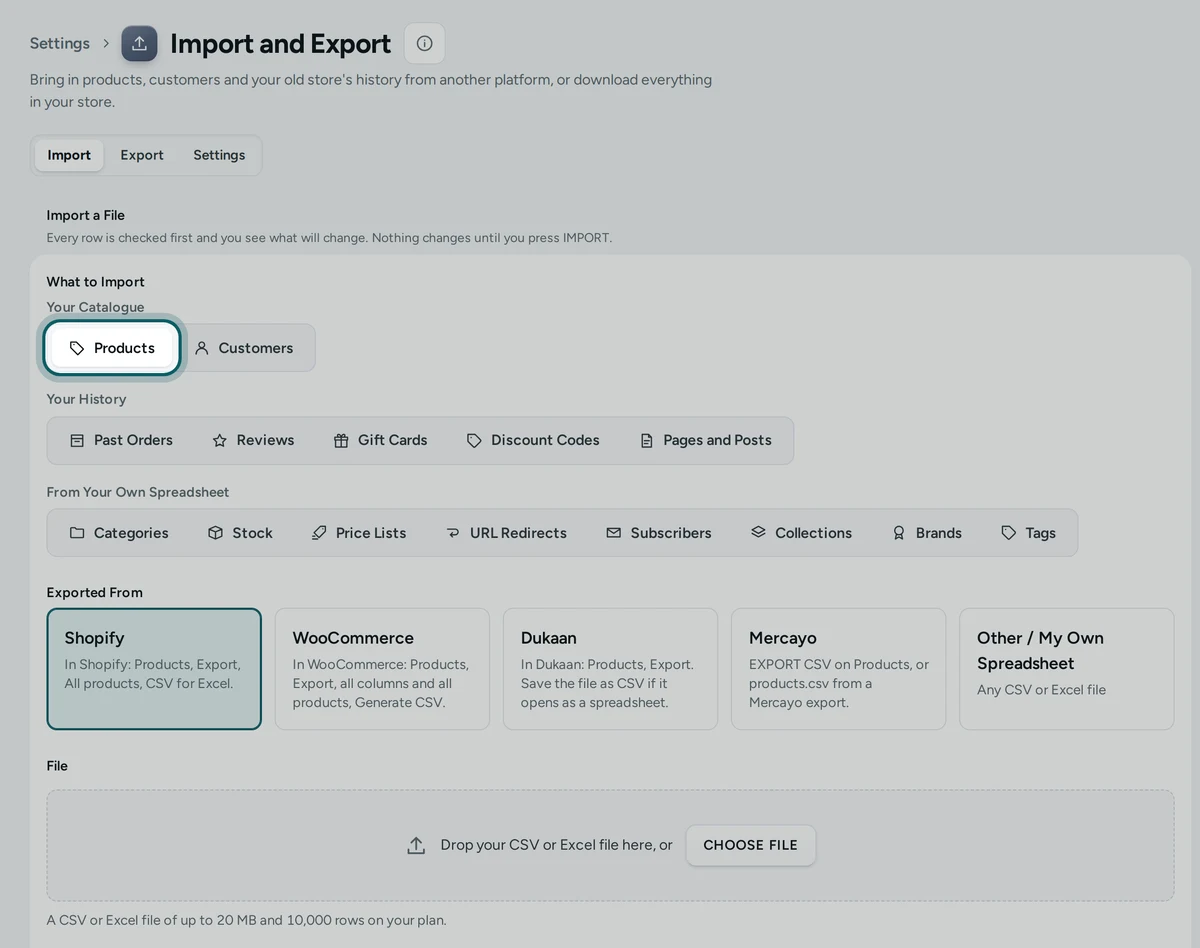
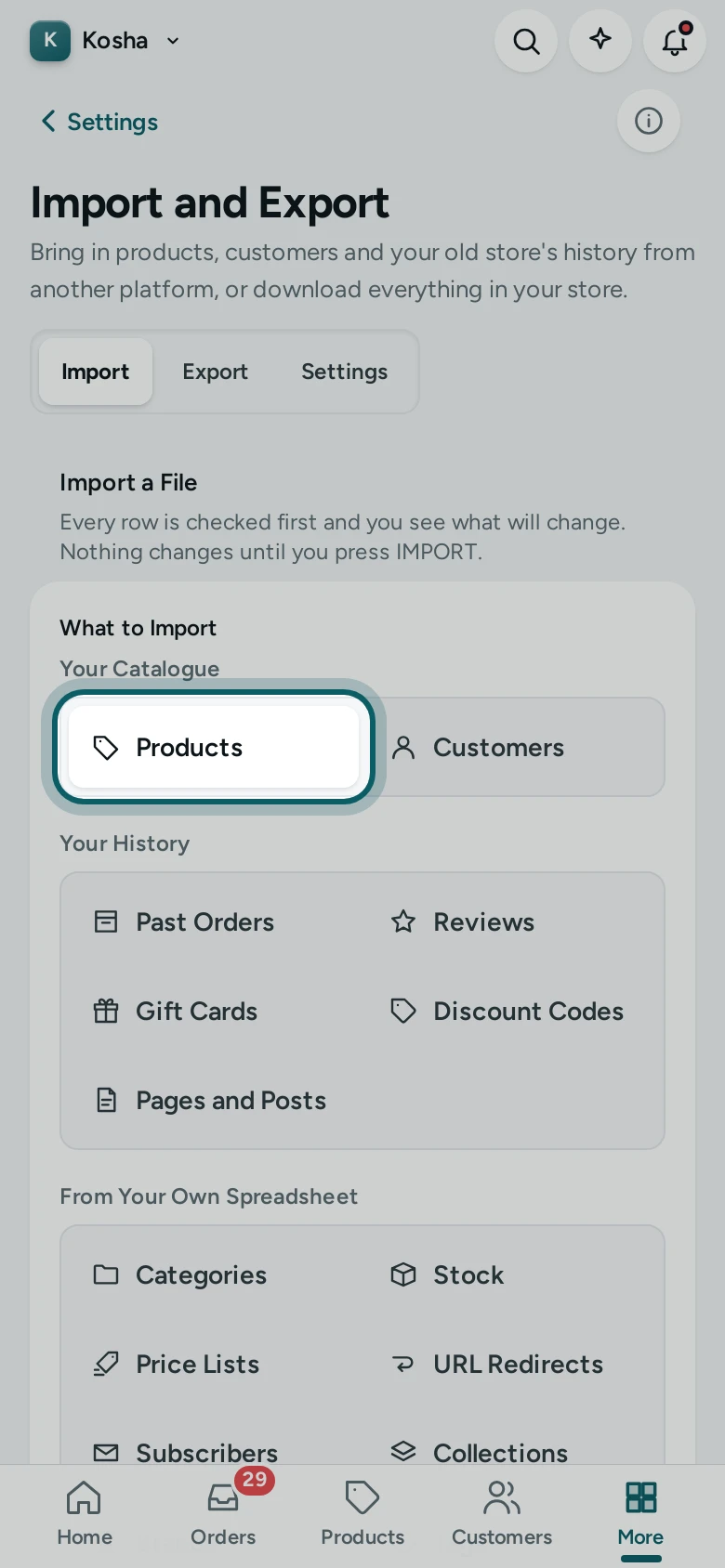
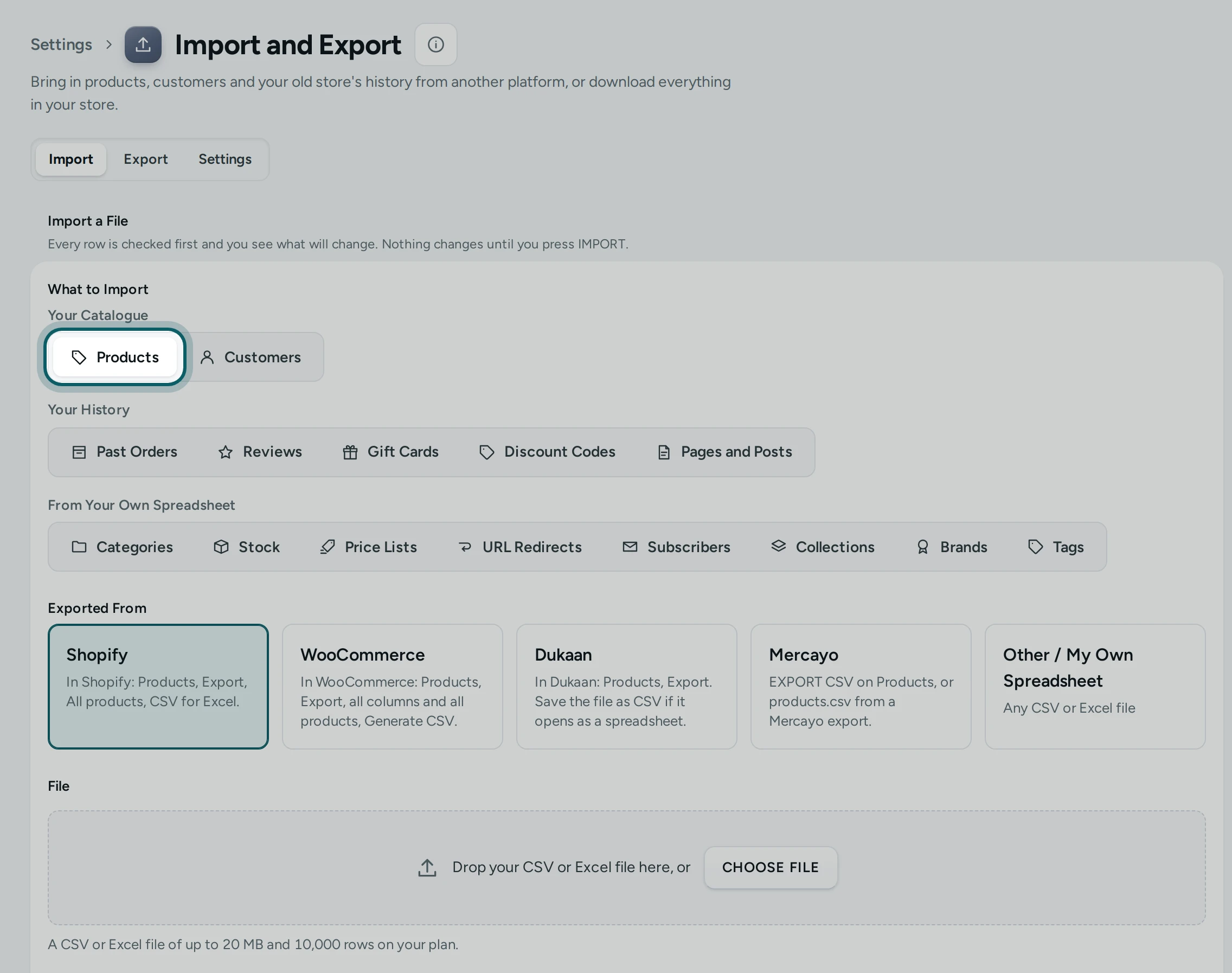
Choose what to import. Open Settings › Import and Export, the Import tab. Under What to Import, choose the kind: Products or Customers under Your Catalogue, or Past Orders, Reviews, Gift Cards, Discount Codes or Pages and Posts under Your History.
Step 2 of 4
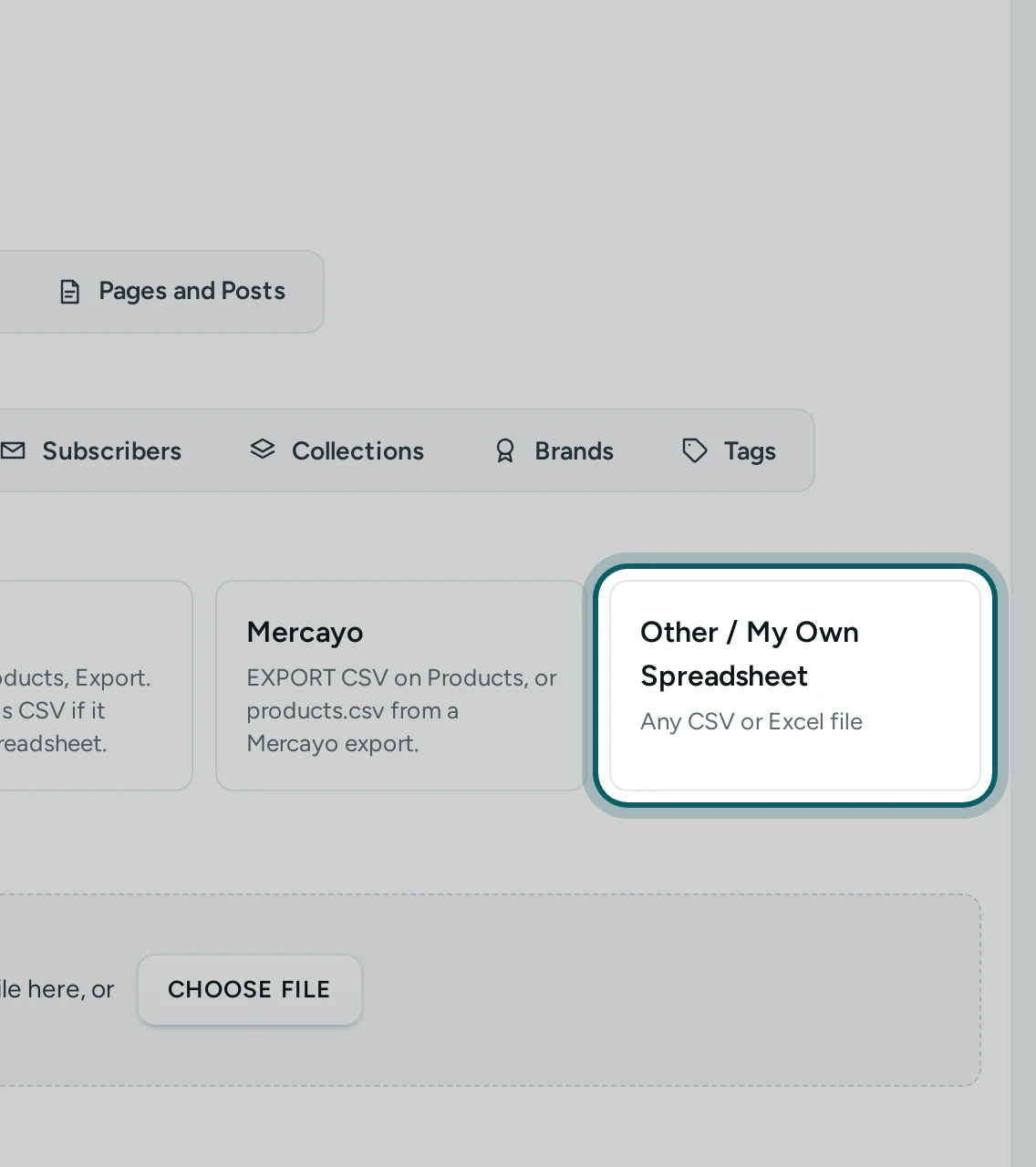
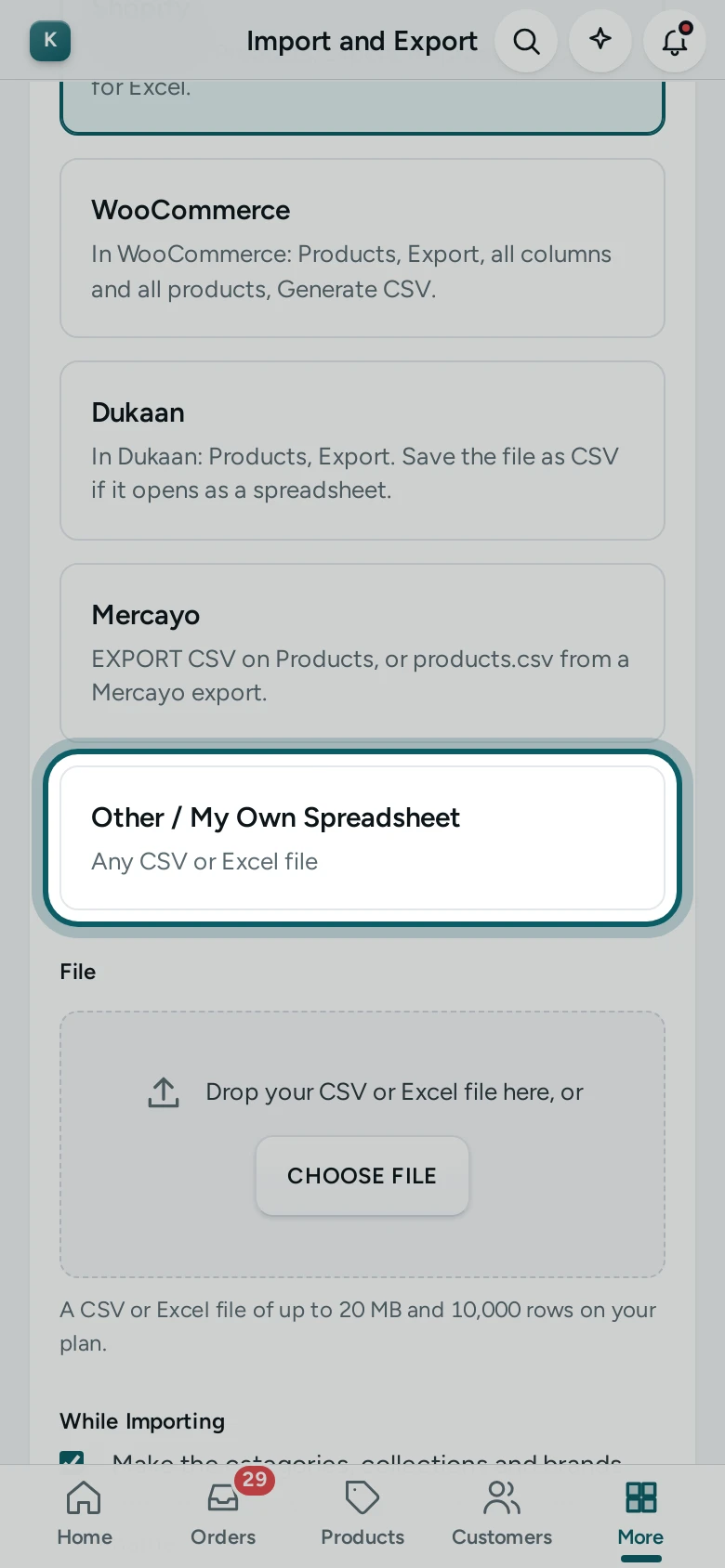
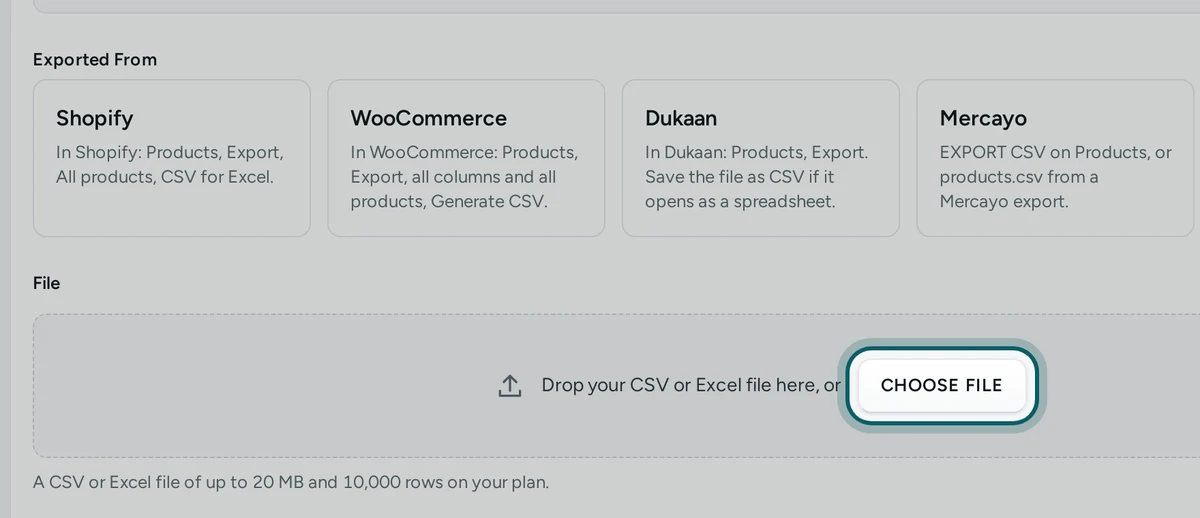
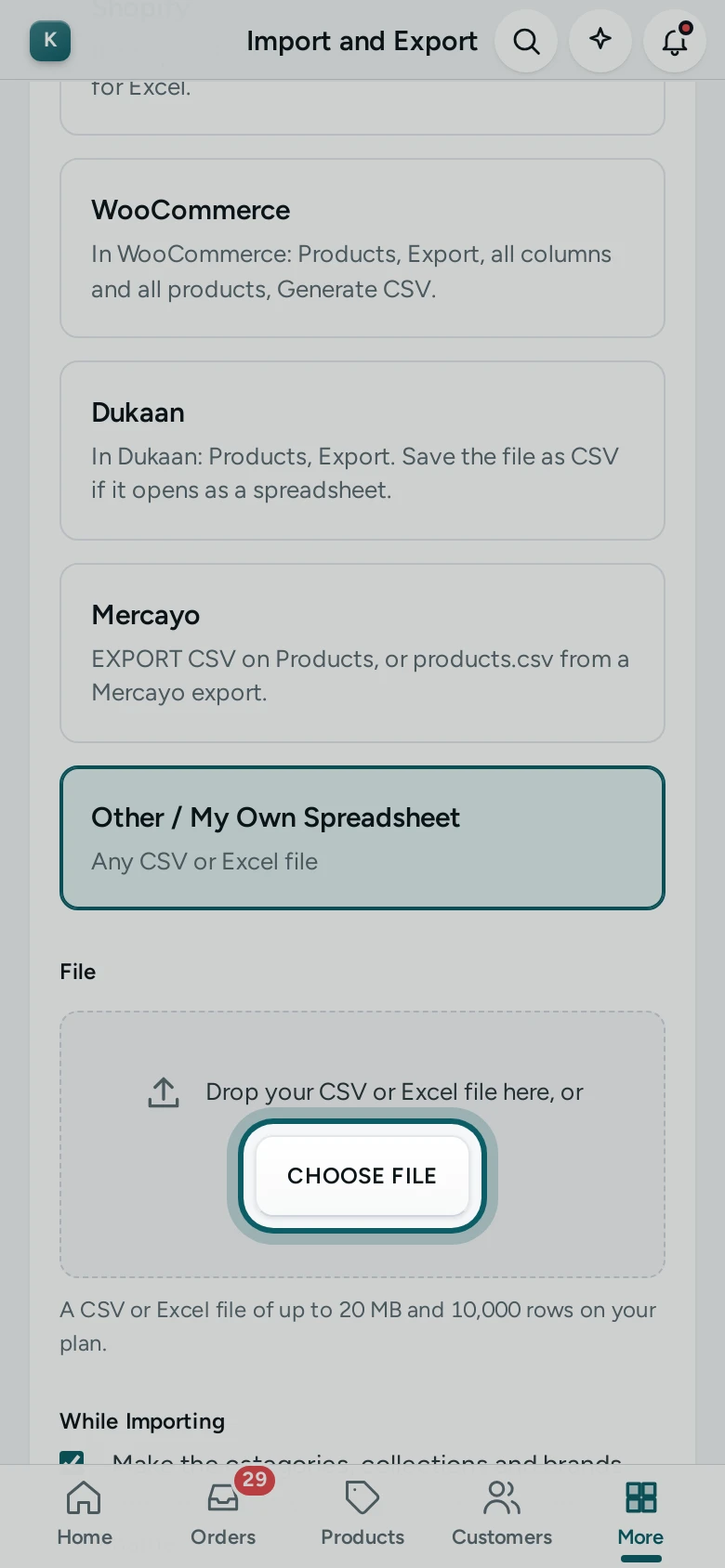
Choose Other / My Own Spreadsheet. Under Exported From, press Other / My Own Spreadsheet: "Any CSV or Excel file. You match its columns next." A file from Shopify, WooCommerce or Dukaan whose columns were renamed can stay on its own platform: the matching opens by itself when Mercayo meets a column that platform never writes.
Step 3 of 4
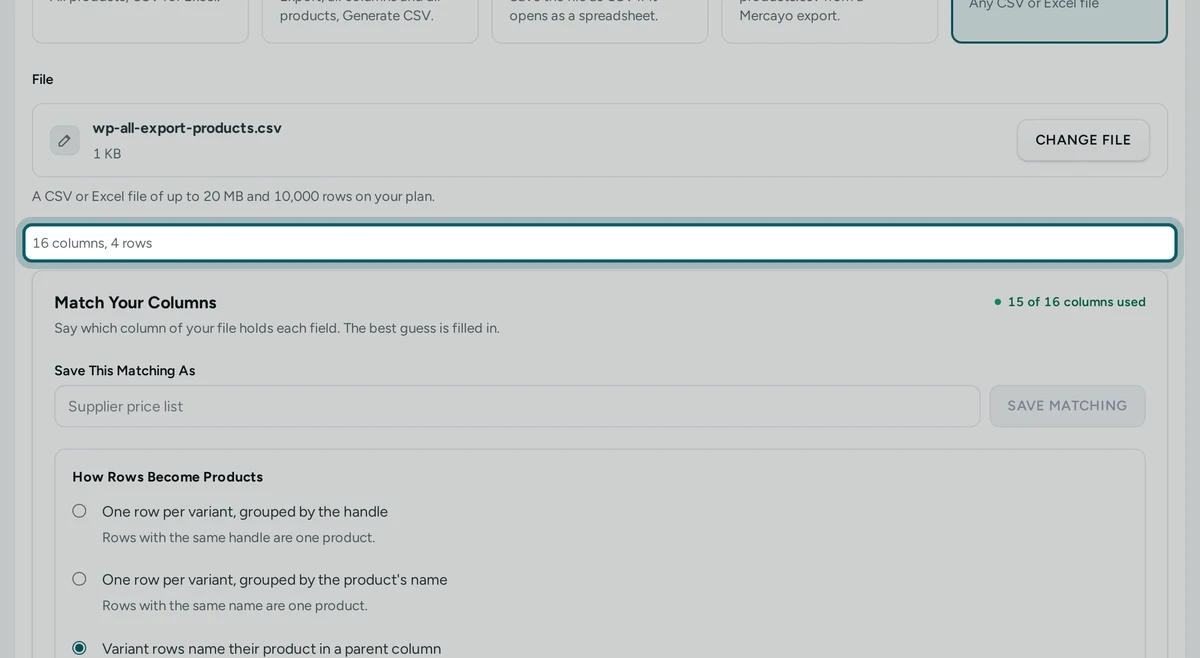
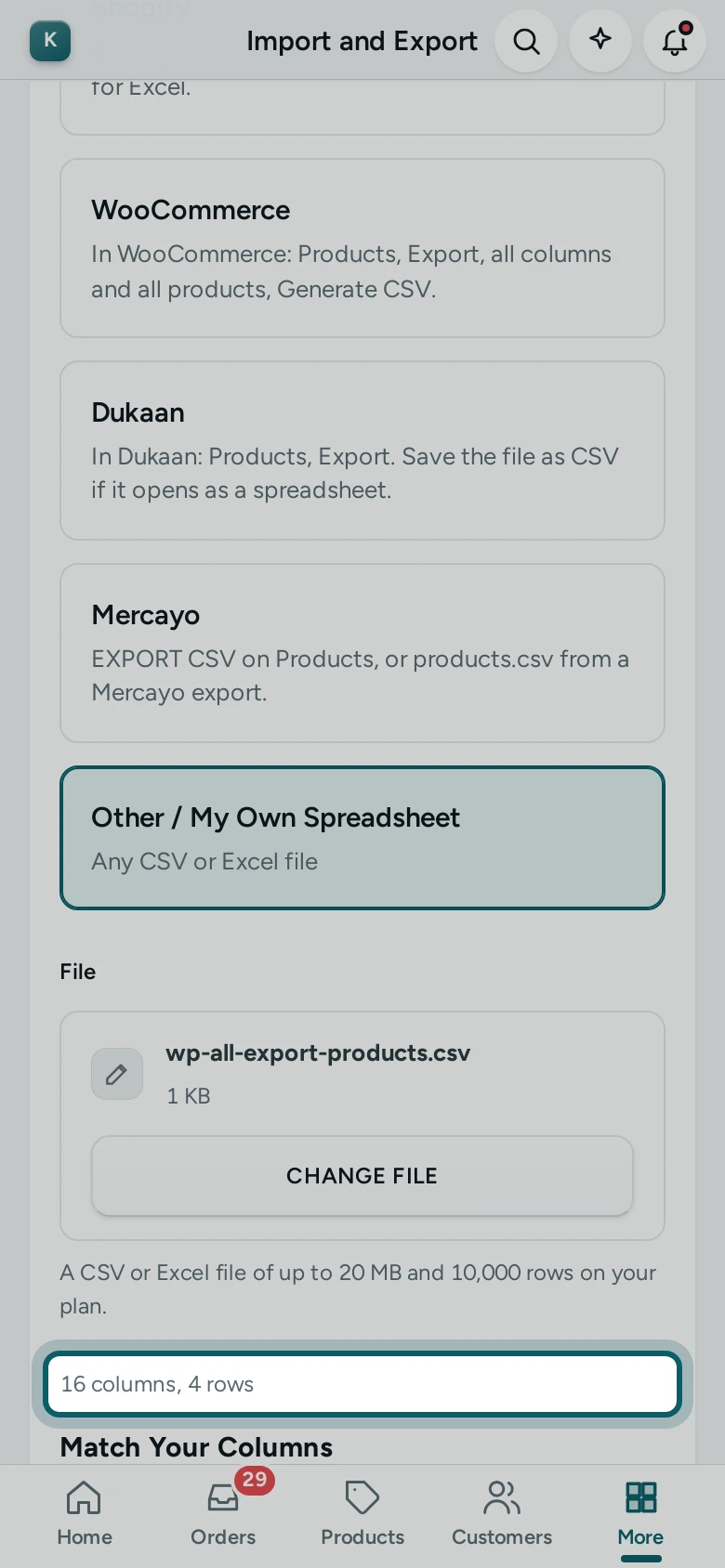
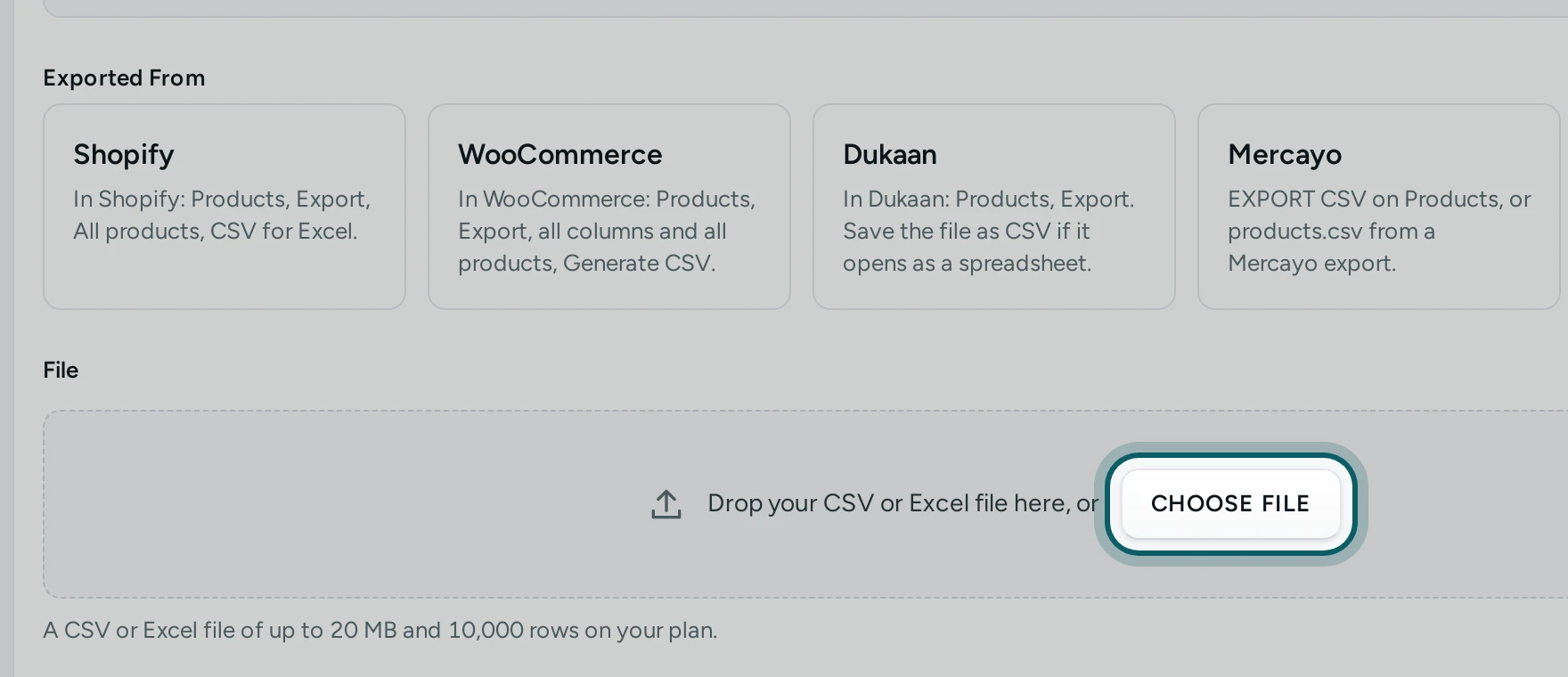
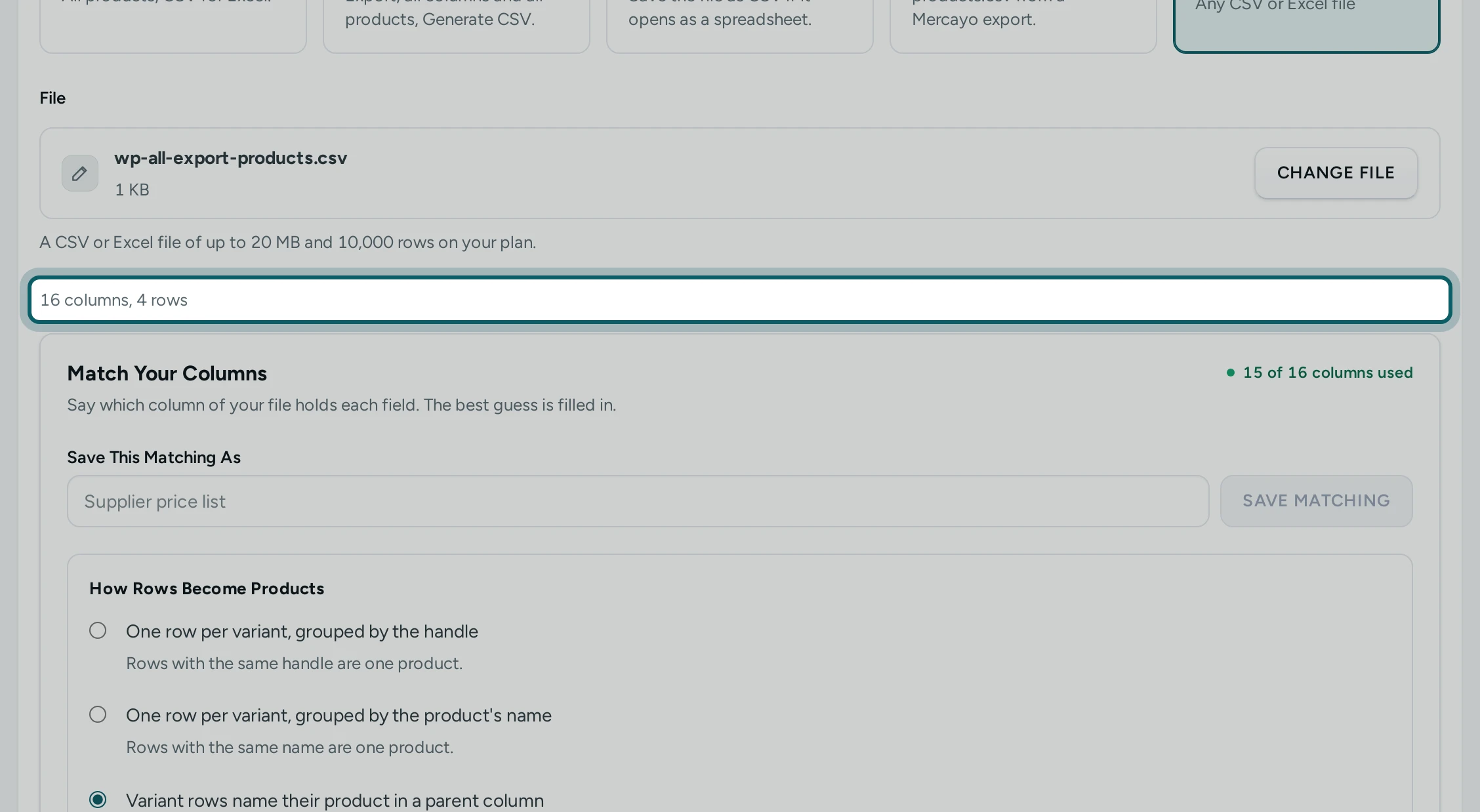
Add the file. Drop it in, or press CHOOSE FILE. Mercayo reads a CSV with commas, semicolons or tabs between the columns, in UTF-8 or the older Windows encoding Excel often saves, and Excel workbooks (.xlsx and the old .xls). It says "Reading the file's columns…", then how many columns and rows it found.
Step 4 of 4
The sheet and the header row. In a workbook with several sheets, choose the Sheet to read. When the column names are not on the first row (a title or an address above them), Mercayo finds the row by itself; change Column Names Are on Row if it chose the wrong one. A column without a name is called by its letter, such as "Column C".
Match Your Columns
Step 1 of 9
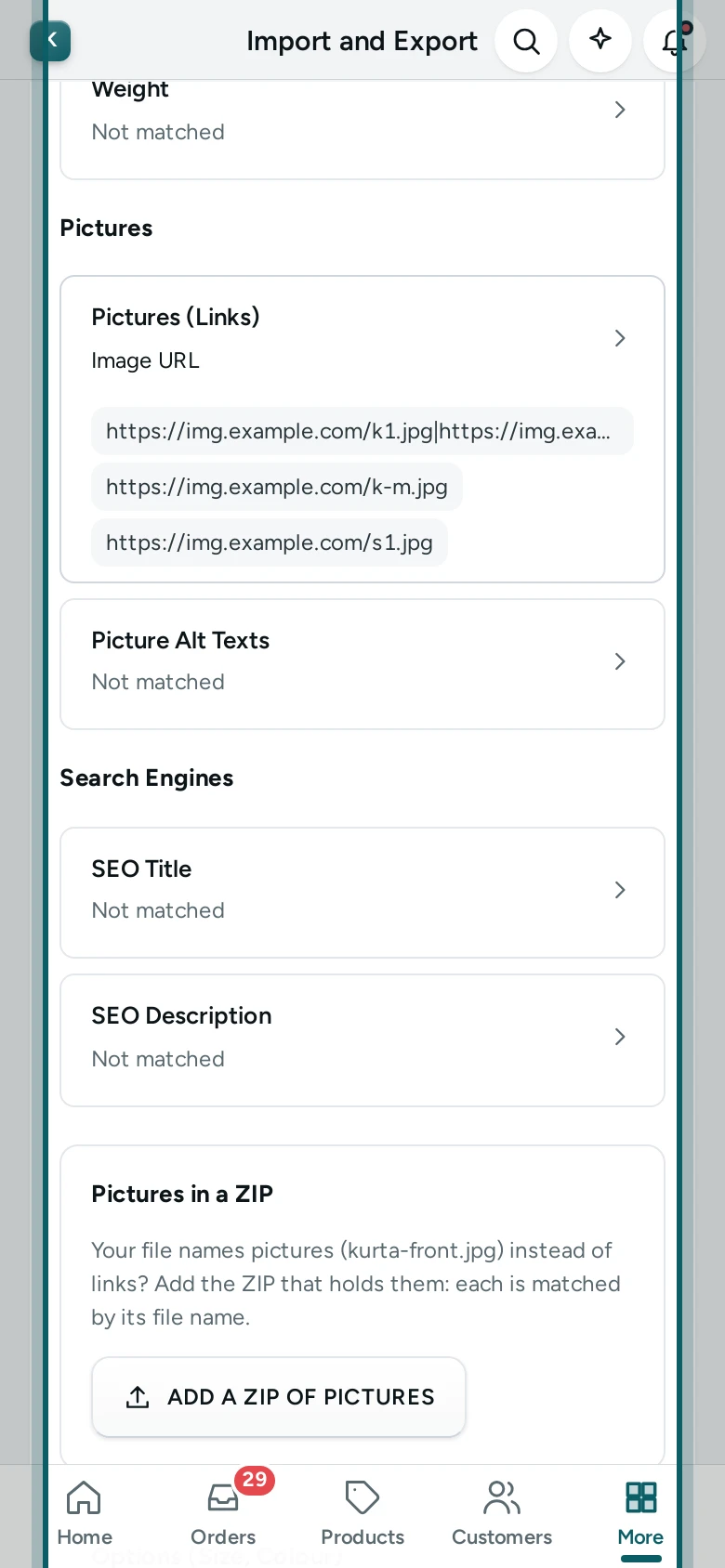
The step opens. Match Your Columns opens by itself for Other / My Own Spreadsheet, for a layout Mercayo does not know, and for a file with columns its platform never writes (it names them). For a file Mercayo knows, press MATCH COLUMNS to change what a column brings in, or USE THE FILE AS IT IS to close the step. The pill shows how many of the file's columns are used.
Step 2 of 9
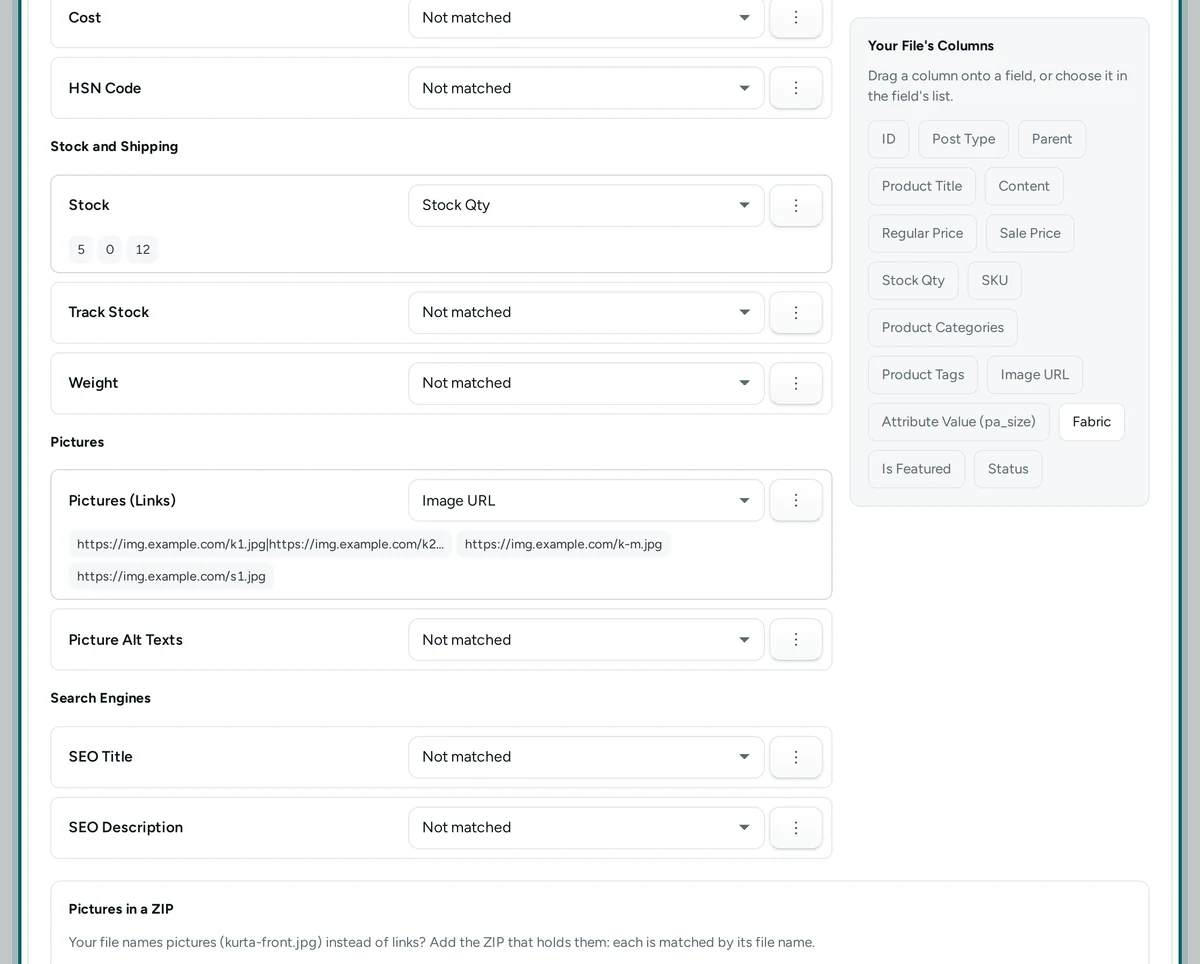
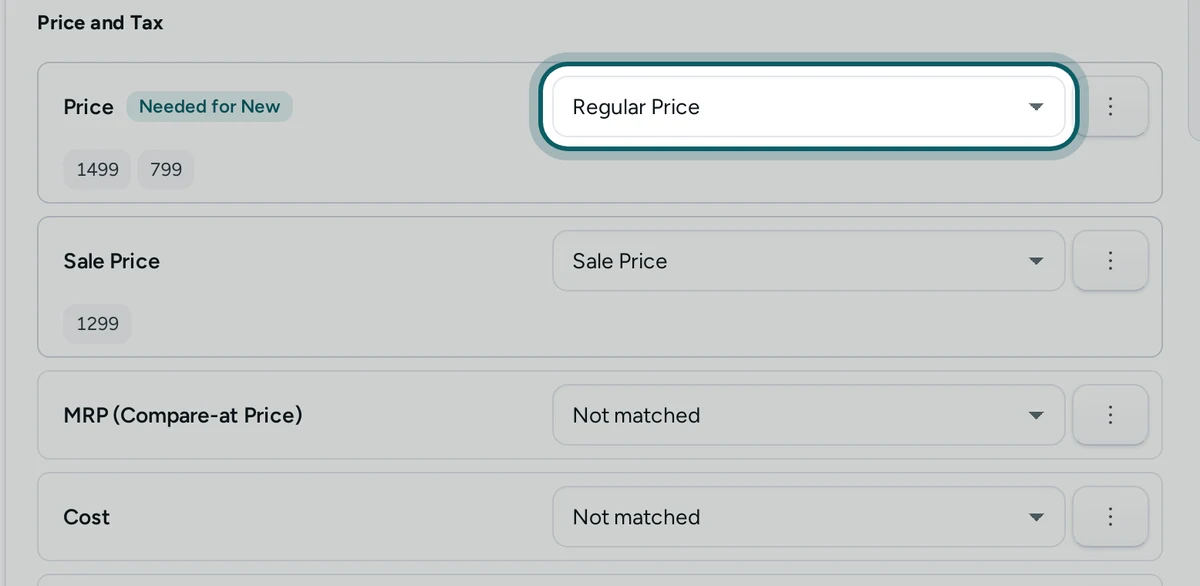
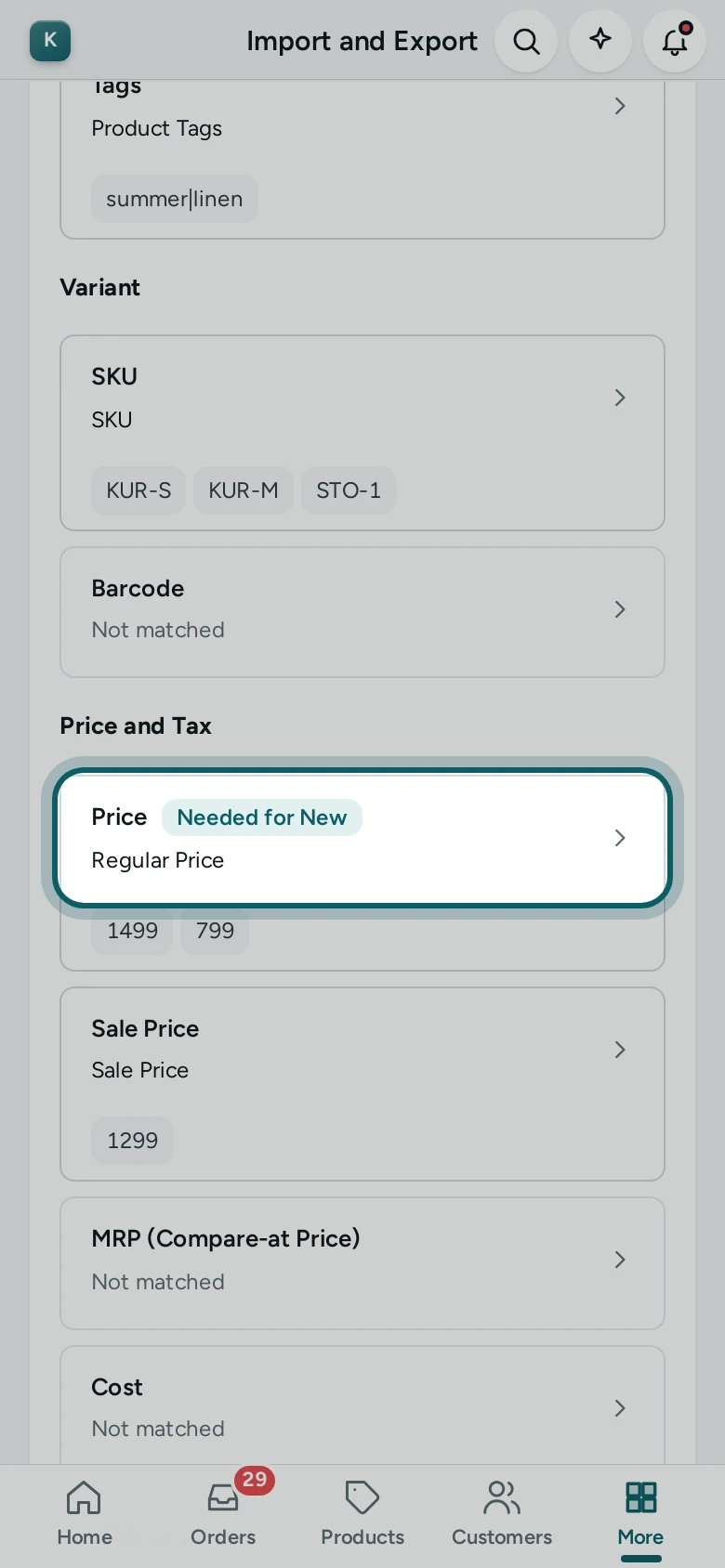
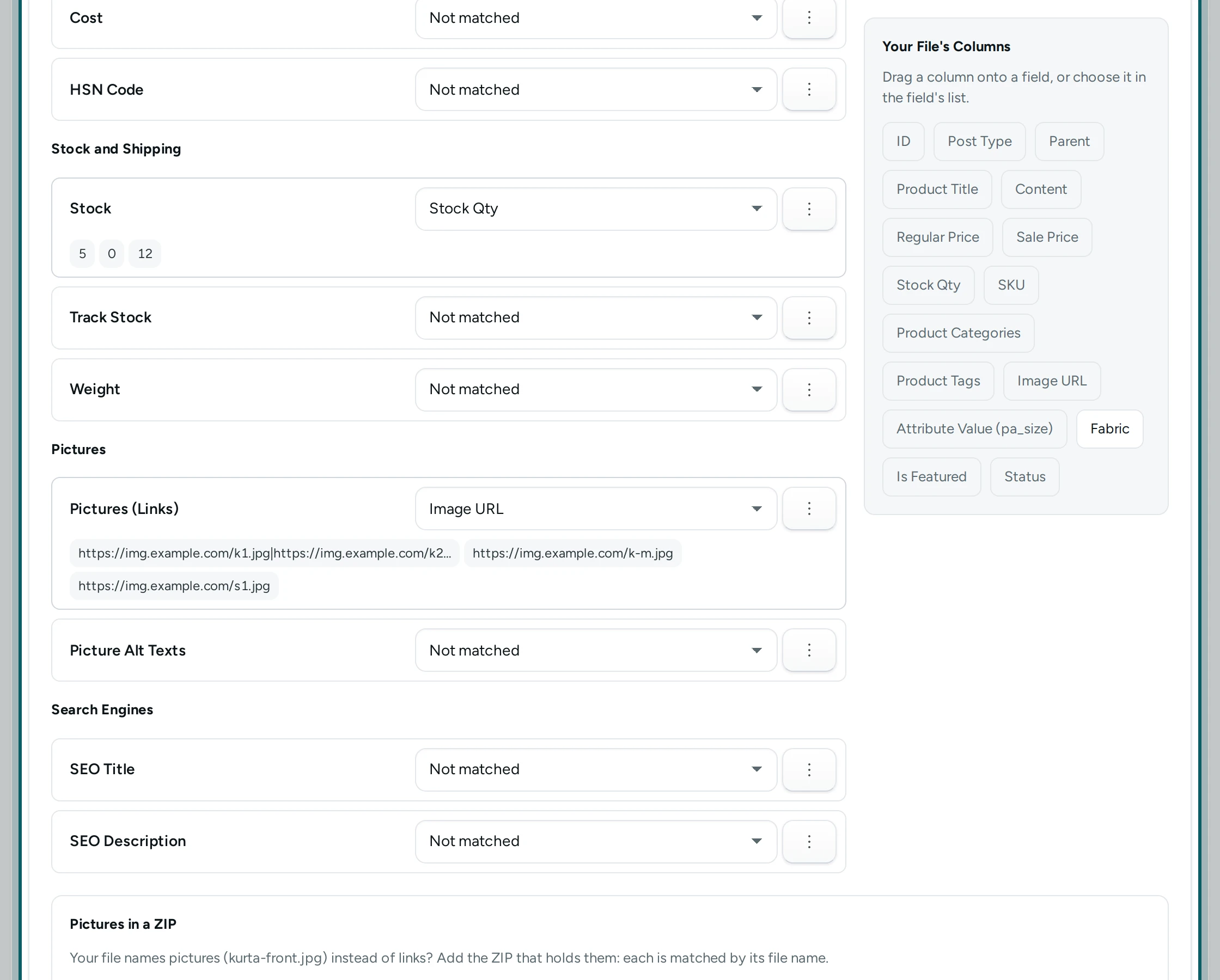
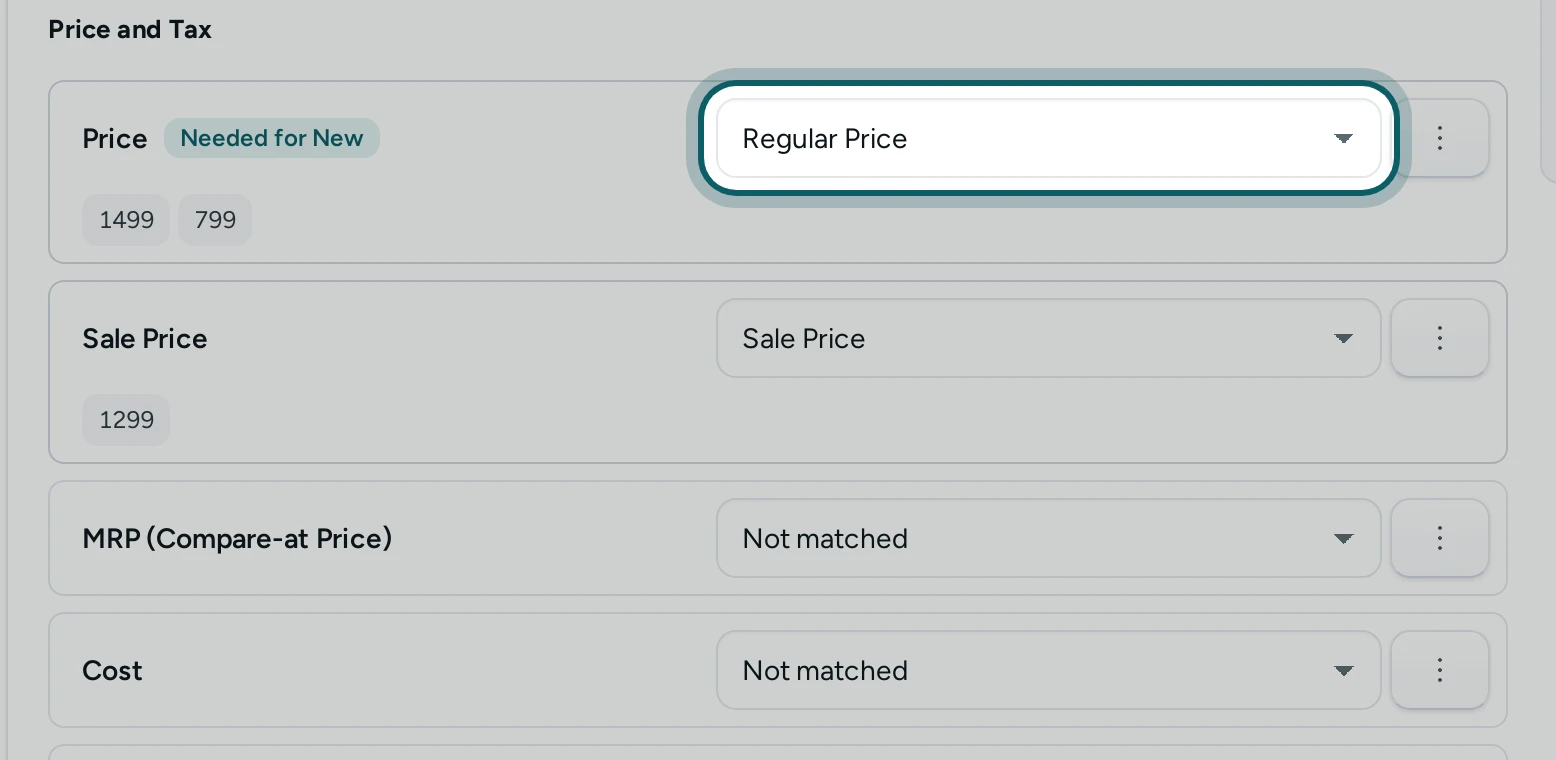
Each field takes a column. Mercayo's fields are listed in groups (for products: Product, Organise, Variant, Price and Tax, Stock and Shipping, Pictures, Search Engines). The ones a record cannot do without are marked Needed, or Needed for New when only a new record needs them. Under each field are the first three values it takes from your file. Mercayo has filled in what it could guess: the names Shopify, WooCommerce, WP All Export and Dukaan use, common English names, and Hindi headings such as कीमत, एमआरपी or स्टॉक.
Step 3 of 9
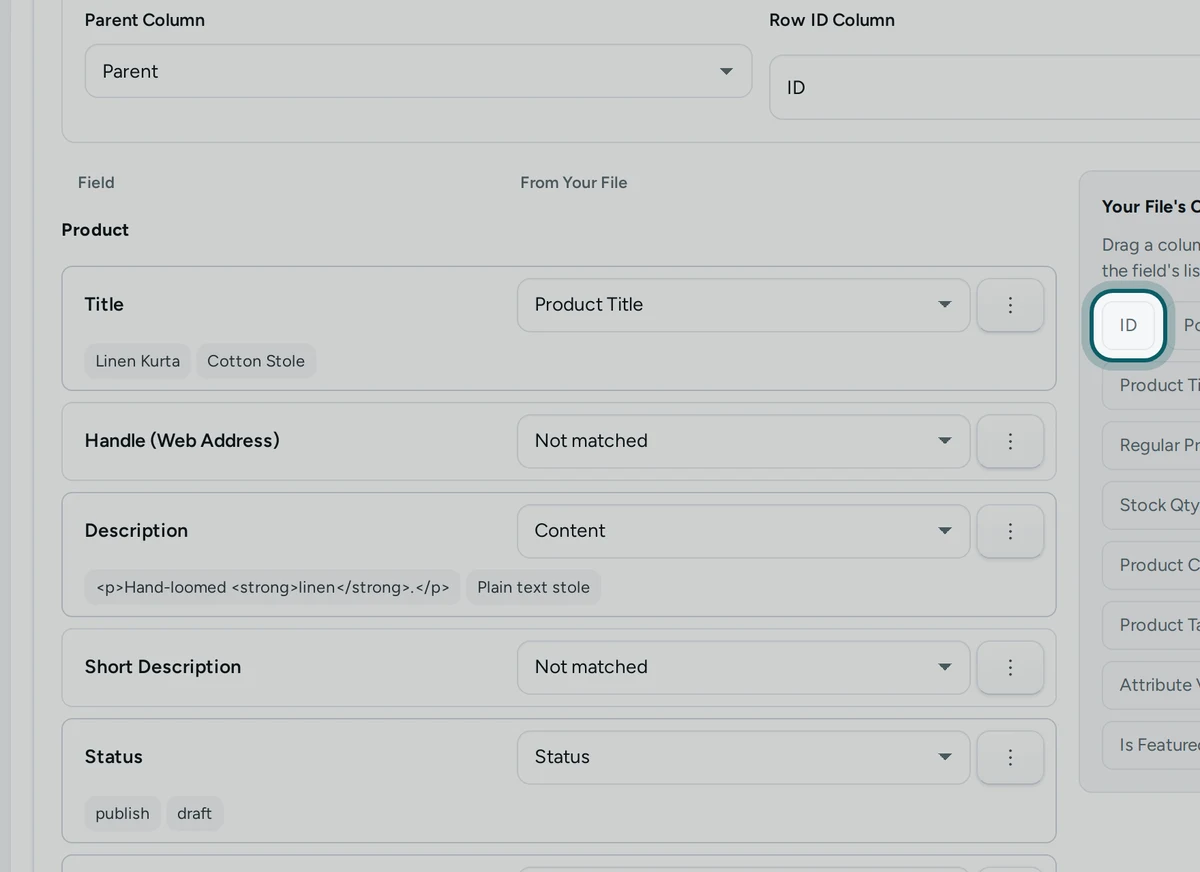
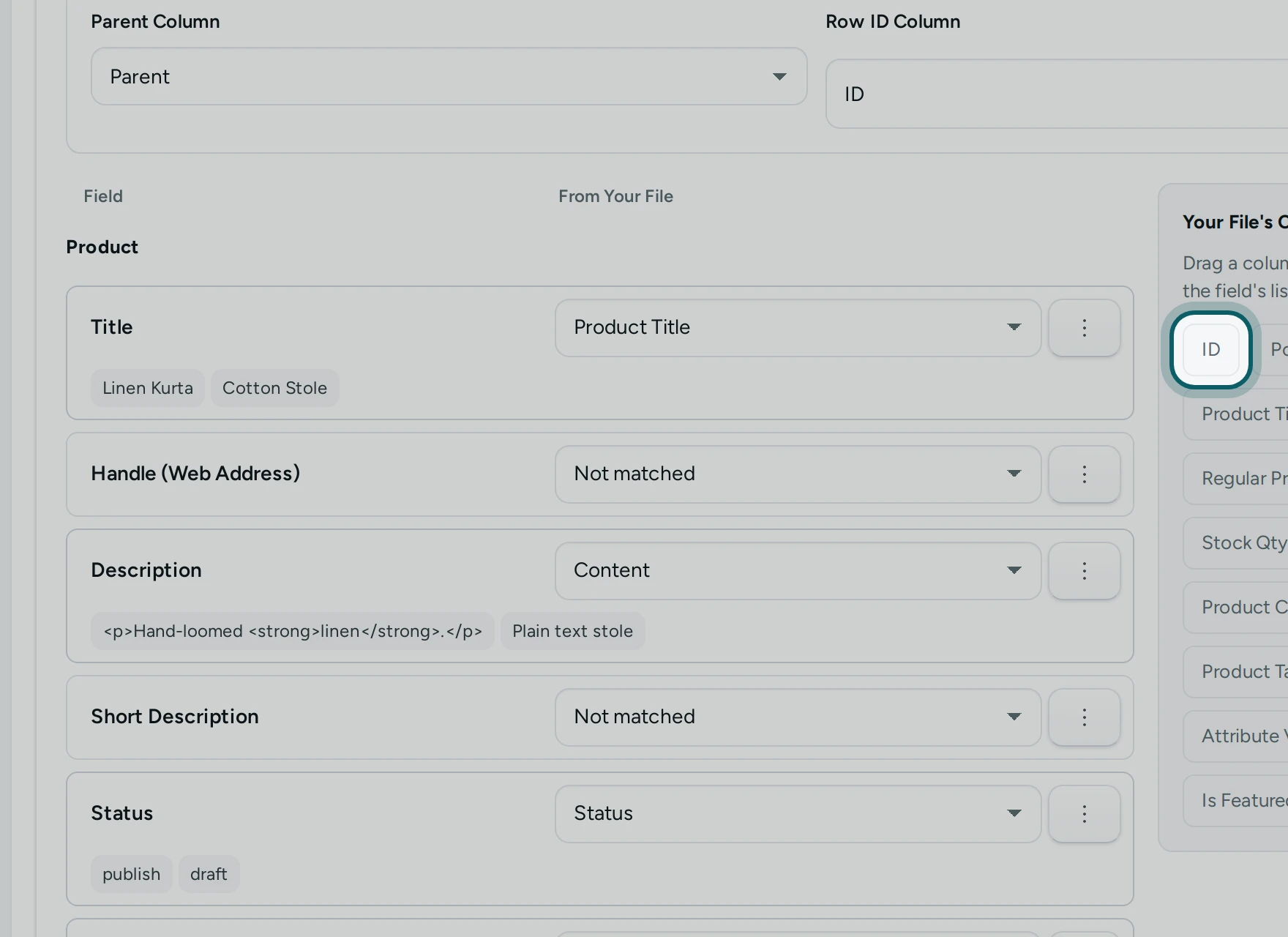
Choose a column. On a computer, drag a column from Your File's Columns onto a field, or choose it in the field's list. On a phone each field is a row: press it, and its sheet opens with the file's columns to pick from (Find a column searches them). The phone's Back closes the sheet.
Step 4 of 9
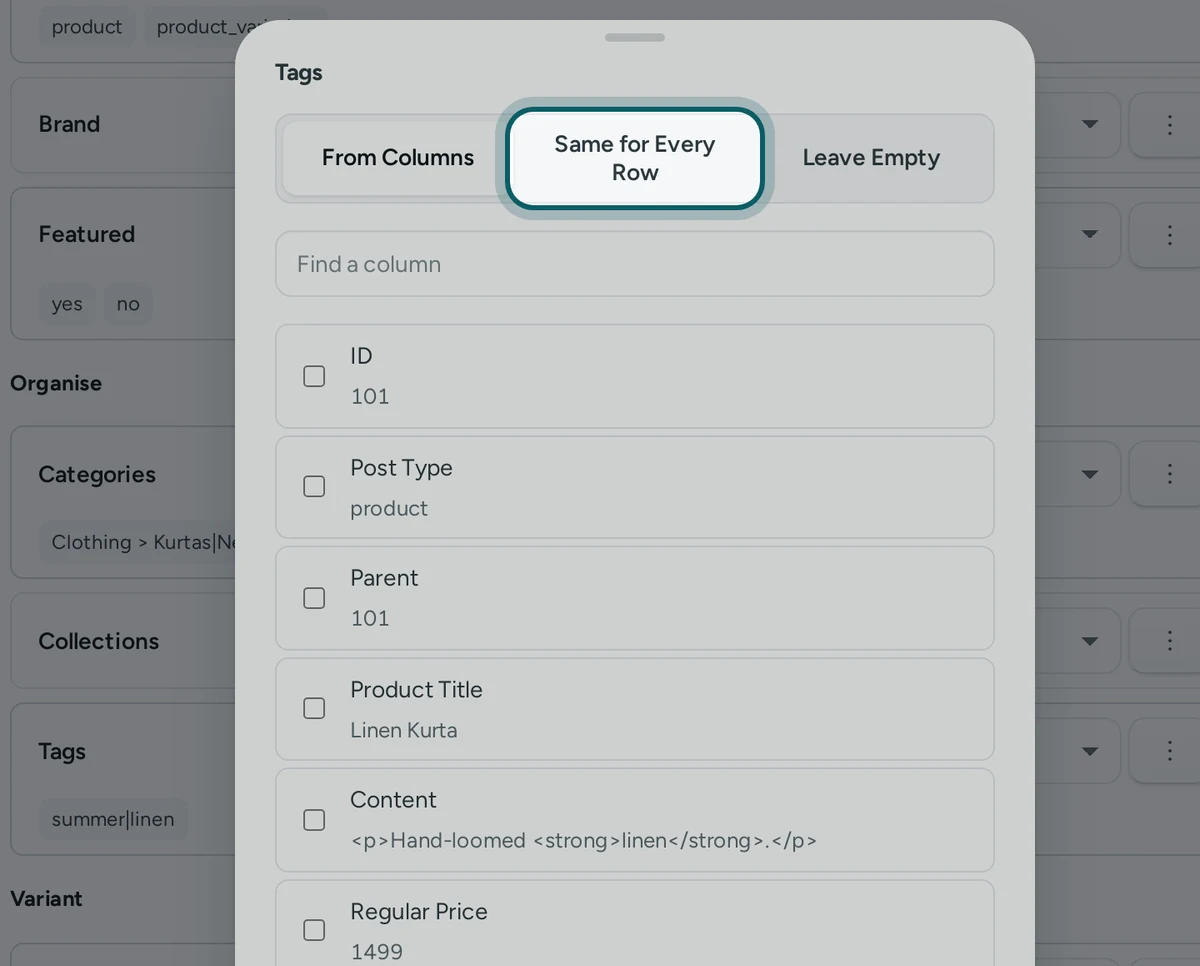
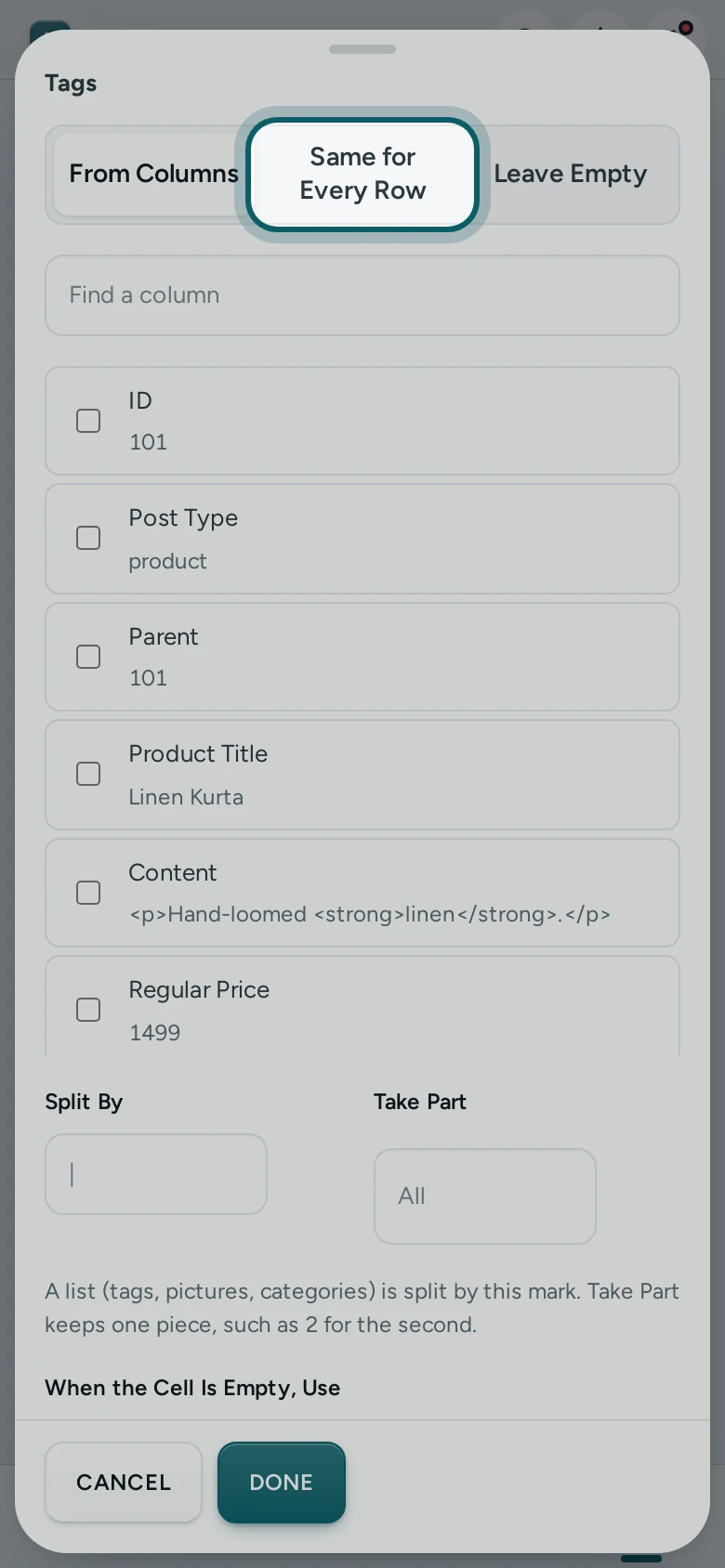
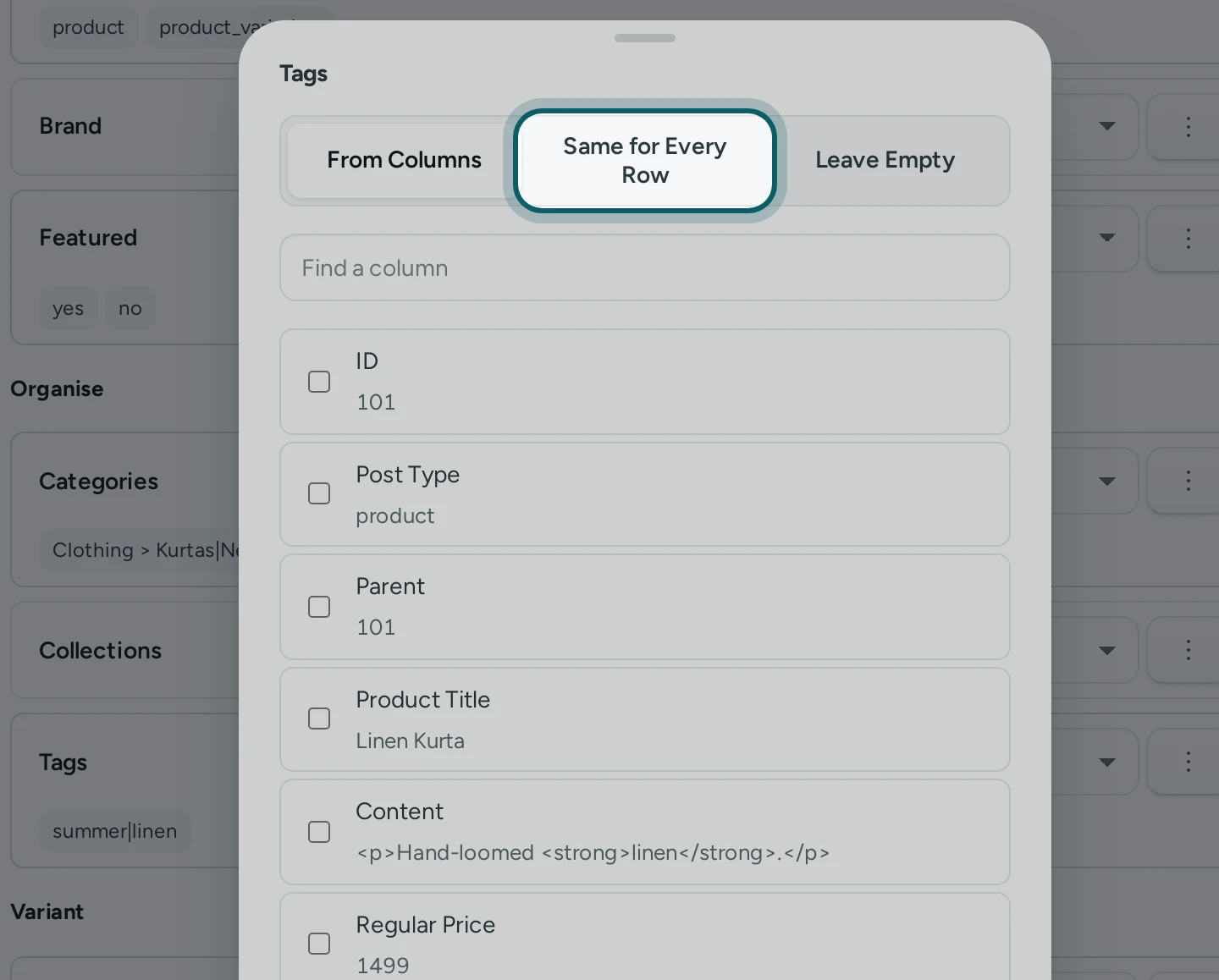
More ways to fill a field. Press the field's More button (three dots; on a phone, its row). The sheet has three ways: From Columns (tick several to join them, with Text Between Columns, such as First Name and Surname with a space; Split By and Take Part keep one piece of a cell, such as the second of "Red / Large"), Same for Every Row (a value every row gets, such as Draft for the status) and Leave Empty ("Mercayo leaves this field as it is."). When the Cell Is Empty, Use fills the gaps. DONE keeps it.
Step 5 of 9
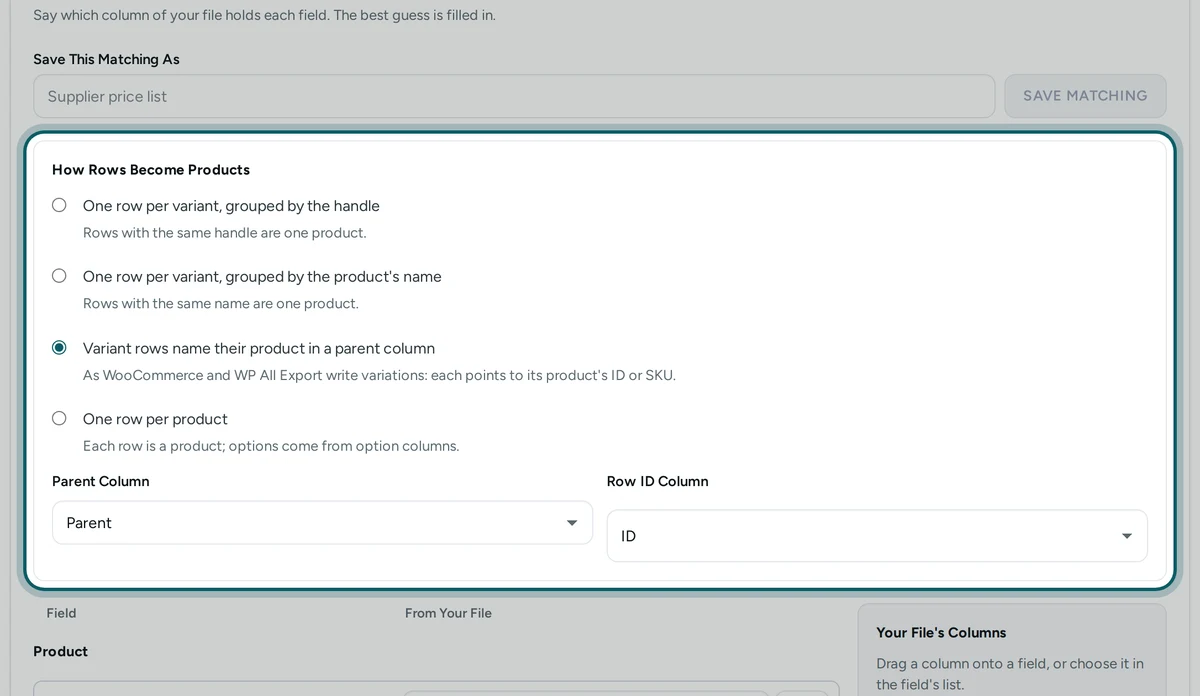
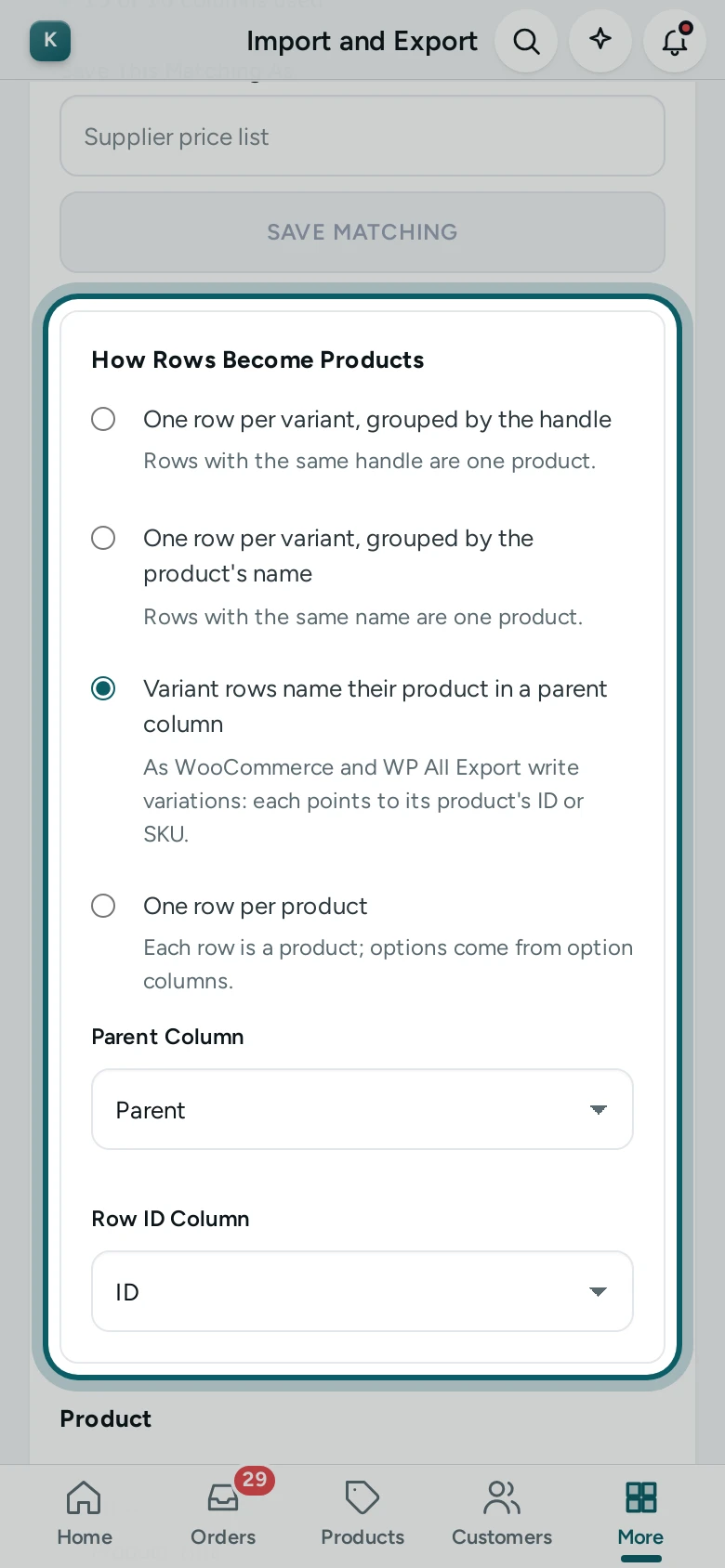
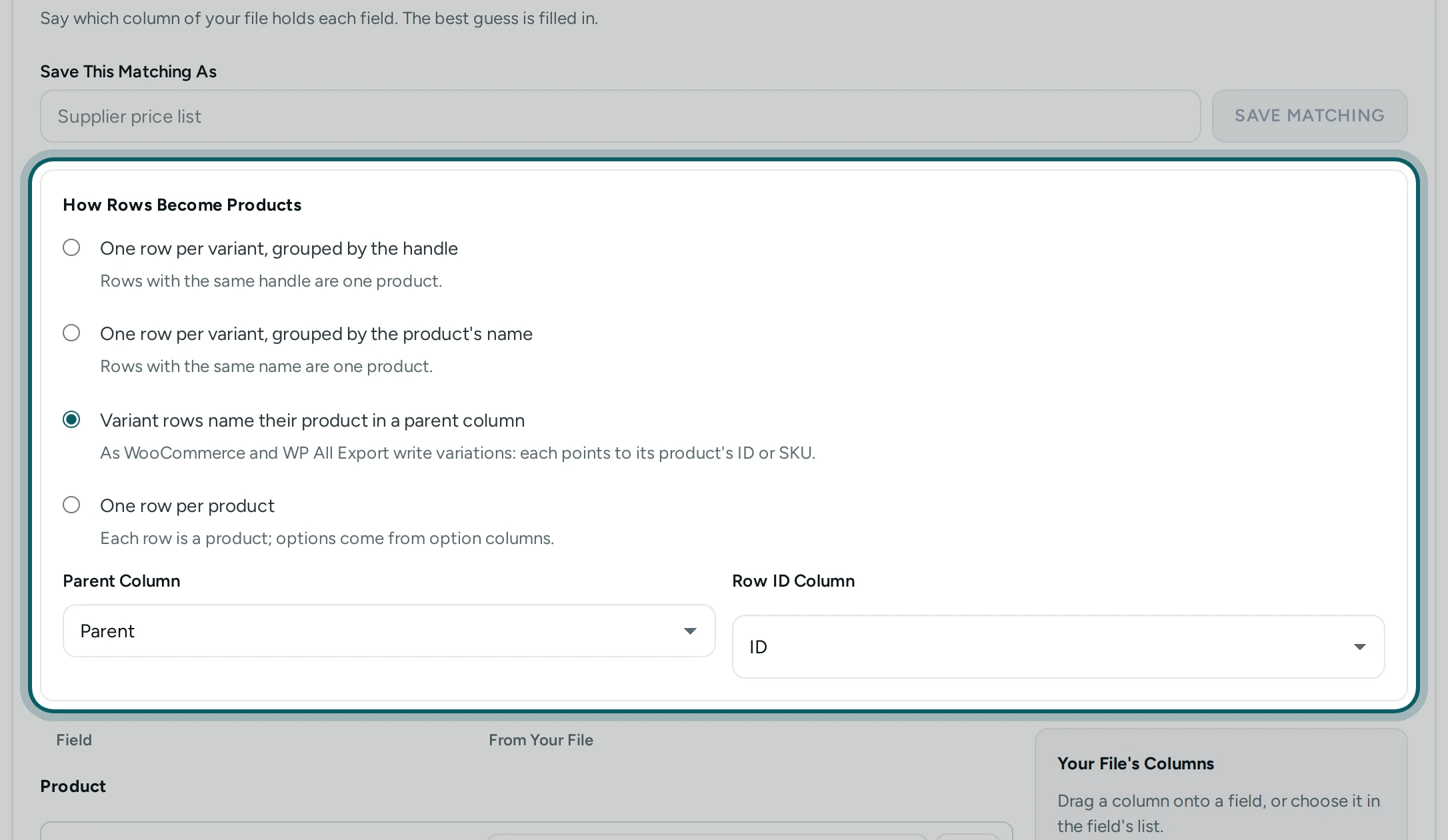
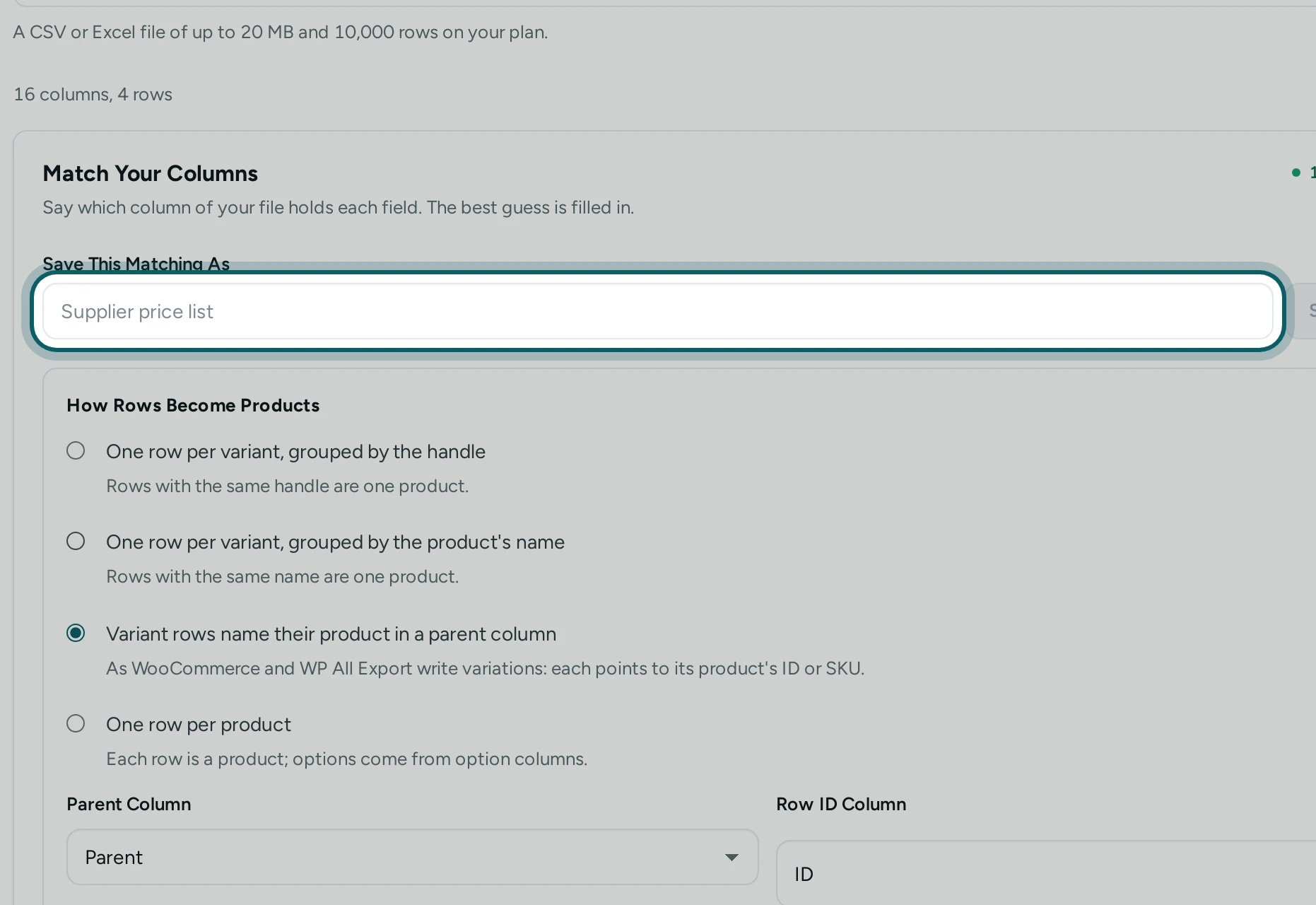
How rows become products. For products, choose how the file's rows make products under How Rows Become Products: One row per variant, grouped by the handle; One row per variant, grouped by the product's name; Variant rows name their product in a parent column (as WooCommerce and WP All Export write variations: choose the Parent Column and the Row ID Column); or One row per product.
Step 6 of 9
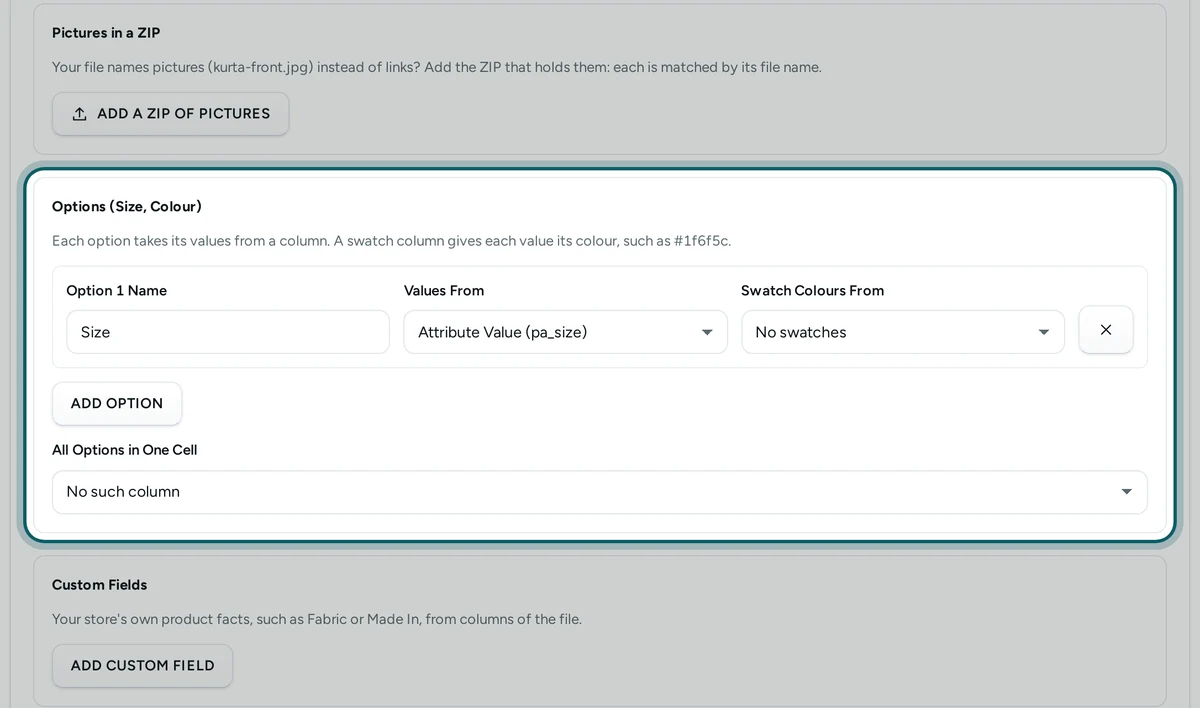
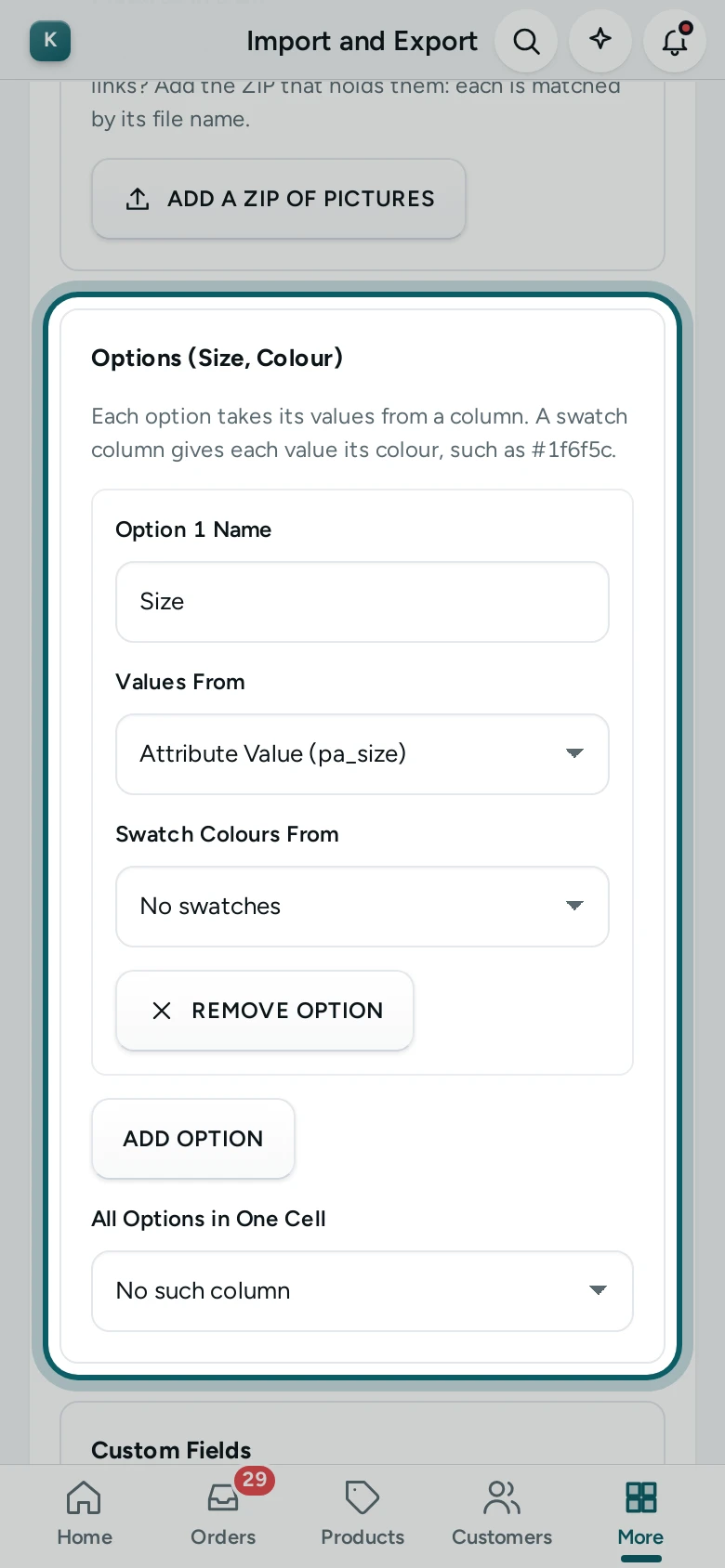
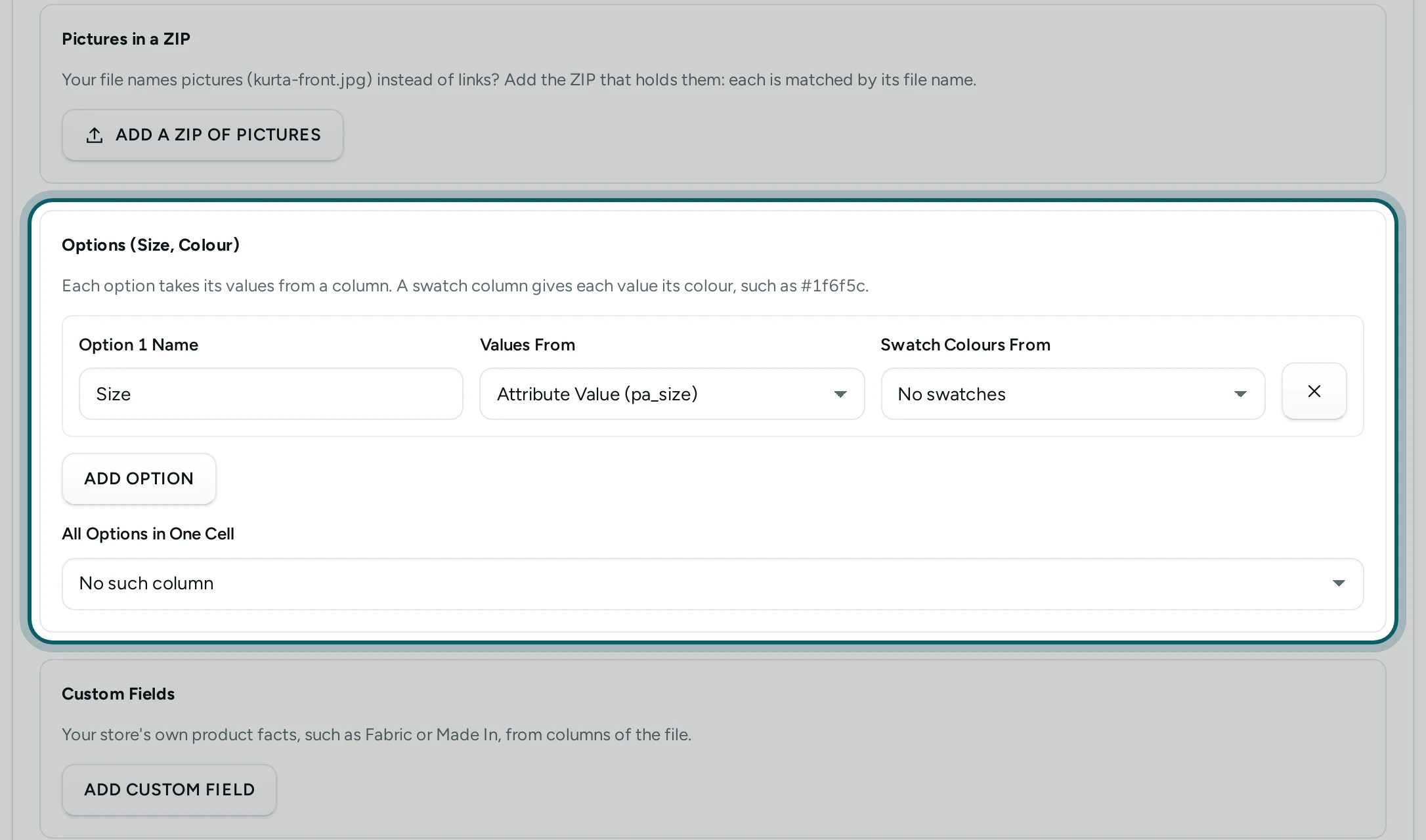
Options such as Size and Colour. Under Options (Size, Colour), each option takes its name and its values from columns (Option 1 Name, Values From), and Swatch Colours From a column of colours such as #1f6f5c. ADD OPTION adds another, up to three. When one column holds every option, like "Size: M | Colour: Red", choose it in All Options in One Cell.
Step 7 of 9
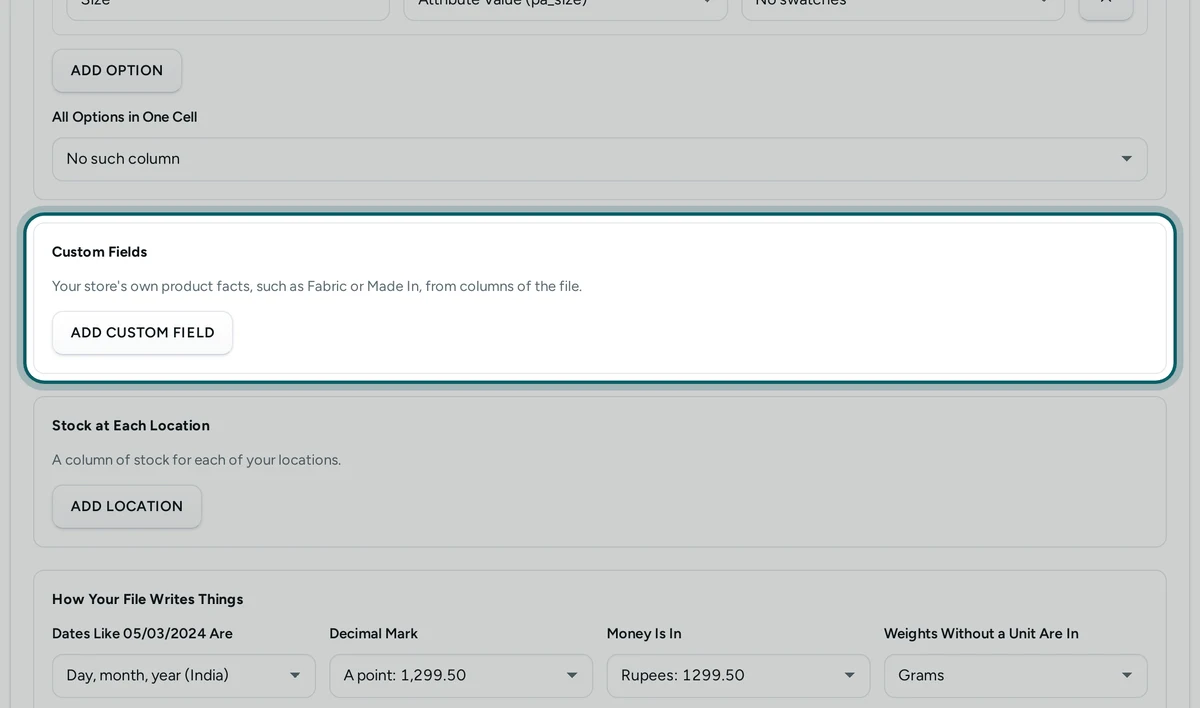
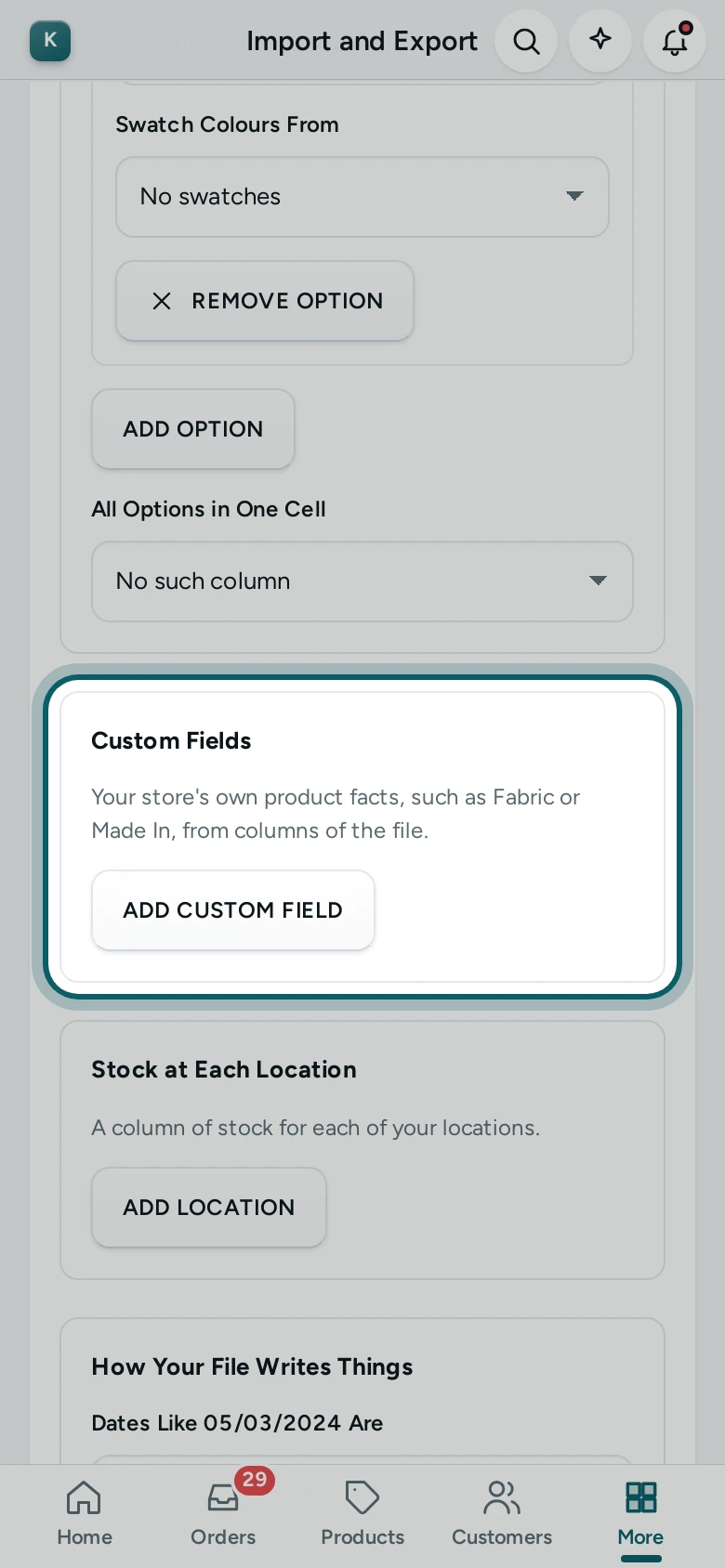
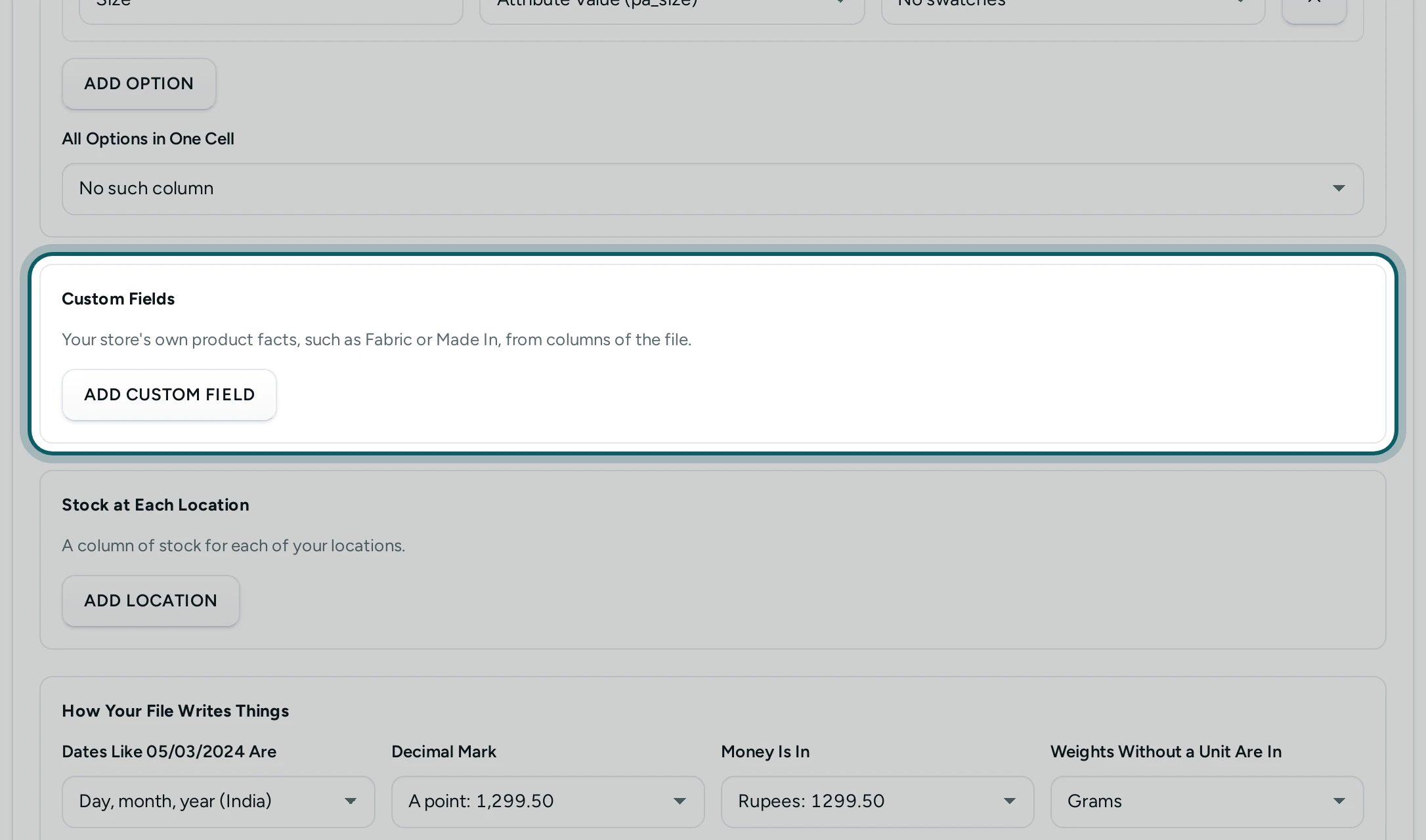
Custom fields and stock at each location. Custom Fields brings your store's own product facts, such as Fabric or Made In, from columns: choose the field, or A new field with its name (then tick Make custom fields the store has not got (as text) under Records Your Store Has). Stock at Each Location takes a column of stock for each of your locations (ADD LOCATION).
Step 8 of 9
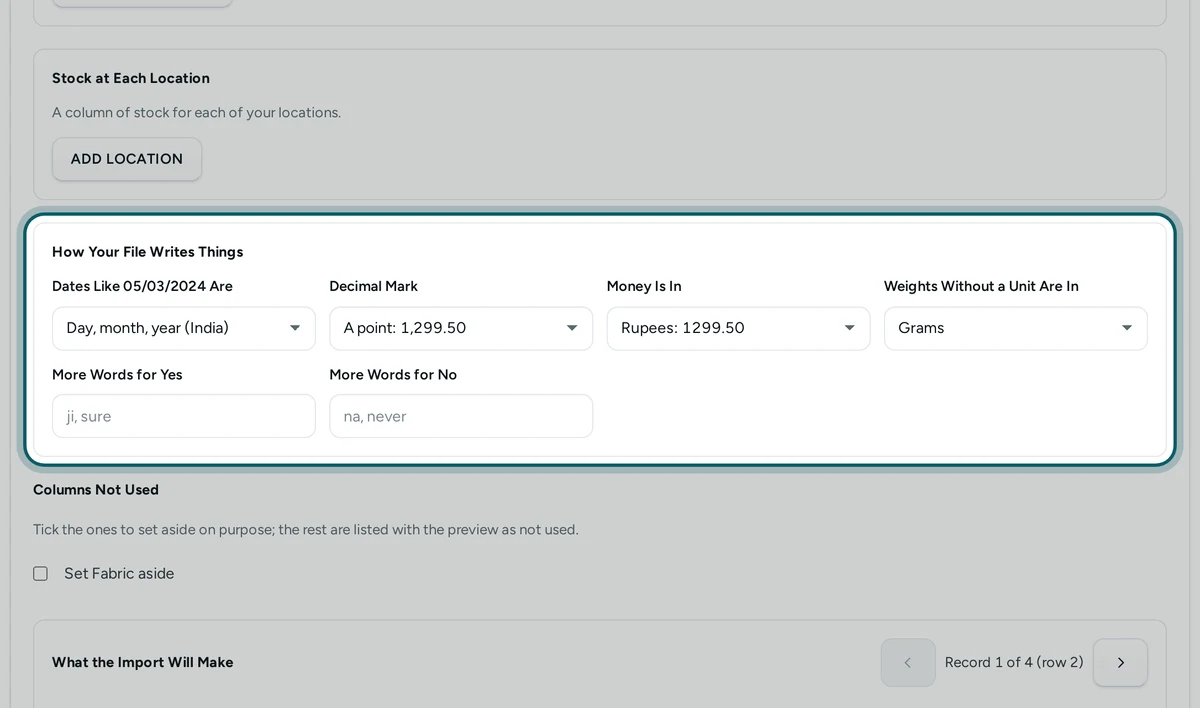
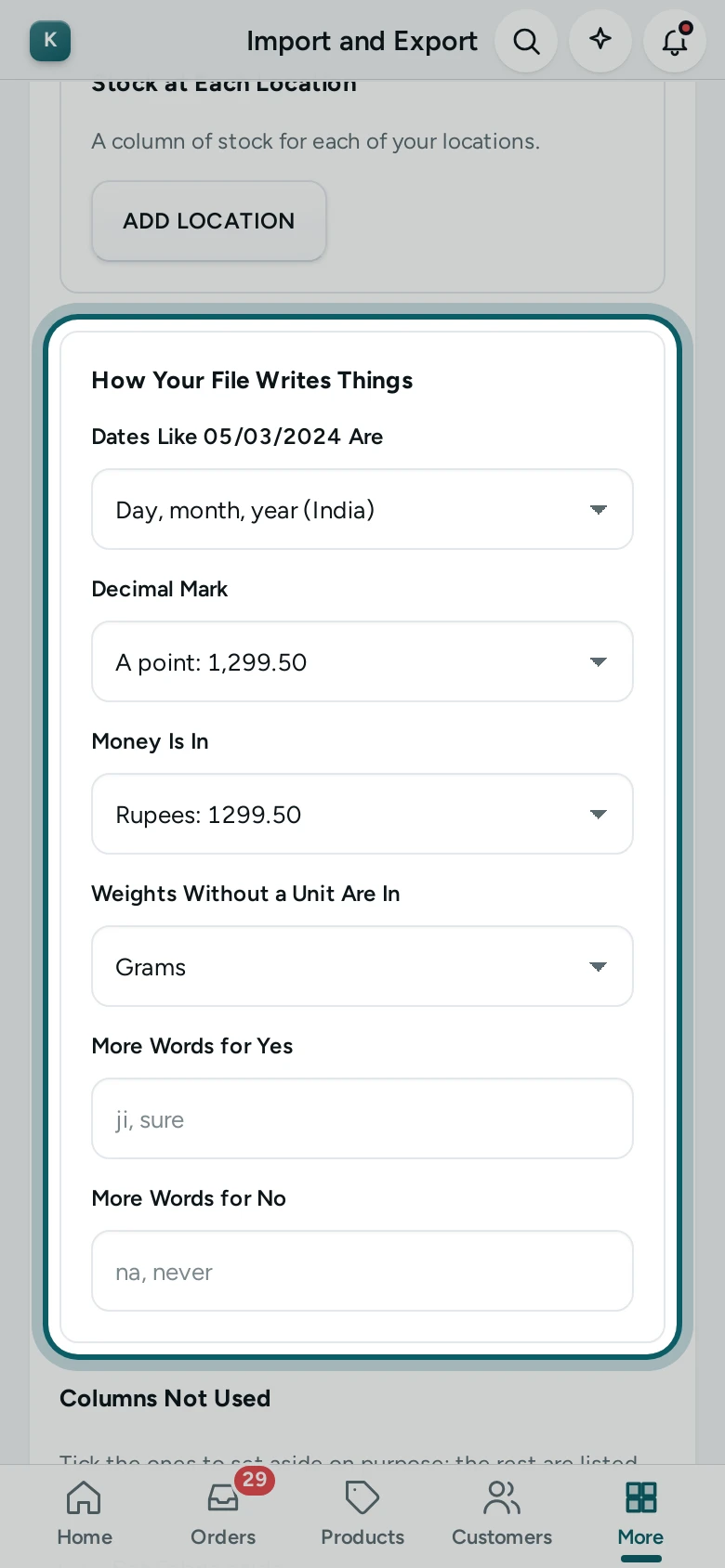
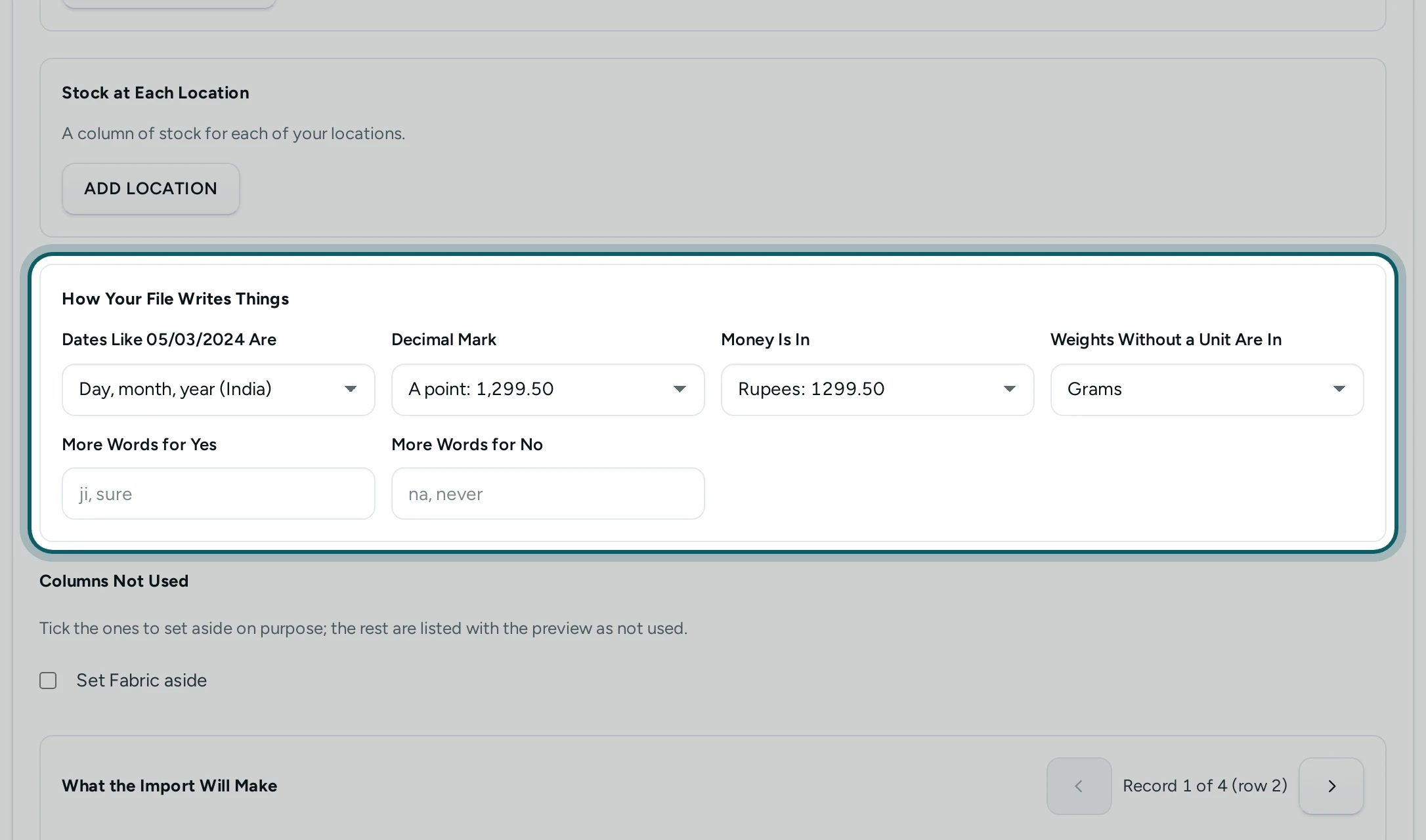
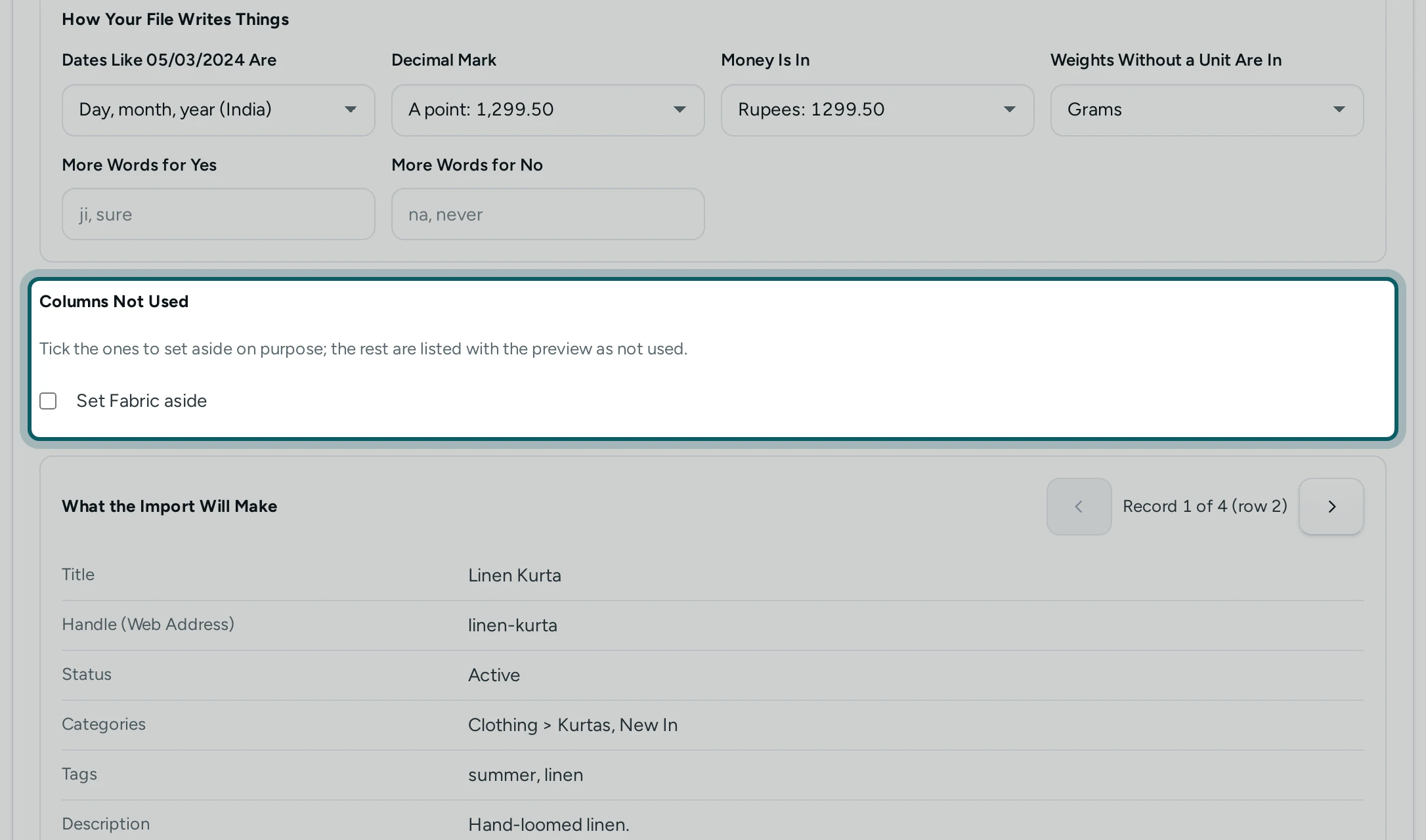
How your file writes things. Under How Your File Writes Things: Dates Like 05/03/2024 Are day, month, year (India), month, day, year (USA) or year first; the Decimal Mark (a point: 1,299.50, or a comma: 1.299,50); Money Is In rupees or paise; Weights Without a Unit Are In grams, kilograms, pounds or ounces; More Words for Yes and More Words for No (हाँ and नहीं are known already).
Step 9 of 9
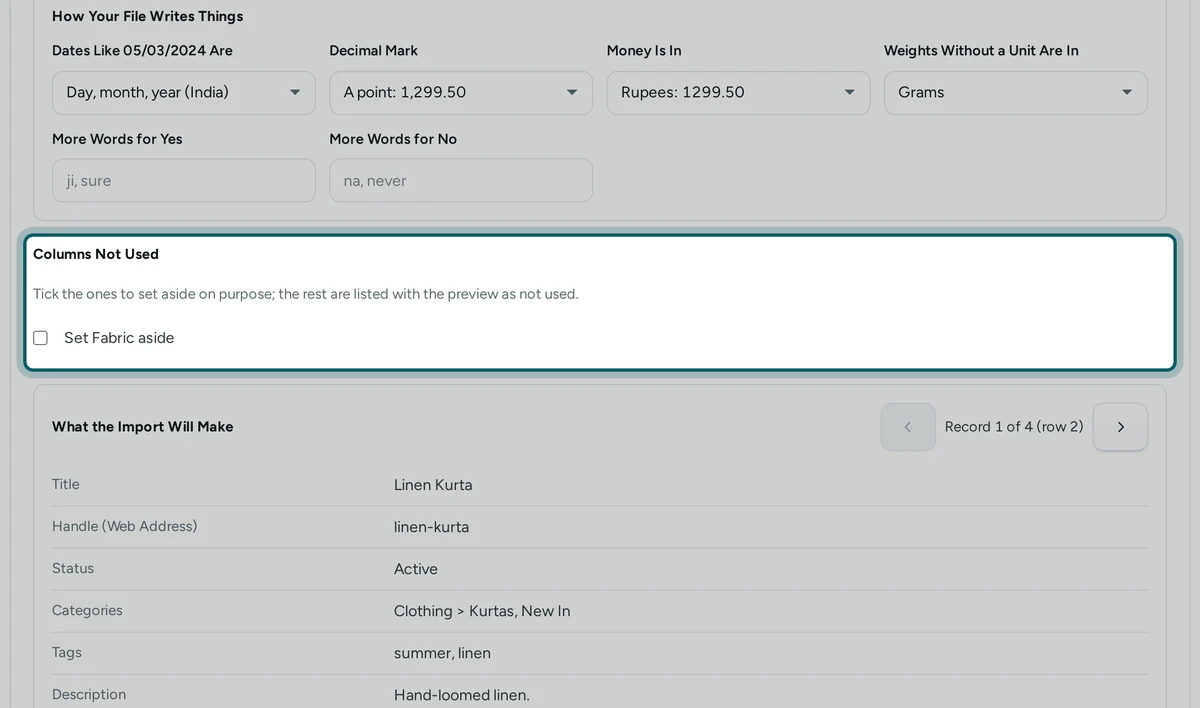
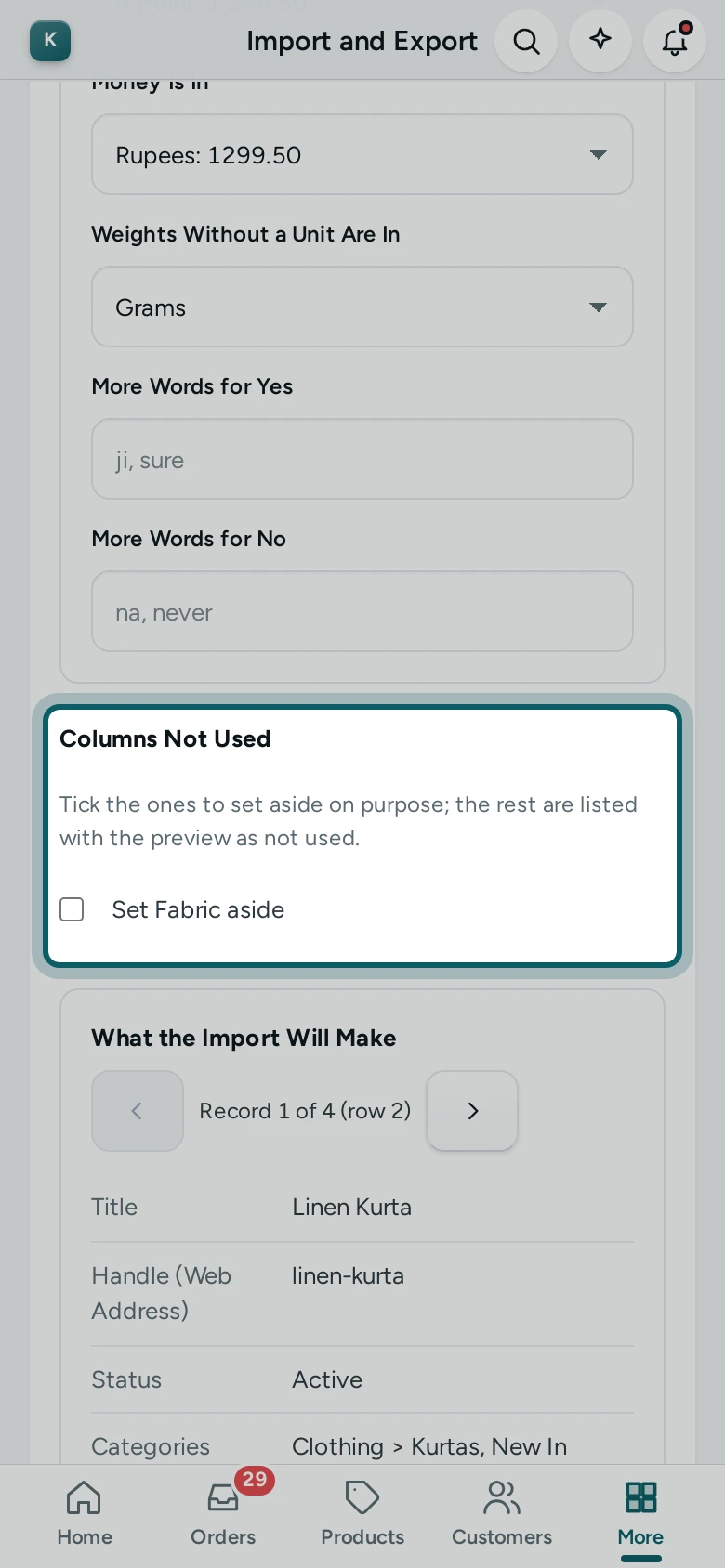
Columns not used. Columns Not Used lists the file's columns no field takes. Tick the ones you leave out on purpose; the others are named with the preview, so nothing is dropped without you seeing it.
See Each Record First
Step 1 of 2
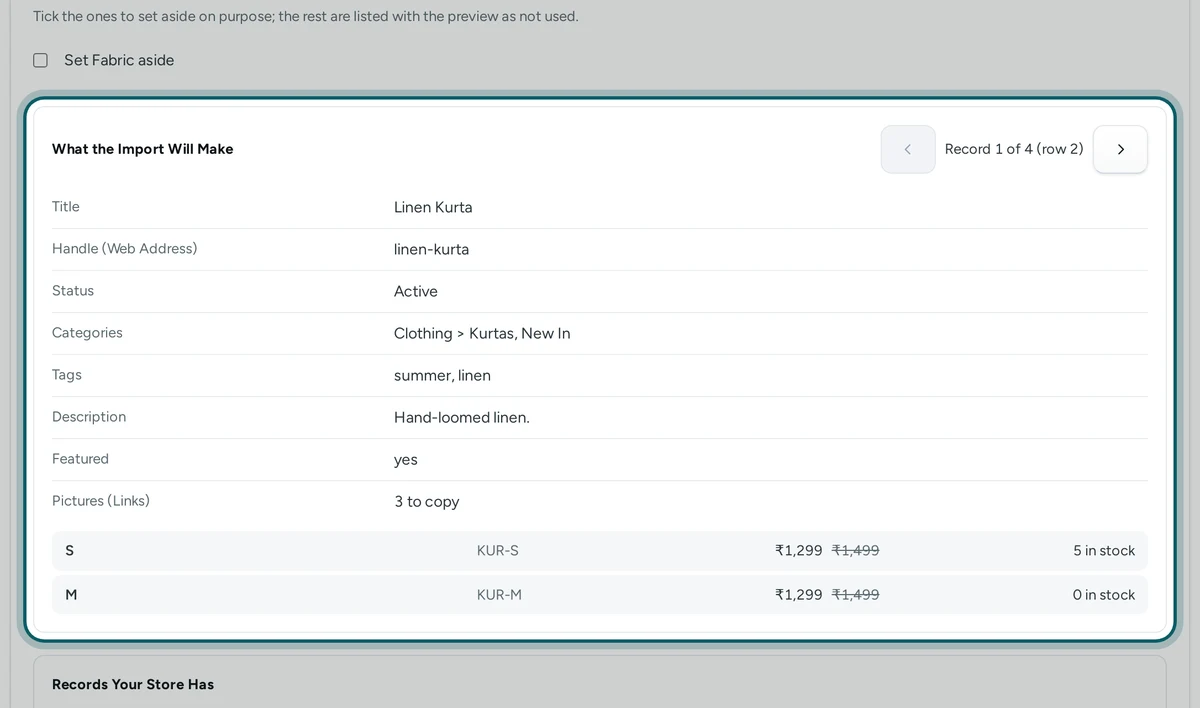
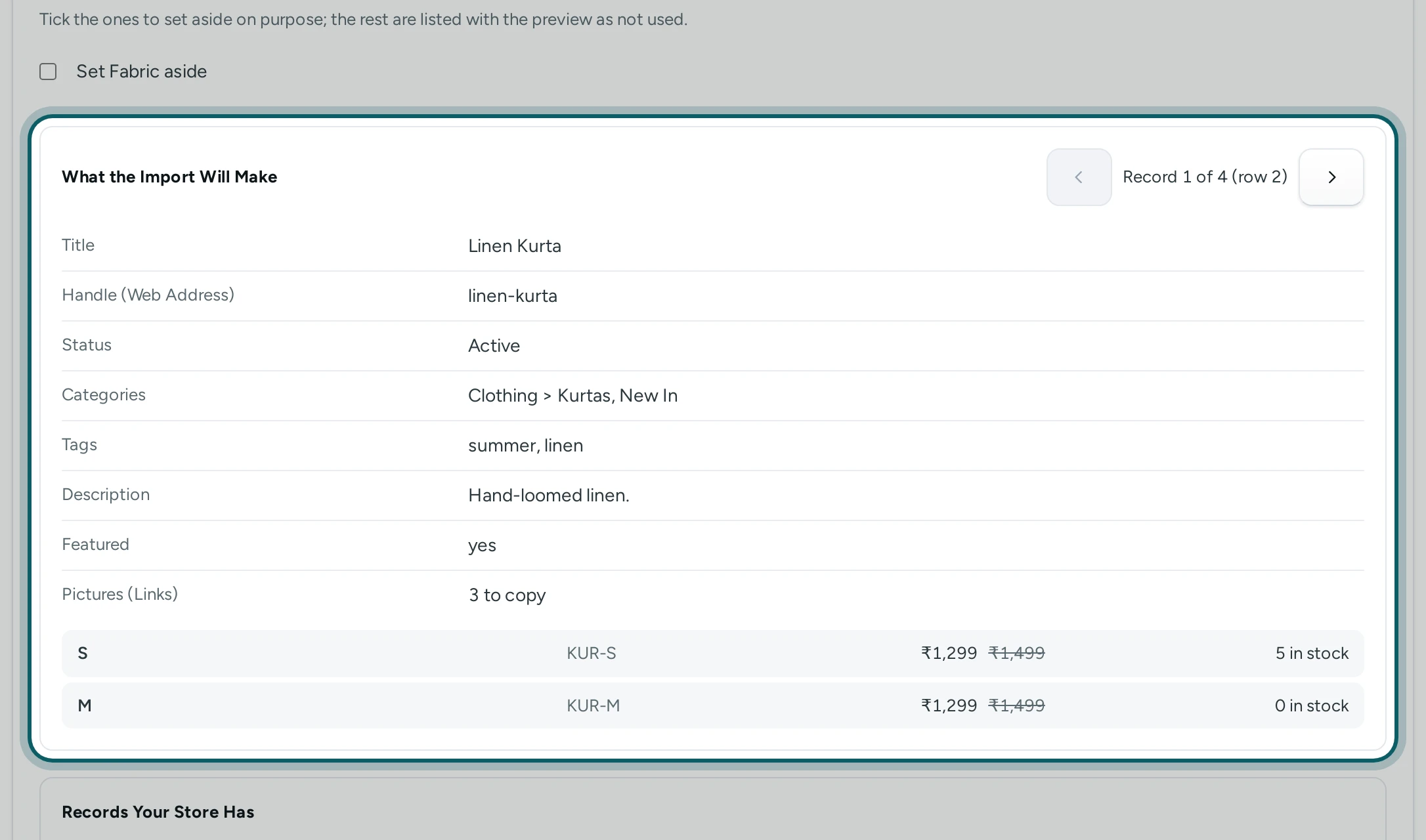
What Mercayo Will Make. The preview shows the record one row makes, worked out by the same rules as the import: a product with its variants, prices, stock and pictures, or a customer, an order, a review. "Record 1 of 120 (row 2)". Press the arrows, or swipe on a phone, to go through them; a row's problems are listed in words under it.
Step 2 of 2
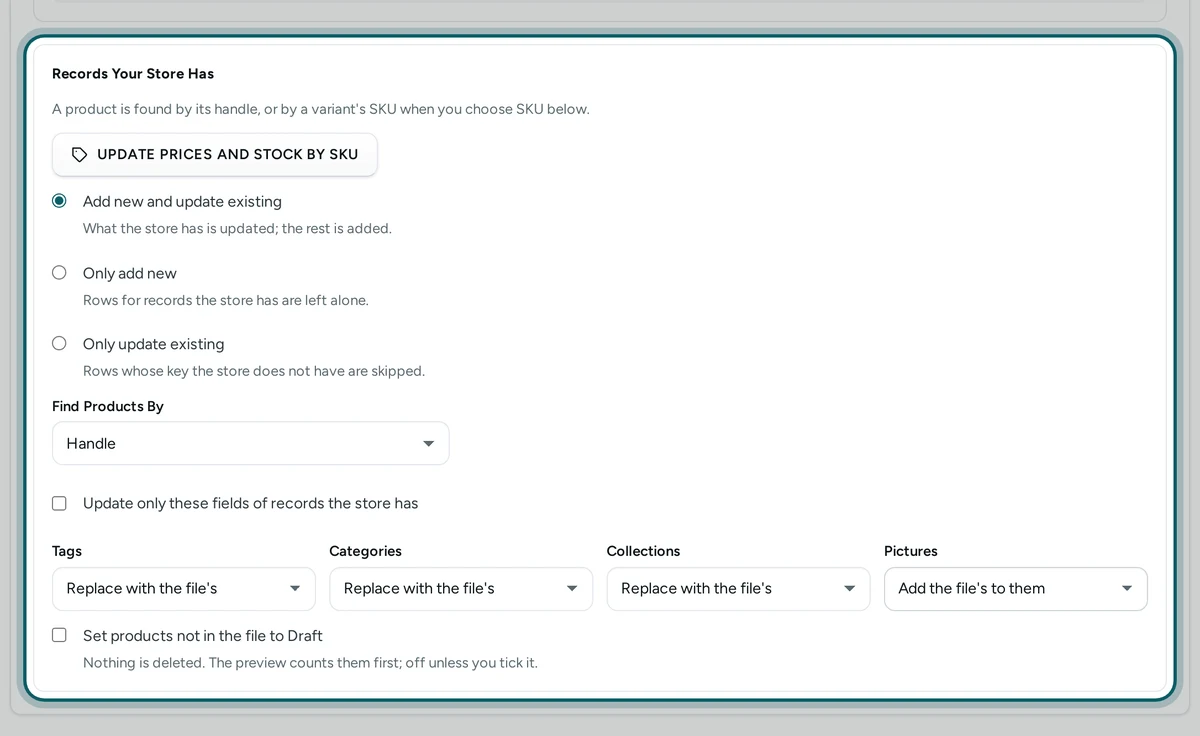
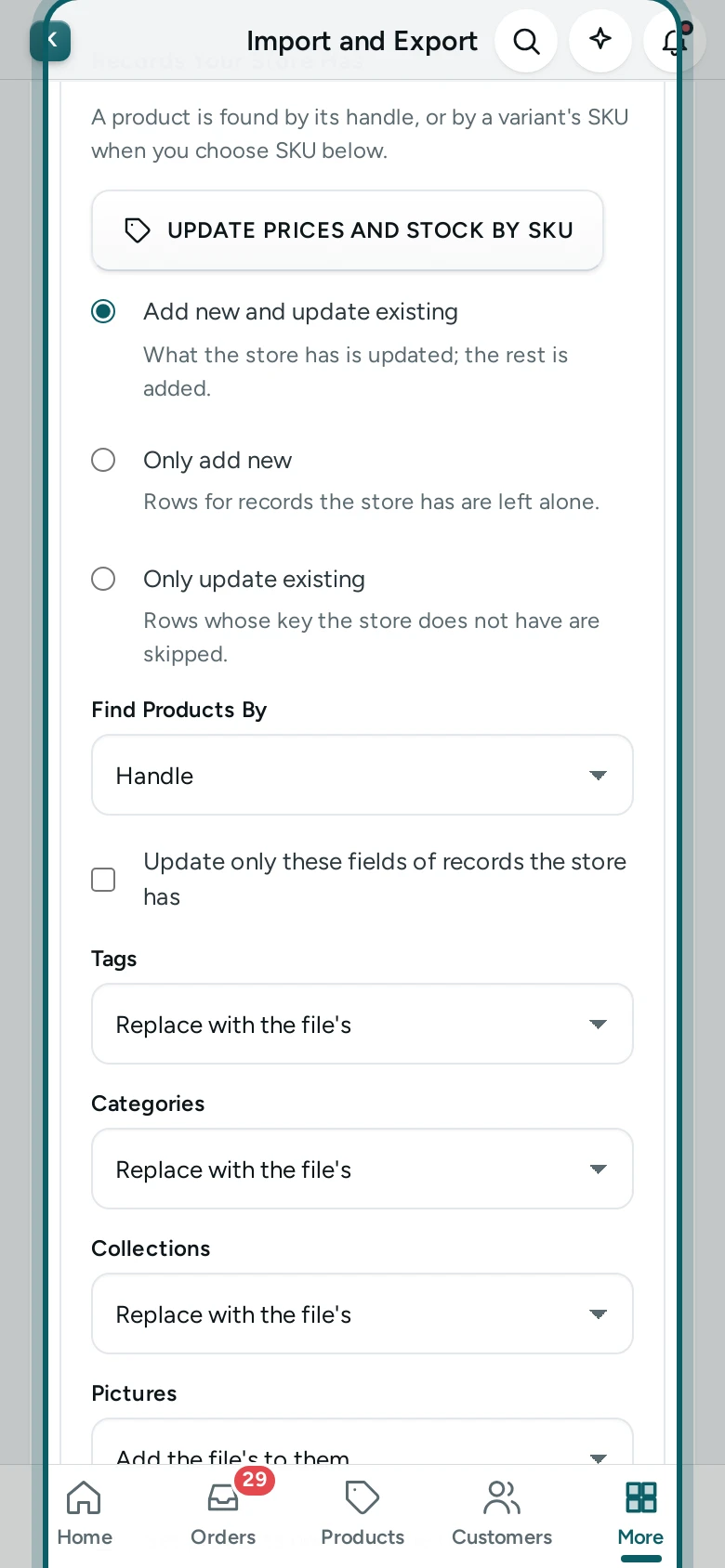
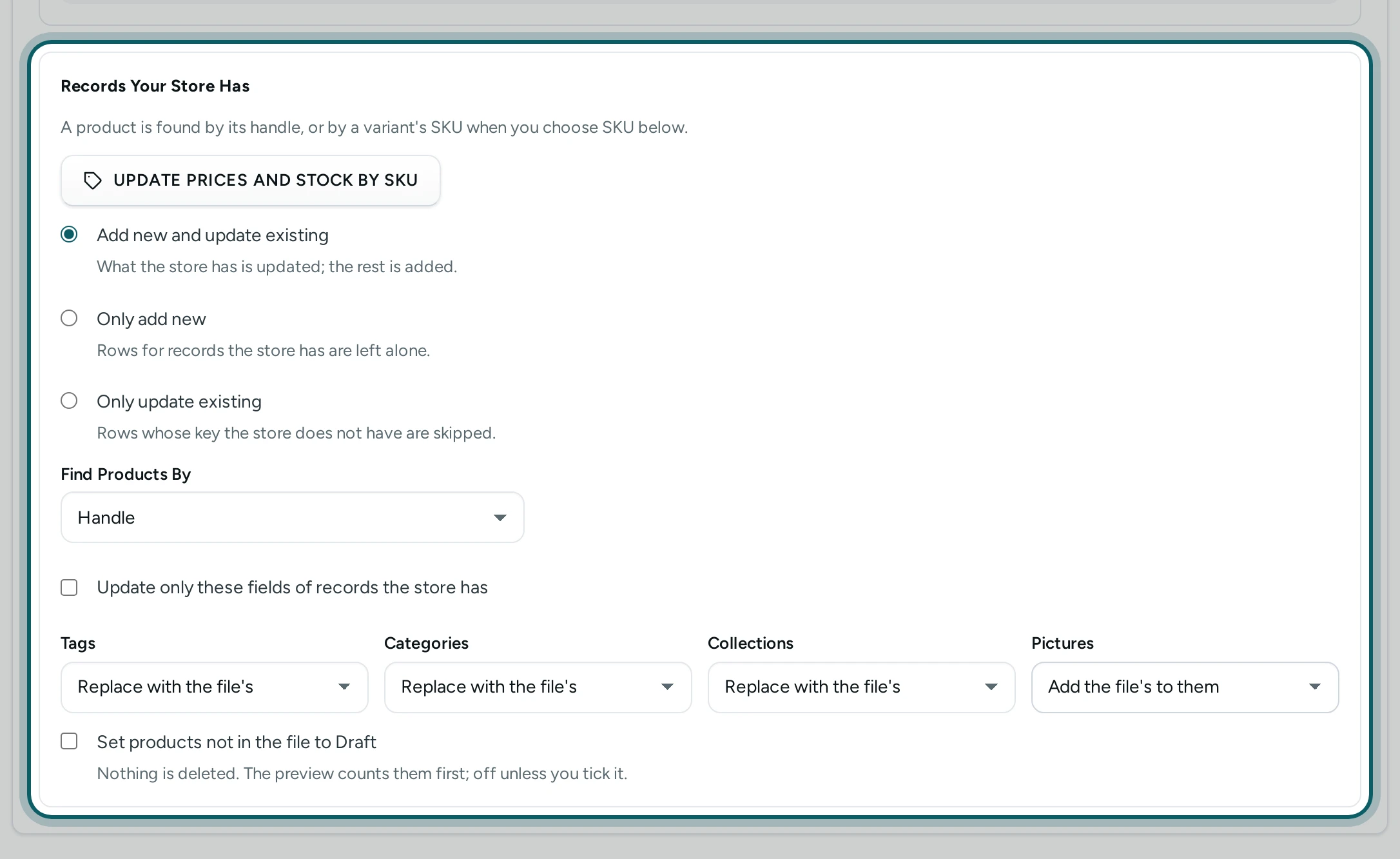
Records your store has. Under Records Your Store Has, choose Add new and update existing, Only add new or Only update existing. Products are found by their Handle or a variant's SKU (Find Products By); a customer by email, else by mobile; a past order by its old order number; a discount by its code; a page or post by its handle. To change only some fields, tick Update only these fields of records the store has. Update Prices and Stock by SKU walks through it.
Save It and Import
Step 1 of 3
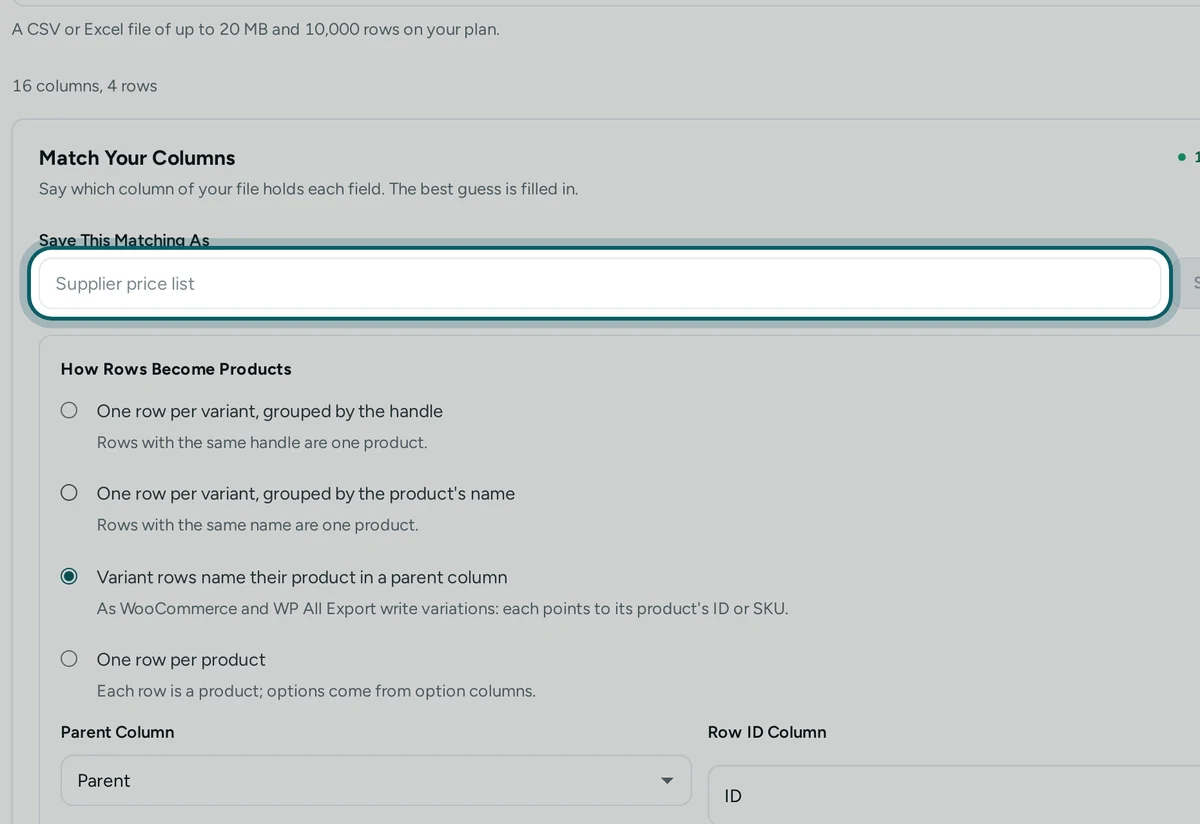
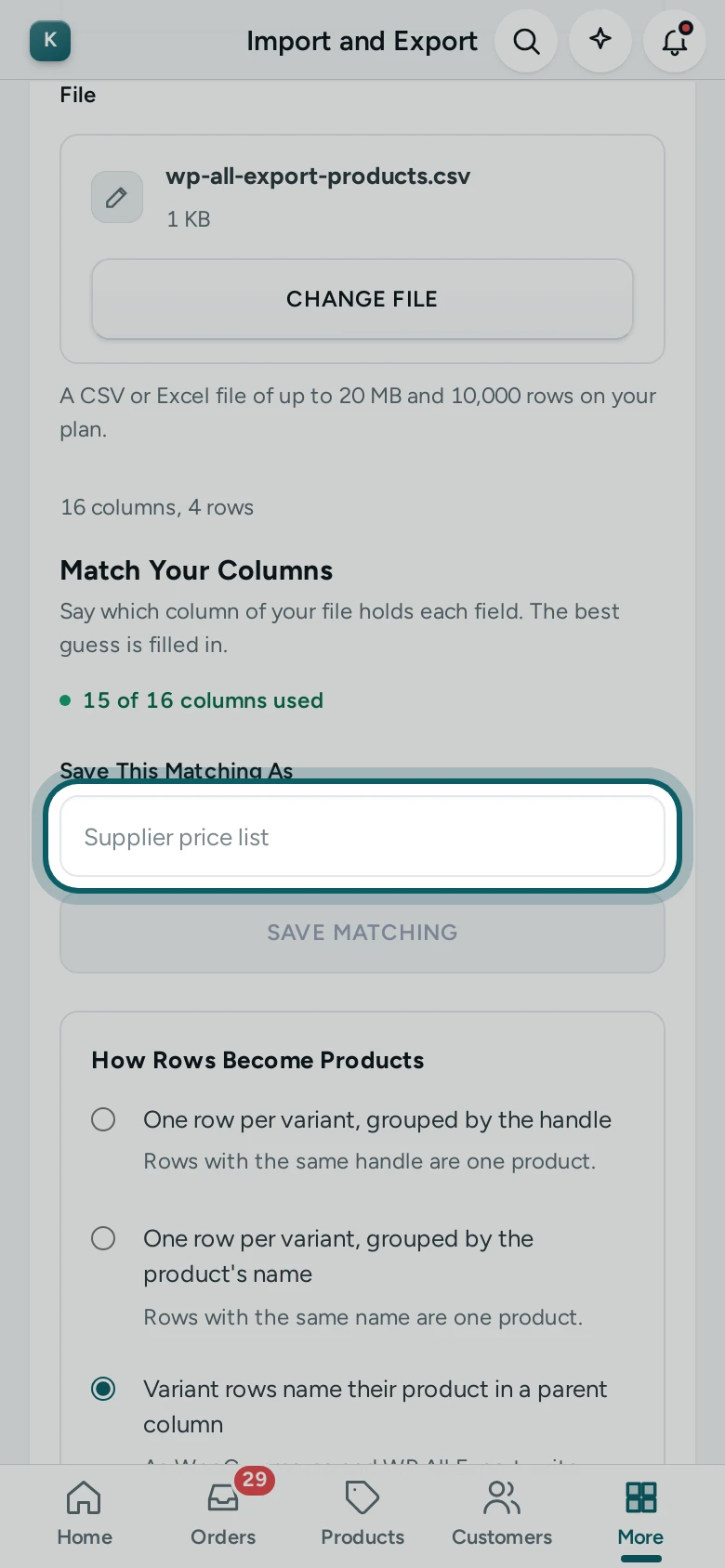
Save the matching. Under Save This Matching As, give it a name, such as "Supplier price list", and press SAVE MATCHING. The next time you choose a file with the same columns, Mercayo offers it: "Your saved matching “Supplier price list” fits this file." with USE IT. SAVED MATCHINGS lists them, each with USE and DELETE; SAVE AS NEW keeps a copy under another name.
Step 2 of 3
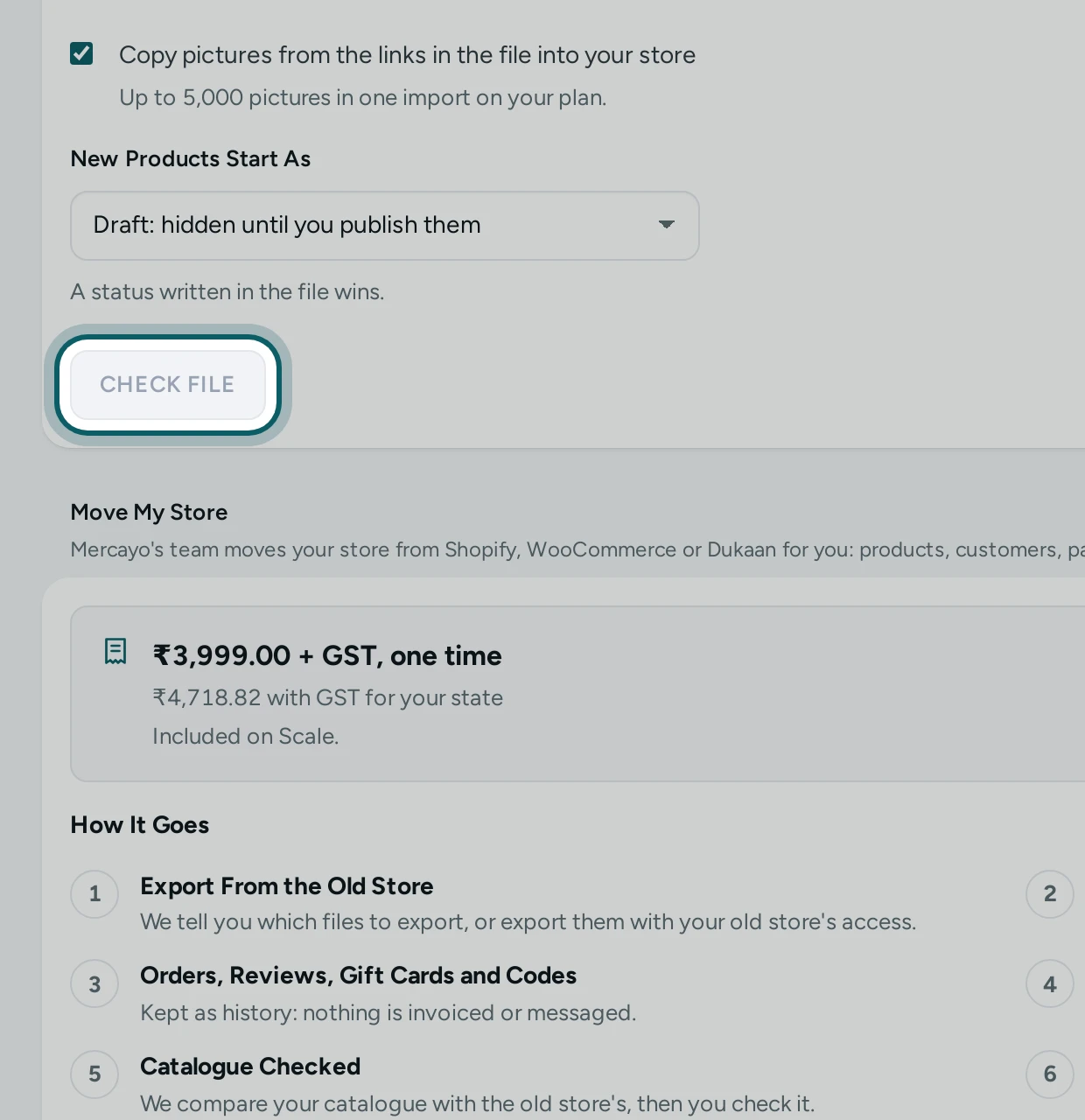
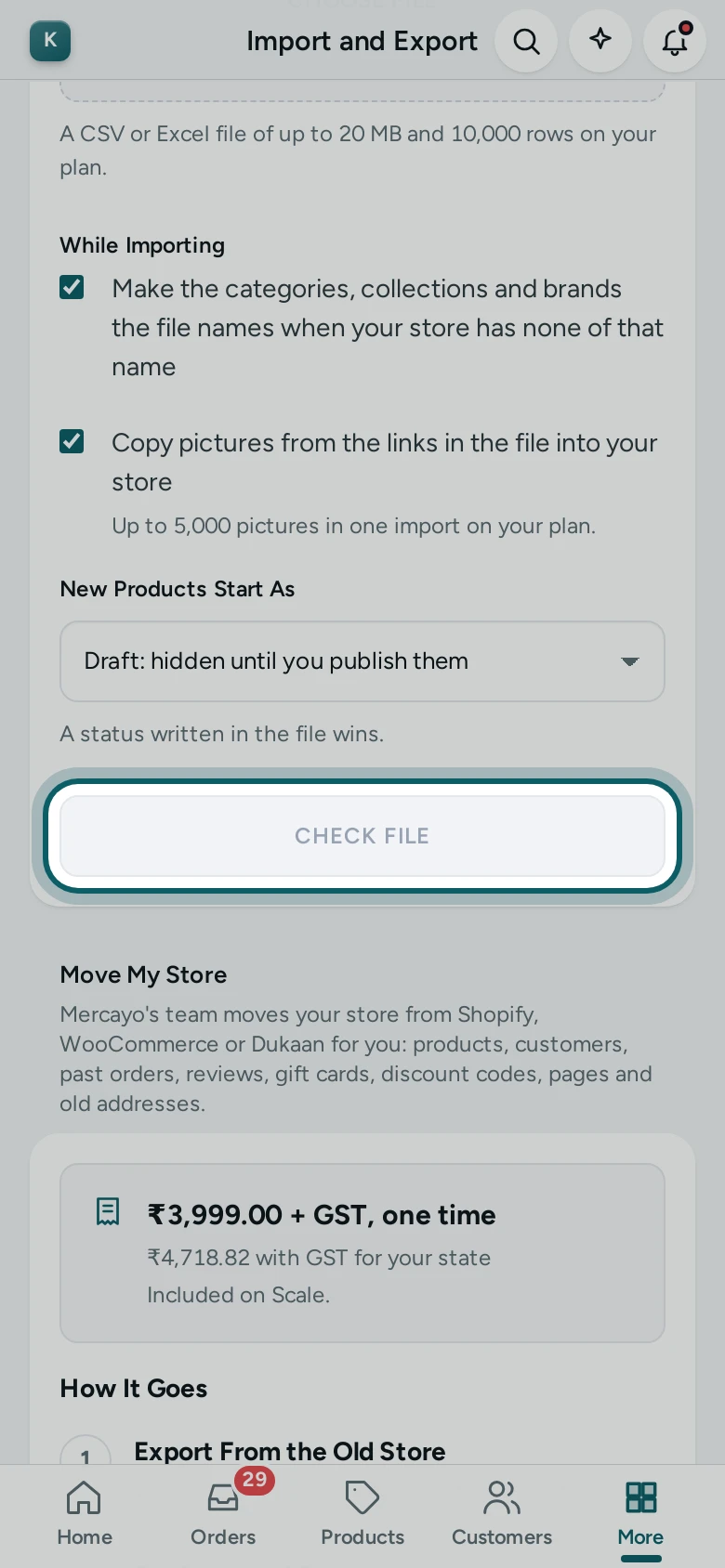
Check the file. Press CHECK FILE. Every row goes through the import's rules and nothing changes yet: the preview counts what Will Be Added and Will Be Updated, lists the rows With Problems and why, and DOWNLOAD REPORT gives them as a CSV. A Needed field without a column stops it first: "Match these fields before CHECK FILE: …".
Step 3 of 3
Import. Press IMPORT. It runs in the background, and you can leave the page. Importing the same file again updates what it made and never doubles it.
Settings
| Setting | Where | What It Does | Default |
|---|---|---|---|
| Match Your Columns | Settings › Import and Export › Settings | Any CSV or Excel file can be imported by matching its columns. Off: only the platforms' own files, as they export them. | On |
Mercayo's team can switch matching off for a store; the screen then says "Matching columns is switched off for this store." Every saved matching, deleted matching and import is in the activity log.
Questions
Which files can I bring in?
CSV files (commas, semicolons or tabs, with quotes, in UTF-8 or the Windows encoding) and Excel workbooks (.xlsx and .xls), up to 20 MB and your plan's row limit. Pages, posts and coupons can also come from WordPress's export file. Formulas in a workbook are never worked out: Mercayo reads the value Excel saved.
Can I import variants with sizes and colours?
Yes. Choose how rows become products (one row per variant, grouped by the handle or the name, or variation rows naming their parent), then take each option from a column, or all of them from one cell like "Size: M | Colour: Red".
Are pictures copied?
Yes. A column of picture links, split by any mark, or several columns of links, are copied into your store's media, as with every import. A column of alt texts can go with them.
Does a matching work for the next file?
Yes, when the new file has the same columns. Mercayo offers the saved matching that fits; if the file has lost some of its columns, it names them.
Can products not in my file be removed?
Nothing is deleted by an import. Under Records Your Store Has, Set products not in the file to Draft hides them instead: it is off unless you tick it, and the preview counts them first.