This tutorial takes a supplier's Excel file, laid out the supplier's way, to products in your store. You choose the sheet, say which column holds what, turn the sizes into variants, look at each product before anything is made, save the matching for the supplier's next file, and import. It takes about fifteen minutes the first time; the next file from the same supplier takes a minute. You need the right to import products.
Nothing is made until you press IMPORT, and new products arrive as drafts, so your shoppers see nothing until you publish them.
Before You Start
- Look at the file. Open the supplier's workbook and note three things: which sheet has the products, which row has the column names, and whether each size or colour has its own row (most supplier files do) or each product has one row. Keep the file as it is: there is no need to rename columns or save it as CSV.
Bring the File In
Step 1 of 5
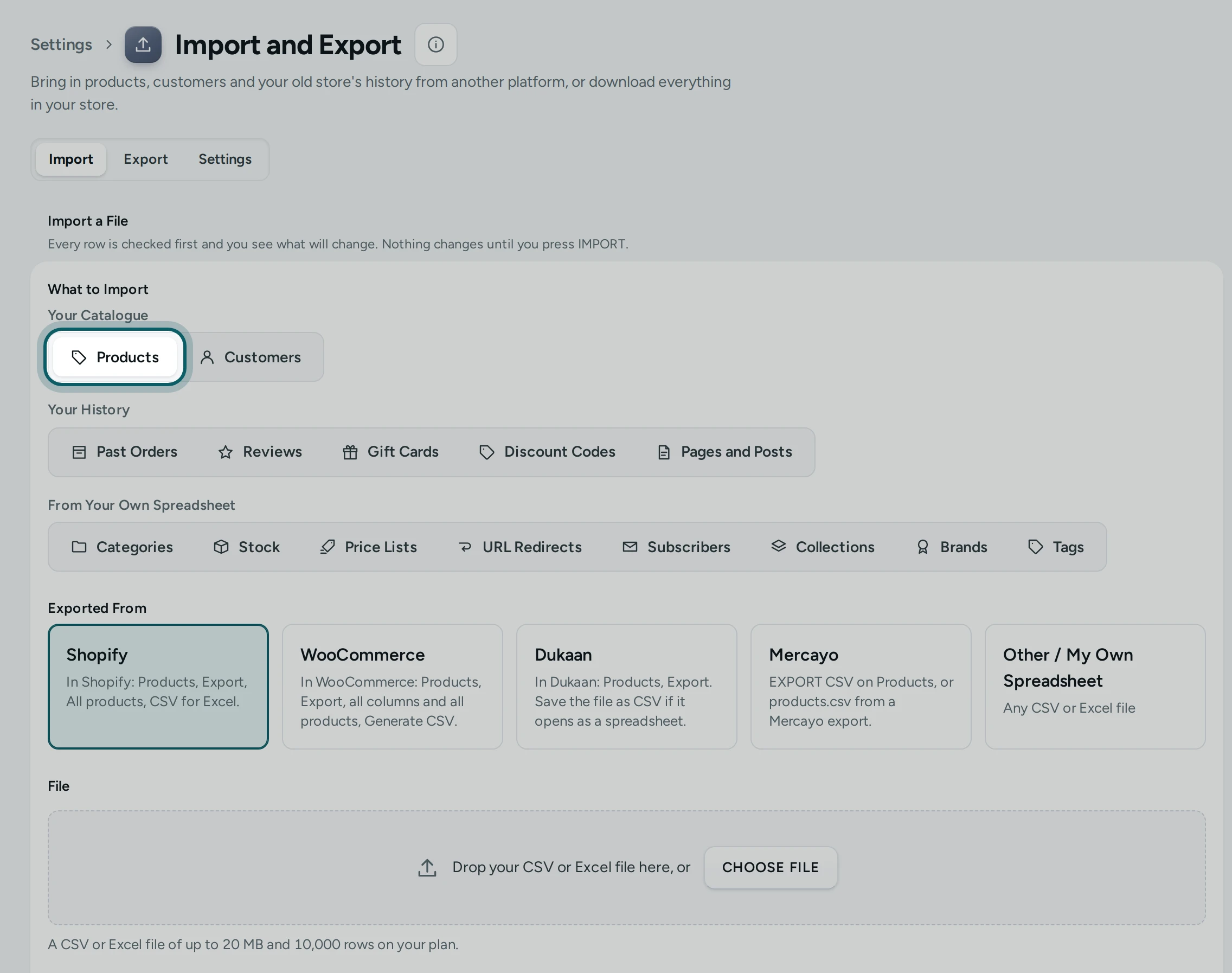
Open the importer. Open Settings › Import and Export, the Import tab, and under Your Catalogue press Products.
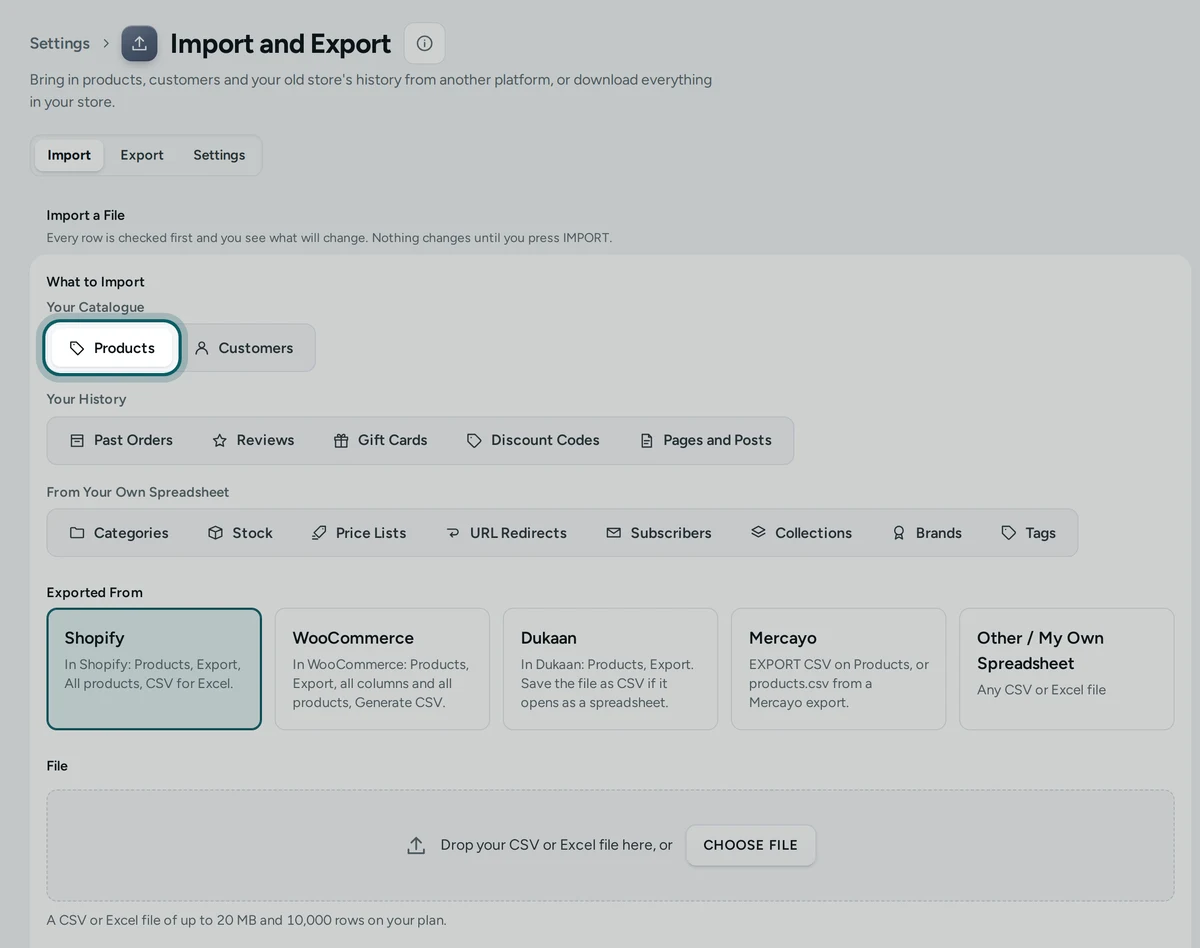
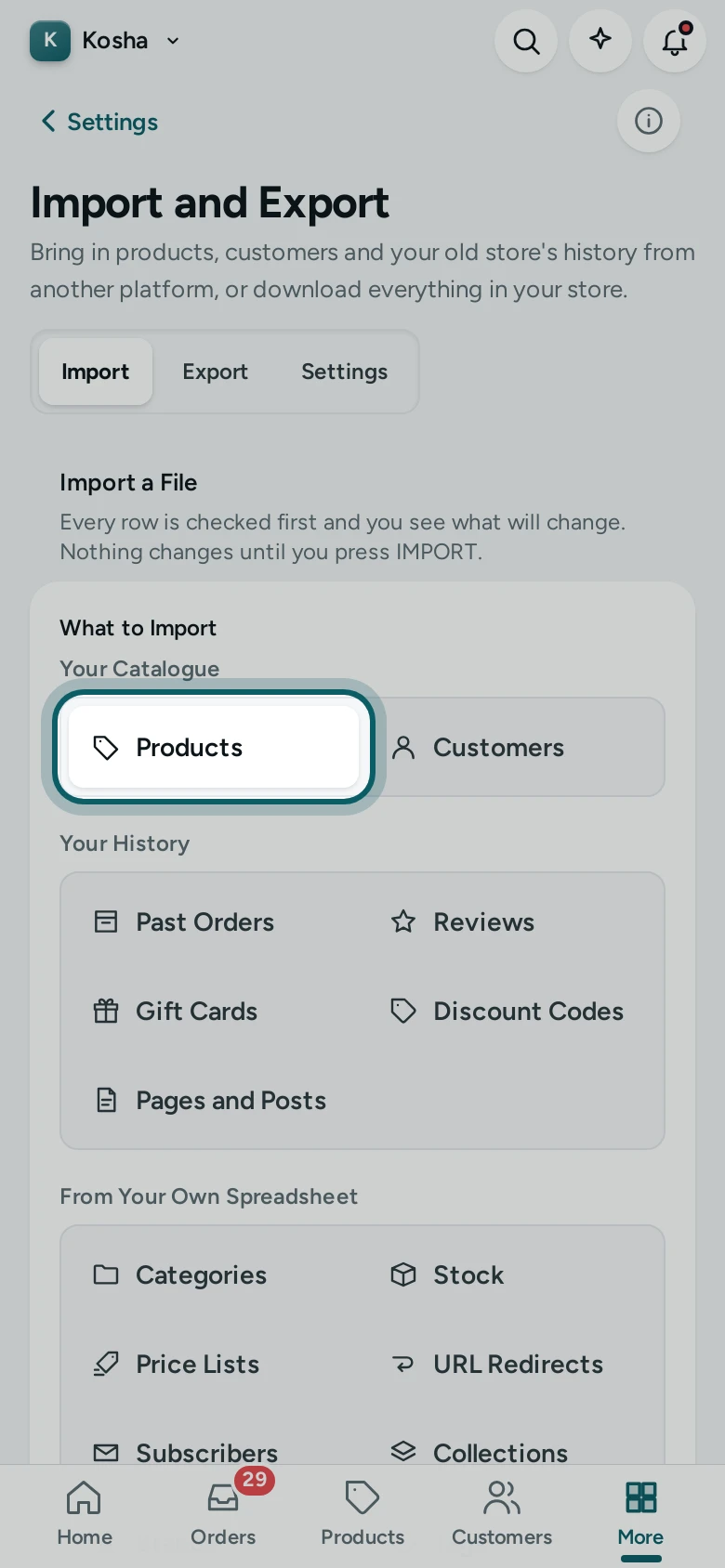
Step 2 of 5
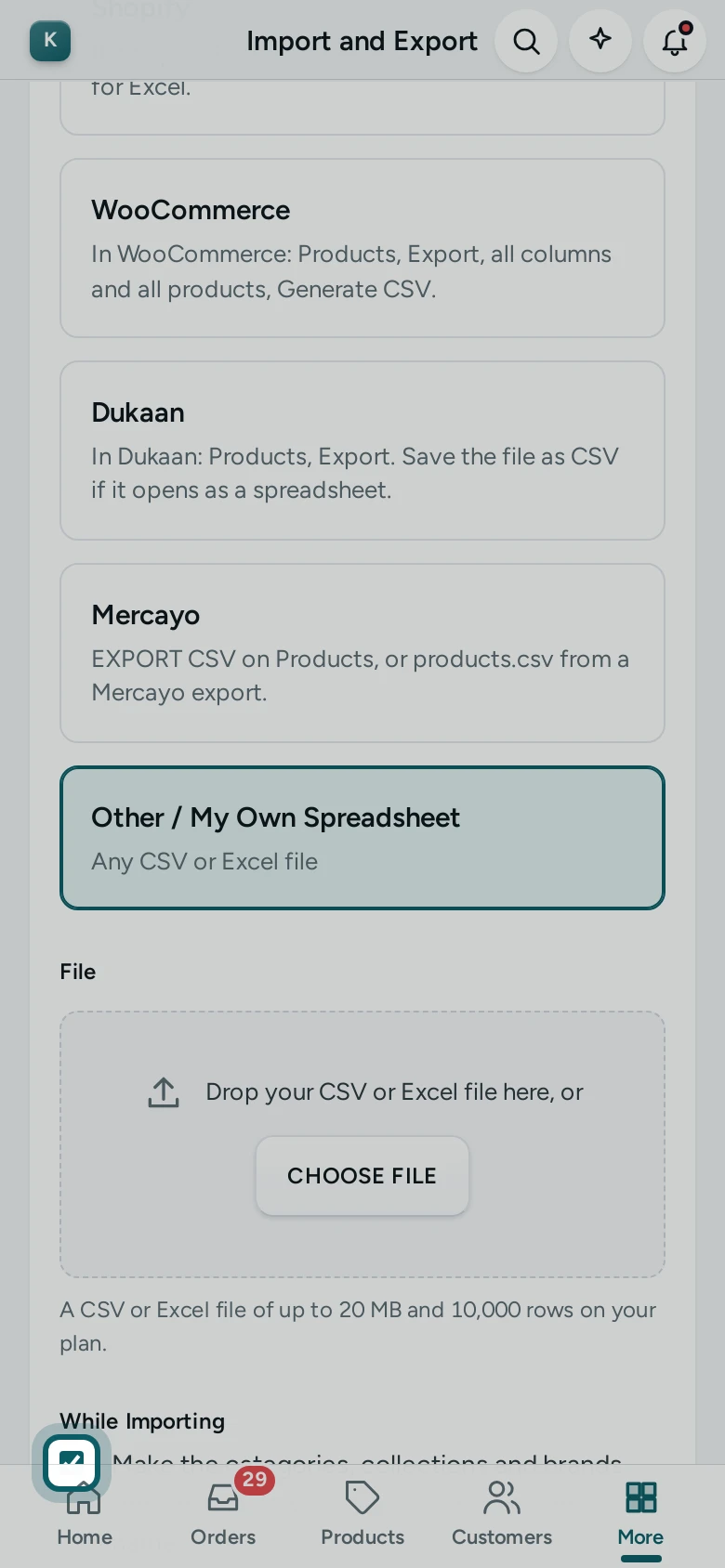
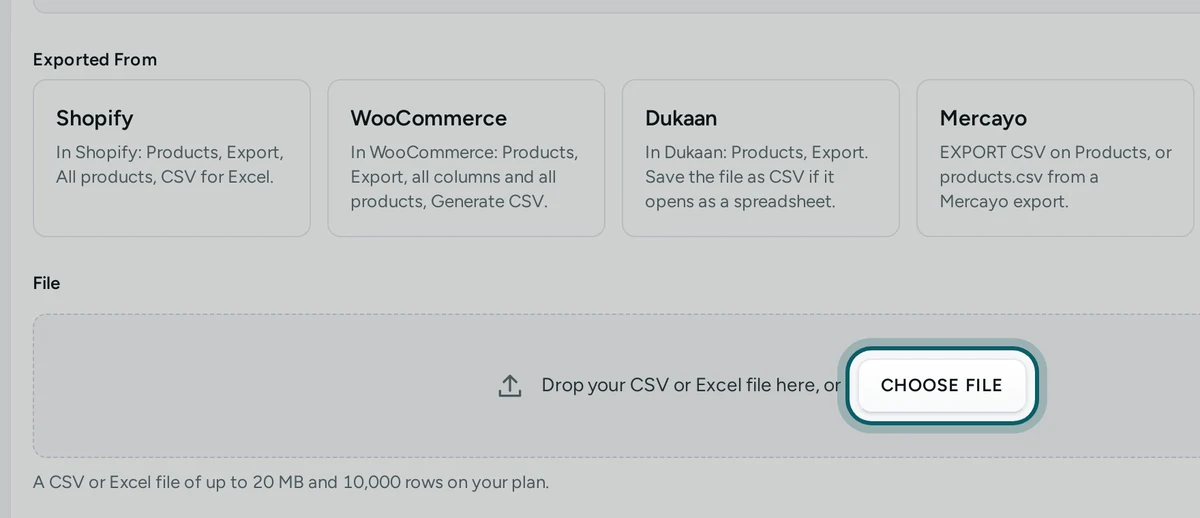
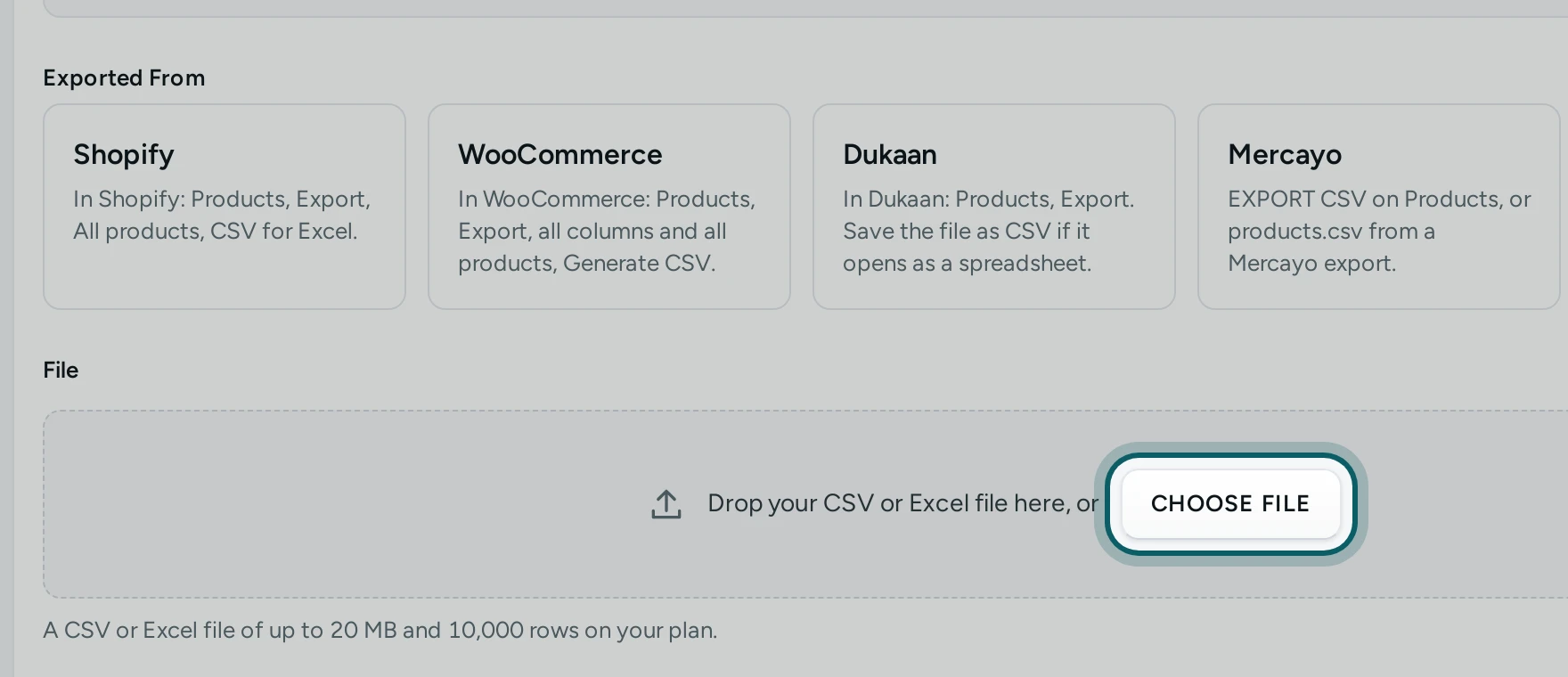
Choose Other / My Own Spreadsheet. Under Exported From, press Other / My Own Spreadsheet.
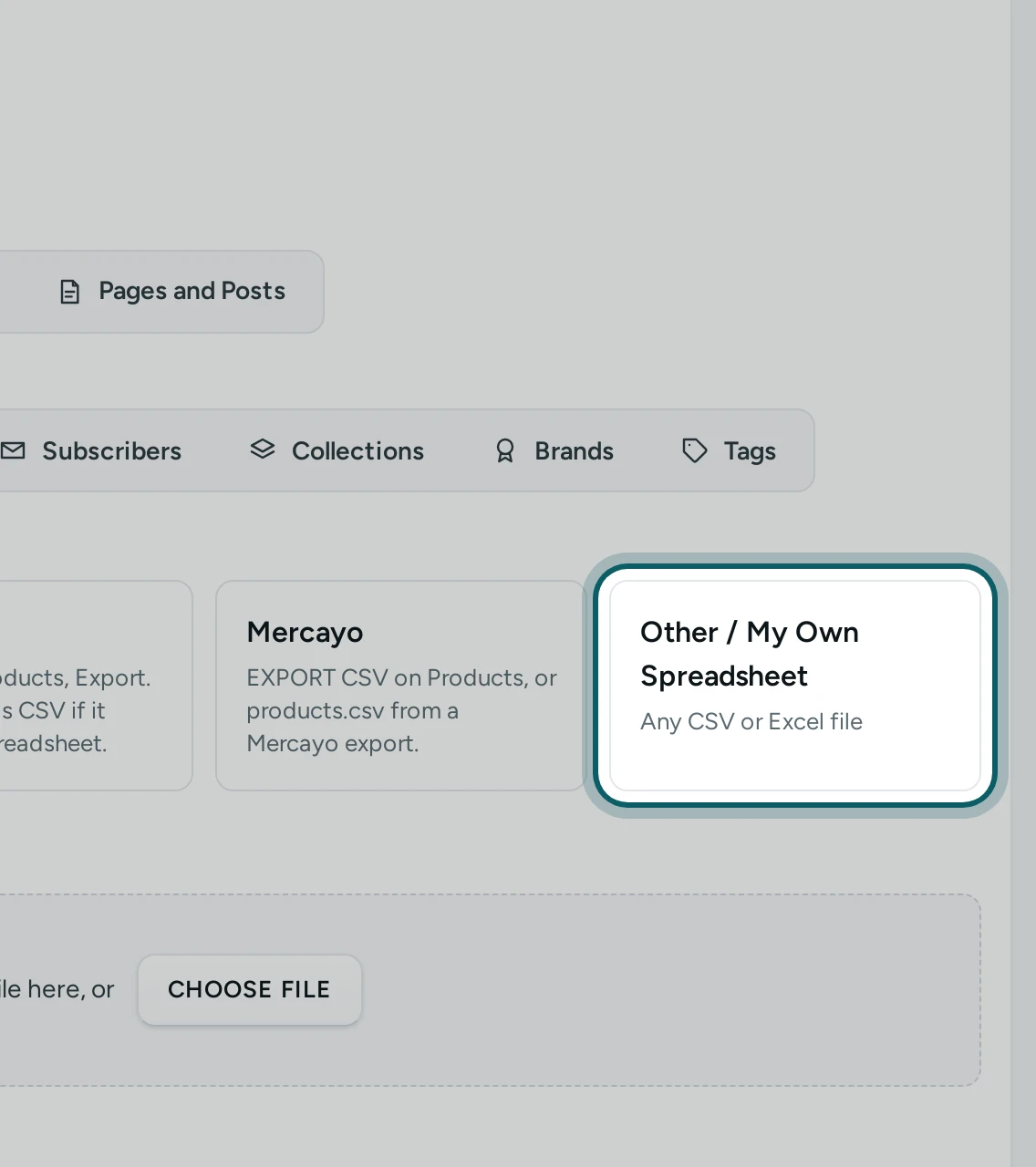
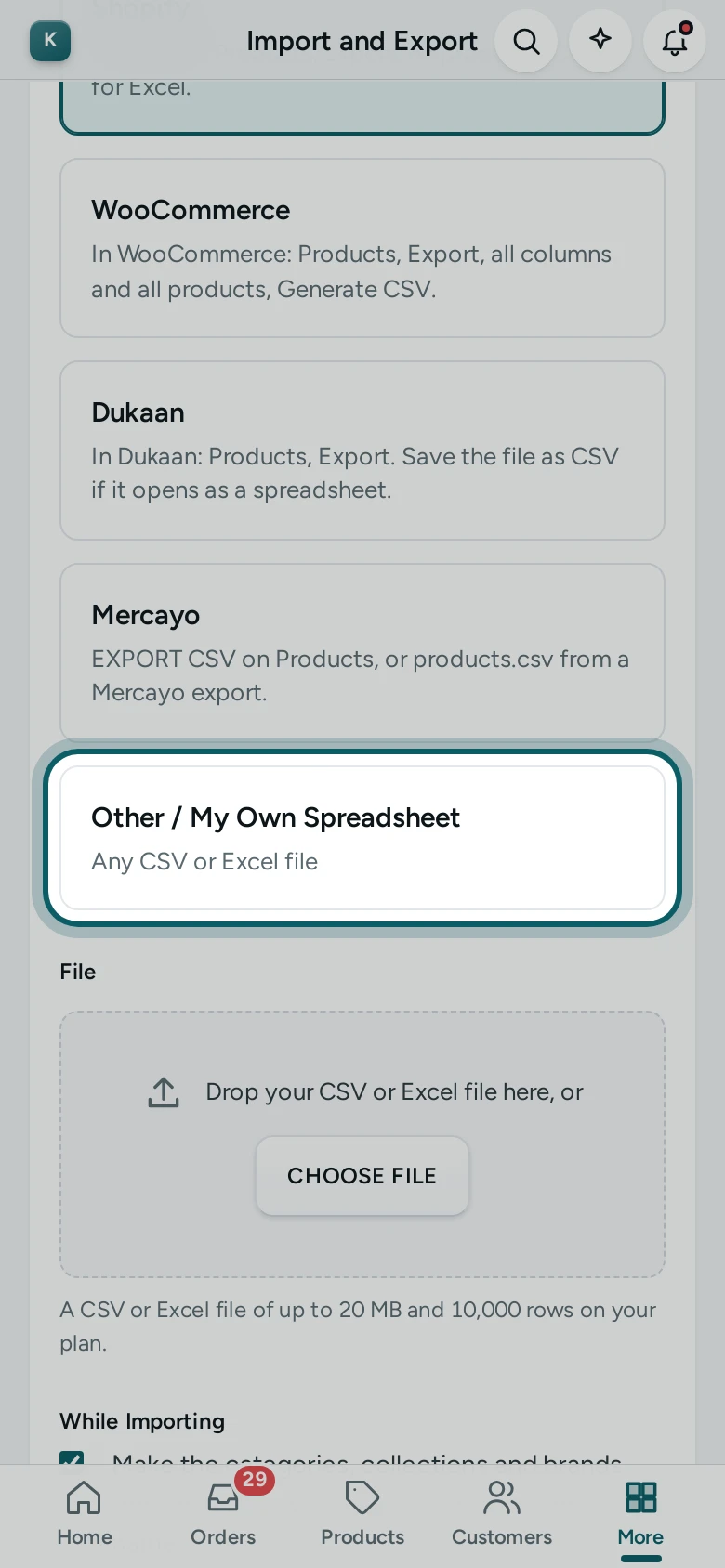
Step 3 of 5
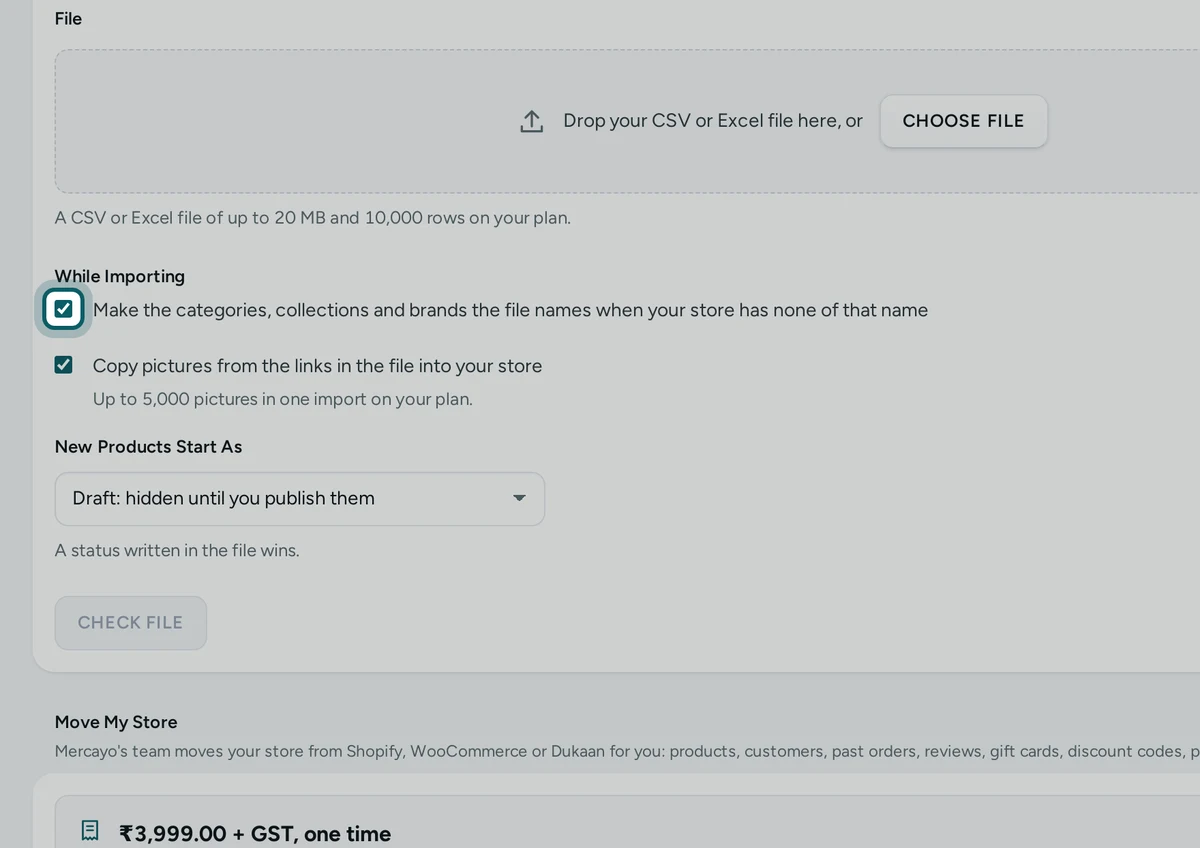
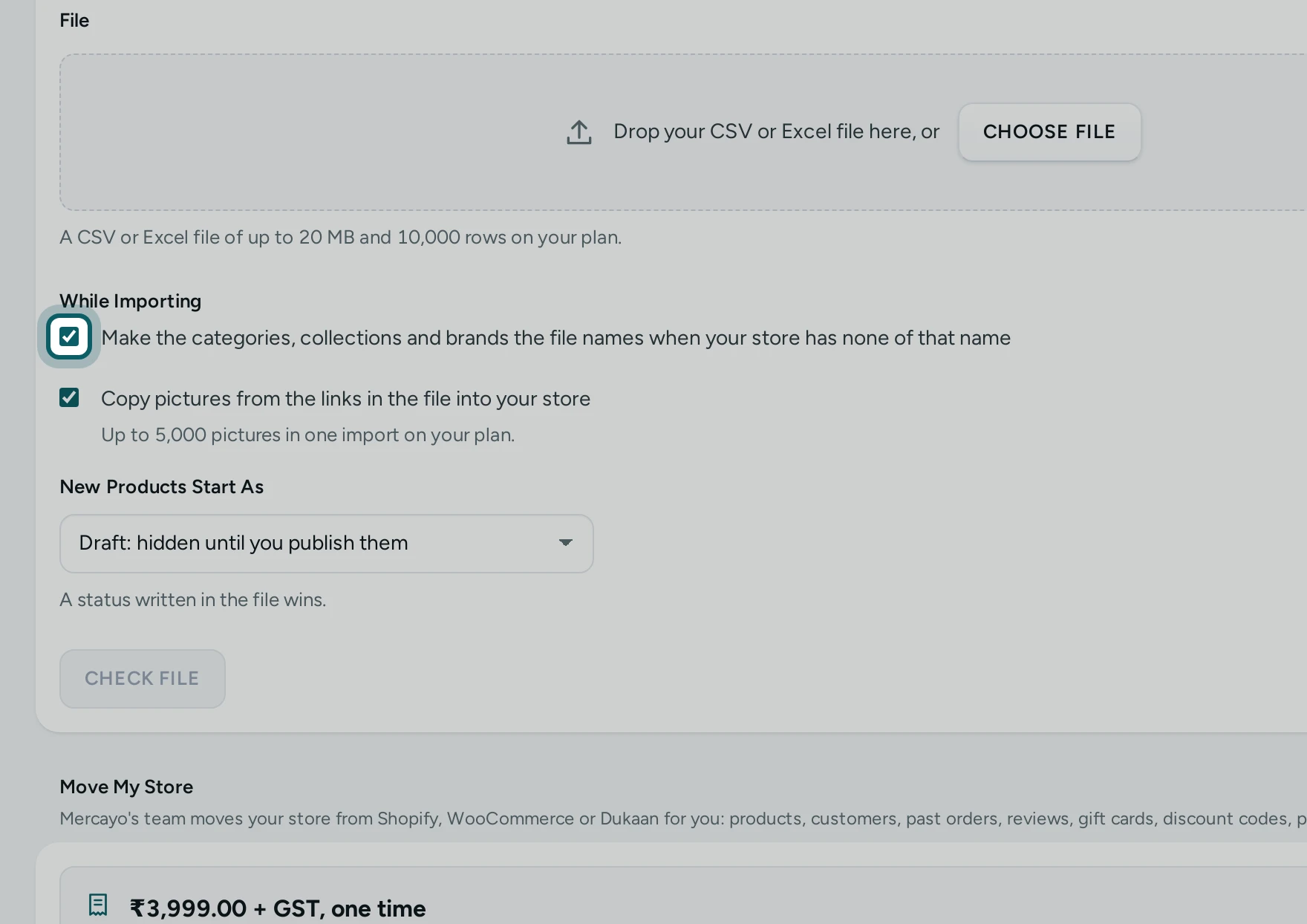
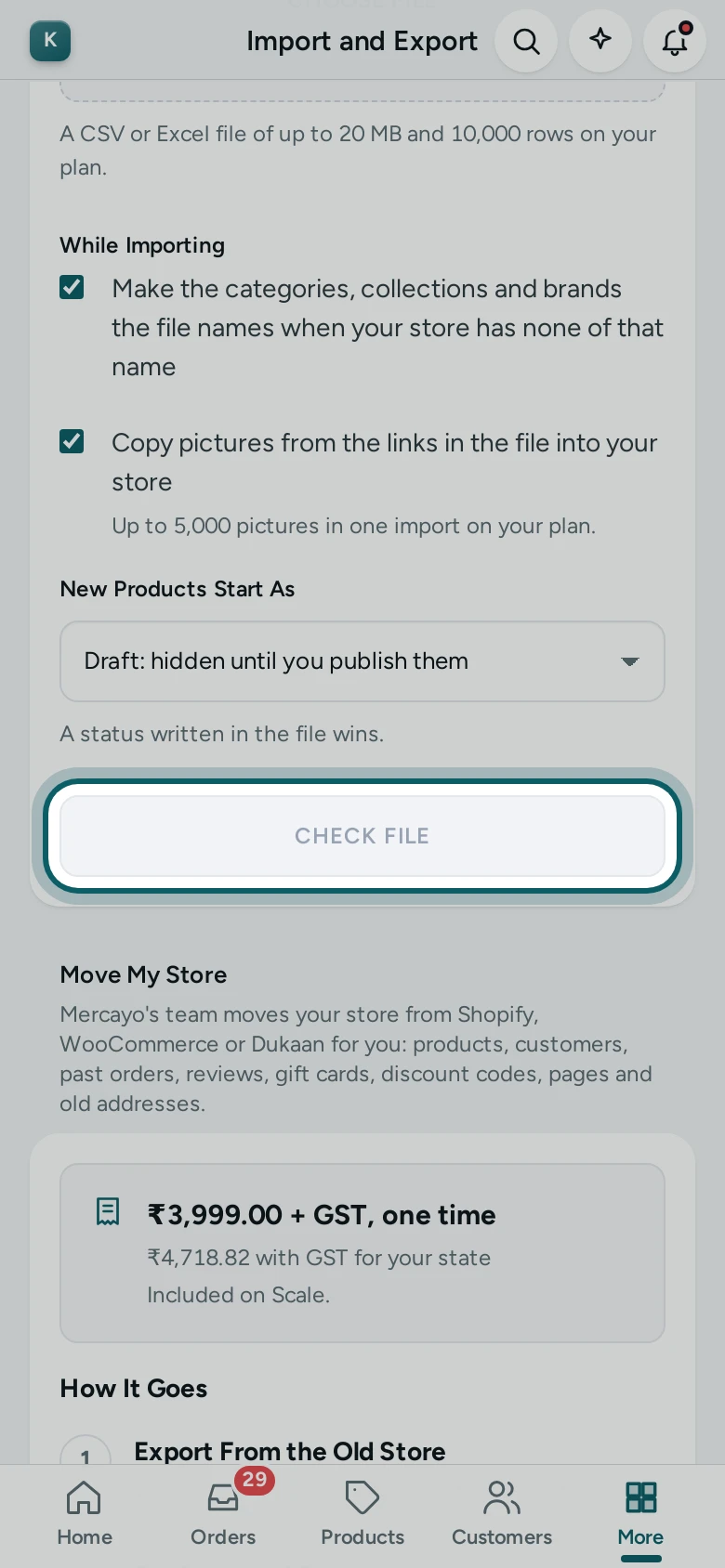
Set the options. Leave New Products Start As on Draft: hidden until you publish them. Keep Copy pictures from the links in the file into your store ticked when the file has picture links, and Make the categories, collections and brands the file names when your store has none of that name when the supplier's categories should become yours.
Step 4 of 5
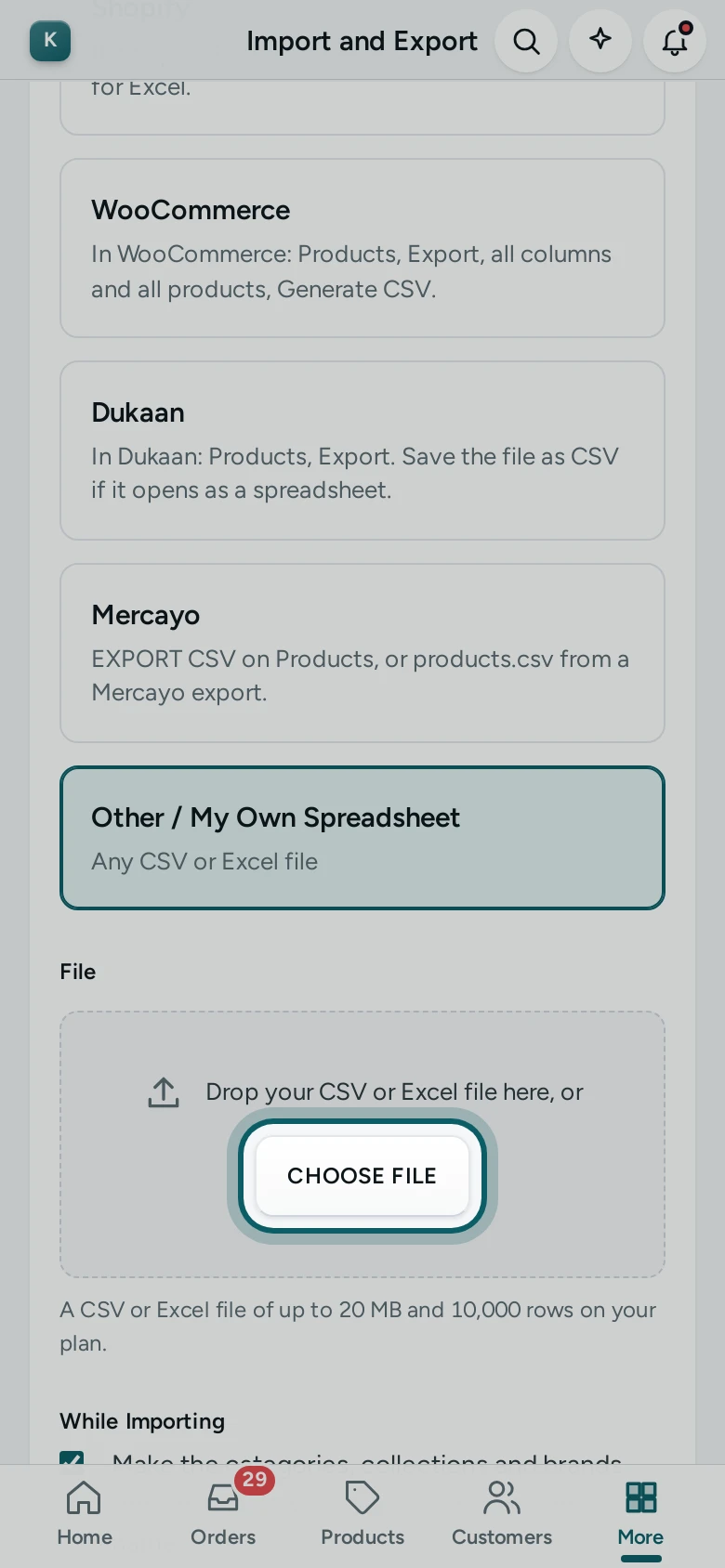
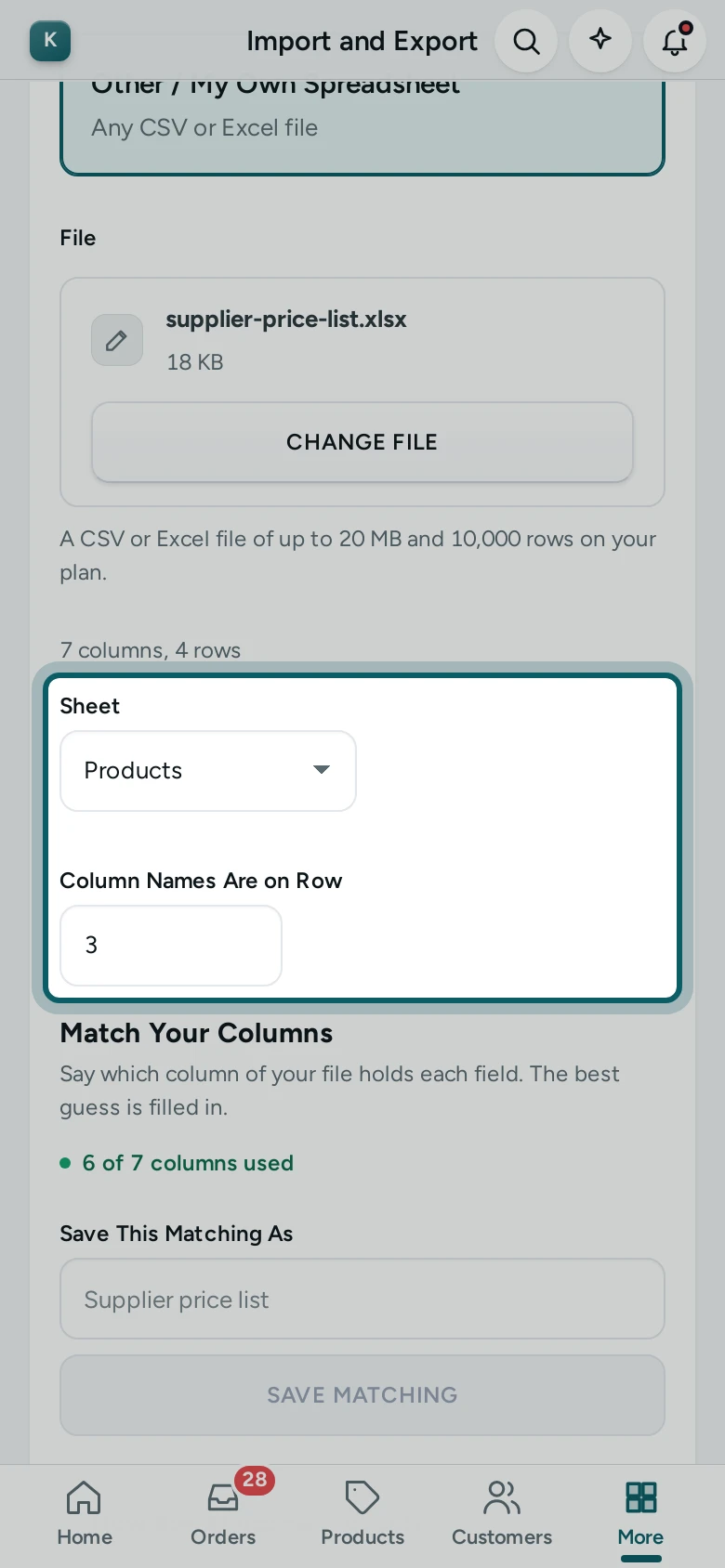
Add the workbook. Drop the .xlsx (or .xls) file in, or press CHOOSE FILE. Mercayo reads it and shows how many columns and rows it found.
Step 5 of 5
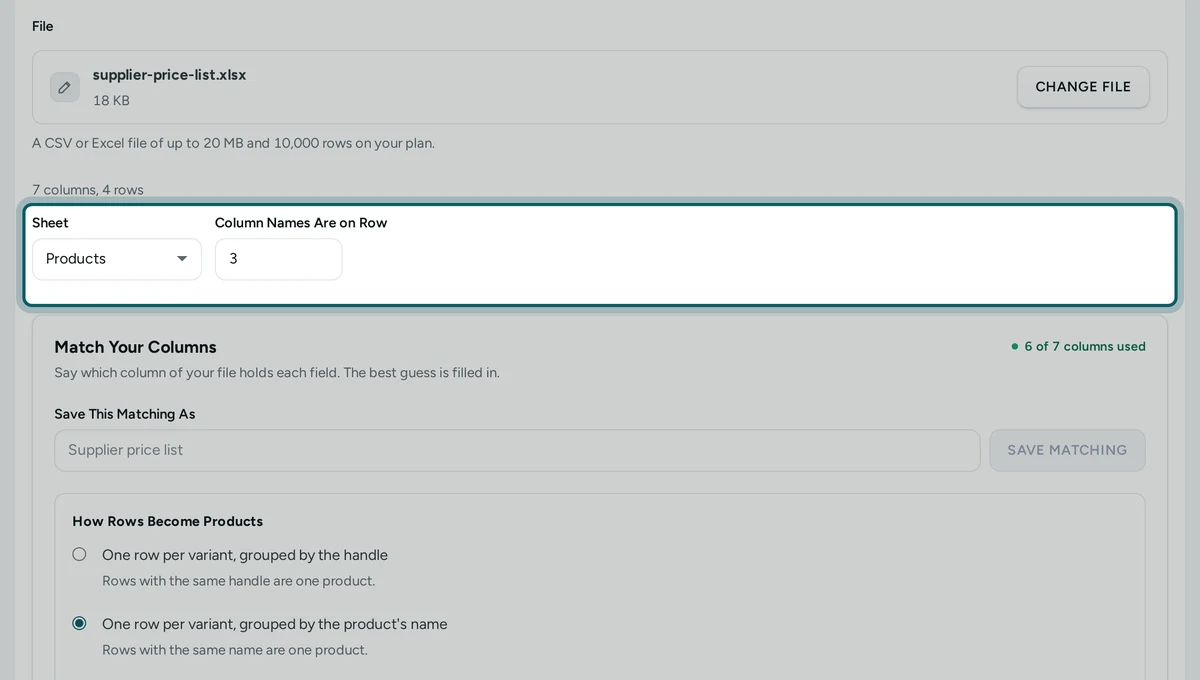
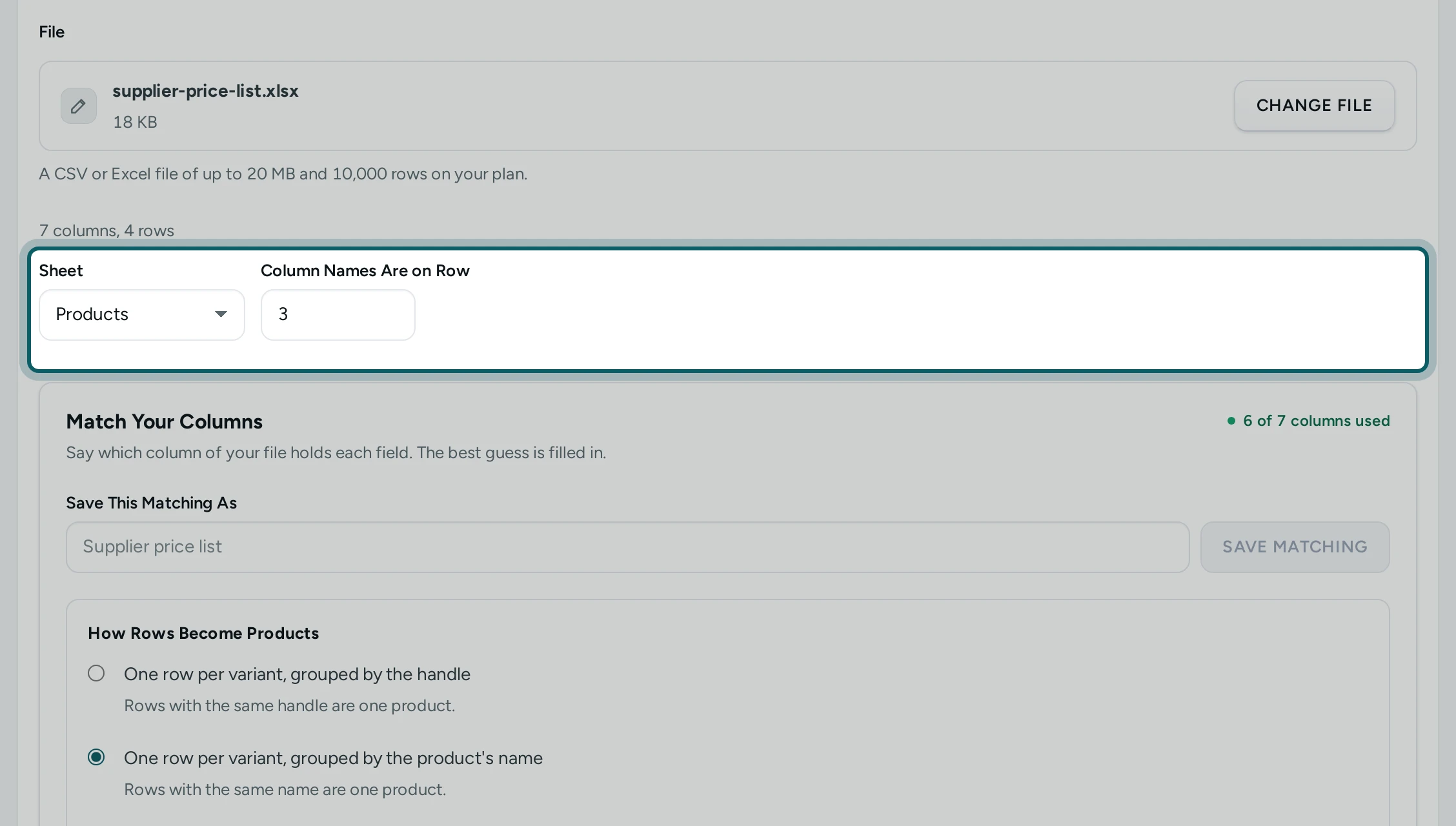
The right sheet and row. Choose the products' Sheet. If the supplier's name or a date sits above the column names, check Column Names Are on Row: Mercayo has found the row, and you can change it.
Match the Columns
Step 1 of 5
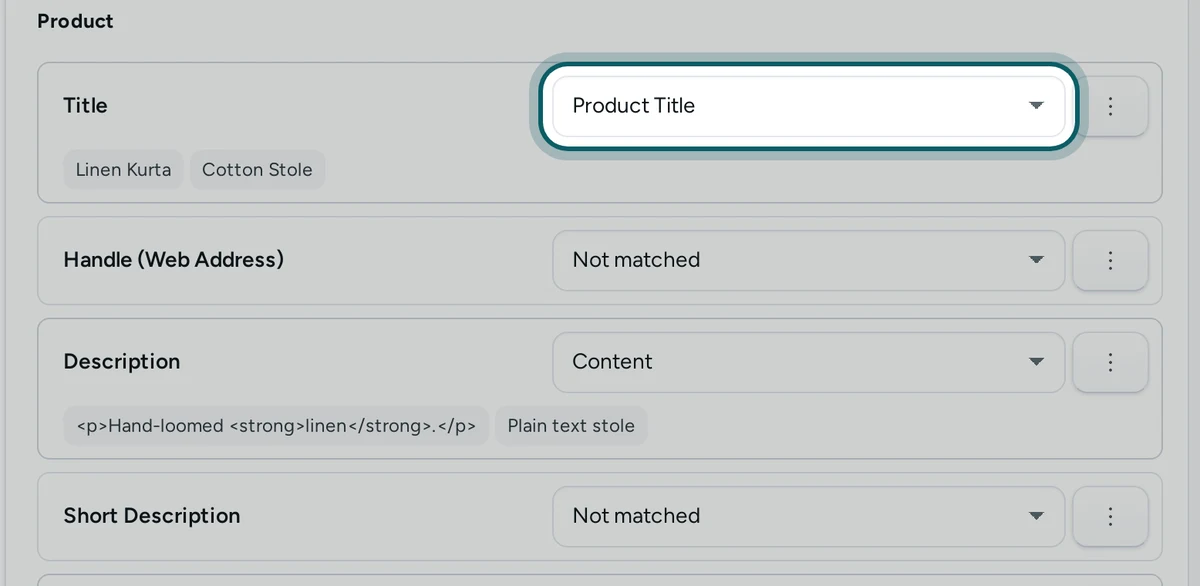
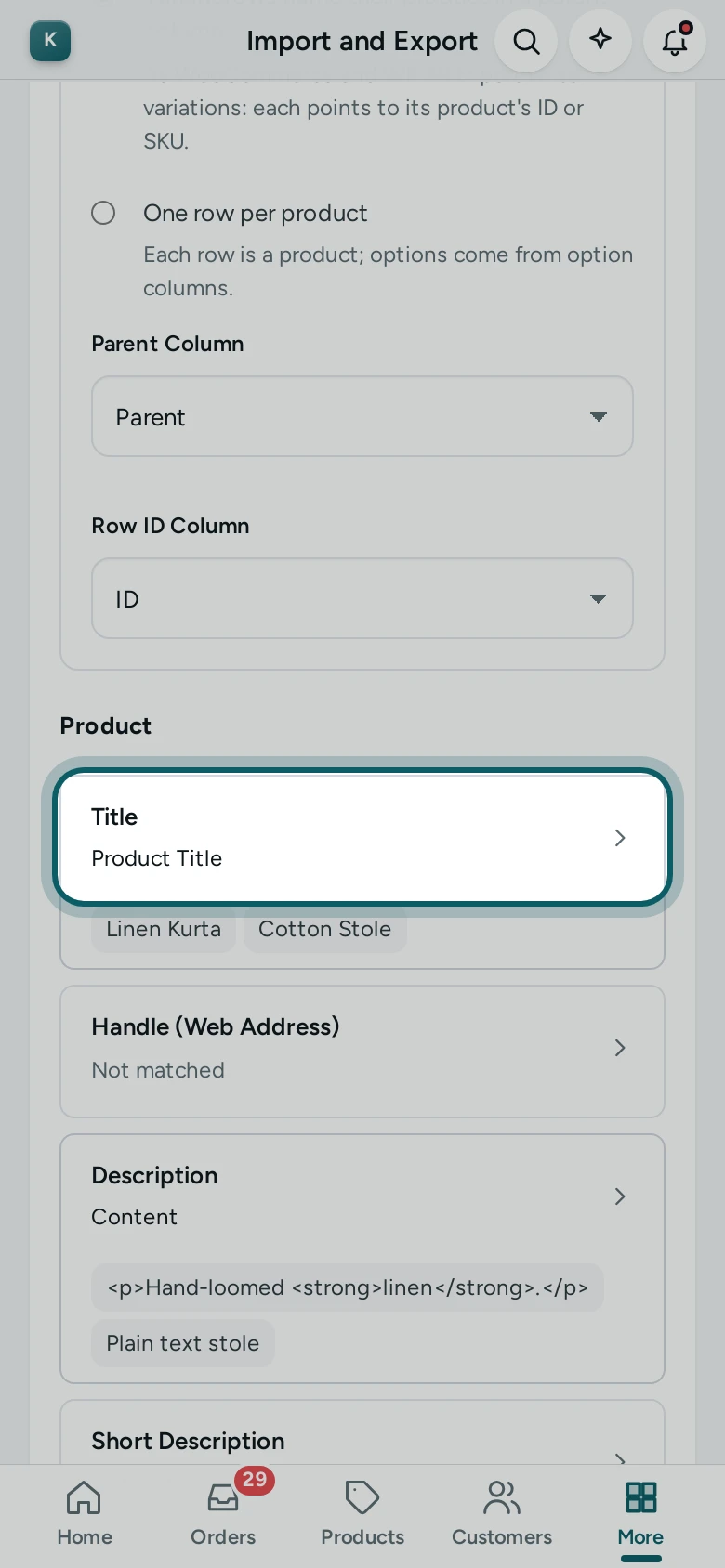
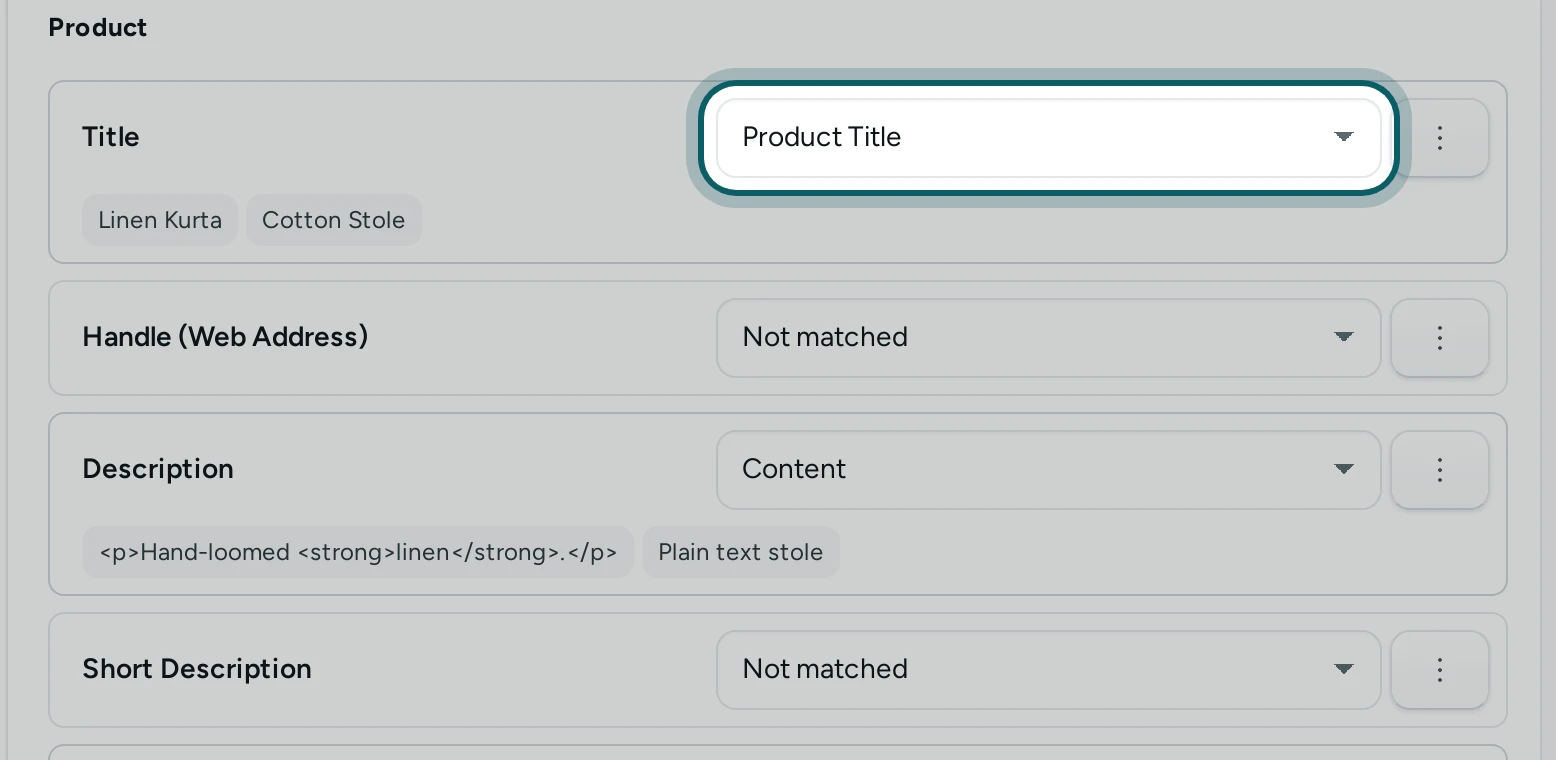
Check Mercayo's guesses. Match Your Columns has opened. Go down the fields: Title and Price are Needed for New; check that each takes the right column by the three values under it. Change a field by choosing another column in its list (on a phone, press its row). A column such as "Rate" or "Item Name" may need you; "Price", "MRP", "Qty" or "SKU" are usually found.
Step 2 of 5
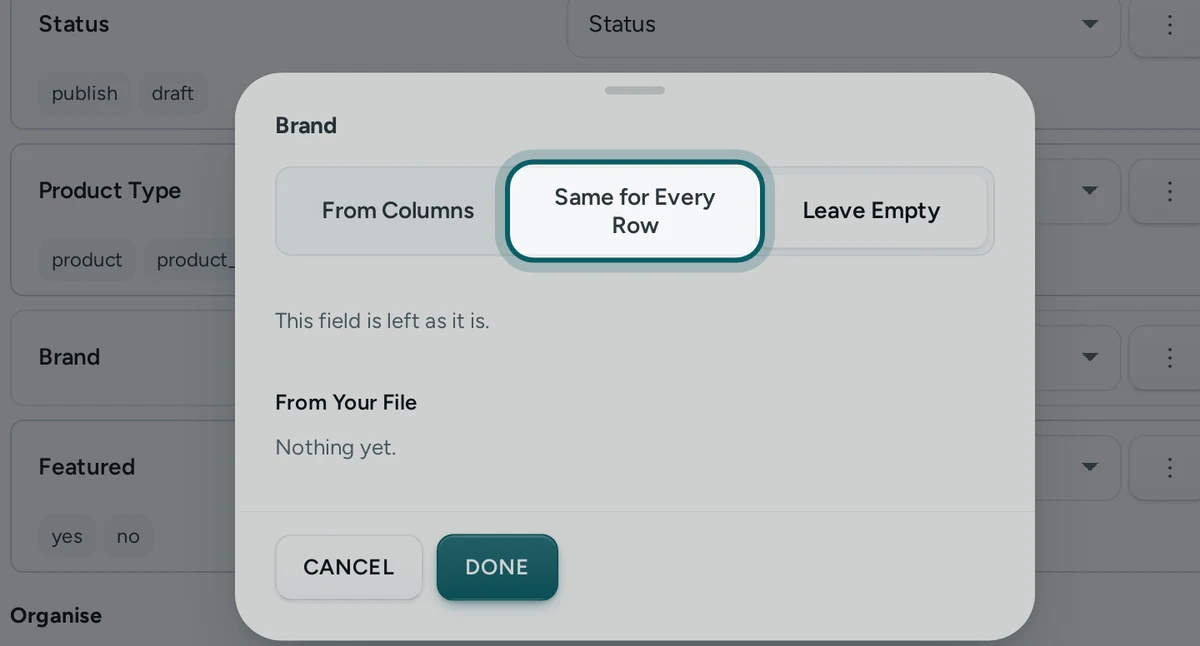
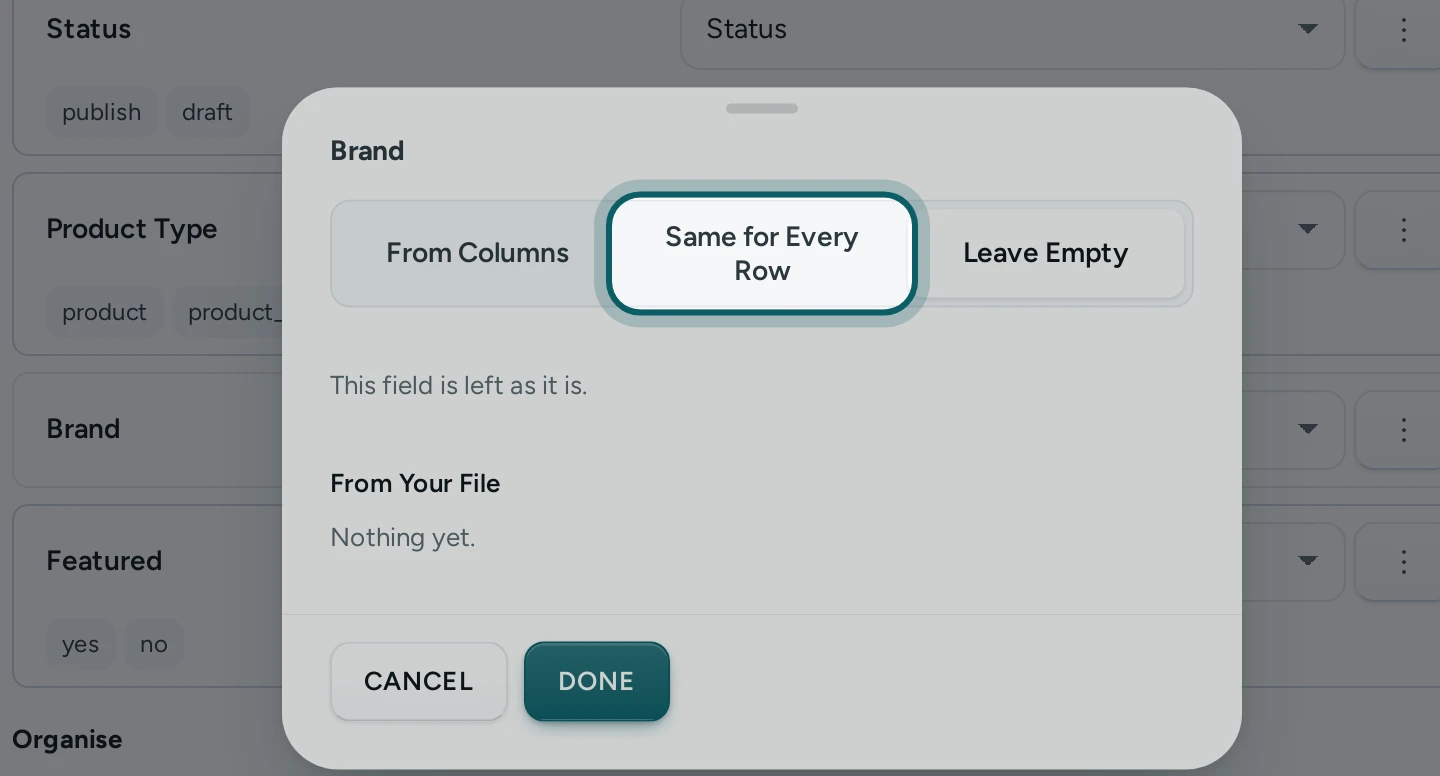
One value for every row. The supplier's file does not say who makes the products? Open Brand's sheet (its More button, or its row on a phone), choose Same for Every Row and write the brand. Press DONE.
Step 3 of 5
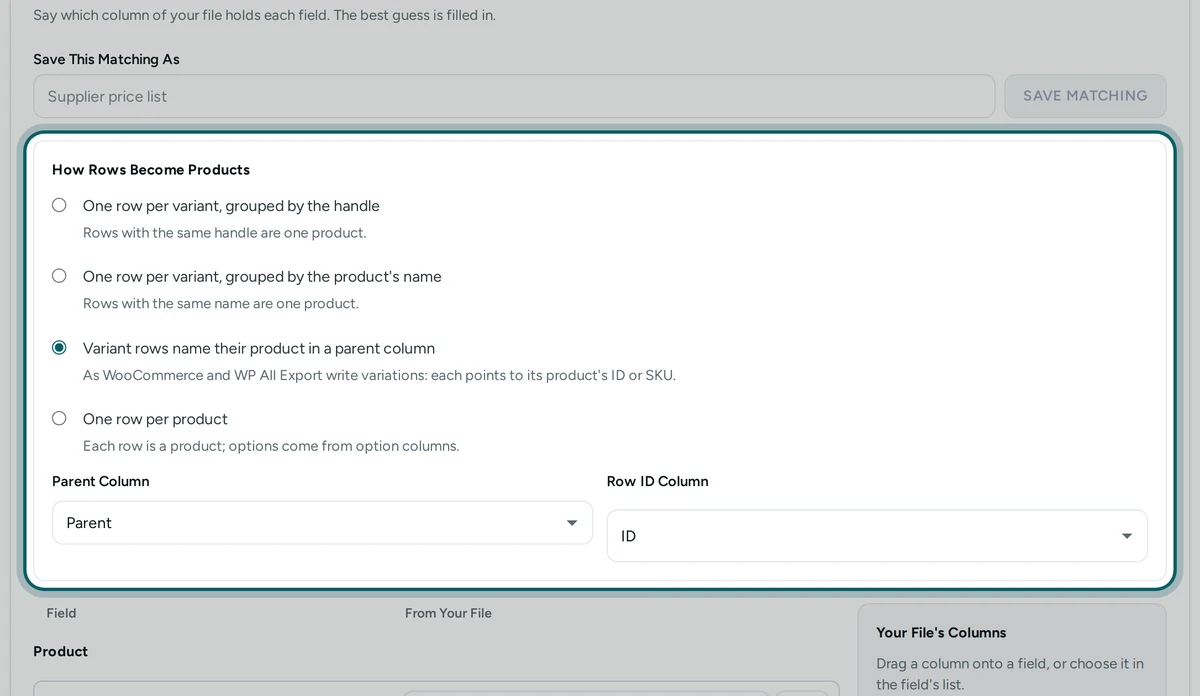
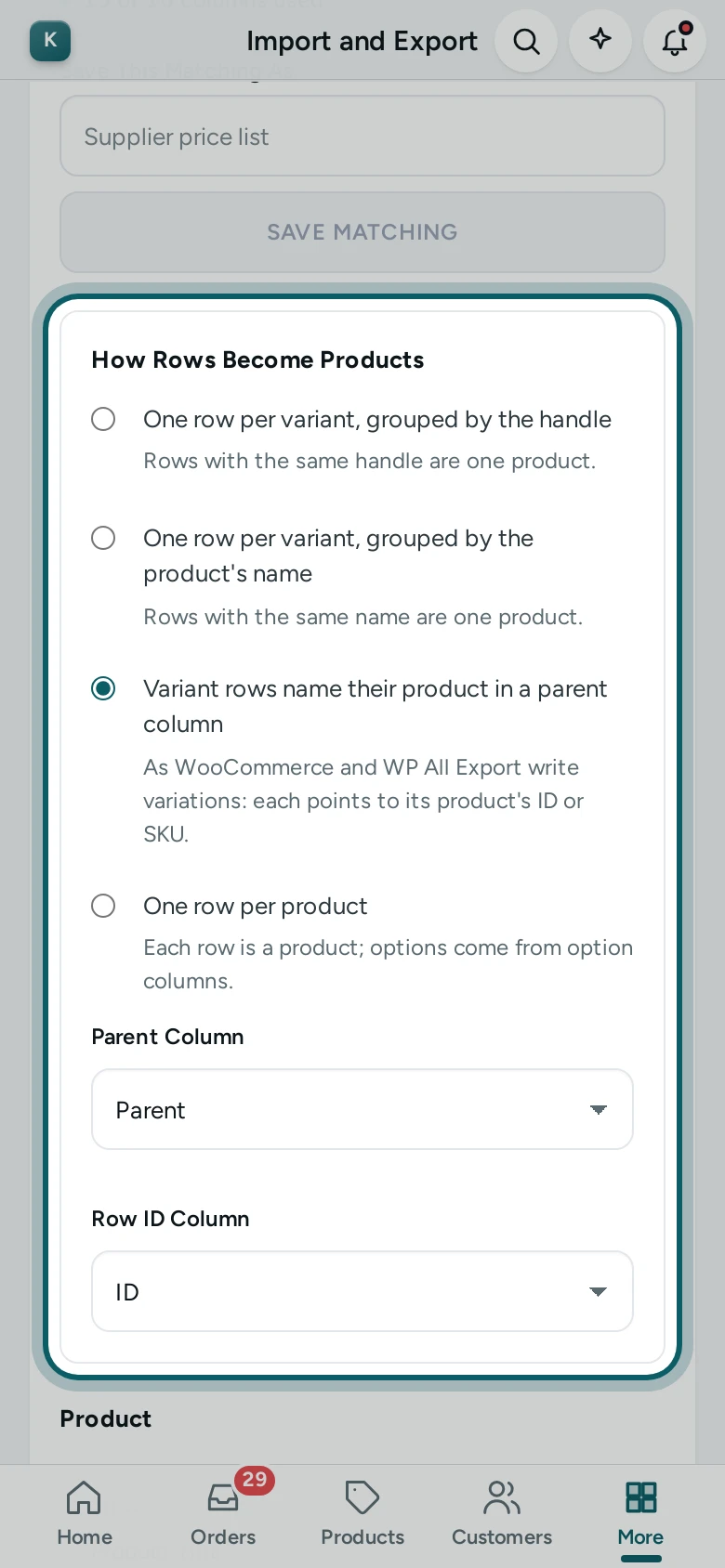
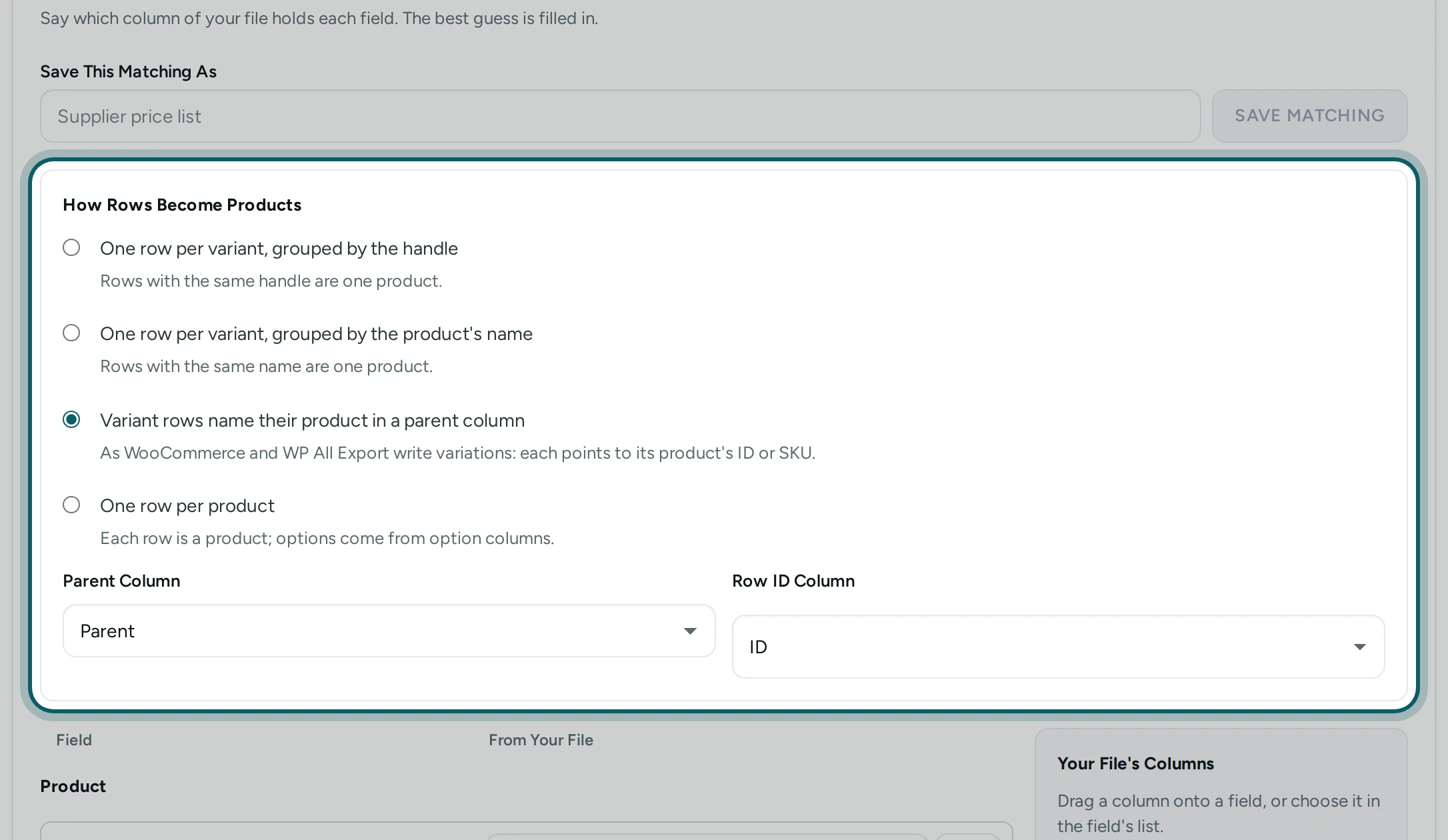
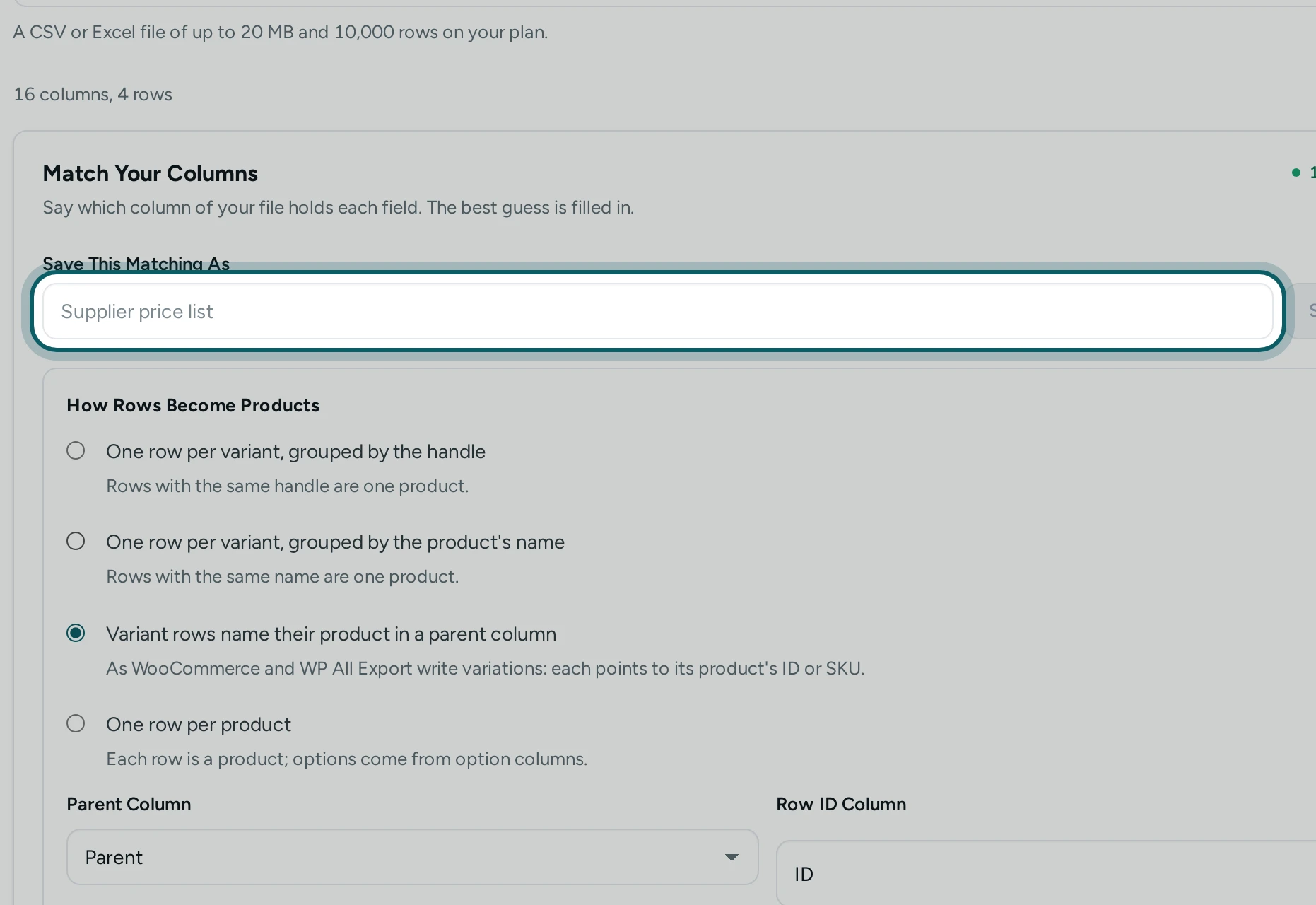
Sizes become variants. Under How Rows Become Products, choose One row per variant, grouped by the product's name when each size has its own row with the same name (or grouped by the handle when the file has a code per product). Choose One row per product if each product has one row.
Step 4 of 5
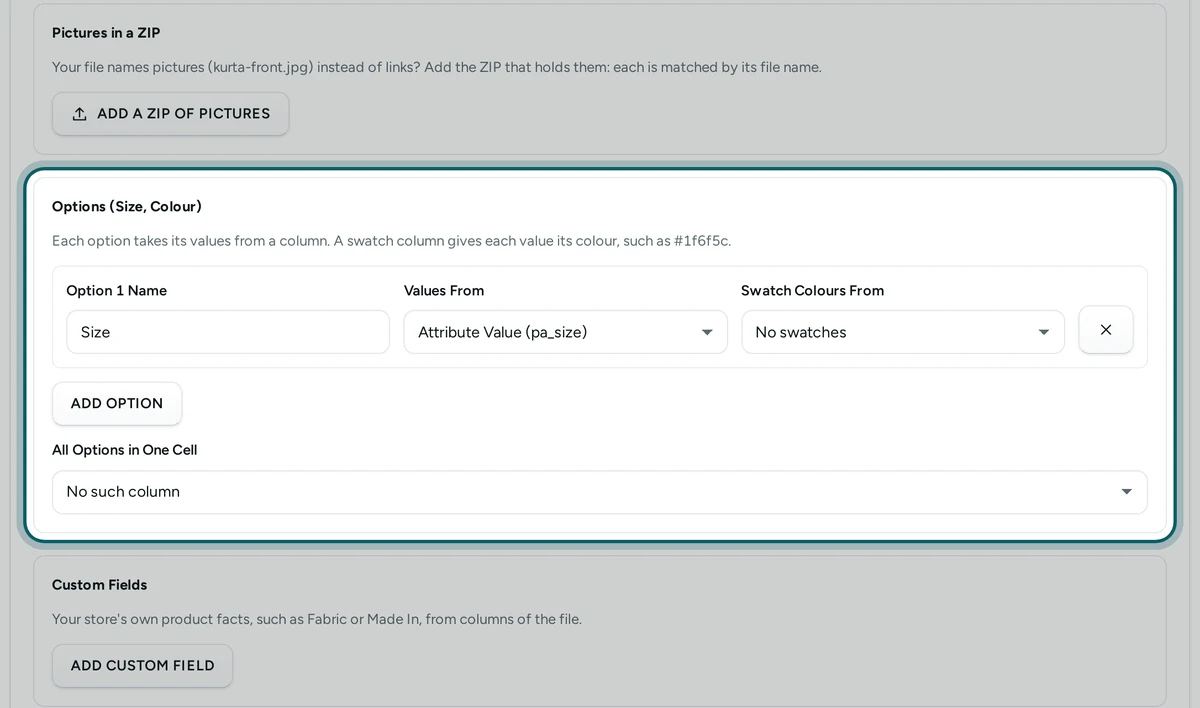
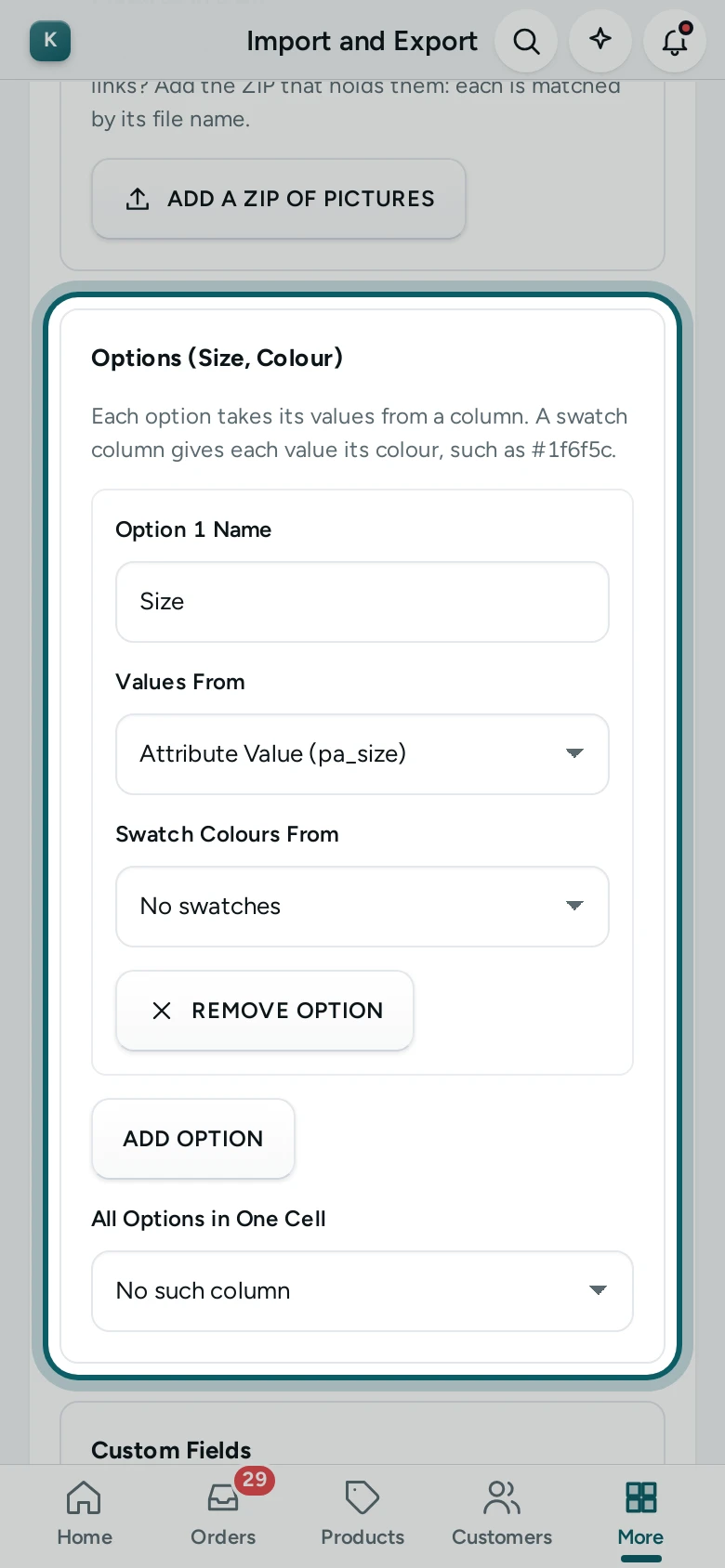
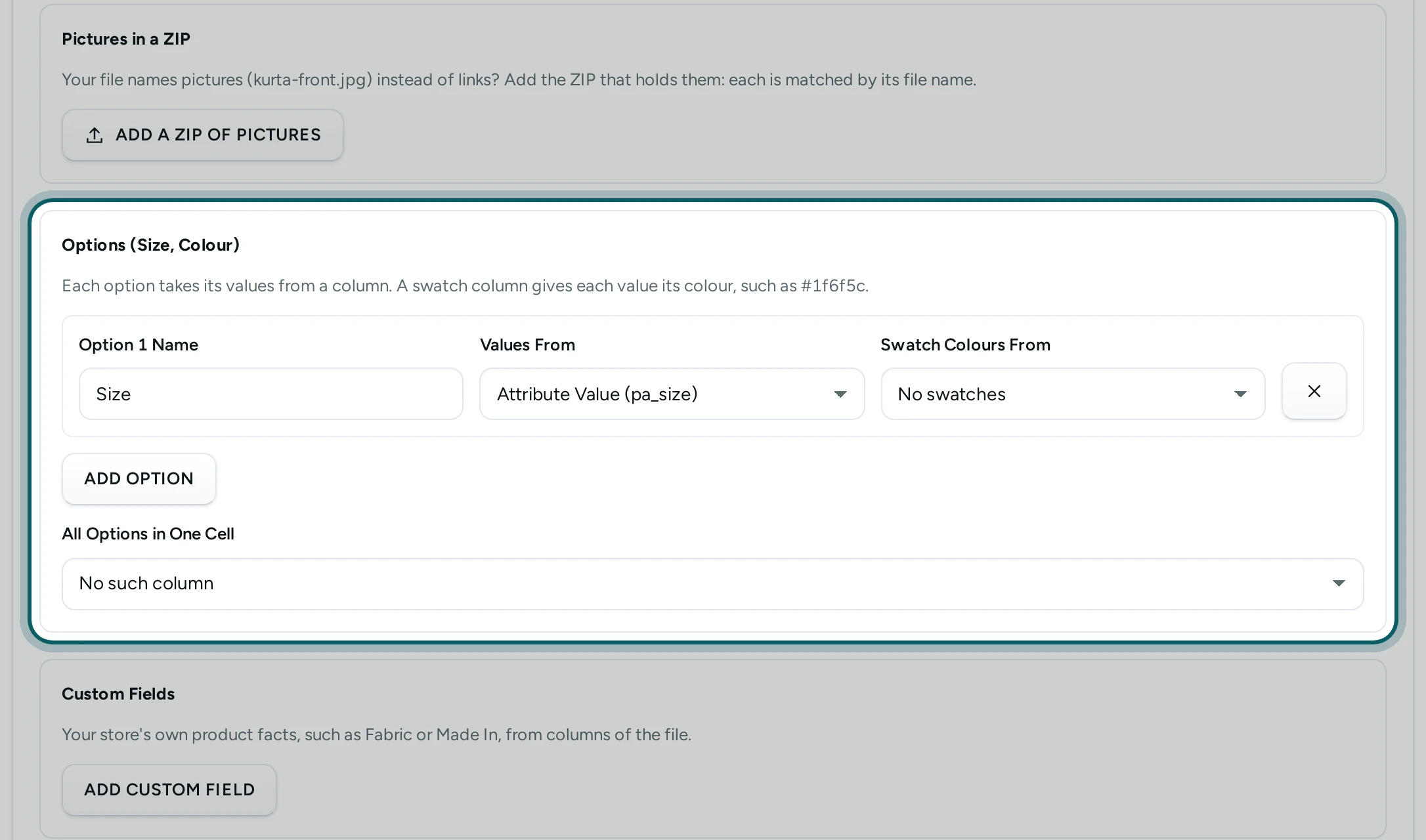
Name the option. Under Options (Size, Colour), write Size as Option 1 Name and choose the size column in Values From. ADD OPTION adds Colour if the file has one.
Step 5 of 5
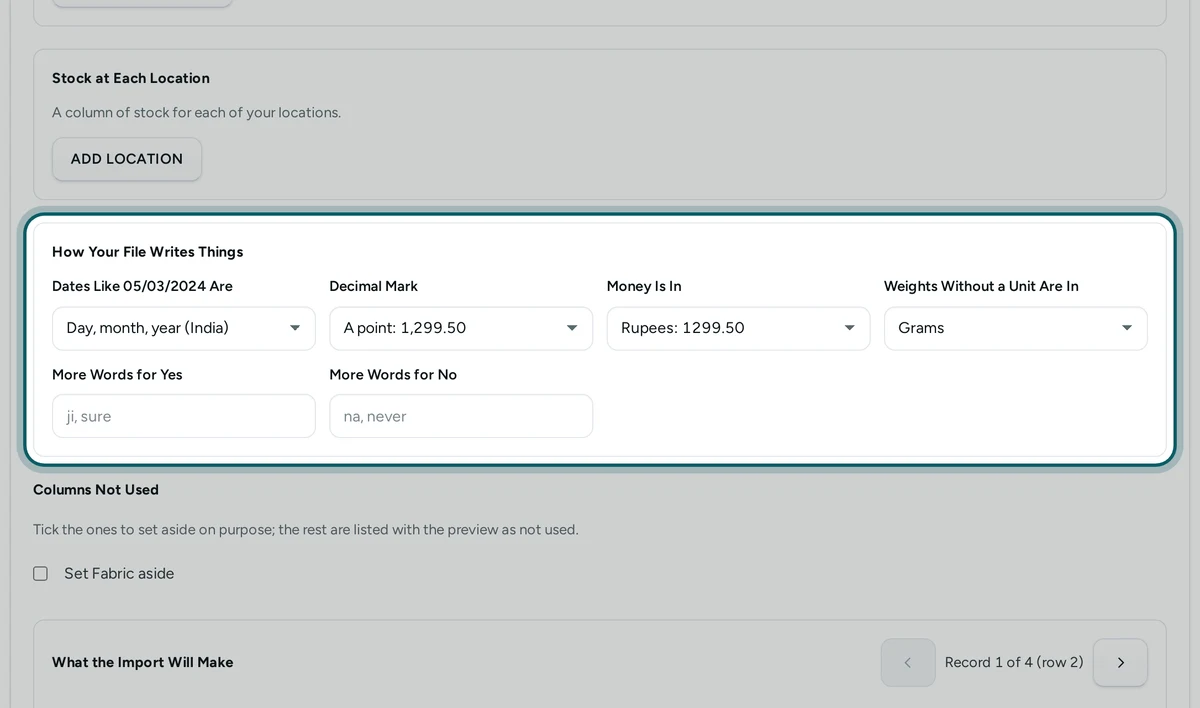
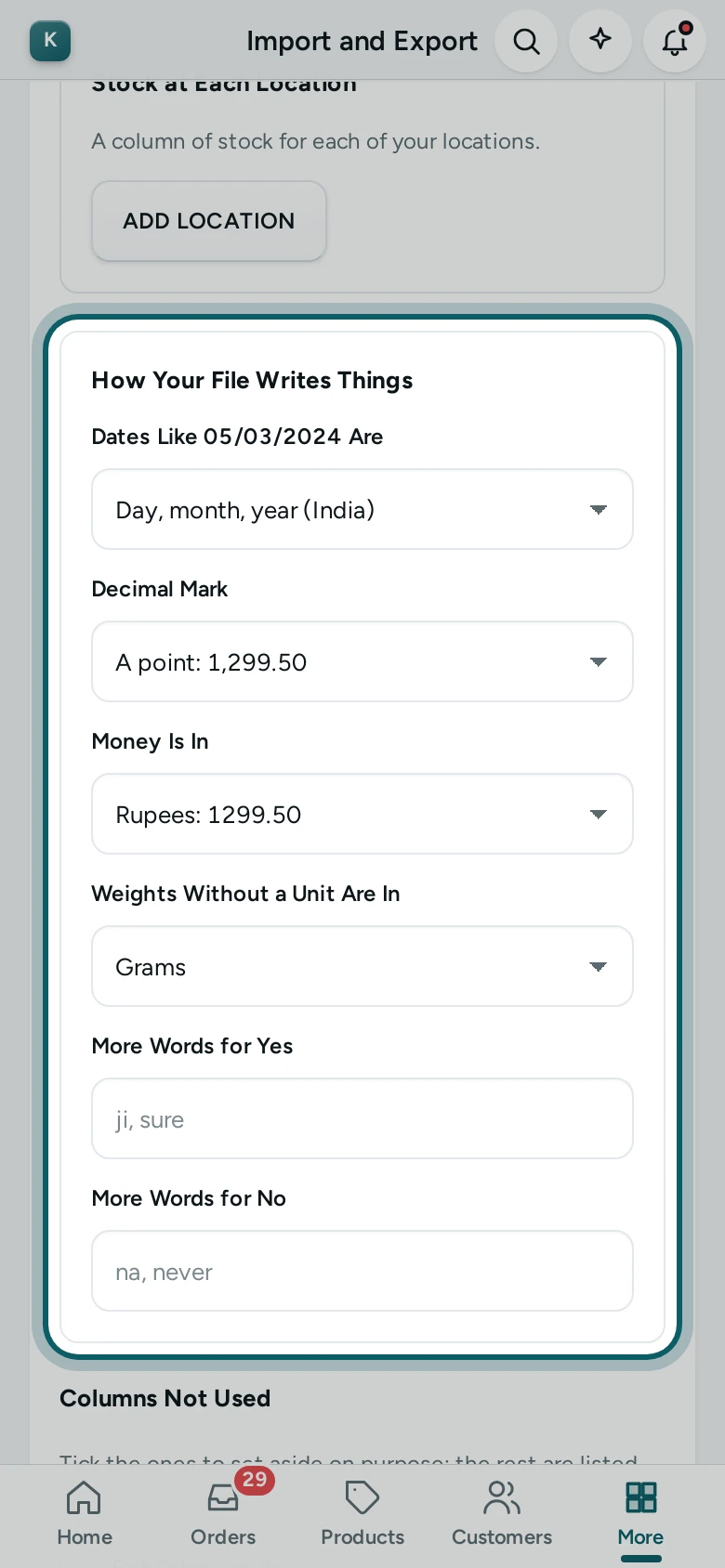
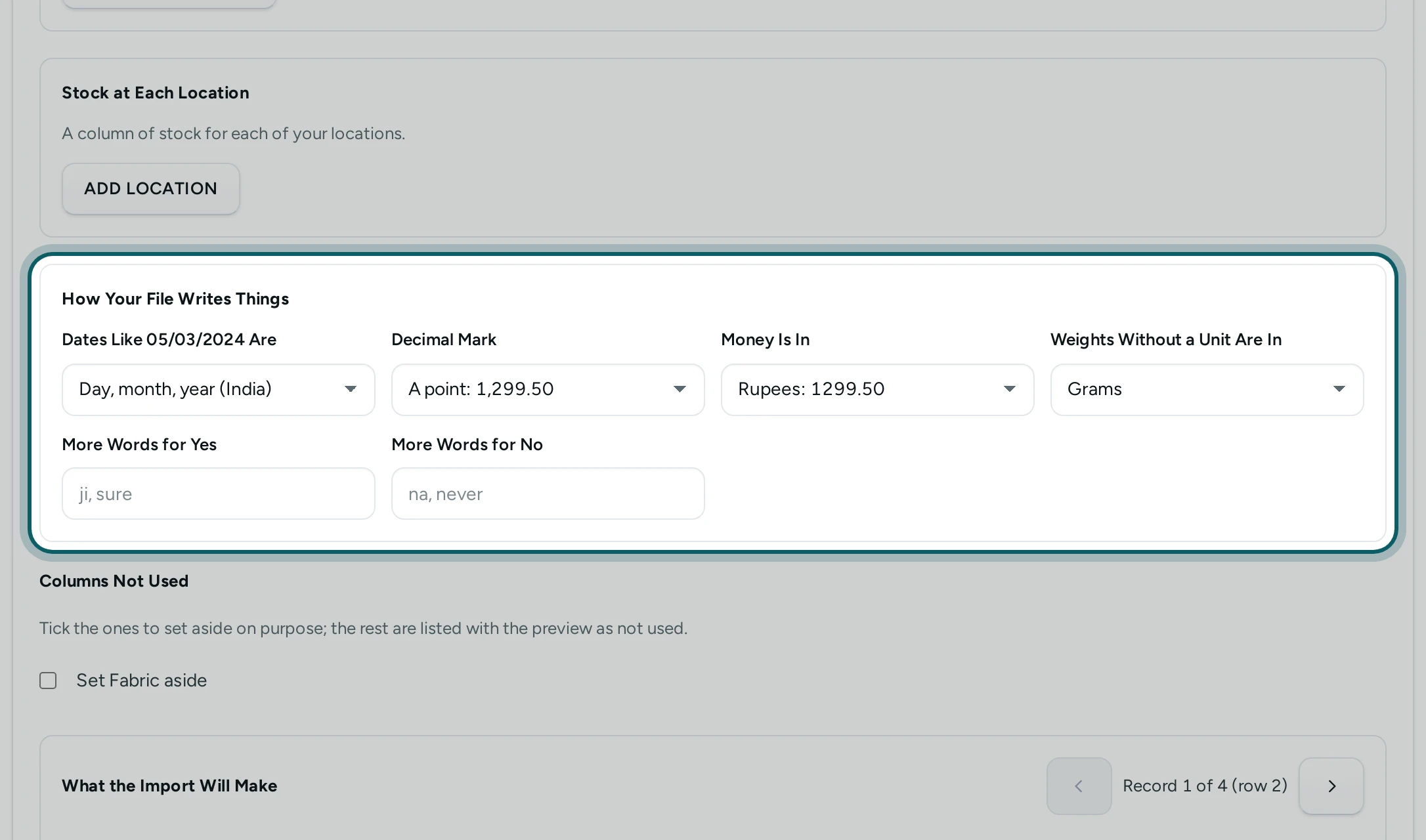
How the file writes things. Under How Your File Writes Things, check the dates (day first in India), the Decimal Mark, and Weights Without a Unit Are In: a supplier's "0.45" is usually kilograms.
Look Before You Import
Step 1 of 5
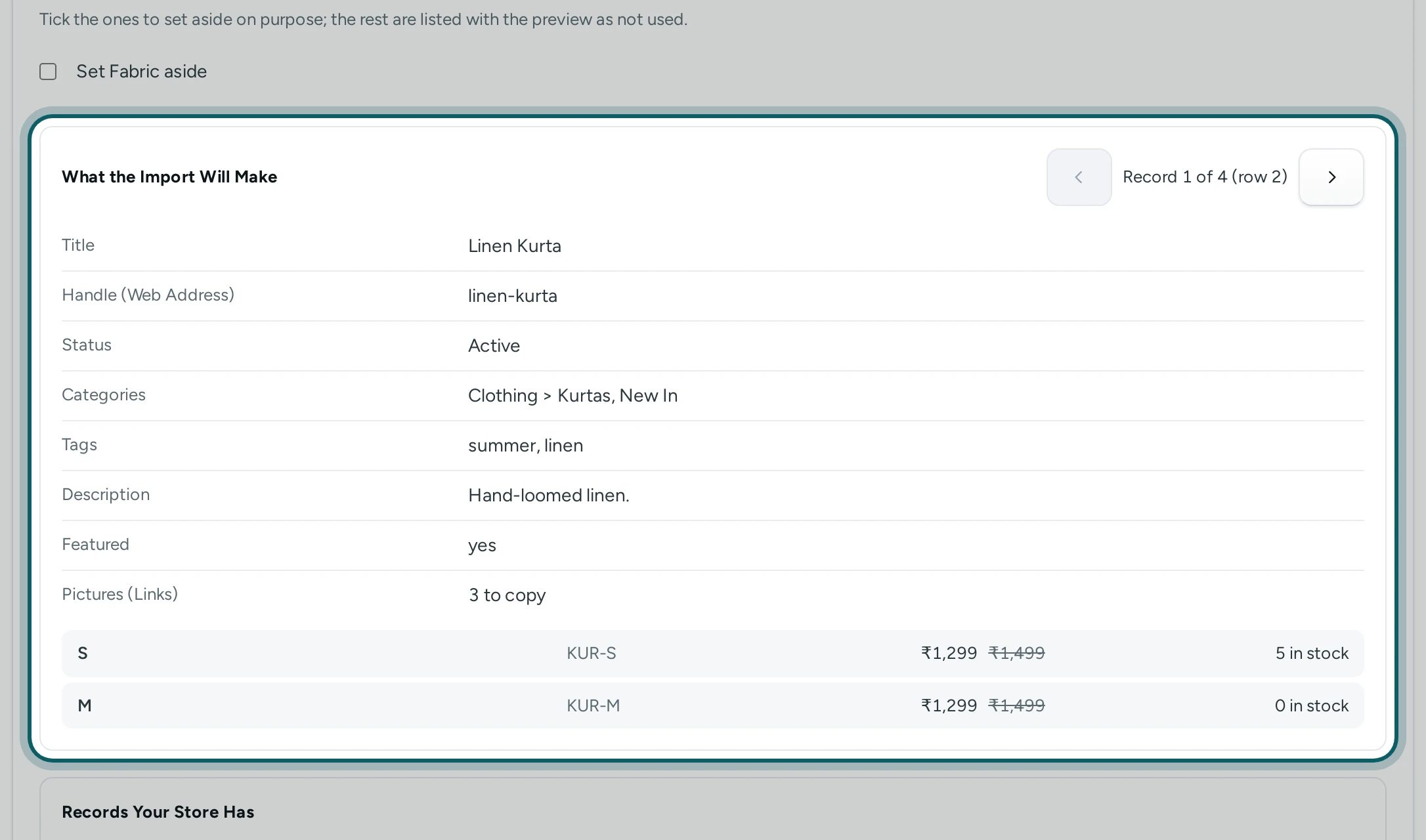
See each product. What Mercayo Will Make shows the first product as the import will make it: its title, its variants with their sizes, prices, MRP and stock, its pictures. Press the arrows, or swipe on a phone, to look at a few more. A row with a problem says so in words under it.
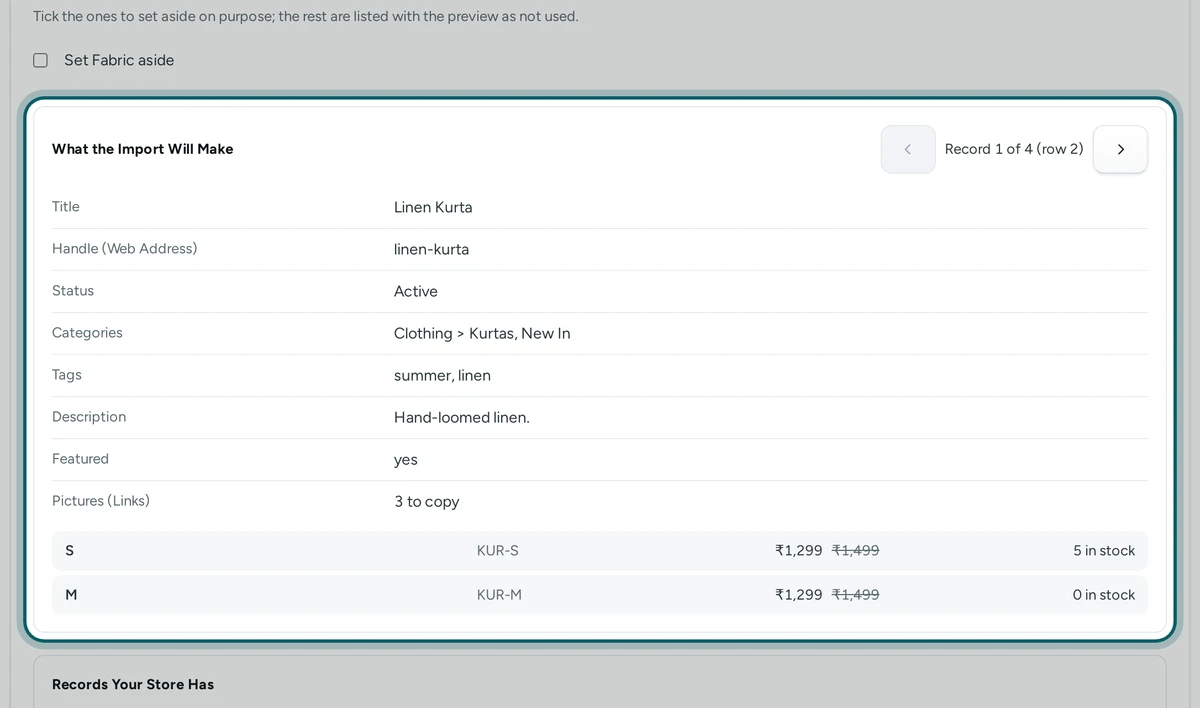
Step 2 of 5
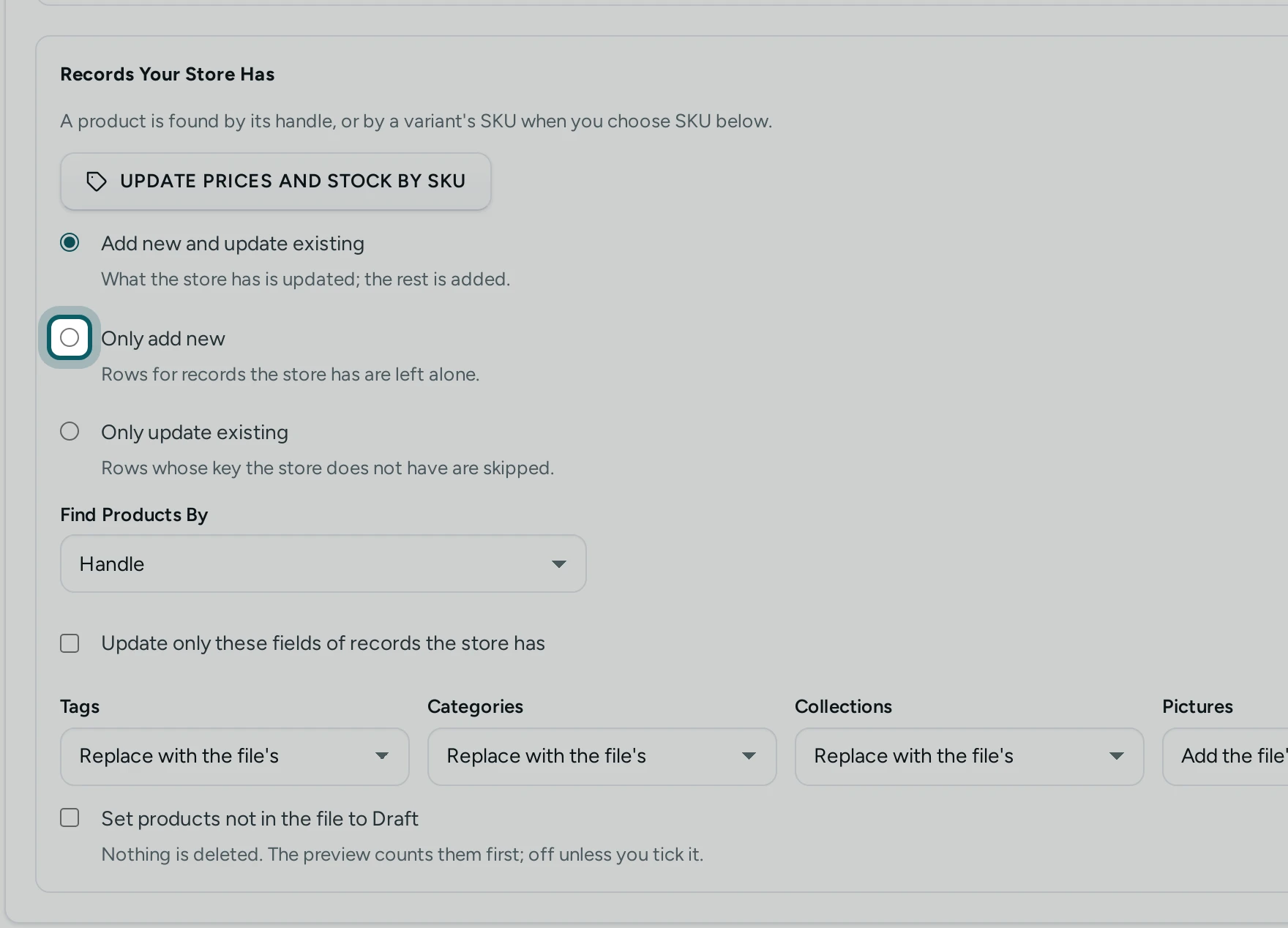
New products only, this time. Under Records Your Store Has, choose Only add new, so a product your store already has is left alone.
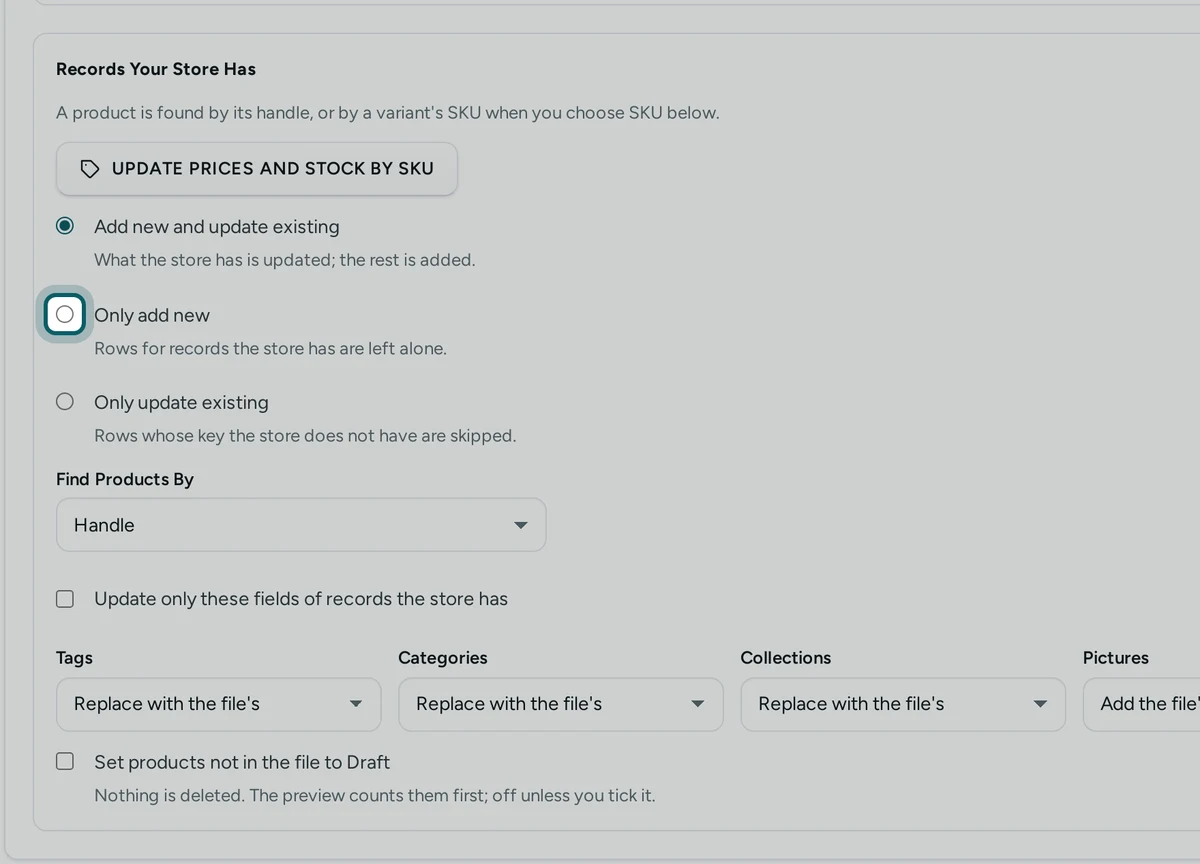
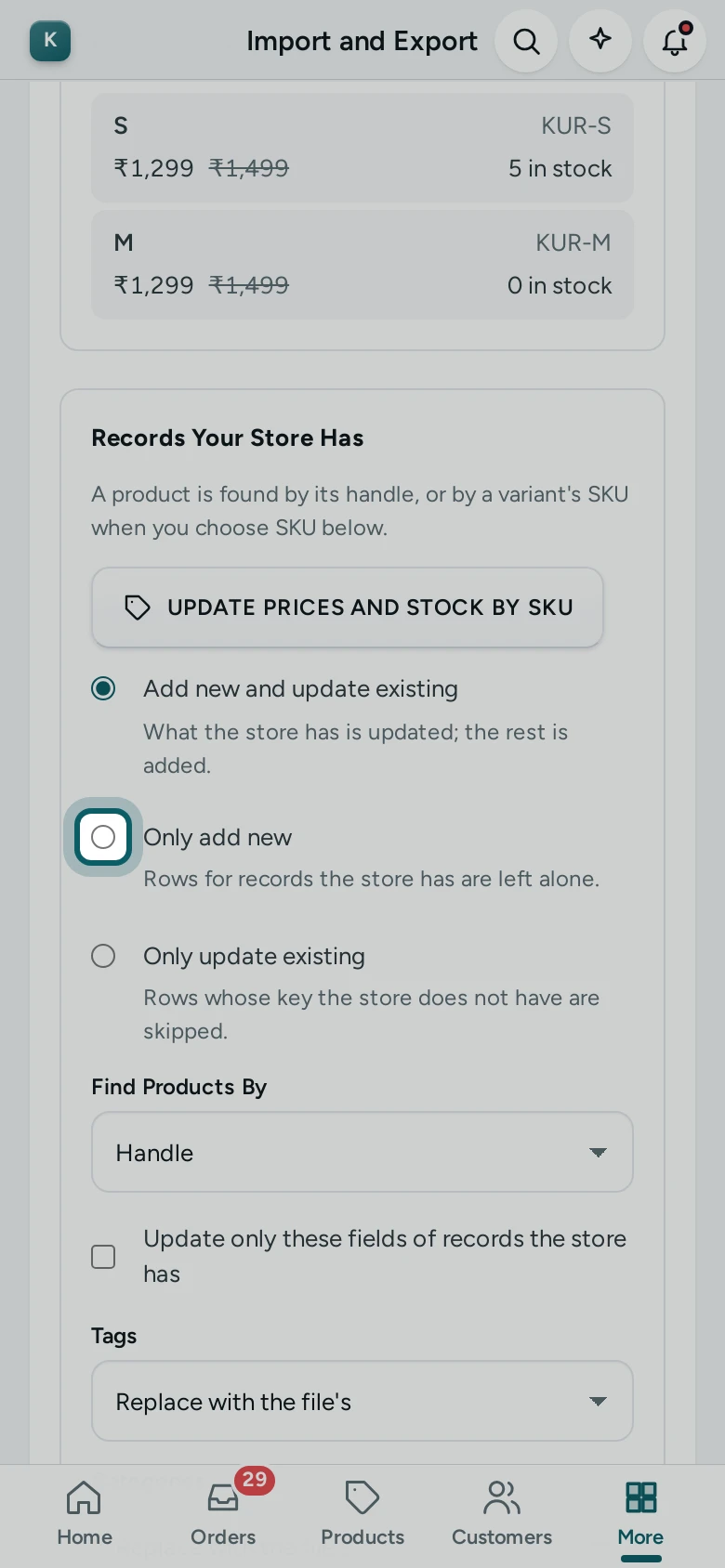
Step 3 of 5
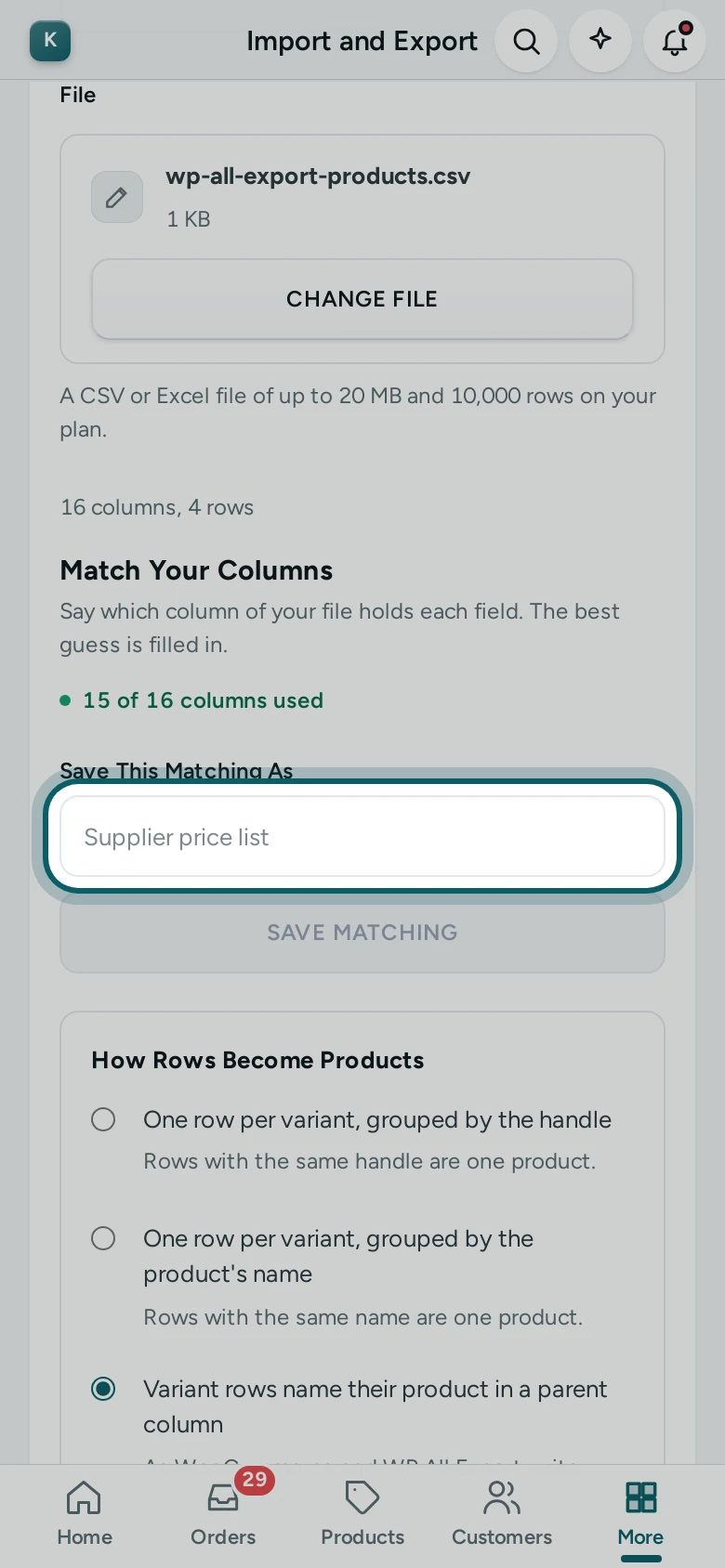
Save the matching. Under Save This Matching As, write the supplier's name and press SAVE MATCHING.
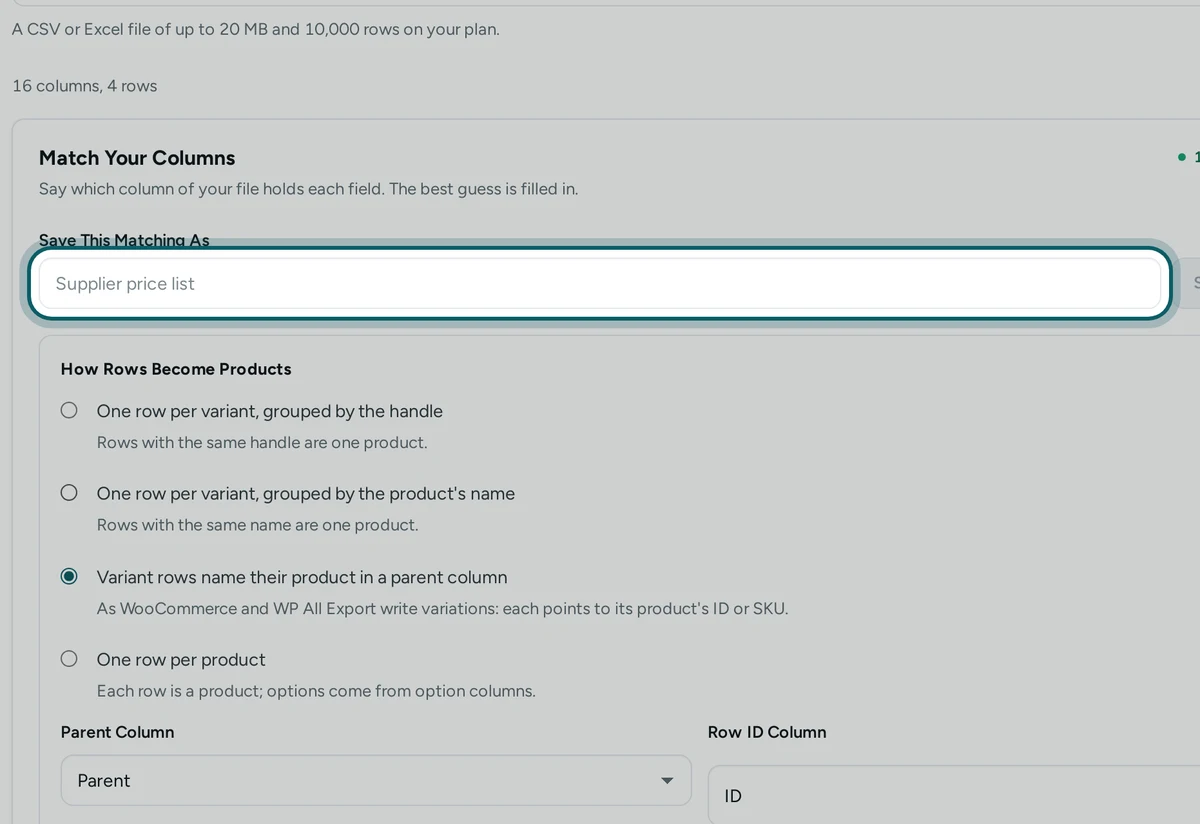
Step 4 of 5
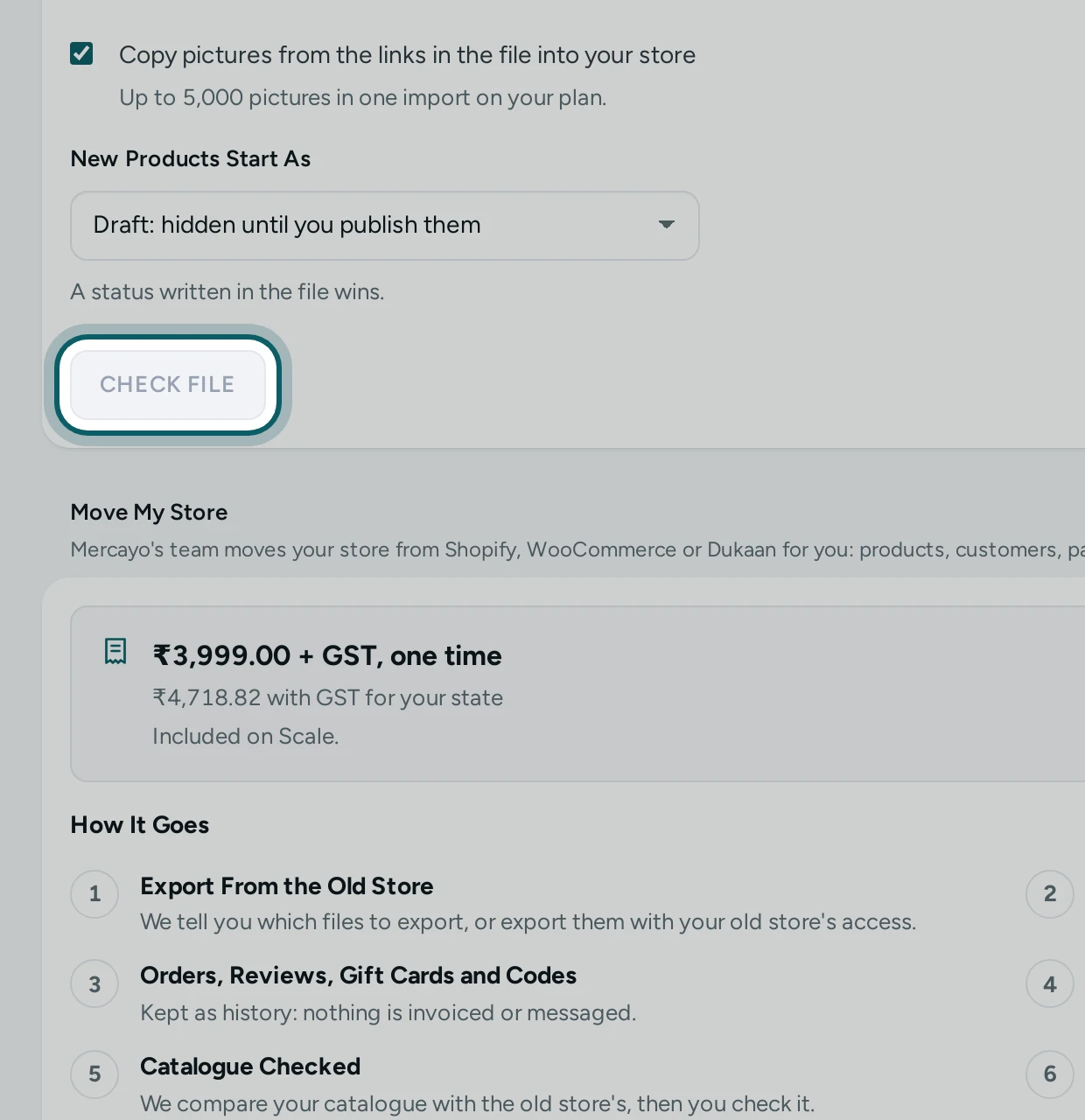
Check the file. Press CHECK FILE. Read the preview: how many products Will Be Added, the pictures to copy, any new categories and brands, and Rows with Problems with why. DOWNLOAD REPORT gives the problem rows; fix them in the file and choose it again.
Step 5 of 5
Import. Press IMPORT and wait for Import Finished, then press VIEW PRODUCTS.
Your First Imported Products
Step 1 of 1
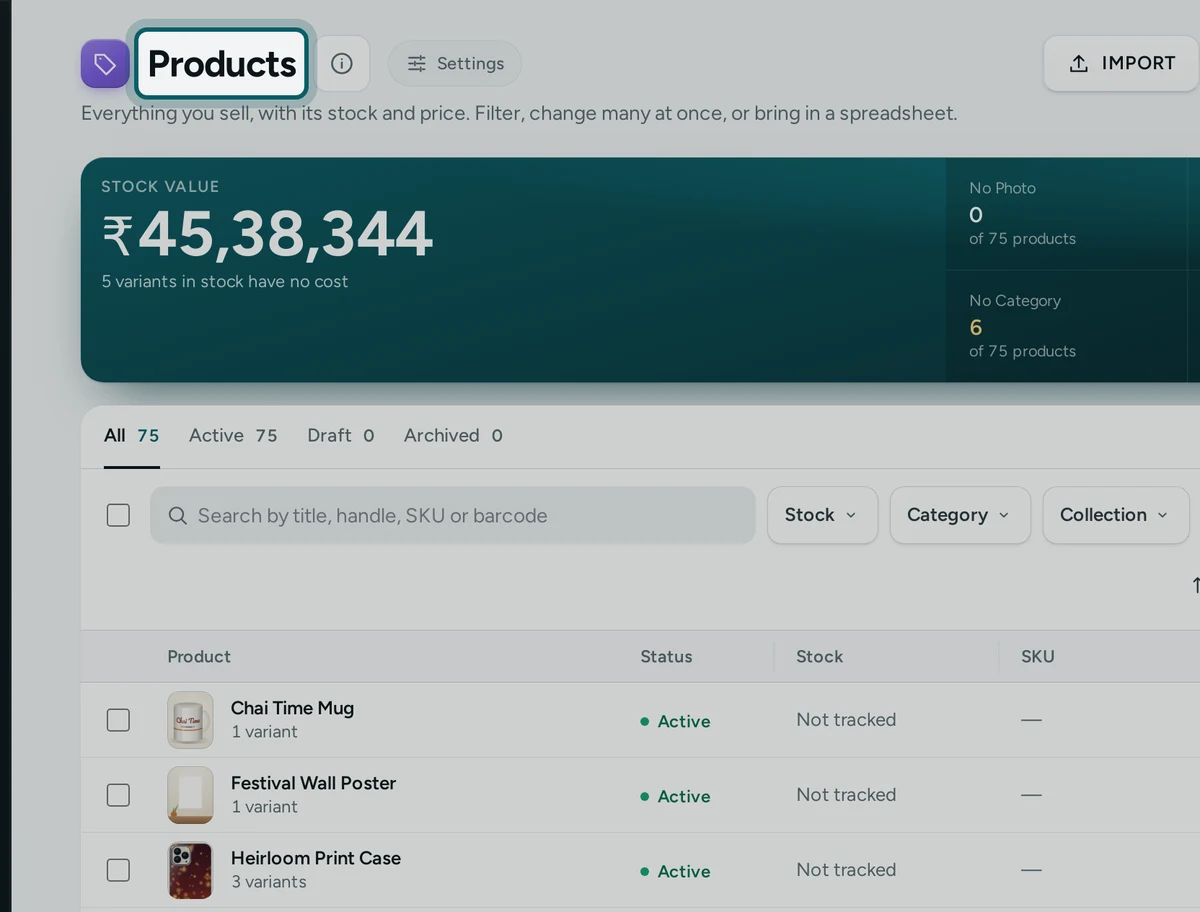
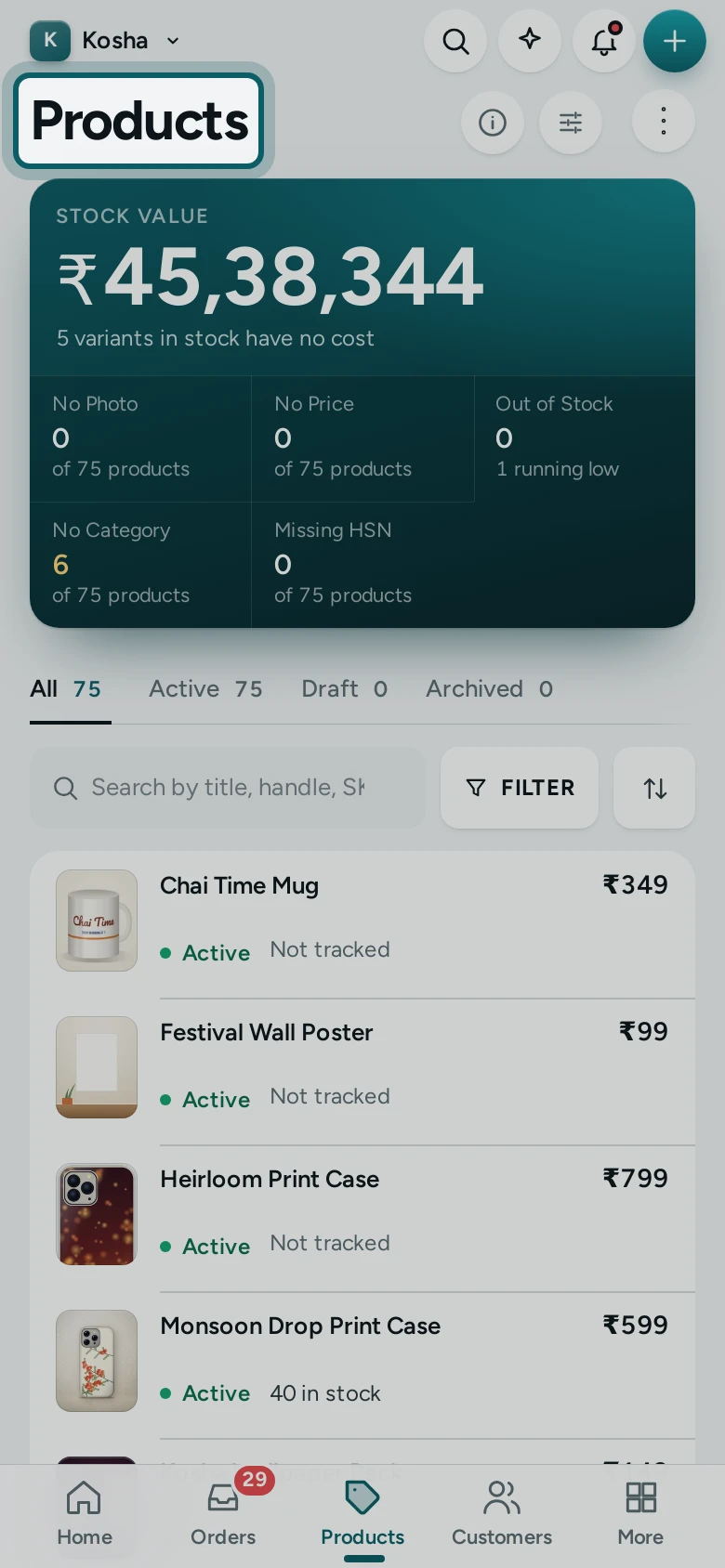
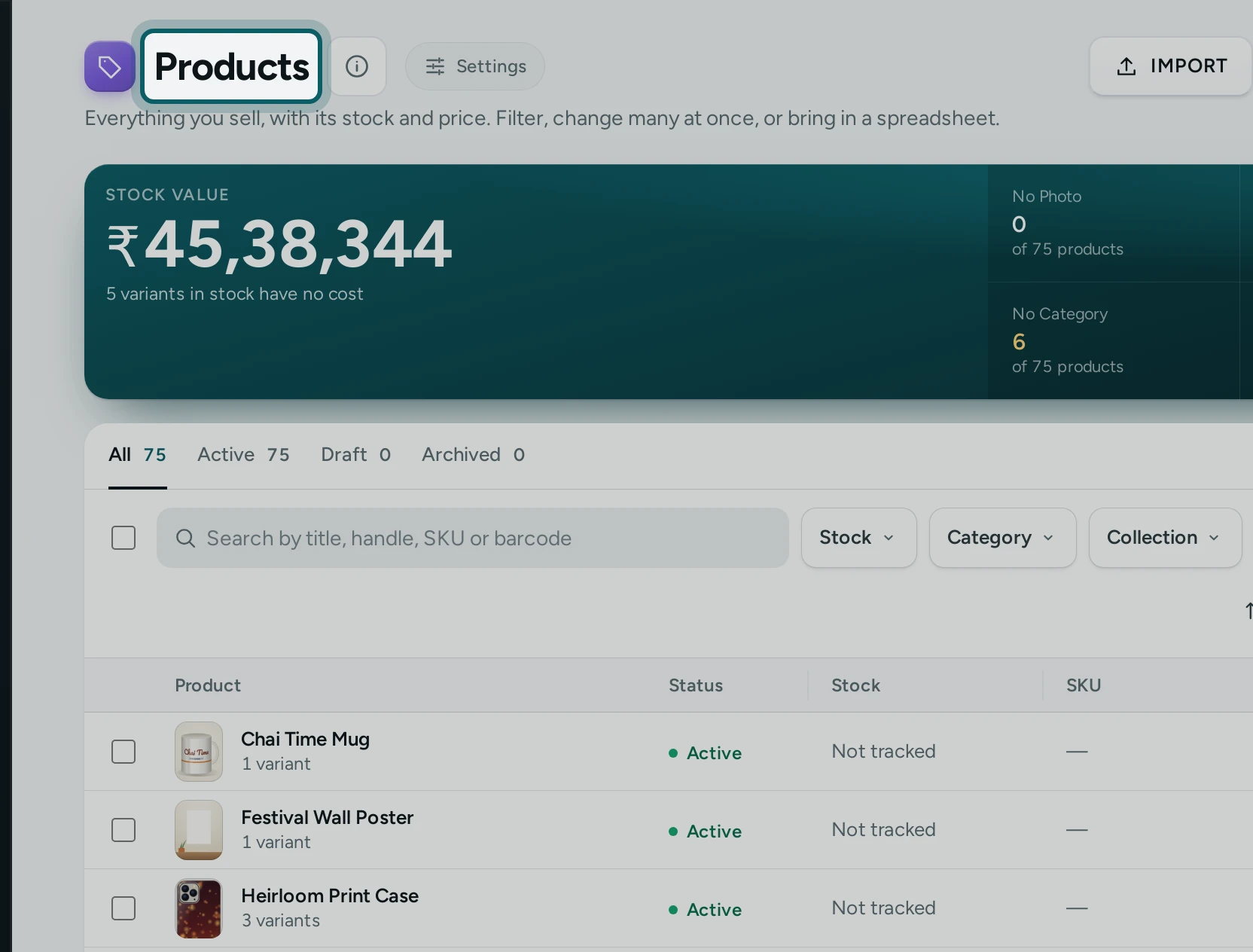
Publish them. The products list shows the new products as Draft. Open a few, add what the supplier's file lacked (a better description, more photos), then tick them and press SET ACTIVE in the selection bar.
What Next
- The supplier's next file: choose it the same way and press USE IT when Mercayo offers your saved matching.
- A new price list for the same products: Update Prices and Stock by SKU.
- A file for the supplier or a wholesaler: Export With Your Own Columns.
- Every option of the matching step: Import Any Spreadsheet by Matching Its Columns.
Common Problems
| Message | What to Do |
|---|---|
| Match these fields before CHECK FILE: Title. | Choose the column for each field named, or give it a value under Same for Every Row |
| This sheet has more than 500 columns. Remove the ones you do not need. | Delete the empty or extra columns in Excel, save and choose the file again |
| This Excel file could not be read. Save it again as .xlsx or as CSV. | Open it in Excel or Google Sheets and save it again |
| Your store has this record already, so the row was left alone. | Nothing to do with Only add new; choose Add new and update existing to update it |