Brand is where you set your store's name and its tagline: how your store introduces itself to every shopper. The name is on every page, email and invoice; the tagline is a short line in your footer about what you sell. Your logo, colours, fonts and browser tab icon used to live here too and are now in the Theme editor, where you see them on a live preview of your store. Open Brand from Settings › Brand. It needs the right to edit pages, menus and the brand, which the owner, admins and the Marketer preset role have (a Marketer, who has no Settings menu, opens it from the command palette with Ctrl K); renaming the store also needs the right to change settings.
What You See
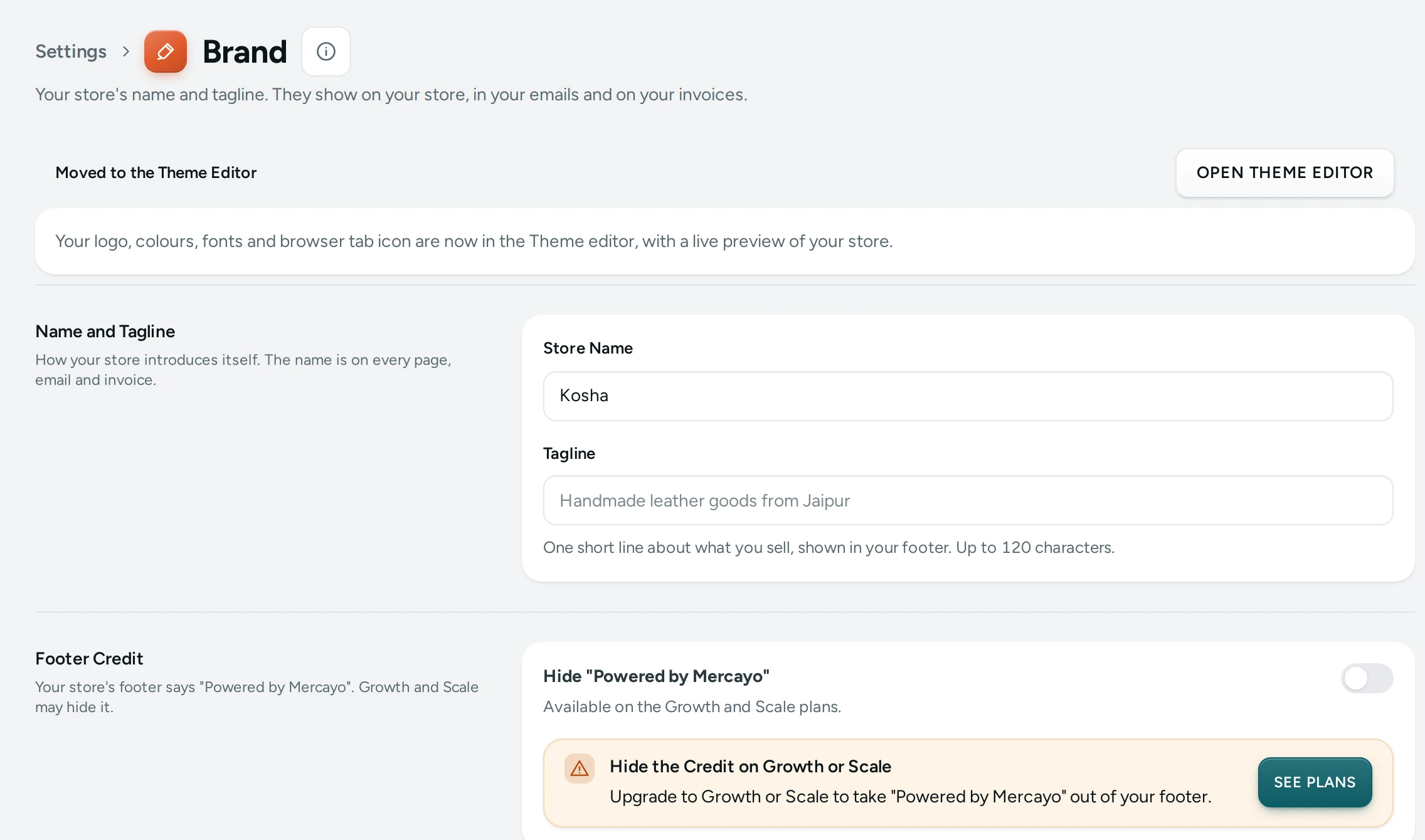
The page title reads Brand, with "Your store's name and tagline. They show on your store, in your emails and on your invoices."
Moved to the Theme Editor
The first card says "Your logo, colours, fonts and browser tab icon are now in the Theme editor, with a live preview of your store." People who may edit the theme see OPEN THEME EDITOR, which opens the Theme editor at its logo section. Without the theme right, the card only says where those settings went. See Theme Editor.
Name and Tagline
"How your store introduces itself. The name is on every page, email and invoice."
| Field | What It Does | Default |
|---|---|---|
| Store Name | Your store's name, 1 to 120 characters. It shows in the header when you have no logo, in your emails, and as the trade name on your invoices. | The name you gave at sign-up |
| Tagline | "One short line about what you sell, shown in your footer. Up to 120 characters." For example "Handmade leather goods from Jaipur". Leave it empty for no tagline. | Empty |
If your role can edit the brand but not change settings, the store name is read-only, with "Only someone who can change settings can rename the store."
How to Change Your Store's Name or Tagline
- Open Settings › Brand.
- Type the new Store Name or Tagline. A save bar appears at the bottom with Unsaved changes.
- Press SAVE. The page says "Brand saved. Your store shows it now."
To go back to what was saved, press DISCARD instead. The save button stays off while the store name is empty.
How to Change Your Logo, Colours or Fonts
- Open Settings › Brand.
- Press OPEN THEME EDITOR on the Moved to the Theme Editor card.
- Change your logo, colours or fonts there, check the preview, and publish. See Theme Editor.
What Shoppers See
- Store name: in your store's header while you have no logo (or your initials in a badge, if you chose that in the Theme editor), in your emails and on invoices.
- Tagline: one line in your store's footer.
Both show on your store as soon as you save.
Good to Know
- Renaming the store does not change its web address, which comes from the store handle chosen at sign-up. Your own domain is set on Domains.
- The legal name on GST invoices is the one in Taxes (or your store name when that is empty), and your legal name for policies is in Store Details. The store name here is your trading name.
- Changes to the brand are recorded in the Activity Log.
- If someone else changed the brand or the look after you opened the page, your save is refused with "Someone else changed the look since you opened it. Reload and try again."
Questions
Why can't I change the store name?
Renaming needs the right to change settings. The Marketer role can edit the tagline but not the name; ask the owner or an admin.
Where did the logo upload go?
To the Theme editor, so you can see your logo on a live preview of your store before you publish. Press OPEN THEME EDITOR on this page.
Does a new name change my store's web address?
No. The web address stays the same. Only the name shown to shoppers changes.
Can I translate my tagline?
The tagline is your own text. To show your store in other languages, see Languages and Currencies.