Notifications lists every email and message your store sends: the receipts and updates shoppers get, the alerts your team gets, and Mercayo's own notices to you. For each one you see its channels (email, SMS, WhatsApp) with what a message costs, whether it goes now, and how many went in the last 30 days; you can PREVIEW it with your own logo, words and products and send a test to yourself. Below the lists are your switches for shopper emails, new-order alerts and the reply address, then the costs and the 25 latest messages. Open it from Settings › Notifications. Anyone who can see settings can open it; changing the switches and sending tests needs the right to change settings, which the store's owner and admins have.
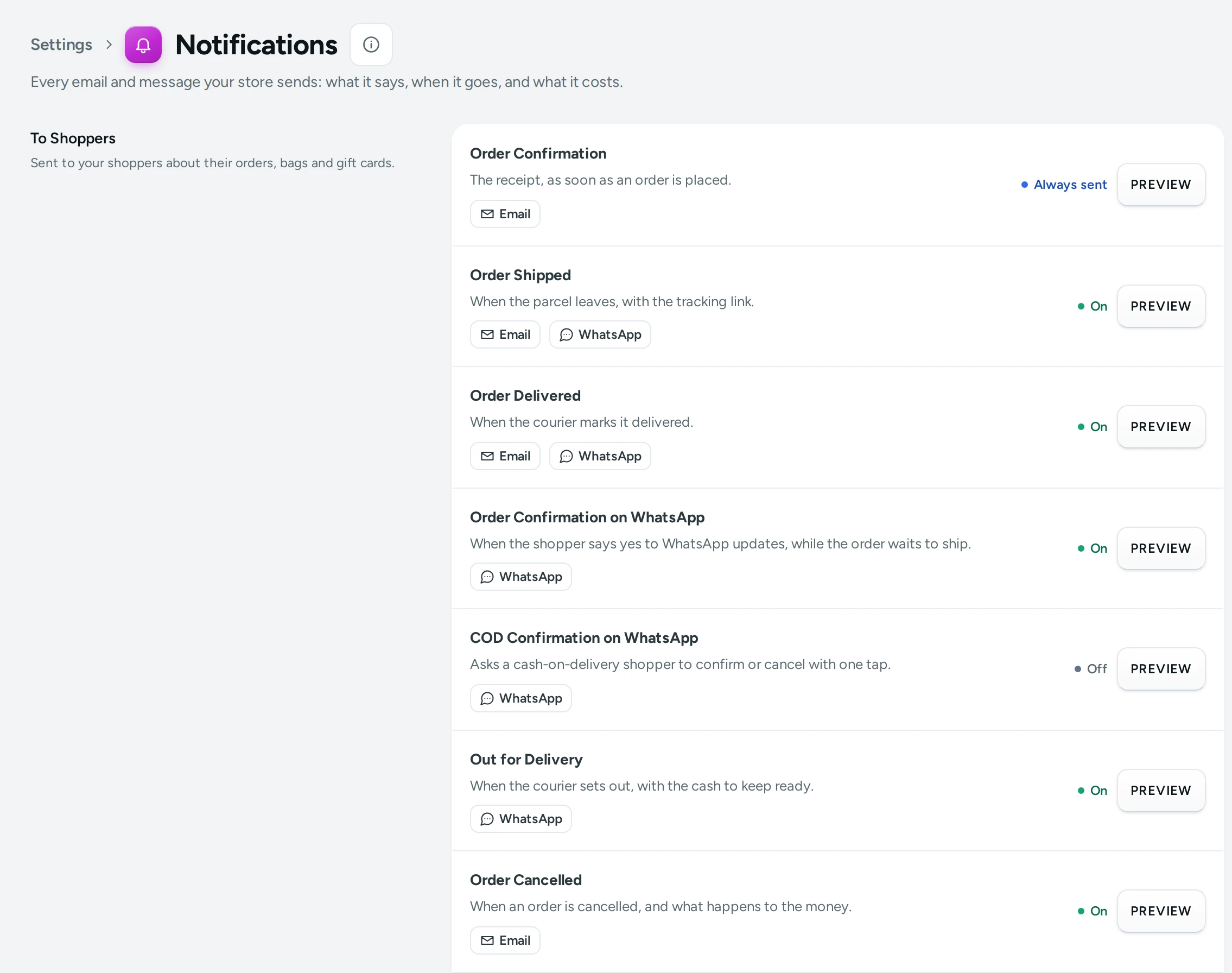
What You See
The title reads Notifications, with "Every email and message your store sends: what it says, when it goes, and what it costs." Then three lists, your settings, Costs and Recent Messages.
Each message row shows:
- its name and one line about it;
- its channels (Email, SMS, WhatsApp), each with its price when your messages are charged;
- "Sent in 30 days: 112" once it has been sent;
- for a message that follows another feature, Turned on and off in with a link to that page;
- a pill: Always sent, On, Off or Some channels;
- PREVIEW.
To Shoppers
"Sent to your shoppers about their orders, bags and gift cards."
| Message | When It Goes | Channels | Turned On and Off By |
|---|---|---|---|
| Order Confirmation | The receipt, as soon as an order is placed. | Always sent | |
| Order Shipped | When the parcel leaves, with the tracking link. | Email, WhatsApp | Order Shipped Email below; WhatsApp in WhatsApp |
| Order Delivered | When the courier marks it delivered. | Email, WhatsApp | Order Delivered Email below; WhatsApp in WhatsApp |
| Order Confirmation on WhatsApp | When the shopper says yes to WhatsApp updates, while the order waits to ship. | ||
| COD Confirmation on WhatsApp | Asks a cash-on-delivery shopper to confirm or cancel with one tap. | ||
| Out for Delivery | When the courier sets out, with the cash to keep ready. | ||
| Order Cancelled | When an order is cancelled, and what happens to the money. | Order Cancelled Email below | |
| Parcel Returned | When a parcel comes back to you undelivered. | Parcel Returned Email below | |
| Review Request | A few days after delivery, asking for a review. | Reviews and Questions | |
| Bag Reminder | To a shopper who left items in their bag. | Email, WhatsApp | Bag Reminders |
| Gift Card | To the person a gift card is for, with its code. | Email, SMS | Rewards and Credit |
| Gift Card Extension | Your answer to a request for more time. | Rewards and Credit | |
| Gift Card Expiry Reminder | Before a gift card with money left expires, to whoever holds it. | Remind Before a Card Expires in Rewards and Credit | |
| Back in Stock | To a shopper who asked, once, when a sold-out item returns. | Email, WhatsApp | Back in Stock Message below; see Back-in-Stock Requests |
| COD Confirmation Code | The code a shopper types to place a COD order. | SMS, WhatsApp | Checkout and COD |
| Sign-In Code | The code a shopper signs in with. | SMS, WhatsApp, Email | Shopper Accounts |
To Your Team
"Sent to you and your staff."
| Message | When It Goes | Channels | Turned On and Off By |
|---|---|---|---|
| New Order Alert | To your team for every new order. | Email, SMS | Email About New Orders and Text Message About New Orders below |
| Low-Stock Alert | To your team when items run low or sell out, at most once every 24 hours by default. | Email When Stock Runs Low and Low-stock Email at Most Every below | |
| Staff Invitation | The link someone you invite gets by email. | Always sent |
From Mercayo
"Mercayo's own notices to the owner. Never charged."
| Message | When It Goes | Channels | Turned On and Off By |
|---|---|---|---|
| Low Credits | When your notification credits run low. | Notification Credits | |
| Support Signed In | When Mercayo's team opens your store to help. | Always sent |
Only channels Mercayo can really send for a message are listed: an SMS is offered only where there is an approved SMS template for it.
Your Settings on This Page
Shopper Emails
"Switch off an email you do not want shoppers to get. The order confirmation always goes."
| Setting | What It Does | Default |
|---|---|---|
| Order Cancelled Email | Tells the shopper their order was cancelled, and what happens to any money they paid. | On |
| Order Delivered Email | Tells the shopper their order was delivered. | On |
| Parcel Returned Email | Tells the shopper the parcel came back to you undelivered. | On |
| Order Shipped Email | Tells the shopper their order is on its way, with the tracking link. | On |
| Back in Stock Message | Tells each shopper who asked that the item is back: once, by email or WhatsApp, whichever they gave. | On |
Order Alerts
"Who on your team hears about each new order, and how."
| Setting | What It Does | Default |
|---|---|---|
| Email When a COD Order Is Confirmed | For stores that phone shoppers to confirm cash-on-delivery orders: an email when an order is marked confirmed. | On |
| Also Send To | Up to 5 more email addresses, separated by commas, for example orders@yourbrand.in. | Empty |
| Email About New Orders | An email for each new order: cash on delivery at once, prepaid orders when the payment arrives. | On |
| Text Message About New Orders | A text message to the owner's phone for each new order. Each one is paid from your notification credits. | Off |
| Send to the Store Owner | The owner's sign-in email gets the order emails. | On |
| Email When Stock Runs Low | One email listing the items that fell to your running-low mark or sold out, to the people who get the order emails. | On |
| Low-stock Email at Most Every | Hours between two low-stock emails. Items that run low in between wait for the next email. (1 to 168) | 24 |
Replies
"Where a shopper's reply to your emails goes."
| Setting | What It Does | Default |
|---|---|---|
| Contact Email | Where a shopper's reply to your order emails goes. Empty: your account email is used. | Empty |
One save bar (DISCARD, SAVE) saves these settings together.
Costs
When your messages are charged, the Costs card says "Your plan includes some messages each month; after that each one is paid from your notification credits." and shows a table:
| Column | What It Shows |
|---|---|
| Channel | Email, SMS, WhatsApp |
| Each | The price of one message on that channel for your store |
| Included a Month | How many your plan includes each month |
Under it: "Reminders and review requests are marketing:" with their higher email and WhatsApp prices, "never in the plan", and Your credits: with your balance and Open Notification Credits. When your store's messages are not charged, the card says "Messages from this store are not charged." See Notification Credits.
Recent Messages
"The last 25 messages and how they went." Each line shows the message, the channel and the address it went to, when, and a pill: Queued, Sending, Sent, Failed or Cancelled (and Test for a test you sent). With nothing sent yet: No Messages Yet, "Messages show here as your store sends them."
How to Preview a Message
- Press PREVIEW on its row.
- For a message with more than one channel, pick Email, SMS or WhatsApp at the top.
- The email preview shows its Subject and the email itself, drawn with the real template, your logo, your own words and your products (with sample values like the name "Priya" where needed). An SMS or WhatsApp preview shows the text.
- Close the dialog when you are done (a message that cannot be tested shows DONE for this).
How to Send a Test to Yourself
- Press PREVIEW on a message that can be tested by email.
- The dialog says "A test goes only to your own email, name@yourbrand.in, and is never charged."
- Press SEND TEST TO ME. "Test queued to name@yourbrand.in. It arrives in a minute." It shows under Recent Messages with a Test pill.
Tests go only to the email of the person signed in, never to shoppers. Codes, invitations and WhatsApp-only messages cannot be tested this way. You can send up to ten tests an hour.
How to Change a Message's Words
- Press PREVIEW on the message.
- Press EDIT WORDS. It opens Localization filtered to that message's texts.
- Change the words there and save. The next preview and every message after it use your words.
SMS texts follow approved templates and cannot be reworded.
How to Get New-Order Emails at Another Address
- In Order Alerts, check that Email About New Orders is on.
- Type the addresses in Also Send To, separated by commas (up to 5), for example
orders@yourbrand.in, packing@yourbrand.in. - Turn off Send to the Store Owner if the owner should not get them.
- Press SAVE.
What Shoppers See
Shoppers get the emails and messages switched on here and on the feature pages, in your store's words and with your logo. Their replies to your order emails go to Contact Email (or your account email). Turning off a shopper email here stops that email for new events; the order confirmation always goes.
Mercayo Controls
The switches on this page are registry settings, so Mercayo can set or limit them for your store; a locked one shows Locked with Mercayo's note. Prices and what your plan includes come from your plan.
Good to Know
- The order confirmation, sign-in codes, staff invitations and Mercayo's support notice always go while their feature runs; they have no switch.
- SMS messages in India must match an approved (DLT) template, which is why their words are fixed.
- Messages to your team and to shoppers are paid from your notification credits once your plan's monthly messages are used. When credits run out, order messages stop; see Notification Credits.
- If emails do not arrive, see Emails Not Arriving.
- Changes to these settings are recorded in the Activity Log.
Questions
Can I stop the order confirmation email?
No. The order confirmation is the shopper's receipt and always goes.
Why is a message shown as "Some channels"?
It has more than one channel and only some are switched on, for example the shipped email on and the shipped WhatsApp message off.
Where do shoppers' replies go?
To Contact Email in Replies, or to your account email when that is empty.
Do tests cost money?
No. Tests go only to your own email and are never charged.
How do I get an SMS for every new order?
Switch on Text Message About New Orders in Order Alerts. It goes to the owner's phone, and each message is paid from your notification credits.
Why does Gift Card show SMS but Order Shipped does not?
Only messages with an approved SMS template can be sent by SMS. The others go by email and, where set up, WhatsApp.