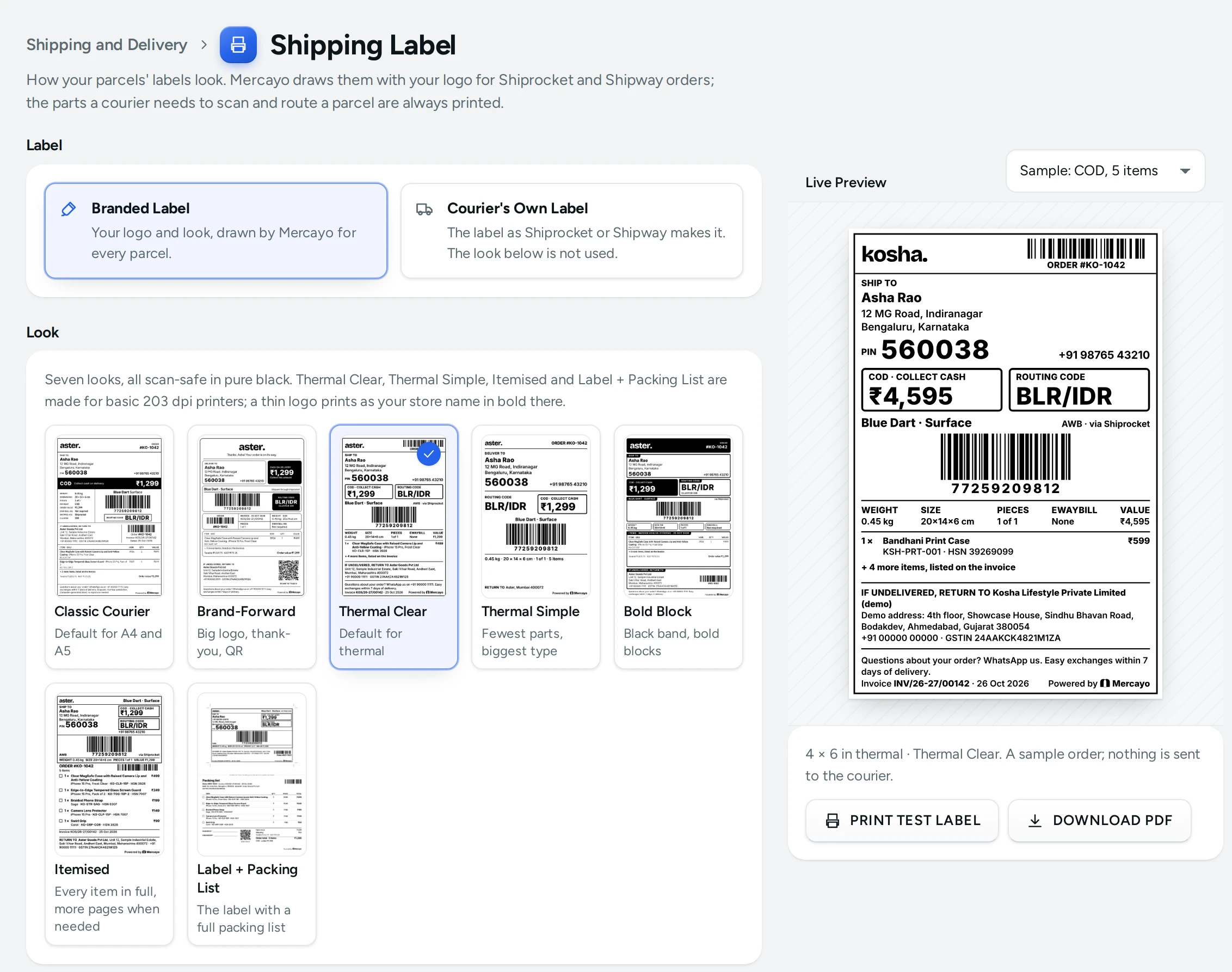
Shipping Label decides what your parcels' labels look like. When your courier account (Shiprocket or Shipway) gives a parcel its AWB, Mercayo draws the label itself in the look and size you choose here, with your logo and every part the courier needs. Open it from Settings › Shipping and Delivery › Shipping Label. Anyone who can see settings can open it and use the preview; changing it needs the right to change settings.
Label
| Choice | What It Does |
|---|---|
| Branded Label | Your logo and look, drawn by Mercayo for every parcel. The courier's own label is kept beside it. |
| Courier's Own Label | The label as Shiprocket or Shipway makes it. The look below is not used. |
Look
| Look | Best For |
|---|---|
| Classic Courier | The layout couriers know; the default on A4 and A5 |
| Brand-Forward | A big logo, a thank-you line and a tracking QR code; colour on A4 and A5 |
| Thermal Clear | Everything a courier needs, safe on a basic thermal printer; the default for thermal sizes |
| Thermal Simple | The fewest parts and the biggest type |
| Bold Block | A black band and bold blocks. It prints the most black, so it wears a thermal head sooner |
| Itemised | Every item with its full name; a long order goes on to more pages of the same parcel |
| Label + Packing List | The label with a full packing list; on A4 and A5 the label is the top half and the list below |
Leave it on Automatic to print Thermal Clear on thermal sizes and Classic Courier on A4 and A5. Thermal Clear, Thermal Simple, Itemised and Label + Packing List are made for basic 203 dpi printers. A logo with strokes too thin for such a printer prints as your store's name in bold; under Logo on thermal paper you can choose the logo always or the name always.
With Itemised and Label + Packing List, the extra pages of a long order say "Items, continued" and carry no AWB barcode, so they are never scanned as labels.
Size
| Size | What Prints |
|---|---|
| 4 × 6 in | One thermal label (the default) |
| 4 × 4 in | One thermal label |
| A5 | One label on an A5 sheet |
| A4 · One | One true-size 4 × 6 in label on an A4 sheet, with crop marks |
| A4 · Four | Four labels on an A4 sheet at 91 % of 4 × 6 in, with cut lines |
On A4 and A5 you can switch on Print in colour; thermal printers print black, and barcodes are always black.
Packing List Size sets the paper a packing list prints on when you print it on its own: A4 (the default), A5 or 4 × 6 in Thermal.
What the Label Shows
Always Printed
The courier needs these to scan, route and deliver the parcel, so they cannot be hidden: the courier and service, the AWB barcode and number, the routing code (the destination city when the courier gives none), the ship-to name, address and PIN, prepaid or COD with the amount to collect, weight, size and pieces, the eWaybill number when the order has one, and the order value whenever an eWaybill applies (over ₹50,000), even when prices are hidden.
Your Choice
| Setting | Default | What It Does |
|---|---|---|
| Logo | On | Your logo; black on thermal paper |
| Store name | On | Beside a picture logo, or alone when the logo is off |
| Shopper's phone | On | The shopper's phone number beside the address |
| Item names | On | Off prints "5 items in 1 parcel" |
| Item name length | At most 2 lines | Full names, at most two lines each, or one line (Itemised always prints in full) |
| SKU | On | Each item's SKU under its name |
| Item prices and order value | On | Off hides every amount except what the courier must collect |
| HSN codes | On | Each item's HSN code |
| Invoice number and date | On | When the order has an invoice |
| GSTIN | On | Your GSTIN with the return address |
| Return address | Full address | Full, store name with city and PIN, or hidden |
| Order number barcode | On | For your own packing scanner |
| Tracking QR code | On | Opens your store's tracking page for this order (Brand-Forward, packing lists) |
| Thank-you message | On | Up to 60 characters, {first name} for the shopper's (Brand-Forward, packing lists) |
| Footer note | On | Up to 160 characters, such as how to reach you or your exchange rule |
| Powered by Mercayo | On | Shown on the Starter plan; it can be hidden on Growth and Scale |
Live Preview
The preview on the right is the label itself, drawn with a sample order (Sample: COD, 5 items or Sample: Prepaid, 1 item, with your own products when the store has them). It redraws as you change anything; nothing is sent to the courier. A sample that takes more than one page has Page 1 of 2 arrows. PRINT TEST LABEL and DOWNLOAD PDF give you the same label as a PDF, to try on your printer before you SAVE.
Print As
Wherever labels are printed (a label run's result, an order's label, PRINT LABELS on the Orders list, a shipping job's sheet and the phone app's ship sheet), Print As chooses the paper for that one print. The labels are drawn again from the parcels' saved details; nothing is booked again. Your look is kept; Automatic follows the paper. A courier's own label is never redrawn.
Good to Know
- Mercayo's team can fix any of these settings for your store, with a reason your admin shows.
- A parcel whose courier is on Mercayo's list of couriers that print only their own label keeps the courier's label.
- Labels are stored privately and open only for people in your store who may see orders.
Questions
Which look should I choose for a cheap thermal printer?
Thermal Clear for everything on one label, Thermal Simple for the biggest type, or Itemised when your orders have many items.
Can I print on A4 one day and thermal the next?
Yes: keep your usual size here and choose Print As when you print.
Why does my logo print as text?
Its strokes are too thin to print cleanly at 203 dpi, so Automatic prints your store's name in bold. Choose My logo under Logo on thermal paper to print it anyway.