This tutorial takes your store from empty to your first imported order history: you export from your old store, bring your products and customers in, then your past orders, and see them on your customers. It takes about twenty minutes for a store of a few hundred products. You need to be the store owner, or a role that may change products, customers and orders.
Nothing in your old store changes, and nothing is sent to anyone: imported orders never email a shopper.
Before You Start
- Export from your old store. In Shopify: Products, Export, All products, CSV for Excel; Customers, Export; Orders, Export, All orders. In WooCommerce: Products, Export and an order export plugin's CSV. In Dukaan: Products, Export and Orders, Download, each saved as CSV. Keep the files together.
Your Catalogue First
Step 1 of 4
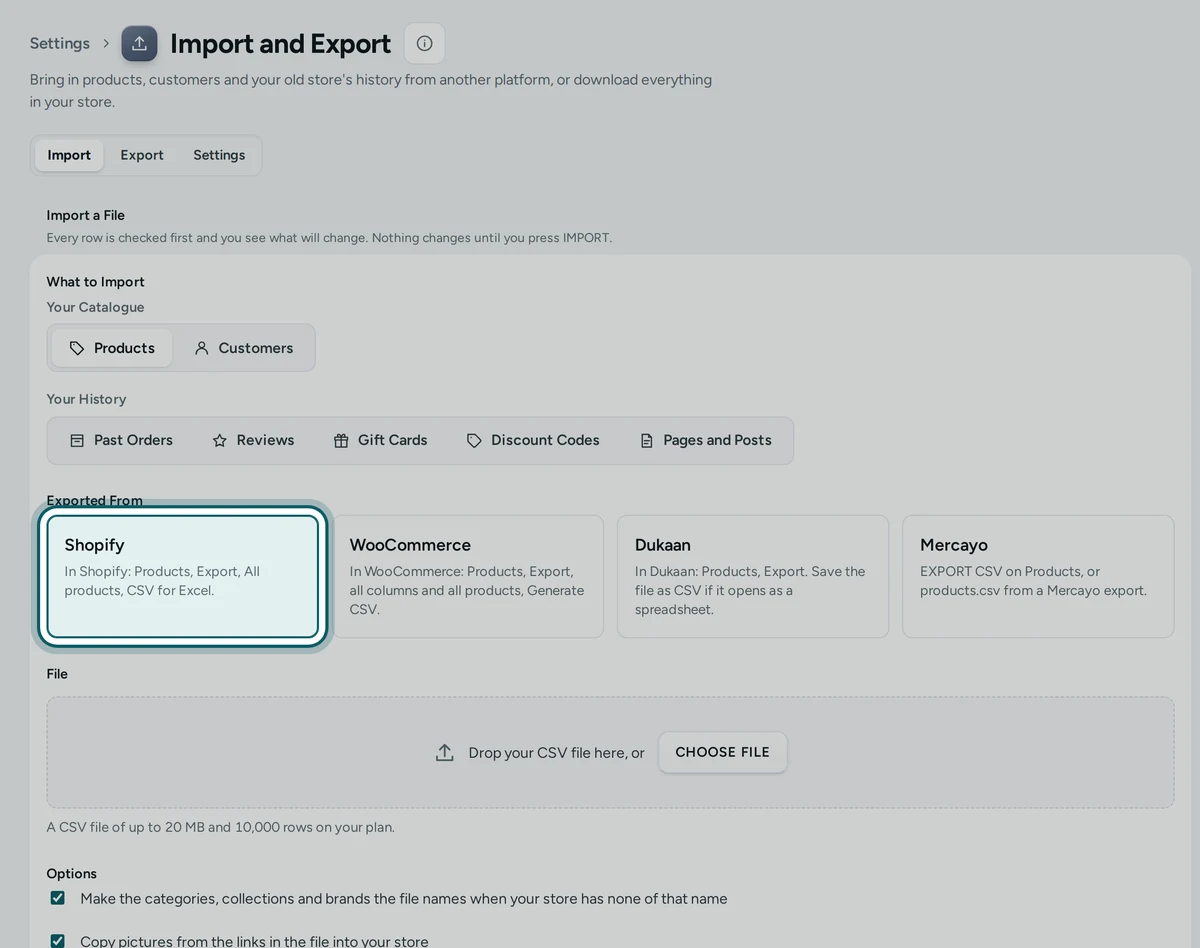
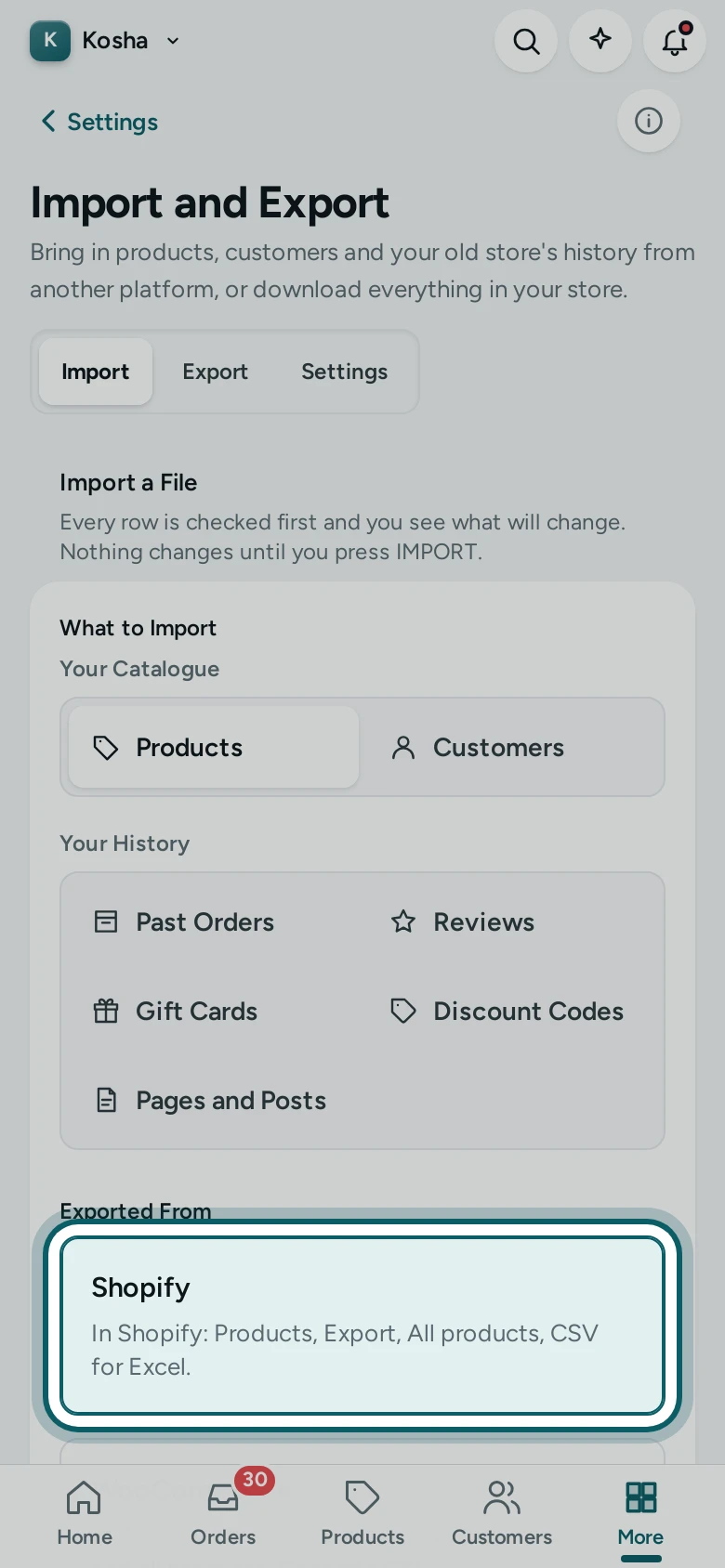
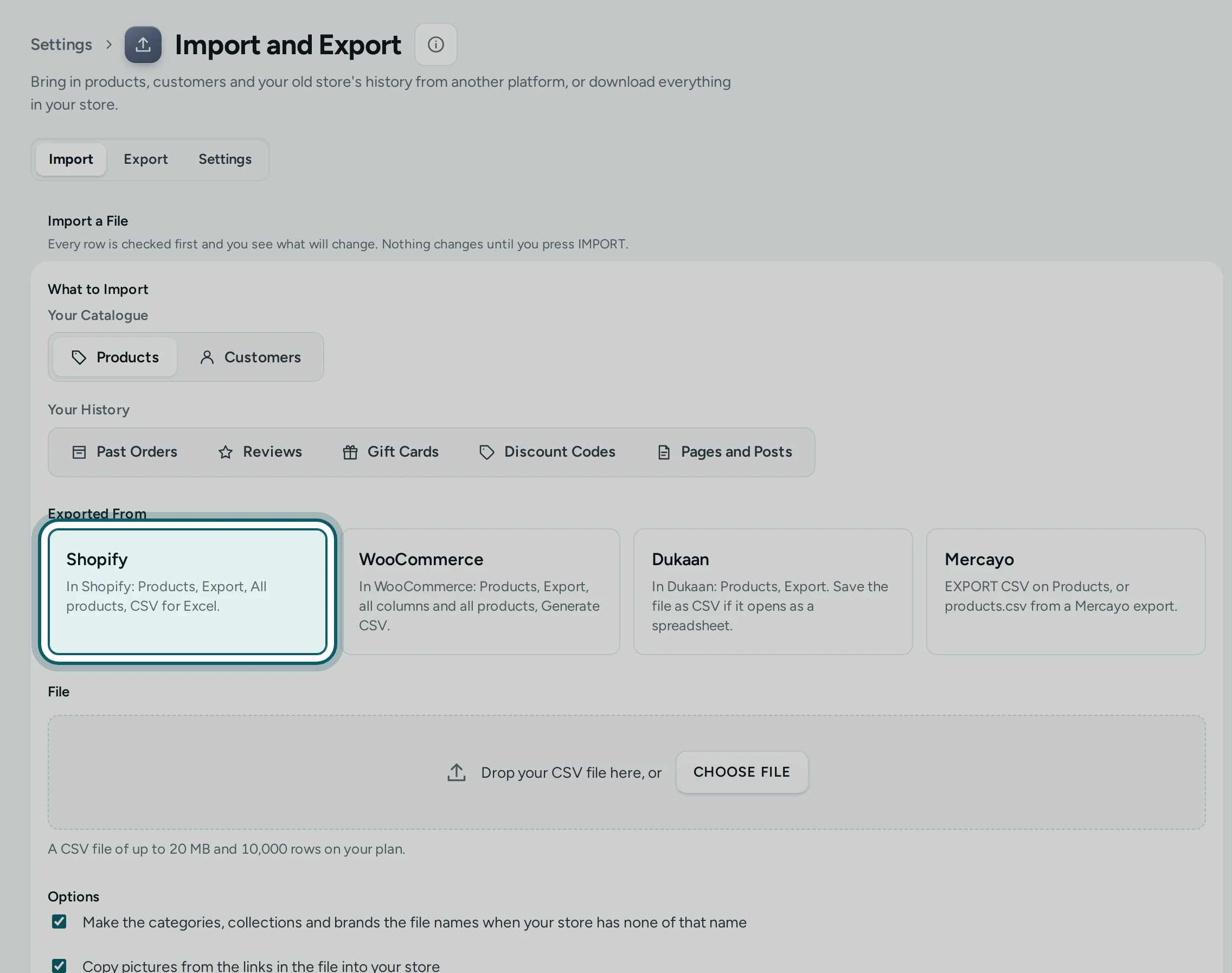
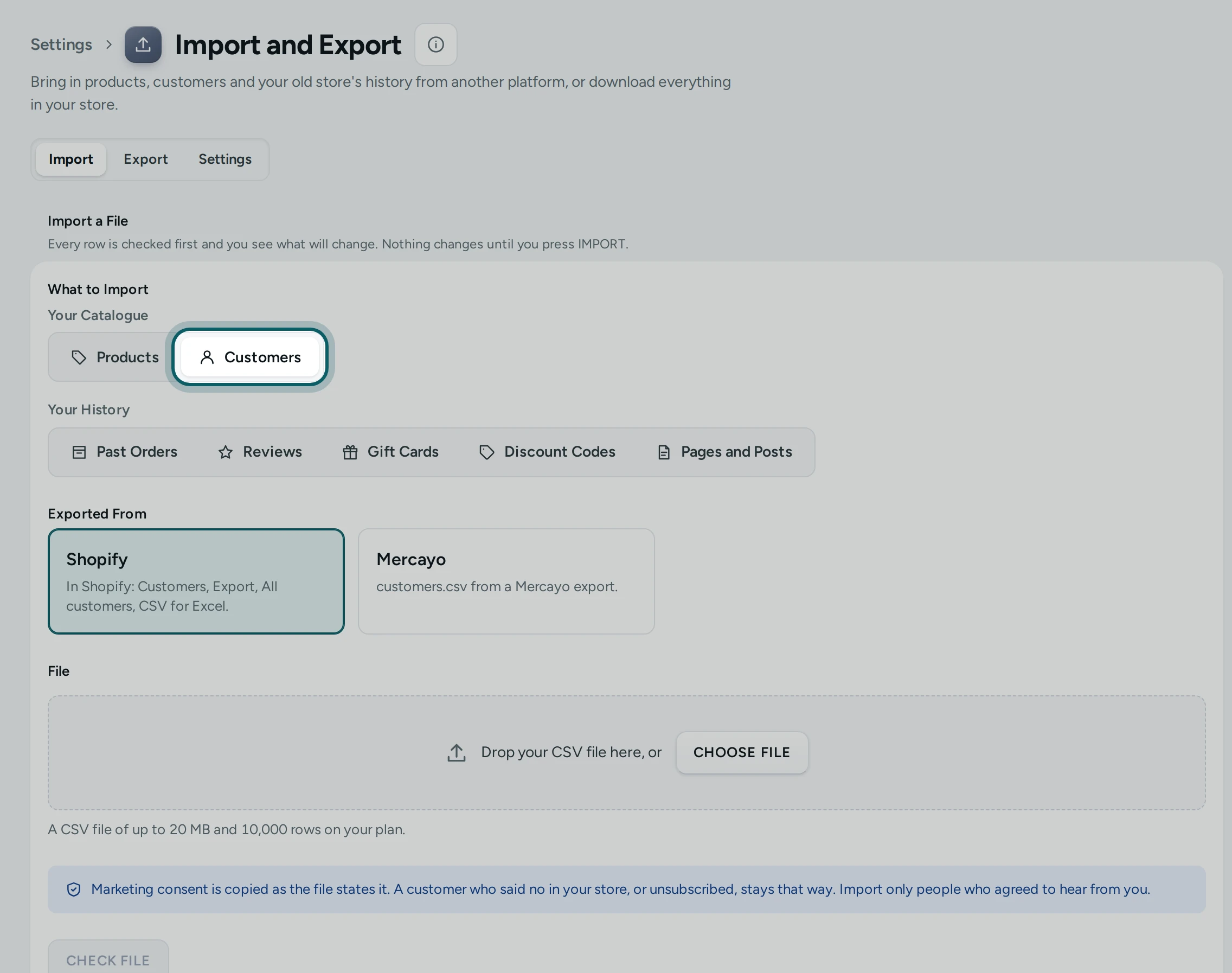
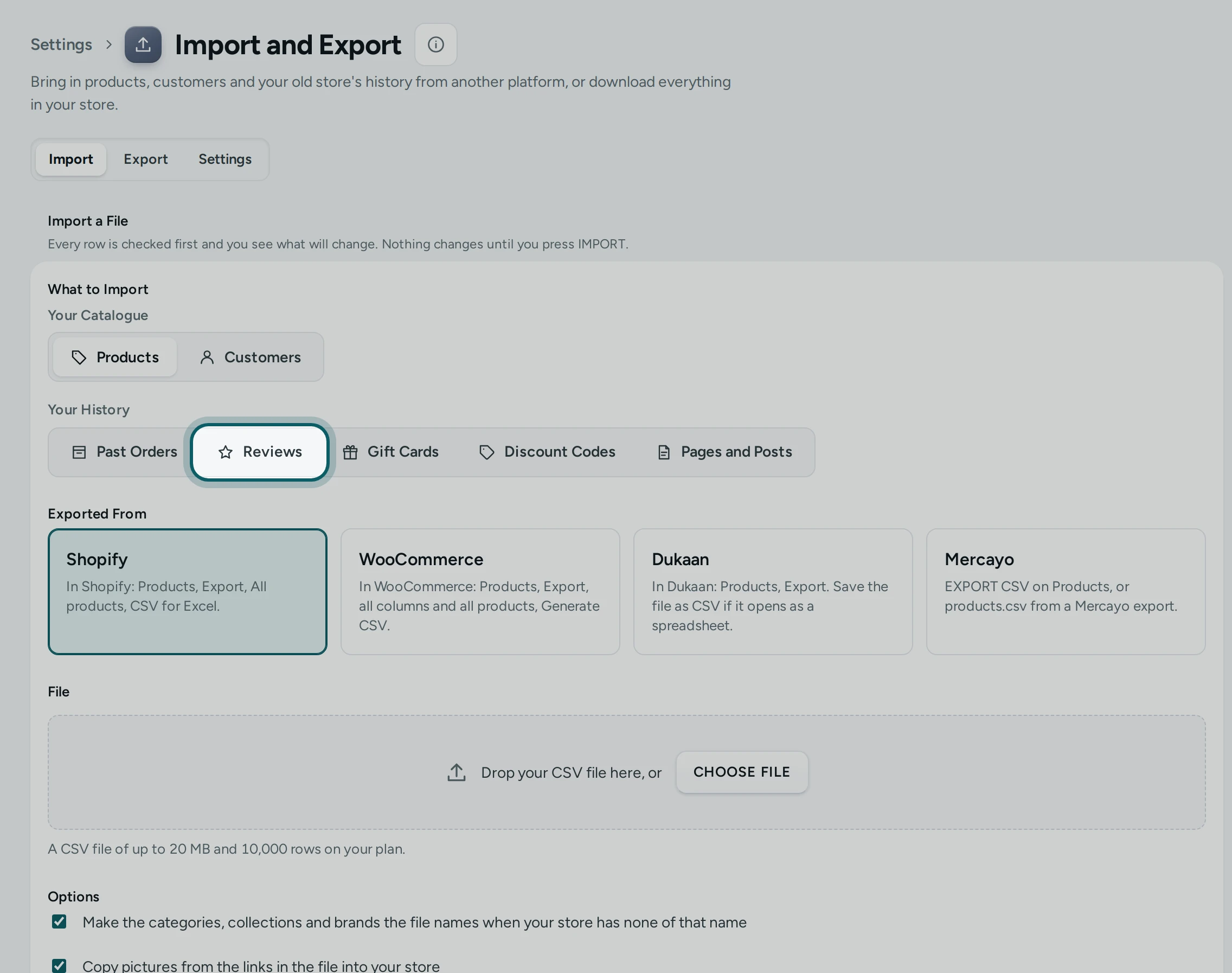
Open Settings › Import and Export, the Import tab. Under Your Catalogue, press Products and choose where the file came from.
Step 2 of 4
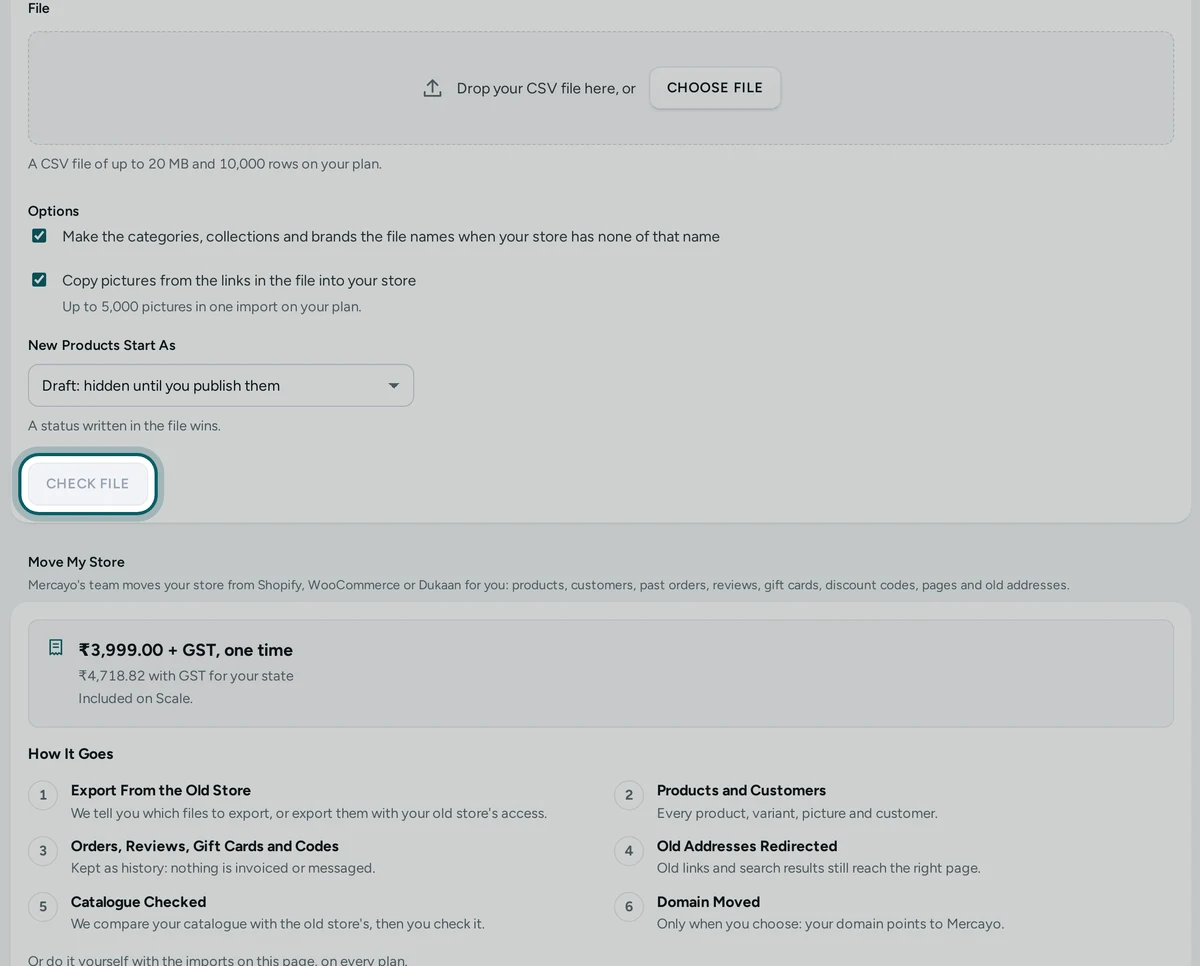
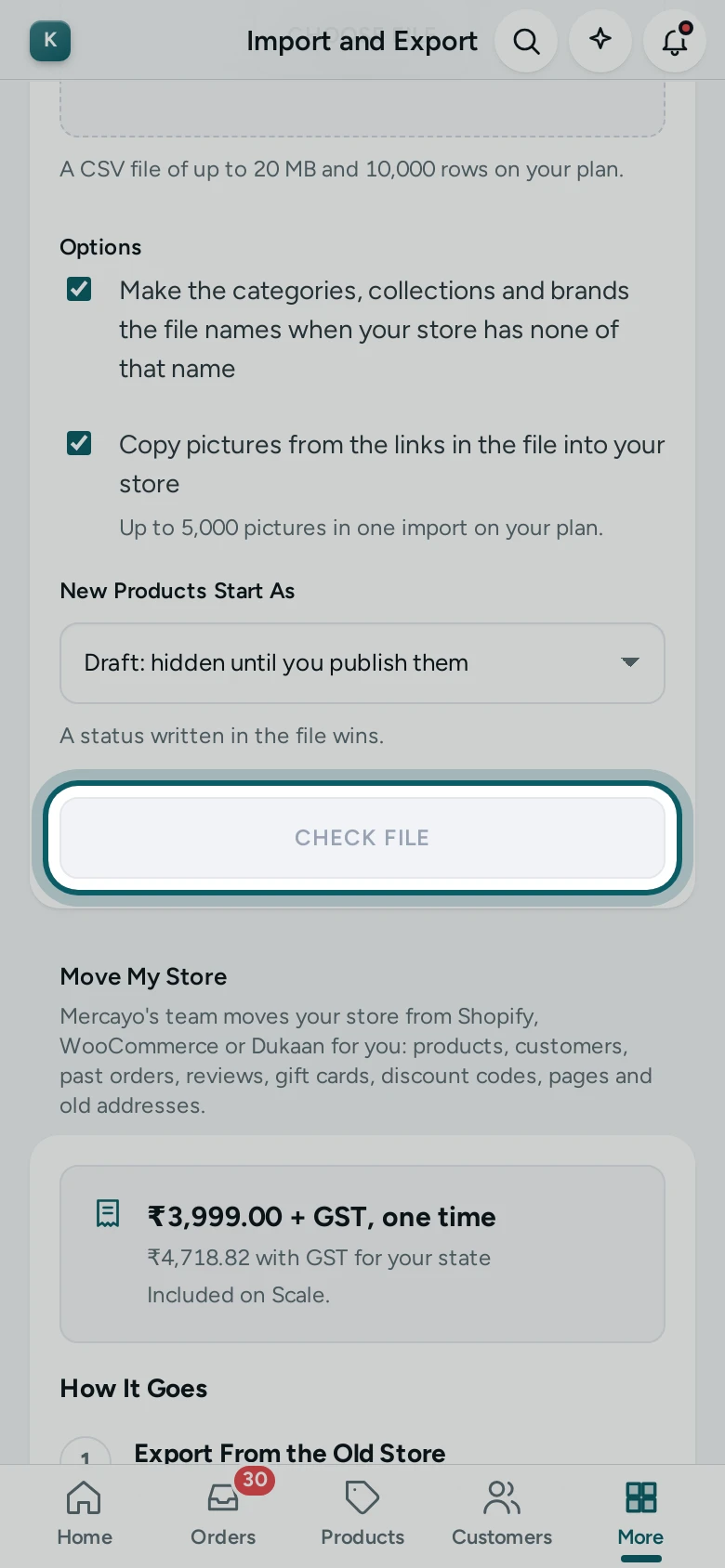
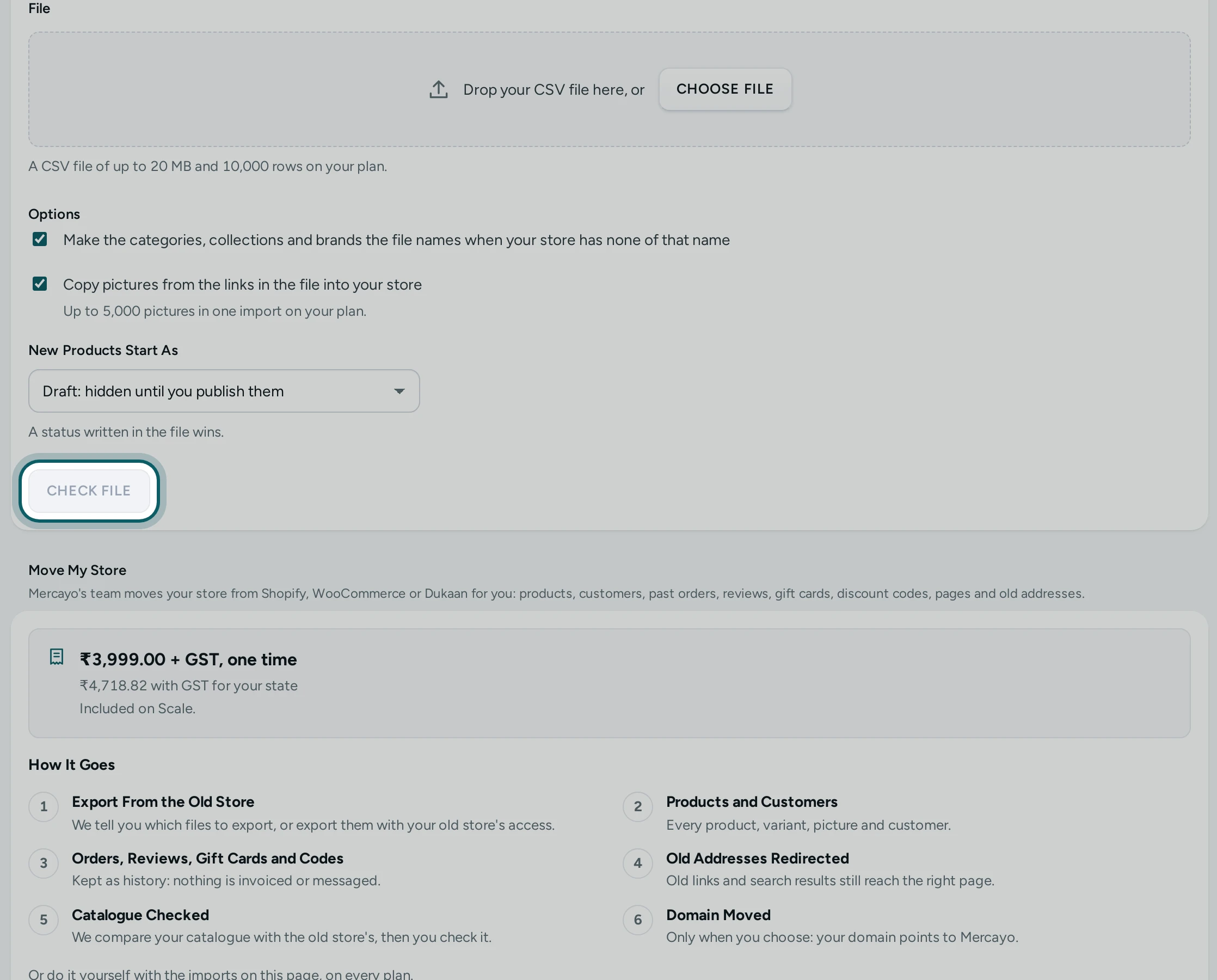
Add the products file and press CHECK FILE. Read the preview: what will be added, what has problems and why.
Step 3 of 4
Press IMPORT. New products arrive as drafts unless you chose Active. Wait for Import Finished.
Step 4 of 4
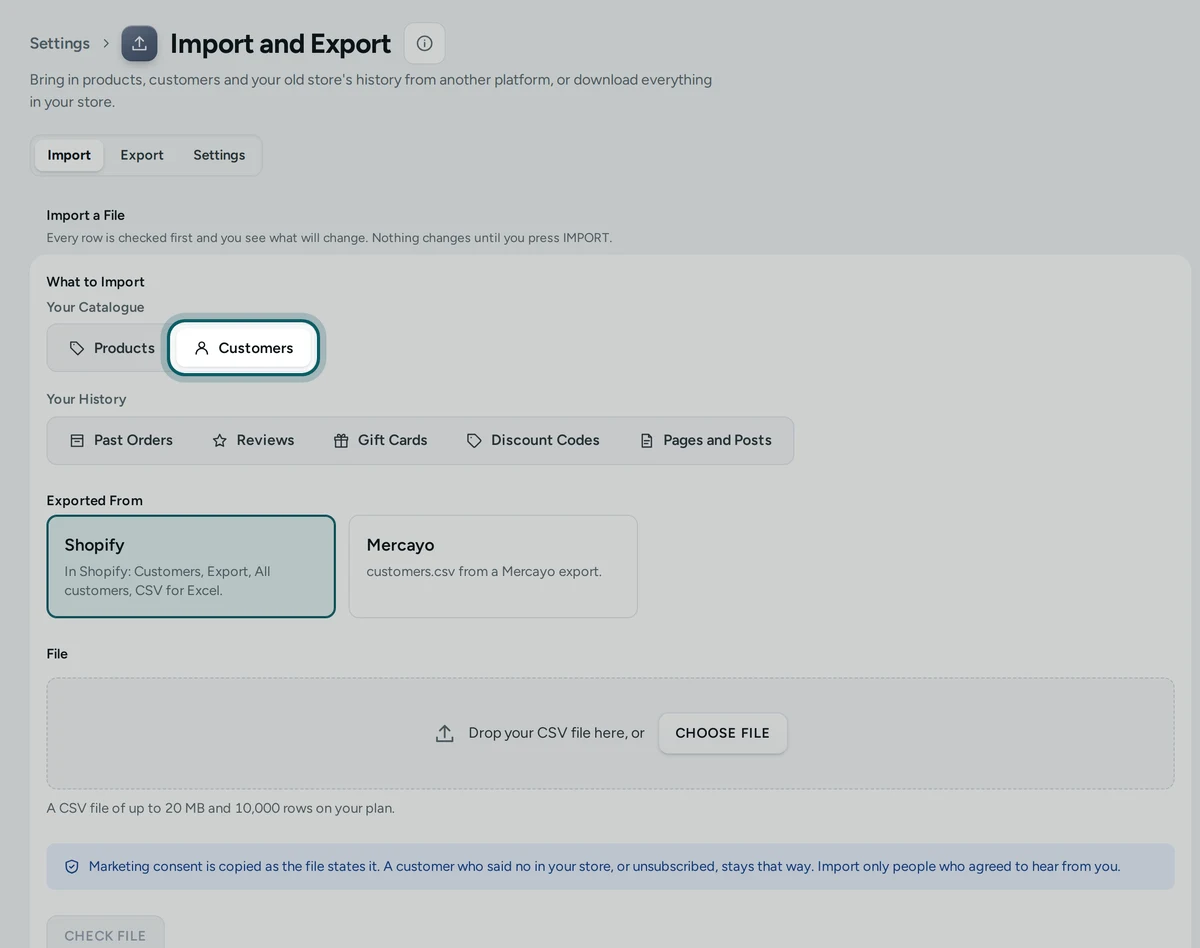
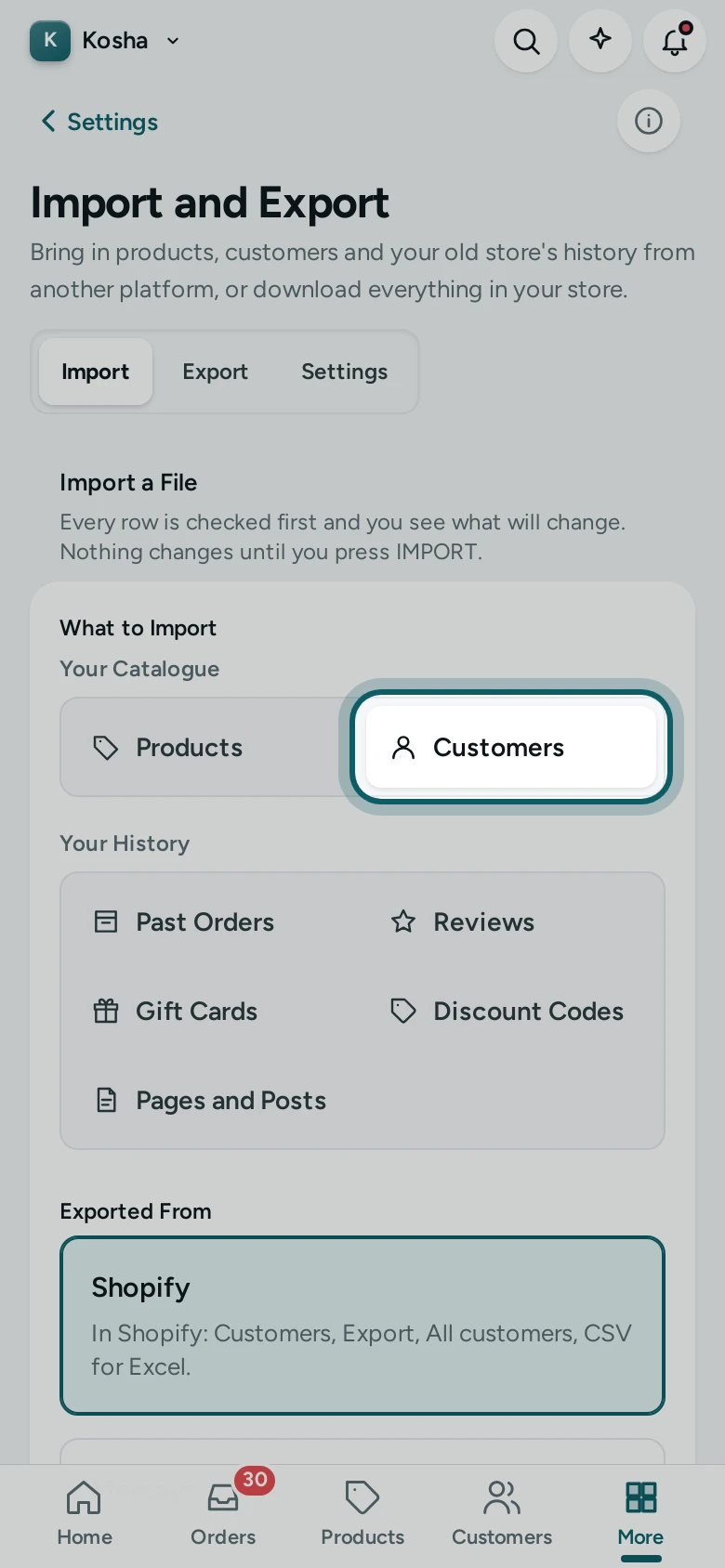
Press IMPORT ANOTHER FILE, then Customers (Shopify or Mercayo), the customers file, CHECK FILE and IMPORT. Their consent comes in exactly as the file says.
Your First Order History
Step 1 of 5
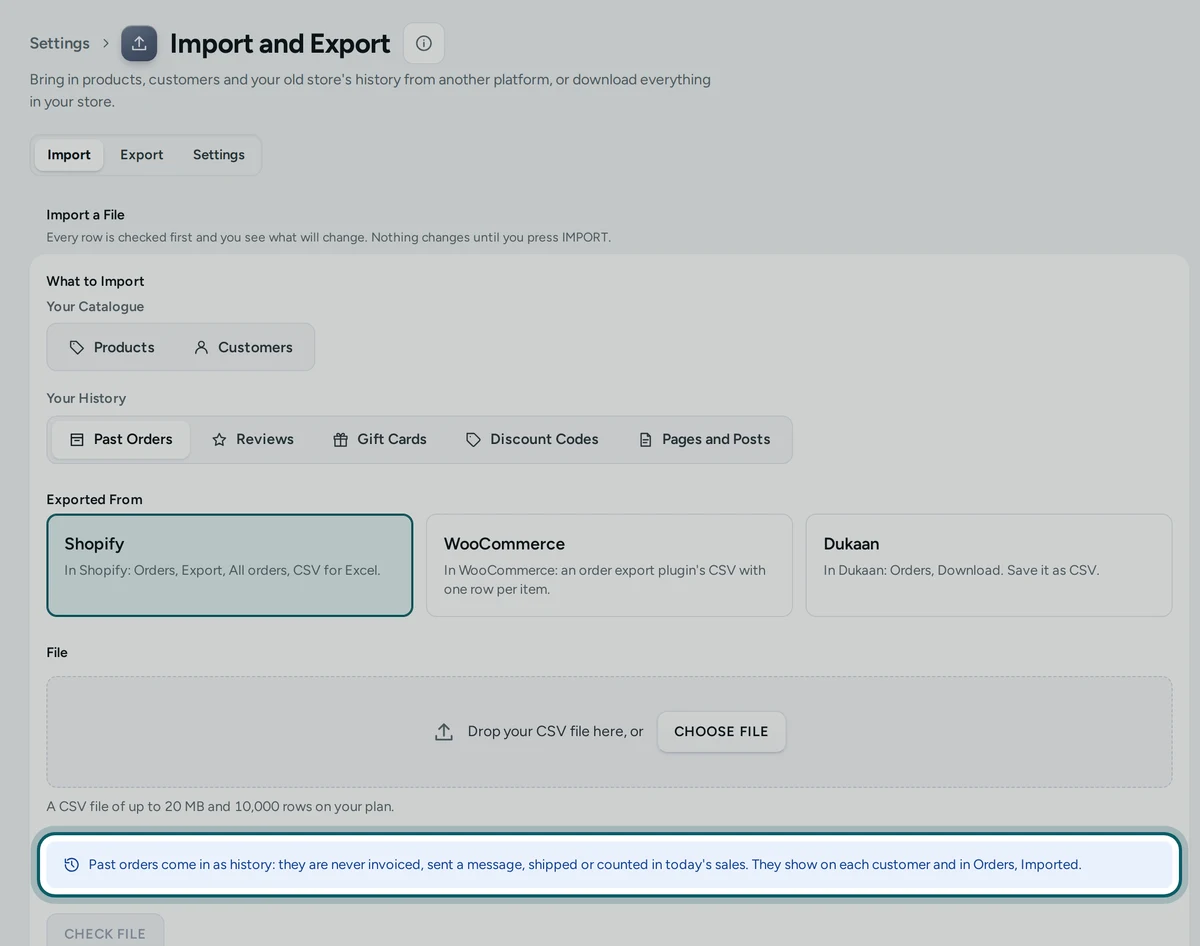
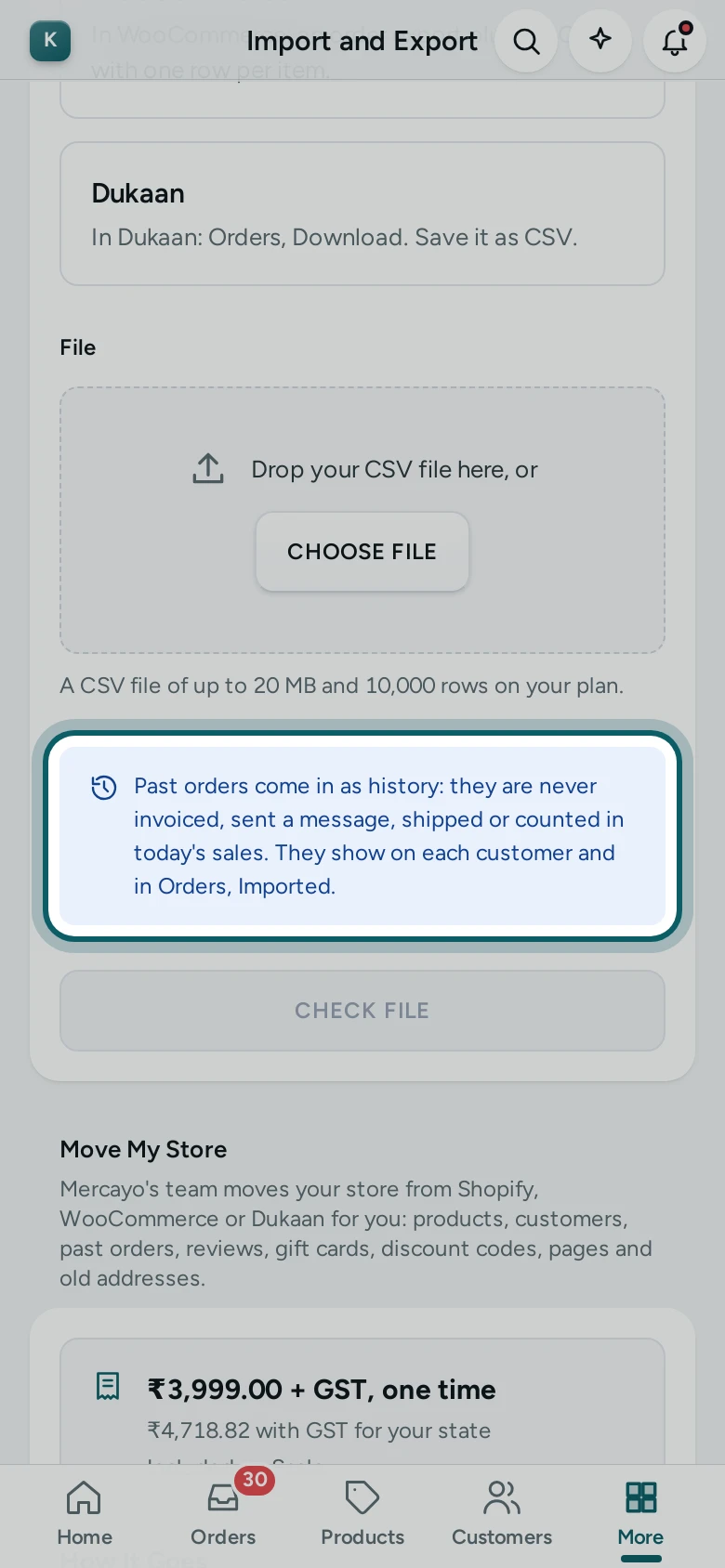
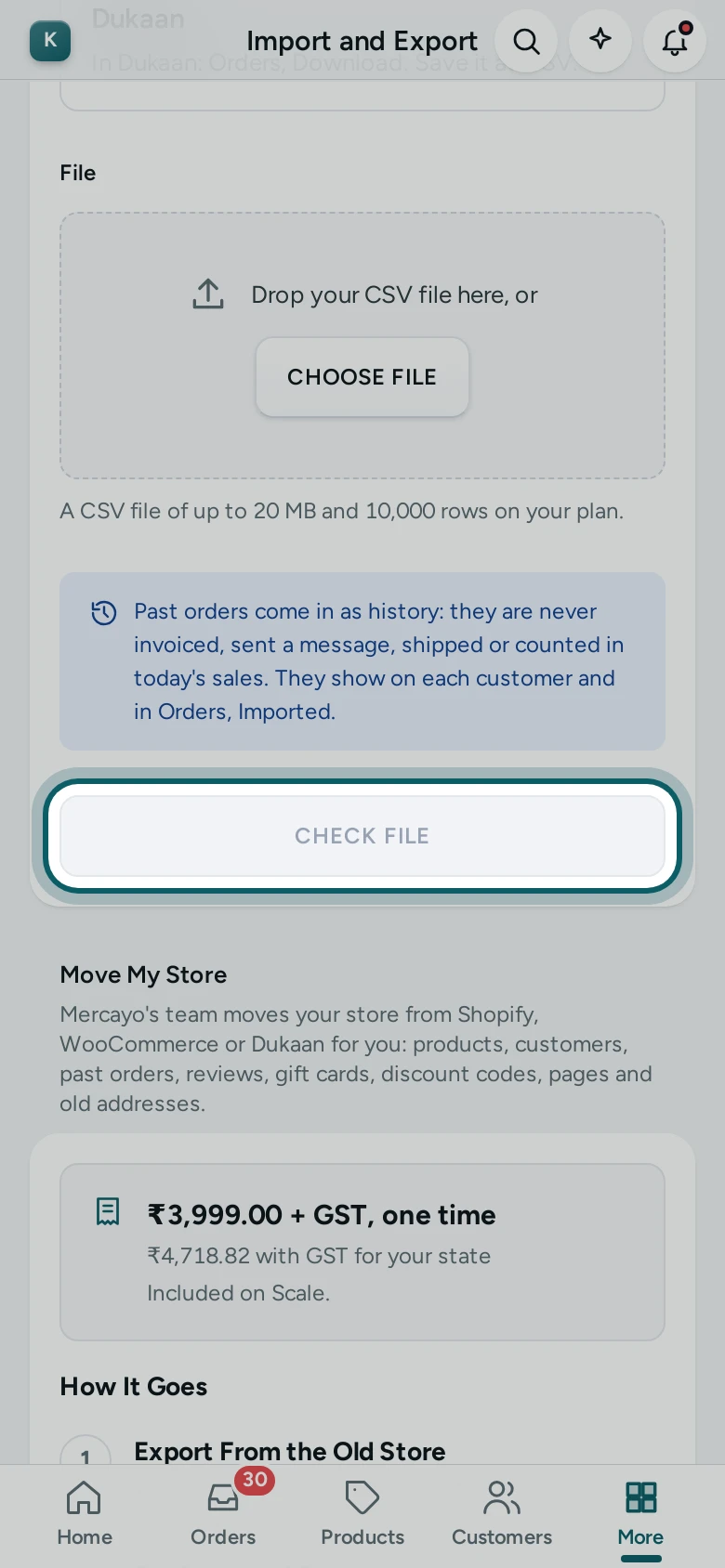
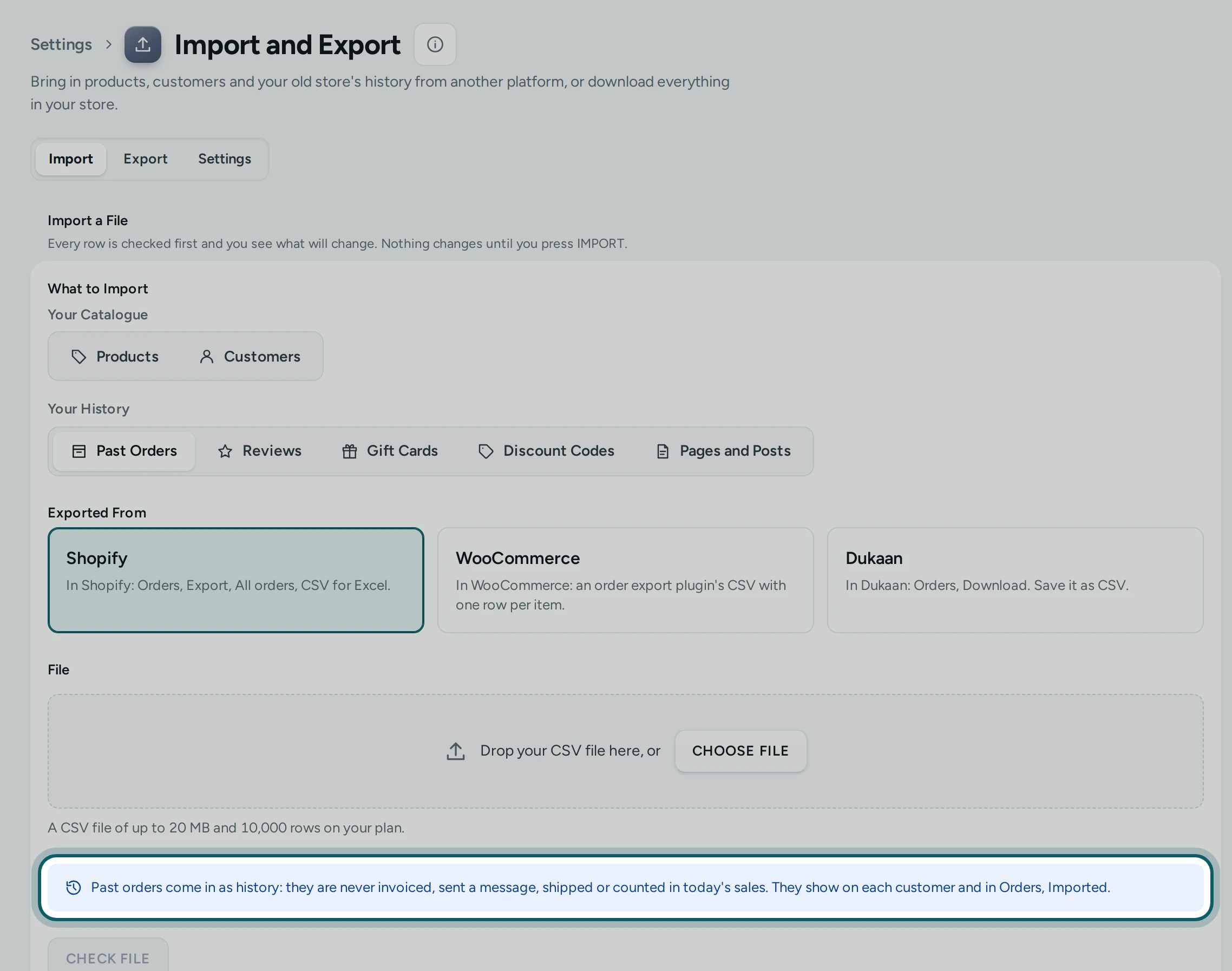
Press IMPORT ANOTHER FILE. Under Your History, press Past Orders and choose the platform. Read the note: past orders come in as history.
Step 2 of 5
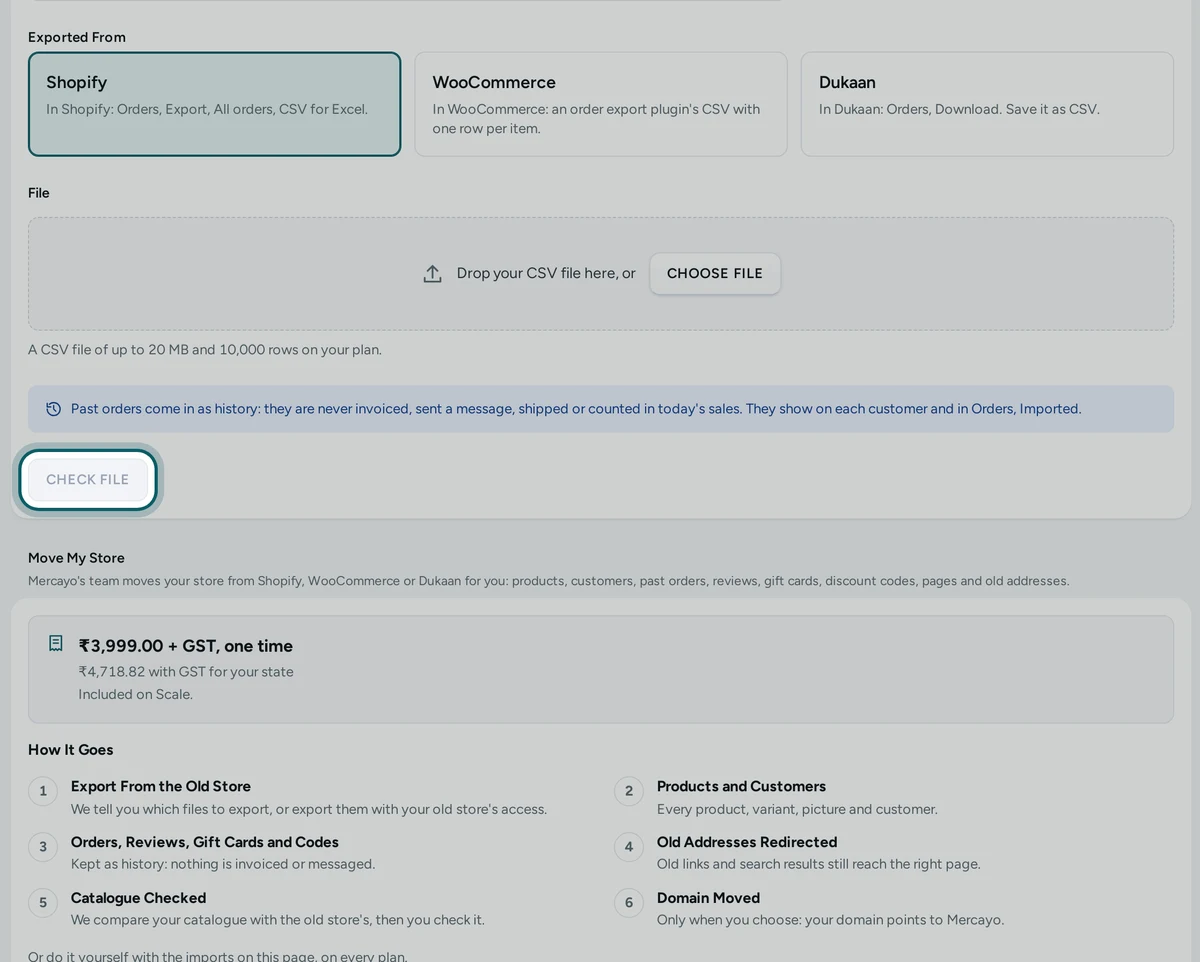
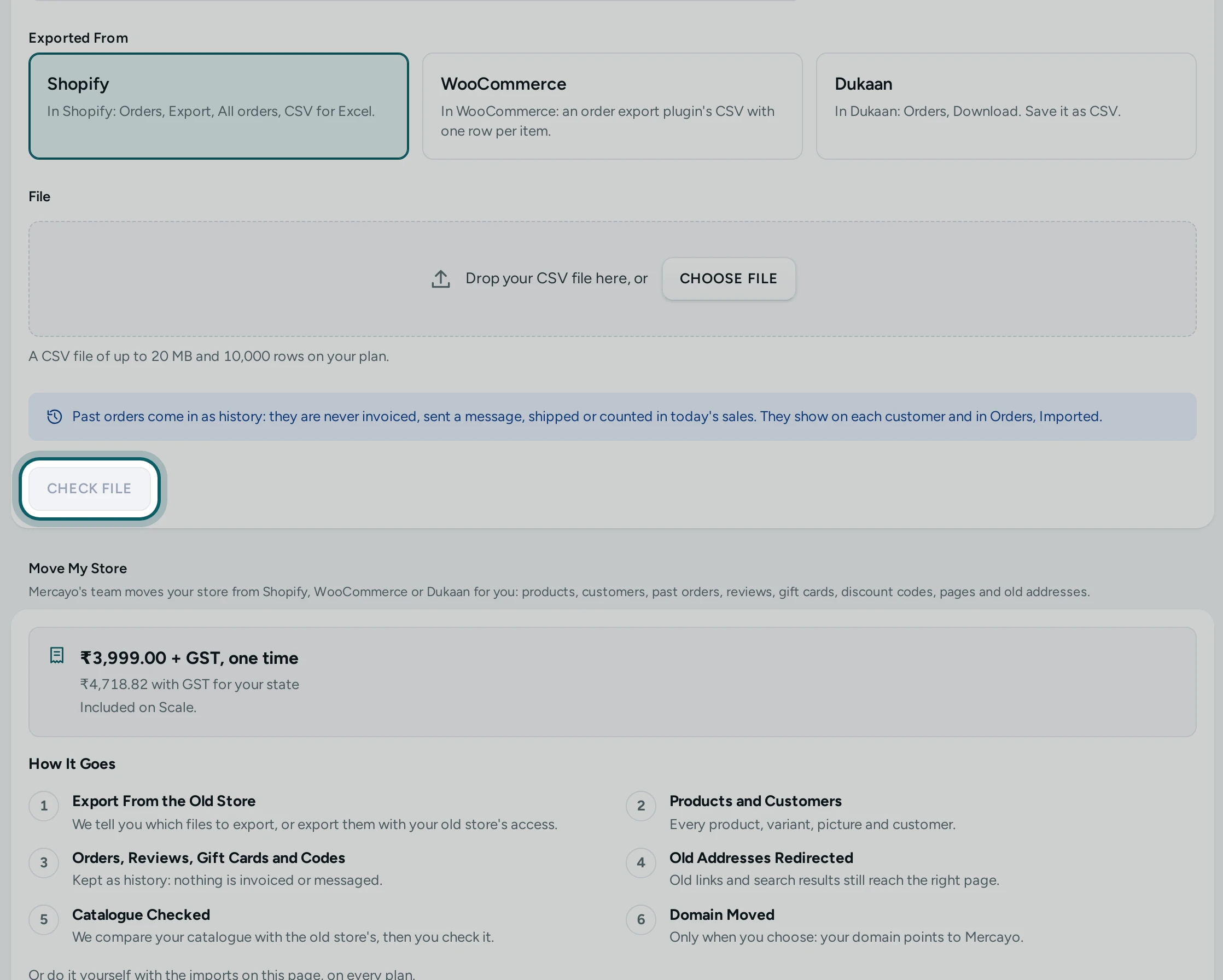
Add the orders file and press CHECK FILE. The preview counts the orders; Rows with Problems lists what is left out (a date or total that cannot be read) and what comes in with a note (another currency, no email or phone, items that are not products in your store).
Step 3 of 5
Press IMPORT, then VIEW IMPORTED ORDERS when it is finished.
Step 4 of 5
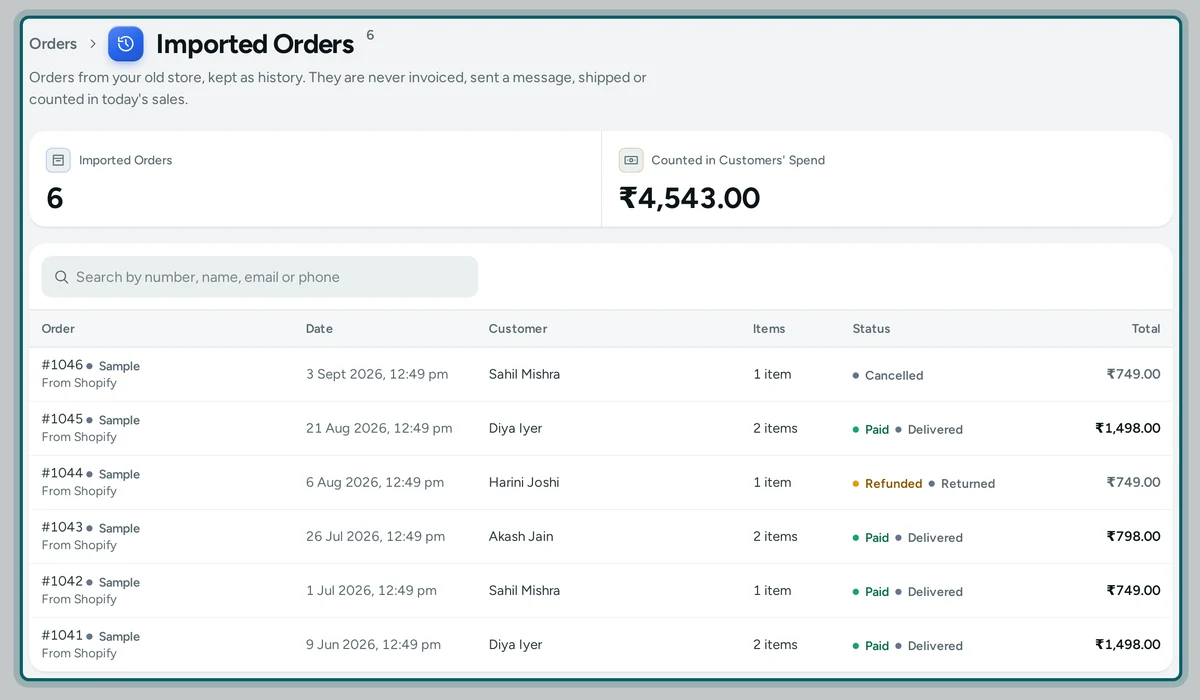
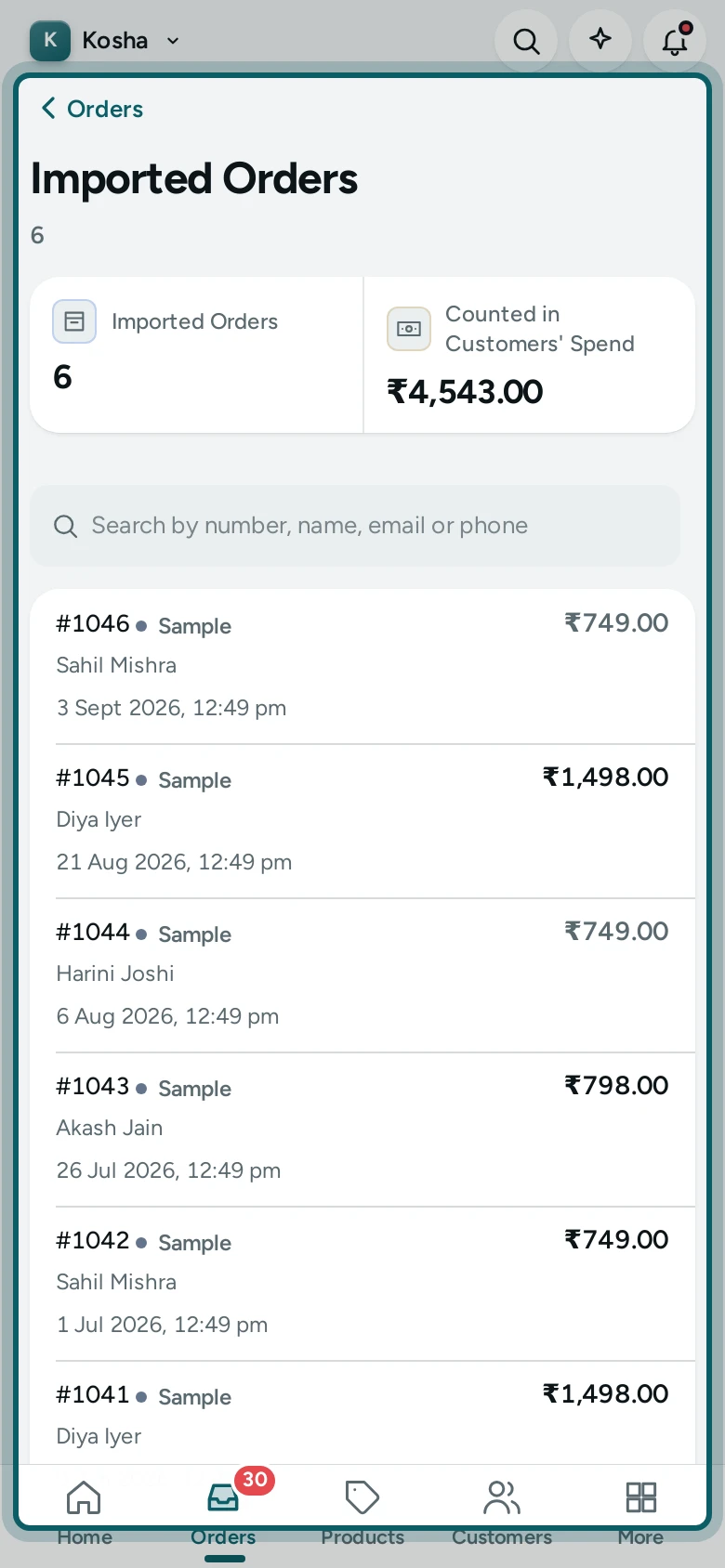
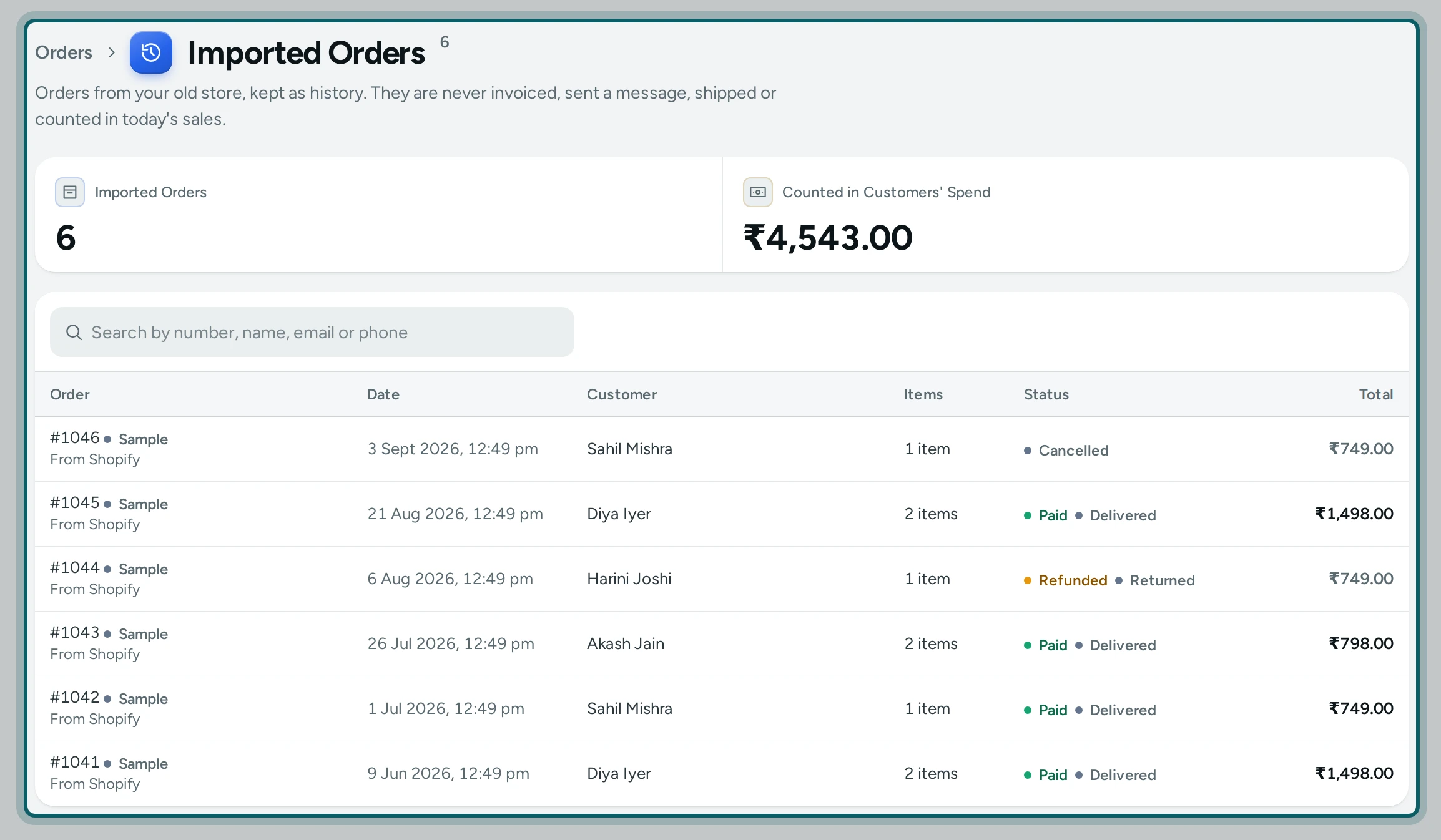
Orders → Imported lists your old orders with their numbers, dates, customers and totals. Open one to see its items, linked to your products where they match.
Step 5 of 5
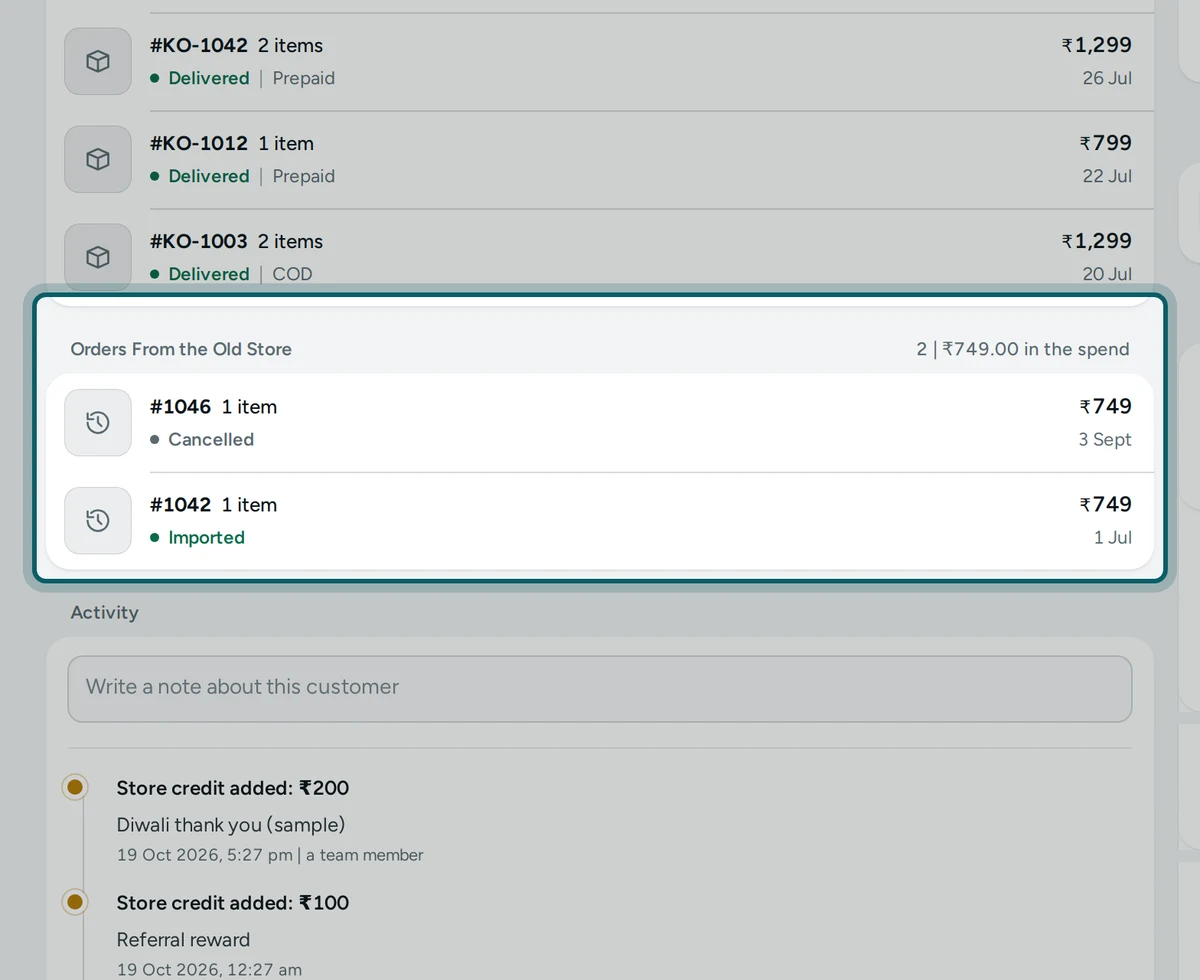
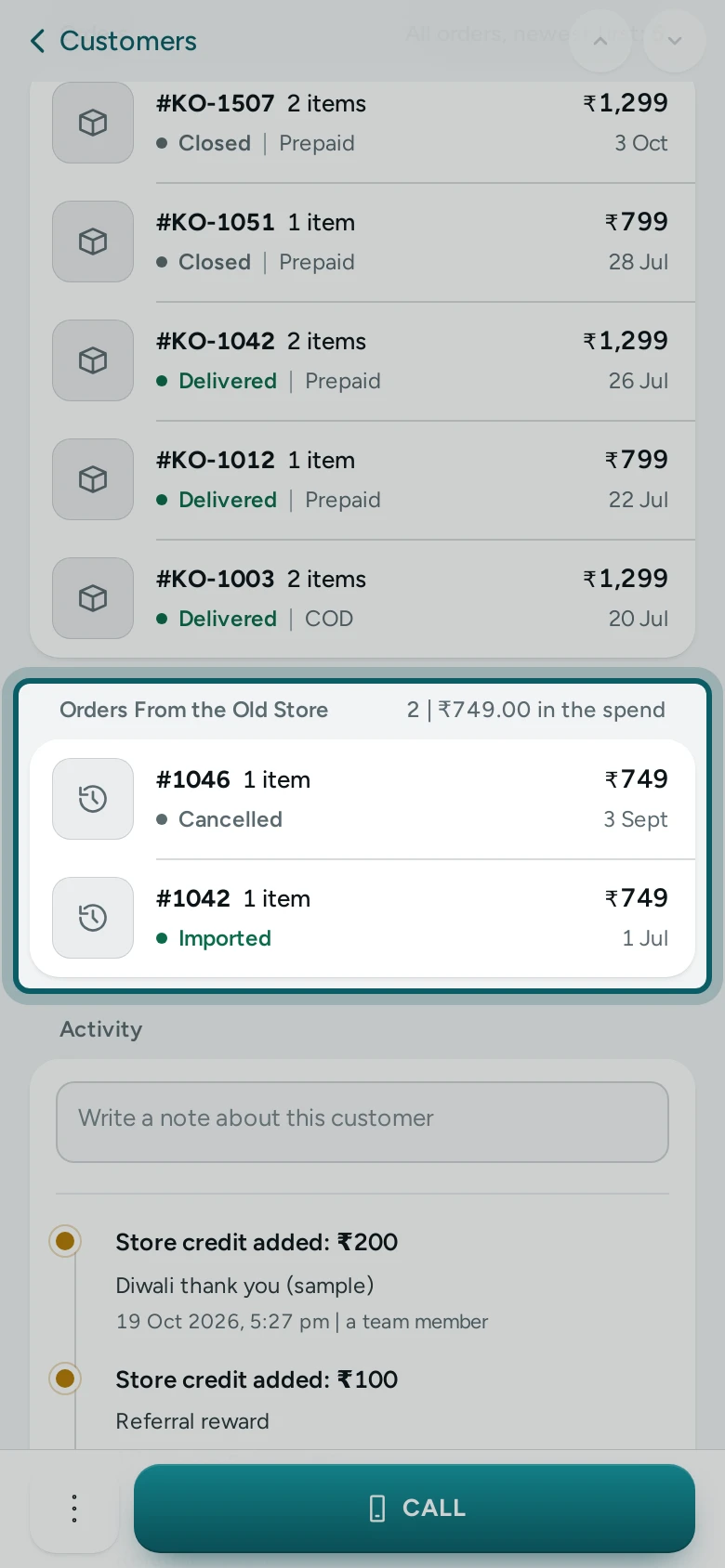
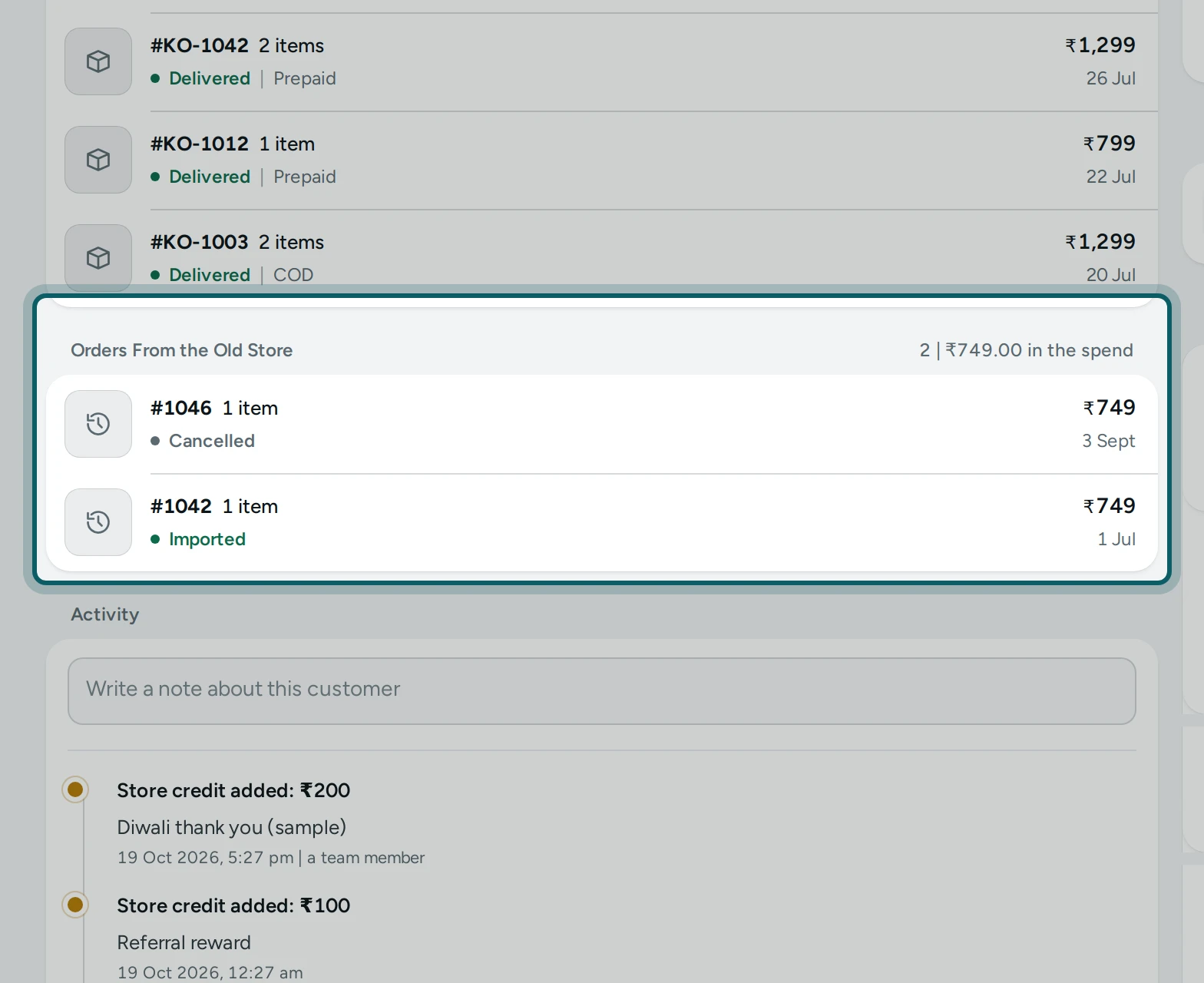
Open a customer from an imported order (VIEW CUSTOMER). Orders From the Old Store shows their old orders, and their orders and spend at the top count them.
What Next
Step 1 of 2
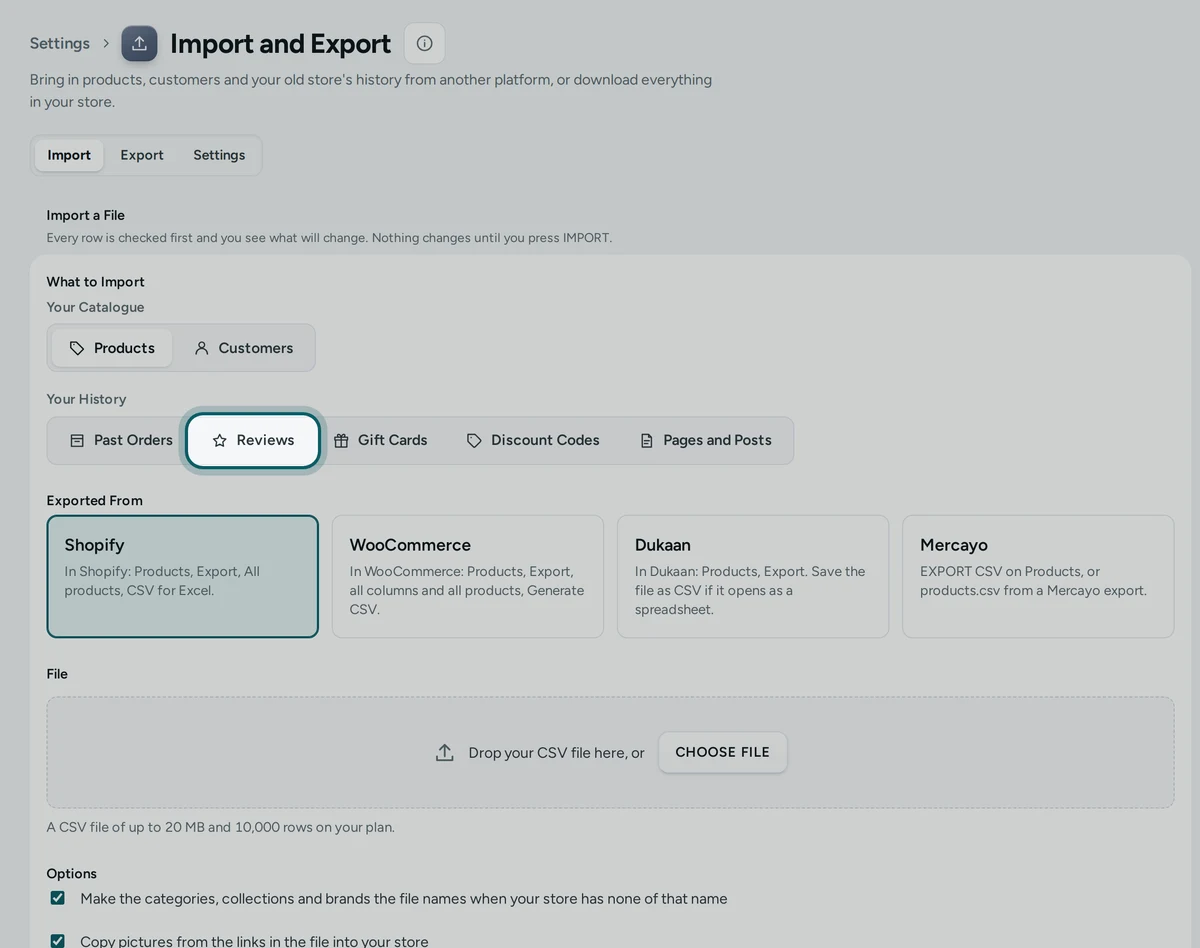
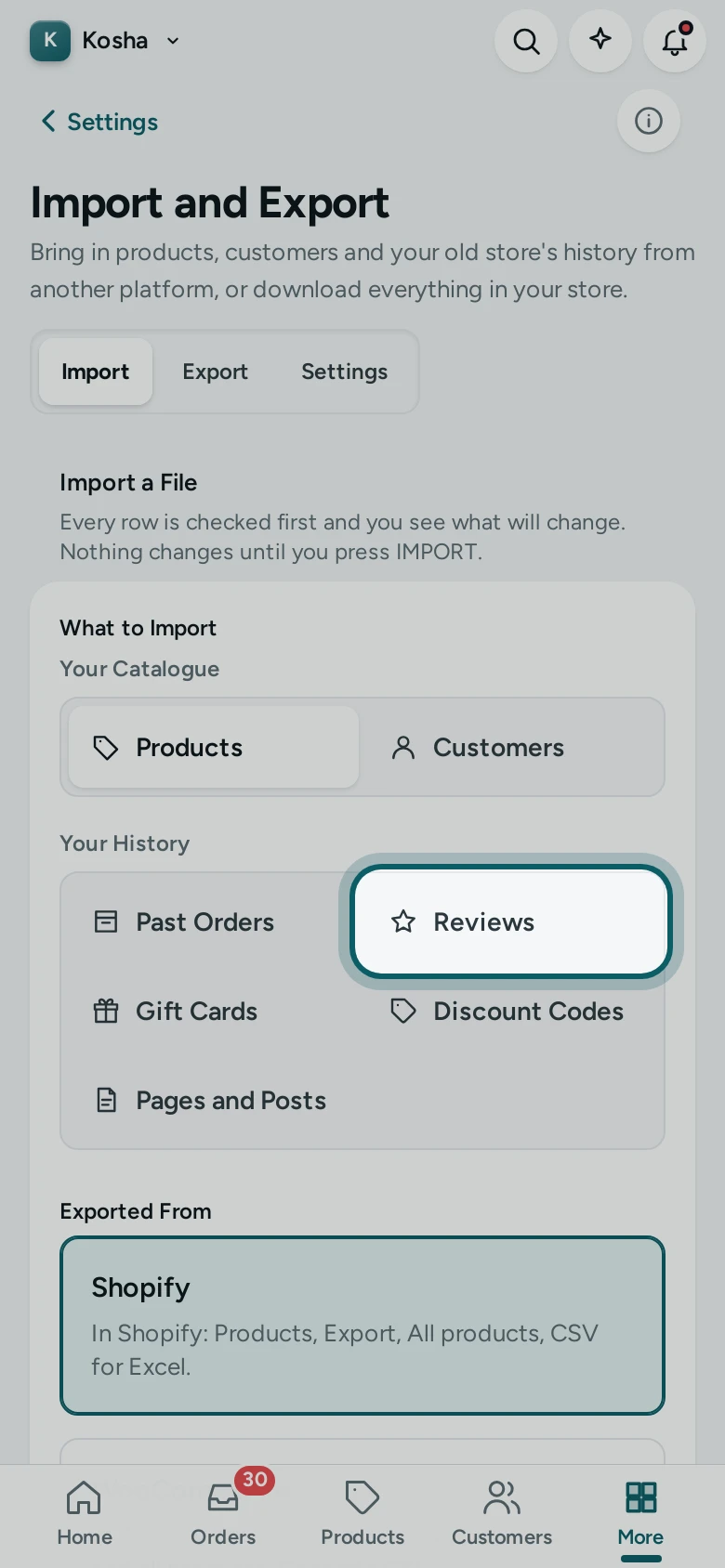
Bring the rest the same way: Reviews, Gift Cards, Discount Codes and Pages and Posts (see Move My Store for each).
Step 2 of 2
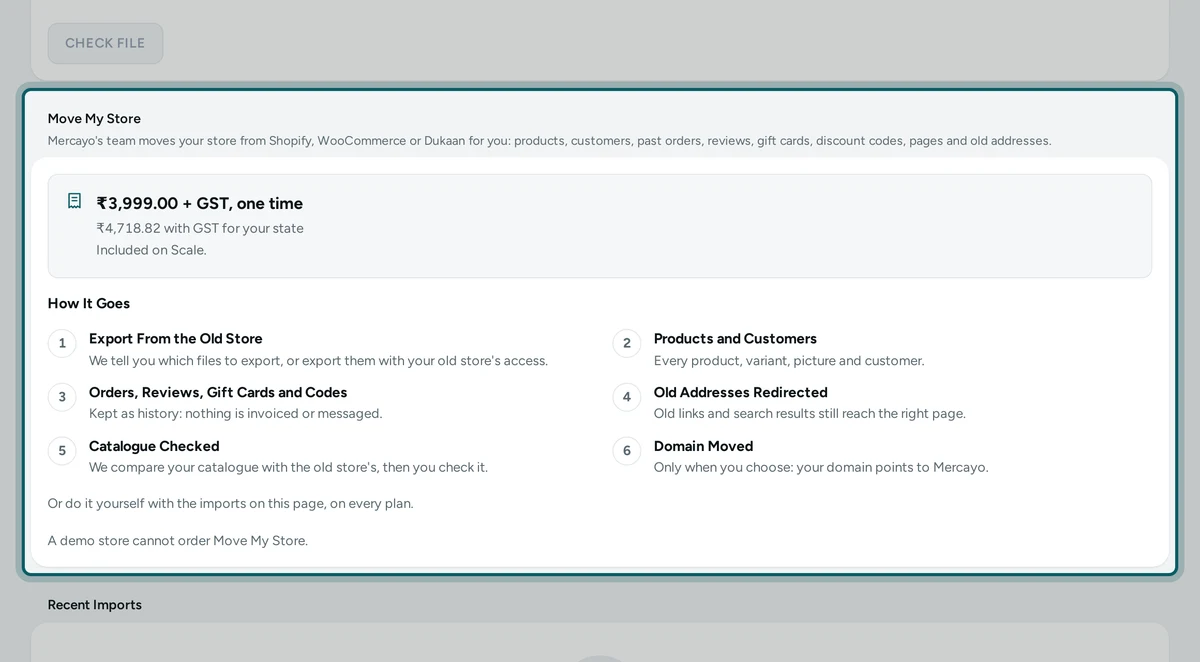
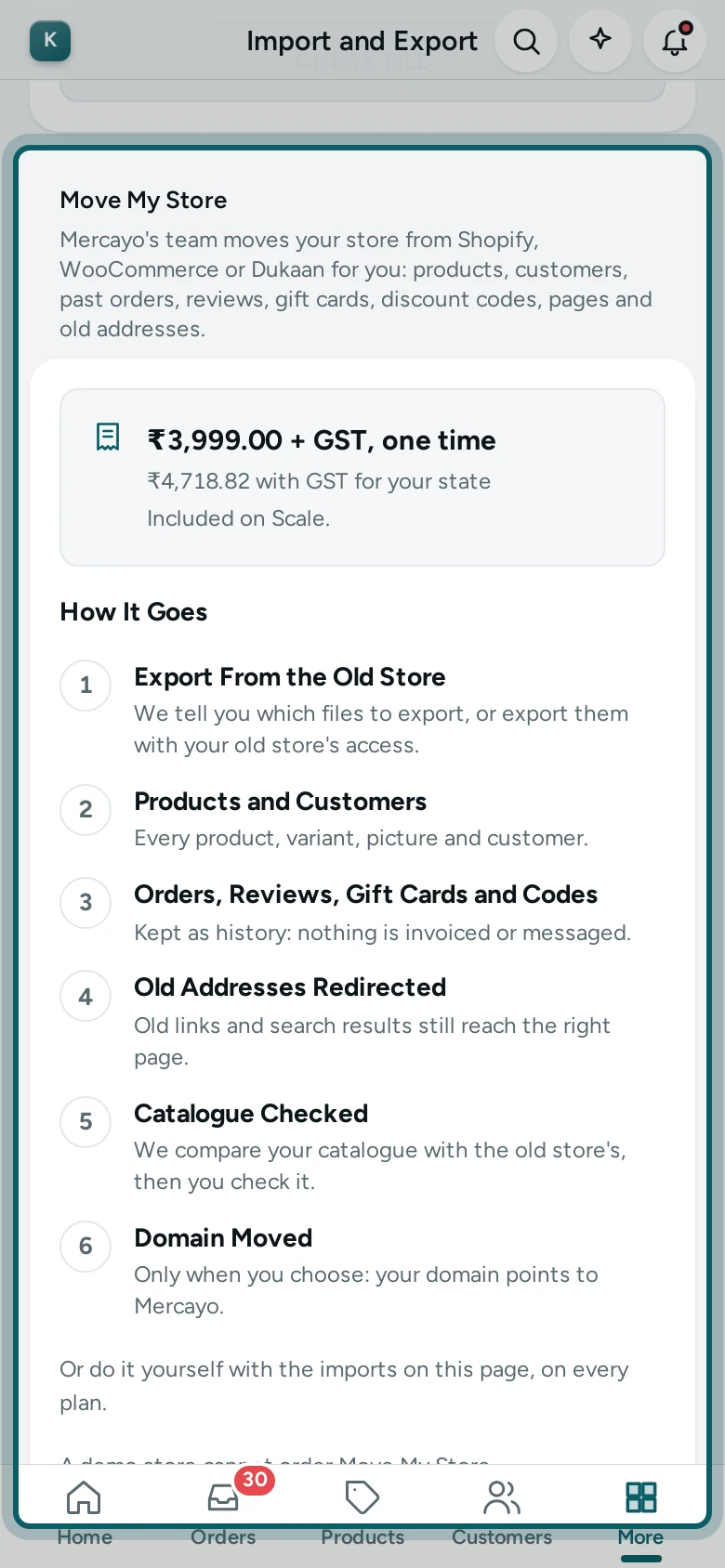
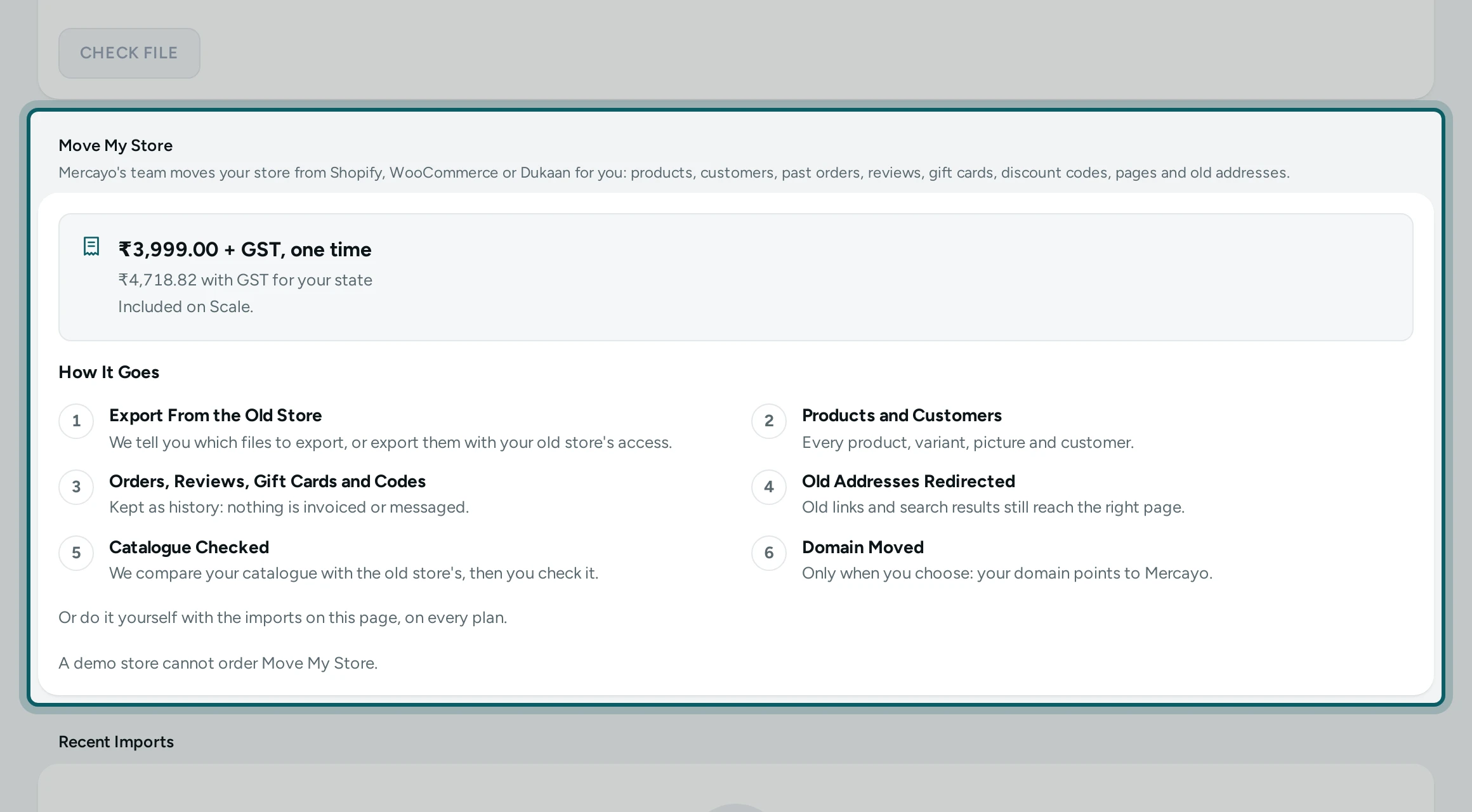
Prefer that we do it? On the Move My Store card, press ASK MERCAYO TO MOVE MY STORE: ₹3,999 + GST once, included on Scale.
Common Problems
| Message | What to Do |
|---|---|
| This looks like a file from Shopify. Choose Shopify above and try again. | Pick the right Exported From, or the right kind under What to Import |
| No product in your store has this handle, SKU or name. Import the products first. | Import the products file, then the reviews again |
| Kept without a customer: the order has no email or phone. | Nothing to do: the order is kept, just not on a customer |
| Some items are not products in your store; they are kept as text. | Nothing to do: an old product you no longer sell stays as its name |