Two pieces of paper go with every parcel: the courier's label (with the AWB number, the barcode the courier scans) on the outside, and your packing slip (what is inside, for the person packing and for the shopper) in the box. In Mercayo both are made from a selection on the Orders List, so packing a day's orders is a few clicks however many there are. Labels need the courier integration to be connected; packing slips work for every store. Making labels needs the right to process orders (the owner, admins and Order Manager); printing slips only needs the right to see orders, so Customer Support can print them too.
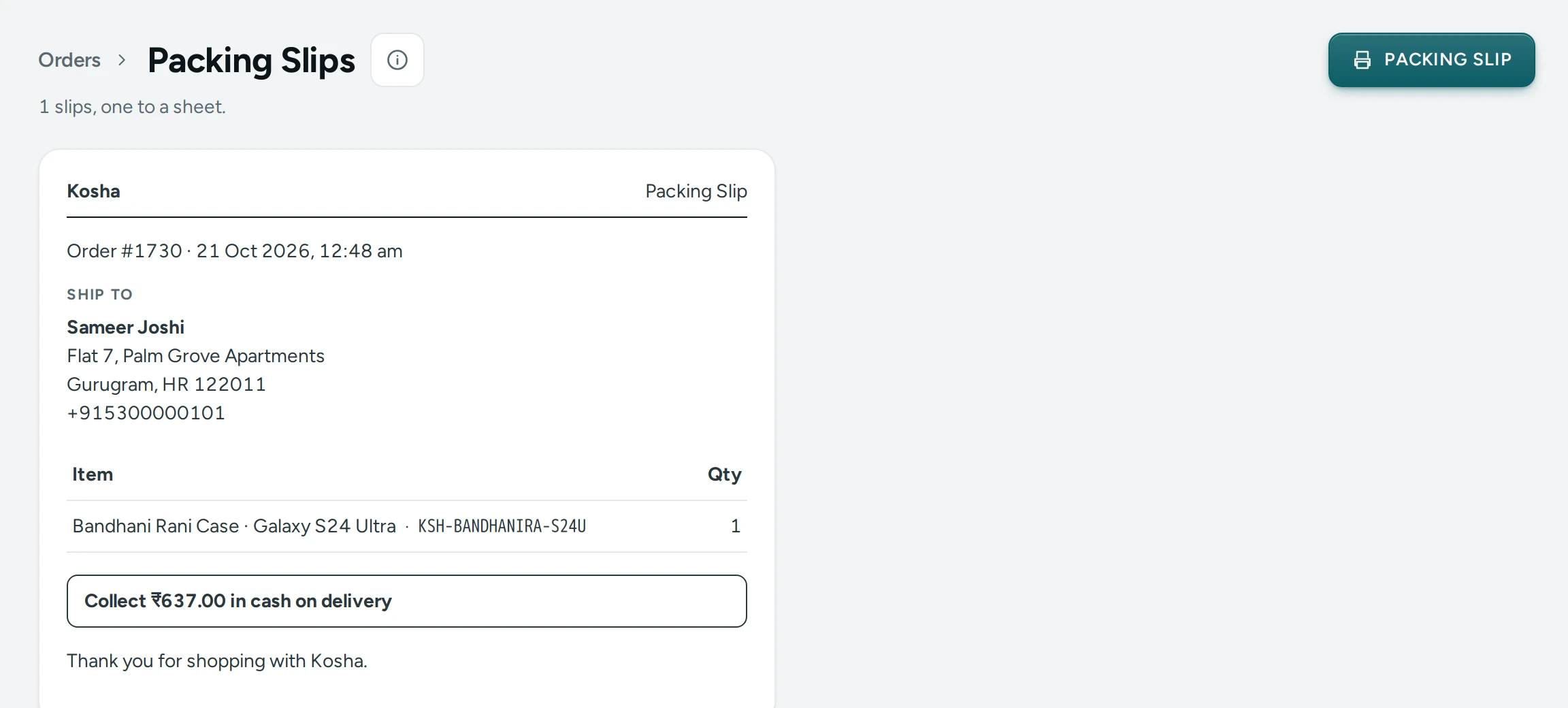
Packing Slips
What a Slip Shows
| Part | What It Shows |
|---|---|
| Header | Your store's name and Packing Slip |
| Order | Order #1042 and when it was placed |
| Ship To | The shopper's name, address, city, state, PIN code, landmark and phone |
| Item and Qty | Each item with its variant and SKU, a free gift marked as such, and any personalisation the shopper chose (initials, message, photo) |
| Cash line | For a COD parcel: Collect ₹1,299.00 in cash on delivery |
| Note from the Shopper | What the shopper wrote at checkout, if anything |
| Gift Message or Gift: Please Wrap | For a gift: the message, and the wrap request |
| Thank-you line | "Thank you for shopping with Kosha." |
A packing slip never shows prices. When the shopper marked the order as a gift with prices hidden, the cash line is left off too, so the person receiving the gift sees no amount (the courier's label still carries the amount to collect).
How to Print Slips for Many Orders
- Open Orders and filter to the orders you are packing, for example the To ship tab.
- Tick the orders (or the box in the header to take every order on the page).
- Press PRINT PACKING SLIPS in the bulk bar.
- The Packing Slips page opens with "12 slips, one to a sheet." and your browser's print window opens by itself.
- Choose your printer (A4 or A5 both work) and print. To print again later, press PACKING SLIP at the top of the page.
Up to 100 orders can go on one Packing Slips page. If you open the page without choosing orders it says No Slips to Print: "Choose orders in the list, then PRINT PACKING SLIPS."
How to Print One Slip
On the Order Page, press PACKING SLIP in the summary band; only the slip is printed. From the list, the row menu's Print Packing Slip does the same.
Courier Labels
Labels are made in bulk only, from the Orders list. There is no label button on the order page: one place, one routine.
Before You Start
- Connect your courier account (Shiprocket or Shipway) and switch on Courier Integration. See Couriers.
- Give your products a weight, or set a Package Weight (g) in Settings › Labels and Pickups. An order whose items have no weight and no package weight is refused with "Weight missing".
- Decide how a courier is chosen (Choosing the Courier: cheapest by default, or fastest, or your preferred list) and whether to Book the Pickup with the Labels. See Labels and Pickups Settings.
How to Generate Labels
- On Orders, open the To ship tab.
- Tick the orders that are packed and ready, up to 100 at a time.
- Press GENERATE LABELS.
- Read the confirmation: "Make labels for 12 orders? Each gets a courier by your rule and an AWB." and "Shiprocket charges your wallet for each AWB it gives. Orders that cannot ship say why, and nothing is charged for them."
- Press GENERATE LABELS in the dialog. While it runs ("Making labels for 12 orders…") keep the window open: each order is booked with the courier one by one, a few seconds per order.
- When it finishes you see how many are ready to ship and how many need attention, and one line per order: Label ready with "AWB 1234567890 · Delhivery", or Failed with the reason.
- Press DOWNLOAD LABELS (PDF) for one PDF with all the new labels, print them and stick one on each parcel.
- Press DONE. The orders that failed stay selected on the list, ready for another try once you have fixed what each one says.
Why an Order Can Fail
| Reason Shown | What To Do |
|---|---|
| Already has a label (AWB …) | The order already has a live parcel. Open its parcel from the order page |
| Already being shipped with … | A parcel is being made with another courier account |
| Not paid yet | An online order still awaiting payment cannot ship |
| Cancelled, Already fulfilled, Already delivered | Only orders that are To ship get labels |
| Weight missing | Add weights to the products, or a package weight in Settings |
| A reason in the courier's own words | For example a PIN code the courier does not serve. Fix it and try again |
| No answer for this order; open it to check | The courier did not say. Open the order before trying again |
When the courier stops accepting your account's sign-in in the middle of a run, the run stops: "The run stopped: … Reconnect Shiprocket in Settings, then try the rest again." If the courier cannot be reached at all: "Shiprocket could not be reached just now. No label was made; try again in a minute."
A label can be made with its pickup not booked (when Book the Pickup with the Labels is on and the courier refused the pickup); that order shows Label ready with the pickup problem under it, and you can book the pickup in your courier account.
After the Labels
- Each order now has a parcel: it appears on Shipments under To Pickup, and the order page's Parcel card shows the courier and AWB with DOWNLOAD LABEL to print that label again.
- The order stays To ship until the courier reports the pickup; then Mercayo marks it Shipped and the shopper is told.
- Tracking updates arrive as the courier sends them and show on the parcel, the order and the shopper's tracking page.
Good to Know
- One live parcel per order: a second label for the same order is refused until the first parcel is cancelled.
- The weight sent to the courier is the sum of the items' variant weights; when that is zero, your package weight; at most 100 kg. The parcel size comes from your package length, breadth and height (10 × 10 × 5 cm by default).
- The cash amount on a COD label is what the order still owes: with part payment for COD, only the part to be paid in cash.
- Packing slips are read fresh each time you open the page, so they always show the order as it is now.
Questions
Can I make a label for one order?
Yes: select just that order on the list and press GENERATE LABELS. The confirmation then reads "Make a label for this order?"
Where do I print a label again?
On the order's Parcel card or its Shipment Page, press DOWNLOAD LABEL.
Why do slips not show prices?
So the slip can go in the box, even for gifts. The invoice carries the prices; the shopper can download it from their order page.
Can I use labels without Shiprocket or Shipway?
Mercayo makes labels only through a connected courier account. Without one, ship with your own courier, print packing slips here, and press Ship on each order.
What paper size does the slip use?
It follows your browser's print settings, one slip to a sheet. A4 and A5 both work; choose in the print window.