The discount editor is one screen for every kind of offer Mercayo has: a code like WELCOME10, 10% off the whole order, ₹100 off each saree, all phone cases at ₹499, free delivery over ₹999, "any 3 kurtis for ₹1,999", spend tiers, an add-on at a special price, a free gift, or buy 2 get 1 free. You fill in the cards, the Summary on the side says the offer back to you in plain words, and one SAVE stores it. Open it from Marketing › Discounts: press CREATE DISCOUNT for a new offer, or tap an offer in the list to change it.
Changing offers needs the right to edit discounts: the owner, admins and the Marketer role. A role that can only see discounts opens the editor read-only: "Your role can look at discounts but not change them." Choosing products needs the right to see products too; without it the editor says "Your role cannot see products, so it cannot choose them. Ask the store owner."
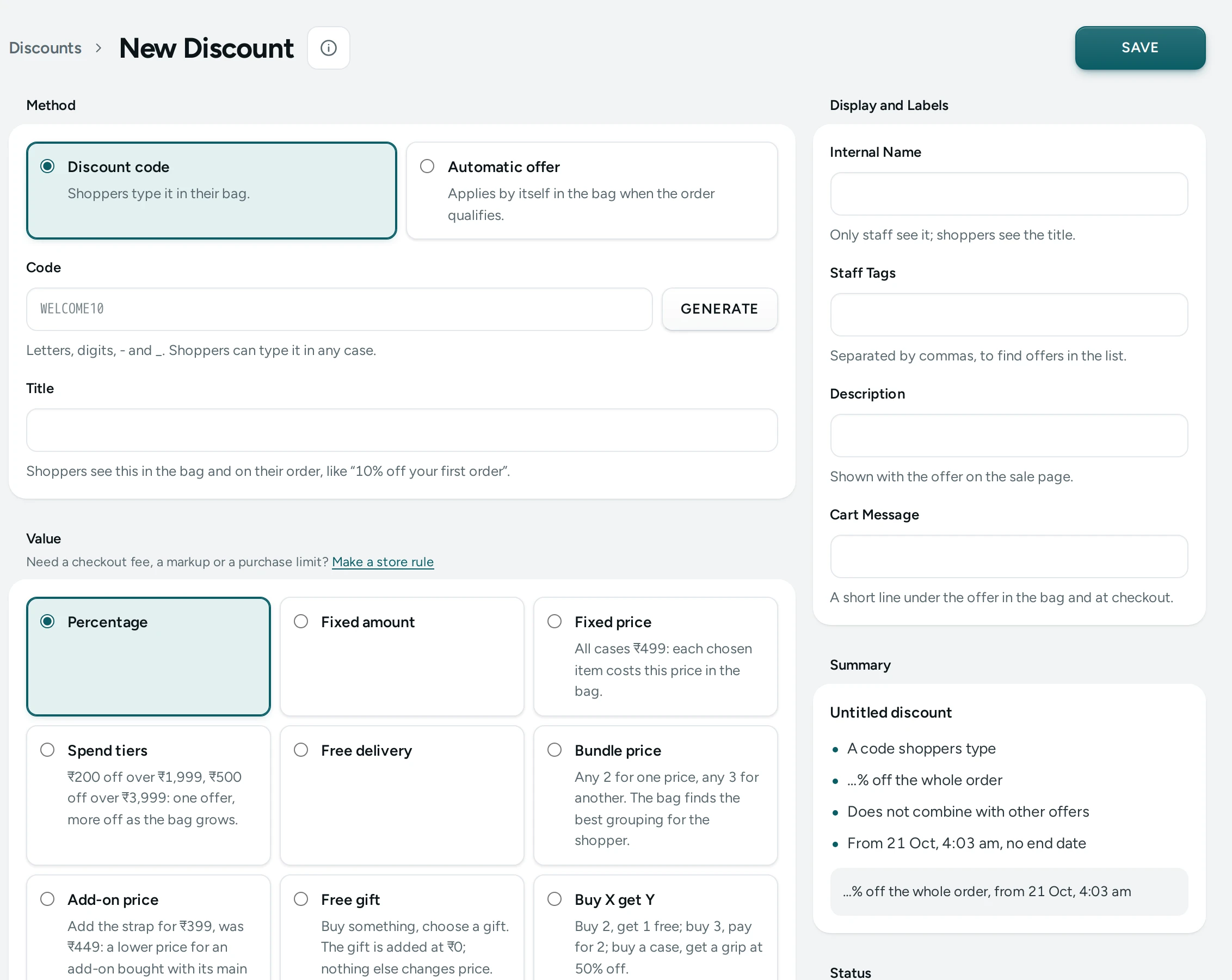
How the Screen Is Laid Out
The main column holds the cards in this order: Method, One-Time Codes (saved code discounts only), Value, the cards a kind needs (Gifts to Choose From, Bundle Sizes, Add-Ons and Special Prices), Minimum Purchase, Exclusions, Limits, Combinations, Who Can Use It, On Product Pages, Active Dates and Try a Bag. The side column holds Summary and Status. On a phone the side cards come after the main ones.
Cards appear and disappear with your choices: a bundle, for example, has no Minimum Purchase card, because its smallest size is its minimum.
The Top of the Screen
- The title is the offer's saved title, or New Discount for a new one, with its status pill (Active, Scheduled, Expired, Used up, Draft or Archived).
- REPORT opens the offer's Discount Report. It appears once the offer is saved.
- DUPLICATE makes a draft copy of the saved offer, titled "Title (copy)", and opens it. Changes you have not saved are not in the copy.
- SAVE saves the whole offer. On a saved offer it is greyed while nothing has changed.
- More Actions holds Delete. On a phone, REPORT and DUPLICATE move into More Actions too.
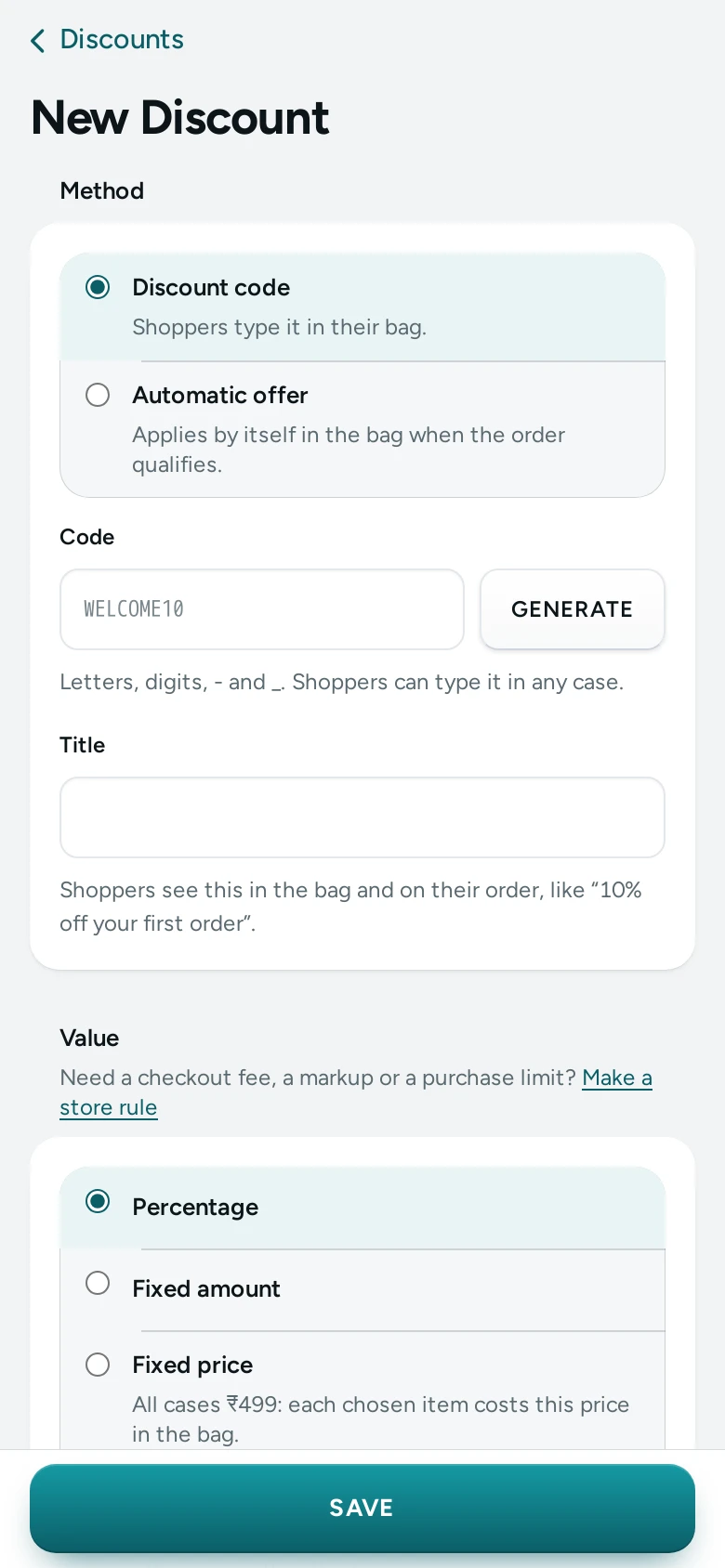
Method
| Choice | What It Means |
|---|---|
| Discount code (the default) | "Shoppers type it in the bag or at checkout." |
| Automatic offer | "Applies by itself in the bag when the order qualifies." |
For a code, type it in Code: "Letters, digits, - and _. Shoppers can type it in any case." It is up to 40 characters with no spaces, stored in capital letters, so welcome10 and WELCOME10 are the same code. GENERATE makes a random 8-character code for you. A code must be new in your store: if another discount (or one of its one-time codes) already has it, saving says "That code is taken. Choose another, or press GENERATE."
For an automatic offer, the card reminds you: "Automatic offers apply together, and with codes, when each says it combines with the other's kind (Combinations, below)."
Its own code works too appears on a saved code discount (not a gift): "Off: only the one-time codes work, each once." Use it with the One-Time Codes card when every influencer or customer should get their own code. See Discount Codes.
Title is required, up to 80 characters: "Shoppers see this in the bag and on their order, like “10% off your first order”." Write it for the shopper, not for yourself.
One-Time Codes
This card appears on a code discount once it is saved. It makes up to 10,000 single-use codes for the one discount, lists them with their status, revokes them and exports them as a CSV file. Every part of it is explained in Discount Codes.
Value: What the Offer Gives
Choose one value. Some appear only when the kind is switched on in Discount Settings; an offer already saved with a kind that was later switched off stays visible.
| Value | Example | What You Fill In |
|---|---|---|
| Percentage | 10% off the order, 20% off sarees | Percentage Off, from 0.01% to 100%, at most two digits after the point |
| Fixed amount | ₹200 off the order, ₹100 off each item | Amount Off the Order (₹) (up to ₹1,00,000), or Amount Off Each Item (₹) for chosen products: "Taken off each chosen item, never below its price." |
| Fixed price | All cases ₹499 | Price per Item: "An item that already costs this or less keeps its own price." |
| Spend tiers | ₹200 off over ₹1,999, ₹500 off over ₹3,999 | Levels, see below |
| Free delivery | Free delivery over ₹999 | Delivery, see below |
| Bundle price | Any 2 for ₹1,299; 3 or more: 15% off | Sizes or ranges, see below |
| Add-on price | Add the strap for ₹399, was ₹449 | Main products and add-ons, see below |
| Free gift | Spend ₹1,499, choose a free pouch | Gifts, see below |
| Buy X get Y | Buy 2, get 1 free | What to buy and what is given: see Buy X Get Y |
Applies To
For Percentage and Fixed amount you choose what the offer works on:
- The whole order (the default): the saving comes off the bag's items together.
- Chosen products and collections: the saving comes off only the items you choose below.
Choosing the Products
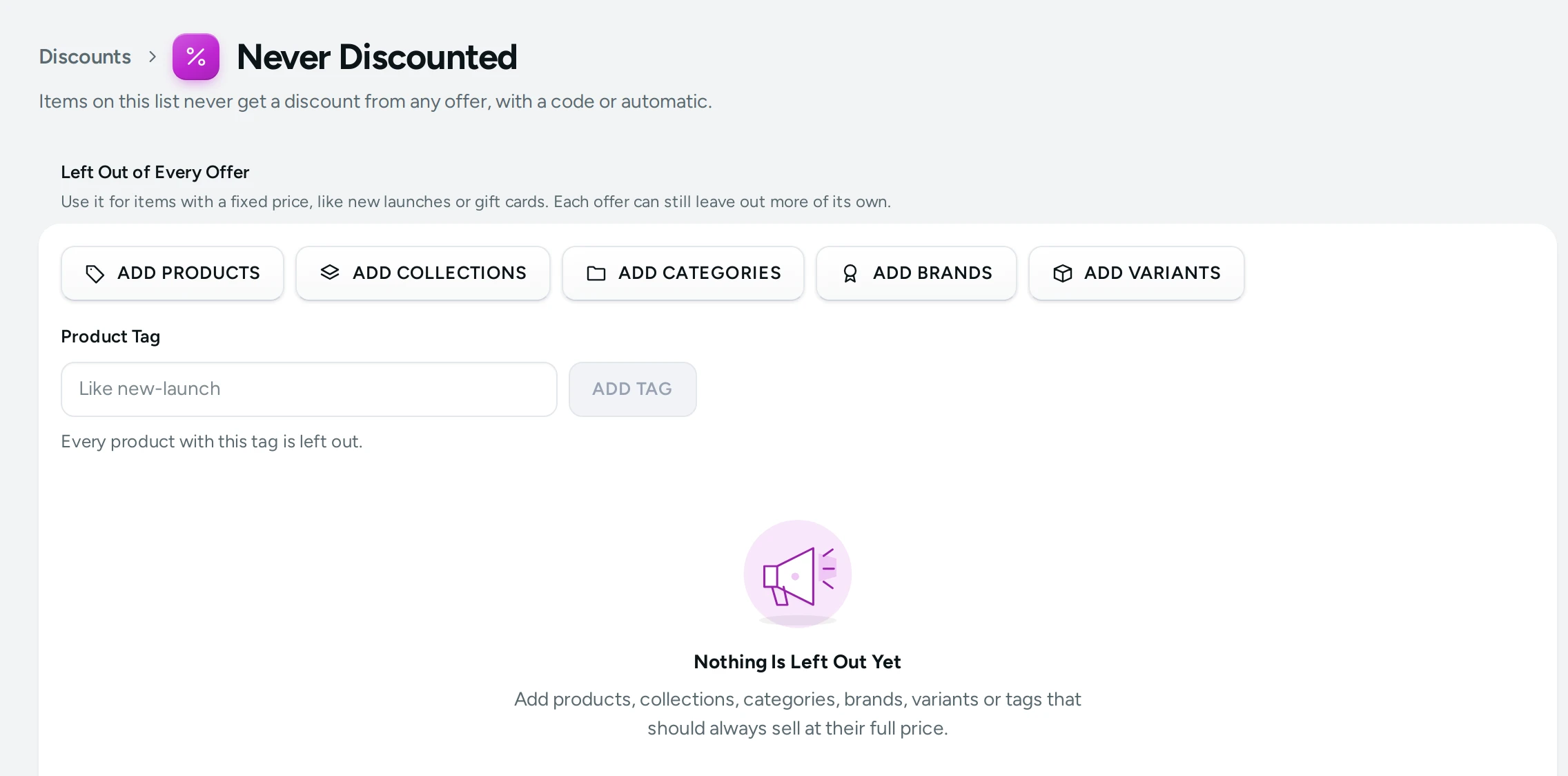
When an offer is for chosen items, buttons appear to choose them: Browse products, Browse collections and Browse categories, and, when Exclusions and More Targets is on for your store, Browse brands, Choose variants and Choose options (an option value such as "Colour: Black"). Each choice shows as a chip with a count, removable with its ×. Tags takes product tags separated by commas ("new, festive"): "Products with any of these tags, separated by commas."
An offer for chosen items needs at least one product, collection, category, tag, brand, variant or option: "Choose the products, collections or categories this discount is for." One offer holds up to 500 products, 100 collections and 100 categories.
A Cap on the Saving
For a percentage (and for percentage bundles, percentage spend tiers and buy X get Y), Up to (₹) caps the saving: "The most this percentage takes off an order. Leave empty for no limit." For example, 20% off up to ₹500.
Free Delivery and Delivery Discounts
Delivery has four choices. The last three appear when Delivery Discounts is on for your store.
| Choice | Field | Example |
|---|---|---|
| Free delivery (the default) | none: "The delivery charge becomes free. A Cash on Delivery fee still applies." | Free delivery |
| An amount off delivery | Amount Off Delivery | ₹30 off delivery |
| A percentage off delivery | Percentage off delivery | 50% off delivery |
| Delivery at a set price | Delivery price | Delivery at ₹49 |
"Never below ₹0, and the cash on delivery fee is never discounted. A delivery charge already lower than a set price stays as it is." Before the shopper gives a PIN code the delivery charge is not known, so a delivery offer shows its saving at checkout.
Spend Tiers
One offer, more off as the bag grows. Under Each Level Gives choose An amount off or A percentage off, then fill in each level's Spend at Least and its Amount Off or Percentage off. ADD LEVEL adds one, up to 5 levels. "The level is read on the bag before any discount. The bag tells shoppers how much more to spend for the next level." A bigger spend must give more off, and an amount off must be below its spend. Spend tiers always work on the whole order.
Bundle Price
Bundles and quantity prices have their own article, Quantity Prices. Under Each Size Gives choose:
- A price for each size: rows of Items and Bundle Price (₹), "any 2 for ₹1,299, any 3 for ₹1,799", with the price each beside each row. "Sizes from 2 to 99 items, up to 5. A bigger bundle must cost more than a smaller one."
- A percentage off: rows of Items and Percentage Off: "The biggest size the bag reaches applies to every item in it; a bigger size must give more off."
- A price per item or An amount off each (when Prices by Quantity is on): up to 8 ranges of From, To and Price each or Off each, with Pricing (bulk or tiered) and Count items.
Add a size adds a row. A bundle also gets a Bundle Sizes card with One Item Is Called and Several Are Called (up to 30 characters each): "Shoppers see “1 case”, “Add 1 more case”. Leave empty for “item”."
Add-on Price
An add-on price makes a small product cheaper when it is bought with its main product, like a strap with a watch. Choosing it makes the offer automatic, ticks every kind under Combinations and ticks Show the special price on the main products' pages, because that is what the product page promises.
- Main Products (the product pickers): "The special prices apply only while one of these is in the bag: one add-on item per main item."
- The Add-Ons and Special Prices card: Choose add-ons, then a Special Price (₹) for each, from ₹0.01 to ₹1,00,000. "Up to 6 add-ons. An option that already costs the special price or less stays at its own price."
An add-on price cannot be a code ("An add-on price is an automatic offer: choose Automatic offer above"), and a product cannot be its own add-on. The usual way to make one is from the product itself: see Bought Together and Add-ons.
Free Gift
The shopper buys something and chooses a gift at ₹0. What Counts Towards the Minimum is Anything in the bag or Chosen products, collections or categories. The Gifts to Choose From card picks the gifts. Everything about gifts is in Free Gift Offers.
Buy X Get Y
"Buy 2, get 1 free; buy 3, pay for 2; buy a case, get a grip at 50% off." Its fields (Customer Buys, Customer Gets, Items Given, Count Items, Times per Order) are explained in Buy X Get Y.
Minimum Purchase
For a percentage, a fixed amount, a fixed price, free delivery and a free gift:
| Choice | Field | What Is Counted |
|---|---|---|
| No minimum (the default) | none | |
| Minimum amount (₹) | Minimum Amount (₹) | For an order offer: "The order's item total, before any discount and delivery." For chosen items: "The chosen items' total, before any discount." |
| Minimum number of items | Minimum Items (1 to 999) | For an order offer: "Counted across the whole bag." For chosen items: "Counted among the chosen items only." |
A minimum is always read before any discount, so another offer on the bag never decides whether this one qualifies.
Exclusions
"Leave items out of this offer: everything except these." Buttons Exclude products, Exclude collections, Exclude categories, Leave out brands and Leave out variants choose what to leave out; Excluded Tags takes tags separated by commas. For example: 15% off everything except the new Diwali collection.
Items Already on Sale decides about items whose price is below their MRP: Include them (the default) or Leave them out. "On sale means its price is below its MRP (the compare-at price)."
When Exclusions and More Targets is switched off for your store, the card says "Switched off for your store in Settings, so offers that use it do not apply." and cannot be changed.
Limits
| Field | What It Does | Default |
|---|---|---|
| Total Uses | "How many orders in all may use it. Leave empty for no limit." When reached, the offer moves to Used up. | No limit |
| Uses per Customer | From 1 to 99. "Counted by the phone number at checkout and the signed-in account. A cancelled order gives the use back. Leave empty for no limit." Type 1 for once per customer. | No limit |
Combinations
This card decides which other offers this one may apply together with. It starts by naming the offer's kind: a product offer ("it takes money off chosen items"), an order offer ("it takes money off the whole order"), a free delivery offer, or a gift offer ("it changes no price").
Under Combines With tick any of:
- Product offers: "Bundles, add-on prices and money off chosen items."
- Order offers: "Money off the whole order (codes or automatic)."
- Free delivery: "Free delivery offers and codes."
"Two offers apply together only when each ticks the other's kind. With nothing ticked it competes on its own, and the shopper gets the bigger saving." A new offer starts with nothing ticked. For a product offer that ticks product offers: "An item gets one product offer at most: where two would touch the same item, the first applies."
Applies on its own: "When it applies, no other offer, gift or add-on price does." Ticking it greys the three ticks.
The last line says how your store picks between competing offers ("When offers compete, the shopper gets the biggest saving." or "…your order in the discounts list decides.") with See the order, which opens the Priority tab. If Combining Offers is switched off for your store: "Combining offers is switched off for your store: a bag gets the single best offer."
The full rules, with examples, are in Combining Discounts.
Who Can Use It
"Every condition you set must hold. With none, everyone can use it at any time." Each group can be switched off for your store in Settings › Discounts; it then shows "Switched off for your store in Settings, so offers that use it do not apply."
Customers
| Condition | What It Means |
|---|---|
| First order only | "No earlier order on the phone number at checkout or the account. Cancelled orders do not count. Works for guests too; turn on the COD code for safety." |
| Signed-in shoppers only | "The bag asks guests to sign in to get it." |
| Reward tier or higher | Choose a tier: "Members of this tier and every tier above it." With no tiers yet: "Your store has no reward tiers yet. Add them in Rewards." If rewards are off, it warns that no one is in a tier. See Rewards. |
| Only these phone numbers | "Upload a CSV file or paste numbers, one per line. Numbers are stored as a secure code and never shown again." |
For a phone list, press UPLOAD CSV or paste numbers into Phone Numbers. Any column of a CSV works; Indian mobiles are read with or without +91 or 0, and numbers from other countries need their + code. The card counts them ("2,400 numbers ready to save.") and says how many lines were not phone numbers. After saving it says how many numbers are saved, never the numbers themselves. A list holds up to 5,000 numbers unless Mercayo sets another limit for your store.
Payment
Any way (the default), Paid online only or Cash on delivery only. For paid online: "The bag shows the saving; checkout applies it when the shopper pays online. The Cash on Delivery fee stays as it is." If your store does not take online payments yet, the editor warns that the offer will not apply until it does. "Pay online and save ₹50" is the classic use: it moves COD shoppers to prepaid.
Delivery Area
Anywhere (the default) or Chosen states or PIN codes. Tap the states to choose them, and type PIN Codes: "Whole PIN codes or their first digits, separated by commas: 400 covers every PIN code starting 400." A PIN code is up to 6 digits and does not start with 0. The offer applies at checkout, once the delivery address is known.
Days and Hours
Any time (the default) or Chosen days or hours. Tap the Days, tick All day or set From and To. "India time (IST). An end before the start runs overnight: 10 pm to 2 am." Choose at least one day; every day all day needs no schedule.
Offers for some shoppers only (first order, signed in, a tier, a list, a payment way or an area) are never shown on product pages: "Offers for some shoppers only are never shown on product pages."
On Product Pages
What this card offers depends on the offer:
| Offer | Tick | What It Does |
|---|---|---|
| A code | Show this code on product pages | "Listed under ADD TO BAG on the products it applies to, with a COPY button." |
| An automatic bundle | Show the bundle sizes on product pages | "Shoppers choose 1, any 2 or any 3 above ADD TO BAG. The product's own price never changes." |
| An add-on price | Show the special price on the main products' pages | "In “Pairs well with”, beside the usual price, whenever the bag would charge it." |
| An automatic buy X get Y | Show this offer on product pages | "Its products' pages say it in words (“Buy 2, get 1 free”); prices on the page stay as they are and the bag applies it." |
For a code or a buy X get Y offer shown on product pages, Line Shown with the Code (up to 120 characters) is the line shoppers read, "Like “₹100 off your first order over ₹599”. Empty: the title."
Other automatic offers say: "Automatic offers show only in the bag and at checkout, never as prices on product pages." They can still show a short label on product cards, set from the Discount Report. See Automatic Offers.
Active Dates
| Field | What It Does | Default |
|---|---|---|
| Starts | When the offer begins, in India time | Now, when you create the offer |
| Ends | When it stops by itself: "No end date. Set one to stop it by itself." Picking only a day ends the offer at 11:59 pm that day. CLEAR removes the end. | No end |
Under each field the chosen moment is written out in Indian order, for example "Tue, 20 Oct 2026, 6:30 pm (India time)", whatever order your browser shows the field in. The end must be after the start. An offer with an end date can show a countdown in its last hours (48 hours by default, set in Discount Settings).
Try a Bag
"Pick items and see exactly which offers the bag gets and why, priced by the same engine as the shop. Nothing is saved and no use is counted." It is the best way to check an offer before shoppers see it.
- Under Items, press Add items and pick products (up to 30). Choose an option for each and a quantity from 1 to 99.
- Under Codes, type up to 3 codes and press Add. "The store lets shoppers use 1 per order" (or your number).
- Under Shopper, optionally fill in Phone (Optional) ("With a phone, first-order offers, uses per customer and phone lists are checked against it."), Payment, Delivery State or Or PIN Code, and tick As a signed-in shopper or As a first order to treat those conditions as met.
- Keep Include my unsaved changes ticked to try the offer as it is on screen, "as if it were live now". If the editor has fields to fix, the saved version is tried instead.
- Press TRY THIS BAG.
What the Bag Gets lists each line with its saving, then Subtotal, Delivery, Cash on delivery fee, GST and Total. Codes Typed shows each code's result. Every Offer lists every live offer that looked at the bag, marked Automatic or Code …, this one marked This offer, each with Applied, Does not apply, Not combined, Saves nothing or Waiting and the reason in words, for example "Needs ₹250 more of the items it is for.", "Only for a first order, and this phone has ordered before." or "Would save ₹180 alone, but does not combine with the offers that save more together." If you change anything afterwards: "Changed since this answer. Press TRY THIS BAG again."
Summary
The side card repeats the offer in plain words as you type: its title, then lines such as "Code WELCOME10", "10% off the whole order", "orders of ₹999 or more", "once per customer", "First orders only", "Combines with order offers and free delivery" and "from 20 Oct to 31 Oct". A saved offer adds how often it was used ("Used 12 times of 100."). Read it before you save: if the summary is not what you meant, a field is wrong.
Status
| Status | What It Means |
|---|---|
| Active (the default) | "Usable between its dates." |
| Draft | "Not usable yet; a shopper's code reads as unknown." |
| Archived | "Stopped and kept for your records; a shopper's code reads as expired." |
How to Create a Code for First Orders
For a phone-case brand in Jaipur that wants new shoppers to try it:
- In Marketing › Discounts, press CREATE DISCOUNT.
- Keep Discount code. Type
FIRST15in Code, and the Title "15% off your first order". - In Value, keep Percentage and type 15. Type 300 in Up to (₹) so a big order saves at most ₹300.
- In Minimum Purchase, choose Minimum amount (₹) and type 599.
- In Limits, type 1 in Uses per Customer.
- In Who Can Use It, tick First order only.
- Press SAVE. The editor now shows the saved offer, with its One-Time Codes card and REPORT.
How to Make an Automatic Sale on a Collection
- Press CREATE DISCOUNT and choose Automatic offer. Title it "Festive sale: 20% off sarees".
- In Value, choose Percentage, type 20 and choose Chosen products and collections.
- Press Browse collections and choose your saree collection.
- In Exclusions, under Items Already on Sale, choose Leave them out if marked-down sarees should not get more off.
- In Combinations, tick Free delivery, so your free delivery offer can apply too (it must tick Product offers in its own Combinations card).
- Set Starts and Ends in Active Dates, then press SAVE.
How to Delete, Pause or Copy an Offer
- Pause: set Status to Draft and press SAVE.
- Stop and keep: set Status to Archived and press SAVE. This is the right way for an offer that orders used.
- Delete: More Actions › Delete, then DELETE DISCOUNT. "“Title” stops at once and is removed for good. Orders that used it keep their discount." For an offer that was used, the dialog adds "To keep it in your list, set its status to Archived instead."
- Copy: press DUPLICATE. The copy is a draft with the same products, exclusions, conditions, phone list and combinations, but no uses and no one-time codes; a code discount's copy gets its code with a dash and four random characters added (
WELCOME10-7KQP, say).
What Shoppers See
A code is typed in the bag (behind the DISCOUNT CODE button of the bag drawer) or at checkout, and the code box answers in plain words ("Applied.", "FIRST15 is for a first order only."). An automatic offer appears in the bag by itself as its own line. Prices on product pages and cards never change; codes, bundles and buy X get Y offers show on product pages only when you tick them. Each saving is shared across the order's lines and GST is charged on what is left, so the bag, the order and the GST invoice agree to the paisa.
Mercayo Controls
Mercayo can force or limit any discount setting for your store, for example switching a kind of offer off or capping how many one-time codes or phone numbers an offer may have. A switched-off kind disappears from the Value choices for new offers; saved offers that use it stay visible and stop applying.
Good to Know
- One save, one version: if someone else saved the offer after you opened it, your save is not applied: "This discount was saved by someone else after you opened it, so your save was not applied. Reload to see their changes, then make yours again." Press RELOAD.
- Leaving with unsaved changes asks first: "Leave without saving? Your changes to this discount will be lost."
- Fields with a problem are marked in red and saving says "Some fields need a fix before saving; they are marked below." Nothing is sent until they are fixed.
- The most automatic offers a store may have active or scheduled at once is set by Mercayo (100 unless Mercayo sets another number). Saving one more is refused until you end or archive one.
- Discounts and GST: the discount reduces the taxable value of each line. This is general guidance, not tax advice; ask your CA about your invoices.
Questions
Why can't I see the One-Time Codes card?
It appears only on a code discount after it is saved, and not on a free gift. Save the offer first.
Can one code give free delivery and 10% off?
Not in one offer. Make two offers, for example a code for 10% off and an automatic free delivery offer, and tick each other's kind under Combinations.
Why does my offer show "Saves nothing" in Try a Bag?
Usually a delivery offer on a bag with no state or PIN chosen, or a bag whose delivery is already free. Choose a Delivery State or Or PIN Code and try again.
Can I make a discount for my wholesale customers only?
Yes. Tick Only these phone numbers under Who Can Use It and upload their numbers, or use a reward tier. Such offers are never shown on product pages.
What time zone are the dates in?
India time (IST), always, whatever the time zone of your computer.
Why is the Buy X Get Y choice missing?
Buy X get Y is switched off for your store in Discount Settings, or by Mercayo. The same goes for Fixed price and Spend tiers.