The product editor is where one product lives: its name and description, its photos, the choices a shopper makes (colour, size, phone model), the price and stock of every variant, its GST code and how it appears in Google. Everything a shopper sees on the product page starts here, so it is the screen you will use most when you build your catalogue. Open it from Products in the side menu, then click a product or ADD PRODUCT; on a phone, Products is in the bottom bar and the round + button adds a product.
Anyone whose role includes the right to see products can open the editor. Changing a product needs the right to edit products: the owner, admins and the Catalog Editor role have it. A Marketer or an Order Manager sees the editor read-only, with the note "Your role can look at products but not change them." Changing stock is a separate right (to edit inventory), which the owner, admins and the Catalog Editor have.
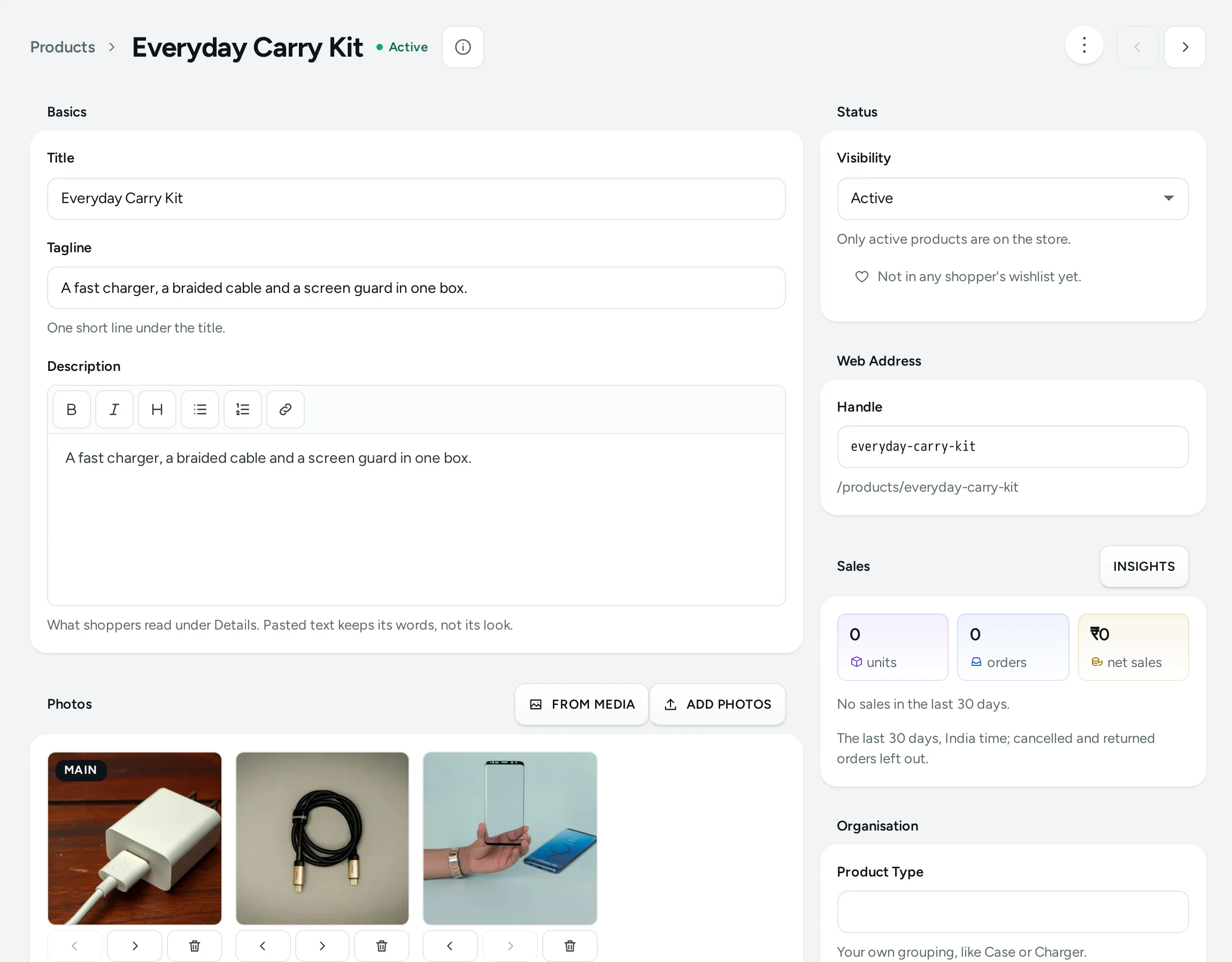
How the Editor Is Laid Out
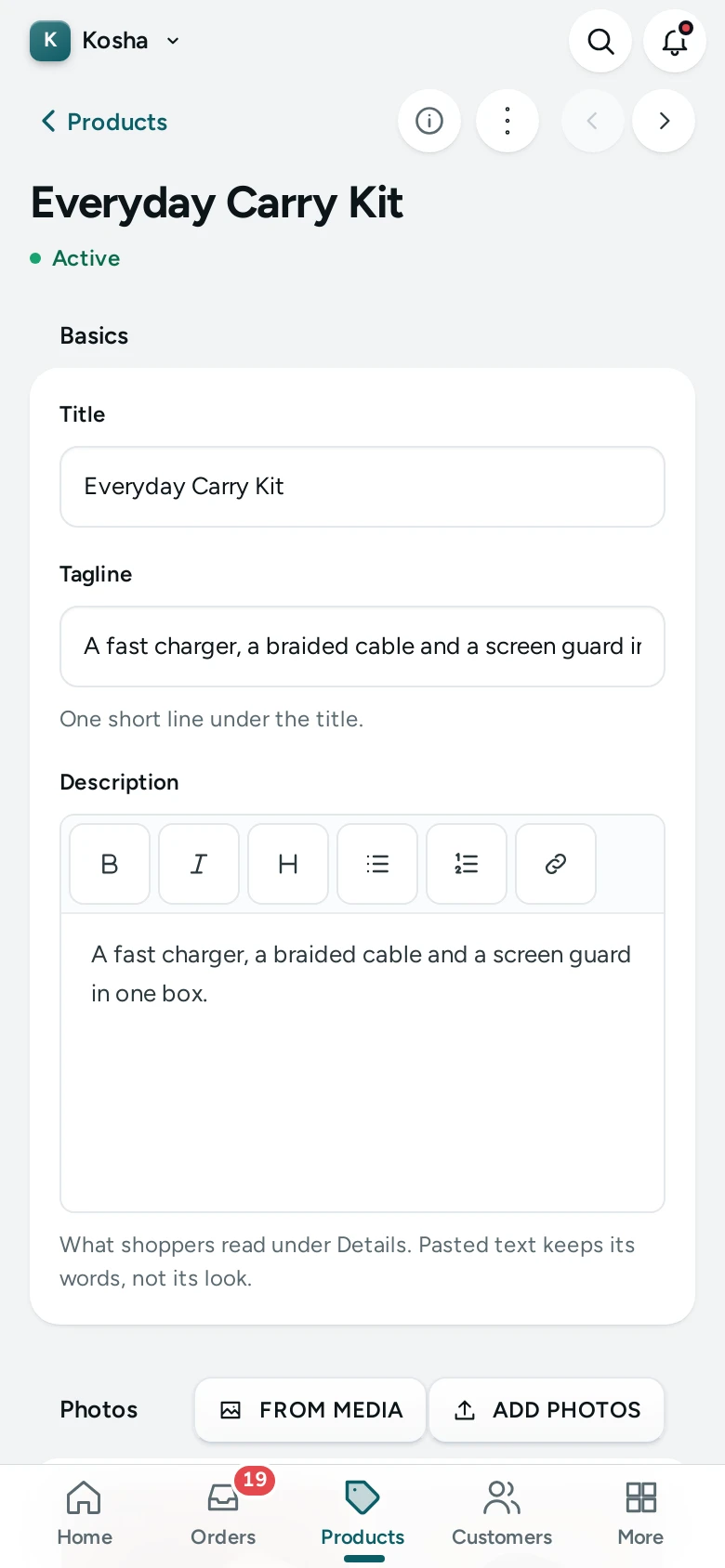
The page has a wide main column and a narrower side column. On a phone the side column's cards follow the main column's, in one long page.
| Column | Cards, in Order |
|---|---|
| Main | Basics, Photos, Product Page Details, Options, Variants, Shipping and Stock, Personalisation, Search Engine Listing |
| Side | Status, Web Address, Sales, Organisation, Sold with It, Quantity Prices, Fits, GST |
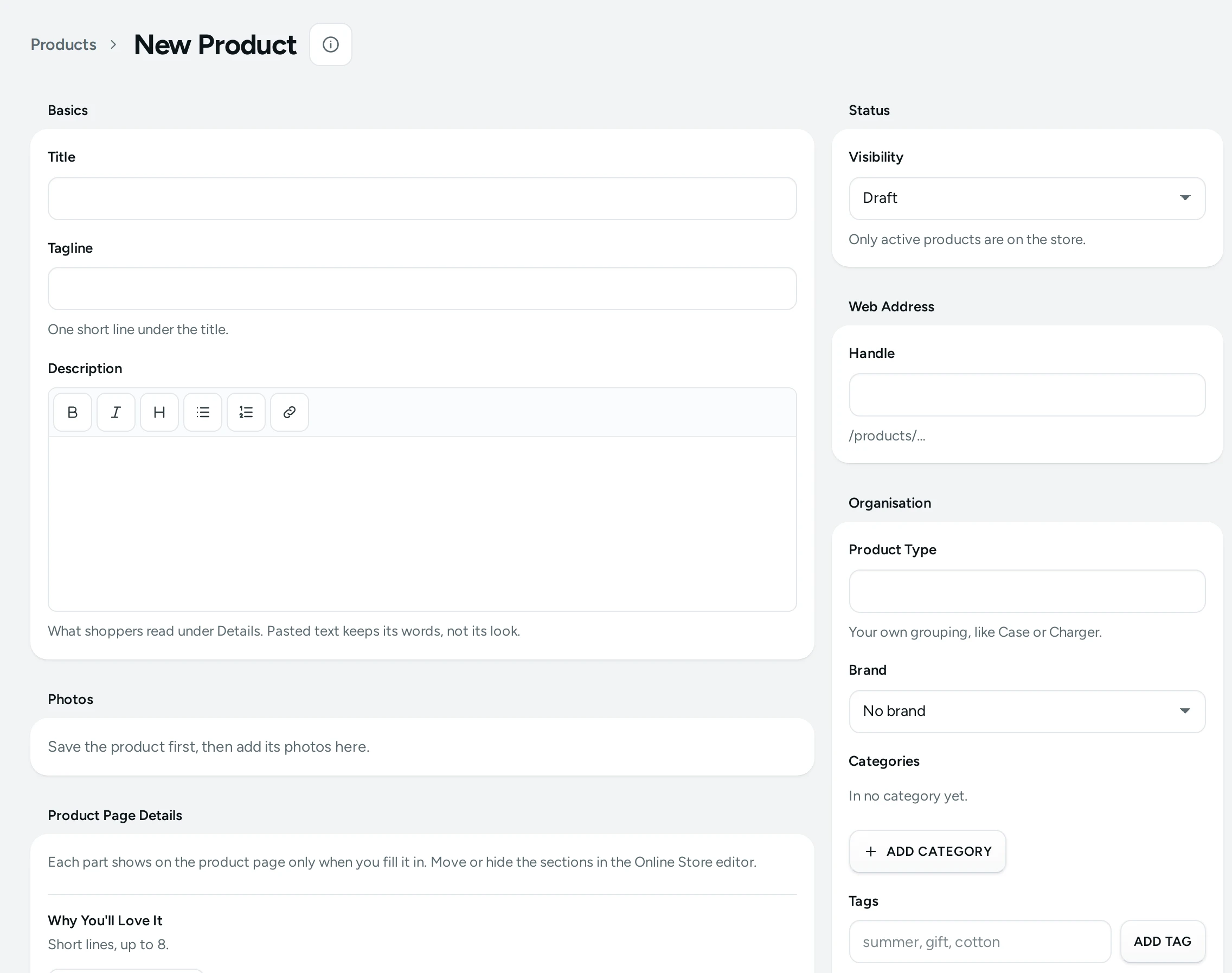
Some cards appear only once the product has been saved for the first time, because they belong to a product that already exists: Photos (until then it says "Save the product first, then add its photos here."), Personalisation, Sales, Sold with It, Quantity Prices and Fits. Quantity Prices also needs the right to see discounts, and Sales the right to see analytics.
The Header
At the top you see the product's title, a Products link back to the list, and a pill with the product's saved status (Active, Draft or Archived). Arrows beside the title step to the previous and next product without going back to the list.
The ⋯ menu in the header holds:
- Duplicate: makes a copy of the product as a draft, called "Title (copy)", and opens it. See Duplicating a Product.
- See Stock: opens Inventory searched for this product.
- Delete: removes the product for good, after you confirm.
The Save Bar
The editor keeps every change you make as a draft on your screen until you save. As soon as something differs from the saved product, a bar appears with Unsaved changes, DISCARD and SAVE.
- SAVE sends the whole product at once. It stays greyed out while the title is empty.
- DISCARD asks "Discard Your Changes?" and, on DISCARD CHANGES, puts everything back to the last save. On a new product it takes you back to the products list.
- If you try to leave the page with unsaved changes, the admin asks "Leave Without Saving?" with LEAVE PAGE and KEEP EDITING.
When something cannot be saved, a red note says "Some fields need a fix before saving; they are marked below." and each field with a problem shows what is wrong under it. After a good save you see Saved.
Basics
| Field | What It Does | Default |
|---|---|---|
| Title | The product's name, as shoppers see it on the product page, cards, the bag, orders and invoices. Up to 200 characters. Required. | Empty |
| Tagline | "One short line under the title." on the product page, such as "Slim, shockproof, made in Jaipur". Up to 200 characters. | Empty |
| Description | "What shoppers read under Details." A formatted text with a small toolbar. Up to 50,000 characters. | Empty |
The description's toolbar has Subheading, Bold, Italic, Bullet list, Numbered list and Link. A link takes a web address (paste it and press APPLY); anything that is not a web address is refused with "That is not a web address." Text you paste from Word, Google Docs or another website keeps its words but not its look, so the page always matches your store's fonts.
Photos
Once the product is saved, the Photos card takes JPEG, PNG, WebP and AVIF pictures of up to 20 MB each, up to 250 per product. Drop several at once on the card or press ADD PHOTOS. The first photo is the main one (marked Main) and is the picture on cards and in the bag. Drag photos to change the order, or use the arrows on each photo. Click a photo to add its Alt Text and to choose Shown for These Choices, which makes it the photo a shopper sees first when they pick, say, the colour Black.
Uploading and deleting a photo happen at once. The order, the alt text and the links to choices are part of the draft and are saved with SAVE. Photos are kept at full quality: Mercayo never shrinks or recompresses what you upload. Everything about photos is in Product Photos.
Product Page Details
This card holds the structured parts of the product page: Why You'll Love It (short highlight lines), Specifications (a name and a value each, like Material: Polycarbonate), What's in the Box, Materials and Care and Product Stories (picture-and-text sections with an optional pull quote). Each part shows on the product page only when you fill it in. They are saved with the same SAVE. Limits, examples and where each part appears are in Product Stories, Highlights and Specifications.
Options
Options are the choices a shopper makes before adding to the bag, such as Colour, Size or Phone model. A product without options is sold as one item ("No options: the product is sold as one item.").
- ADD OPTION adds an option, up to 3 per product.
- Option 1 Name (2, 3): the option's name, up to 60 characters, for example Colour. Two options cannot have the same name.
- Values: type a value in "Add a value, then press Enter" and press Enter or ADD. Up to 250 values per option, each up to 100 characters. The × on a value removes it.
- REMOVE beside the name removes the whole option.
When an option is about phones (its name says phone, mobile, model or device, or it matches your store's phone option name) and your store has a phone list in Fit List, the card adds ADD FROM PHONE LIST and a small phone icon on each value. Linking a value to a phone makes the product appear on that phone's page and in shop by phone. The line under the values tells you how many are linked, for example "3 of 12 values are not linked to a phone yet."
Every combination of values becomes a variant by itself. Two colours and three sizes make six variants. A product can have at most 2,048 variants; an option that would go past that is refused with "That would make more than 2048 variants." Details, examples and how shoppers choose are in Options and Variants.
Variants
The Variants card is a table with one row per variant (a product without options has one row, called Default).
| Column | What It Does | Default |
|---|---|---|
| Variant | The variant's name: its values joined, like "Black / M". | From the values |
| Price (₹) | What the shopper pays for this variant. Digits with up to two after the point, like 549 or 549.50. Required; 0 is allowed but shows the product under No Price on the list. | Empty on a new product |
| Compare-at (₹) | The "was" price or MRP shown struck through beside the price. Must be more than the price, or empty. | Empty |
| SKU | Your own stock code for the variant, like KS-CLR-IP16. Letters, digits and . _ / - only, up to 64. Each SKU can be used once in your store. | Empty |
| Stock | Units you have of this variant. A whole number. | 0 |
When you add a value, the new variants copy the price, compare-at price, cost, weight and stock rules of the closest existing variant, so you rarely retype prices. Their SKU starts empty and their stock at 0.
Stock can only be changed by someone with the right to edit inventory. For everyone else the box is locked with "Stock is locked: your role cannot change it. Ask the store owner."
Shipping and Stock
One row per variant with the fields that are not in the price table. "The weight prices delivery and the courier label. The cost is for your reports only; shoppers never see it."
| Field | What It Does | Default |
|---|---|---|
| Weight (g) | The packed weight in whole grams, up to 1,000,000. Used for delivery charges by weight and for the courier label. | Empty |
| Cost (₹) | What one piece costs you. For your reports only. | Empty |
| Barcode | The variant's barcode (EAN, UPC or your own). Letters, digits and - only, up to 64. Each barcode can be used once in your store. | Empty |
| Track Stock | On: the variant counts stock, a sale takes one off and it sells out at 0. Off: it never sells out and shows as "Not tracked" in Inventory. | On |
| Keep Selling When Out of Stock | Lets shoppers order a tracked variant even at 0 (for made-to-order or pre-booked goods). Only available while Track Stock is on. | Off |
Personalisation
On a saved product, this card asks shoppers for details such as a name to engrave, a choice of foil, a date or a photo, each optionally adding to the price. It is saved with its own SAVE inside the card, not with the product's save bar. See Personalisation.
Search Engine Listing
The card shows "How it may look in search results": your store's address for the product, the page title and the description, cut where Google usually cuts them (about 60 and 160 characters).
| Field | What It Does | Default |
|---|---|---|
| Page Title | The title search engines show. Up to 200 characters; the counter says how many search engines show (about 60). | Empty: the product's title |
| Meta Description | The text under the title in search results. Up to 320 characters; about 160 are shown. | Empty: the product's description |
Leave both empty and Mercayo uses the title and description, which is fine for most products. Fill them when you want a different line for Google, for example "Clear iPhone 16 Case with MagSafe | Free delivery over ₹999".
Status
| Setting | What It Does | Default |
|---|---|---|
| Visibility | Draft: only your team sees it. Active: on sale in your store. Archived: off the store and out of the way, kept with its history. "Only active products are on the store." | Draft for a new product |
Under it, on a saved product, a heart line says how many shoppers have saved it to their wishlist: "Not in any shopper's wishlist yet.", "In 1 shopper's wishlist." or "In 24 shoppers' wishlists."
Web Address
| Field | What It Does | Default |
|---|---|---|
| Handle | The product's web address on your store: /products/handle. Small letters, digits and single hyphens, like clear-case, up to 120 characters. Each handle can be used once in your store. | Made from the title while you type it, until you change it yourself |
For a new product the handle follows the title as you type ("Clear Case – iPhone 15!" becomes clear-case-iphone-15). Once you edit the handle yourself, or after the first save, it no longer changes with the title.
Sales
A small card on saved products, for people who can see analytics (the owner, admins and the Marketer role): net sales, orders and units for this product in "The last 30 days, India time; cancelled and returned orders left out." With nothing sold it says "No sales in the last 30 days."
Organisation
| Field | What It Does | Default |
|---|---|---|
| Product Type | "Your own grouping, like Case or Charger." Free text up to 80 characters. | Empty |
| Brand | The product's brand, from your store's brand list. No brand leaves it empty. | No brand |
| Categories | The categories the product is in. ADD CATEGORY opens a searchable list; the × on a category removes it. Up to 100. | None |
| Tags | Words that group products for filters, badges, discounts and saved views, like summer, gift, cotton. Type one or more with commas and press ADD TAG. Up to 60 characters each, up to 250 tags. | None |
| Featured Product | A tick to mark the product as featured. | Off |
Categories are made on the Categories screen; if your store has none yet the field says "Your store has no categories yet." A product in no category is listed under No Category in the products list's health strip, because shoppers browsing your menu do not find it.
Tags are saved without repeats: "Summer" and "summer" count as one tag, and the first spelling is kept.
Brands are made in Products › Brands (see Bulk Editing and the Trash), or from a brand column when you import products on Import and Export.
Sold with It
On a saved product: up to 3 products for Frequently Bought Together and up to 6 Add-ons (Pairs Well With) offered beside ADD TO BAG, plus Add-on Prices (a lower price for an add-on bought with this product). Saved with SAVE PAIRINGS inside the card. See Bought Together and Add-ons.
Quantity Prices
On a saved product, for people who can see discounts: the quantity offers that include this product ("2–3 at ₹249 each, 4+ at ₹199 each"), each marked Live, Scheduled or Draft and linked to its offer, and SET QUANTITY PRICES to make a new one. "They are offers: the bag applies them, and the product's own price stays as it is." See Quantity Prices.
Bundle
The Bundle card makes the product a kit of other products, with its own price and stock: see Fixed Bundles.
Fits
On a saved product, when your store keeps a fit list (phones, cars, printers): the models this product fits as a whole, for example a universal car mat that fits five car models in one variant. CHOOSE MODELS (the word follows your store's setting) picks them, CLEAR removes them, and SAVE inside the card keeps them. If your fit list is empty it says so with OPEN FIT LIST. A product whose options are linked to phones fits through its options, and the card names those too. See Fit List.
GST
| Field | What It Does | Default |
|---|---|---|
| HSN Code | "4 to 8 digits. It picks the GST rate; without one a GST-registered store cannot sell this product." Digits only. | Empty |
Above the field, Find an HSN Code searches the HSN list by what the product is ("phone case") or by code, and shows the rate for each code. Pick a code with USE THIS CODE (or USE CODE AND RATE when the code has a rate), and the editor fills it in and, if you have the right to change settings, adds the rate to your store's GST rates. Under the field the editor compares the code with Your GST rates (Settings › Taxes): "Your store charges 18% for this code, the same as the list." or a warning when your store has no rate for it yet, with a button to add it. Rates and HSN codes are explained in Prices, MRP and GST.
How to Add a Product
- Go to Products and press ADD PRODUCT (on a phone, the round + button).
- Type the Title. The Handle fills itself in.
- Add a Tagline and a Description if you have them.
- If the product comes in choices, press ADD OPTION, name it (for example Colour) and add each value with Enter. Add a second or third option if needed.
- In Variants, type the Price (₹) of each variant, and a Compare-at (₹) price if you show an MRP or a "was" price. Add SKUs if you use them.
- Type the Stock for each variant.
- In Shipping and Stock, add the Weight (g) of each variant so delivery charges and courier labels are right.
- In GST, find or type the HSN Code.
- In Organisation, add Categories and Tags.
- Leave Visibility on Draft for now and press SAVE. The editor opens the saved product.
- Now add photos in the Photos card, arrange them and give each an alt text.
- When the product is ready, set Visibility to Active and press SAVE. It is on your store at once.
For a guided first product with a worked example, see Add Your First Product.
How to Change Prices or Stock of Many Variants
- Open the product.
- Change the prices in the Variants table row by row (Tab moves to the next box).
- Press SAVE once. Every variant is saved together.
To change stock with a reason (stock received, a count, damaged pieces), use Inventory instead, where you can adjust many variants at once and the change appears in the stock history.
Duplicating a Product
Duplicate in the header's ⋯ menu (or in a row's menu on the products list) makes a copy as a draft: tagline, description, options, values, variants, prices, weights, photos with their alt text and links (the same files, not new uploads), product type, brand, HSN code, tags, categories, collections, the product page details and fits. The copy gets no SKUs or barcodes (those must stay unique in your store), no stock, no search engine listing words, and none of the original's Sold with It pairings or personalisation fields; set those again if the copy needs them. Its title is the original's with "(copy)" at the end, and the editor opens it so you can rename it, set SKUs and stock, and make it active.
Deleting a Product
- Open the product and choose Delete in the header's ⋯ menu.
- The dialog "Delete This Product?" says what happens: "“Title” and its 3 variants move to the trash, where you can restore them for a while. Past orders keep their own copy."
- Press DELETE PRODUCT.
Shoppers stop seeing it at once. It waits in Products › Trash for 30 days by default, where Restore brings it back; see Bulk Editing and the Trash. To stop selling a product but keep it in your list, set Visibility to Archived instead.
Custom Fields
Your own facts for products, such as material or where it is made, are defined once in Settings › Custom Fields (Add Field: a Name, a Key, a Kind: Text, Number with a Unit, Choice From a List, Yes or No, Date or Link, Help for Staff, and Show to Shoppers). Each product then has a Custom Fields card to fill in. Fields marked Show to Shoppers appear in the product page's specifications when the product has a value, while Custom Fields on the Store (Settings › Product Page, Catalogue card) is on. A store can have up to 30 fields by default.
What Shoppers See
- Only Active products are on your store. Draft and archived products are not in lists, search or menus, and their address shows "not found".
- The product page shows the title, the rating (once there are reviews), the tagline, the price, the compare-at price (as "MRP" with the percentage off, or struck through with "Save …%", as your product page is designed), and a GST line: "Price includes GST." or "GST is added at checkout.", depending on Settings › Taxes.
- Before a shopper has chosen every option, a product whose variants have different prices shows "From ₹…" with the lowest price.
- The options appear as buttons. A value that cannot be bought with the shopper's other choices is marked sold out but can still be picked, to see it.
- A variant that tracks stock and is at 0 shows SOLD OUT instead of ADD TO BAG, unless Keep Selling When Out of Stock is on.
- Changes you save show on the store at once: the store's saved pages are refreshed when a product changes.
Good to Know
- Limits: title, tagline and page title 200 characters; handle 120; description 50,000; meta description 320; product type 80; 3 options; 250 values per option; 2,048 variants; 250 photos; 250 tags; 100 categories.
- Your plan may limit how many products your store can have, archived ones included. When you reach it, saving a new product says "Your plan allows at most … products." See Plans and Billing.
- A saved compare-at price must be higher than the price; the database refuses anything else, so a "was" price can never be lower than the price.
- SKUs and barcodes are unique across your whole store, so two variants of different products cannot share one.
- Product changes are recorded in the Activity Log with who made them.
- Past orders keep their own copy of the product's title, variant, price and GST, so editing or deleting a product never changes an order or an invoice already made.
Questions
Why can't I add photos to a new product?
Photos belong to a saved product. Type at least the title, press SAVE, and the Photos card opens on the saved product.
Why is the SAVE button greyed out?
The title is empty. Every product needs a title before it can be saved.
What is the difference between Draft and Archived?
Both keep the product off your store. Draft is for a product you are still preparing. Archived is for one you no longer sell but want to keep, with its reviews and history, out of the way of your active list. The products list has a tab for each.
Can I change a product's handle after it is live?
Yes. The old address is added to your URL Redirects, so links shared on WhatsApp or Instagram still open the product.
Why can't I change the stock on this screen?
Your role does not include the right to edit inventory. Ask the store owner to give it to you, or to change the stock for you.
Someone else edited the product while I had it open. What happens to my changes?
Your save is not applied, so their work is safe. Copy anything long you typed (such as the description), press RELOAD, then make your changes again and save.
Does the compare-at price have to be the MRP?
It is the price shown struck through beside your price. Indian shoppers usually expect it to be the MRP printed on the pack. Do not enter a made-up higher price: show only a price the item was really sold or labelled at. This is general guidance, not legal advice.