Theme is where your store gets its look: its colours, its two fonts, the shape of every button, how the header and product cards behave, what happens after ADD TO BAG, how much the pages move, your logo and the picture people see when your store's link is shared on WhatsApp. Everything sits in one screen, with your own store open beside the controls so you see each change before anyone else does. Nothing reaches shoppers until you press SAVE. Open it from Online Store › Theme in the side menu (on a phone: More, then Theme). The setup guide's "Make It Yours" step opens it too.
Opening and saving the Theme needs the right to edit the theme (themes.edit). The owner, admins and the Marketer preset role have it. Someone without it sees "Your role cannot change the store's look. Ask the store owner for the right to edit the theme." with BACK TO HOME. One part, Section Styles, also needs the right to change settings, so a Marketer can look at it but not change it (see Section Styles).
How the Screen Is Laid Out
The Theme takes the whole window, like the page editor. It has three parts.
The top bar. From left to right:
- The back arrow (Back to the dashboard), which returns to Home.
- The title Theme with the save state under it: All changes saved, Unsaved changes or Saving….
- Page Shown: which page of your store the preview shows: Home Page, Product List, Product Page or Bag. The product page uses one of your live products.
- Preview Size: Phone, Tablet or Computer. The preview opens at the size that suits your screen.
- DISCARD: puts every section back as it was saved. It asks first: "Discard Your Changes?" with DISCARD CHANGES and KEEP EDITING.
- SAVE: saves everything you changed, in every section, in one go. Ctrl S (or Cmd S on a Mac) saves too.
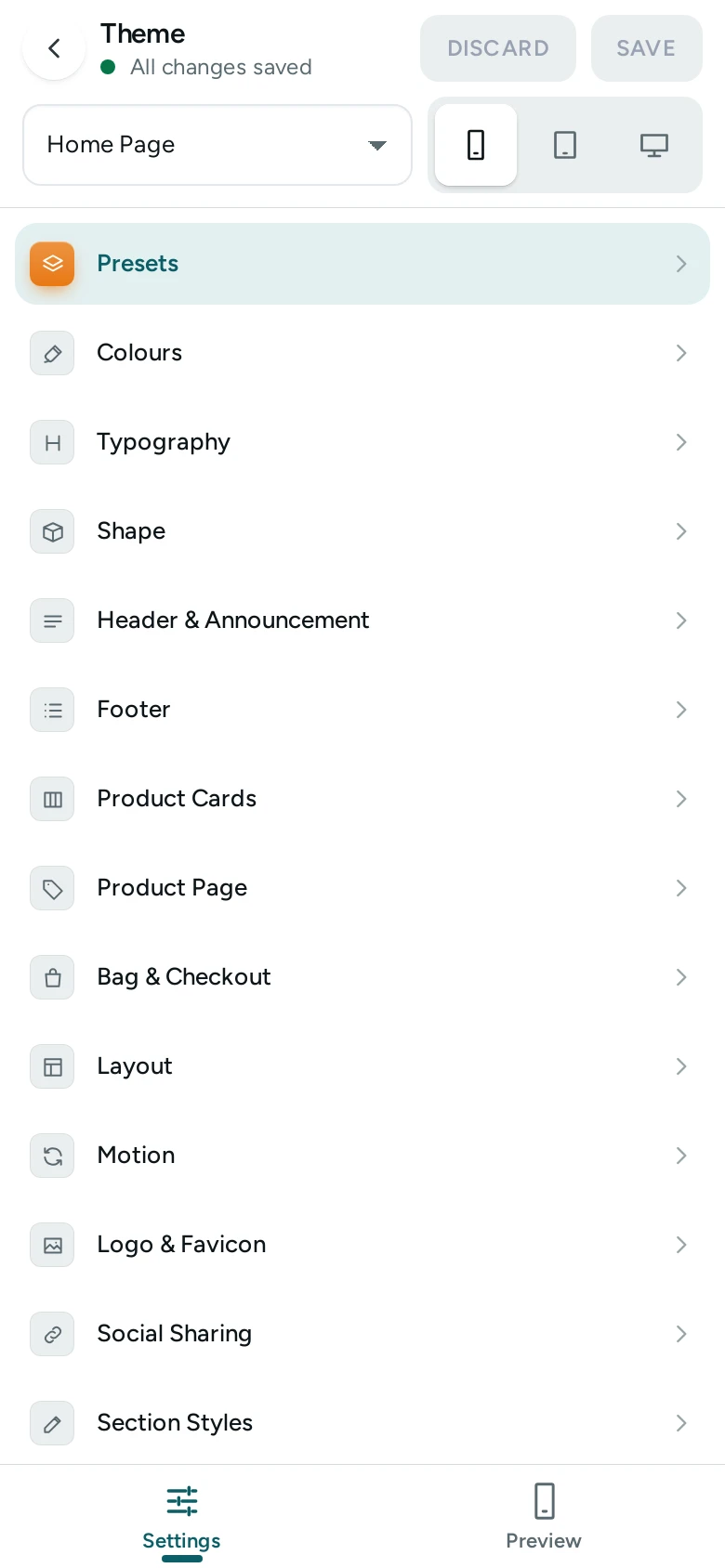
The sections (left rail). Fourteen sections, always in this order: Presets, Colours, Typography, Shape, Header & Announcement, Footer, Product Cards, Product Page, Bag & Checkout, Layout, Motion, Logo & Favicon, Social Sharing and Section Styles. A section you have changed but not saved shows a dot. A section Mercayo has set for your store shows a lock.
The controls and the preview. The chosen section's controls appear next to the rail, grouped in cards, each with a line saying what it is for. Under them sits RESET SECTION TO PRESET (see below). The rest of the window is the preview: your store's real, live pages, showing the look you are editing.
On a phone or a small tablet the screen shows one thing at a time. The list of sections comes first; tap one to open its controls (the back arrow returns to All sections). Two tabs at the foot switch between Settings and Preview.
How the Preview Works
The preview is a private view of your store that only you see, opened through a private preview link that renews itself while the screen is open. It never shows to shoppers and search engines never see it.
- Colours, fonts, shapes, layout, effects and the header's position and style change in the preview at once, as you drag or pick.
- Things the page draws itself (the button on product cards, the word for the bag, header colours, BUY NOW) reload the preview a moment after you change them. "Updating the preview…" shows meanwhile.
- Store settings inside a section (for example Mega Menu or Header on Phones) show in the preview after you save. Cards that hold them say so: "These show on the preview once you save."
If the preview cannot open it says "The preview could not be opened." with TRY AGAIN. Your changes are safe either way.
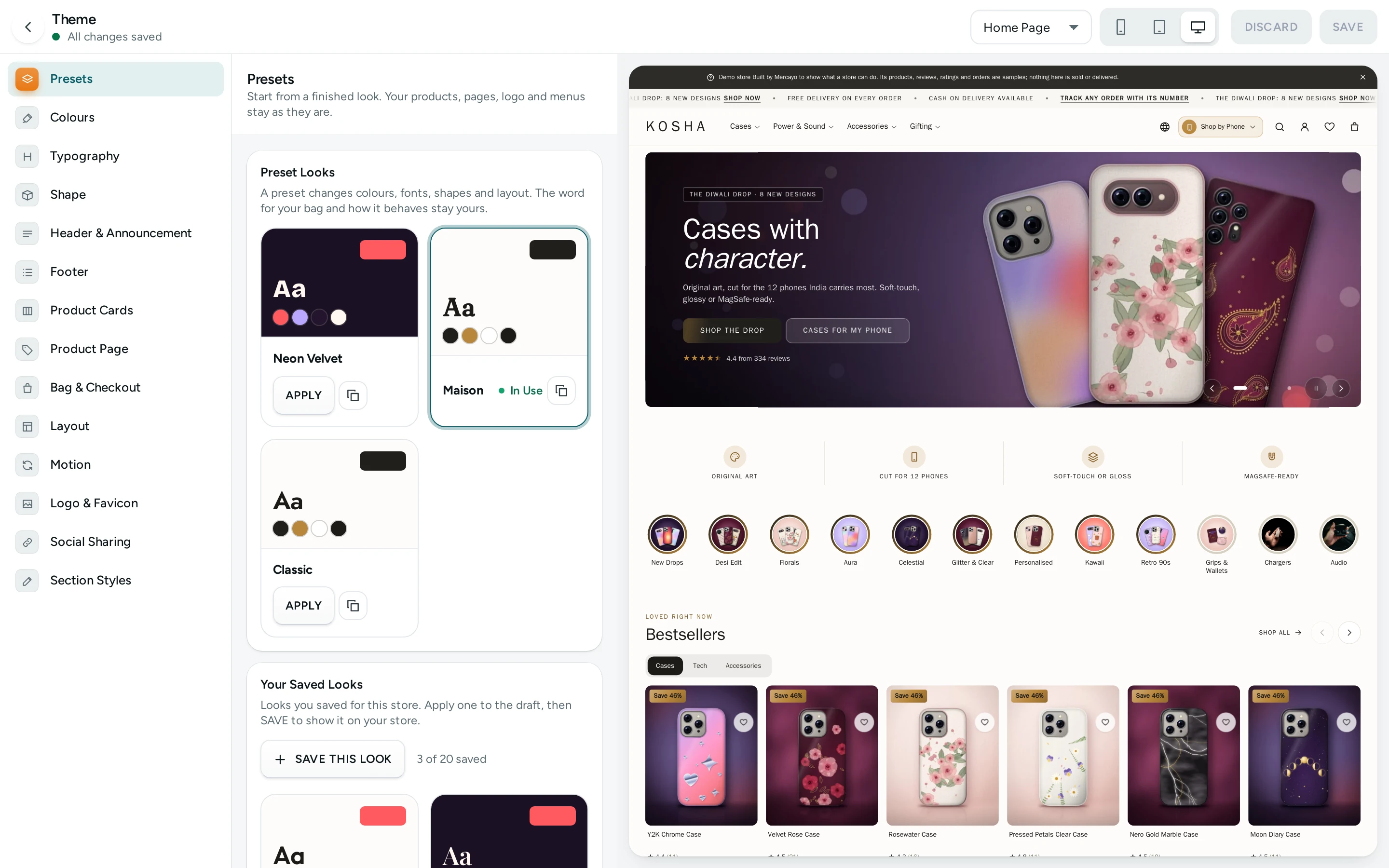
Presets
"Start from a finished look. Your products, pages, logo and menus stay as they are."
Preset Looks shows every finished look as a small card with its heading font (Aa), its main colours and a button drawn in its shape. There are three today:
| Preset | The Look | Fonts |
|---|---|---|
| Classic | Bright and plain, one geometric sans | Jost with Jost |
| Maison | A light, editorial look (suits jewellery, fashion, home) | Fraunces with Inter |
| Neon Velvet | A dark, bold look (the Kosha demo store uses it) | Bricolage Grotesque with Plus Jakarta Sans |
The preset your store uses now is marked In Use. Press APPLY on another to try it. "A preset changes colours, fonts, shapes and layout. The word for your bag and how it behaves stay yours." Applying changes only the preview: a message says "Neon Velvet is on the preview. Save to show it on your store." with UNDO, and a note in the section ("A preset is applied to this draft.") offers UNDO too, until you save.
Earlier Looks keeps a history: "Each time the look is saved, the one before it is kept here." Each row says why it was replaced (Before a Save, Before the Maison Preset, Before an Earlier Look Came Back), when, and who. PUT BACK loads that look into the preview; save to make it live again. Right after you saved a preset, the first row offers UNDO PRESET. The screen lists the last ten earlier looks; Mercayo keeps the last 20. Until your first save it says "Nothing yet. Earlier looks appear here after your first save."
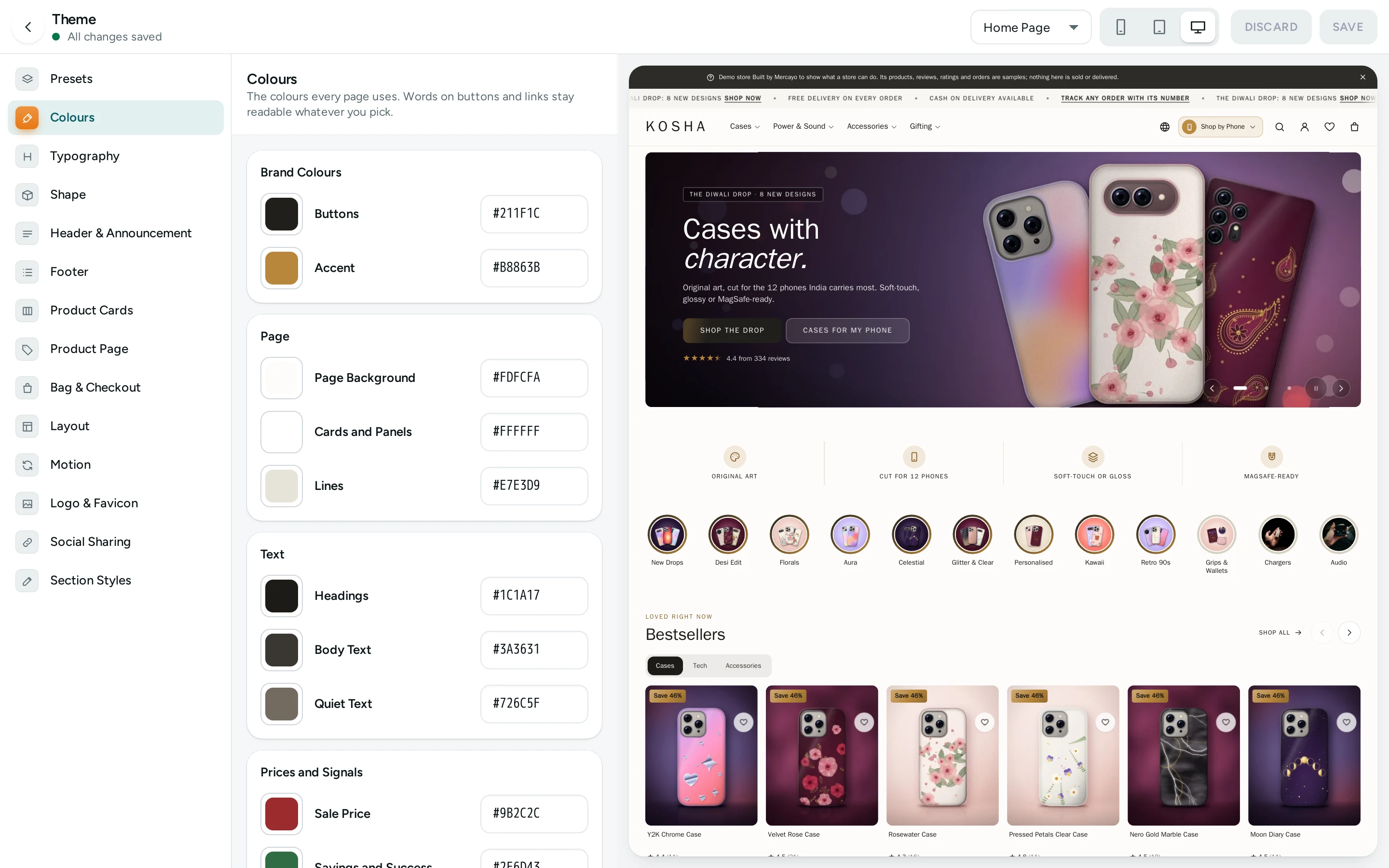
Colours
"The colours every page uses. Words on buttons and links stay readable whatever you pick."
Each colour has a swatch and its colour code. Type a code like #1F4E46 or pick from the swatch; a wrong code says "Use a colour code like #1F4E46."
| Card | Colour | Where It Shows |
|---|---|---|
| Brand Colours | Buttons | Main buttons such as ADD TO BAG and CHECKOUT |
| Accent | Highlights, links and small details | |
| Page | Page Background | Behind everything |
| Cards and Panels | Product cards, sheets, boxed sections | |
| Lines | Borders and dividers | |
| Text | Headings | Titles and headings |
| Body Text | Paragraphs and most words | |
| Quiet Text | Small print, hints, secondary words | |
| Prices and Signals | Sale Price | Reduced prices |
| Savings and Success | "You save" lines and success messages | |
| Rating Stars | Review stars |
When you change Buttons or Accent, the colour of the words on them adjusts so they stay readable.
Readability checks seven pairs as you pick and marks each Good · 7.1:1 or Hard to Read · 3.2:1, needs 4.5:1: Body Text, Headings, Quiet Text, Accent Words, Sale Prices, Words on Buttons and Buttons on the Page. "Words need 4.5:1 against what is behind them; a button needs 3:1 against the page." A weak pair does not stop you saving, but shoppers on a phone in sunlight will struggle to read it.
Typography
"The two fonts of your store and how headings look."
| Setting | What It Does | Default |
|---|---|---|
| Font Pair | A heading font and a body font that work together. Each choice shows "New Season" in its heading font and names both fonts. | Your preset's pair |
| Heading Weight | Regular, Medium, Semibold, Bold or Extra Bold | Your preset's |
| Heading Letter Spacing | From -0.06 em (tighter) to 0.10 em (looser) | Your preset's |
| Heading Size | Compact: "Headings that leave room for products: right for a busy store." Editorial: "Larger headings with more air: right for a calm, magazine look." | Your preset's |
Type Sizes is a read-only table of the sizes every text on your store uses, so pages stay consistent:
| Role | Phone | Computer |
|---|---|---|
| Hero Heading | 32 px | 60 px |
| Page Title | 26 px | 40 px |
| Section Title | 21 px | 30 px |
| Card Title | 16 px | 20 px |
| Body | 14 px | 15 px |
| Small | 13 px | 13 px |
| Caption | 11 px | 11 px |
Pages in Hindi and other Indian languages add a font for that script after yours, so Devanagari reads well while prices and numbers keep your theme's look.
Shape
"One shape for every button, field and chip, and the corners of cards."
Buttons and Fields: "Every button, field, chip and filter takes this shape, so a page never mixes them." Choose Rounded (marked Recommended), Square or Pill; each shows a small SHOP button and a field in that shape.
| Setting | What It Does | Range |
|---|---|---|
| Corner Size | Only with Rounded: how round the corners are | 4 px up to just under half the button height |
| Button Height | The height of every button | 40 to 56 px, in steps of 4 |
| Card Corners (card Cards and Panels) | Corners of pictures, cards, sheets and panels. "Things inside a card get a smaller corner to match." | 0 to 32 px, in steps of 4 |
| Button Finish | Solid or Gloss | Your preset's |
Header & Announcement
"The bar at the top of every page and the line above it."
Header
| Setting | Choices | Default |
|---|---|---|
| Logo Position | Left or Centre | Your preset's |
| Header Style | Solid or Glass. "Glass lets the page show softly through the header as it scrolls." | Your preset's |
| Header Colours | Same as the Page, Tinted or Dark | Your preset's |
Announcement Bar
| Setting | What It Does | Default |
|---|---|---|
| Lettering | As Typed or Capitals | Your preset's |
| Dot Before Each Message | "A small accent dot that draws the eye." | Your preset's |
The menu itself is on Menus (OPEN MENUS). The announcement messages, their links and their start and end times are set in the page editor, on the Announcement Bar page.
How the Header Behaves holds seven store settings. They show on the preview once you save.
| Setting | What It Does | Default |
|---|---|---|
| Header Over the First Picture | When a page starts with a picture set to run under the header, the header is see-through over it until the shopper scrolls. | On |
| Smaller Header Once Scrolled | The header gets a little shorter, with a soft shadow, once the shopper scrolls down. | On |
| Hide the Header While Scrolling Down | It comes back as soon as the shopper scrolls up, so it never covers what they are reading. | On |
| Seconds per Announcement | How long each announcement shows before the next, when they take turns (always on phones). 3 to 15. | 5 |
| Mega Menu | On a computer, a menu item with links under it opens a wide panel with columns and pictures. Off: a short list. | On |
| Pictures Zoom in the Mega Menu | On a computer, a picture in the mega menu zooms in a little under the pointer. | On |
| Icons in the Phone Menu | Automatic: the icon you picked for an item, else one that fits its name. Only chosen: only the icons you picked. Off: no icons. | Automatic |
Footer
"The foot of every page." Footer Colours: Same as the Page, Tinted or Dark. "A dark footer closes the page firmly; the same colours keep it light." The footer's link columns are on Menus (OPEN MENUS), and your About, FAQ and Contact pages are on Pages (OPEN PAGES). How the footer is laid out (columns, centred, big brand, app style) is a Section Style.
Product Cards
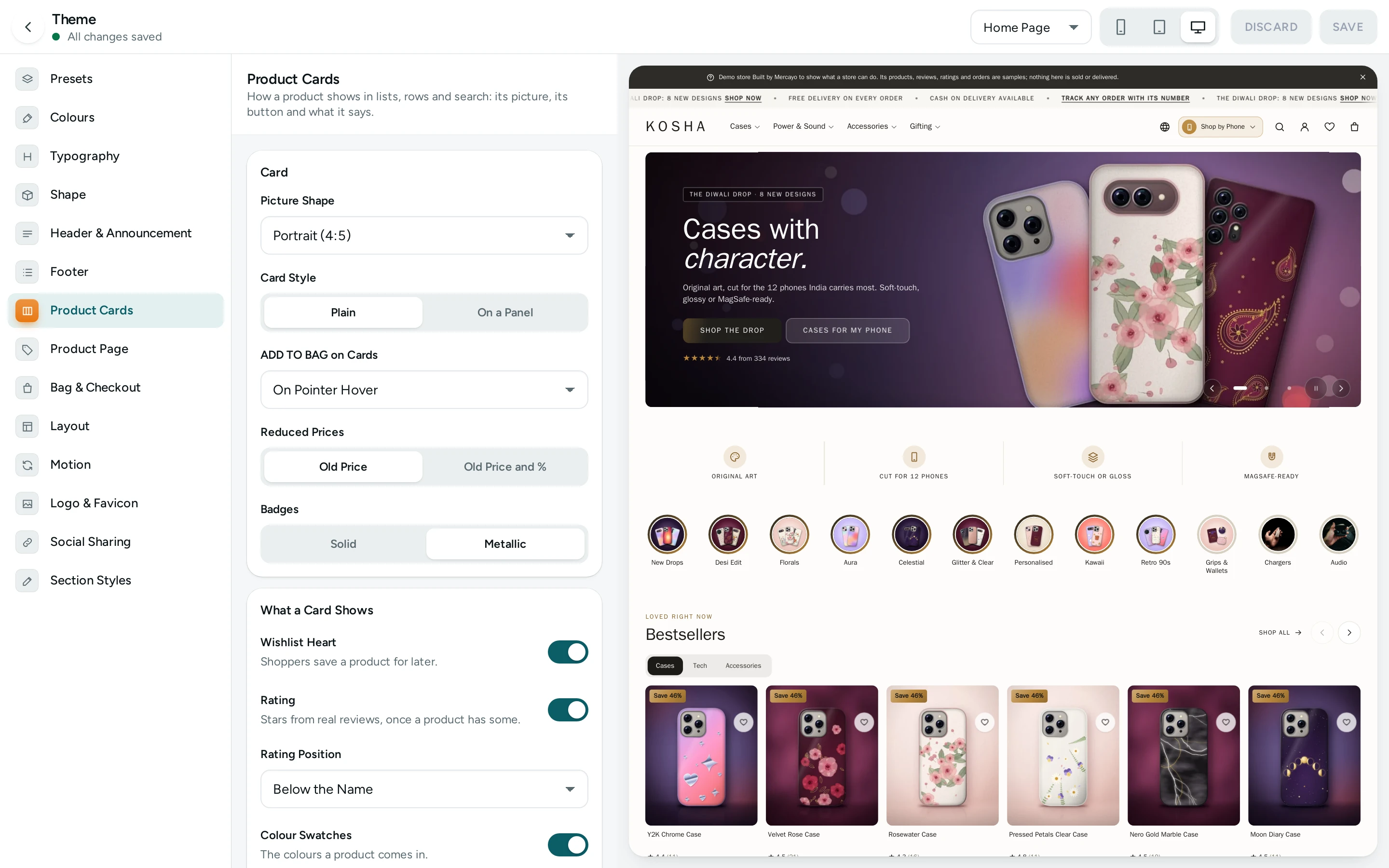
"How a product shows in lists, rows and search: its picture, its button and what it says."
Card
| Setting | Choices | Default |
|---|---|---|
| Picture Shape | Portrait (4:5), Square (1:1), Portrait (3:4), Tall (2:3) | Your preset's |
| Card Style | Plain or On a Panel | Your preset's |
| ADD TO BAG on Cards | Always Shown, On Pointer Hover, Heart and ADD Together, Not Shown | Your preset's |
| Reduced Prices | Old Price (struck through) or Old Price and % | Your preset's |
| Badges | Solid or Metallic | Your preset's |
What a Card Shows: switches for Wishlist Heart ("Shoppers save a product for later."), Rating ("Stars from real reviews, once a product has some."), Colour Swatches ("The colours a product comes in.") and Brand Name ("The maker's name above the product's name."). With Rating on, Rating Position appears: Below the Name, Above the Name, On the Picture or On the Picture on Phones.
Under the Pointer (computers): Second Picture ("The product's next picture shows under the pointer."), Lift ("The card rises a little under the pointer and presses in on a tap.") and Picture Zoom from 0% to 10%.
Product Rows holds three store settings for sideways rows of products:
| Setting | What It Does | Default |
|---|---|---|
| Product Cards in a Row on Phones | 1.75 (the next card peeks), 2 whole cards or 2.5 (smaller cards) | 2 whole cards |
| Product Cards in a Row on Tablets | 2.5 (the next card peeks), 3 whole cards or 3.5 (smaller cards). Computers always show whole rows of four to six cards. | 3 whole cards |
| Carousel Scrolling | Free scroll (smooth): a swipe glides and slows down. Card by card: every swipe lands on a card. Applies to rows of products, tiles and reviews. | Free scroll (smooth) |
The card's whole layout (standard, overlay, minimal, detailed, framed) is a Section Style.
Product Page
"How a product's own page is laid out and behaves."
Buttons: BUY NOW Beside ADD TO BAG: "Goes straight to checkout with this one product." On unless your preset turns it off.
Product Page holds eight store settings:
| Setting | What It Does | Default |
|---|---|---|
| Header on Phones | App (buttons over the photo): round buttons float over the photo (back, search, share, wishlist, bag) and a slim bar with the product's name slides in once the photo scrolls away. Standard (the store's header). | App |
| First Details Panel | Open or Closed. Closed keeps the page short. | Open |
| Zoom on Hover | On a computer, the large photo zooms where the pointer is. Photos always open full screen with a click or tap. | On |
| Details on Phones | One group of panels: specifications, what is in the box, care and shipping fold into one group under the buttons. As the template places them. | One group of panels |
| Bundle Sizes Layout | Slider: one compact row shoppers swipe on phones. Grid: every size as a box. | Slider |
| Bundle Sizes Slide by Themselves | On phones the row moves on every few seconds to show bigger bundles, until the shopper touches it. Never with reduced motion. | On |
| Tag Chips | The product's tags that your filters or badges name, shown as chips leading to every product with that tag. | On |
| Previous and Next Product | Arrows beside the breadcrumb on tablets and computers lead to the previous and next product in the list the shopper came from. | On |
Where the photos and details sit is a Section Style; which blocks the page holds, and in what order, is the page editor's Product Page. Business settings such as the low stock note or "You may also like" stay in Product Page settings.
Bag & Checkout
"What happens after ADD TO BAG, and how the bag looks."
| Setting | What It Does | Default |
|---|---|---|
| Call It (card Words) | Bag, Cart or Basket. "Every button and title on your store uses this word." | Bag |
| What Happens Next (card After ADD TO BAG) | The Bag Slides In, Go to the Bag Page or Stay With a Short Note | The Bag Slides In |
| Buy Bar That Follows | On a product page, a bar with the price and ADD TO BAG stays in view once the buttons scroll away. | On |
| Free Delivery Progress | "Add ₹X more for free delivery" in the bag, when your delivery has a free-above amount. | On |
A preset never changes these four: they are your store's own choices. The bag drawer's layout (compact, gallery, bottom sheet, mini bag) is a Section Style. The bag's features (order notes, gifts, codes in links) are in Bag and Wishlist settings.
Layout
"How wide pages are, how much room things get, and their surfaces."
Page
| Setting | What It Does | Range or Choices |
|---|---|---|
| Widest Content | How wide the content may grow on large screens | 1,200 to 2,000 px, steps of 40 (1,560 px if your preset sets none) |
| Density | "How much room things get on every page." | Compact, Comfortable, Spacious |
| Space Between Sections | Less, Medium, More | |
| Section Headings | Where headings of sections sit | Left or Centre |
Surfaces
| Setting | What It Does | Choices |
|---|---|---|
| Section Panels | "What a boxed section sits on, unless it chooses its own." | Raised, Tinted, Plain |
| Shadows | Flat or Depth | |
| Soft Glow | "A gentle light behind buttons and highlights, best on dark looks." | Switch |
| Gradient Edges | "A fine colour edge on highlighted cards." | Switch |
| Paper Grain | "A faint texture on the page, like printed paper." | Switch |
Motion
"How much your pages move. Shoppers who ask their phone for less motion never see movement."
How Much Pages Move (card Movement): Full ("Sections rise in, cards lift and sheets spring open."), Calm ("Quick fades and colour changes only.") or Off ("Everything appears at once.").
Where It Moves holds three store settings:
| Setting | What It Does | Default |
|---|---|---|
| Movement on Store Pages | Sections rise in as shoppers scroll, cards lift, sheets spring open, pages fade in. Off: everything appears at once. | On |
| How Sections Enter | For page sections set to the store's default: Rise, Fade, Stagger (items arrive one after another) or None. The first screen of a page always shows at once. | Rise |
| Movement at Checkout and in the Account | Calm: quick fades only, so paying never feels slow. Full: the same as the rest of the store. | Calm |
Logo & Favicon
"Your logo in the header and footer, and the small icon in the browser tab."
| Field | What It Does | Limits |
|---|---|---|
| Logo | "A PNG with a see-through background looks best. At least 32 px tall, up to 5 MB." | 5 MB |
| Logo Height | Appears once there is a logo: how tall it shows in the header | 24 to 64 px, steps of 2 |
| Logo for Dark Backgrounds | "Optional. Used where the background is dark, like a dark header or footer." Needs the main logo first. | 5 MB |
| Browser Tab Icon | "Shown in the browser tab and on phones' home screens. A square picture, at least 180 × 180 px." | 2 MB |
Removing the main logo also removes the dark one.
Name Without a Logo: "Until you add a logo, the header writes your store's name like this." Lettering: As Typed, Capitals or Small Letters; Accent Dot: "A dot in the accent colour after the name."
Small Spaces holds Without a Logo, Show: The store's name (default) or Initials in a badge, for the header while the store has no logo.
Your store's name and tagline are on Brand (OPEN BRAND).
Social Sharing
"The picture people see when a link to your store is shared on WhatsApp, Instagram or Facebook."
Sharing Picture: "Used for your home page and for any page without a picture of its own. Products use their own photos." Best at 1200 × 630 px, JPEG or PNG. How a Shared Link Looks shows the card with your picture, your store's name and your tagline ("Add a tagline on Brand to show a line here." when there is none).
Section Styles
A layout for each part of the store (header, menus, search, product cards, lists, footer, product page, bag, checkout, order confirmation, account). Choose one per part; they show on the preview once you save. This section is explained in full in Section Styles.
Reset Section to Preset
Under every section except Presets, Social Sharing and Section Styles sits RESET SECTION TO PRESET. It puts that section's look back as your current preset has it, and its store settings back to their defaults (settings Mercayo has locked stay as they are). Pictures are not touched. The button is greyed out when the section already matches the preset. Like everything else, it changes the preview only until you save.
How to Change Your Store's Look
- Open Online Store › Theme.
- Pick a section on the left, for example Colours.
- Change what you want. Watch the preview; switch Page Shown to Product Page or Bag to check other pages, and Preview Size to Phone, since most Indian shoppers buy on their phones.
- Move to other sections as you like. Each changed section shows a dot.
- Press SAVE. The message "Theme saved. Your store shows it now." confirms it.
How to Try a Preset Without Losing Your Look
- Open Presets and press APPLY on a preset.
- Look around the preview. Your products, pages, logo and menus stay as they are.
- Do not like it? Press UNDO in the message or in the section. Like it? Press SAVE.
- Changed your mind after saving? In Earlier Looks, press UNDO PRESET on the first row (or PUT BACK on any row), then SAVE.
How to Add Your Logo and Tab Icon
- Open Logo & Favicon.
- Under Logo, upload a PNG with a see-through background.
- Set Logo Height with the slider while watching the header in the preview.
- If your header or footer is dark, add a Logo for Dark Backgrounds (a white version usually works).
- Upload a square Browser Tab Icon of at least 180 × 180 px.
- Press SAVE.
How to Undo a Saved Change
- Open Presets and scroll to Earlier Looks.
- Find the row from before the change (each says when and by whom).
- Press PUT BACK. "The earlier look is on the preview. Save to show it on your store."
- Check the preview and press SAVE.
What Shoppers See
Shoppers see the saved look on every page of your store: home, lists, product pages, the bag, checkout and their account. The look never changes what a page says or which products it shows. Shoppers who have asked their phone for less motion see no movement, whatever Motion says. Changes you have not saved are seen only by you, in the preview.
Mercayo Controls
- Mercayo can set parts of the look for your store, for example when Mercayo designed your colours and fonts. Those sections show a lock and a note: "Set by Mercayo" with Mercayo's reason; their controls cannot be changed and a save that changes them is refused ("Mercayo has set these parts of the look for your store: …").
- Each store setting in a section (such as Mega Menu) can be set or held in a range by Mercayo. It then shows "Set by Mercayo for your store." or "Mercayo allows 3 to 10 for your store." and cannot go outside it.
Good to Know
- One SAVE writes everything: the look, the pictures and the store settings in every section.
- If someone else saved the theme after you opened it, your save is refused with "Someone saved the theme after you opened it. Reload to see their changes, then make yours again." and a RELOAD button. Nothing is mixed silently.
- Leaving with unsaved changes asks first: "Leave Without Saving?" with LEAVE PAGE and KEEP EDITING.
- Each time the look is saved, the look it replaced is kept (the last 20; the screen lists ten). Saves of the look, the brand pictures and the settings are recorded in the Activity Log.
- Business settings (payments, delivery, taxes, checkout rules, the bag's features) are not here. They stay in Settings.
- The look settings that used to be on Brand, Menus and some Settings pages now live here. Those screens show a Moved to the Theme Editor card with OPEN THEME EDITOR.
Questions
Will changing the theme change my products or pages?
No. The theme changes only how things look. Your products, pages, logo, menus and content stay exactly as they are, even when you apply a preset.
I applied a preset and saved. Can I go back?
Yes. Open Presets, find Earlier Looks, and press UNDO PRESET on the first row (or PUT BACK on the look you want). Then press SAVE.
Why does a setting not change in the preview?
Store settings such as Mega Menu, Header on Phones or How Sections Enter show in the preview only after you save. Their cards say "These show on the preview once you save."
Can my Marketer change the theme?
Yes. The Marketer preset role can open and save the Theme, including the store settings inside it. Only Section Styles also needs the right to change settings, which the Marketer role does not have.
What does the lock on a section mean?
Mercayo has set that part of your store's look, usually because Mercayo designed it with you. You can see it but not change it. Ask Mercayo support if you want it unlocked.
Can I use my own fonts?
Yes. In the Typography section, Heading Font and Body Font each open Mercayo's list of free fonts, and ADD A FONT uploads your own as a WOFF2 file (up to 1 MB, 12 files a store). Make sure your licence lets you use the font on a website.
My colour shows "Hard to Read". Can I still save?
Yes, but it is a warning worth taking: words need 4.5:1 against what is behind them to be read easily. Darken the text or lighten the background until the check says Good.