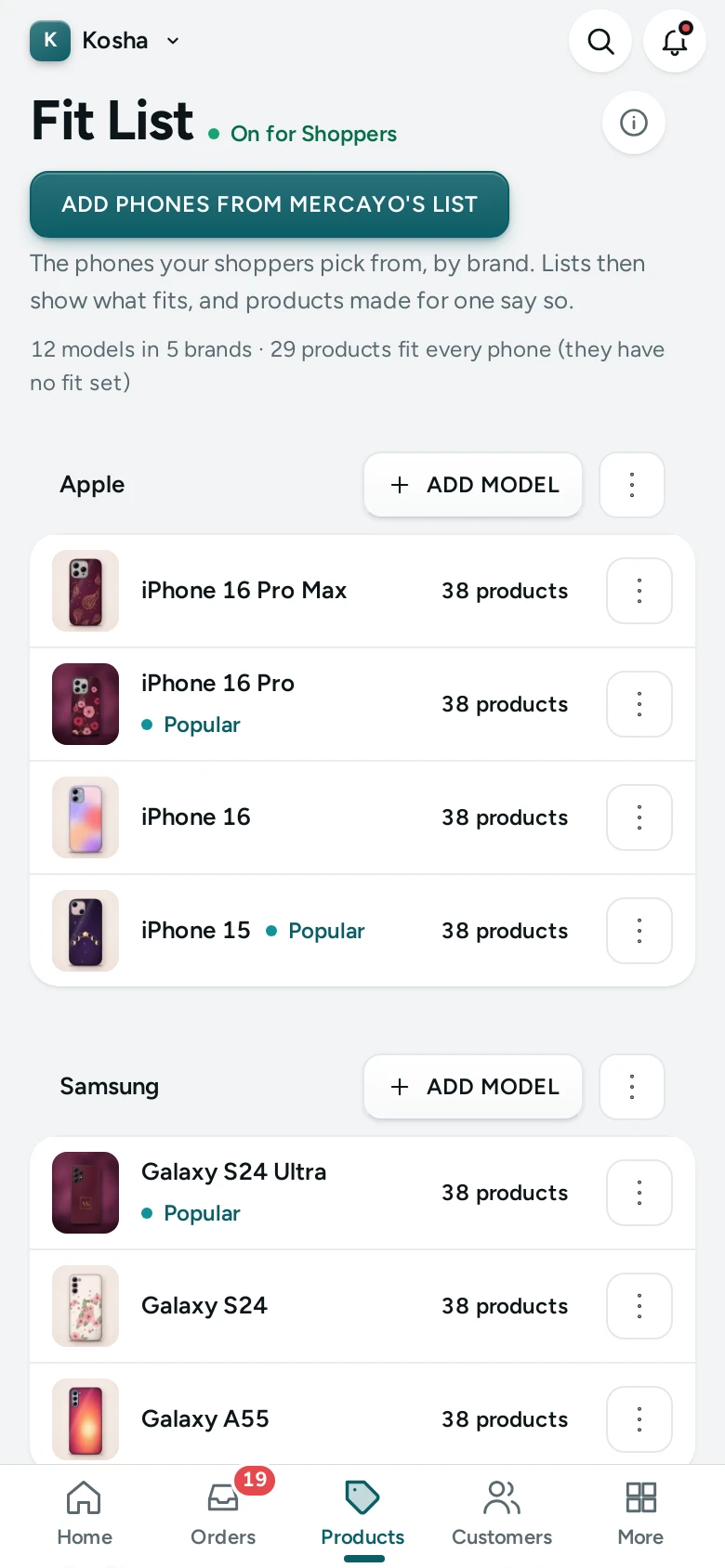
If you sell things made for a particular model, such as phone cases, car mats, printer cartridges or watch straps, shoppers want to see only what fits what they own. The Fit List is the list of brands and models your products fit. With Shop by Fit switched on, a shopper picks their model once ("Which phone do you have?") and every list in your store shows what fits it, with a "Fits your …" mark on the products made for it. It is Products › Fit List in the side menu; on a phone, open More and choose Fit List.
Anyone who can see products can open the Fit List. Changing it needs the right to edit products (the owner, admins and the Catalog Editor); others see "You can see the fit list. Changing it needs the right to edit products."
The words on this screen follow your store's settings: a phone-case store says phones, a car accessories store says cars. This article uses "model", the default.
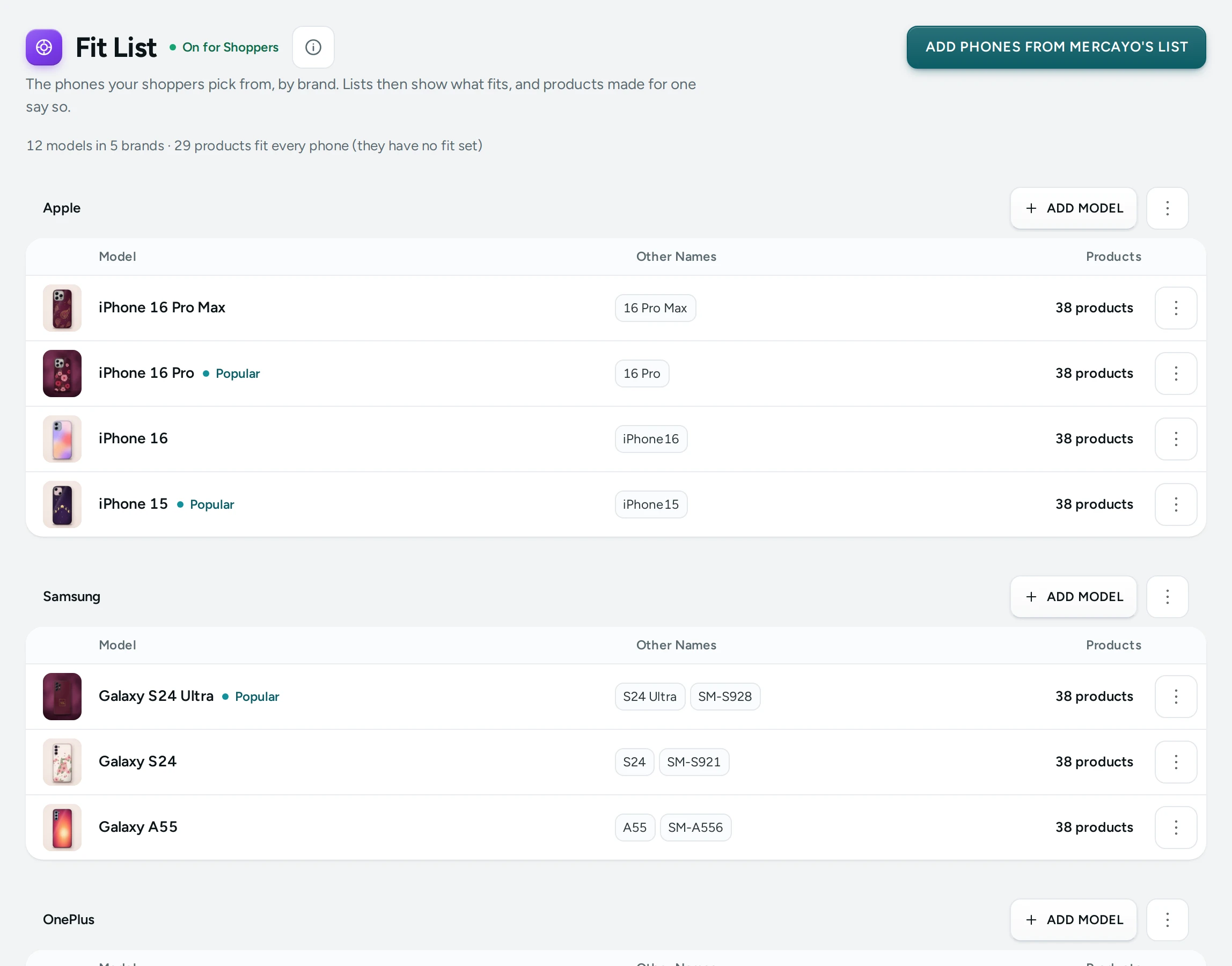
What You See
- The title with a pill: ON FOR SHOPPERS when Shop by Fit is on, OFF when it is not.
- "The models your shoppers pick from, by brand. Lists then show what fits, and products made for one say so."
- While Shop by Fit is off, a note: "Shoppers don't see this yet. Shop by fit is off. Build your list here, then switch it on in Settings." with OPEN SETTINGS (for people who can see settings).
- A summary: "48 models in 3 brands", and how many products fit every model because they have no fit set ("6 products fit every model (they have no fit set)").
Then one card per brand, in your order, each with ADD MODEL and a ⋯ menu (Rename, Move up, Move down, Delete brand). Inside, a row per model:
| Column | What It Shows |
|---|---|
| Model | Its picture, name and short name; a Popular pill when it is marked popular |
| Other Names | The other names shoppers may type |
| Products | How many products fit it ("12 products"), and how many of those fit it as a whole ("2 as a whole"). Click to see and change them. |
Each model's ⋯ menu has Edit, Products, Move up, Move down and Delete model. Every change is saved at once; there is no save bar on this screen. The store's pages follow straight away.
How to Build Your Fit List
- Press ADD BRAND (or, with an empty list, the button under "No brands yet"). Type the Brand Name, for example Apple, and save.
- On the brand's card, press ADD MODEL and fill in Add a Model:
| Field | What It Does | Default |
|---|---|---|
| Brand | Which brand it belongs to | The card's brand |
| Name | "As shoppers know it. Its address stays the same if you rename it later." Up to 80 characters. Required. | Empty |
| Short Name | "Shown where space is short. Optional." Up to 80 characters. | Empty |
| Other Names | "What shoppers may type instead, with commas between: model numbers, short names. Up to 12." For example A3090, 16 Pro. | Empty |
| Show it among the popular ones | Puts the model in the popular group shoppers see first | Off |
| Picture | "A small picture for the menu's fit panel and the sheet. Upright pictures work best." UPLOAD / REMOVE. | None |
- Repeat for each model, then put brands and models in order with Move up and Move down. Shoppers see them in this order.
Your store can list up to 500 models (a limit Mercayo sets and can raise).
How Products Fit Models
A product fits a model in one of two ways:
- Through an option. A phone case sold in one variant per model has an option (Phone model) whose values are linked to models. Link them in the product editor's Options card with ADD FROM PHONE LIST or the phone icon on each value. See Options and Variants. The shopper's model is then chosen for them on the product page.
- As a whole. A product with one variant that fits several models (a universal car mat for five models, a charger for every phone with USB-C). Set it in the product editor's Fits card, or from this screen (below).
A product with no fit at all fits every model, while Products Without a Fit Fit Everything is on in Settings (the default), so chargers and gift cards still show to a shopper who picked a model.
How to Add Products That Fit a Model as a Whole
- Click the model's product count, or choose Products in its menu. The window "Products for iPhone 16" lists every product that fits it, each marked AS A WHOLE or THROUGH AN OPTION.
- Press ADD PRODUCTS, tick the products and press DONE.
- Remove a product that fits as a whole with its ×. Products that fit through an option are changed in their own editor.
"Products whose option names this model fit it already. Add the ones that fit it as a whole (one product for several models)."
How to Switch Shop by Fit On
- Build the list and link your products.
- Press OPEN SETTINGS (or go to Settings › Online Store) and find the Shop by Fit card.
- Turn on Shop by Fit and check the words: What Shoppers Pick (one, in small letters, like phone) and More Than One (phones).
- Save. The pill on the Fit List now says ON FOR SHOPPERS.
The Shop by Fit card's settings:
| Setting | What It Does | Default |
|---|---|---|
| Shop by Fit | Shoppers pick what they own once and see only what fits it, with a "Fits your …" mark | Off |
| Show Only What Fits on Lists | With a pick remembered, product lists show what fits it, with a way to see everything | On |
| Products Without a Fit Fit Everything | A product with no fit set shows with every pick | On |
| Choose the Shopper's Pick on Product Pages | A product made for several picks opens on the shopper's own | On |
| Remember the Shopper's Pick | On: kept on their device for a year (they can untick it). Off: until they close the browser | On |
| Fit Panel in the Header Menu | A menu item linking to Shop by fit opens brands and models, with how many products fit each | On |
| What Shoppers Pick / More Than One | The words used everywhere, like phone and phones | model / models |
| Icon | The small picture beside "Shop by …": Target, Phone, Car, Bike, Printer, Laptop or Watch | Target |
| Help Link | Where "Can't find yours?" leads, for example /pages/contact. Empty: no link | Empty |
How to Delete a Model or Brand
- Delete model: "Products keep their options, but no longer show as fitting it. Shoppers who picked it pick again."
- Delete brand: "Its 12 models go too. Products keep their options, but no longer show as fitting them. Shoppers who picked one pick again."
Both ask you to confirm with DELETE.
What Shoppers See
- A strip or sheet asking "Which phone do you have?" ("We'll show what fits it, everywhere in the store.") with brands, a search ("Search, e.g. iPhone 16") and the popular models first. They can tick "Remember my phone on this device".
- After picking: "Shopping for iPhone 16" with CHANGE, lists that show what fits ("24 products fit iPhone 16", with SHOW ALL), and a "Fits your phone" mark on products made for it.
- A page per model at
/fits/model, and an all-models page at/fits. - "Can't find your phone?" with your help link, if you set one.
Good to Know
- The product counts are exact: through an option value or as a whole.
- Renaming a model keeps its address, so links and shoppers' remembered picks keep working.
- Other names help search: a shopper typing "A3090" finds the model you named iPhone 16.
- Your store's pages update as soon as a change is saved.
Questions
Do I need a Fit List if I sell clothes?
No. The Fit List is for products made for a particular model of something. Leave Shop by Fit off.
Can I use it for cars or printers?
Yes. Change What Shoppers Pick to car or printer and the Icon to match, and list car or printer brands and models.
Why does a product show for every model?
It has no fit set and Products Without a Fit Fit Everything is on. Set its fit in the product editor's Fits card, or link its options to models.
A shopper picked a model and sees too few products. Why?
Only products linked to that model (or with no fit) show while Show Only What Fits on Lists is on. Check the model's product count here and link the missing products.
Will deleting a model change my products?
No. Products keep their options and variants; they just no longer show as fitting that model.