Search is where you make your store's search understand your shoppers. A shopper in Lucknow may type "kurti", "kurta" or "kurthi"; one in Chennai may search "cover" for what you call a "case". "Shoppers find products as they type, even with spelling mistakes. Add the words your customers use here." On this screen you see how search is doing, try a search as a shopper would, choose what the search box suggests, group words that mean the same, list words to ignore, pin your best products to the top of a search, and send a search like "returns" straight to a page. Open it from Settings, then Search ("Teach the search your words, pin products to the top, and try a search as a shopper.").
Anyone who can see settings can open it; changing it needs the right to change settings (settings.edit), which the owner and admins have. Others see "You can look at these settings, but only people who can edit settings can change them."
Search's own switches (Store Search on or off, Search Engine, Results per Search Page, Suggestions While Typing) are in the Search card of Online Store settings. When search is off, this screen says "Search is switched off for this store, so shoppers cannot search. You can still set it up here." with Open the search settings. How search opens from the header (overlay, dropdown, drawer, page) is a Section Style.
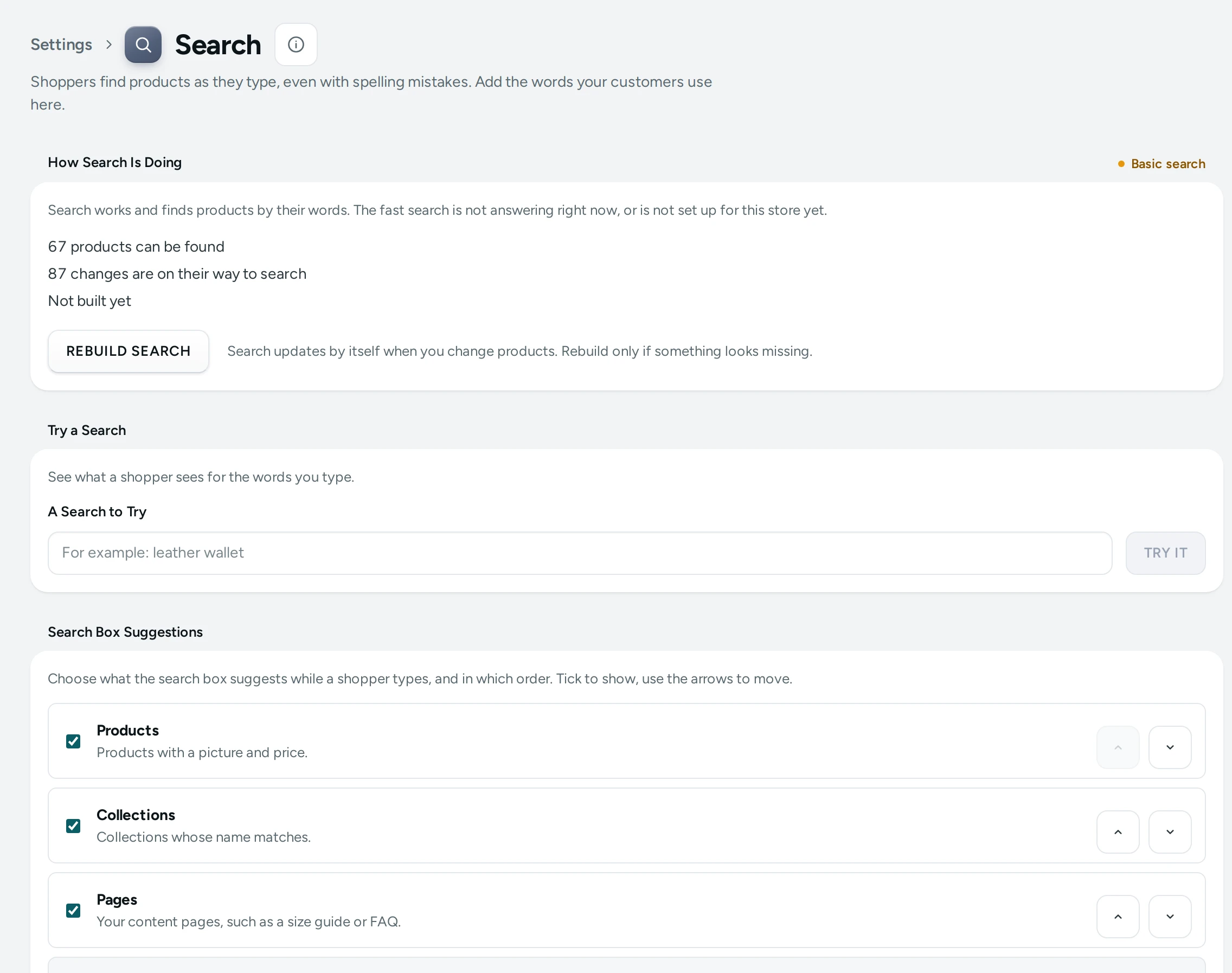
How Search Is Doing
The first card says which search answers your shoppers:
- Fast search: "Typo-tolerant, instant results with pictures and prices."
- Basic search: "Search works and finds products by their words. The fast search is not answering right now, or is not set up for this store yet." If you or Mercayo chose the basic search: "Mercayo or you have set this store to the basic search."
It also shows "312 products can be found", when search was "Last rebuilt" (or "Not built yet"), and "12 changes are on their way to search" while product changes are being added. While a rebuild runs it says Rebuilding now… and updates by itself.
REBUILD SEARCH: "Search updates by itself when you change products. Rebuild only if something looks missing." "Rebuild started. Search keeps working while it runs."
Try a Search
"See what a shopper sees for the words you type." Type A Search to Try (for example "leather wallet") and press TRY IT. You see the results with Pinned and Sold out marks, how many there are, whether the fast or the basic search answered, "Shoppers would be asked: Did you mean “wallet”?" when it suggests a spelling, and, when a search redirect applies, that the search opens its page instead of showing results.
Search Box Suggestions
"Choose what the search box suggests while a shopper types, and in which order. Tick to show, use the arrows to move."
| Kind | What It Suggests | Default |
|---|---|---|
| Products | "Products with a picture and price." | Shown, first |
| Collections | "Collections whose name matches." | Shown, second |
| Pages | "Your content pages, such as a size guide or FAQ." | Shown, third |
| Popular searches | "Searches other shoppers made with the same words that found something." | Not shown |
At least one must stay ticked. Press SAVE.
Words That Mean the Same
"When a shopper types one of these words, products with the others are found too. For example: cover, case, shell."
ADD GROUP, type Words, Separated by Commas (at least two different words), SAVE. Each group has edit and remove buttons. "A good first one is the different names shoppers use for your main product."
Words to Ignore
"Search skips these common words, like “the” or “for”, so they do not crowd out the words that matter." Type them in Words, Separated by Commas and SAVE.
Pinned and Hidden Products
"For a search you choose, put your best products first, or never show some." ADD RULE opens New Search Rule:
| Field | What It Does |
|---|---|
| When a shopper searches for | The words, for example "case" |
| Match | These exact words or Anything starting with these words |
| Show first, in this order | The products to pin at the top (CHOOSE PRODUCTS, then order them) |
| Never show | Products to leave out of this search |
"A product cannot be both pinned and hidden." Press SAVE RULE. Each rule shows "2 pinned, 1 hidden". Removing one: "The search for “case” goes back to its normal order."
Search Redirects
"Send a search straight to a page. For example, “returns” can open your returns policy and “track” the order tracking page." ADD REDIRECT opens New Redirect:
| Field | What It Does |
|---|---|
| When shoppers search for | The words, for example "returns" |
| Match | Only this exact search, or Any search that has these words, like “return policy” |
| Opens | A policy (Shipping policy, Returns policy, Privacy policy, Terms of sale, Cancellation policy, Contact page), A store page (such as Track your order), A collection, A category, A product, A content page or A web address (a page of your store such as /pages/size-guide, or an https:// address) |
Press SAVE. A redirect whose page is hidden, removed or switched off shows Not live: "Shoppers see the results for now, because this page is hidden, removed or switched off."
How to Make "Phone Cover" Find Your Cases
- Under Words That Mean the Same, press ADD GROUP.
- Type
case, cover, back cover, shell. - Press SAVE.
- In Try a Search, type "phone cover" and press TRY IT to check.
How to Put Your Bestseller First for "Saree"
- Under Pinned and Hidden Products, press ADD RULE.
- In When a shopper searches for, type
saree; set Match to Anything starting with these words. - CHOOSE PRODUCTS under Show first, in this order and pick your bestsellers; order them.
- Press SAVE RULE, then try it.
What Shoppers See
Shoppers type in the search box and see suggestions as they type (in the kinds and order you chose), then a results page. With the fast search, small spelling mistakes still find products, and a likely misspelling offers "Did you mean". Synonyms find products under any of their words; pinned products come first and hidden ones never show for that search; a search redirect opens its page directly.
Mercayo Controls
- Your plan sets how many rules you may keep: pinned searches and search redirects (50 each on Starter, 100 on Growth) and synonym groups (50 on Starter, 200 on Growth); Scale has no limit. Mercayo can change them for your store. Each list shows "12 of 100 used" or "12 saved · no limit on your plan". At the limit: "You have reached your plan's limit of 100. Remove one to add another."
- What the Search Box Suggests can be set by Mercayo for your store: "Set by Mercayo for your store."
Good to Know
- Search updates by itself when you add or change products. A rebuild is rarely needed.
- If the fast search is not answering, the basic search answers instead, so shoppers can always search.
- Search redirects are about search words. To send an old web address to a new page, use URL Redirects.
Questions
Shoppers misspell my product names. Do I need to add every spelling?
With the fast search, small mistakes are forgiven. Add a synonym group for words that are really different, like "kurti" and "kurta", or local names.
Why does a new product not show in search yet?
Product changes are added to search by themselves; "changes are on their way to search" shows on this screen while they are. If it is still missing later, press REBUILD SEARCH.
Can I hide a product from one search only?
Yes. Make a rule for that search and put the product under Never show.
How do I send "track" to the order tracking page?
ADD REDIRECT under Search Redirects, type track, choose A store page and the tracking page, and SAVE.
Can popular searches show in the suggestions?
Yes. Tick Popular searches in Search Box Suggestions and move it where you want it.