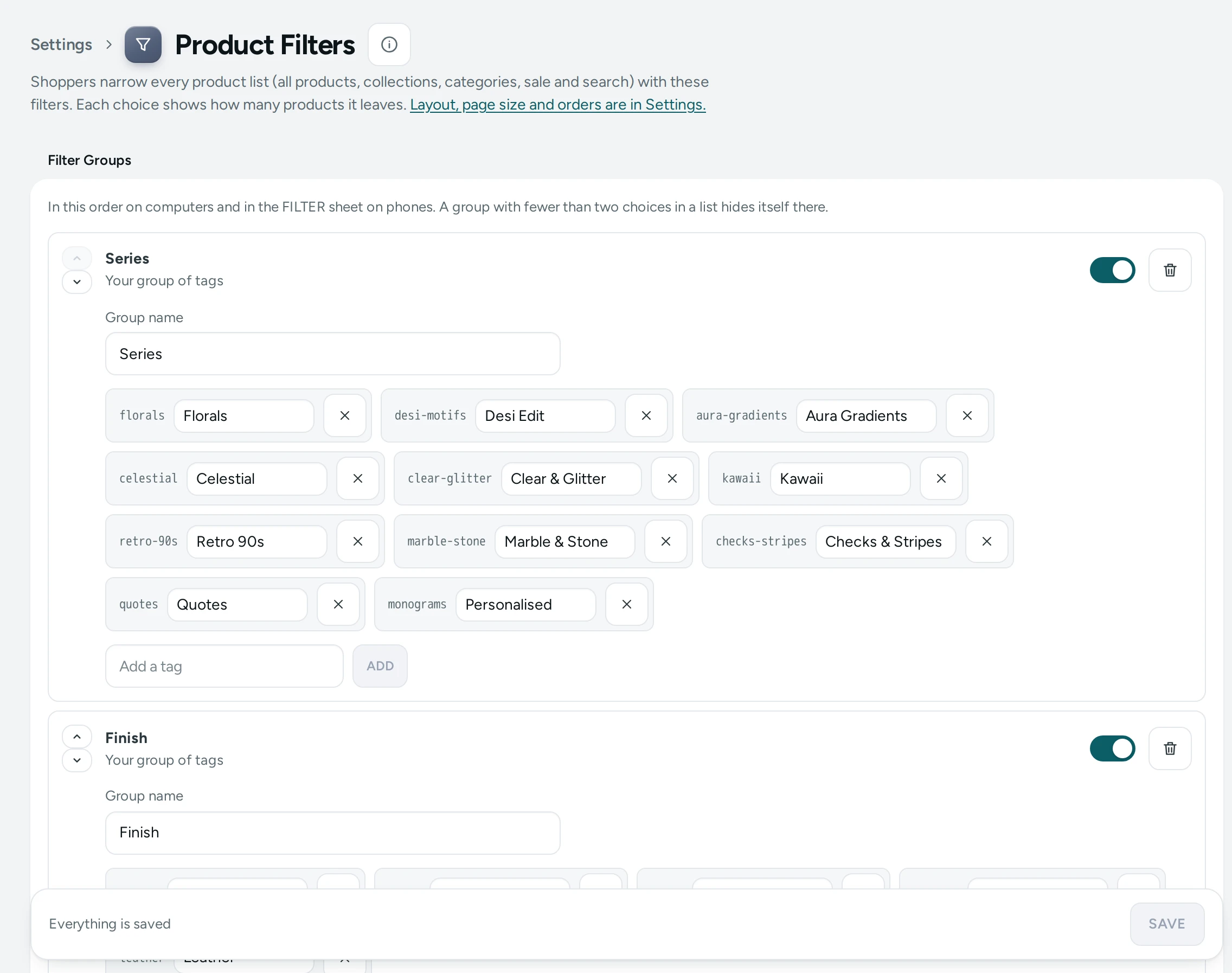
Product Filters decides how shoppers narrow your product lists: by category, brand, size, colour, price, rating or your own groups of tags, with a count beside each choice so nobody taps into an empty page. "Shoppers narrow every product list (all products, collections, categories, sale and search) with these filters. Each choice shows how many products it leaves." It also holds the Quick Filters, one-tap chips such as "Under ₹699" above the products, and Badges such as "Bestseller" on product pictures. Open it from Settings, then Product Filters ("What shoppers can narrow lists by, quick filter chips and badges").
Anyone who can see settings can open it; changing it needs the right to change settings (settings.edit). The owner and admins have it. Others see "You can see these filters but not change them."
Where the filters sit (sidebar, drawer, top bar), how many products a page shows and the default order are on Online Store settings: "Layout, page size and orders are in Settings."
Filter Groups
"In this order on computers and in the FILTER sheet on phones. A group with fewer than two choices in a list hides itself there."
Until you change anything, the card shows MERCAYO DEFAULTS, which are, in order: Category, Brand, Every other product option, Price, Availability and Rating.
Each group has:
- Move up and Move down arrows.
- Show this group: a switch, so you can keep a group but hide it for now.
- Remove this group (the bin).
- Name shown to shoppers (empty: the usual name): for example "Fabric" instead of "Material", up to 40 characters.
| Group | What Shoppers Filter By |
|---|---|
| Category | Your categories |
| Collection | Your collections |
| Brand | The products' brands |
| Price | A price range |
| Availability | In stock only |
| Rating | Star rating from real reviews |
| Every other product option | Each option your products have (Size, Colour…) that is not its own group |
| Product option | One option as its own group, such as Size, placed where you want it |
| Your group of tags | A group you name, made of tags you pick |
Under the list:
- Add a standard group…: puts back one of the standard groups you removed.
- Add a product option…: lists your options with how many products have each ("Size (48 products)").
- ADD A GROUP OF TAGS: a group of your own, such as "Series" or "Occasion", made of tags (Add a tag, and Name shown for the tag wedding to give each tag a nicer name). Up to 40 tags in a group.
- USE MERCAYO'S DEFAULTS: goes back to the default groups.
A store can have up to 20 groups.
Quick Filters
"One-tap chips above the products, such as Under ₹699 or New. A chip shows only in lists that have something it would keep."
Each chip has a Chip text (up to 40 characters), arrows to move it, and Remove this chip. To add one, fill in its Chip text, choose what It shows and give its Value (for an option's value, also choose the Product option):
| It Shows | Value | Example Chip |
|---|---|---|
| Products with a tag | A tag | "New" (tag new) |
| Up to a price (₹) | Rupees | "Under ₹699" |
| From a price (₹) | Rupees | "₹2,000 and above" |
| Rated at least (stars) | 1 to 5 | "4★ and up" |
| In stock only | "In Stock" | |
| An option's value | Option and value | "Red" |
| A category (its address name) | The category's address name | "Kurtas" |
| A collection (its address name) | The collection's address name | "Wedding Edit" |
| A brand (its address name) | The brand's address name |
Press ADD CHIP. Up to 10 chips.
Badges
"A product with the tag shows the badge on its picture. The first rule that matches wins. Sold out always shows instead."
Each badge has a Tag, a Badge text (up to 24 characters) and a Look: Accent, Dark, Light or Sale. ADD BADGE adds one (up to 12); Remove this badge deletes it. Badges show on product cards in every list, row and search.
Saving
SAVE at the foot writes the groups, chips and badges together. "Filters saved. Your lists show them now." If someone else changed the filters while you were editing: "Someone else changed the filters while you were editing. Load theirs, then make your change again." with LOAD THE LATEST.
How to Add a Size Filter Near the Top
- Open Settings › Product Filters.
- In Add a product option…, choose Size.
- Move it up with the arrow, under Category.
- Press SAVE.
How to Add an "Under ₹999" Chip
- Under Quick Filters, choose Up to a price (₹) in It shows.
- Type
999as the Value and "Under ₹999" as the Chip text. - Press ADD CHIP, then SAVE.
How to Show a "Bestseller" Badge
- Tag your bestselling products
bestsellerin the product editor. - Under Badges, press ADD BADGE, choose the tag
bestseller, type "Bestseller" and pick the Accent look. - Press SAVE.
What Shoppers See
- Filters: on a computer in the layout you chose (sidebar, drawer, top bar or chips; see Section Styles); on a phone, the sidebar and drawer layouts open from a FILTER button as a sheet, while the top bar and chips keep their row. Each choice shows how many products it would leave, and a group with fewer than two choices in that list hides itself.
- Quick filters: a row of chips above the products; one tap filters the list.
- Badges: on product pictures, wherever product cards show. A sold-out product shows its sold-out badge instead.
- With Tag Chips on in the Theme's Product Page section, a product page shows the tags your filters or badges name as chips.
Mercayo Controls
The switches for filters and quick filters (Filters on Product Lists, Quick Filter Chips) are settings on Online Store settings, where Mercayo can set them for your store.
Good to Know
- Filters work on every product list: all products, collections, categories, the sale page and search results.
- A filter group with nothing to choose in a list (for example Brand on a collection where all products share one brand) hides itself there.
- Changes are recorded in the Activity Log.
Questions
Why does a filter group not show on one of my collections?
The group has fewer than two choices among that collection's products, so it hides itself there.
How do I rename "Availability"?
Type the new name in Name shown to shoppers (empty: the usual name) for that group, then SAVE.
Can I filter by fabric or occasion?
Yes. Tag your products (for example cotton, silk, wedding) and make a group with ADD A GROUP OF TAGS named "Fabric" or "Occasion".
Two badge rules match a product. Which shows?
The first rule in the list that matches. Order them with the most important first.
Can I undo my changes?
Before saving, reload the page. After saving, change them back, or press USE MERCAYO'S DEFAULTS for the groups.