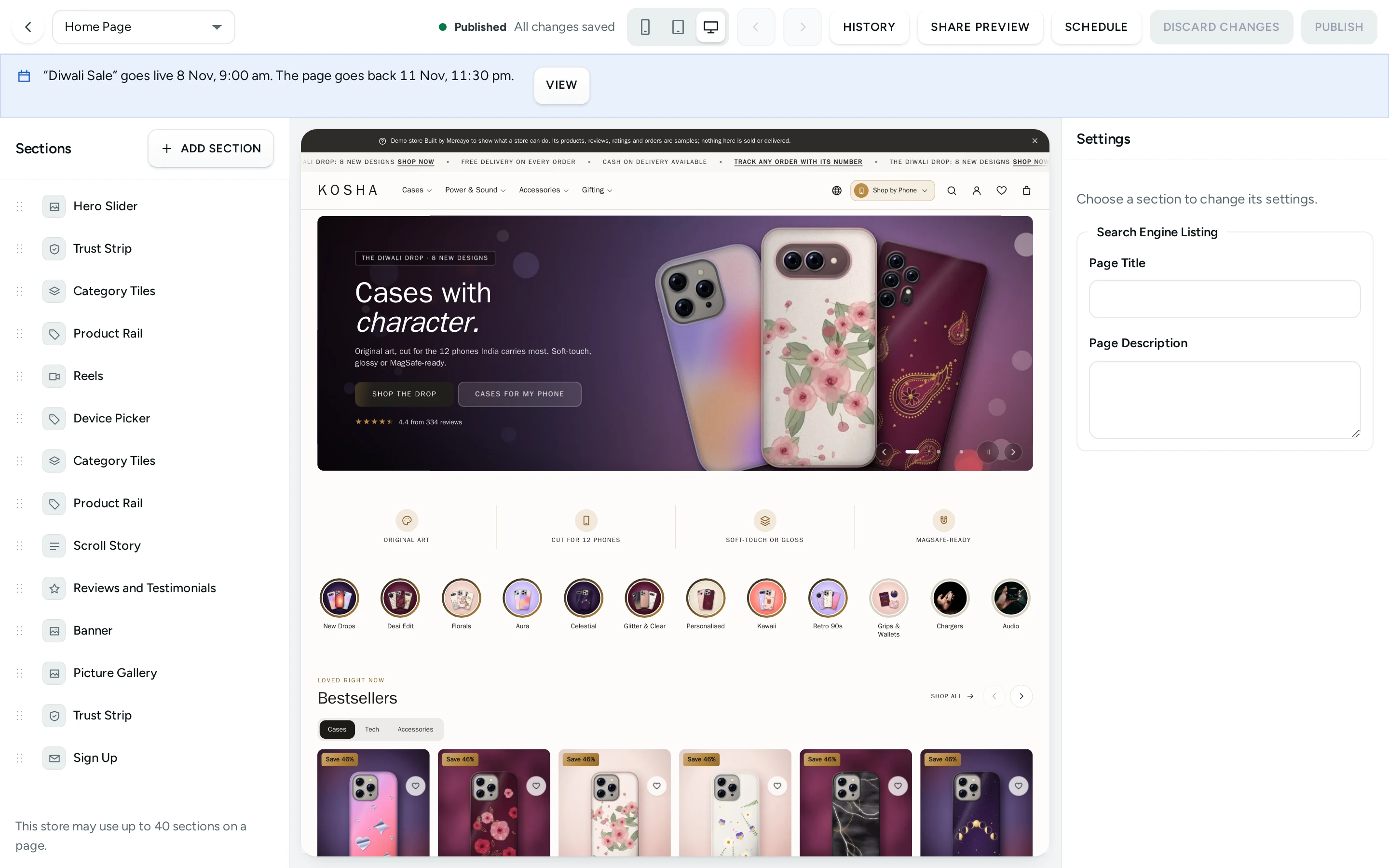
The Editor (the page builder) is where you decide what each page of your store holds and in what order: the hero slider and product rows on your home page, the blocks of a product page, the bag, the header, the footer and the announcement bar. You work on a private draft beside a live preview of your own store; the draft saves by itself a moment after each change, and nothing changes for shoppers until you press PUBLISH. Open it from Online Store › Editor in the side menu (on a phone: More, then Editor), or from Store Layouts and Edit Content on the Pages screen.
Opening the Editor and changing drafts needs the theme right (themes.edit); publishing needs the right to publish layout changes (themes.publish). The owner, admins and the Marketer preset role have both. Someone with the first but not the second sees "You can edit this layout, but publishing needs another right. Ask the store owner." on the PUBLISH button. Someone with neither sees "You can look at layouts, but changing them needs another right. Ask the store owner."
How the Screen Is Laid Out
The top bar holds, from the left:
- The back arrow, which saves your draft and returns to Home.
- Page: the kind of page you are laying out (see below).
- Template: for product, collection, category, content and blog article pages, the Default Template or one of your alternative templates, and New Template… to make one.
- Preview with: for product, collection, category and content pages, which product (or collection, category, page) the preview shows.
- The page's state: Standard Layout (you have never changed this page; it shows Mercayo's design), Unpublished Changes or Published, and under it the draft's save state: All changes saved, Changes not saved yet, Saving… or Not saved.
- Preview size: Phone (390 px), Tablet (820 px) and Desktop (1,440 px).
- Undo and Redo.
- HISTORY, SHARE PREVIEW, Pages That Use This Template (alternative templates only) and DISCARD CHANGES. On narrow screens these sit under the ⋯ button, with DELETE TEMPLATE for an alternative template.
- PUBLISH.
On the left, Sections: the page's sections in order, with ADD SECTION. In the middle, the preview: your store's own page with your draft, at the chosen size. On the right, Settings: the chosen section's settings (it opens when you click a section, and closes with Close settings).
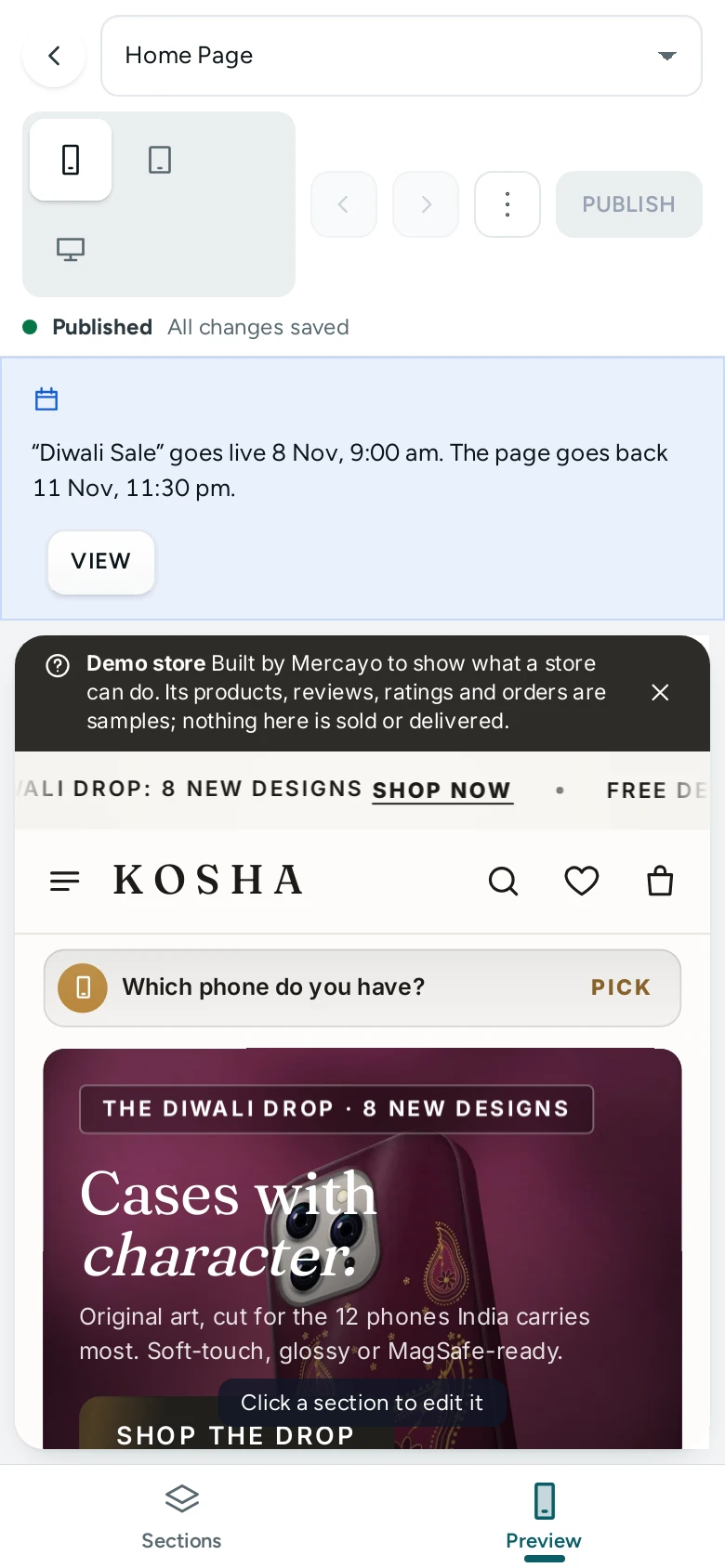
On a phone, two tabs at the foot switch between Sections and Preview.
The Pages You Can Lay Out
Page lists two groups.
| Group | Page | What It Is |
|---|---|---|
| Pages | Home Page | Your store's front page |
| Product Page | Every product's page (one layout for all, or alternative templates for some) | |
| Collection Page, Category Page | A collection's or category's list | |
| All Products | The list of every product | |
| Search Results | The search page | |
| Bag | The bag page | |
| Content Pages | Your own pages such as About or FAQ (each page has its own layout; see Pages) | |
| Blog, Blog Articles | The blog's front page and each post's page | |
| Page Not Found | The page shown for an address with nothing there | |
| Password Page | The page that asks visitors for your store's password | |
| Shop by Device, A Device's Page | The fit pages (stores that sell items made for devices, see Fit List) | |
| Sale Page | Your sale page with the live offers | |
| On Every Page | Header, Footer, Announcement Bar | Laid out once, shown on every page |
Until you change a page, it shows Mercayo's standard design.
The Sections List
Each row shows the section's name, a drag handle (Drag to reorder) and buttons to Move up, Move down, Duplicate, Hide (or Show) and Delete. Tags on a row tell you more:
- Hidden: the section stays in the layout but shoppers do not see it.
- Needs Attention: something in it must be fixed before you can publish (for example a required picture or heading is missing). The settings panel says what.
- A lock: "This section is needed on the page and cannot be removed or hidden." A product page cannot lose its Title and Price, Options or Add to Bag; the bag its Items in the Bag and Order Summary; a list its Product Grid; and so on.
Click a row to open its settings. Deleting asks "Delete this section?" ("You can undo this with the Undo button.").
Adding a Section
ADD SECTION opens Add a Section, with Search sections and the sections this page can hold in groups: Content, Product Page, Lists and Search, Bag, Header, Footer and Announcements and Other Pages. A new section goes below the one you have chosen (or at the end) and opens its settings, with only what it needs filled in for you to complete. A section that cannot be added says why: Already on This Page (it may appear only once, or its most times), Switched off for this store, or "This page is at its limit of 40 sections."
The Settings Panel
The chosen section's settings are in three tabs:
- Content: its words, pictures, links, products and items.
- Style: how it looks: colours, height, layout, panel, heading position, entrance, its section style and so on. "Nothing to set here." when it has none.
- Advanced: Show on (tick Phone, Tablet, Desktop: "Hide this section on some screens. Visitors on those screens never see it."), Hide or Show, and Delete.
A section that draws only the page's own information (the bag's lines, the search results) says "This section has no settings. It draws the page's own information."
How fields work:
- Text: a counter appears near the limit ("12 left"). In headings, words between asterisks are drawn in your theme's emphasis style, for example
New *Festive* Edit. - Longer text (Text, answers, picture-and-text words) takes simple formatting: a blank line starts a paragraph,
## Heading,- list item,**bold**,*italics*and[a link](/products). - Link to: "A page of your store like /collections/new, or an https:// address." An
#anchoron the same page works too. - Pictures: CHOOSE PICTURE opens Choose a Picture with your store's pictures and UPLOAD (JPEG, PNG, WebP or AVIF); CHANGE swaps it. Picture Description: "Describes the picture for people who cannot see it."
- Dates and times (Starts, Ends): "India time. Leave empty for no limit."
- Lists (slides, tiles, questions): ADD a new item, drag or move items, Remove one; "At least 1 needed" and "At most 6" show the limits.
- Optional groups (a second button, a link): ADD Second Button adds it; REMOVE takes it off.
- Collection or Category, Featured Product, Reel, Saved Section: chosen by name with Search by name.
Common style settings. Many sections share these:
| Setting | Choices |
|---|---|
| Colour Scheme | Base, Alternate, Night |
| Panel | Store default, Plain, Raised, Tinted, Inverse |
| Heading Position | Store default, Left, Centre |
| On Phones | Slider (swipe on phones) or List (keeps the computer's arrangement, stacked) |
| Height | Short, Medium, Tall |
| Text Position | Left, Centre |
| Entrance | Store default, None, Rise, Fade, Stagger: "How this section appears as shoppers scroll to it. The first screen of a page always shows at once, and nothing moves for shoppers who ask for less motion." |
Section Style (every content section): Background (Store default, Plain, Raised, Tinted, Inverse or Picture, with a Picture and Shade Over the Picture: Light or Dark), Space Around (Store default, None, Compact, Roomy), Width (Store default, Narrow, Wide, Full width) and Rounded Top Edge.
Search Engine Listing. On the Home Page, Content Pages and Blog Articles, when no section is chosen, the panel shows the page's Page Title (up to 200 characters) and Page Description (up to 320).
Content Sections
These can go on any page except the header, footer, announcement bar and password page.
| Section | What It Is | Its Settings |
|---|---|---|
| Hero | A big opening picture with a heading and buttons | Small Heading Above, Heading, Text Below, Text Below on Phones, Picture, Floating Picture 1 and 2, Main Button, Second Button (with an Icon), Highlights (up to 4, icon and text), Featured Product with Featured Caption and Featured Note; Style: Height (default Tall), Run Under a See-Through Header, Header Words Over the Picture (Light or Dark) |
| Hero Slider (once a page) | Up to 5 slides that cross-fade, with dots | Slides (each: Picture, Picture on Phones, Small Heading Above, Heading, Text Below, Main Button, Second Button, Text Position); Show the Store's Star Rating (on); Style: Seconds per Slide (0: never moves on its own) (default 6, up to 12), Height (Medium), Width (Inside the page margins or Full width), Light Across the Main Button (on), Run Under a See-Through Header, Header Words Over the Picture |
| Category Tiles | Round bubbles or picture tiles leading to collections and categories | Small Heading Above, Heading, Link, Items (1 to 12: Source Collection or Category, Collection or Category, Label, Picture, Description); Style: Layout (Store default, Round bubbles, Picture tiles, One large and four small), On Phones, Panel, Heading Position, Ring (Gradient ring or None) |
| Product Rail | A row of products from a collection or category, with up to 4 tabs | Small Heading Above, Heading, Tabs (each: source, Collection or Category, Label), Sort by (Newest first, Price, low to high, Price, high to low, Manual order), How Many (2 to 24, default 10), Link; Style: Colour Scheme, Panel, Heading Position |
| Banner | A picture with words, side by side or over it, optionally with a countdown | Small Heading Above, Heading, Text, Note, Button, Picture, Picture on Phones, Ends (a live countdown, then "Ended"); Style: Layout (Picture beside the words or Words over the picture), Picture Moves Slower than the Page, Height, Text Position, Colour Scheme, Panel |
| Promo Tiles | Up to 4 picture tiles, each with a link and optional countdown | Small Heading Above, Heading, Items (each: Small Heading Above, Title, Picture, Link, Ends; Style Tone: Dark or Light) |
| Picture Gallery | Up to 24 photos in a grid or a moving row | Small Heading Above, Heading, Link, Items (Picture, Caption, Link to); Style: Layout (grid or Moving row) |
| Trust Strip | Up to 6 promises with icons (COD, easy returns, invoice…) | Heading, Items (Icon, Title, Text); Style: Style (A line of promises, Product quality (under the hero), Safe purchase (with a line each)), Colour Scheme, Panel |
| Scroll Story (twice a page) | A sticky picture that changes as the shopper reads each chapter | Small Heading Above, Heading, Introduction, Chapters (2 to 6: Picture, Title, Text), Button; Style: Picture Side (default Right), Panel, On Phones |
| Reviews and Testimonials (twice a page) | Your real, approved reviews: rating and quotes, or cards | Small Heading Above, Heading, How Many (2 to 9, default 3), Lowest Rating Quoted (3 to 5, default 4); Style: Layout (Rating and quotes or Cards (swipe on phones)), Panel, Heading Position |
| Journal (twice a page) | Stories, guides or lookbooks: a picture, title and link each | Small Heading Above, Heading, Link, Items (1 to 6: Picture, Small Heading Above, Title, Text, Link to); Style: Panel |
| Sign Up (once a page) | Joins your subscriber list by email or WhatsApp | Small Heading Above, Heading, Text, Sign Up With (Email or WhatsApp), Picture; Style: Panel, Heading Position |
| Text | Words on a page: a story, terms, a size note | Small Heading Above, Heading, Text (up to 8,000 characters); Style: Colour Scheme, Panel |
| Page Title Band (once a page) | The band at the top of a content page | Small Heading Above, Heading, Text (links allowed), Picture (behind the words), Button; Style: Text Position (default Centre), Height (default Short), Panel |
| Picture and Text | Picture and words side by side; several pairs alternate sides | Small Heading Above, Heading, Items (1 to 6: Picture, Small Heading Above, Heading, Text, Button); Style: Picture Side (default Left), Alternate Sides (on), Panel |
| Columns | 2 to 4 columns of an icon or picture, a title, words and a link | Small Heading Above, Heading, Text, Items (1 to 8: Icon, Picture, Heading, Text, Button); Style: Columns per Row (2, 3, 4; default 3), Layout (Cards (swipe on phones), Plain, Icon row), Text Position, Panel, Heading Position, On Phones |
| Quote | A quotation from your founder, a customer (with their leave) or the press | Text, Who Said It, Their Role, Picture; Style: Text Position, Panel |
| Video | A YouTube or Vimeo video; the player loads only when the shopper presses play | Small Heading Above, Heading, Video from (YouTube or Vimeo), Video ID (YouTube: the 11 characters after watch?v=; Vimeo: the number in the address), Title (what the video is), Still Picture; Style: Shape (Wide (16:9), Classic (4:3), Square, Tall (9:16)), Width (Inside the page margins or Wide), Panel |
| Space | Space between sections | Style: Size (Extra small to Extra large, default Medium), Thin Line |
| Buttons | One to three buttons in a row | Buttons (each: Label, Link to, and its look: Main button, Outlined button or Text link), Text Position (Left, Centre, Right) |
| Questions and Answers (twice a page) | Questions grouped by topic, read by search engines as an FAQ | Small Heading Above, Heading, Text, Topics (1 to 12: Title, Related Policy, and up to 30 Items of Question and Answer), Open the First Panel (off); Style: Panel |
| Contact Form (once a page) | Name, email, optional phone and order number and the message; it goes to your Inbox | Small Heading Above, Heading, Text, Ask for a Phone Number (on), Ask for an Order Number (on), Show the Store's Contact Details (on), What It Can Be About (up to 8 topics); Style: Panel |
| Latest Blog Posts (twice a page) | Your newest posts, optionally of one topic | Small Heading Above, Heading, Only This Topic, How Many (2 to 12, default 3), Link; Style: Panel, Heading Position, On Phones |
| Reels (three times a page) | A row of your shoppable videos | Small Heading Above, Heading, Subtext, Source (Library order or Chosen reels), Reels to Show, How Many (1 to 20, default 10), Show the First Product (on); Style: Size (Regular or Large), Panel, Heading Position |
| Device Picker (once a page) | Lets shoppers pick their device to see what fits | Small Heading Above, Heading, Subheading; Style: Panel; Advanced: Anchor Name (default compat) |
| Saved Section | One section kept once and placed on many pages | Saved Section: which one |
Product Page Sections
The product page is laid out in two columns on wide screens: photos on one side, details on the other, with full-width rows below. Each product section has Column in its Style tab: Photos side, Details side or Full width. Each can appear once.
| Section | Its Settings |
|---|---|
| Breadcrumbs | Path Shown: Category (Home / Rings / product) or All products |
| Photos | Layout (One large photo, hover to zoom, Photos stacked two by two, One photo with arrows), Thumbnails on Phones (A row of thumbnails under the photo, Dots on the photo, None), Thumbnails on Computers (Left or Below) |
| Title and Price (needed) | Small Heading Above (Collection, Category, Brand, None), Show the Rating (on), Price Style (MRP and % off: ₹799 MRP ₹1,499 46% off; or Struck price and Save %) |
| Options (needed) | Long Option Lists on Phones (One card that opens the list or First values as chips), Size Guide Page (a content page's address, like size-guide), Size Guide Beside the Option |
| Add to Bag (needed) | Square Share Button Beside the Buttons (off; needs the store's share buttons on) |
| Description, Delivery by PIN Code, Product Stories, Tag Chips, Pairs Well with (add-ons) | No settings of their own besides Column |
| Description Card | Highlights as Icon Badges (on), Fold a Long Description (READ MORE) (on) |
| Highlights and Specifications | Show the Care Line (off) |
| Details Accordions | Open the First Panel (on) |
| Store Promises | Items: Cash on delivery, Returns, Dispatch time, Invoice (each shows only while it is true for your store) |
| Share and Sold By | Show Who Sells It (on), Show the Share Buttons (on) |
| Reviews | Panel, On Phones (Slider or List) |
| Questions and Answers | How Many (2 to 10, default 4) before SEE ALL, Panel, On Phones |
| Sticky Add to Bag Bar | Also on Computers (on; phones always) |
| Bundle Sizes (buy more, pay less) | Shoppers Choose a Size (on), Layout (As in the store's settings, Slider, Boxes), Slide by Themselves on Phones (As in the store's settings, On, Off) |
| Offers and Codes | Layout (Cards (swipe on phones) or List), Light Running Round Each Code (on) |
| Frequently Bought Together, You May Also Like, More from the Collection, Recently Viewed, Shop the Video | Heading (your own, optional) |
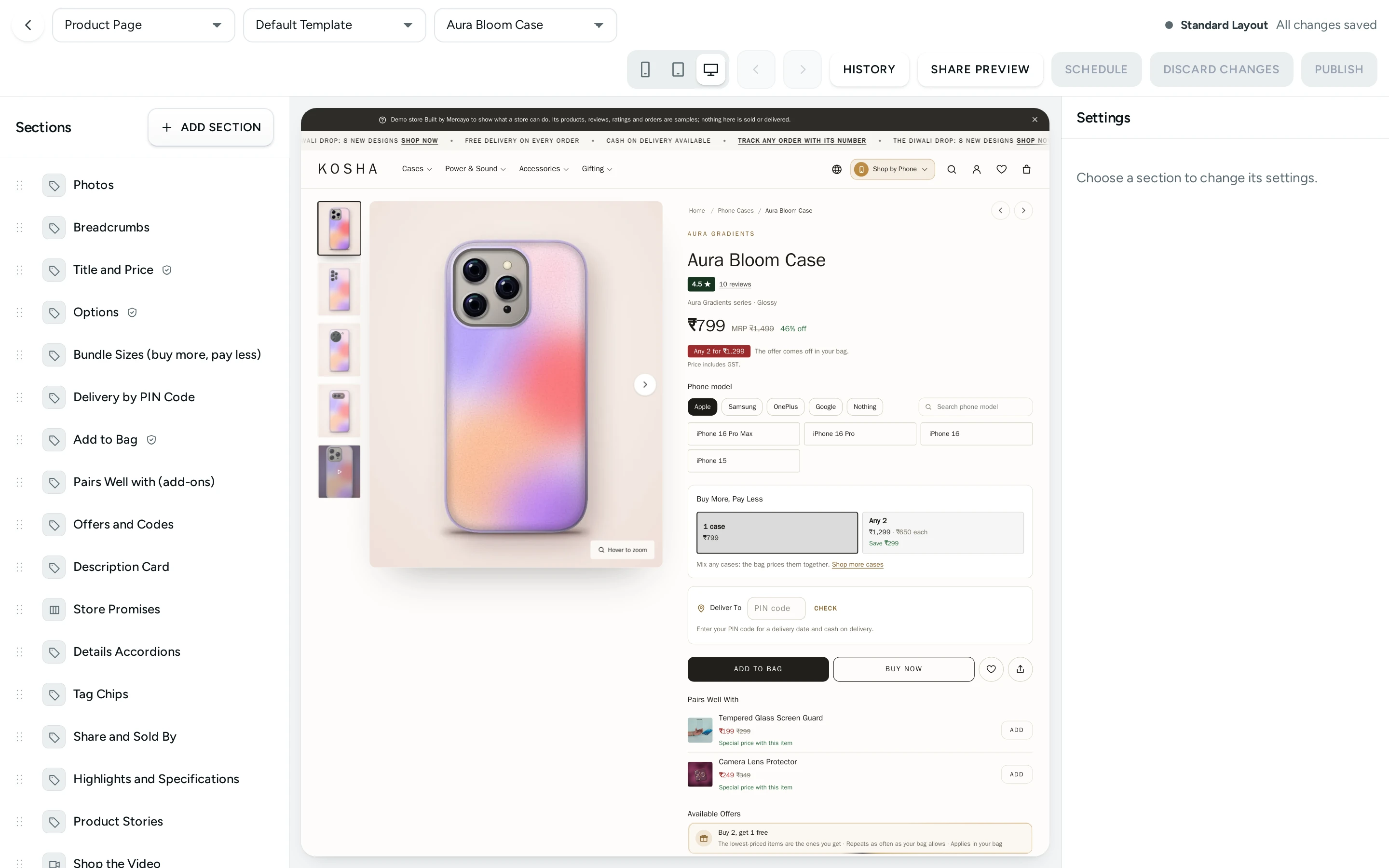
What each section shows comes from the product itself and your settings (see Product Editor and Product Page settings). A section with nothing to show (no reviews yet, no bundle offer) stays out of the way.
Lists, Bag and Other Pages
| Page | Sections |
|---|---|
| All Products, Collection Page, Category Page, Sale Page | Page Title (Title Look: Plain or Picture band), Product Grid (needed: Tiles Among the Products, up to 4, each with Place in the Grid 1 to 48, Picture, Heading, Text, Link, Colour Scheme; and Longer Text Under the Products, on), Sub-categories (category page), Offers on Now (sale page). The home page can hold a Product Grid too. |
| Search Results | Search Box, Search Results (needed) |
| Bag | Bag Title, Items in the Bag (needed), Order Summary (needed), Sticky Checkout Bar, Order Note, Bundle Progress, Pairs Well with (add-ons), Free Gift Picker. Each has Column: Main side, Summary side or Full width. Each aid shows only when its setting is on in Bag and Wishlist settings. |
| Content Pages | Page Content (needed) plus any content section |
| Blog | Blog Title (Show Topics, on), Blog Posts (needed: Layout Newest post large or grid; Posts per Page 6 to 24, default 12) |
| Blog Articles | Article Content (needed: Show the Cover Picture, Show the Author, both on), More from the Blog (How Many 2 to 6, default 3) |
| Page Not Found | Page Not Found (needed: Show Bestsellers, on) |
| Password Page | Password Form |
| Shop by Device, A Device's Page | Devices by Brand (needed), Chosen Device, Made for This Device (needed), Fits Any Device (On Phones) |
Header, Footer and Announcement Bar
| Page | Sections |
|---|---|
| Header | Header (needed): Show the Search Icon, Show the Shop by Device Link, Account Icon, Wishlist Icon, all on. Each icon shows only when its feature is on for your store. |
| Footer | Footer Brand (your logo or name, tagline and Social Buttons: up to 8, each a Network such as Instagram, Facebook, YouTube, X, Pinterest, LinkedIn, WhatsApp or Threads, with its https address), Footer Links (up to 4: Links Group Shop links, from your footer menu, or Help links), Footer Base Line (needed) |
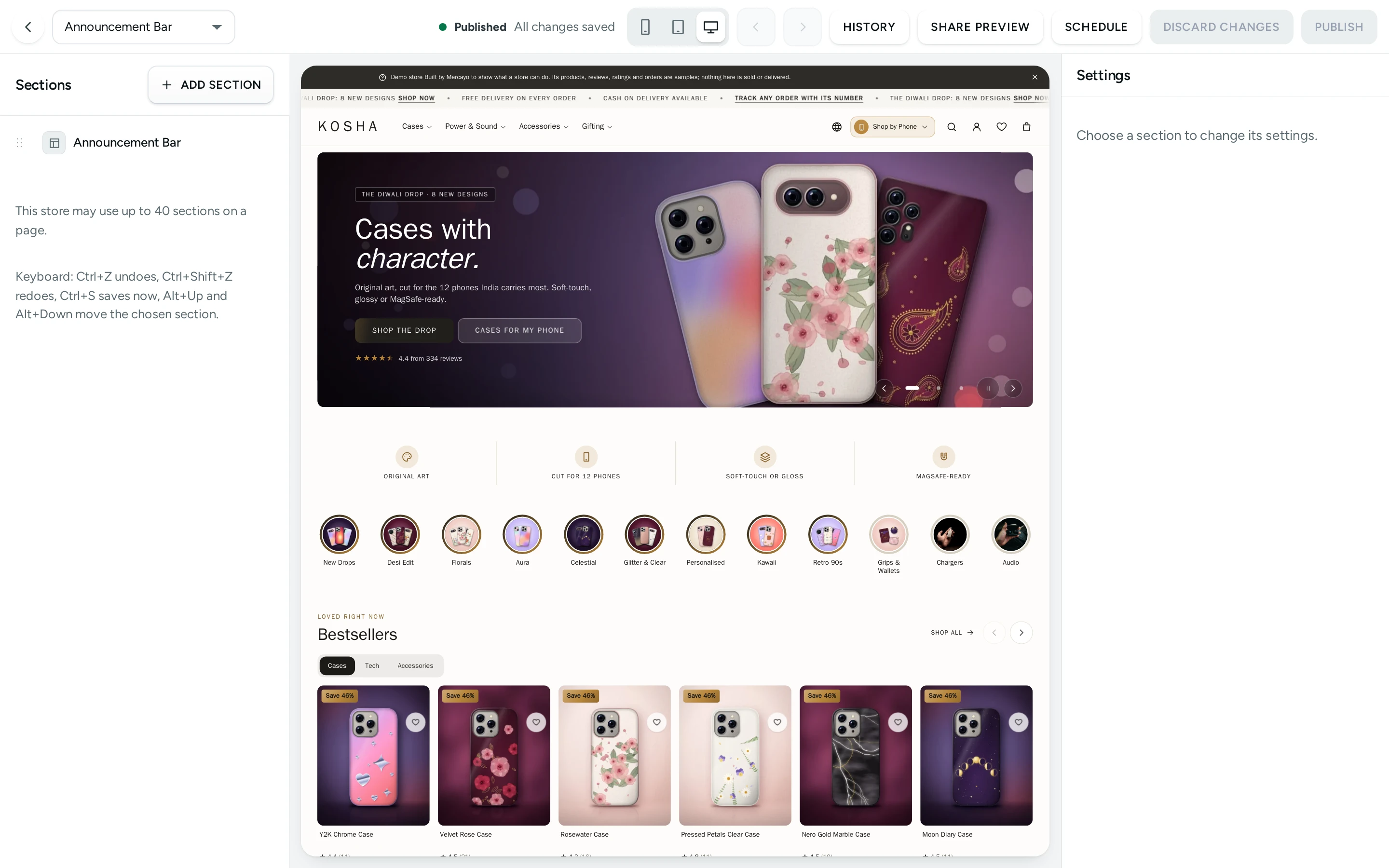
| Announcement Bar | Announcement Bar (up to 3): Messages (1 to 6, each with its Text, an optional Link with Label and Link to, Starts and Ends), and Colour Scheme (Store default, Base, Alternate, Night, Brand) |
How to Change Your Home Page
- Open Online Store › Editor. It opens on Home Page.
- Click a section on the left, for example Hero Slider, and change its slides in Content. The preview updates after each save, a moment after you stop typing.
- Drag sections to reorder them, or select one and press Alt + Up or Alt + Down.
- Press ADD SECTION to add one, for example Reviews and Testimonials.
- Check Phone in the preview size.
- Press PUBLISH, then PUBLISH again in "Publish this layout?" ("Your changes go live on the store at once."). "Published. The store now shows this layout."
How to Run a Festive Announcement on Dates
- Choose Announcement Bar under Page.
- Open the Announcement Bar section and ADD a message, for example "Diwali sale: 20% off sarees till Sunday".
- Add a Link (label "SHOP NOW", link
/sale). - Set Starts and Ends in India time.
- Press PUBLISH. The message shows only between those times.
How to Schedule a Page
SCHEDULE, beside PUBLISH, opens Schedule This Page: "The draft as it is now goes live at the time you choose, up to 90 days ahead. You can keep editing the draft for later; the scheduled copy does not change."
- Give a Name ("Diwali sale") and when it Goes Live.
- To end a sale day, tick Go back to the page as it is now at an end time and choose when it Goes Back.
- Press SCHEDULE: "Scheduled. It goes live …".
The editor then shows "“Diwali sale” goes live …". VIEW shows the schedule with CANCEL SCHEDULE, or END NOW once it is live. "If someone publishes this page by hand before then, it is left as they published it." A page has one schedule at a time. Scheduled Publishing in Settings › Online Store (Page Builder) switches this on or off.
Saved Sections
Online Store › Saved Sections keeps blocks you make once and place on many pages ("Add section › Saved section"). Make one with NEW SECTION (a Name only your team sees, and up to its limit of Blocks), or press SAVE FOR REUSE on a section in the page editor. Edit it there and PUBLISH: "every page that places it shows it now". A draft or an unpublished saved section shows nothing where it is placed. The list shows each one's State (Live, Draft or Unpublished Changes) and where it is Placed On; deleting one that is placed leaves those places empty.
How to Give Some Products Their Own Layout
- Choose Product Page under Page.
- In Template, choose New Template…, type a Template Name such as
gift-box(letters, numbers and dashes) and press CREATE. It starts as a copy of the current layout. - Change its sections as you like and PUBLISH it.
- Press Pages That Use This Template, search for the products and press USE THIS TEMPLATE on each. USE THE DEFAULT puts a product back.
A store can have up to 10 alternative templates per kind of page.
How to Share a Draft for Review
- Press SHARE PREVIEW, then MAKE A LINK.
- Press COPY LINK and send it. "Anyone with this link can see your unpublished changes for 24 hours, without signing in. It is not shown to search engines."
- Under Links Still Working, END LINK stops one link and END ALL LINKS stops them all.
How to Go Back to an Earlier Version
- Press HISTORY. Published Versions lists every published version (Version 4, Live now, who and when).
- Press RESTORE TO DRAFT on the one you want, and confirm. "It replaces your draft. Nothing changes on the store until you publish."
- Check the preview and press PUBLISH.
Recent Changes below lists who edited the draft, published, restored, discarded, shared or changed templates.
To throw away your unpublished draft instead, press DISCARD CHANGES: "The draft goes back to what is published. This cannot be undone."
What Shoppers See
Shoppers see only the published layout. "Visitors see the published layout. Your changes stay private until you publish." A hidden section, or one not ticked for their screen in Show on, never shows to them. Sections that need something your store does not have yet (reviews, blog posts, reels, subscribers switched on) show nothing until they have it, so a page never shows an empty box or a made-up number.
Mercayo Controls
- Mercayo can switch the page builder off for a store. The Editor then says "The page builder is switched off for this store. Pages show the standard layout." The store's own switch is Page Builder in Online Store settings.
- Mercayo can switch off some kinds of section for a store (they show Switched off for this store; sections already placed are kept but not shown), lower the most sections on a page (40 at most) and lower the number of alternative templates (10 at most).
Good to Know
- The draft saves by itself a moment after each change; Ctrl+S saves at once. Keyboard: "Ctrl+Z undoes, Ctrl+Shift+Z redoes, Ctrl+S saves now, Alt+Up and Alt+Down move the chosen section."
- If someone else saved the same layout (or you did, in another tab), your next save is refused: "This Page Was Changed Somewhere Else" with LOAD THE LATEST. Your unsaved changes in this tab are then lost; nothing is merged silently.
- PUBLISH stays off while a section needs attention: "Fix the sections marked with a warning first."
- A page can hold up to 40 sections. Some sections may appear only once or a few times on a page, as the tables above say.
- Deleting an alternative template (DELETE TEMPLATE) deletes its layout and history; pages that used it show the default template again.
- Saving a section for reuse on many pages has no screen in the admin yet, so Saved Section lists only sections already saved for your store.
- Published versions are recorded in the Activity Log.
Questions
Do my changes show on the store while I edit?
No. You edit a private draft. Shoppers see the change only after you press PUBLISH.
I deleted a section by mistake. How do I get it back?
Press Undo (or Ctrl+Z). If you already published, open HISTORY and restore the earlier version.
Why can I not delete or hide some sections?
They are needed for the page to work, such as Add to Bag on the product page or Items in the Bag on the bag. They show a lock.
How do I show a section only on phones?
Open the section, go to Advanced and untick Tablet and Desktop under Show on.
Can a designer check my changes before I publish?
Yes. Use SHARE PREVIEW to make a private link that works for 24 hours without signing in.
Why is the PUBLISH button greyed out?
Either nothing has changed since the last publish, a section needs attention, someone else saved the layout after you opened it, or your role cannot publish.
Where do I change colours and fonts?
In Theme. The Editor decides what a page holds; the Theme decides how everything looks.