The Blog is where you write posts for your store: a care guide for silver jewellery, "How to choose the right phone case", the story of your Jaipur workshop, the new festive collection. "Posts at /blog: guides, stories and news. A published post shows at once; drafts stay here." Shoppers read them at /blog, filter them by topic, and find them on Google; you can also show your latest posts on any page with the Latest Blog Posts section in the page editor. Open it from Online Store › Blog (on a phone: More, then Blog), or with BLOG on the Pages screen.
Writing posts needs the content right (content.edit). The owner, admins and the Marketer preset role have it. Without it: "Writing posts needs the right to edit content."
What You See
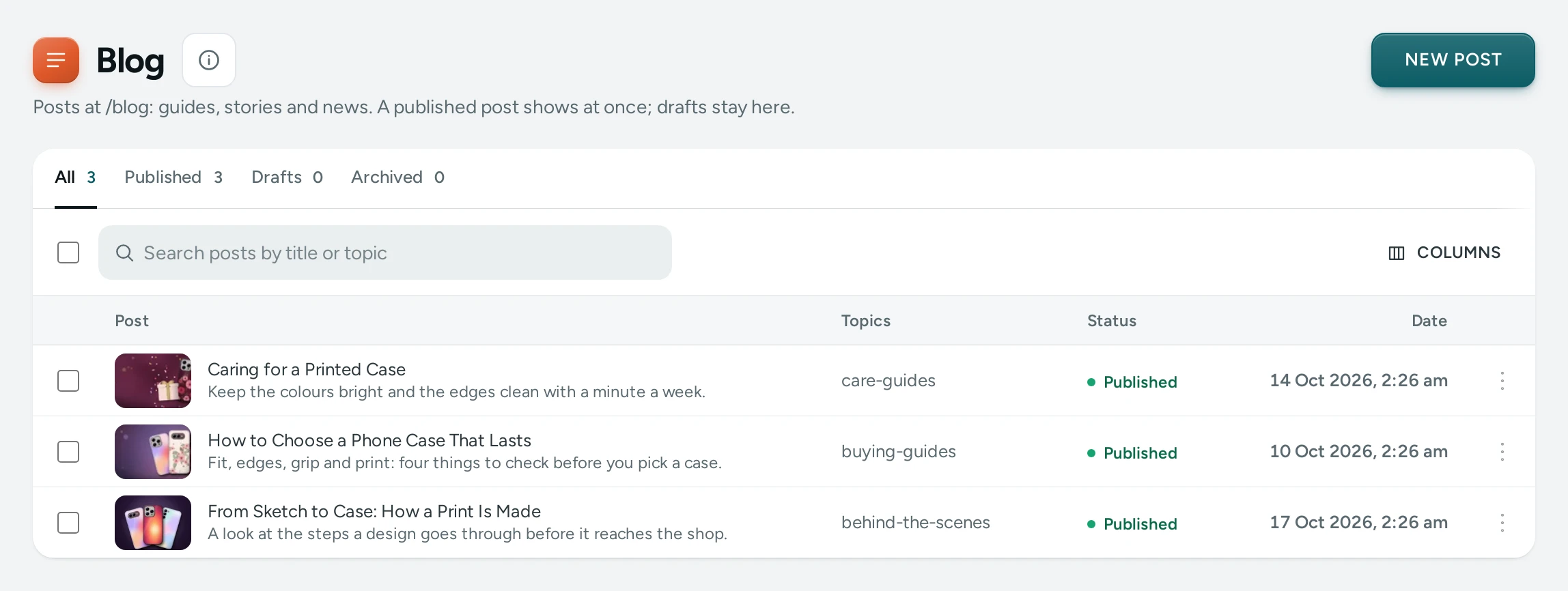
NEW POST at the top. Tabs: All, Published, Drafts and Archived, with counts. Search posts by title or topic.
| Column | What It Shows |
|---|---|
| Post | The title and the line under it ("No line under the title yet" when there is none) |
| Topics | The post's topics |
| Status | Published, Draft or Archived |
| Date | The date the post shows |
Click a post, or Edit in its row menu, to open it. With no posts: "Write a care guide, a buying guide or your story. Posts can be linked from any page and shown in a Latest Blog Posts section."
Writing a Post
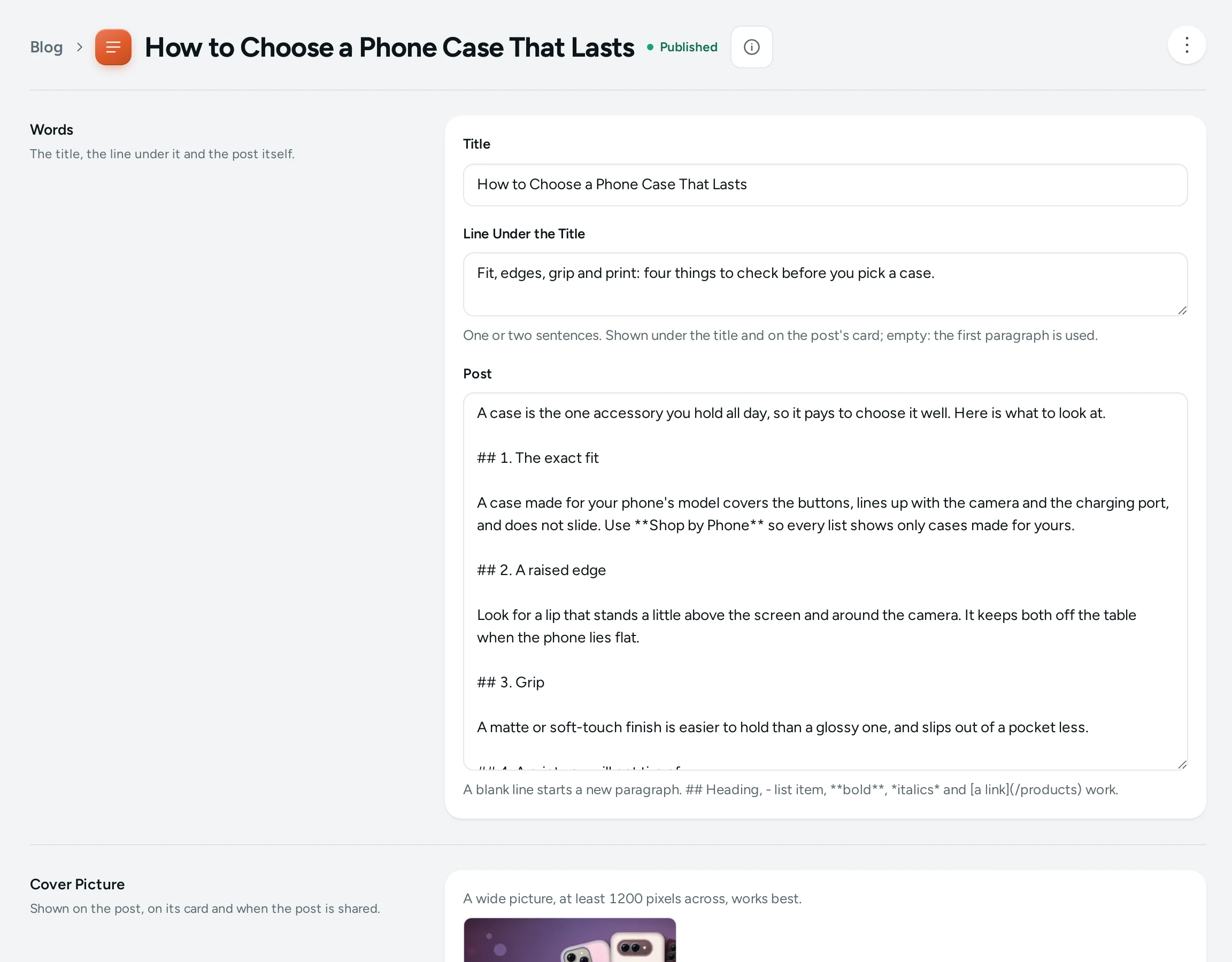
The post screen has four cards. VIEW ON STORE opens a published post; DELETE POST deletes it. The save bar at the top shows Unsaved changes with DISCARD and SAVE.
Words
"The title, the line under it and the post itself."
| Field | What It Does | Limit |
|---|---|---|
| Title | The post's title | 200 characters |
| Line Under the Title | "One or two sentences. Shown under the title and on the post's card; empty: the first paragraph is used." | 400 characters |
| Post | The words. "A blank line starts a new paragraph. ## Heading, - list item, bold, italics and a link work." | 60,000 characters |
Cover Picture
"Shown on the post, on its card and when the post is shared." "A wide picture, at least 1200 pixels across, works best." Add a Picture Description: "What the picture shows, for people who cannot see it."
Status and Topics
"When it shows, who wrote it and which topics it is under."
| Field | What It Does | Default |
|---|---|---|
| Status | "Published: on the blog at once. Draft: only here. Archived: off the blog, kept here." | Draft |
| Date Shown | "Empty: the day it is first published. Never a future day." | Empty |
| Author | The name shown on the post (up to 80 characters) | Empty |
| Topics | "Up to 8, separated by commas: care guides, styling. Shoppers can see every post of a topic." Each topic becomes small letters joined by dashes, like care-guides. | None |
Address and Search Engines
"The post's address and what Google shows for it."
| Field | What It Does | Limit |
|---|---|---|
| Address | "The post is at /blog/silver-care. Letters, digits and hyphens." Made from the title until you change it. | 120 characters |
| Title for Search Engines | What search results show as the title; empty uses the post's title | 200 characters |
| Description for Search Engines | What search results show under the title | 320 characters |
How to Write and Publish a Post
- Press NEW POST.
- Type the Title, for example "How to Keep Your Silver Jhumkas Shining".
- Write a Line Under the Title and the Post. Use
##for headings and[links](/collections/silver)to your products. - Add a Cover Picture and its Picture Description.
- Add Topics, for example
care guides, silver. - Set Status to Published.
- Press SAVE. "Post saved". It is on your blog at once.
How to Show Posts on Your Home Page
- Open the page editor on the Home Page.
- ADD SECTION, choose Latest Blog Posts.
- Give it a Heading and, if you like, Only This Topic (for example
care-guides) and How Many (default 3). - PUBLISH.
How to Take a Post Down
Set Status to Archived and SAVE: it leaves the blog but stays here. To remove it for good, press DELETE POST: "The post and its address go for good. Links to it from your pages will lead to the store's page-not-found."
What Shoppers See
/blog: your published posts, newest first, with their cover, title and line, the topics to filter by, and MORE POSTS. A topic's page is/blog?tag=care-guides./blog/<address>: the post with its title, date, author, cover and words, then More from the Journal: posts sharing a topic, else the latest.- How both pages are laid out (newest post large or an even grid, posts per page, cover and author shown or not) is set in the page editor's Blog and Blog Articles pages.
- A shared link shows the post's cover and title.
Mercayo Controls
The blog is one switch, Blog, in More Settings: "Off: the blog and its posts are hidden and links to them are dropped." It is on by default; Mercayo can set it for your store.
Good to Know
- Date Shown can be set in the past (to keep an old post's date when you move from another shop) but never in the future.
- Changing a post's address does not make a redirect by itself. If the old address was shared, add one in URL Redirects.
- If someone else changed the post since you opened it: "Someone else changed this post since you opened it. Reload the page to see their version."
- Adding, changing and deleting posts is recorded in the Activity Log.
Questions
Can I schedule a post for later?
No. Date Shown cannot be a future day. Keep the post as a Draft and publish it on the day.
Why does my post have no line on its card?
Line Under the Title is empty. The card then uses the post's first paragraph on the store; the admin list says "No line under the title yet".
How many topics can a post have?
Up to 8.
Can I put pictures inside the post?
The post's words take text formatting and links. Use the Cover Picture for the main picture.
Can the blog be in Hindi?
Posts are written in one language here. Your store's buttons and labels around them follow the shopper's language. See Translate for what can be translated.