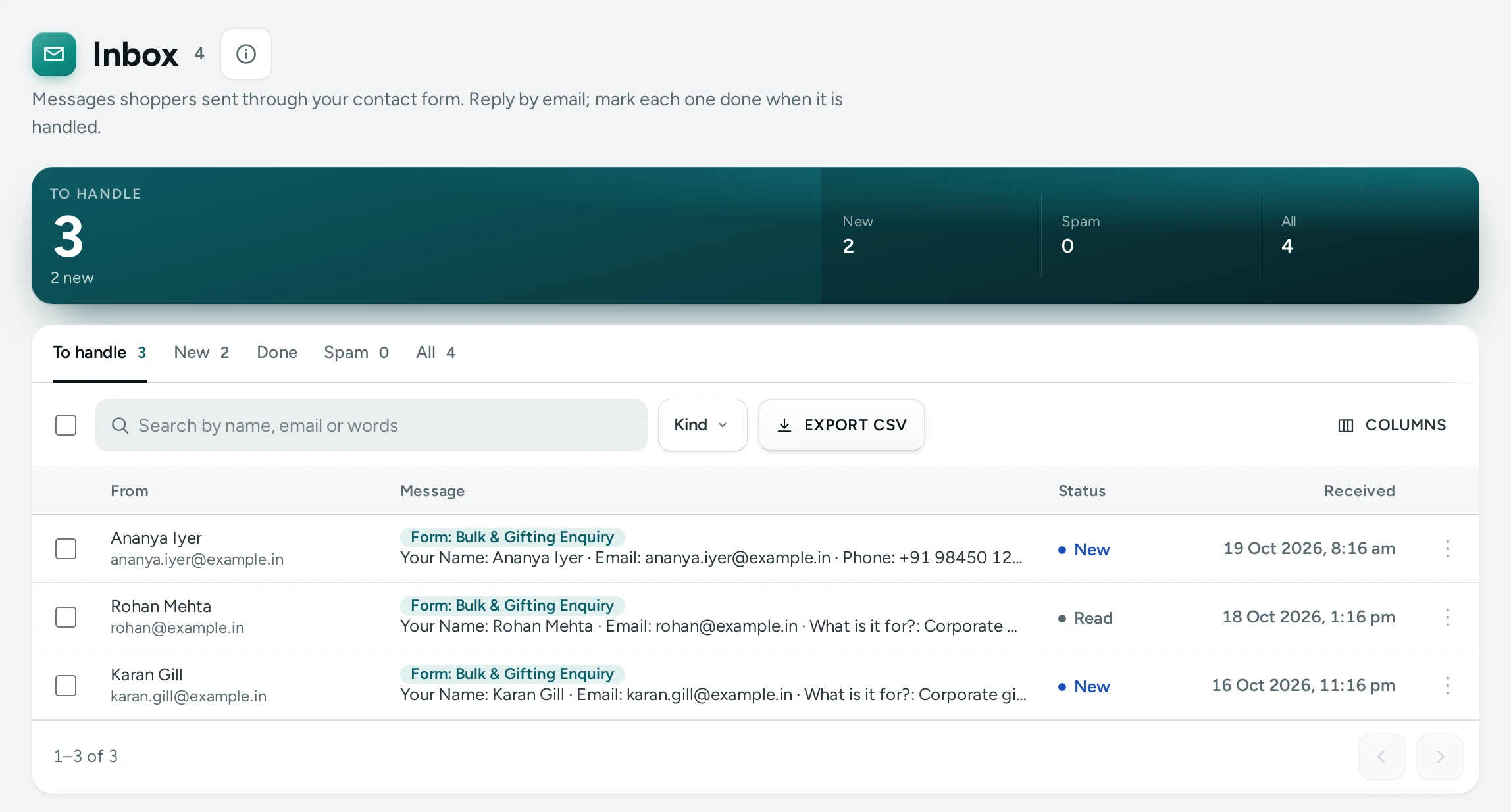
The Inbox holds the messages shoppers send through the contact form on your store, so none gets lost in an email folder. "Messages shoppers sent through your contact form. Reply by email; mark each one done when it is handled." Open it from Customers › Inbox (under More on a phone). The menu shows how many are new.
People who can see customers can read messages; marking them (done, spam, unread) needs the right to edit customers ("You can read messages; marking them needs the right to edit customers.").
Where Messages Come From
Every new store gets a Contact page with a contact form. Shoppers fill in their name, email, phone, an order number if they have one, a topic and their message. You can add a Contact form section to any page in the page editor. Empty Inbox: "Messages arrive when shoppers use the contact form on your Contact page (or any page with a Contact form section)."
The Views
| View | Shows |
|---|---|
| To handle | New and read messages not yet marked done (the default) |
| New | Messages nobody has opened |
| Done | Messages you marked done |
| Spam | Messages you moved to spam |
| All | Everything |
Search by name, email or words finds a message by its sender or text. The columns are From, Message, Received and Status (New, Read, Done, Spam).
Reading and Answering
Click a message (Read) to open it: Message from the sender, with About (the topic), Order (when they gave a number), Email, Phone and Received. Opening a new message marks it read.
- REPLY BY EMAIL opens your email program with their address and the subject "Your message to" your store.
- MARK DONE when it is handled ("Marked done").
- SPAM moves it to spam ("Moved to spam").
- MARK UNREAD puts it back as new, for someone else to pick up.
Email Alerts
With Email Me Each Message on (Settings › More Settings › Contact Form, on by default), each message is also emailed to the store owner and the extra addresses chosen for order alerts. The email goes to your team only; Mercayo never emails the address a visitor typed, so the form cannot be used to send mail to others.
How Spam Is Kept Out
- A hidden field that people never see, and a form sent in under 3 seconds, are signs of a robot: such messages are quietly dropped.
- One network address may send 5 messages in 10 minutes, and one sender 5 an hour.
- Mercayo limits how many messages a store takes in a day (200 by default), against floods.
Settings
| Setting | Where | Default |
|---|---|---|
| Contact Form: shoppers can write to you from a Contact form section; messages arrive in the Inbox | Settings › More Settings › Contact Form | On |
| Email Me Each Message | Settings › More Settings › Contact Form | On |
Questions
A shopper says they sent a message. Why is it not here?
Look in Spam and All. A message sent within 3 seconds of opening the page, or the sixth in an hour from the same person, is dropped as a likely robot.
Can I reply from inside Mercayo?
Replies go from your own email, with REPLY BY EMAIL, so the conversation continues in your mailbox.
Can I turn the contact form off?
Yes, switch off Contact Form in Settings, or remove the Contact form section from your pages.