For customers who order on WhatsApp, by phone or in your shop, a draft lets you make that order in the admin: you choose the items, the customer and the delivery, and Mercayo prices it exactly like checkout would (offers, codes, GST, delivery, the COD fee) and places it as a normal order. The customer pays cash on delivery, or online through a payment link you share on WhatsApp. Making drafts needs the right to process orders.
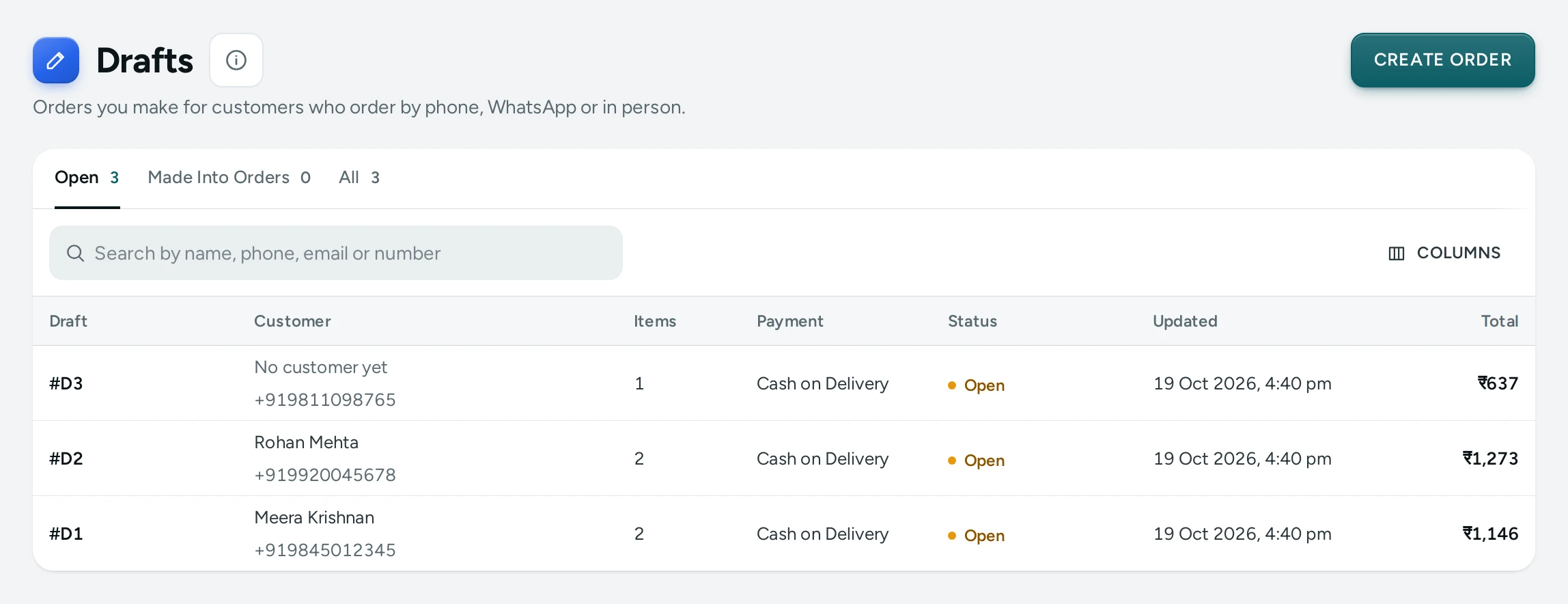
The Drafts List
Orders › Drafts: "Orders you make for customers who order by phone, WhatsApp or in person." Tabs Open, Made Into Orders and All, and Search by name, phone, email or number. Columns: Draft (#D numbers), Customer, Items, Payment, Status (OPEN, ORDERED, ORDER #…), Updated and Total.
Make an Order
- Press CREATE ORDER on Orders or Drafts. A new draft opens: "Every change is saved as you go."
- Items: Search products by name or SKU and add them; set quantities (1 to 99 each, up to 50 different items). Out-of-stock and no-longer-for-sale items are marked.
- Customer: Find a Customer by name, phone or email, or type the Phone and Email (Optional).
- Delivery Address: Full Name, address, City, PIN Code. The Delivery options for that PIN appear with their days.
- Discount Codes: apply up to 3 of your store's codes; a code that does not apply says why ("The order is below this code's minimum").
- Staff Discount (optional): ADD DISCOUNT, a Percentage Off or Amount Off (₹), and the Name on the Invoice (default "Staff discount"). "Up to 20% of the items' price." by default.
- Payment: Cash on Delivery ("The order is confirmed now; the courier collects the cash.") or Payment Link (needs online payments set up). The store's COD rules still apply and are shown.
- Note For Your Team (optional).
- The Payment Summary shows the exact total. "Still needed: …" lists what is missing.
- Press CREATE ORDER, confirm "Create This Order?". "Order #1234 is made."
The order is placed exactly as a shopper's would be: stock held, invoice issued, emails and alerts sent.
Payment Links
For Payment Link, the order waits as Awaiting payment with its stock held, and a link from your own Razorpay account is made for the exact amount. On the order, the Payment Link card shows its state (WAITING, PAID, EXPIRED, CLOSED), Open until, and:
- COPY: "The link is copied."
- WHATSAPP: opens WhatsApp on your device with the customer's number and a message with the link.
- EMAIL: sends the link by email ("The link is on its way to …").
When the customer pays, Razorpay tells Mercayo and the order is confirmed. An unpaid link order is cancelled after 48 hours by default, its stock going back. A new link can be made while money is still owed (CREATE PAYMENT LINK).
Settings
In Settings › Checkout and COD, under Order Clean-up (Orders Made by Staff and Editing Orders):
| Setting | What It Does | Default |
|---|---|---|
| Create Orders in the Admin | Staff can make an order for a customer (by phone, WhatsApp or in person) and send them a payment link. | On |
| Largest Staff Discount | The most a staff discount may take off the items, as a share of their price | 20% |
| Hours a Payment Link Stays Open | A link order keeps its stock this long; then it is cancelled and the stock goes back (1 to 720) | 48 |
| Edit Orders Before They Ship | Staff can change the items, the address and the delivery of an order not yet with a courier; see Edit an Order | On |
Questions
Does a draft order count in my sales?
Yes, once it is made into an order, like any other order.
Does the customer get the order emails?
Yes, the same emails as a shopper's order.