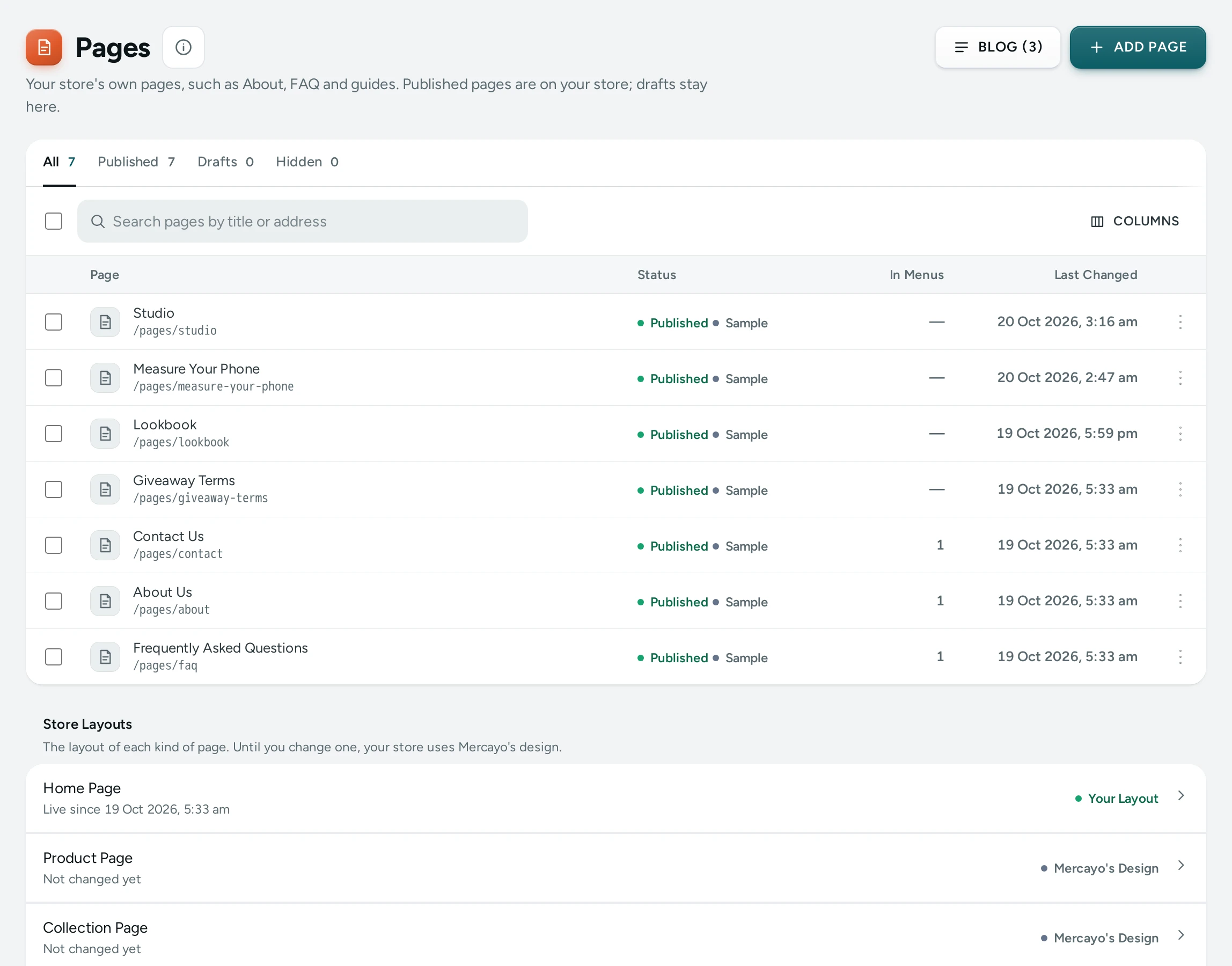
Pages holds your store's own pages: an About page that tells your story, a FAQ that answers "Do you ship to my PIN code?" before anyone asks, a Contact page with a form, a size guide, a page for a festive giveaway's terms. "Your store's own pages, such as About, FAQ and guides. Published pages are on your store; drafts stay here." Each page lives at /pages/<its address> on your store and is filled in the page editor. The same screen also lists your Store Layouts: the home page, product page, header, footer and the other kinds of page, with a link to edit each. Open it from Online Store › Pages (on a phone: More, then Pages).
Seeing and changing pages needs the content right (content.edit). The owner, admins and the Marketer preset role have it. Without it: "Seeing and changing pages needs the content right." Adding a page and editing its content also needs the theme right (themes.edit), and publishing a page whose content was never published needs the right to publish layouts (themes.publish). The Marketer role has the first two, not the third: "This page's content was never published. Publishing it needs the right to publish layouts; ask the store's owner."
Your store's policies (shipping, returns, privacy, terms) are not here: they have their own screen, Policies.
What You See
At the top: ADD PAGE, and BLOG (3) when your blog is on, which opens the Blog.
Tabs: All, Published, Drafts and Hidden (hidden and archived pages), each with its count. Search pages by title or address filters the list as you type.
| Column | What It Shows |
|---|---|
| Page | The title and its address, such as /pages/about |
| Status | Published, Draft, Hidden or Archived; Unpublished Changes when its content has edits not yet published; Sample for demo pages |
| In Menus | How many menus link to it |
| Last Changed | When the page or its content last changed |
Click a page to open it in the page editor. Each row's menu has Edit Content, Title, Address and Search, View on Store (published pages), Publish or Unpublish, Duplicate and Delete. Tick several pages to Publish, Unpublish or Delete them together.
The Four States
| Status | What It Means |
|---|---|
| Published | "On your store for everyone, at its address." |
| Draft | "Not on your store yet. Only your team sees it here." New pages start here. |
| Hidden | "Not on your store and not linked from menus, but kept as it is for later." |
| Archived | "Put away. Not on your store; kept so you can bring it back." |
Adding a Page
ADD PAGE opens Add Page: "Give it a title and an address. You fill it in the page editor next."
| Field | What It Does | Default |
|---|---|---|
| Title | The page's name, up to 200 characters | Empty |
| Address | The part after /pages/: "Small letters, numbers and dashes." | Made from the title (a title in another script gives page-2, page-3…) |
| Start From | Empty Page ("A title band. Add sections in the editor."), About Us ("Your story, with prompts to replace."), Questions ("Common questions about orders and delivery."), Contact ("A contact form that sends to your inbox.") or A Copy ("Everything from one of your pages.") with Page to Copy | Empty Page |
"New pages start as drafts: shoppers see them once you publish." Press ADD to add it and stay here, or ADD AND EDIT to go straight to the page editor.
Title, Address and Search
Title, Address and Search opens Page Settings for one page:
| Field | What It Does |
|---|---|
| Title | The page's name |
| Address | Change it and "The old address /pages/old keeps working: it sends visitors here." |
| Visibility | Published, Draft, Hidden or Archived |
| Page Title (card Search Engines) | What search results show as the title; empty uses the page's title. About 70 characters show. |
| Description | What search results show under the title. About 160 characters show. |
How it may look in search results previews the listing; with no description it says "Add a description so search engines show your words, not a guess." Press SAVE.
If you publish a page whose content was never published, "Its content was never published: saving publishes it as it is in the editor."
Store Layouts
"The layout of each kind of page. Until you change one, your store uses Mercayo's design." Each row (Home Page, Product Page, Collection Page, Category Page, All Products, Search Results, Bag, Content Pages, Blog, Blog Articles, Page Not Found, Header, Footer, Announcement Bar) shows Mercayo's Design ("Not changed yet") or Your Layout ("Live since …"), and Unpublished Changes when there is a draft. Click a row to open it in the page editor.
How to Add an About Page
- Press ADD PAGE.
- Type the Title "About Us"; the Address becomes
about-us(change it toaboutif you like). - Under Start From, choose About Us.
- Press ADD AND EDIT. The page editor opens with the starter's sections and prompts.
- Replace the prompts with your own story and pictures, for example how your grandmother started block-printing in Sanganer.
- Press PUBLISH in the editor. Back on Pages, the page is still a draft: open its menu and choose Publish. "Published. The page is on your store now."
- Add it to your footer in Menus.
How to Take a Page Off the Store for a While
- Open the page's menu and choose Unpublish (it becomes a draft), or open Title, Address and Search and set Visibility to Hidden or Archived.
- Its address then shows the page-not-found page. Menu links to it stop showing.
How to Delete Pages
- Tick the pages, or open one page's menu, and choose Delete.
- Read the warning: "The page, its content and its saved versions are deleted for good. Its address then shows the page-not-found page." It also says when a page is live or linked from menus.
- Press Delete.
What Shoppers See
A published page is at /pages/<address> with its own title band, sections, picture when shared and search listing. A draft, hidden or archived page answers with the page-not-found page, and menu items pointing at it are not shown. After you change a page's address, its old address sends visitors to the new one.
Mercayo Controls
- Mercayo sets the most content pages a store may have (200 unless Mercayo changes it). At the limit: "Your store has its most pages (200). Delete one to add another."
- If Mercayo switches the page builder off for your store, pages cannot be added or edited: "The page editor is switched off for this store by Mercayo, so pages cannot be added or edited now."
Good to Know
- Each page has its own layout in the page editor, so pages never share sections by accident.
- A changed address keeps working: Mercayo makes a URL redirect from the old one for you.
- If someone else changed the page since you opened it, your save is refused: "Someone else changed this page since you opened it. Close this and open it again."
- Adding, changing and deleting pages is recorded in the Activity Log.
- Translate a page's words into other languages on Translate.
Questions
Why does my new page not show on the store?
New pages start as drafts. Publish it from its menu (Publish) or set Visibility to Published.
What is the difference between Hidden and Archived?
Both keep the page off your store. Hidden is for a page you will bring back soon; Archived is for one you are putting away.
Can I change a page's address after sharing it?
Yes. The old address keeps working and sends visitors to the new one.
How do I make a Contact page?
ADD PAGE, choose Contact under Start From. Its form sends messages to your Inbox.
Where do I edit my returns or shipping policy?
On Policies, not here.