Translate is where your own content gets its words in your store's other languages: a product's name and description in Hindi, a collection's title in Tamil, your About page and menu labels in Marathi. "Your products, collections, pages and menus in your other languages. The original stays as you wrote it." Each thing is shown field by field with the original beside the box for its translation. The buttons and messages Mercayo writes (ADD TO BAG, checkout words, emails) are translated by Mercayo and changed under Localization; this screen is for the words you wrote.
Open it from Settings › Languages and Currencies: the Translate Your Content card's Translate row, or TRANSLATE beside a language. The Ctrl K palette finds it too.
Anyone who can see products can open Translate and read the translations. Changing them needs the right to edit that content:
| What | Right Needed | Preset Roles With It |
|---|---|---|
| Products, Collections, Categories | products.edit | Catalog Editor |
| Pages | content.edit | Marketer |
| Home, Header and Footer, Menus | themes.publish | None |
The owner and admins can change all of them. Without the right: "You can read the translations; changing them needs the right to edit this content."
Before You Start
Your store needs a second language. Until then the screen says Add a language first: "Choose the languages your store offers in Languages and Currencies, then translate your content here." with ADD A LANGUAGE. See Languages and Currencies.
What You See
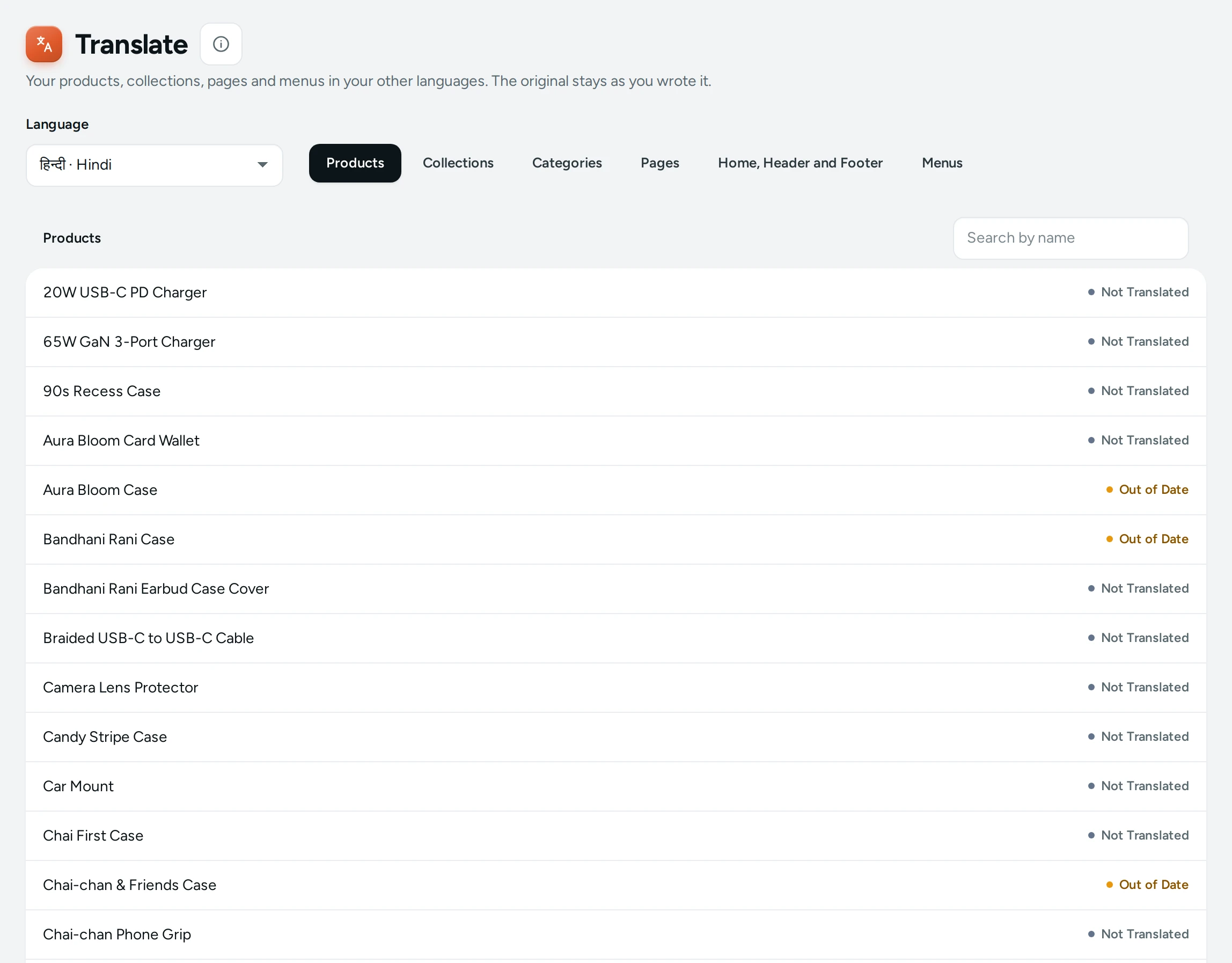
Language: which of your store's other languages you are translating into, shown in its own script and in English (for example "हिन्दी · Hindi"). Your main language is not in the list: it is the original.
The kinds of content, as tabs: Products, Collections, Categories, Pages, Home, Header and Footer and Menus.
The list shows each thing with its status:
| Status | What It Means |
|---|---|
| Translated | Every field has a translation |
| 3 of 7 | Some fields are translated |
| Not Translated | Nothing yet |
| Out of Date | The original changed after it was translated |
Search by name filters products, collections, categories and pages. Long lists have PREVIOUS and NEXT, with where you are ("1–50 of 312"): 50 a page. Press TRANSLATE on a row (or click it) to open it.
The Translation Editor
The editor shows a card for each group of fields. For a product: its own fields (Name, Tagline, Description, Highlights, In the Box, Care, Search Engine Title, Search Engine Description), then Options and Values (each Option and Value, such as Colour and Red). For a page or the home, header and footer: one card per section (Section 1, Section 2…), each field named by its place, such as "Heading" or "Item 2 · Question". For menus: Menu Labels.
For each field you see the Original (your words) and a box headed with the language's name for the translation.
- Lists, such as highlights: "One line each, as in the original."
- A translation whose original changed since: "The original changed after this was translated: check it still says the same."
- Leave a box empty to show the original in that language.
The save bar shows Unsaved changes with DISCARD and SAVE. "Translations saved." confirms it. VIEW ON STORE opens the page in that language. The back link returns to the list.
How to Translate a Product Into Hindi
- Open Settings › Languages and Currencies and press TRANSLATE beside Hindi.
- On Products, search for the product and press TRANSLATE.
- Type the Hindi beside each Original: the Name ("हाथ से बनी चाँदी की झुमकी"), the Tagline, the Description.
- Under Options and Values, translate the option names and values your shoppers choose from.
- Press SAVE.
- Press VIEW ON STORE to see the product page at its Hindi address.
How to Translate Your Menus and Footer
- Choose Menus to translate the labels of every menu your store shows, in one place.
- Choose Home, Header and Footer for the words in your home page sections, the header, the footer, the announcement bar and the page-not-found page.
- SAVE each.
What Shoppers See
- Pages in another language live under its code:
/hi/products/silver-jhumkafor Hindi, while your main language stays at/products/silver-jhumka. Search engines are told about each language's address. - On those pages your translations replace the original. A field without a translation shows the original.
- Prices, numbers and your theme's look stay the same; the page adds a font for the language's script.
Good to Know
- The original is never changed here. Edit the original on its own screen (product editor, Pages, Menus).
- When you change an original, its translation is kept but marked Out of Date until you check it.
- Blog posts, policies and reviews are not on this screen.
- If the translations could not be loaded: "The translations could not be loaded." with TRY AGAIN.
Questions
Does Mercayo translate my products for me?
No. Mercayo translates its own buttons and messages; your product names, descriptions and pages are translated here, by you or someone you trust.
What happens to a field I leave empty?
Shoppers see your original words in that place.
Why does a product say Out of Date?
You changed the original after it was translated. Open it, read the note on the field, update the translation and save.
My team member can open Translate but cannot type. Why?
Their role can see products but not change that kind of content. Products need the right to edit products; pages need the content right; the home page, header, footer and menus need the right to publish layouts.
Where do I translate ADD TO BAG and other buttons?
Under Localization. Mercayo provides them in each language, and you can change any.