Four things the Product Designer does for posters, banners and stores in more than one language.
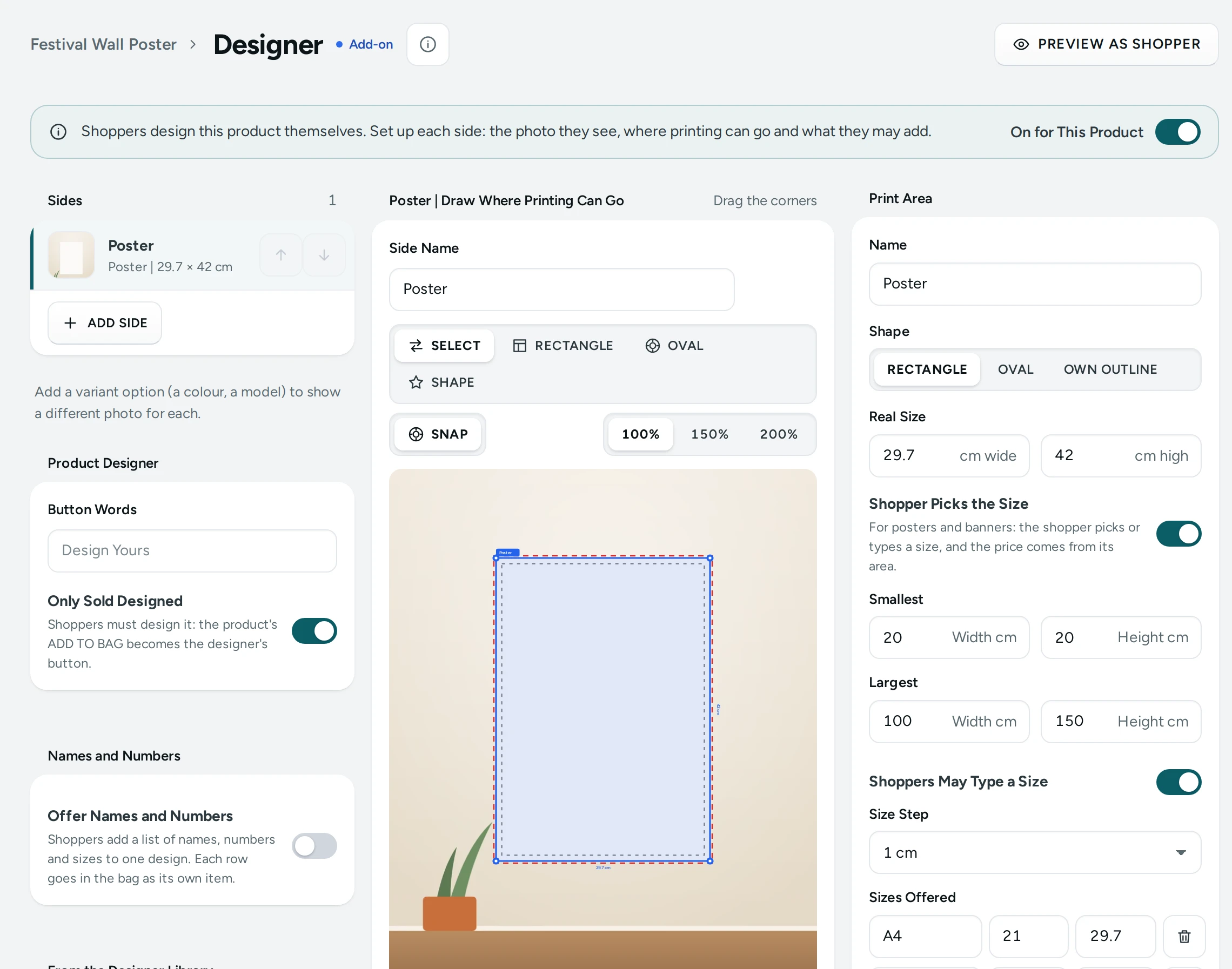
A Size the Shopper Picks
A poster, a banner or a canvas is sold by size. One print area of a product can take the shopper's size:
- Open the product, then Product Designer › OPEN DESIGNER, and pick the print area.
- Switch on Shopper Picks the Size (a rectangle or an oval; not your own outline).
- Set the Smallest and Largest width and height, in cm.
- Under Sizes Offered, add the sizes shoppers pick from (ADD SIZE: A4 21 × 29.7, A3 29.7 × 42, a 12 × 18 inch 30.5 × 45.7). Each is offered either way round when it fits.
- Leave Shoppers May Type a Size on to let them type their own between your smallest and largest, in the steps you choose (1 cm, 10 cm). Off: only the sizes offered.
- Under Price By, choose Area and a Price per cm² (₹0.05 a cm² makes a 60 × 90 cm poster ₹270), or Size Bands (up to 1,250 cm² ₹299, up to 2,500 cm² ₹499, and so on).
- Set a Lowest Price for the smallest sizes, and SAVE.
The area's own size (under Real Size) is the size a design starts at, so it must be one the shopper could pick. The print file is made at the shopper's size and the area's print quality: a size that would make a file of more than 60 megapixels is refused, so lower the print quality for very large banners (150 DPI is plenty for a poster seen from a step away).
What the shopper sees: a Size tool with your sizes and their prices, and their own width and height with TURN and USE THIS SIZE. Their design grows or shrinks with the size. The price line reads "Size: 60 × 90 cm".
Templates in Each Language
When your store reads in more than one language (Languages), a template can have a version for each one:
- In Products › Product Options › Designer Library › Templates, open a template's details.
- Under Languages, pick the language and press ADD LANGUAGE. A copy opens in your store's designer: change its words (and anything else) and SAVE TEMPLATE.
- EDIT beside a version opens it again.
A shopper reading your store in Hindi starts from the Hindi version, on the product page's Start From a Design too; everyone else from the template. Deleting a template deletes its versions.
While you edit a version, a bar over the design says which one it is ("Editing the Hindi version of Diwali Lights"); EDIT MAIN TEMPLATE opens the template it belongs to.
Urdu, Arabic and Hebrew
Add the faces to your designer fonts in Designer Library › Fonts:
| Font | For | Curve and letter spacing |
|---|---|---|
| Noto Naskh Arabic | Urdu and Arabic (regular and bold) | Yes |
| Noto Nastaliq Urdu | Urdu in the calligraphic Nastaliq style | No: set straight |
| Frank Ruhl Libre | Hebrew, with English letters and digits | Yes |
Shoppers then type right to left, with joined letters kept joined and numbers and English words in their own order. If a shopper types Urdu, Arabic or Hebrew in a font that has none of those letters, the designer changes it to one that has them (for a curved text, one that curves), or says the font cannot print them.
Nastaliq's sloping, stacked letters are drawn whole, so Noto Nastaliq Urdu is set straight: with it chosen, the curve and letter spacing rest and say why. For curved Urdu, offer Noto Naskh Arabic too.
Cut Out the Background
On a photo in the designer, CUT OUT BACKGROUND takes the background away in a few seconds, on Mercayo's own servers (the photo never goes to another company). The cut-out takes the photo's place; UNDO puts the photo back. It works best on a clear subject against a plain background: dark hair against a dark background, or something touching the person, can need UNDO. A shopper can cut out a photo they added in this visit, or one that came back with their saved design (its link opened on another phone, say): the cut-out is kept with that saved design. A photo seen through someone's share link, or a template's sample photo, cannot be cut out.
Your store has 300 cut-outs a month. Settings › Product page › Product Designer shows how many are used this month and when the count starts again. A cut-out that finds nothing to keep is not counted.
Settings
In Settings › Product page › Product Designer:
| Setting | Default | What it does |
|---|---|---|
| Sizes Chosen by Shoppers | On | Off: areas set up for it print at their own size, priced as usual |
Mercayo sets the cut-outs a month (300) and may change it, or switch either feature on or off for your store.