A collection is a group of products you choose by hand, or that fills itself by rules (Collections by Rules): "Diwali Gifts", "New In", "Under ₹999", "Bridal Edit". Each collection has its own page on your store, a picture for tiles and menus, the products in the order you want shoppers to see them, and its own search engine listing. Collections are different from Categories: a category says what kind of thing a product is (Kurtas, Earrings), while a collection is any selection you make, and one product can be in many of each. Collections are Products › Collections in the side menu; on a phone, open More and choose Collections.
Anyone who can see products can open Collections: the owner, admins and the Catalog Editor, Marketer and Order Manager roles. Creating, changing and deleting collections needs the right to edit products (the owner, admins and the Catalog Editor). Others see "Your role can see collections but not change them."
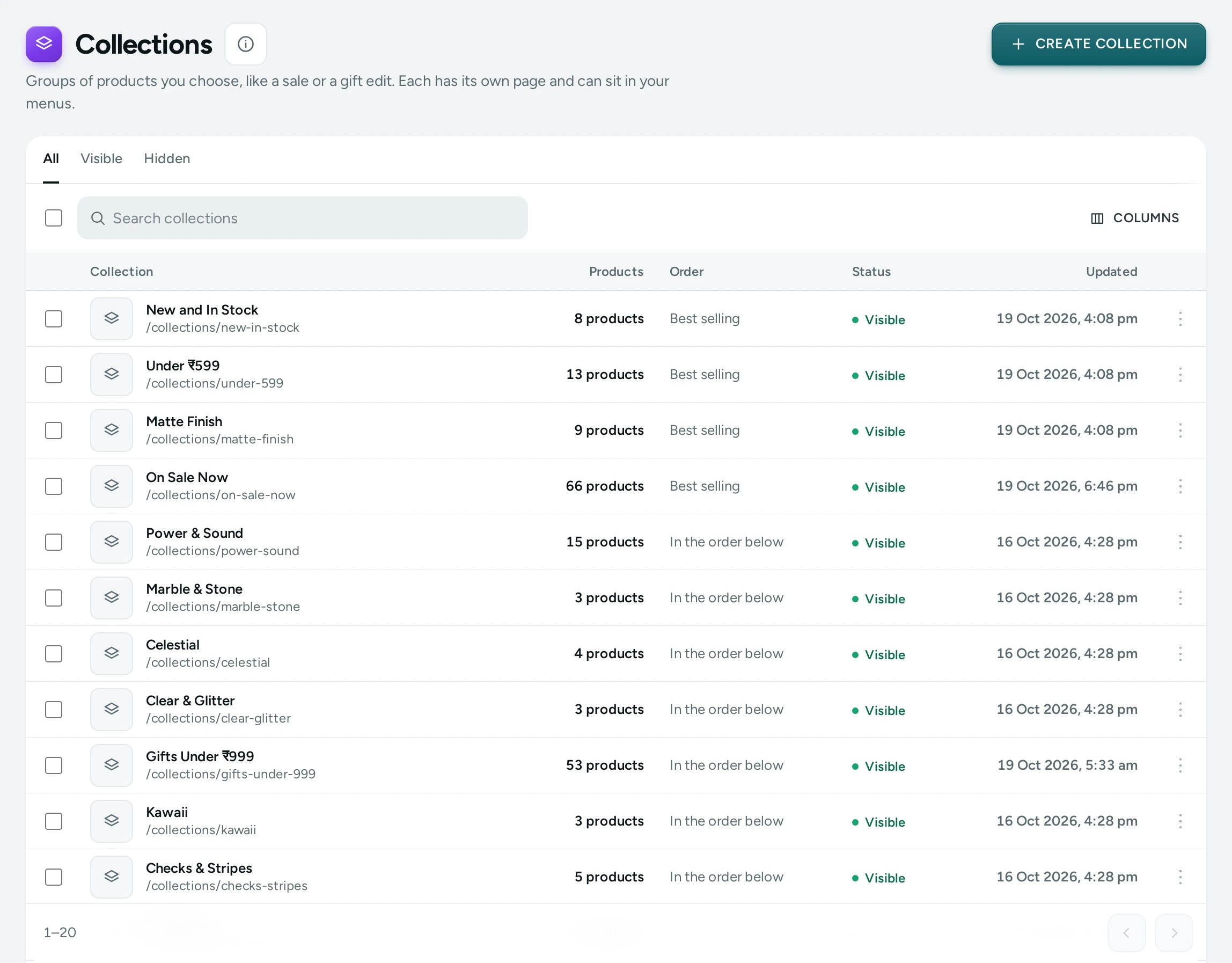
The Collections List
"Groups of products you choose, like a sale or a gift edit. Each has its own page and can sit in your menus."
- CREATE COLLECTION opens a new collection.
- Tabs: All, Visible and Hidden.
- Search collections by title.
| Column | What It Shows |
|---|---|
| Collection | Its picture, title and web address, like /collections/diwali-gifts |
| Products | How many products it holds |
| Order | How its products are ordered on its page |
| Status | Visible or Hidden |
| Updated | When it last changed |
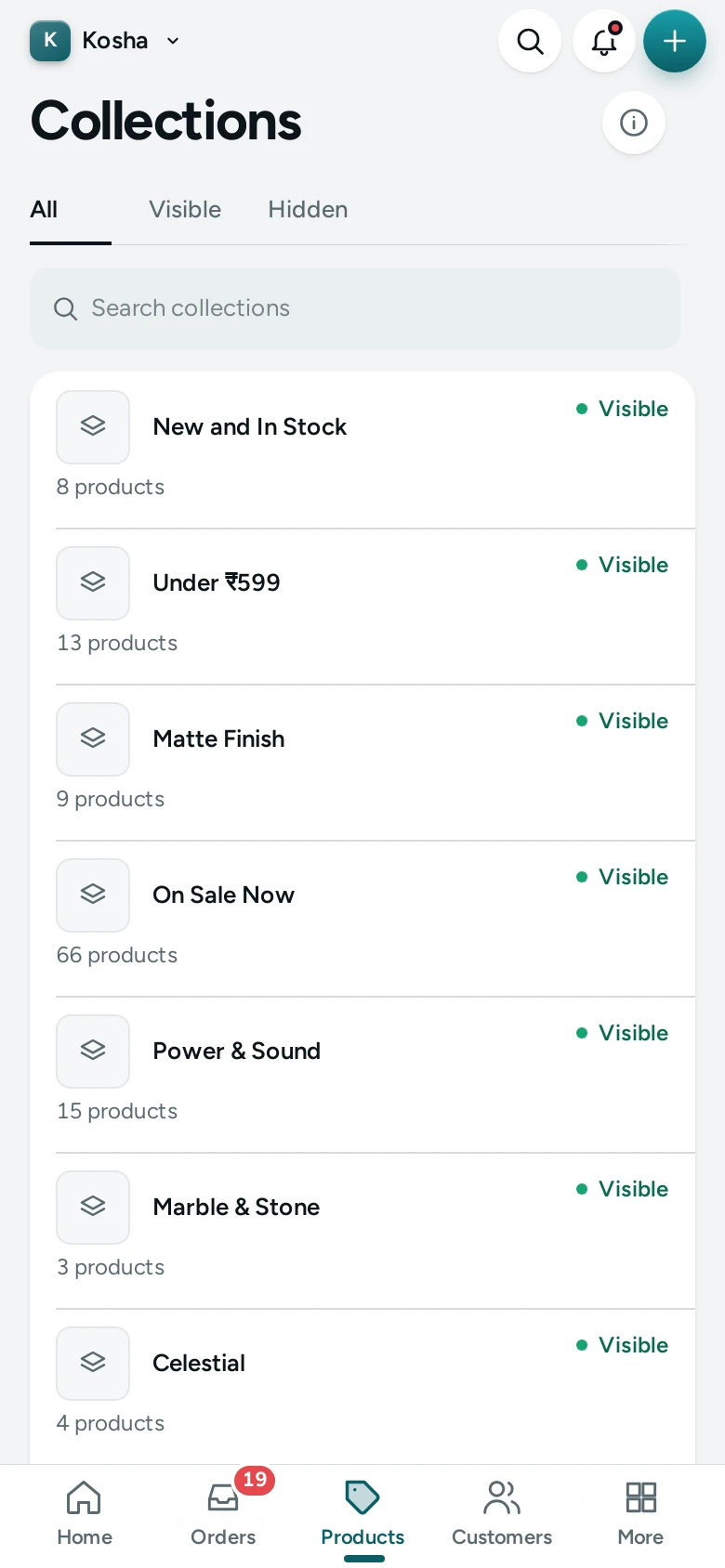
Click a row to open it. The list shows 50 collections a page; on a phone each is a card.
The Collection Editor
The editor has five sections, plus personalisation once the collection is saved. Changes wait in a save bar with DISCARD and SAVE, like the product editor.
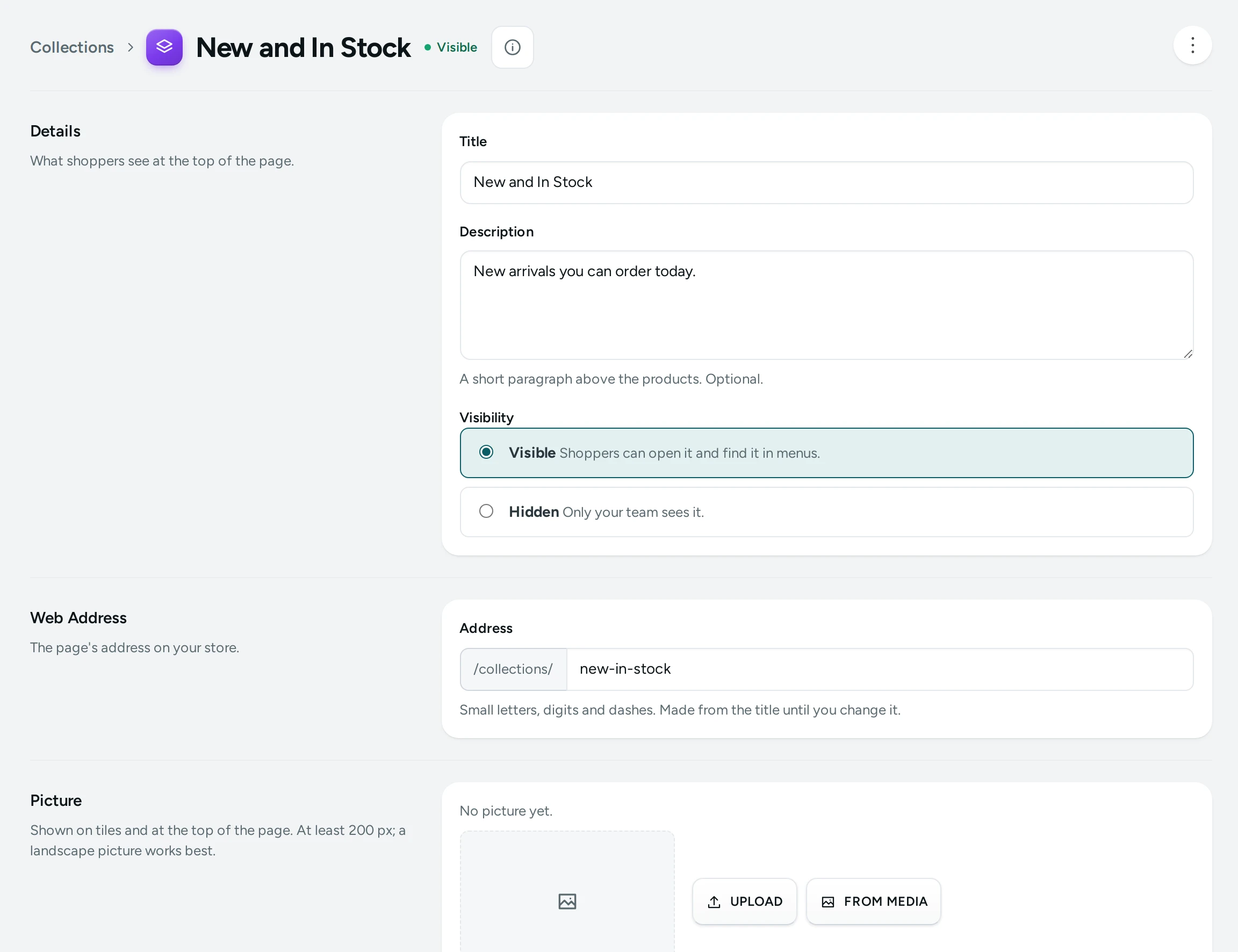
Details
"What shoppers see at the top of the page."
| Field | What It Does | Default |
|---|---|---|
| Title | The collection's name on its page, tiles and menus. Required, up to 200 characters. | Empty |
| Description | "A short paragraph above the products. Optional." Up to 20,000 characters. | Empty |
| Visibility | Visible: "Shoppers can open it and find it in menus." Hidden: "Only your team sees it." | Visible |
Web Address
| Field | What It Does | Default |
|---|---|---|
| Address | The page's address: /collections/address. "Small letters, digits and dashes. Made from the title until you change it." Up to 120 characters. Each address can be used by one collection. | Made from the title |
When you change the address of a saved collection, the editor says "The old address … will keep working and lead here." Shoppers who open the old link are sent to the new one, and menus that point at the collection follow it by themselves.
Picture
"Shown on tiles and at the top of the page. At least 200 px; a landscape picture works best." JPEG, PNG, WebP or AVIF, up to 20 MB. UPLOAD adds it, REPLACE changes it and REMOVE takes it off.
Products
"Choose the products, then drag them into the order shoppers see."
- Press ADD PRODUCTS and tick the products in the window (search by title). Press DONE.
- Choose Order on the Page:
| Choice | Shoppers See |
|---|---|
| In the order below (the default) | Your order. Drag a product, or use its up and down arrows. |
| Newest first | The newest products first |
| Price, low to high / Price, high to low | By price |
| Best selling | Those that sell most first |
| Name, A to Z | Alphabetical |
- Remove a product with its ×.
With an automatic order, the list says "The order is set by: Newest first." and dragging is off. A product that is not active shows Not on sale: it stays in the collection but shoppers do not see it until you make it active. A collection holds up to 2,000 products.
Search Engines
"How the page appears in Google. Left empty, the title and description are used."
| Field | What It Does | Default |
|---|---|---|
| Page Title | The title in search results; the counter shows about 70 characters. Up to 200. | Empty: the title |
| Meta Description | The text under it; the counter shows about 160. Up to 320. | Empty: the description |
Personalisation
On a saved collection: "Details shoppers give for the collection's products, such as a name to engrave." Fields set here apply to every product in the collection that has no fields of its own, so a mug collection can ask every mug for a name without setting each product. See Personalisation.
How to Create a Collection
- Go to Products › Collections and press CREATE COLLECTION.
- Type the Title, for example Diwali Gifts. The Address becomes
diwali-gifts. - Add a Description if you want a line above the products.
- Upload a Picture.
- Press ADD PRODUCTS, tick the products and press DONE.
- Drag them into order, or choose an automatic Order on the Page.
- Leave Visibility on Visible (or Hidden to prepare it quietly) and press SAVE. The message says "Created."
- To put it in your store's header or footer, add it to a menu in Menus.
How to Delete a Collection
- Open the collection and choose DELETE in the header's ⋯ menu.
- The dialog says what still points at it: menus that will leave it out ("It is in these menus, which will leave it out: Main menu.") and discounts that will stop applying ("2 discounts are for this collection; they will stop applying to its products."). "Its page goes. The products stay in your store."
- Press DELETE.
What Shoppers See
- A visible collection has its page at
/collections/address, with its picture, title and description at the top and its products in the order you chose, with the filters and sorting of your product lists. - Hidden collections are not on the store, and their page shows "not found".
- On a product page, a row "More from the collection" shows other products from the product's collection when Settings › Product Page › More from the Collection is on (the default). The small line above a product's title can also name its collection.
- Collections can sit in your menus, and a discount can be limited to a collection's products.
Good to Know
- One product can be in any number of collections.
- A collection is either Chosen by Hand or By Rules, set under How Products Are Chosen; see Collections by Rules.
- Settings › Online Store › Product Lists › Featured Order From can name a collection whose order decides the "Featured" sort on your other product lists.
- Changes show on your store at once and are recorded in the Activity Log.
- Someone else saving the same collection while you edit it stops your save: "Someone else saved this since you opened it. Reload to see their changes."
Questions
What is the difference between a collection and a category?
A category is what a product is (Sarees, Phone Cases) and builds your store's browsing tree. A collection is a selection for a reason (Wedding Season, Bestsellers). Use both.
Can I schedule a collection to appear later?
Not by date. Keep it Hidden while you prepare it, then set it to Visible and save when you are ready.
Why does a product I added not show on the collection page?
It is not active. It shows Not on sale in the collection's product list. Make the product active in its editor.
Will old links break if I rename a collection's address?
No. The old address keeps working and leads to the new one.
How do I make a sale page with only discounted products?
Make a collection of those products, then create an automatic discount for that collection in Discounts.