Art is what shoppers add to a design in one tap: a diya for Diwali, a heart for a couple's case, your own logo, a team crest. In the Product Designer it is the Art tool, with a search box and a chip for each of your art sets. Art is part of the Product Designer add-on.
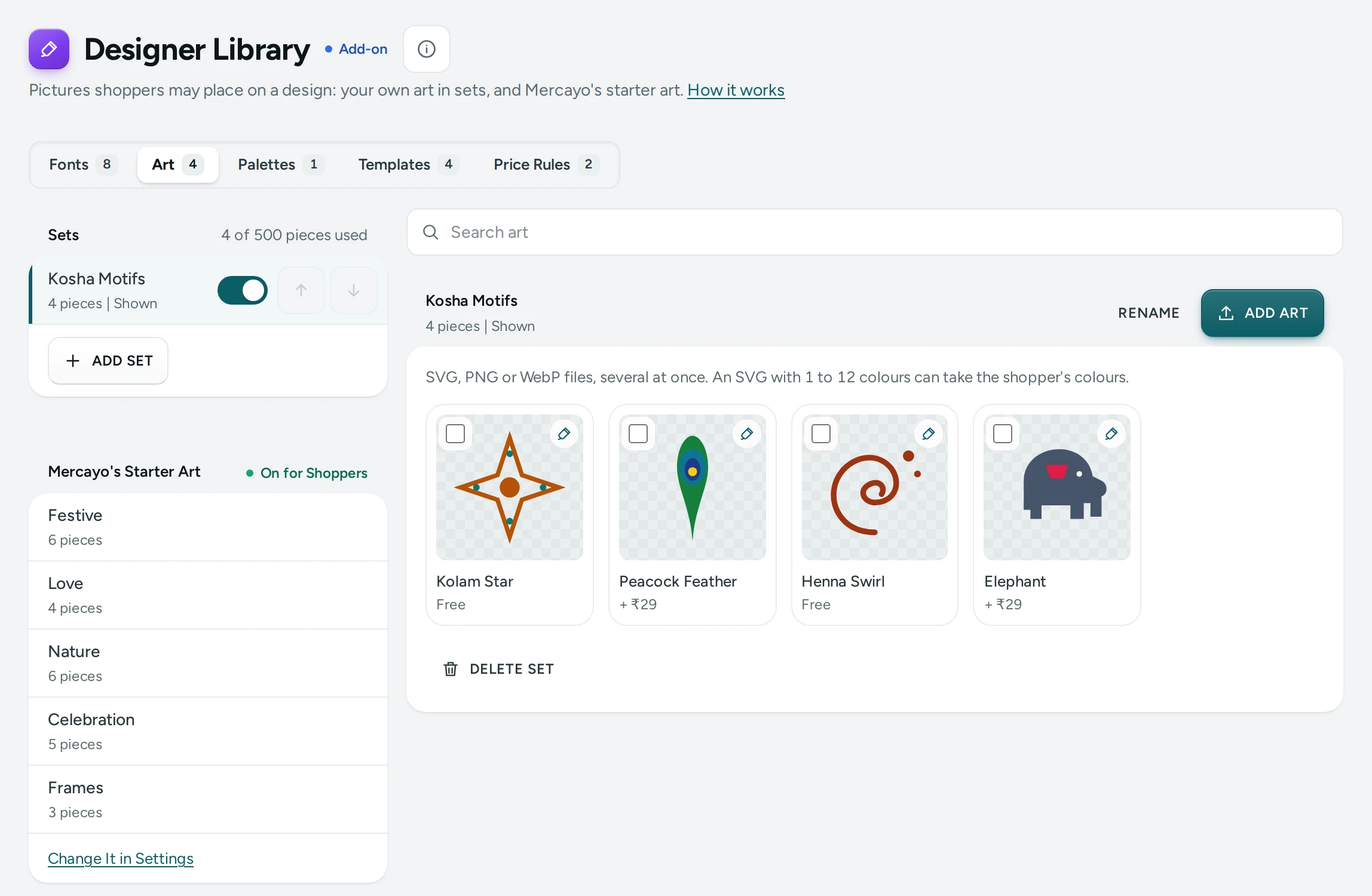
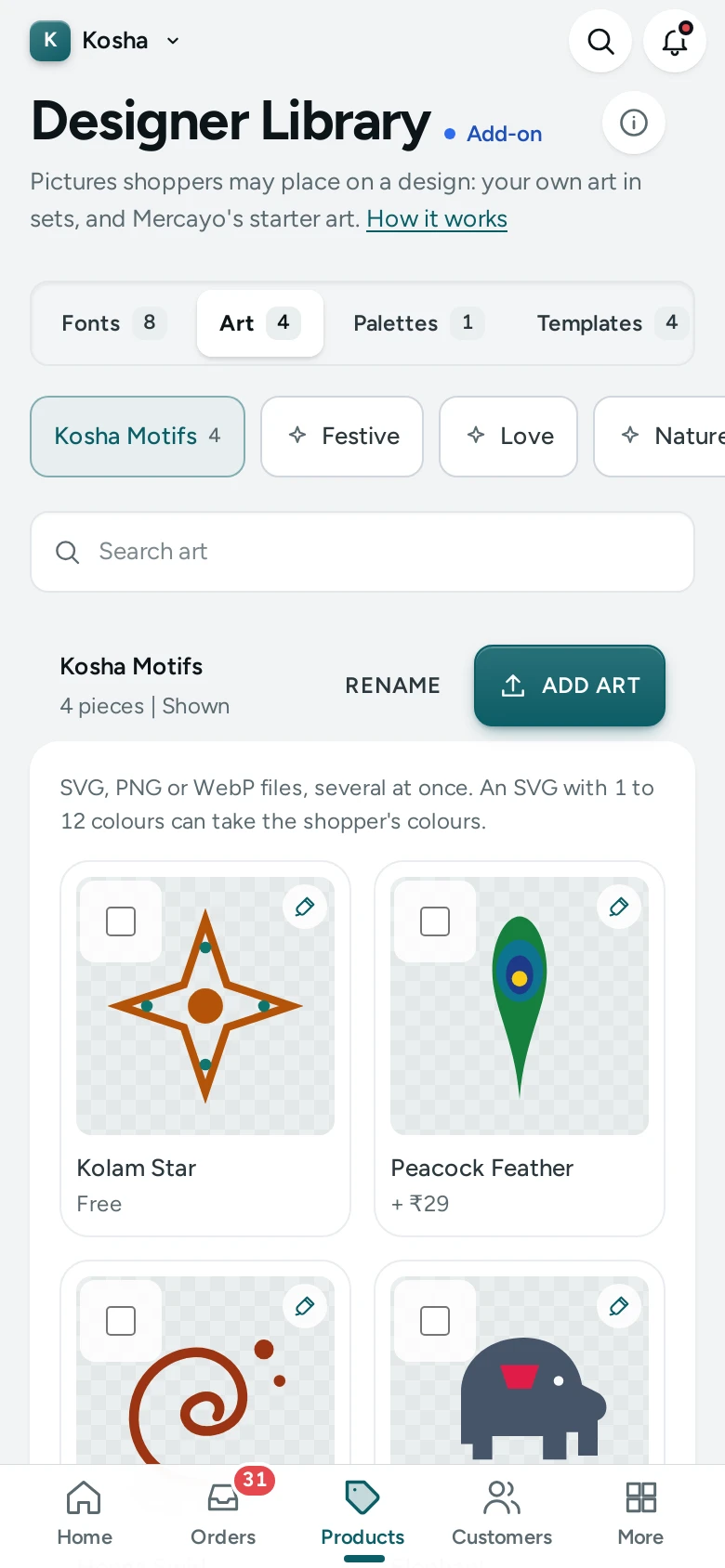
Make an Art Set
A set is a group of pieces shoppers filter by (Festive, Sports, Your Logos).
- Open Products › Product Options › Designer Library and choose Art.
- Add a set and give it a name (up to 40 letters).
- Move the sets into the order shoppers see their chips. Switch a set off to hide it without deleting it.
A store has up to 60 sets and, unless Mercayo sets another number, 500 pieces in all.
Add Pieces
In a set, add pieces from your computer or phone:
- SVG (best): a drawing, sharp at any print size. Each file is at most 512 KB.
- PNG or WebP: a picture, up to 10 MB, with a transparent background where you want one. Use a large one: it prints at its own pixels, so a small picture prints soft.
For each piece set its name (shoppers search by it), a price (₹0 for free), whether it is colourable, and a licence note (where it came from; only you see it). Put pieces in order, move them to another set, or delete them. A piece already used in an order stays in that order's design and print files.
Make an SVG Safe to Use
An SVG is a small program as well as a picture, so Mercayo checks every one as it is added and keeps only plain drawing: shapes, paths, colours and gradients. A file is refused, with the reason, when it has:
- a script, or anything that runs code (an
onclickand the like); - a link outside itself, or anything it loads from another address;
- pictures, text, styles or animations inside it;
- a DOCTYPE, entities or CDATA;
- too many parts, more than 512 KB, or nothing it draws.
Why: art is shown on your store's pages and on your shoppers' phones. A hostile file could otherwise run code there or call another site. Each piece is served with rules that stop it doing either, as a second wall.
Fix a refused SVG in your drawing app: turn text into outlines (Create Outlines, Object to Path), embed no pictures, and save as plain SVG (not an editor's own SVG). Or save the art as a large PNG.
Colourable Art
An SVG with 1 to 12 colours can be colourable. Shoppers then change each of its colours (Colour 1, Colour 2) from the print area's colours or palette, so one heart serves every case colour. Switch colourable off for a logo that must keep its colours. Pictures (PNG, WebP) keep their own colours.
Price a Piece
A piece with a price adds it to the design each time it is placed, as its own line in the shopper's price: "Art: Crest + ₹50". For a price per kind of element ("₹20 for each piece of art") use a price rule instead.
Mercayo's Starter Art
Every store has 24 starter pieces beside its own: Festive (diya, marigold, rangoli, lantern, sparkle, paisley), Love (heart, two hearts, heart balloon, love letter), Nature (leaf, lotus, sun, moon and star, mountain, wave), Celebration (balloon, gift, crown, cake, confetti) and Frames (wreath, ribbon, flourish). They were drawn for Mercayo and given to the public domain (CC0 1.0): you and your shoppers may print and sell them with no credit and no fee.
To offer only your own art, switch off Starter Art in Settings › Product page › Product Designer. Orders that used a starter piece keep it in their design and print files.
Choose Where Art Is Allowed
Art shows only in print areas whose Shoppers Can Add includes Art, on the product's Designer screen. Leave it out of an area where only words belong (a sleeve, a lid's edge).
Questions
Can I use art I found online?
Only art you have the right to print and sell: your own, art you bought with a licence for products, or public-domain art. Write where it came from in the licence note. Mercayo does not check licences.
Why does my SVG print with the wrong font?
Text inside an SVG is refused, so this cannot happen in the print. Turn the text into outlines and add it again.