A cricket team, a school house or a company run wants one design with each person's name and number on it, in each person's size. Names and Numbers lets a shopper do that in one go: they make the design once, add a row for each person, and every row goes in the bag as its own item. It is part of the Product Designer add-on.
Set Up a Product
- Open the product, then Product Designer › OPEN DESIGNER.
- In the Names and Numbers card, switch on Offer Names and Numbers.
- In Each Row's Size From, pick the option that holds the sizes (Size), or No size when the product comes in one size.
- Set Letters in a Name (12 to start with) and Digits in a Number (1, 2 or 3).
- Set a Price per Name and a Price per Number if printing them costs you more (₹49 and ₹29, say), or leave them empty.
- Press SAVE.
Names and numbers print in the print areas you already drew, so the area where they go (usually the back) must take Text.
What the Shopper Does
- In the designer, they tap Names (the tool bar on a phone, the left of the screen on a computer).
- ADD NAME and ADD NUMBER place a name and a number on the side they are looking at. They style them like any text: font, colour, size, a curve. A template of yours can carry them already placed (see below).
- They add the rows, one per person: a name, a number and a size. Three ways:
- ADD ROW and type.
- PASTE A LIST: copy the columns from a spreadsheet or a WhatsApp message, one person a line ("Rahul, 7, M").
- IMPORT CSV: a file with a name, a number and a size on each line. A first line of column names is left out.
- Tapping a row's number shows that row on the design, so they can see how a long name fits.
- ADD 12 TO BAG | ₹10,788 opens Check Your Design, then puts each row in the bag as its own item, at its own size.
A row needs a name or a number (or both). A row that does not fit (a name with too many letters, a number with too many digits, no size picked) is marked, and nothing goes in the bag until it is fixed. A shopper can add up to 50 rows at a time (Mercayo's limit).
The List Goes with the Design
The rows are kept on the shopper's phone while they work, and with the design itself:
- SAVE DESIGN keeps the list with the design. Opening the saved design's link (or My Account › Saved Designs) on another phone or computer brings the rows back, and the designer says so.
- In the bag, EDIT DESIGN under any of the team's items opens the design with the whole list. The shopper fixes a name or the design, and UPDATE 12 IN BAG replaces all of the team's items together (never one twice).
- A share link carries only the design: never the names, numbers or sizes.
The list is the shopper's: only someone with the saved design's link, or the same bag, sees it. A saved design keeps it as long as the design is kept; once ordered, each order line keeps only its own name and number.
Prices
Each row costs what one design costs (the item's price, each print area used, art, price rules) plus your price per name when it has a name and your price per number when it has one. The bag and the order show each row as its own line: "Back | Name: Rahul | Number: 7".
The Orders
Every row is its own order line, so it gets its own print files, with its own name and number, in the order's Print Files card and the Print Queue. The invoice, the emails and the packing list name each row's name and number.
Templates with a Name and a Number
In template mode, the Names tool places a name and a number in your template (the rows are the shoppers'). A shopper who starts from it only adds their rows.
Settings
In Settings › Product page › Product Designer:
| Setting | Default | What it does |
|---|---|---|
| Names and Numbers | On | Off: no product offers names and numbers; each product keeps its setup |
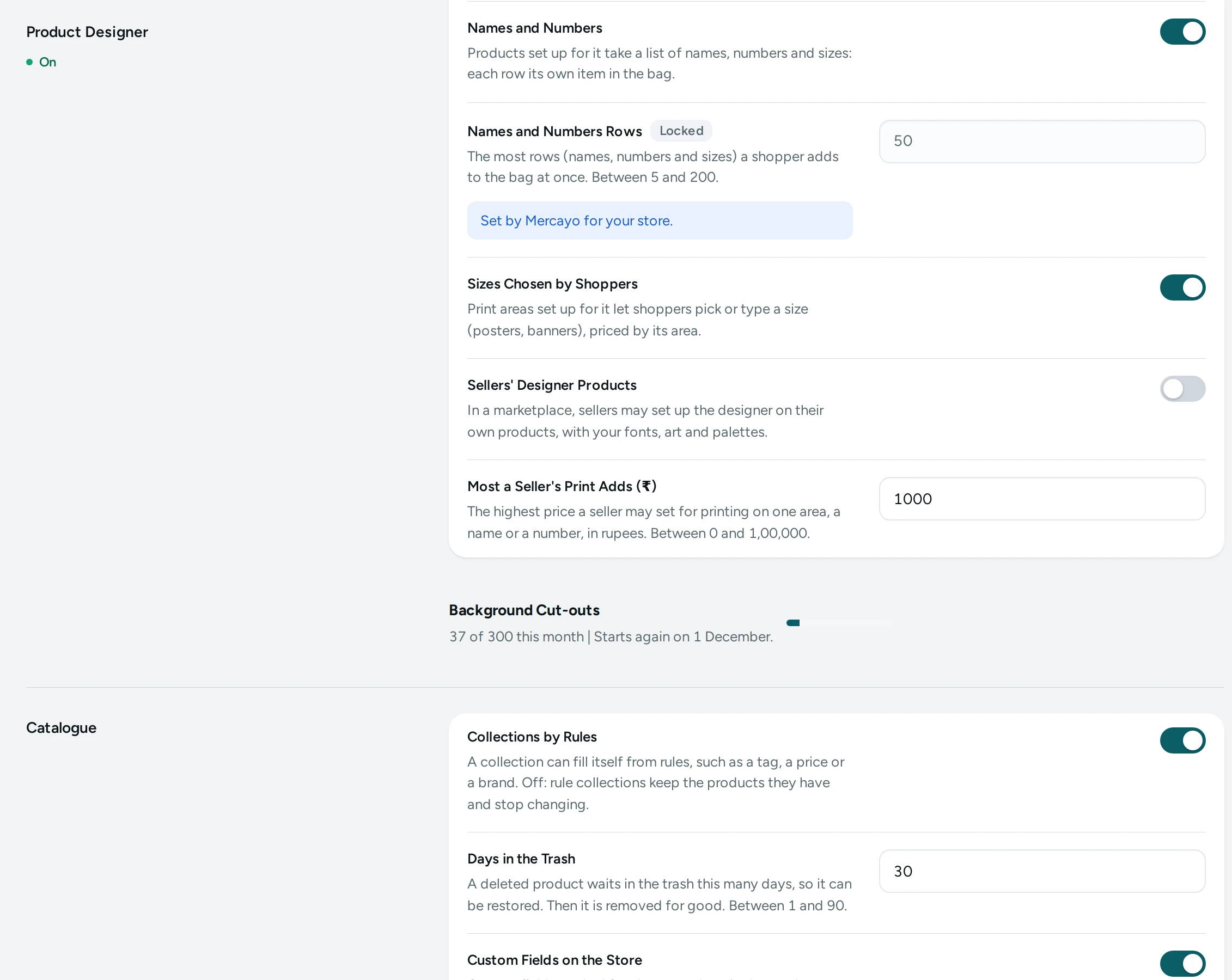
Mercayo sets how many rows a shopper adds at once (50) and may switch Names and Numbers on or off for your store.
Questions
Can one row have a name and no number?
Yes. The number is left out of that row's print. The same for a number without a name.
Can rows be in different colours of the product?
Each row takes the size from its own row and every other choice (the colour) from the product chosen in the designer. For two colours, add the rows for each colour separately.
Can a name be in Hindi or Urdu?
Yes, in a font that has those letters. Letters are counted without their vowel signs, the same way as everywhere in the designer.