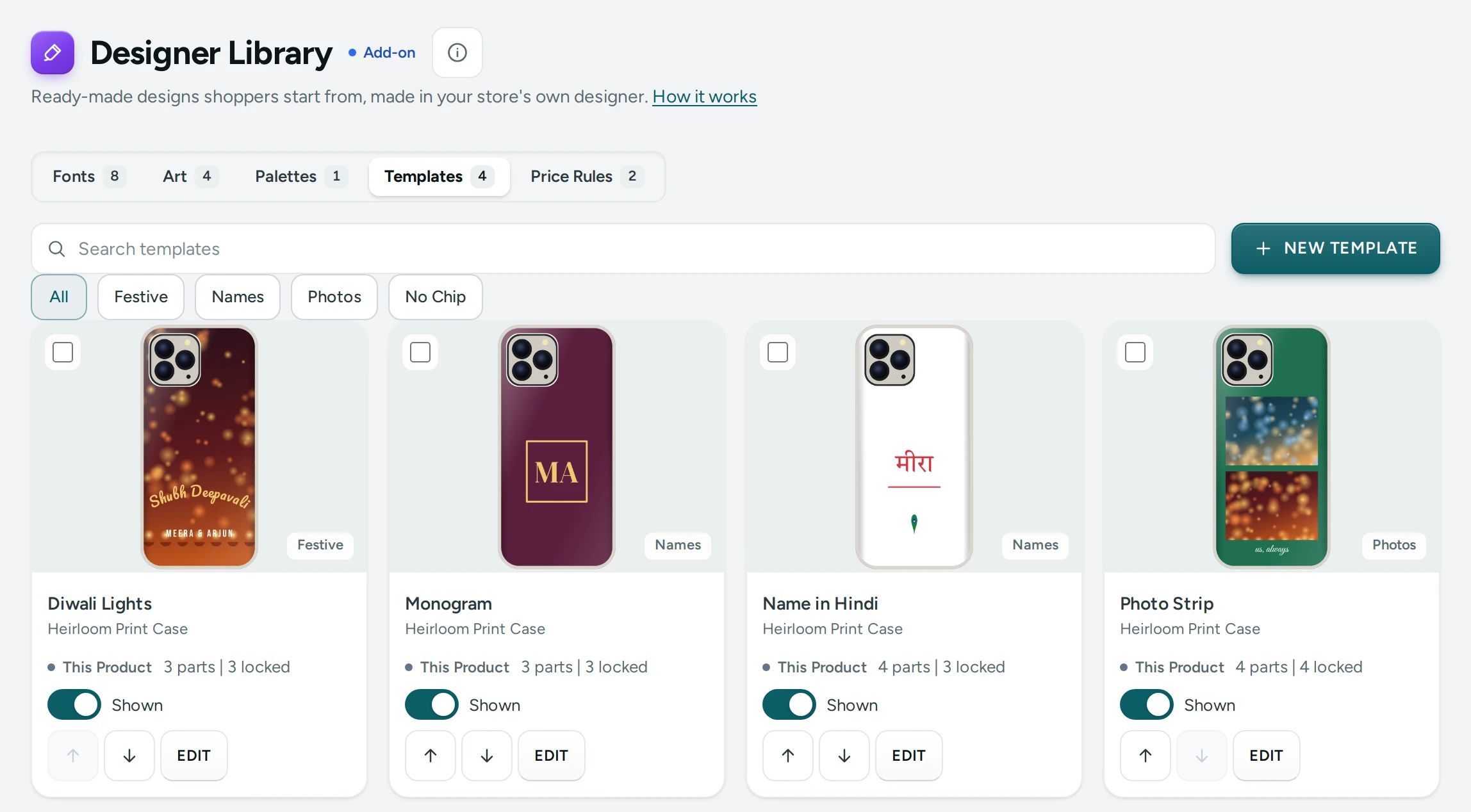
A template is a design you make once for shoppers to start from: "Diwali Lights", "Name in Hindi", "Photo Strip". Most shoppers do not want to design from nothing; with a template they type their name, put in their photo and are done in a minute. You choose what they may change and what stays as you made it. Templates are part of the Product Designer add-on.
Make a Template
You make a template in your store's own designer, the one your shoppers use, so what you see is exactly what they get.
- Open Products › Product Options › Designer Library and choose Templates.
- Press NEW TEMPLATE and pick the product. Your store's designer opens in a new tab in template mode, with a bar for your team at the top. The link works for 2 hours and only for you.
- Design it as a shopper would: words, photos, art, shapes, QR codes, on any side. Photos you add here are your store's own, not a shopper's.
- Select each part and choose its lock under In the Template (see below). For a text, give it a Linked Field name if it should fill other layers.
- Press SAVE TEMPLATE. Give it a Template Name (up to 40 letters), the chip it is Shown Under (Festive, Names, Photos) and where to Offer It On: This Product or Products in the Same Category.
Mercayo draws the template's picture from the design. To change a template later, press EDIT beside it: the designer opens it in template mode again.
The Three Locks
| Lock | The shopper can | Use it for |
|---|---|---|
| Free | Move, resize, change and remove it | Words and art that are only a suggestion |
| Replace Only | Put in new words or a new photo; its place, size, font and colour stay | A name slot, a photo slot in a frame |
| Locked | Nothing: it prints exactly as you made it | Your logo, a frame, a printed date |
Shoppers can always add their own text, photos and art beside a template's parts, inside the print areas. A Locked or Replace Only part cannot be moved, changed beyond its lock or deleted, and Mercayo checks this again when the design goes in the bag, so a changed copy of the page cannot get round it.
Linked Fields
Give two or more texts the same Linked Field name ("Name") and typing in one fills the others. A couple's name on the front and the back, a team name on the chest and the sleeve: the shopper types it once. Linked texts keep their own fonts, sizes and places.
Where Shoppers See Templates
- The product page: under DESIGN YOURS, Start From a Design shows up to four templates for that product. Tapping one opens the designer with it.
- The designer: the Templates tool shows them all, with the chips and a search box, and Start Blank.
- A shopper who already started and then picks a template is asked whether to start from it or keep their own.
A template for products in the same category is matched to each product side by side and area by area, in order: its first side's first area goes on each product's first side and first area. Use it for a range of tees or cases set up the same way.
Manage Templates
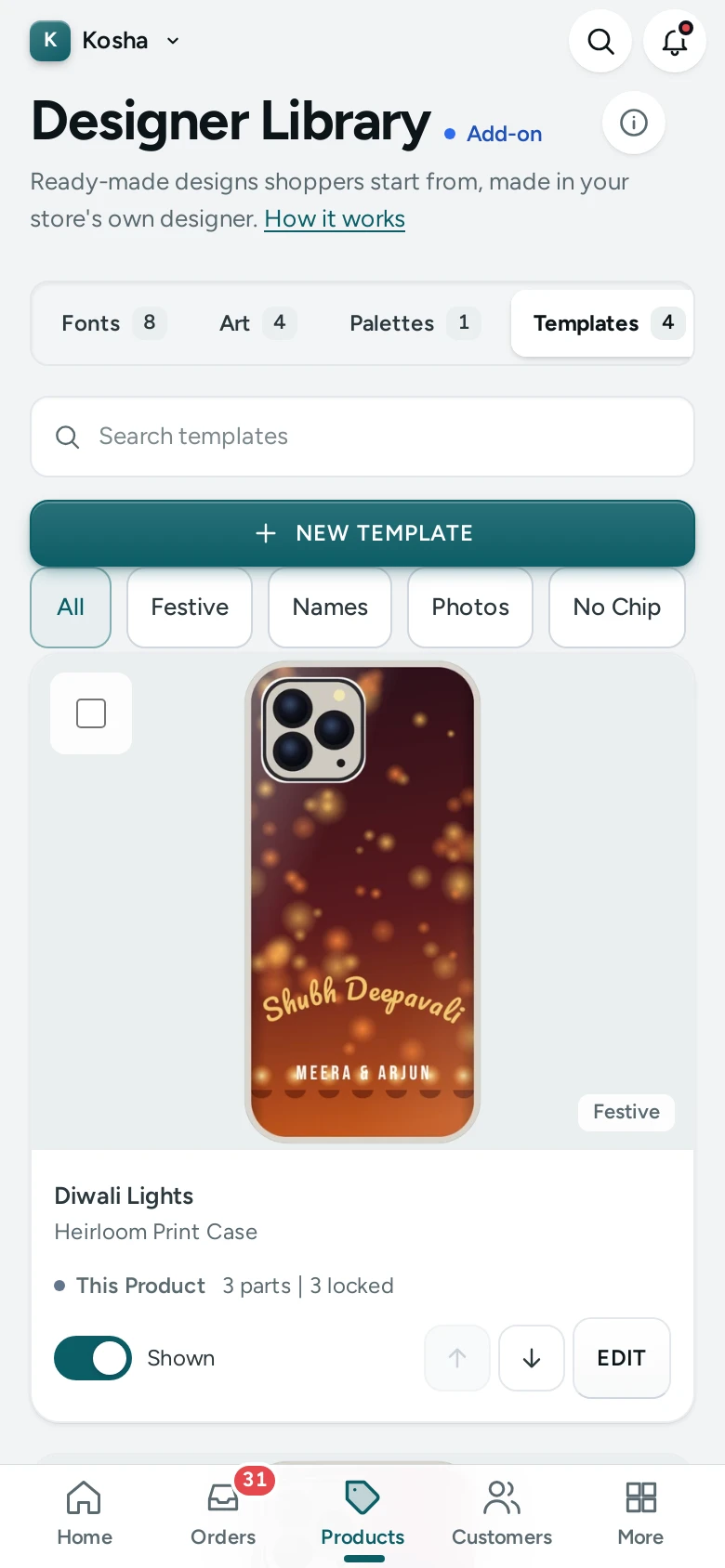
In Templates you can search, filter by chip, switch a template off (hidden from shoppers, kept for you), put them in the order shoppers see, and delete them. Orders made from a template keep their design; deleting a template never changes an order.
Questions
Does a template cost the shopper more?
Not by itself. The design is priced like any other: its print areas, art and price rules. A Locked logo in an area counts as using that area.
Can my staff make templates?
Yes, anyone on your team with the right to edit products.
Can a template be in Hindi?
Yes: use a font that writes Hindi. One template is in one language; a template per language is not available yet.