Inventory is the stock room of your store: one row for every variant that counts stock, with what is on your shelf, what is kept aside for orders, and what shoppers can still buy. Use it when new stock arrives, after a stock count, when pieces are damaged or lost, and whenever you need to know why a number changed. It is Products › Inventory in the side menu; on a phone, open More and choose Inventory.
Anyone who can see products can open Inventory and its history: the owner, admins and the Catalog Editor, Marketer and Order Manager roles. Adjusting stock needs the right to edit inventory, which the owner, admins and the Catalog Editor have. Without it, the page is read-only and has no ADJUST buttons.
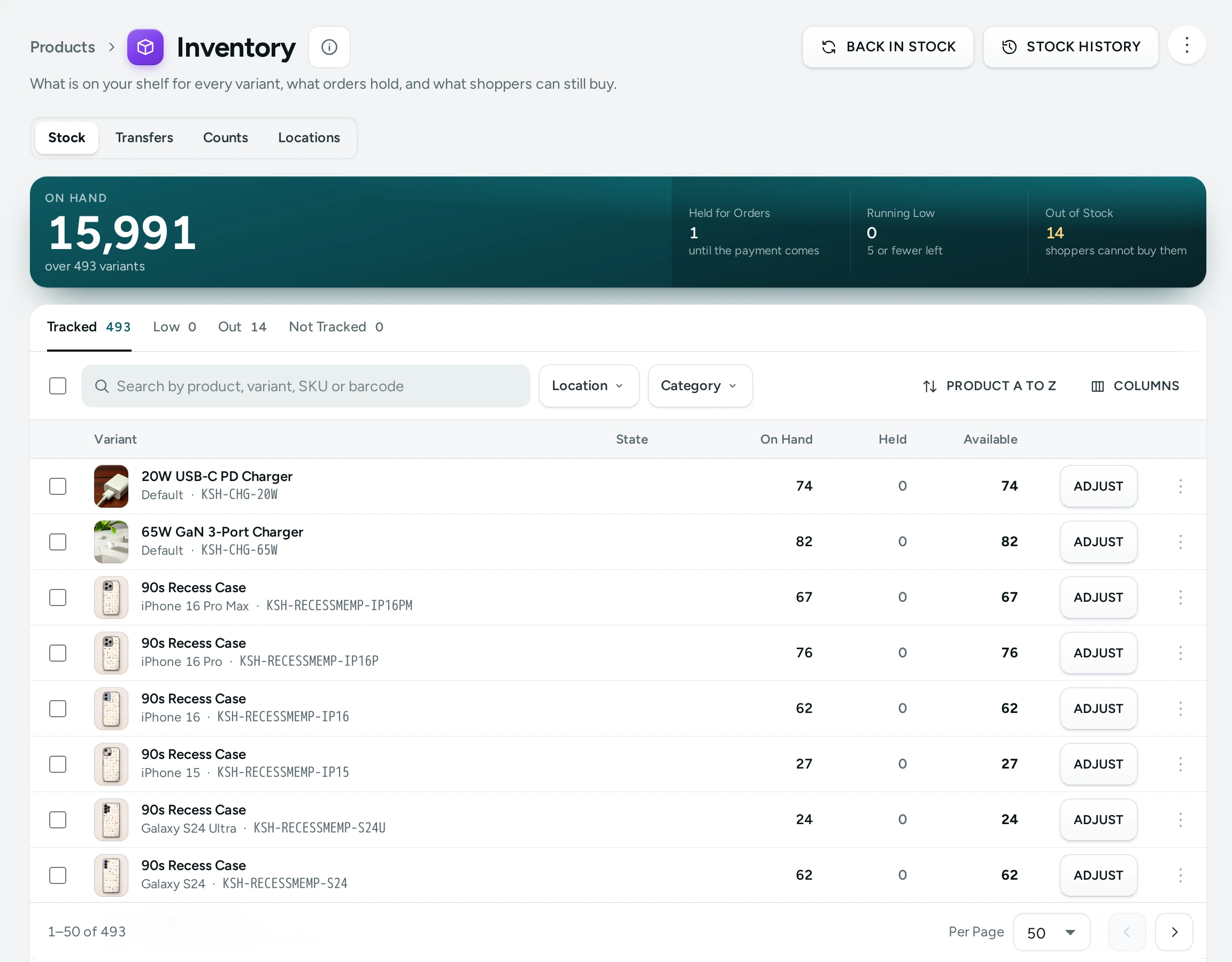
Inventory has four tabs: Stock (this article), Transfers and Locations (see Locations and Transfers) and Counts (see Stock Counts). With more than one location, the numbers are for the location you are looking at. SKUs, Barcodes and Labels covers codes, labels and scanning.
What You See
Stock Summary
| Number | What It Counts |
|---|---|
| On Hand | "Units on your shelf, over every variant that counts stock." |
| Held for Orders | Units kept aside for orders waiting for their online payment. Nobody else can buy them. |
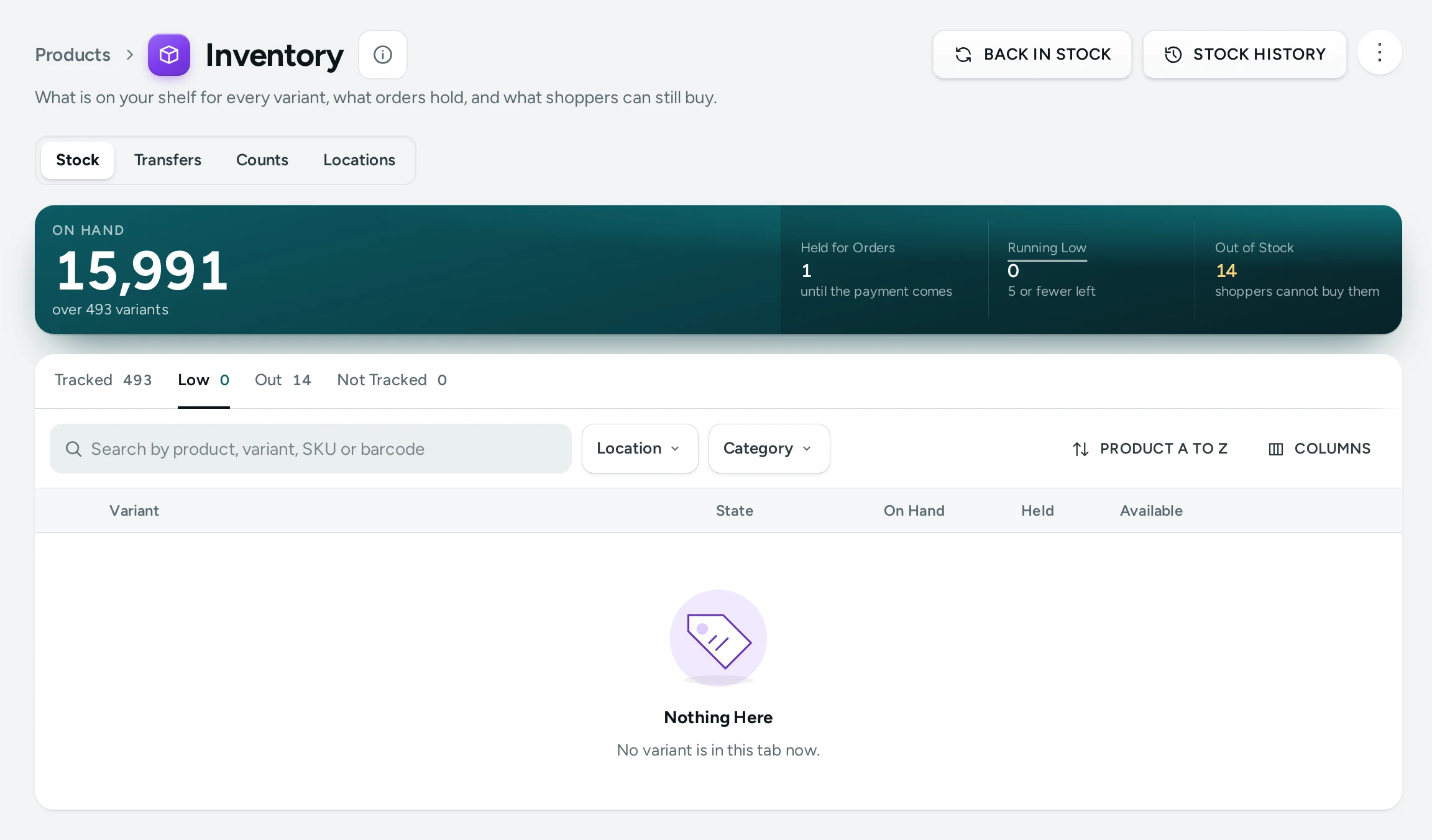
| Running Low | "Variants with 5 or fewer left to sell (the low mark on Settings)." Click to open the Low tab. |
| Out of Stock | "Variants with nothing left to sell, that do not take orders without stock." Click to open the Out tab. |
The low mark is Settings › Admin and Reports › Home Dashboard › Running Low At (default 5). The same number decides "Low on stock" on the products list and "Products running low" on Home.
Tabs
- Tracked: every variant that counts stock.
- Low: variants with between 1 and the low mark left to sell.
- Out: variants with nothing left to sell that do not take orders without stock.
- Not Tracked: variants with Track Stock off; they never sell out.
Search, Filter and Sort
- Search by product, variant, SKU or barcode.
- Location: shown when your store keeps stock in more than one place.
- Sort by Product A to Z (the default), Available, least first, Available, most first or Recently changed.
Columns
| Column | What It Shows |
|---|---|
| Variant | The product's photo and title, the variant and its SKU |
| State | LOW, OUT, TAKES ORDERS (it keeps selling at 0) or "Not tracked" |
| On Hand | Units on the shelf |
| Held | Units kept aside for orders waiting for payment |
| Available | On hand minus held: what shoppers can still buy. Shown in red at 0 or below |
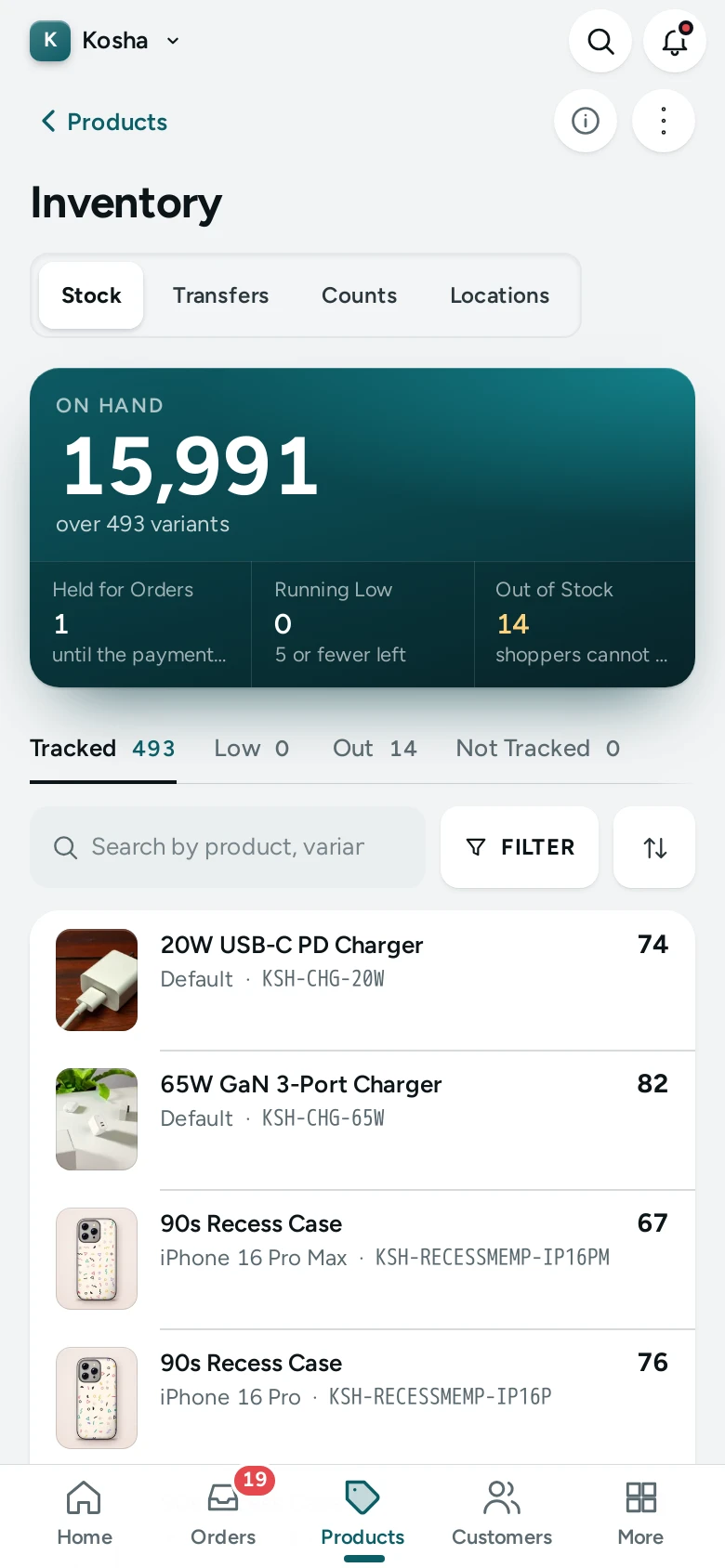
A row's ADJUST button opens the adjust window. The row's ⋯ menu has Adjust Stock, STOCK HISTORY and Open Product. Pages hold 25, 50 (the default) or 100 rows. On a phone each variant is a card showing its state and what is available.
On Hand, Held and Available
When a shopper starts paying online, the units in their order are held: they stay on your shelf (on hand) but nobody else can buy them. When the payment comes through, the order is confirmed and the units leave your shelf as Sold. If the payment never comes and the hold runs out, the units become available again. A cash on delivery order is confirmed as soon as it is placed, so its units are sold at once and never sit in Held (unless part of it must be paid online first, with part payment for COD: then it waits like an online order).
| Moment | On Hand | Held | Available |
|---|---|---|---|
| 10 pieces on the shelf | 10 | 0 | 10 |
| A shopper is paying online for 2 | 10 | 2 | 8 |
| The payment comes through | 8 | 0 | 8 |
| A COD order for 1 is placed | 7 | 0 | 7 |
When a confirmed order is cancelled or comes back as returned to origin, its units go back on the shelf, with the reason Back in Stock in the history.
Shoppers see a variant as sold out when its available stock reaches 0, unless the variant has Keep Selling When Out of Stock on (state TAKES ORDERS).
How to Adjust Stock
- Find the variant (search by name or SKU) and press ADJUST. For several at once, tick them and press ADJUST 3 in the selection bar (up to 200 at a time).
- In Adjust Stock, choose Why:
| Reason | Use It When | You Type |
|---|---|---|
| Received | "New stock arrived." | How many to Add |
| Stock Count | "You counted the shelf: set what is there." | What you Counted (starts at today's on hand) |
| Damaged | "Broken or spoilt, cannot be sold." | How many to Remove |
| Lost | "Missing or stolen." | How many to Remove |
| Correction | "Any other change, up or down." | The Change, like +5 or -2 |
- Type the number for each variant. The After column shows what will be on the shelf. Leave a box empty to skip that variant.
- Add a Note if useful: "Bill number, supplier, what happened…" (up to 200 characters). "Kept in the stock history for your team."
- Press SAVE. The message says "Stock saved." or "Stock saved for 3 variants."
The default reason is Received. A box with something that is not a whole number stops the save: "Use a whole number in each filled box."
How to Do a Stock Count
For a whole shelf or location, with a scanner or the phone's camera, use a stock count on the Counts tab. For a few variants:
- Open the Tracked tab, search or filter to one shelf or one product range.
- Tick the variants you counted and press ADJUST.
- Choose Stock Count. Each box starts at today's on hand.
- Overwrite the boxes where your count differs. The After column shows the result.
- Add a note such as "Monthly count, 30 Oct" and press SAVE.
How to Read the Stock History
- STOCK HISTORY in the page header shows every change in your store, newest first.
- STOCK HISTORY in a row's menu shows the changes of that variant only ("Stock History of Classic Kurta · M").
Each line shows the reason, the order number for sales and returns (a link to the order), the product and variant, the note, when it happened, who did it and, with several locations, where. Who is the team member's name, Your team, Mercayo support (when Mercayo support made the change with your permission) or Automatic (orders, returns and refunds). LOAD MORE shows older lines.
The reasons you may see:
| Reason | Comes From |
|---|---|
| Received, Stock Count, Damaged, Lost, Correction | An adjustment on this screen |
| Sold | An order |
| Returned | A return received back |
| Back After a Refund | Stock put back with a refund |
| Back in Stock | Stock put back, for example when an order is cancelled |
| Opening Stock | The stock a variant started with |
Stock in the Product Editor
You can also type stock in the Variants card of the Product Editor. That change is saved as the difference you made, so sales during your edit are never undone. Use Inventory when you want a reason and a note in the history, or to change many products at once.
Whether a variant counts stock at all is set in the editor's Shipping and Stock card: Track Stock and Keep Selling When Out of Stock.
What Shoppers See
- A variant with nothing available shows "Sold out" and a SOLD OUT button, unless it keeps selling at 0.
- With few left, the product page says "Only a few left. Order soon". That note has its own number: Settings › Product Page › Low Stock Note (default 5; 0 turns it off).
- When Back in Stock Requests is on (Settings › Product Page, on by default), a sold-out variant offers a form where shoppers leave their phone or email to hear when it is back. BACK IN STOCK opens their requests; see Back-in-Stock Requests. A variant on pre-order can go below 0: that is the number of units owed, and stock you add fills them first.
Good to Know
- Up to 200 variants in one adjustment.
- Stock adjustments are recorded in the Activity Log as well as in the stock history.
- Variants with Track Stock off are not counted in On Hand, Running Low or Out of Stock.
- The Held column is what keeps two shoppers from buying the last piece at the same time while one of them pays.
Questions
Why is Available lower than On Hand?
Some units are held for orders whose online payment is in progress. They leave your shelf when the payment comes through, or become available again if it does not.
I received 20 pieces. Which reason do I use?
Received, and type 20 in Add. Add the supplier's bill number in the note.
Can I see who changed a variant's stock?
Yes. Open the variant's STOCK HISTORY from its row menu. Each change shows who made it and why.
Why can't I see the ADJUST button?
Your role does not include the right to edit inventory. Ask the store owner.
How do I stop a product from ever selling out?
Turn off Track Stock for its variants in the product editor's Shipping and Stock card (it will show as "Not tracked"), or keep tracking and turn on Keep Selling When Out of Stock to take orders at 0.
Does cancelling an order put stock back?
Yes. A cancelled order's units go back on the shelf (reason Back in Stock), and so do the units of an order returned to origin. See Cancel an Order.