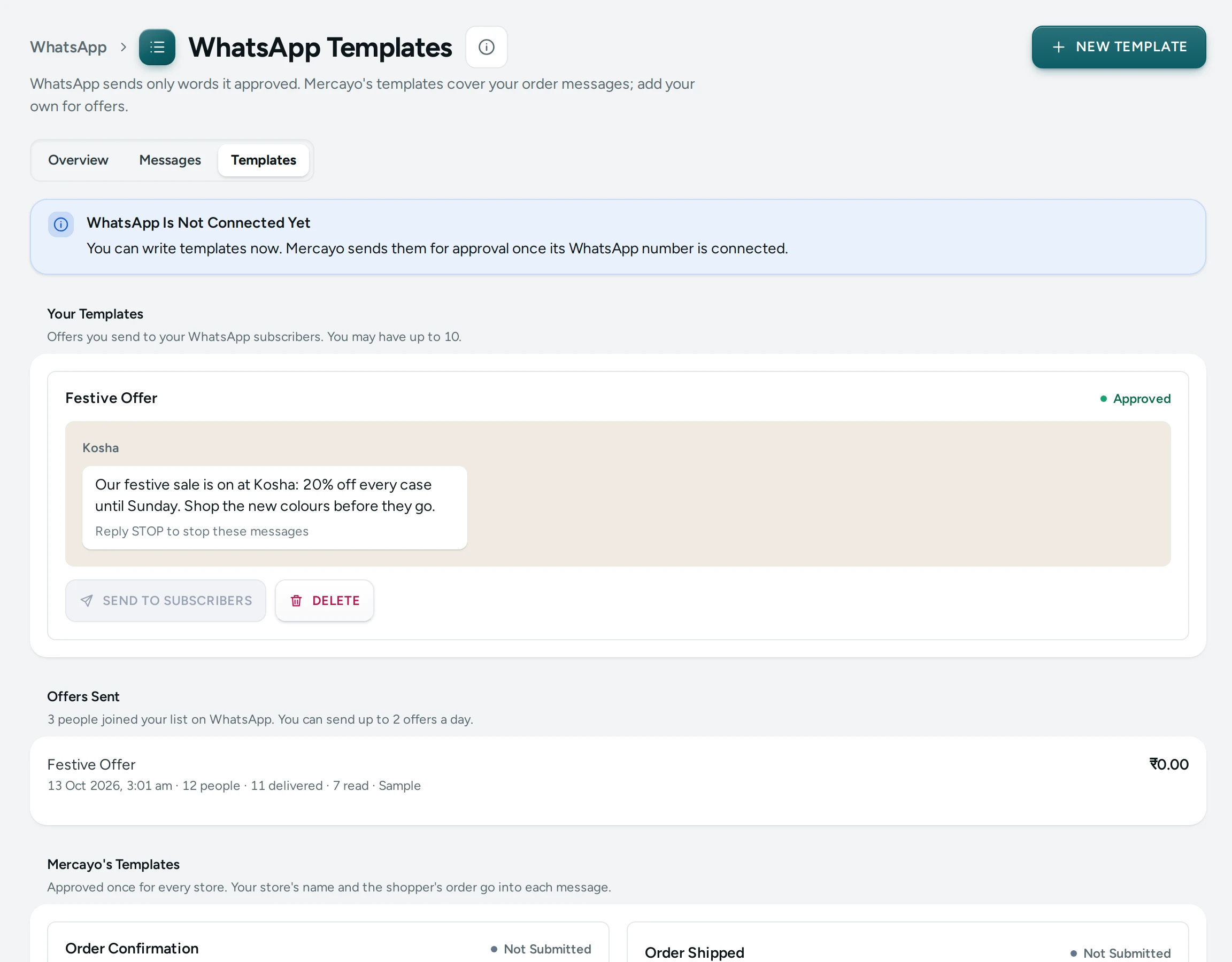
WhatsApp lets a business send only words it has approved, called templates. WhatsApp Templates shows the ones Mercayo had approved for every store's order messages, and holds your own templates for offers to your WhatsApp subscribers: "WhatsApp sends only words it approved. Mercayo's templates cover your order messages; add your own for offers." A Surat saree seller can write "Our Diwali sale is live: {{1}} off every saree with code {{2}}", have it approved once, then send it to everyone on the WhatsApp list whenever there is a sale. Open it from Marketing › WhatsApp and press TEMPLATES, or Marketing › WhatsApp › Templates in the side menu.
The page opens for anyone who can see settings or discounts. Writing, submitting and deleting your own templates needs the right to edit discounts (the owner, admins and the Marketer role). Sending an offer to subscribers needs the right to edit discounts and the right to see customers, which the owner and admins have.
Before You Start
- Your plan includes WhatsApp Marketing. Offers are marketing messages: included on Growth and Scale, an add-on on Starter. See WhatsApp.
- You need WhatsApp subscribers. People join your list on WhatsApp from the footer band or the sign-up popup when it asks for a WhatsApp number. See Subscribers and Sign-Up Popup.
- Offers cost money. Each offer message is a marketing message, paid from your notification credits (never from your plan's included order updates). See Notification Wallet.
Mercayo's Templates
"Approved once for every store. Your store's name and the shopper's order go into each message." Each shows its words as a WhatsApp bubble with sample values and its approval state. These are the order confirmation, the COD question, shipped, out for delivery, delivered, the bag reminders, the back-in-stock alert and the sign-in code, in English and Hindi. Their words cannot be changed; you choose which ones go on the WhatsApp screen.
Your Templates
"Offers you send to your WhatsApp subscribers. You may have up to 10." (or the number Mercayo sets for your store). With none yet: No Templates of Your Own Yet, "Write an offer once, have it approved, then send it to your subscribers whenever you like."
Each template shows its name, its state, its words as a bubble with your examples, and its buttons:
| State | What It Means | Buttons |
|---|---|---|
| Not Submitted | A draft only you can see | SUBMIT FOR APPROVAL, EDIT, DELETE |
| Waiting for Approval | WhatsApp is reviewing it | DELETE |
| Approved | Ready to send | SEND TO SUBSCRIBERS, DELETE |
| Rejected | WhatsApp said no, with its reason: "WhatsApp said no: …" | SUBMIT FOR APPROVAL, EDIT, DELETE |
| Paused by WhatsApp, Turned Off by WhatsApp | WhatsApp stopped it after approving it | DELETE |
How to Write a Template
- Press NEW TEMPLATE. The sheet says "An offer for your subscribers. WhatsApp reviews it before it can be sent."
- Name: "For you only, like Diwali Sale." From 1 to 80 characters.
- Message: your words, up to 1,024 characters (the counter shows "120 of 1,024 characters"). Press ADD A BLANK where something should change each time you send, such as the discount or the code. Blanks are numbered
{{1}},{{2}}in order, up to 5. "A blank is filled in each time you send it, like the discount. Start and end with words, not a blank." - Example for Blank 1, Example for Blank 2…: a real example for each blank, up to 200 characters. "WhatsApp's reviewers read the examples to understand the message."
- Check the Preview. Every offer ends with the line "Reply STOP to stop these messages", added for you.
- Press SAVE DRAFT to keep it, or SUBMIT FOR APPROVAL to send it for review at once.
After submitting: "Sent to WhatsApp for approval. It usually takes from a few minutes to a day." or, while Mercayo sends it on: "Waiting for approval. Mercayo sends it to WhatsApp and the answer shows here."
Tips for Approval
- Say what the offer is in plain words.
- Give examples that look real: "20%" and "DIWALI20", not "x" and "y".
- Keep blanks for what changes each time; write the rest as words.
The Rules the Editor Checks
| Message | What to Fix |
|---|---|
| "The message must be 1 to 1,024 characters, number its blanks in order (1, 2, 3…) and have no stray braces." | The words or the blanks' numbers |
| "A message may have at most 5 blanks." | Use fewer blanks |
| "A blank cannot be the first or the last thing in the message." | Start and end with words |
| "Give an example for every blank, up to 200 characters." | Fill in every example |
| "Give the template a name of 1 to 80 characters." | The name |
| "Your store has as many templates as it may have (10)." | Delete one you no longer use |
| "A template sent for approval cannot be changed. Make a new one." | Write a new template |
EDIT works on drafts and rejected templates; saving a rejected one makes it a draft again, ready to submit.
How to Send an Offer to Your Subscribers
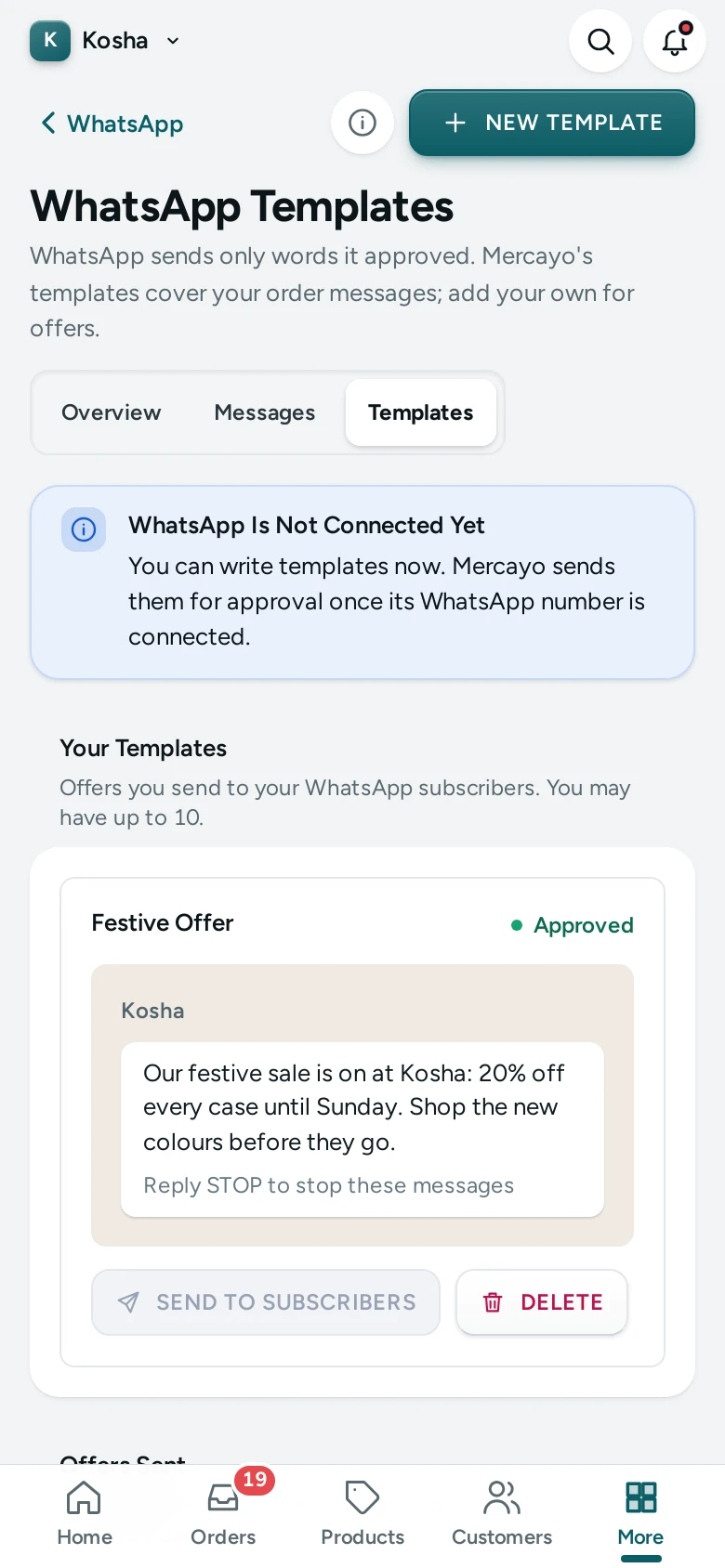
- On an Approved template, press SEND TO SUBSCRIBERS.
- Fill in each Blank for this send (up to 200 characters, one line), such as "25%" and "FESTIVE25". The bubble shows the message with your words.
- Check People (everyone on your WhatsApp list who has not replied STOP), Cost ("₹… a message, from your notification credits") and Your Notification Credits. "It goes now to everyone on your WhatsApp list who has not replied STOP. A message WhatsApp cannot deliver is given back."
- Press SEND TO 1,240 PEOPLE.
- Confirm: "Send This Offer to 1,240 People?" "About ₹… comes from your notification credits. This cannot be undone." Press SEND NOW.
"Your offer is on its way to 1,240 people." It shows under Offers Sent, and each message in WhatsApp Messages.
A send is refused, with the reason, when:
- "Your notification credits do not cover this offer." with Top up;
- "Your store has sent its 2 offers for today.";
- "Nobody has joined your list on WhatsApp yet.";
- "The number of subscribers changed since you opened this (… now). Check it and send again.";
- "Offers to WhatsApp subscribers are switched off.";
- "A showcase store never sends WhatsApp messages."
Use a code from Discount Codes in your blank, or a ?code= link, so the offer is one tap away.
Offers Sent
"1,240 people joined your list on WhatsApp. You can send up to 2 offers a day." Each offer sent shows its template's name, the day it went, "1,240 people · 1,180 delivered · 950 read" and what it cost. The latest 20 are listed. With offers switched off: "Offers to WhatsApp subscribers are switched off for your store."
How to Delete a Template
- Press DELETE on the template.
- "The template and its list of offers sent go. Messages already sent stay in the log." Confirm.
"Diwali Sale was deleted."
Mercayo Controls
| Rule (Mercayo only) | Default |
|---|---|
| Own Message Templates: templates a store may have | 10 |
| Offers per Day: offers a store may send in one day, India time | 2 |
| Most People per Offer | 5,000 |
| Marketing Only After a Yes: offers go only to people who joined the list on WhatsApp or said yes | On |
| Offers to WhatsApp Subscribers (a store setting Mercayo can lock) | On |
Good to Know
- Offers go only to people on your WhatsApp list who have not replied STOP. A reply STOP takes them off the list at once.
- Each language of a template needs its own approval from WhatsApp.
- An offer goes to everyone on the list, when you press SEND NOW. To reach a segment of your customers, or to schedule a message, use an email or SMS campaign.
- Kosha is a demo store: its templates and offers are samples, and nothing is sent from it.
Questions
How long does approval take?
"It usually takes from a few minutes to a day." The answer shows on this page as the template's state.
Why was my template rejected?
WhatsApp's reason shows on the template: "WhatsApp said no: …". Fix the words, press EDIT, then SUBMIT FOR APPROVAL again.
Can I change an approved template?
No. Write a new one and submit it. You can delete the old one.
Can I send an offer to my customers who have not joined my WhatsApp list?
No. Offers go only to the people on your WhatsApp list, under Mercayo's rule Marketing Only After a Yes. Order updates go to shoppers who said yes on their order.
Why can't I press SEND TO SUBSCRIBERS?
The template is not approved yet, your plan does not include WhatsApp Marketing, offers to WhatsApp subscribers are switched off for your store, or your role cannot send offers.
What does an offer cost?
The marketing price for each person, shown before you send, from your notification credits. See Notification Wallet.