Import and Export Offers keeps a copy of your discounts or moves them to another store: "Keep a copy of your offers or move them to another store. An import always makes drafts you check first." A saree seller opening a second store for wholesale can export the festive offers from one and import them into the other in a minute; anyone can keep a dated copy of their offers before a big change. Open it from Marketing › Discounts: press IMPORT / EXPORT at the top of the list (on a phone, under More Actions).
Exporting needs the right to see discounts. Importing needs the right to edit discounts, and each imported offer is saved with your own rights. The owner, admins and the Marketer role have both.
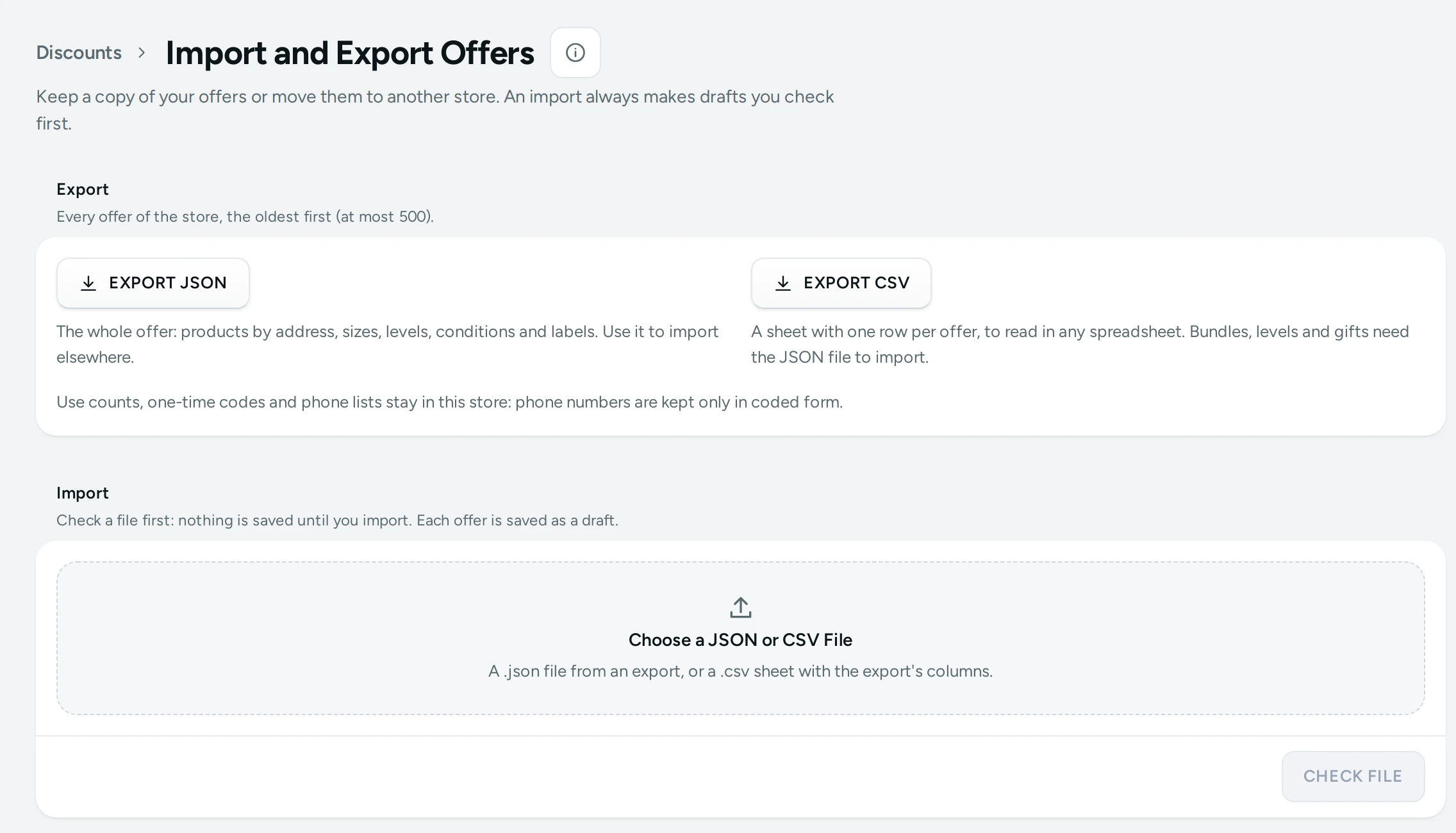
Export
"Every offer of the store, the oldest first (at most 500)."
| Button | What You Get |
|---|---|
| EXPORT JSON | "The whole offer: products by address, sizes, levels, conditions and labels. Use it to import elsewhere." |
| EXPORT CSV | "A sheet with one row per offer, to read in any spreadsheet. Bundles, levels and gifts need the JSON file to import." |
"Use counts, one-time codes and phone lists stay in this store: phone numbers are kept only in coded form."
What the JSON File Holds
Every field of every offer, as the editor has it: method, code, kind and value, bundle sizes and ranges, spend levels, gifts and add-ons, buy X get Y sets, minimums, exclusions, limits, combinations, conditions, product page settings, dates, status and the card label. Products, collections, categories and brands are written by their address (the part of the link after /products/, for example), options by SKU, reward tiers by name, so the file can be read by another store with the same catalogue. It never carries an id, a use count, one-time codes or a phone list.
The Columns of the CSV Sheet
| Column | What It Holds |
|---|---|
title | The offer's title |
method | code or automatic |
code | The code, for a code discount |
kind | The kind: order_percent, order_fixed, product_percent, product_fixed, product_price, free_shipping (others are exported too, but import only from JSON) |
status | active, draft or archived |
percent | The percentage, like 10 or 12.5 |
amount | The amount in rupees, like 100 or 99.50 |
min_spend | The minimum amount in rupees |
min_quantity | The minimum number of items |
starts, ends | India time, like 2026-10-31 23:59 |
usage_limit | Total Uses |
once_per_customer | yes or no |
combines | The kinds it combines with (product, order, shipping), joined by a vertical bar |
products, collections, categories | Their addresses, joined by a vertical bar |
tags | Tags, joined by a vertical bar |
card_label, card_label_text | Whether its card label shows, and its own words |
times_used | How often it was used (read only: an import ignores it) |
The sheet is saved so that Excel reads ₹ and Indian languages correctly, and any cell starting with =, +, - or @ is written safely so a spreadsheet never runs it as a formula.
Import
"Check a file first: nothing is saved until you import. Each offer is saved as a draft."
How to Import Offers
- Under Import, tap Choose a JSON or CSV File: "A .json file from an export, or a .csv sheet with the export's columns." A file can be up to 900 KB: "This file is larger than 900 KB. Split it into smaller files."
- Press CHECK FILE. Nothing is saved yet. A table lists each offer with Row, Offer and Result: Ready, or its problems in plain words. A line on top says "4 of 5 offers are ready to import." or "No offer in this file can be imported. Fix the rows below and check again."
- Fix the file if you need to and press CHOOSE ANOTHER FILE, or go ahead.
- Press IMPORT 4 AS DRAFTS. Only the ready offers are saved. "4 offers saved as drafts. Open each one, check it and set it live." Each saved row links to its offer.
- Press OPEN DISCOUNTS to see them in the Draft tab, open each, check it, set Status to Active and press SAVE.
Problems the Check Finds
| Problem | What to Do |
|---|---|
| "The code WELCOME10 is already used in this store. Change it in the file." | Codes are never overwritten. Give the offer a new code. |
| "The code WELCOME10 is in the file twice." | Each code once per file |
| "No product at “silk-saree-red” in this store." | The product's address differs in this store. Fix the address, or remove it from the offer. |
| "No collection at …", "No category at …", "No brand at …" | The same, for collections, categories and brands |
| "No option “…” in this store.", "No option value “…” in this store." | An option or option value the store does not have |
| "No reward tier named “Gold” in this store." | Create the tier in Rewards first, or remove the condition |
| "A sheet carries simple offers only (not “quantity_tier”): use the JSON file for bundles, levels and gifts." | Export and import that offer as JSON |
| "“31/10/2026” is not a date like 2026-10-31 23:59." | Write dates as year-month-day, India time |
| "“ten” is not an amount or a percentage." | Use numbers only |
Every other rule of the editor is checked too (a title of 1 to 80 characters, a percentage up to 100%, and so on), and its message is shown on the row. A JSON file with fields Mercayo does not know is refused, so a file from another system cannot slip in settings you did not mean. In a CSV sheet the columns may come in any order, and columns Mercayo does not know are ignored.
How to Copy Offers to Another Store
- In the first store, press EXPORT JSON.
- Switch to the other store (see Switching Stores) and open Marketing › Discounts › IMPORT / EXPORT.
- Choose the file and press CHECK FILE. Products are matched by their address, so offers for products the second store does not have show their problem.
- Press IMPORT … AS DRAFTS, then check each draft and set it live.
How to Make Many Simple Offers from a Sheet
- Press EXPORT CSV to get a sheet with the right columns (or start from an export with a single offer).
- Add one row per offer: a title,
codeorautomatic, the code, the kind (order_percent,product_fixed…), the percentage or amount, and any minimum, dates and products. - Save it as CSV and import it as above.
Mercayo Controls
The number of offers one import file may hold is set by Mercayo (200 unless Mercayo sets another number for your store, up to 1,000).
Good to Know
- An import never changes or deletes an offer that is already in the store; it only adds drafts.
- Imported offers are drafts, so nothing reaches shoppers until you set each one live.
- Phone lists, one-time codes and use counts are never exported. Make one-time codes again in the new store, and upload phone lists again.
- References resolve only in the store you import into: another store's products are never touched.
- The store's full data export, with orders and customers, is in Import and Export.
Questions
Will importing overwrite my existing offers?
No. Every imported offer is a new draft, and a code already used in the store is refused.
Why is my bundle refused in the CSV file?
A sheet holds simple offers only. Bundles, spend tiers, gifts, add-on prices and buy X get Y need the JSON file.
Can I edit the JSON file?
You can, carefully, in a text editor. Unknown fields are refused, and every offer is checked before anything is saved.
Does an export include how many times each offer was used?
The CSV shows times_used for your records. It is never imported, and the JSON file leaves it out.
Why do my imported offers not apply?
They are drafts. Open each one, set Status to Active and press SAVE.