Reviews are the strongest reason a new shopper trusts your store. On Mercayo, shoppers rate and review what they bought, add photos, and every review waits for you: "Every review waits for you. Approve it to show it on the store, reply in public, hide a photo." Open Marketing › Reviews. Seeing reviews needs the reviews right; approving and replying needs the right to approve reviews and answer questions (the owner, admins and the Marketer preset role).
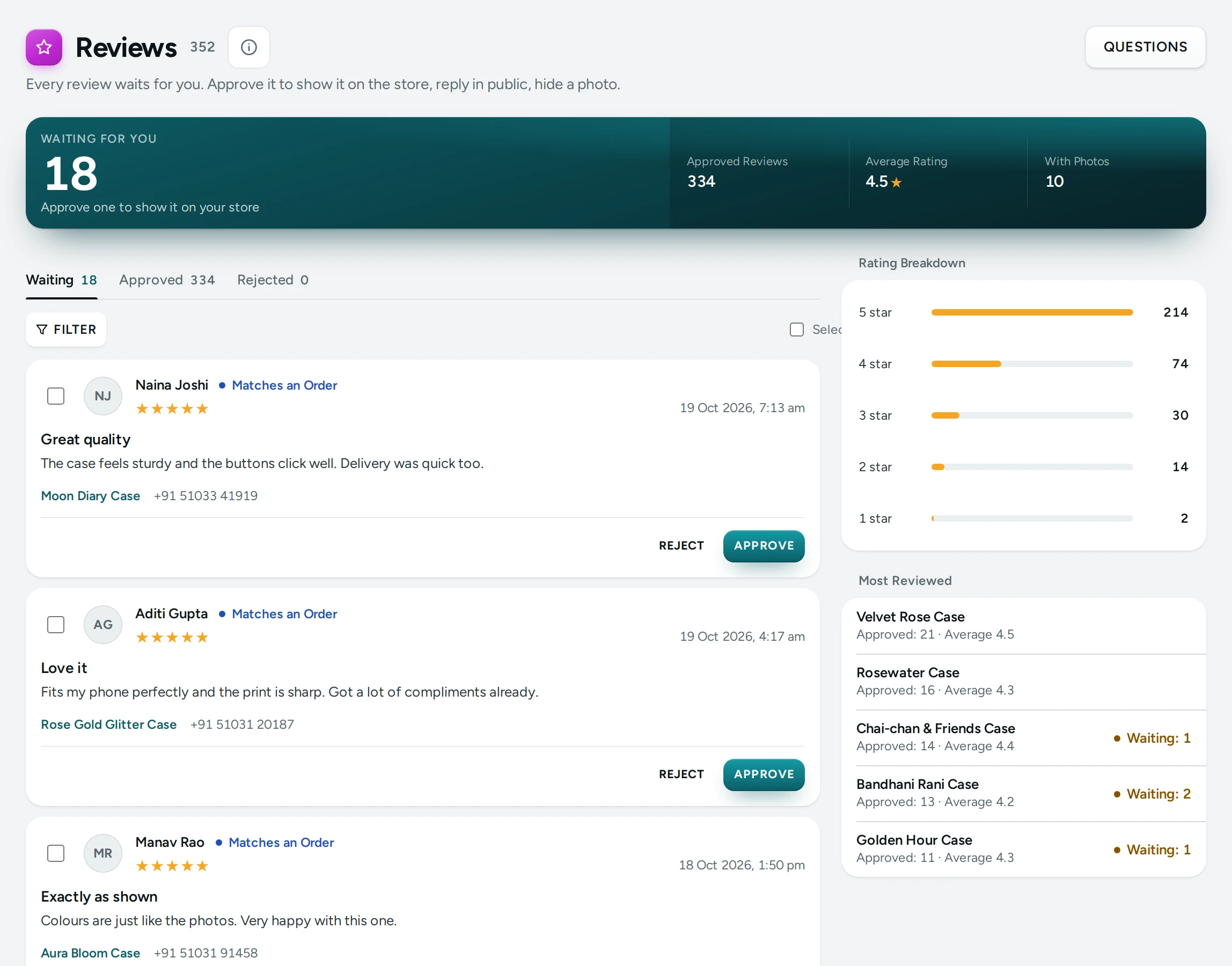
The Tabs
| Tab | Shows |
|---|---|
| Waiting | New reviews, not yet on the store (the default) |
| Approved | Reviews shown on the store |
| Rejected | Reviews you turned down; kept, never shown |
The Home screen's Needs Your Attention card shows how many reviews wait. LOAD MORE brings the next ones.
A Review
Each review shows its stars ("4 out of 5"), its title and text, the product it is On, the reviewer's name and city, and the date. Two marks help you judge it:
- VERIFIED BUYER: written by a signed-in shopper who bought the product. Shoppers see this badge too.
- MATCHES AN ORDER: a delivered order of this product has the same phone or email. "Shoppers do not see this: only a signed-in buyer's review shows Verified buyer."
- Private contact: the phone or email the reviewer gave, for your eyes only.
Approve, Reject, Reply
- APPROVE: "Approved. It now shows on the store."
- REJECT: "Rejected. It will not show on the store." Move it back any time from the Rejected tab.
- Your Public Reply (on an approved review): thank the shopper or answer their point, then SAVE REPLY. "Reply saved. It shows under the review." as the store's reply. Clear it to remove the reply.
Photos
Review photos are shown under Photos. HIDE takes one photo off the store while keeping the review ("Photo hidden from the store.", marked HIDDEN); SHOW puts it back.
What Shoppers See
Approved reviews appear on the product page, with the average rating and the number of reviews, and on your store's reviews page. Approved reviews also feed the Reviews and Testimonials home section when you use it. Shoppers write a review from the product page (one review at a time is checked against abuse: a shopper may send 3 reviews an hour, and 12 photos an hour).
Asking for Reviews
Ask for a Review (Settings › Reviews and Questions) emails the shopper a set number of days after delivery asking for a review; 0 (the default) means do not ask. A week is a good start for most products.
Settings
In Settings › Reviews and Questions › Reviews and Review Photos:
| Setting | What It Does | Default |
|---|---|---|
| Product Reviews | Shoppers read and write reviews; each waits for your approval. Off: reviews are hidden and kept | On |
| Ask for a Review | Days after delivery to email a review request; 0 means do not ask | 0 |
| Show the Reviewer's City | The city beside the reviewer's name, from their delivered order or as they typed it | On |
| Photos in Reviews | Shoppers may add photos; you see them first and can hide any | On |
| Photos per Review | The most photos one review can have (1 to 6) | 4 |
Every setting is explained in Reviews and Questions Settings.
Questions
Can I edit a shopper's review?
No. You approve or reject it as written, hide a photo, and reply in public. Editing someone's words would mislead shoppers.
Can I import reviews from my old store?
Reviews are written by shoppers on your Mercayo store; there is no review import today.
Does turning reviews off delete them?
No. Off hides reviews and keeps them; turning it back on shows the approved ones again.