Discounts is where every offer your store runs lives: the codes shoppers type ("WELCOME10", "DIWALI500") and the automatic offers that apply by themselves in the bag ("Any 2 kurtis for ₹1,299", free delivery in Maharashtra). The screen's own line says it: "Codes and automatic offers: where each one stands and what it brought in." Open it from Marketing › Discounts in the side menu. On a phone it sits under More, or in the bottom bar for a role such as Marketer that cannot open orders or customers.
To open the list you need the right to see discounts. The owner, admins and the Marketer role have it. Creating and changing offers needs the right to edit discounts, which the same people have. Anyone else sees "Your role cannot see discounts. Ask the store owner."
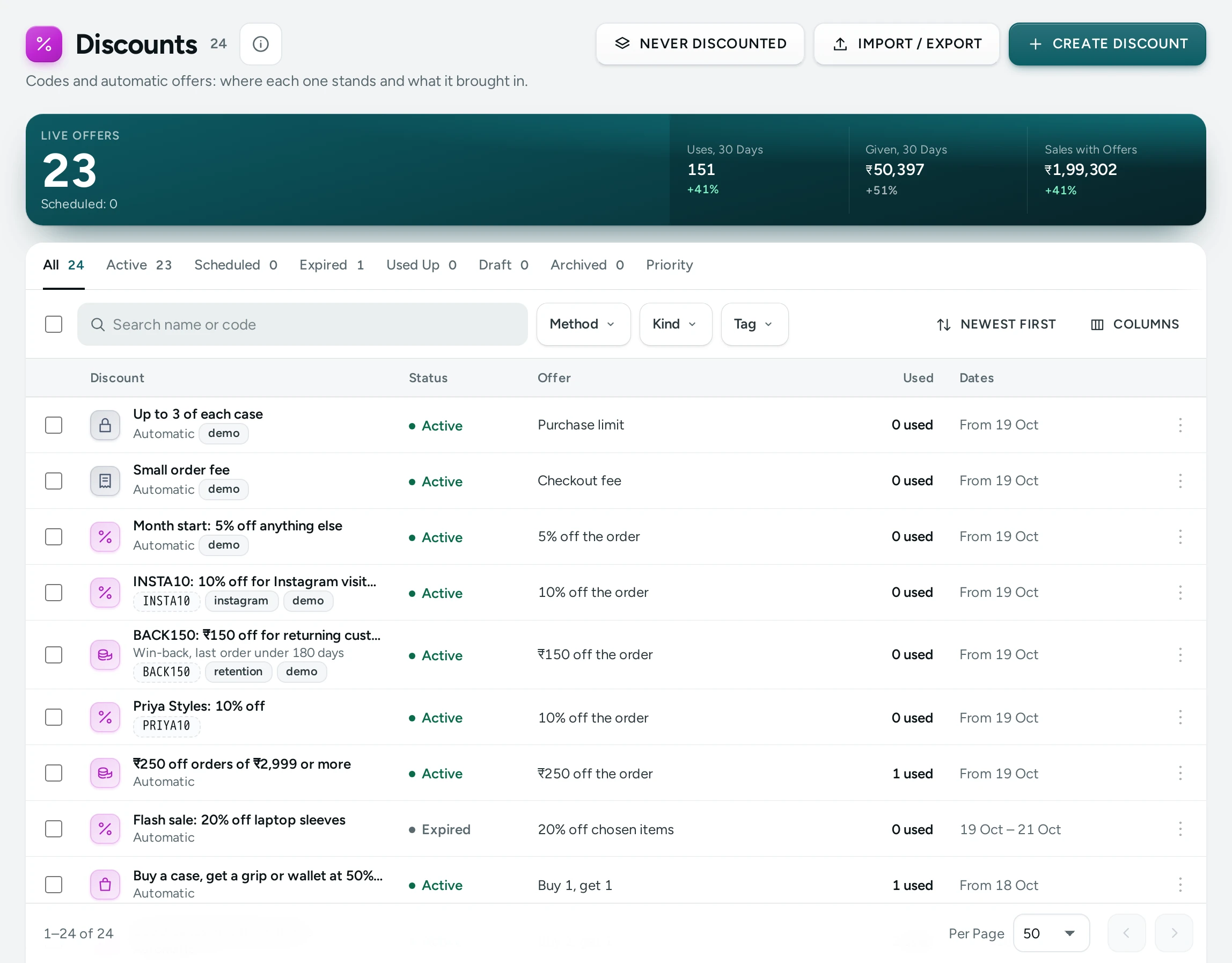
The Summary of the Last 30 Days
Four figures sit above the table, each compared with the 30 days before it. A figure's name has a dotted underline: tap it to read exactly what is counted.
| Figure | What It Counts |
|---|---|
| Live Offers | "Offers a shopper can use right now: switched on, started, not ended and not used up." The note under it counts the scheduled ones (Scheduled: 3). Tapping this figure opens the Active tab; tapping again goes back to All. |
| Uses, 30 Days | "Times an offer was used on an order in the last 30 days. Uses given back by a cancelled order are not counted." |
| Given, 30 Days | "Money taken off orders by offers in the last 30 days, delivery charges waived included." A small line chart shows it day by day. |
| Sales with Offers | "What orders that carried any offer came to in the last 30 days, each order counted once. Cancelled and unpaid orders are left out." The note under it counts those orders. |
Money in the summary is in whole rupees. A rise in Uses and Sales with Offers is shown as good; a rise in Given is shown as neutral, because giving more is not good or bad by itself.
The Tabs
Each tab shows a count, so you can see at a glance how many offers are in each state.
| Tab | Offers In It |
|---|---|
| All | Every offer, whatever its state |
| Active | Switched on, started, not ended and not used up |
| Scheduled | Switched on but its start date is still ahead |
| Expired | Its end date has passed |
| Used Up | Its Total Uses limit is reached |
| Draft | Saved with the status Draft: "Not usable yet; a shopper's code reads as unknown." |
| Archived | Saved with the status Archived: "Stopped and kept for your records; a shopper's code reads as expired." |
| Priority | The order your live offers compete in (see below) |
The Table
| Column | What It Shows |
|---|---|
| Discount | The offer's title (a link to the editor) and, under it, its code in a code tag, or Automatic for an automatic offer |
| Status | A pill: Active, Scheduled, Expired, Used up, Draft or Archived |
| Offer | The offer in a few words: "10% off the order", "₹100 off each item", "Free delivery", "₹30 off delivery", "Delivery at ₹49", "₹499 each", "Spend tiers", "Bundle price", "Add-on price", "Free gift", "Buy 2, get 1" or "Spend ₹999, get 1" |
| Used | "12 / 100" when the offer has a total use limit, else "12 used" |
| Dates | The days it runs, "20 Oct – 31 Oct", or "From 20 Oct" with no end. The year shows only when it is not this year. Hidden on narrow screens. |
Two more columns are hidden at first: Kind (the type of offer in words, such as Percentage off the order or Quantity prices) and Priority (the number your priority order gave the offer). Turn them on with Columns above the table.
Tap a row to open the offer in the Discount Editor. Each row's menu (the three dots) has Open discount and, for a code, Copy code, which copies the code and says "Code WELCOME10 copied."
Search, Filters and Sort
- Search name or code finds offers by their title or code.
- Method filters by Discount code or Automatic offer.
- Kind filters by the type of offer. It appears once your store has more than one kind.
- Sort by Newest first (the default), Oldest first, Most used, Ending soonest or Name A–Z.
- Show 25, 50 or 100 rows a page and move with the arrows under the table.
Your tab, search, filters, sort and page stay in the page address, so a link you share or the browser's back button opens the same view.
The Priority Tab
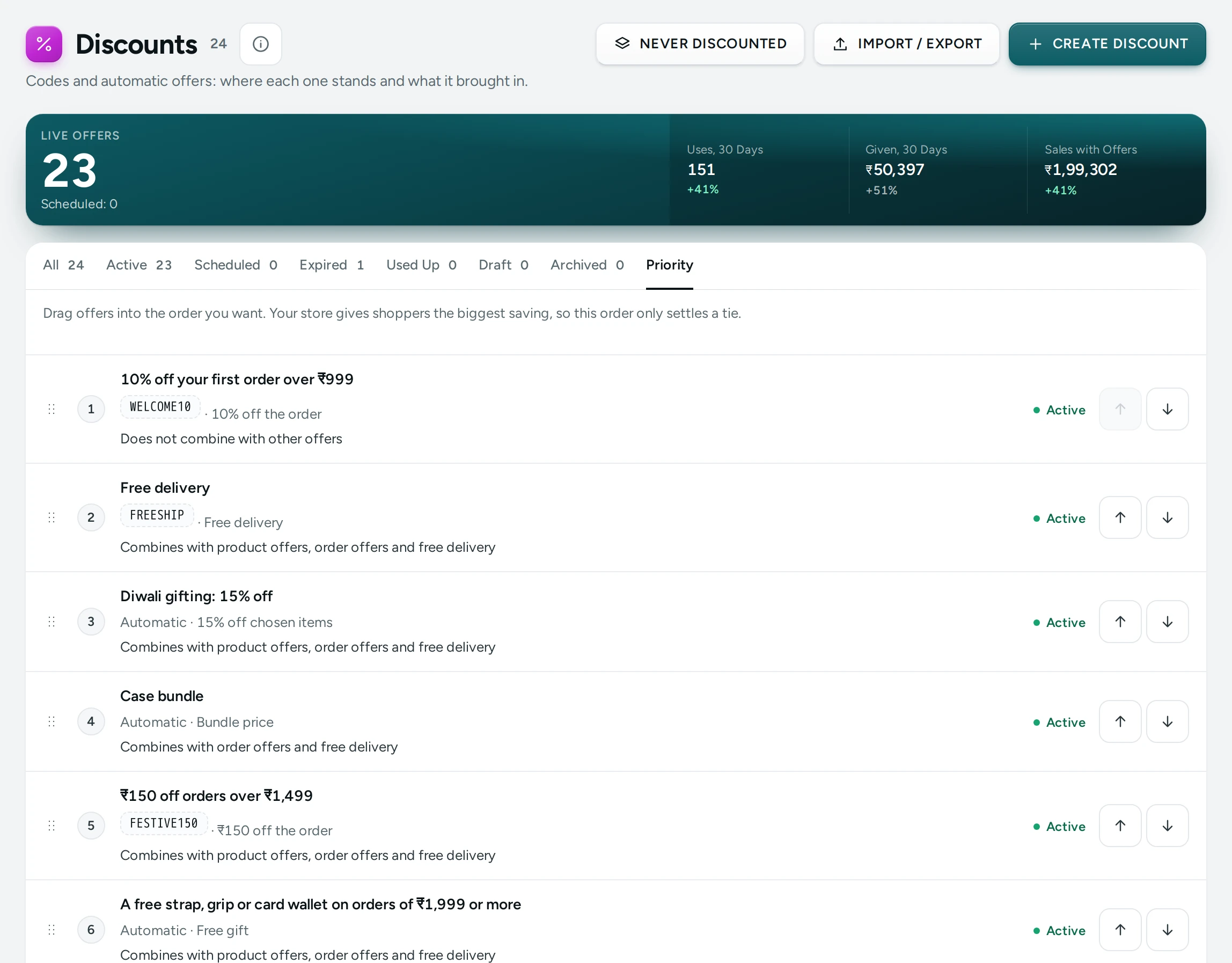
Priority lists your active, scheduled and used-up offers in the order they compete. Each row shows its place (1, 2, 3…), its title, its code or Automatic, the offer in words, what it combines with ("Combines with product offers and free delivery", "Does not combine with other offers"), an On its own pill for an offer that applies alone, and its status.
What the order means depends on Which Offers Win in Discount Settings:
- With Best (the default): "Your store gives shoppers the biggest saving, so this order only settles a tie."
- With Priority: "The first offer that applies wins; each next one joins when it combines with those before it."
How to Change the Order
- Open the Priority tab.
- Drag a row by its handle to a new place. On a phone or with a keyboard, use the up and down arrow buttons at the end of each row.
- Press SAVE ORDER. "The order is saved."
To change your mind before saving, press UNDO. Saving the order never interrupts someone who has an offer open in the editor. How offers combine is explained in Combining Discounts.
The Buttons
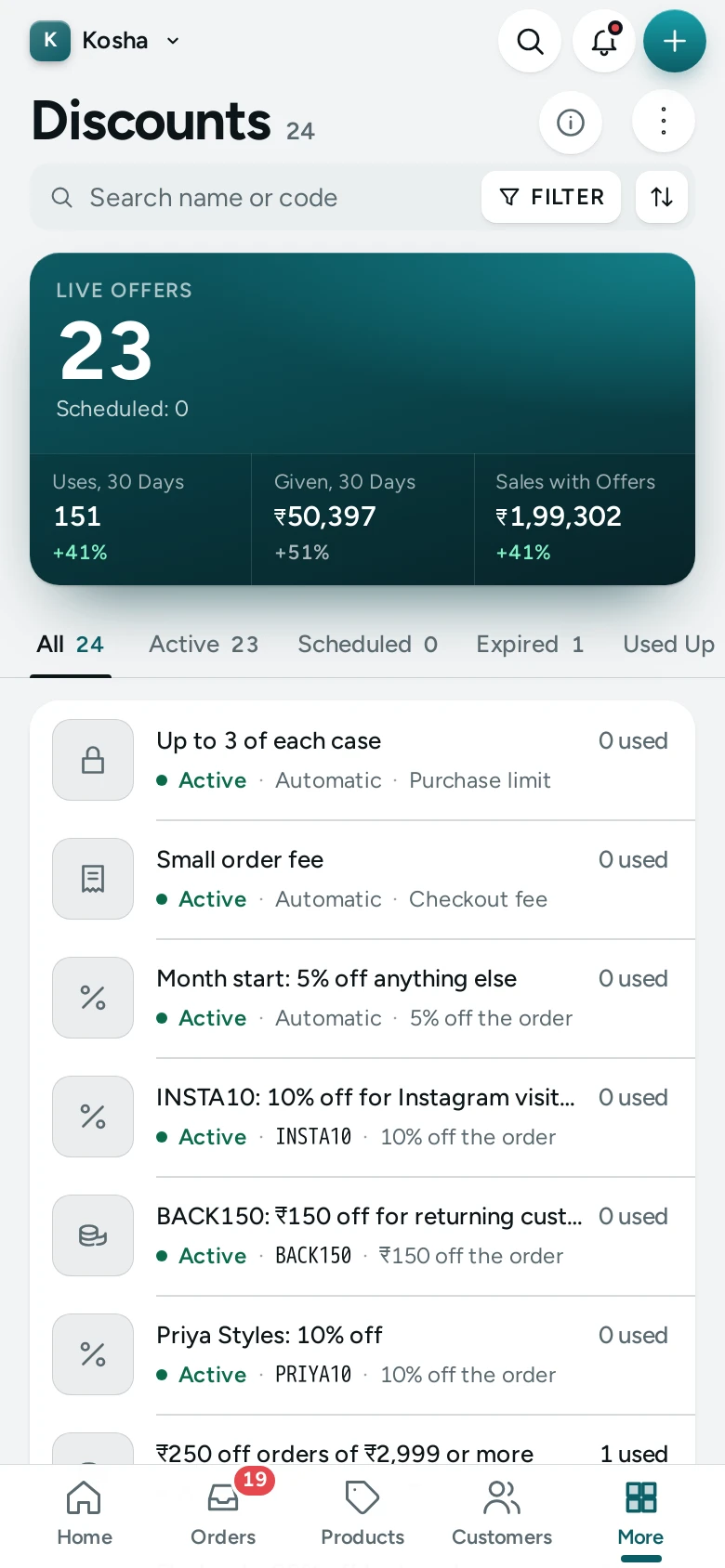
- CREATE DISCOUNT opens a new offer in the editor. On a phone it is the round + button at the bottom of the screen.
- IMPORT / EXPORT opens Import and Export Offers, to keep a copy of your offers or move them to another store. On a phone it is under More Actions.
How to Create a Discount
- Press CREATE DISCOUNT.
- Choose Discount code or Automatic offer, give it a title and choose what it gives.
- Set who it is for, its limits and its dates.
- Press SAVE.
Every field is explained in Discount Editor. For the two main kinds of offer, see Discount Codes and Automatic Offers.
How to Find What an Offer Earned
- Open the offer from the list.
- Press REPORT at the top of the editor.
The Discount Report shows its orders, sales, discount given and more for any range of days.
When Discounts Are Switched Off
If Discounts is off in Settings › Discounts, a yellow banner says "Discounts are switched off for your store. Shoppers cannot use any code or offer, and the coupon box is hidden." People who can see settings get a Switch them on in Settings button; others read "Ask the store owner to switch them on in Settings." Your offers stay saved and come back the moment discounts are on again.
Mercayo Controls
Mercayo can force or limit any discount setting for your store, including whether discounts are on at all. The most automatic offers a store may have active or scheduled at once is set by Mercayo (100 unless Mercayo sets another number for your store): every bag is checked against each of them, so the limit keeps the bag fast.
Good to Know
- The list loads in one request and is kept for up to 30 seconds while you move around the admin. Any save in the editor refreshes it at once.
- Scheduled offers count towards the live automatic offers limit, because they will go live by themselves.
- A deleted offer leaves the list for good. Orders that used it keep their discount.
- Kosha is a demo store: the offers and figures you see in the pictures are sample data.
Questions
Why is my new offer under Scheduled and not Active?
Its Starts date and time is still ahead, in India time. It moves to Active by itself at that moment. To start it now, open it and set Starts to now.
What is the difference between Expired and Archived?
Expired means its end date has passed. Archived is a status you choose to stop an offer and keep it for your records. A shopper who types an archived code is told it has ended.
Can I pause an offer without deleting it?
Yes. Open it, set Status to Draft or Archived and press SAVE. Set it back to Active to start it again.
Why does the Priority tab not show my draft offers?
Only offers that can compete are listed: active, scheduled and used up. Drafts, archived and expired offers never compete.
Does the order in the Priority tab matter if my store gives the best saving?
Only to settle a tie between two offers that save the same. Switch Which Offers Win to Priority in Discount Settings if you want your order to decide.
Who can see the Sales with Offers figure?
Anyone who can open the Discounts list. To see a single offer's full report, a person needs the right to see analytics or orders as well.