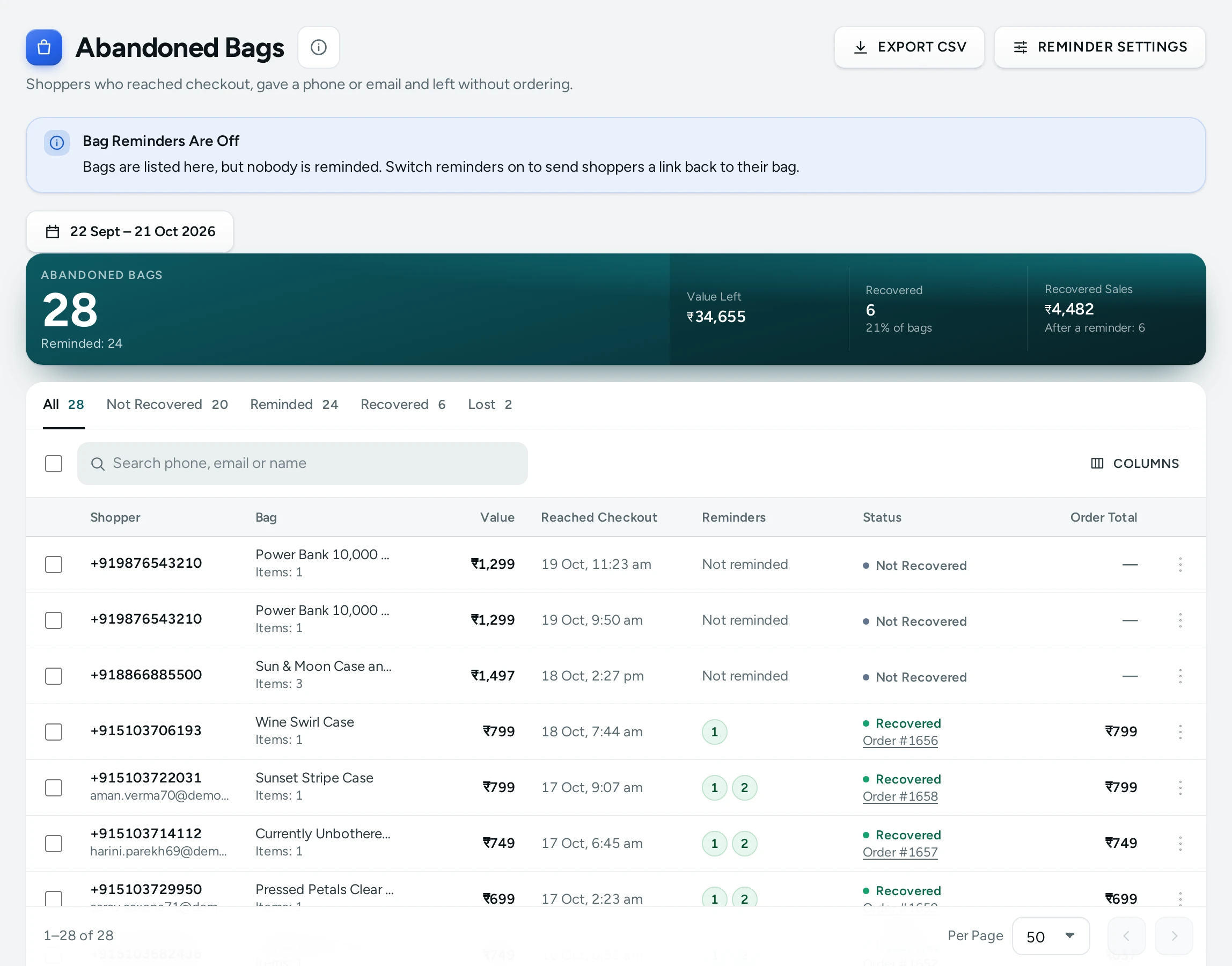
Many shoppers fill a bag, start checkout, type their phone or email, and then leave. Abandoned Bags shows each of those bags: who left it, what was in it and its value, which reminders went out, and whether the shopper came back and ordered. The numbers at the top tell you how many bags were left in a period, how much value they held, and how many were recovered. Reminders themselves are switched on and timed in Settings › Bag Reminders. Open the screen from Orders › Abandoned Bags in the side menu; on a phone, from the More sheet. It needs the right to see orders (the owner, admins, Order Manager and Customer Support); others see "Your role does not include orders, so abandoned bags are hidden."
What Counts as an Abandoned Bag
A bag is listed when the shopper reached checkout, gave a phone number or email, and placed no order within A Bag Counts as Abandoned After (60 minutes by default). Bags without a phone or email cannot be listed or reminded, because there is nobody to contact.
A bag counts as Recovered when the shopper ordered within Count an Order as Recovered Within (7 days by default) of reaching checkout: from the bag itself, from a reminder's link, or with the same phone or email. Cancelled orders do not count.
What You See
Header and Banner
The title Abandoned Bags with "Shoppers who reached checkout, gave a phone or email and left without ordering." and a Reminder settings button (for people who can see settings).
While reminders are off, a banner says Bag Reminders Are Off: "Bags are listed here, but nobody is reminded. Switch reminders on to send shoppers a link back to their bag."
The Summary
The four numbers cover the period on the Period button (the last 30 days unless you pick other dates), each compared with the period just before:
| Number | What It Counts | Under It |
|---|---|---|
| Abandoned Bags | Bags that reached checkout with a phone or email and had no order in time | "Reminded: 18" |
| Value Left | The items still in those bags, at today's prices | |
| Recovered | Bags whose shopper ordered in time | The share of bags, for example "12% of bags" |
| Recovered Sales | What the recovered orders came to: the orders' totals, not the bags' value | "After a reminder: 6" |
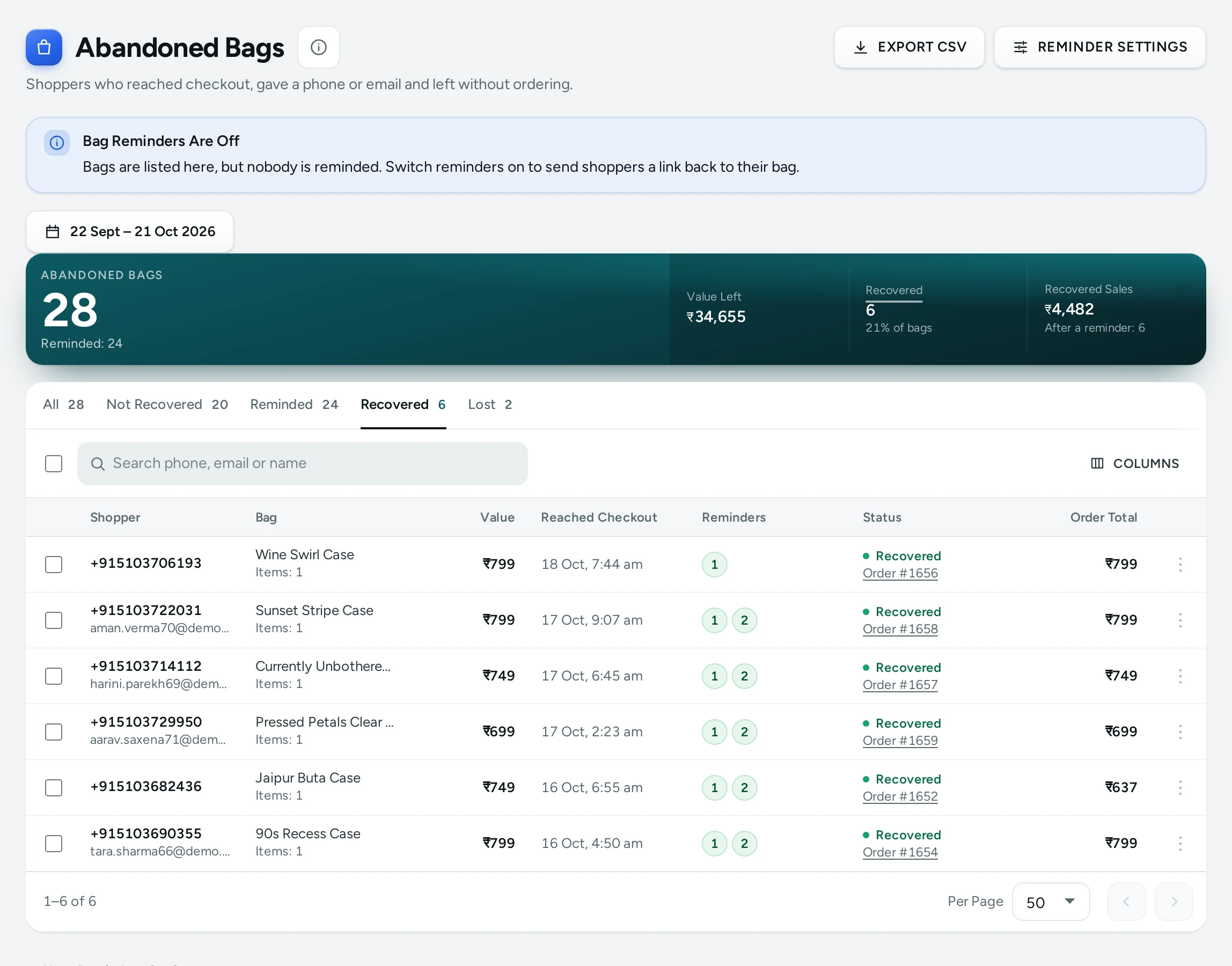
For Abandoned Bags a rise is shown as bad; for Recovered and Recovered Sales a rise is good. Click Recovered to show just the recovered bags.
Tabs and Search
| Tab | What It Holds |
|---|---|
| All | Every abandoned bag in the period |
| Not Recovered | Bags with no order yet |
| Reminded | Bags that got at least one reminder |
| Recovered | Bags that came back as an order |
Search by phone, email or name.
The List
| Column | What It Shows |
|---|---|
| Shopper | The name (or "Guest"), with the phone and email under it. Click to open the bag |
| Bag | The products ("Classic Leather Case and 2 more") and "Items: 4" |
| Value | What the bag was worth |
| Reached Checkout | When the shopper reached checkout |
| Reminders | A small numbered mark for each reminder that went out (1, 2, 3), or "Not reminded" |
| Status | Recovered with the order's number (a link), or Not Recovered |
| Order Total | What the recovered order came to |
The row menu offers Open bag, Open order (for a recovered bag) and Open customer (for people who can see customers). The list shows 50 bags a page; choose 25, 50 or 100.
The Bag Sheet
Clicking a shopper opens a side sheet with:
- In the Bag: each product, its variant, quantity and price, and the Bag Value;
- Reminders: each reminder with its channel and what happened to it (see below);
- Came Back As: for a recovered bag, the order, when it was placed, whether it came "From this bag" or with the "Same phone or email", and "After a reminder" when a reminder went before it;
- Contact: the phone and email.
| Reminder Outcome | Meaning |
|---|---|
| Sent | The reminder went out |
| Delivered | The message was delivered |
| Not delivered | It could not be delivered |
| Skipped: a later reminder went instead | A later step was sent in its place |
| Not sent: they ordered | The shopper ordered first |
| Not sent: they asked not to be reminded | The shopper opted out |
| Not sent: no address for this channel | For example a WhatsApp reminder for a shopper who gave only an email |
How Reminders Go Out
The card at the bottom sums up your settings: Reminders (for example "after 1 h · after 1 day · after 3 days", or "All reminders are off"), Sent By (Email, WhatsApp or Email and WhatsApp), Code Offered (your comeback code, or "None") and Asked Not to Be Reminded (how many shoppers opted out).
Reminder Settings
All in Settings › Bag Reminders (Bag Reminders Settings):
| Setting | What It Does | Default |
|---|---|---|
| Bag Reminders | Remind shoppers who reached checkout, gave a phone or email and did not order, with a link back to their bag | Off |
| First Reminder After | Minutes after the shopper last changed their bag. 0 turns it off | 60 (1 hour) |
| Second Reminder After | Minutes; 1,440 is one day. 0 turns it off | 1,440 (1 day) |
| Third Reminder After | Minutes; 4,320 is three days. 0 turns it off | 4,320 (3 days) |
| Send Reminders By | Email, WhatsApp, or both. WhatsApp reminders go only to shoppers who said yes to WhatsApp, and need WhatsApp Marketing (included on Growth and Scale, an add-on on Starter) | |
| Code to Offer | A discount code from Discounts to mention, for example COMEBACK10. A code that has ended or is switched off is left out | None |
| Quiet From | No reminders from this hour, India time (21 is 9 pm) | 21 |
| Quiet Until | Reminders due at night go at this hour (9 is 9 am) | 9 |
| A Bag Counts as Abandoned After | Minutes after reaching checkout without ordering (15 to 1,440) | 60 |
| Count an Order as Recovered Within | Days after reaching checkout (1 to 30) | 7 |
How to Start Recovering Bags
- Create a discount code for returning shoppers, for example
COMEBACK10for 10% off (see Discount Codes). - Press Reminder settings and switch on Bag Reminders.
- Keep the three reminder times or change them; put
COMEBACK10in Code to Offer. - Choose Send Reminders By; WhatsApp goes only to shoppers who said yes to WhatsApp.
- Save, and come back after a week: compare Recovered and Recovered Sales with the period before.
The full walk-through is in Recover Abandoned Bags.
What Shoppers See
A reminder carries a link straight back to their bag, with your code when you set one. Shoppers can ask not to be reminded; they are then counted under Asked Not to Be Reminded and get no more reminders. No reminder is sent once they order.
Mercayo Controls
Mercayo can fix any reminder setting for your store or hold it in a range; a locked setting shows Mercayo's note in Settings.
Good to Know
- Value Left uses today's prices, so it can differ from what the bag showed the shopper.
- Recovered Sales counts the recovered orders' totals, which may include items not in the abandoned bag.
- Reminders due during quiet hours wait until Quiet Until; set both hours the same for no quiet hours.
- The screen loads in one request and keeps itself fresh for about 30 seconds.
Questions
Why is a bag here with no reminders?
Either reminders are off, the bag became abandoned before you switched them on, or the shopper ordered or opted out first. Open the bag to see each reminder's outcome.
Why is a recovered order's total higher than the bag?
Recovered Sales counts the whole order the shopper placed, which may have more items than the bag they left.
Can I message a shopper myself?
Open the bag to see their phone and email and contact them as you normally would. Mercayo sends only the automatic reminders.
Does a cancelled order count as recovered?
No. Only orders that were not cancelled count.
Why does WhatsApp show as a channel but nothing goes?
A WhatsApp reminder goes only to a shopper who said yes to WhatsApp or joined your list there, and only on a plan with WhatsApp Marketing (included on Growth and Scale, an add-on on Starter). Shoppers who gave only an email get the email. Each reminder held back shows its reason in WhatsApp Messages.