The Orders list is where every order placed in your store arrives, whether the shopper paid online or chose cash on delivery. From one screen you can see how much money has come in, how much cash couriers still have to collect, what is waiting to be shipped, and you can act on many orders at once: mark COD orders confirmed after a call, make courier labels, print packing slips, download GST invoices or export a spreadsheet. Open it from Orders in the side menu; on a phone, Orders is one of the tabs in the bottom bar. Anyone whose role includes the right to see orders can open it (the owner, admins, and the preset roles Order Manager and Customer Support); the buttons that change orders need the right to process orders, which the owner, admins and Order Manager have.
What You See
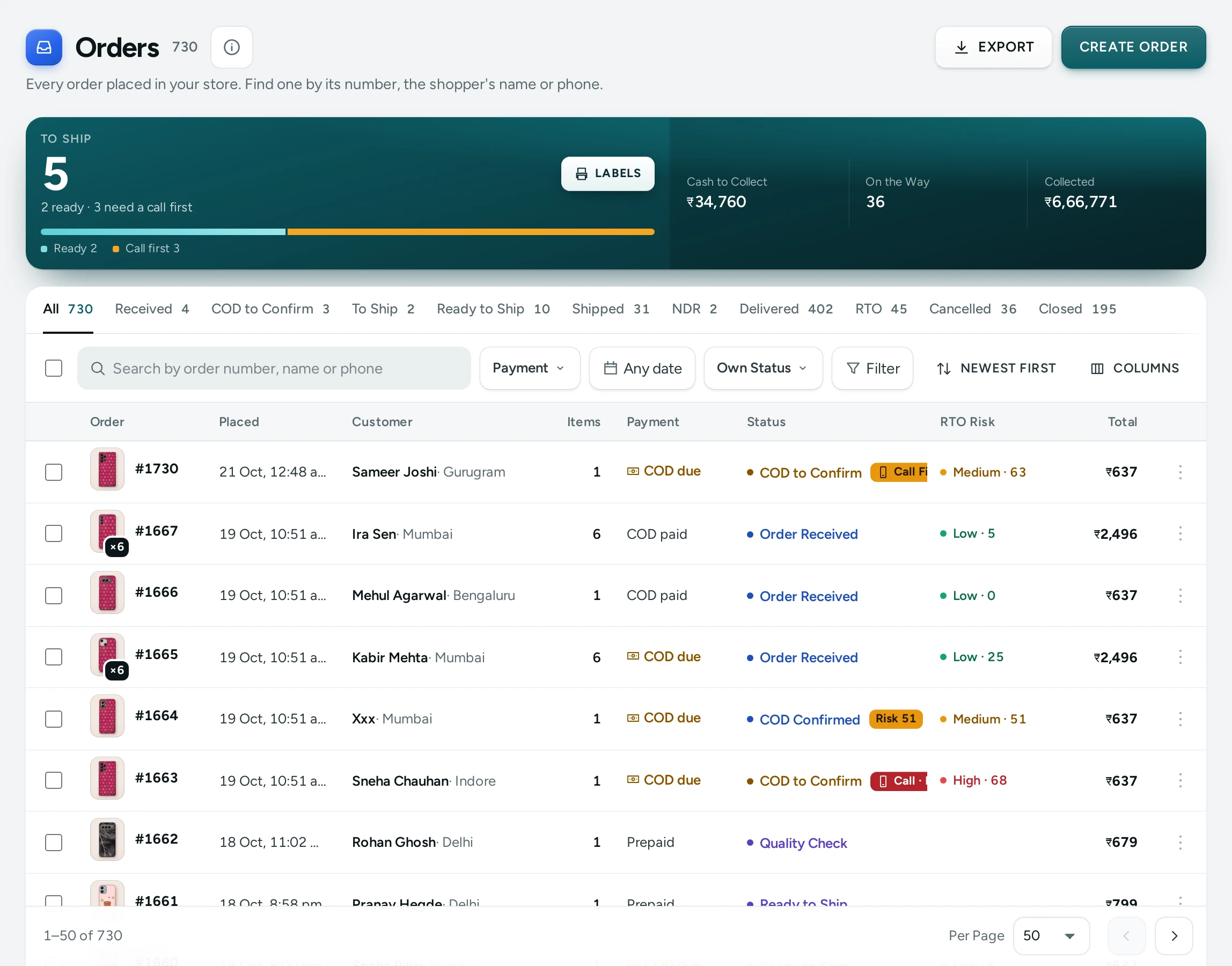
From top to bottom the screen holds:
- The title Orders with the line "Every order placed in your store. Find one by its number, the shopper's name or phone.", the EXPORT button and, for people who can process orders, CREATE ORDER to make an order yourself (see Draft Orders and Payment Links).
- A yellow Refunds needed banner, only when money is owed back to shoppers (see below).
- The summary strip: Collected, Cash to Collect, To Ship and On the Way.
- The tabs, the search box and the filters.
- The orders table, with a pager at the bottom.
The Summary Strip
The four numbers follow your search and filters (not the tab you are on), so you can, for example, search for one shopper or pick last week's dates and see the strip for just those orders.
| Number | What It Counts | The Line Under It |
|---|---|---|
| Collected | Money received for these orders: paid online, plus cash collected on delivery, less refunds | How many orders are paid |
| Cash to Collect | Cash on delivery still to come in, on orders to ship or on their way | How many COD orders that is |
| To Ship | Confirmed orders not handed to a courier yet | "Confirmed, not shipped", or how many are still waiting for a call when you use the staff call |
| On the Way | Shipped orders not delivered yet | "Shipped, not delivered", or how many have a failed delivery |
Collected is a plain number. The other three can be clicked: Cash to Collect shows the COD orders that are to ship or shipped, To Ship opens the To ship tab, and On the Way opens the Shipped tab. Click the same number again to go back to all orders. Hover over a number's name (or tap it on a phone) to read its definition.
Tabs
Each tab shows how many orders it holds right now.
| Tab | What It Holds |
|---|---|
| All | Every order |
| To ship | Orders that are confirmed (a COD order once placed, an online order once paid) and not yet shipped |
| Unconfirmed | COD orders still waiting for your team to phone the shopper (the staff call, or RTO Shield's Hold for a Call). Shown only when there is at least one such order |
| Awaiting payment | Online orders where the shopper has not finished paying yet |
| Shipped | Handed to the courier and on the way |
| Delivered | Delivered to the shopper |
| Returned to origin | COD parcels that came back to you undelivered (RTO) |
| Cancelled | Cancelled by your team, by the shopper or automatically |
| Closed | Finished orders that nothing more will happen to |
After the status tabs come your store's saved views, each as a tab of its own with its count (see Saved Views below).
Search
The search box ("Search by order number, name or phone") understands several kinds of text:
- An order number, with or without the
#(for example1042or#1042). Short numbers also match phone numbers that contain those digits. - A phone number or part of one (spaces and dashes are ignored), for example
98290 12345. - An email address or part of one (anything with an
@). - A shopper's name or part of it, as written on the delivery address.
Filters
| Filter | What It Does |
|---|---|
| Payment | COD, Prepaid (paid through your payment gateway) or Manual (payment recorded by hand) |
| Paid | Paid, Unpaid, Partly refunded or Refunded |
| Status | One or more order statuses, on top of the tab you are on |
| Any date | The days the orders were placed, picked on a calendar. Days follow India time |
| Tag | One or more of your order tags, each shown with how many orders carry it. Appears once your store uses tags |
| Product | Orders that contain one product. Search your catalogue and pick it. Shown to people who can see products |
| Total | Orders whose total is between two amounts, in whole rupees (Minimum, Maximum, then APPLY). Leave one side empty for "or more" or "up to" |
The sort menu offers Newest first (the default), Oldest first, Highest total, Lowest total, Most items and Customer name, A to Z. When a search or filter finds nothing, the table says so and offers to clear the filters.
The Table
| Column | What It Shows |
|---|---|
| Order | The order number, for example #1042. Click it to open the order |
| Placed | When the order was placed |
| Customer | The name on the delivery address, with the phone and city under it. "Deleted customer" if the shopper deleted their account |
| Items | How many pieces the order has |
| Payment | COD, Prepaid or Manual, with a green dot when the order is paid |
| Status | The order's status, plus Unconfirmed or Confirmed for a COD order that needs a staff call, and FAILED DELIVERY when the courier could not deliver |
| Total | What the shopper pays, GST and delivery included |
| RTO Risk | On a COD order, its RTO Shield level and score (for example "High · 72"); on the Unconfirmed tab, with the biggest reason under it. See RTO Shield |
Three more columns are hidden at first and can be switched on from the columns menu: Tags, City and PIN Code. The table remembers your choice. Each row also has a menu with Open Order, Mark Confirmed (for an unconfirmed COD order still to ship) and Print Packing Slip.
The pager shows 50 orders a page by default; choose 25, 50 or 100 at the bottom, and move with the previous and next buttons ("51–100 of 430").
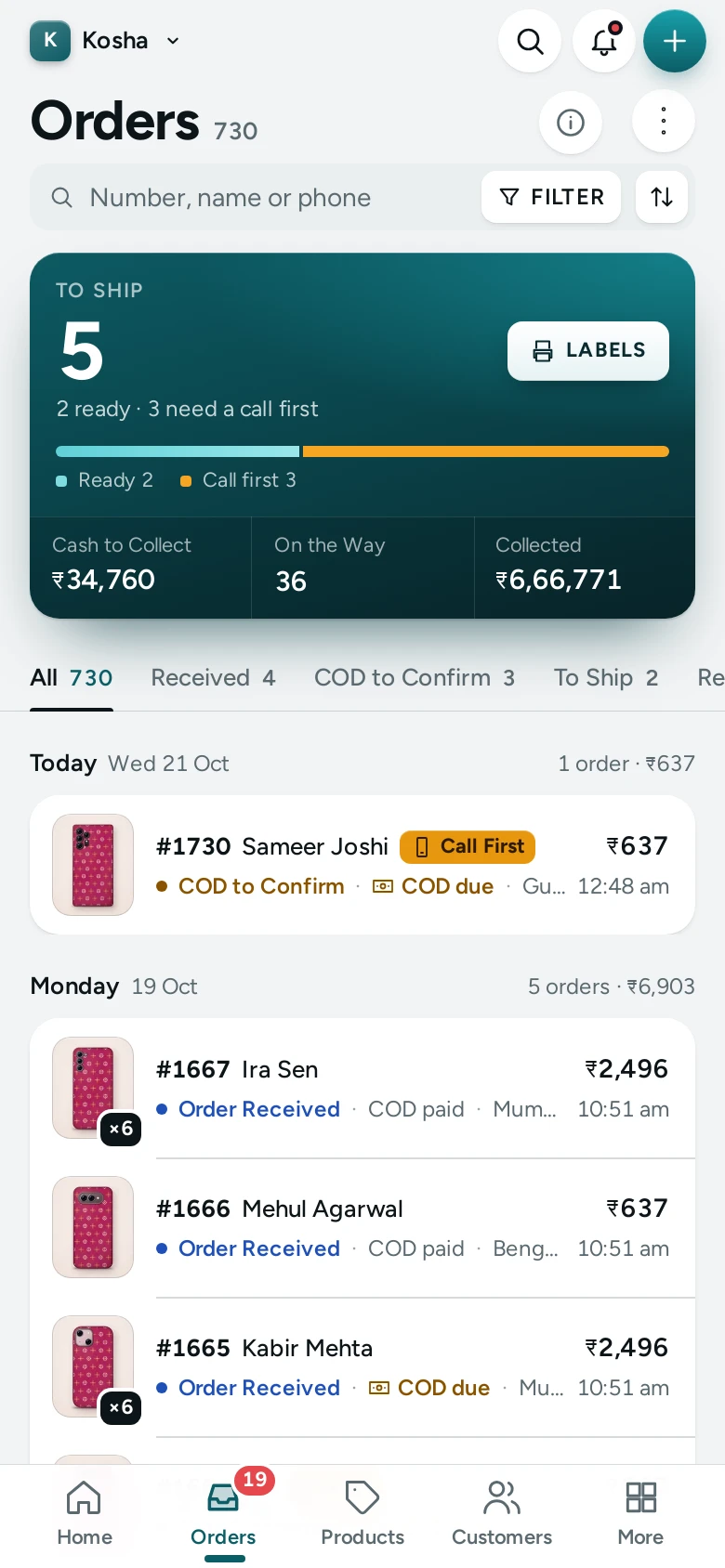
On a phone each order becomes a card: the shopper's name on top, the date under it, the payment and status pills, and the total on the right.
Selecting Orders and the Bulk Bar
Tick the box at the start of a row to select it, or the box in the header to select every order shown on this page. Your selection is kept when you move to the next page, so you can pick orders from several pages. A bar appears with the count ("12 selected") and the actions:
| Button | What It Does |
|---|---|
| GENERATE LABELS | Books a courier for each selected order through your courier integration and makes one label PDF. See Packing Slips and Labels |
| MARK CONFIRMED | Marks the selected COD orders as confirmed with the shopper after your team has phoned them |
| ADD TAG | Puts one tag on every selected order |
| REMOVE TAG | Takes one tag off every selected order |
| ADD NOTE | The same note on each selected order's timeline, for your team; tick Show it to the shopper on their order page to let them read it |
| CANCEL ORDERS | Cancels the selected orders with one reason: stock and offers go back, money paid online is listed for a refund. Shipped, cancelled or labelled orders are left out. See Edit an Order |
| DOWNLOAD INVOICES | The selected orders' GST invoices: one PDF for one order, a ZIP file for several |
| PRINT PACKING SLIPS | Opens the packing slips of the selected orders, one to a sheet, ready to print |
| EXPORT CSV | A spreadsheet of just the selected orders |
At most 100 orders can be acted on at once; with more selected the bar says "At most 100 at a time" and every button but EXPORT CSV is greyed out. People who can see orders but not process them see only PRINT PACKING SLIPS, EXPORT CSV and DOWNLOAD INVOICES.
How to Find an Order
- Open Orders.
- Type the order number, the shopper's phone, email or name in the search box.
- Click the order number in the table to open the Order Page.
How to See What Needs Shipping Today
- Open Orders and click To Ship in the summary strip (or the To ship tab).
- Choose Oldest first in the sort menu so the orders that have waited longest come first.
- If you use the staff call, the line under To Ship says how many are still waiting for a call; deal with those on the Unconfirmed tab first.
- Select the orders you are ready to send and press GENERATE LABELS, then PRINT PACKING SLIPS.
How to Confirm COD Orders After a Call
- Open the Unconfirmed tab.
- Phone each shopper. When they confirm, tick their order.
- Press MARK CONFIRMED in the bulk bar.
- Add a Call note (optional), for example "wants delivery after 6 pm", and press MARK CONFIRMED again in the dialog.
The note goes into each order's timeline. The message at the top says how many were confirmed, how many were confirmed already, and how many could not be confirmed (cancelled, shipped or prepaid orders). The full routine is in Unconfirmed COD Orders.
How to Tag Orders in Bulk
- Select the orders.
- Press ADD TAG (or REMOVE TAG).
- Type the tag in Tag. Tags you already use are suggested as you type.
- Press ADD TAG (or REMOVE TAG) in the dialog.
A tag is 1 to 40 characters, without commas, and is matched without regard to capital letters (Gift and gift are the same tag). An order holds at most 20 tags. Every tag change is written into the order's history with who made it.
How to Save a View
A saved view is a tab of your own: a name plus the tab, search and filters you had on. It is shared with everyone on your team.
- Set up the list as you want it, for example the To ship tab, Payment set to COD and the tag
Priority. - Press SAVE VIEW beside the filters.
- Give it a Name (up to 40 characters, for example "COD to call" or "Gifts this week") and press SAVE.
The view now sits after the status tabs with its own count. When you open a view and then change a filter, its button reads "COD to call (changed)"; open its menu and choose Save Changes to View to keep the new filters, Rename to rename it, or DELETE VIEW to remove it for everyone (the orders themselves are not touched). A store keeps at most 20 saved views, and two views cannot have the same name. Saving, changing and deleting views needs the right to process orders.
How to Export Orders to a Spreadsheet
- Filter the list to the orders you want (or select some orders).
- Press EXPORT at the top for everything the list matches, or EXPORT CSV in the bulk bar for just the selection.
- A CSV file named after your store and today's date downloads.
The file has one row per order with these columns: Order, Placed (IST), Status, Payment, Payment Status, Items, Items Ordered, Subtotal, Discount, Delivery and Fees, GST, Total, Cash on Delivery, City, State, PIN Code, Tags, Courier, AWB, Parcel, then Name, Phone and Email, and finally Shopper's Note. Amounts are in rupees with two decimals so a spreadsheet can add them up.
The file opens correctly in Excel and Google Sheets, including the ₹ sign and names in Indian scripts. One export holds at most 10,000 orders; for more, export in parts by date.
Refunds Needed
When a shopper paid online and the order was then cancelled, when a refused COD parcel's advance is to be refunded (if you chose that in your settings), or when a refund failed at Razorpay, a yellow banner appears above the list: "1 order needs a refund" or "4 orders need a refund", with "Money was paid on these orders and they were then cancelled or refused, or a refund failed. Open each one to refund it." It lists up to five orders with the amount owed ("Order #1042: ₹1,299.00") and "and 3 more". Click an order to open it and use REFUND. See Refunds.
Good to Know
- An online order appears in Awaiting payment the moment the shopper is sent to pay, and moves to To ship when the payment arrives. If it is not paid in time it is cancelled automatically (see Checkout and COD Settings).
- The counts, the strip, the export and saved views all use the same filters, so a view called "COD to call" counts exactly the orders it shows.
- The list keeps itself fresh for about 30 seconds; after you change orders from the list it reloads at once.
- Status changes, notes and refunds are also recorded in Settings › Activity Log.
- Exports are limited to 20 every 10 minutes and invoice downloads to 10 every 10 minutes, counted per internet address.
Questions
Why is there no Unconfirmed tab?
The tab appears only when your store uses Staff Call to Confirm COD Orders (in Settings › Checkout and COD › Order Clean-up) and at least one COD order is waiting for a call. See Unconfirmed COD Orders.
What is the difference between To ship and Unconfirmed?
To ship is the order's status: it is confirmed (placed as COD, or paid online) and not yet shipped. Unconfirmed is an extra marker for COD orders your team has promised to phone first. An unconfirmed order is also in To ship; the marker just tells you nobody has called yet.
Can I see only the orders for one product?
Yes. Use the Product filter, search for the product and pick it. The list, the strip and the tab counts then cover only orders containing that product.
Why does DOWNLOAD INVOICES say none of the orders has an invoice?
Invoices are issued when an order is confirmed and your store has a GST registration. An unregistered store, or orders still awaiting payment, have none. See GST Invoices and Credit Notes.
Why are names and phones missing from my export?
Your role does not include exporting customer data. Ask the store owner; the owner and admins always get the full file.
Can my packing staff use this screen without changing orders?
Yes. A role with the right to see orders but not to process them can search, filter, print packing slips, download invoices and export, but sees no buttons that change an order. See Staff and Roles.