The order page is where you look after one order from start to finish. It shows where the order stands, what the shopper bought and paid, who they are and how they have ordered from you before, the parcel and its tracking, the GST invoice, refunds, and every step taken so far, with your team's notes. The buttons at the top move the order to its next step: confirm the COD call, ship, mark delivered, returned to origin, close, refund or cancel. Open it by clicking an order number on the Orders List, from the bell, a shipment, an exchange or a customer. Anyone who can see orders can open it (the owner, admins, Order Manager and Customer Support); the buttons that change the order need the right to process orders (the owner, admins and Order Manager).
The Header
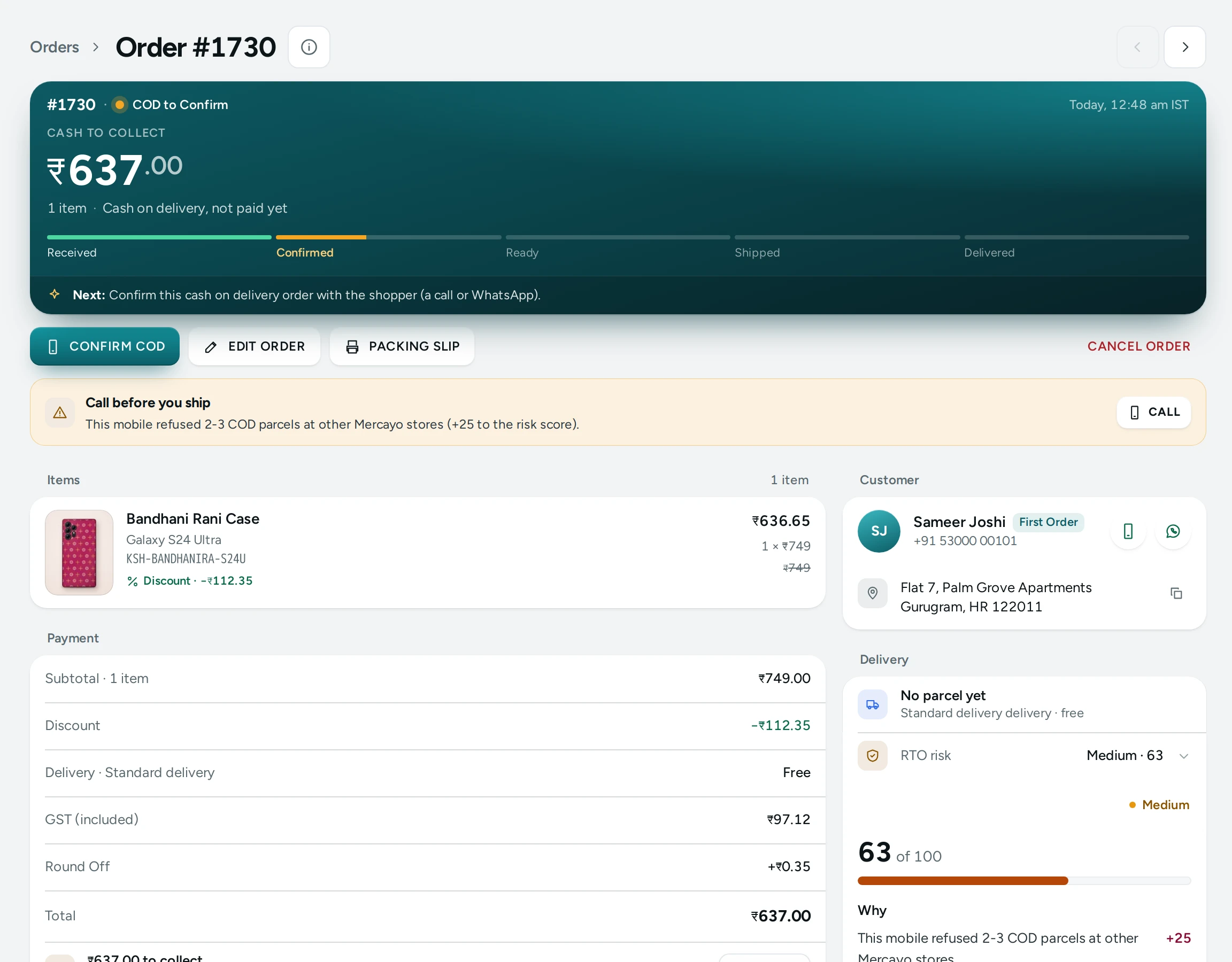
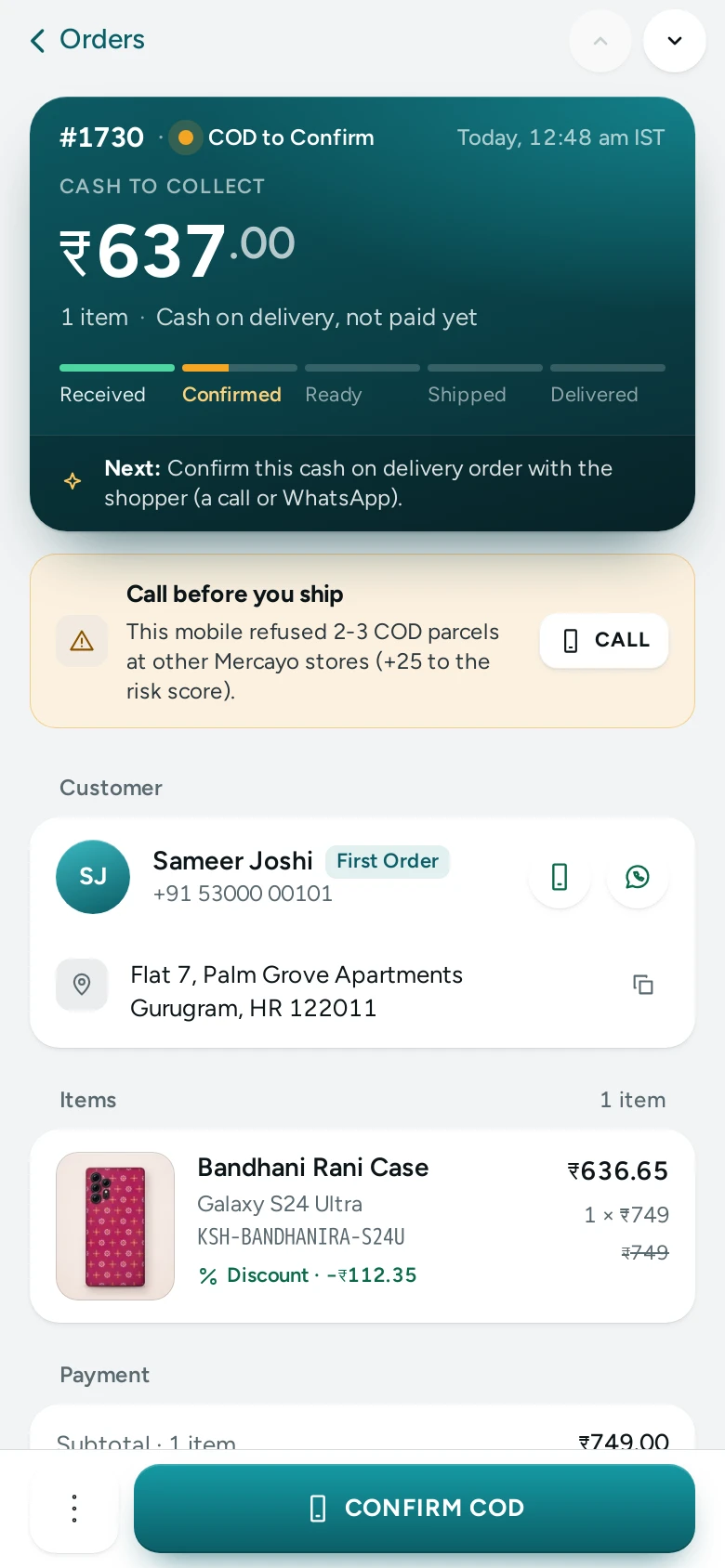
At the top: Order #1042 with a link back to Orders, and pills for:
- the order's status (To ship, Shipped, Delivered and so on),
- Unconfirmed or Confirmed for a COD order that needs a staff call (hover for "Staff have not phoned this shopper yet." or "Staff phoned this shopper and confirmed the order."),
- the payment state: Paid, Unpaid, Partly refunded or Refunded.
The arrows on the right move to the next newer and next older order. On a computer you can also press k for the newer order and j for the older one (not while typing in a box).
If the order was cancelled, a Why It Was Cancelled banner shows the reason given.
The Summary Band
The dark band under the header holds:
- Placed with the date and time, and under it how the order was paid (COD, Prepaid or Manual), the delivery option the shopper chose, and "via Search", "via Social" and so on when Mercayo knows where the shopper came from.
- Order Total in large figures, with the number of items.
- The steps of the order, each with its date.
- The buttons for what can happen next.
The Steps
The steps show the order's journey. Each is marked done (with a tick and its date), Next (the step the order is waiting for), not yet, or ended here (in red).
| Step | When It Appears | Done When |
|---|---|---|
| Placed | Always | The order was placed |
| Paid | Online orders, and orders still awaiting payment | The online payment arrived |
| Confirmed by Call | COD orders placed while your store used the staff call | Your team marked it confirmed, or the shopper confirmed on WhatsApp |
| Shipped | Always | The order was marked shipped, or the courier picked it up |
| Delivered | Unless the parcel came back | Delivered |
| Returned to Origin | Instead of Delivered, when a COD parcel came back | The parcel was returned to you |
| Closed | Always | The order was closed |
| Cancelled | Instead of the remaining steps, for a cancelled order | Cancelled |
The Buttons
Only the moves the order can make now are shown, and none at all to people who cannot process orders. The main next step is the dark button.
| Button | Shown When | What It Does |
|---|---|---|
| MARK CONFIRMED | A COD order still to ship that is waiting for a staff call | Records that you phoned the shopper and they confirmed. You can add a call note |
| Ship | The order is To ship | Marks it shipped: the items have left with the courier. The shopper gets the shipped email |
| Mark delivered | The order is Shipped | Marks it delivered. A cash on delivery order is then counted as paid |
| Returned to origin | A shipped COD order | The parcel came back undelivered. Its items go back into stock |
| Close | The order is Delivered or Returned to origin | Nothing more happens to it after this |
| REFUND | Something paid on the order is left to refund | Opens the refund dialog. See Refunds |
| OPEN EXCHANGE | The shopper asked for an exchange on this order | Opens the exchange |
| PACKING SLIP | Always | Prints this order's packing slip |
| EDIT ORDER | The order has not shipped and has no courier parcel | Opens it as a draft to change items, address or delivery; it is replaced by an edited order. See Edit an Order |
| RESEND EMAIL | The shopper has had an email for this order | Sends one of the order's emails again, to them or another address |
| Cancel order | The order is Awaiting payment or To ship | Cancels it, with a reason. See Cancel an Order |
Every step asks first, in plain words, for example "Mark order #1042 as shipped? The shopper's items have left with the courier." or "Mark order #1042 as returned to origin? Its items go back into stock." Cancelling needs a Reason ("For example: the shopper asked to cancel"), kept with the order.
If someone else (or a second click) already moved the order, the page says so ("That step was already done. The order below is up to date.") and shows the order as it is now.
Items
The Items card lists each line: the product name, its variant and SKU, the quantity and unit price, and the line's amount. A free gift from an offer is marked Free gift. When the shopper personalised an item (initials, a message, a photo), their choices show under the line; a photo shows as a small picture with its crop, and Download Original gives you the file they uploaded.
Under the lines are the totals:
| Line | What It Is |
|---|---|
| Subtotal | The items before discounts |
| Discount | Codes and automatic offers, taken off (only when there is one) |
| Delivery | The delivery charge, or Free |
| Fees | The COD fee, gift wrap and similar charges (only when there are any) |
| GST or GST (included) | The tax. "Included" when your prices include GST |
| Round Off | The few paise added or taken off to make a whole rupee (only when your store rounds off) |
| Total | What the shopper pays |
Timeline
The Timeline card ("What happened, and your team's notes") mixes the order's history and your notes, newest first. Each line has a title, when it happened, and who did it: a team member's name, "Mercayo support (name)" when Mercayo's support team acted with your permission, or no name for the shopper and Mercayo's own automatic steps.
History lines include Placed, Paid online, Confirmed by staff (with the call note), Confirmed on WhatsApp, Asked on WhatsApp to Cancel, Shipped, Delivered, Returned to origin, Closed, Cancelled (with the reason), Expired (cancelled automatically), Refund started, Refunded, Refund failed, Refund tried again, Tags changed, Paid with store credit, Paid with a gift card, Gift card issued, WhatsApp Updates On and Off, and warnings such as The invoice could not be issued or Credit note not issued with the reason.
Notes
The box at the top of the timeline is for your team's notes: a call, a request, a promise made. Type up to 1,000 characters and press ADD NOTE.
- A note normally stays inside the admin.
- Tick The shopper can see this note to show it on the shopper's order page, under the tracking ("It shows on the shopper's order page, under the tracking. Write it to them."). Such notes carry a SHOPPER SEES IT pill. This box is offered only while Notes the Shopper Can See is on in Settings › Checkout and COD (it is on by default); otherwise the box says "Notes stay inside the admin."
- Remove takes a note away. You can remove your own notes; the owner and admins can remove anyone's. The removal stays in the history as Note removed.
Refunds
The Refunds card shows what was paid, what has been refunded and what is left ("Paid ₹2,499.00 · refunded ₹0.00 · ₹2,499.00 left to refund"), or "Nothing has been paid on this order yet." Each refund made is listed with its amount, its state (On its way, Refunded or Failed), where the money went, the reason, its credit note and whether the items went back into stock. A failed online refund, or one Razorpay has not answered for two minutes, has TRY AGAIN. REFUND opens the refund dialog. Everything about it is in Refunds.
The Side Cards
Customer
The shopper's name (a link to their customer page for people who can see customers), their phone (tap to call on a phone) and email. Under that, their record in your store, matched by phone number: Orders, Spent and Returned (refused parcels, in red when there are any), and a line such as "Ordering since 3 Aug · 1 cancelled · Has an account" or "First order in your store · Guest". All Their Orders opens the orders list searched by their phone.
If the shopper deleted their account, the card shows "Deleted customer" and "This shopper deleted their account. The order, its invoice and its payments are kept, without their details."
RTO Risk
On a cash on delivery order, right under the customer: "How likely this cash-on-delivery parcel is to come back, from what was known when it was placed." It shows the Risk Score out of 100 with its level (Low, Medium or High), Why (each reason with its points, biggest first, or "No warning signs."), What Happened (for example "Held for a call: the order waits in Unconfirmed until someone confirms it.") and when it was scored. People who can see settings get a link to RTO Shield settings. See RTO Shield.
Delivery Address
The name, address lines, landmark ("Landmark: near the metro station"), city, state and PIN code, whether the shopper called it a Home address, Work address or Other address, and the delivery option ("Delivery: Express").
Payment
The payment state pill and:
| Line | What It Shows |
|---|---|
| Method | Cash on delivery, Part online, rest on delivery (part payment for COD), Paid online or Recorded by hand |
| Paid With | How it was paid online, for example UPI or CARD |
| Paid So Far | When more has been paid than the lines below show (for example store credit or a gift card) |
| Paid Online | The amount paid through your gateway |
| Cash to Collect | For COD before delivery: what the courier collects |
| Cash Collected | For COD after delivery |
| Refunded | What has been given back |
An order waiting for a payment link (a draft order, or an edit that raised the total) also has a Payment Link card: its state (WAITING, PAID, EXPIRED or CLOSED), Open until, and COPY, WHATSAPP and EMAIL to share it.
Parcel
The courier, the AWB, the parcel's state, Expected By when the courier gave a date, any Last problem, and its latest tracking updates. OPEN PARCEL opens the Shipment Page; DOWNLOAD LABEL opens the courier's label. Before a label is made the card says "No parcel yet. Select the order on the Orders list and press GENERATE LABELS." Labels are made only from the Orders list, never from this page.
GST Invoice
The invoice or bill of supply number with its type (Tax invoice or Bill of supply) and date, with DOWNLOAD for the PDF. Below it, Credit Notes, each with its reason (Cancelled, Refund, Return, Returned undelivered) and DOWNLOAD. When there is no invoice the card says "No GST invoice has been issued for this order." and, for an order that is to ship, shipped, delivered or closed and for people who process orders, offers ISSUE INVOICE. See GST Invoices and Credit Notes.
Tags
Your own labels for the order. Type a tag and press Enter (or type several separated by commas); click the small cross on a tag to remove it. Changes save at once. A tag is at most 40 characters, an order takes at most 20 tags, and every change is written into the history as Tags changed.
Note from the Shopper
What the shopper wrote at checkout, when they wrote something.
Gift
When the shopper marked the order as a gift: their gift message, "Prices hidden on the packing slip" and "Gift wrap asked for" when those apply.
Business Invoice
When the shopper asked for a GST invoice for their business: the business's legal name, its GSTIN and billing address. The invoice names the business so it can claim input tax credit.
How They Found You
Where the shopper's visit came from: Channel (Direct, Search, Social, Email, Paid ads or Another site), Campaign, Came From, First Page, Device (Phone, Computer or Tablet) and Pages Viewed. When no visit was linked to the order it says "No visit was linked to this order (placed before tracking began, or from a blocked browser)."
How to Ship an Order Without the Courier Integration
- Pack the items, using PACKING SLIP to print the slip.
- Hand the parcel to your courier.
- Press Ship and confirm. The status becomes Shipped and the shopper gets the shipped email (when they gave an email).
- When the parcel arrives, press Mark delivered. For a COD order, the cash is now counted as collected.
- Later, press Close when nothing more will happen (for example after your return window has passed).
How to Handle a Refused COD Parcel
- When the courier brings a refused COD parcel back, open the order.
- Press Returned to origin and confirm. The items go back into stock and the order moves to Returned to origin.
- If the shopper paid part of the order online (part payment for COD), check the Refunds card: by default that part covers the return trip; if your store refunds it, the order appears under Refunds needed.
- Press Close once you are done.
With the courier integration, the order moves to Returned to origin by itself when the courier reports the return.
How to Print One Packing Slip
Press PACKING SLIP in the summary band. Your browser's print window opens with just the slip: your store's name, the order number and date, Ship To, the items with their quantities (no prices), Collect ₹… in cash on delivery for a COD parcel, the shopper's note, the gift message, and a thank-you line. For many orders at once, see Packing Slips and Labels.
How to Leave a Note for the Shopper
- Type the note in the box at the top of the Timeline.
- Tick The shopper can see this note.
- Press ADD NOTE.
The shopper sees it on their order page. Notes are never sent by email or message on their own.
What Shoppers See
The shopper follows the same order on their order page (from the thank-you page, their account, or the Track page with the order number and phone): its status, the courier's tracking, the items and amounts, your notes marked for them, their GST invoice and credit notes to download, and, while allowed, buttons to cancel, ask for an exchange or a return. Found on Track by the number and phone, those buttons first ask for a code sent to the order's own phone or email. Each step you take (shipped, delivered, cancelled, returned) changes what they see straight away, and the shipped, delivered, cancelled and returned steps also send them an email when they gave one (each of these emails can be switched off in Settings › Notifications).
Good to Know
- The order page always reads the order fresh, so it never shows an old state.
- An order's steps follow fixed rules: an order awaiting payment can only be cancelled; a confirmed order can be shipped or cancelled; a shipped order can be delivered or, for COD, returned to origin; delivered and returned orders can be closed. Closed and cancelled orders take no more steps.
- Returned to origin is offered only for COD orders. A prepaid order that comes back is handled with a refund.
- Mark delivered on a COD order counts the cash as received; do it only once the courier has collected it.
- Status changes, notes and refunds are also recorded in Settings › Activity Log with who made them.
- If the order page cannot be opened, it says "This order could not be opened."; an order from another store or one that does not exist shows the not-found page.
Questions
Can I edit the items or address on an order?
Not on this page. You can add notes, tags, refund, cancel, and for a failed delivery send the courier a new phone or address from Failed Deliveries (NDR).
Why is there no Returned to origin button on my prepaid order?
That step is only for cash-on-delivery parcels. For a prepaid order that comes back, use REFUND and tick Put the items back into stock if they can be sold again.
What happens when I mark a COD order delivered?
Its payment state becomes Paid and the Payment card shows Cash Collected. The order can then be refunded, exchanged or returned under your store's rules.
Why does the Customer card say Returned 2 in red?
This shopper (matched by phone) has had two COD parcels returned to you before. Think about a call before shipping, or about part payment for COD.
Who can remove a note?
The person who wrote it, the owner, and admins. The removal itself stays in the timeline.
Can I undo MARK CONFIRMED?
Yes, for a short while. After you confirm from the order page, the message at the bottom offers Undo for about 10 seconds. The database allows taking a confirmation back within 10 minutes, by the person who made it, the owner or an admin.