Reels are short, upright videos with your products in them, like the reels you already post on Instagram. "Short vertical videos with your products in them. Shoppers watch, tap a product and add it to their bag." A saree seller can show a drape in 20 seconds; a phone-case brand can show a drop test. You upload a video here, tag the products in it and publish; it then plays in any Reels row you place on your pages and under Shop the Video on the product pages it tags. Open it from Online Store › Reels (on a phone: More, then Reels).
Uploading and editing reels needs the content right (content.edit). The owner, admins and the Marketer preset role have it.
What You See
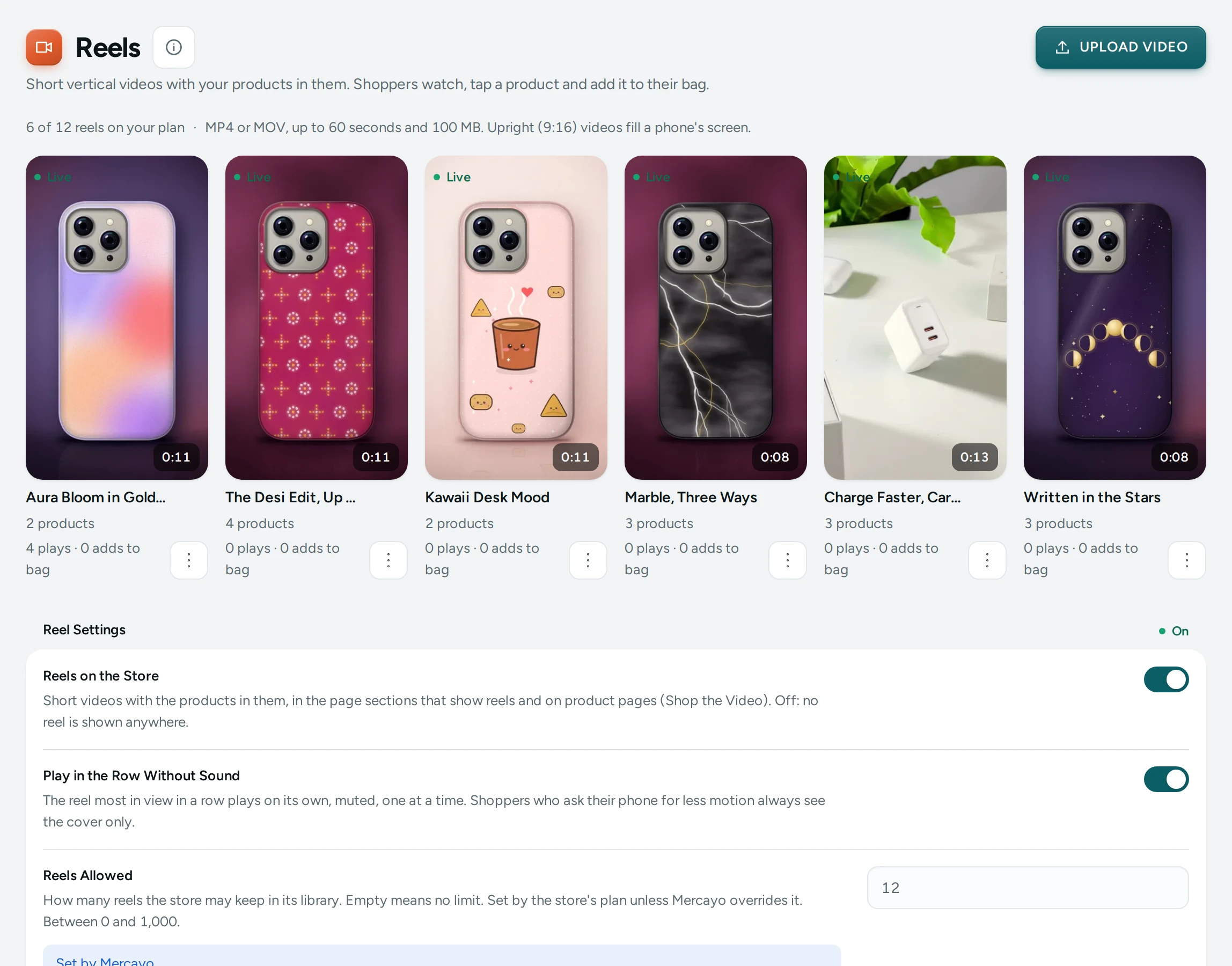
At the top, UPLOAD VIDEO and the limits: "MP4 or MOV, up to 60 seconds and 100 MB. Upright (9:16) videos fill a phone's screen." Under the title, how many reels you have against your plan: "4 of 12 reels on your plan" (or "4 reels in your library" when your plan has no limit).
Each reel is a card in the video's own 9:16 shape, showing its cover and:
| On the Card | What It Means |
|---|---|
| Live | Published: shoppers see it |
| Draft | Ready but not published |
| Preparing | "Making copies for phones. This takes about a minute." The screen checks again every few seconds. |
| Uploading | The upload is on its way, with "Uploading 45%" |
| Failed | "We could not prepare this video. Upload it again, or try another file." |
| Length, products | For example "0:24 · 3 products", or "No products yet" |
| Counts | "120 plays" and "8 adds to bag" |
Click a card to edit it. Its menu has Edit, Move Earlier, Move Later (the order shoppers see in a row that follows the library) and Delete. "Order saved" confirms a move.
Reel Settings at the foot (for people who can see settings; changing them needs the settings right):
| Setting | What It Does | Default |
|---|---|---|
| Reels on the Store | "Short videos with the products in them, in the page sections that show reels and on product pages (Shop the Video). Off: no reel is shown anywhere." | On |
| Play in the Row Without Sound | "The reel most in view in a row plays on its own, muted, one at a time. Shoppers who ask their phone for less motion always see the cover only." | On |
With reels off: Reels Are Off on Your Store: "Shoppers see no reels until you switch them on in the settings below. You can still upload and prepare them."
Editing a Reel
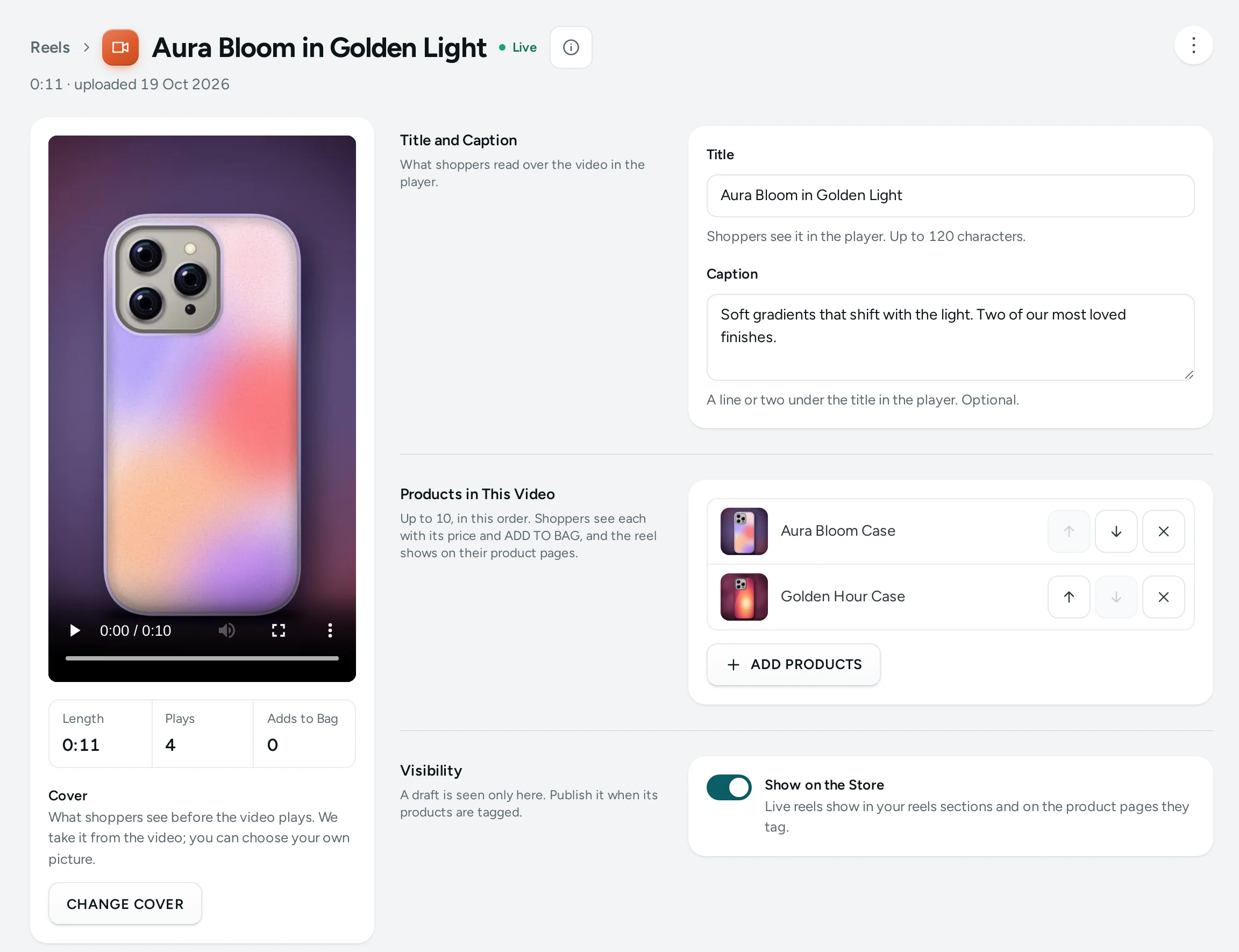
Edit Reel shows the video's length and upload date ("0:24 · uploaded 12 Oct 2026"), a preview, and Length, Plays and Adds to Bag.
| Field | What It Does | Limit |
|---|---|---|
| Cover | "What shoppers see before the video plays. We take it from the video; you can choose your own picture." CHANGE COVER (JPEG, PNG or WebP). | |
| Title (card Title and Caption) | "Shoppers see it in the player." Starts as the file's name. | 120 characters |
| Caption | "A line or two under the title in the player. Optional." | 300 characters |
| Products in This Video | "Up to 10, in this order. Shoppers see each with its price and ADD TO BAG, and the reel shows on their product pages." ADD PRODUCTS, move up or down, remove. A product not on sale is marked "Not on sale: shoppers do not see it". | 10 products |
| Show on the Store (card Visibility) | "Live reels show in your reels sections and on the product pages they tag." "A draft is seen only here. Publish it when its products are tagged." | Off for a new reel |
Press SAVE. "Reel saved". DELETE REEL asks "Delete This Reel?": "The video, its cover and its counts are deleted for good. Sections that show it leave it out." DELETE or KEEP IT.
How to Add Your First Reel
- Record an upright video on your phone, up to 60 seconds. Most phones record MP4 or MOV.
- Open Online Store › Reels and press UPLOAD VIDEO. Pick the file (you can pick several at once).
- Wait for "Uploaded. We are preparing it for phones." The card shows Preparing for about a minute.
- Click the card. Give it a Title, and a Caption if you like.
- Press ADD PRODUCTS and choose the products seen in the video.
- Turn on Show on the Store (it can be turned on once the video is ready) and press SAVE.
- In the page editor, add a Reels section to your home page and PUBLISH.
What Shoppers See
- A Reels row (the page editor's Reels section): covers in the 9:16 shape with each reel's title. The card most in view plays muted, one at a time, when Play in the Row Without Sound is on. Under each card, the reel's first product with its picture, name and price (unless the section turns it off).
- The player: a tap opens the reel full screen. Shoppers swipe (or use the arrow keys on a computer) to the next reel, turn the sound on, and see the products with their price and ADD TO BAG. A product with one option goes straight into the bag; one with sizes or colours opens the options to choose from, and the reel pauses.
- Product pages: Shop the Video shows the live reels that tag that product.
- Shoppers who ask their phone for less motion, or who are on a slow connection or data saver, see covers until they tap.
The counts (plays and adds to bag) are shown only to you, never to shoppers. A play is counted when a reel has been watched for 2 seconds in the player.
Mercayo Controls
- Your plan sets how many reels the library may hold; Mercayo can change it. At the limit: "Your plan allows 12 reels. Delete one, or change your plan to add more." A plan without reels says "Your plan does not include reels. Change your plan to add them."
- Mercayo sets the largest upload (100 MB unless Mercayo changes it) and the longest reel (60 seconds unless changed). The upload line shows your store's own limits.
- Mercayo can switch reels off for your store: "Mercayo has switched reels off for your store. You can still upload and prepare them."
Good to Know
- Shoppers never download your original file: Mercayo makes smaller copies for phones (720p and 480p).
- Only MP4 and MOV files can be used. A file too long or too big is refused when it is uploaded ("Reels can be at most 60 seconds long. Trim the video first.").
- A reel can be published only once it is ready: "The video is still being prepared. Publish it once it is ready."
- If someone else saved the reel since you opened it: "Someone saved this reel since you opened it. Load the latest, then make your change." with LOAD LATEST.
Questions
What size should my video be?
Upright 9:16 (like an Instagram reel) fills a phone's screen. Up to 60 seconds and 100 MB unless Mercayo has set other limits for your store.
Why is my reel stuck on Preparing?
Making the phone copies takes about a minute. If it ends as Failed, upload it again or try another file, for example one exported again from your phone's editor.
Can one reel show several products?
Yes, up to 10, in the order you set.
Where do reels appear on my store?
In any Reels section you add with the page editor, and under Shop the Video on the product pages each reel tags.
Do shoppers see how many plays a reel has?
No. Plays and adds to bag are for you only.