Section Styles sets how each part of your store is laid out and how it opens: where the logo and menu sit in the header, how the menu opens on a phone, what a product card looks like, where the filters sit, how the product page arranges photos and details, whether the bag slides in as a drawer or rises as a sheet, and how checkout and the order confirmation are arranged. "Choose how each part of your store is laid out and how it opens. Every choice works with every theme." So a jewellery store in Mumbai can pair a centred logo with a gallery bag drawer, while a phone-case brand in Jaipur uses a search-first header with a bottom tab bar.
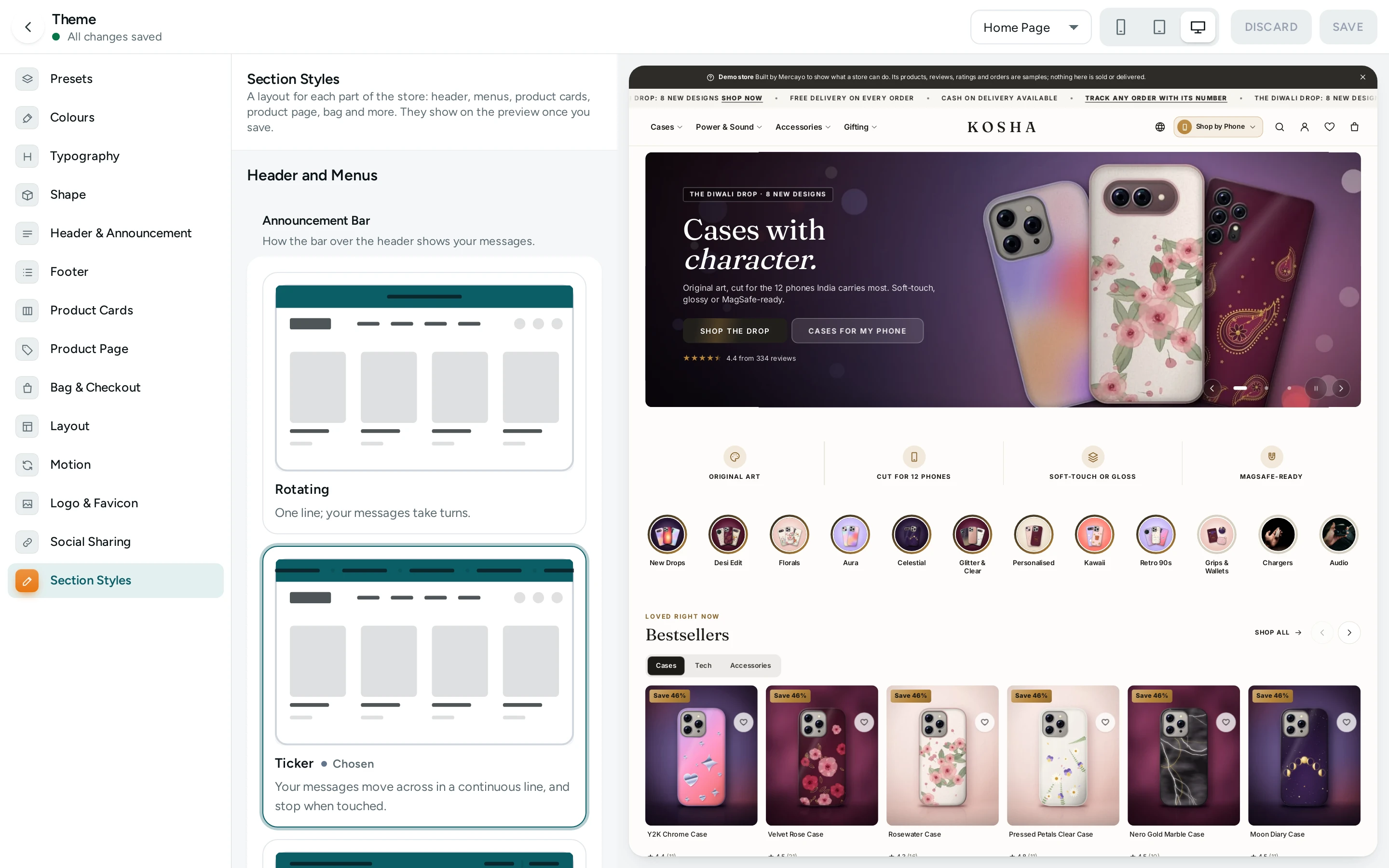
You find it in two places, with the same choices:
- Online Store › Theme, the last section on the left, Section Styles. Here your choices are saved with the Theme's own SAVE, together with every other look setting, and "They show on the preview once you save."
- The standalone Look screen (
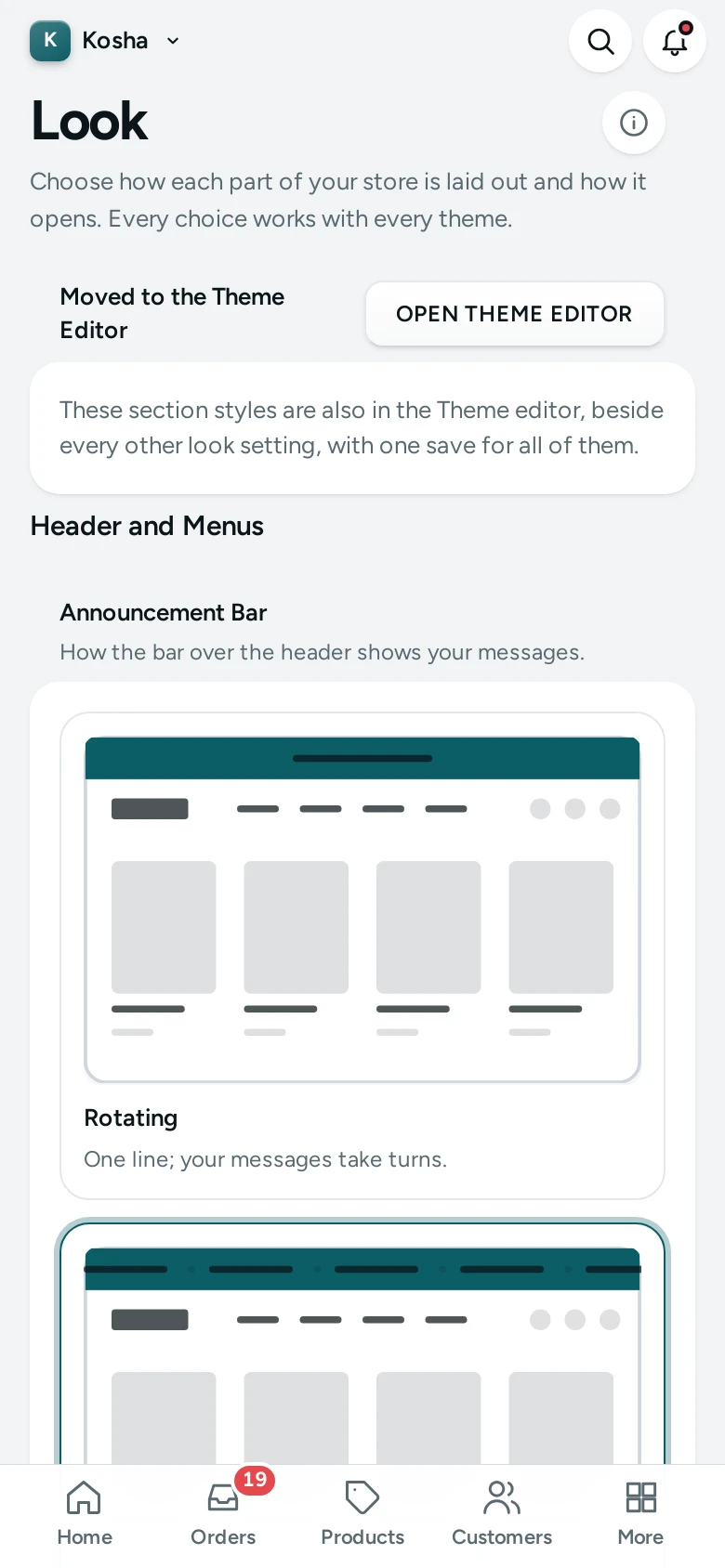
/store/<your store>/look), which has its own preview and save bar. It opens with a Moved to the Theme Editor card ("These section styles are also in the Theme editor, beside every other look setting, with one save for all of them.") and OPEN THEME EDITOR.
Anyone who can see settings can look at the choices; changing them needs the right to change settings (settings.edit), which the owner and admins have. Someone without it sees "You can see these choices. Changing them needs the Settings right; ask the store's owner." In the Theme screen the section also needs the theme right, so a Marketer can see the choices but not change them.
What You See
The parts are grouped in four headings. Each part is a card with a short line about it and a row of tiles, one per layout, each with a drawn picture of that layout in your theme's shapes, its name and a line about it. The layout your store uses now is marked Chosen. Click a tile to choose it.
Header and Menus
| Part | Layouts | Default |
|---|---|---|
| Announcement Bar: "How the bar over the header shows your messages." | Rotating (one line; your messages take turns), Ticker (messages move across in a continuous line and stop when touched), Message and Links (your message on the left; Track Order, Gift Cards and WhatsApp chat on the right on wide screens), Closable (a slim bar shoppers can close; it stays closed on their next visits) | Rotating |
| Header: "Where the logo, the menu and the icons sit." | Classic (logo left, menu beside it, icons right), Centred Logo (logo in the middle, menu in its own row below), Split Menu (logo in the middle, menu split on both sides), Search First (a wide search box in the header, the menu in a row below; for big catalogues), Minimal (only your logo, the bag and a MENU button on every screen; on wide screens the menu opens full screen) | Classic |
| Menu Panels: "How the menu's panels open on wide screens when the mega menu is on." | Columns (a wide panel with link columns and pictures), Picture Tiles (each item as a picture tile with its links under it), Tabs (main categories in a list; their items show beside the one pointed at), Flyout (a narrow list that opens side lists for deeper items) | Columns |
| Phone Menu: "How the menu opens on phones." | Full Panel (a full-height panel; deeper items slide in from the side), Accordion (one list; groups open in place), Bottom Sheet (rises from the bottom, with card rows), Picture Cards (main categories as picture cards; a tap opens their items), Tab Bar (an app-like bar at the bottom: Home, Shop, Search, Wishlist and Bag) | Full Panel |
| Search: "How search opens from the header." | Overlay (full screen on phones, a centred panel on wide screens), Dropdown (suggestions right under the header's search box), Side Drawer (a drawer with suggestions and popular products), Search Page (opens the search page, with a large box and results as the shopper types) | Overlay |
Browsing
| Part | Layouts | Default |
|---|---|---|
| Product Cards: "How a product shows in lists, rows and search." | Standard (picture, name and price, with your theme's ADD button), Overlay (name and price over the foot of the picture; ADD shows on hover), Minimal (picture, name and price, centred, no buttons), Detailed (rating, colours, a short description and a full-width ADD button), Framed (a bordered card with a tinted picture area and a round ADD button) | Standard |
| Product Lists: "Where the filters sit on product lists." | Sidebar (filters in a column beside the products on wide screens), Drawer (a FILTER button opens the filters from the side), Top Bar (a bar of filters above the products, each opening a small panel), Chips (quick filter chips and sorting only; best for small catalogues) | Sidebar |
| Footer: "How the footer lays out your brand, links and sign-up." | Columns (brand and link columns side by side; columns fold on phones), Centred (logo, one row of links and your social links), Big Brand (an oversized name or logo with a large sign-up box), App Style (full-width rows with icons, like an app's settings list) | Columns |
Buying
| Part | Layouts | Default |
|---|---|---|
| Product Page: "Where the photos and the details sit." | Side by Side (photos left, details right; phones peek at the next photo), Stacked Photos (every photo in view, two by two; details stay beside them as they scroll), Thumbnail Rail (a large photo with a rail of small pictures beside it, on phones too), Full Width (photos edge to edge; below, the story on one side and buying on the other), Editorial (a centred row of photos, one centred column of details, then your story full width) | Side by Side |
| Bag: "How the bag opens after ADD TO BAG and from the header." | Compact Drawer (tabs and a checkout button in your button shape), Gallery Drawer (framed suggestions, large note and code tiles and a full-width checkout bar), Bottom Sheet (a sheet from the bottom on phones, a drawer on wide screens), Mini Bag (a small panel under the bag icon on wide screens, with the item added and CHECKOUT) | Compact Drawer |
| Checkout: "How the checkout's steps are laid out." | One Page (every step on one page, the order summary beside it), Steps (contact, delivery and payment one at a time, with a progress bar), Accordion (each step folds once done; one open at a time) | One Page |
After the Order
| Part | Layouts | Default |
|---|---|---|
| Order Confirmation: "How the page after an order is laid out." | Receipt (the order's details with the summary beside them), Celebrate (a large confirmation, what happens next first), Compact (one summary card, the next steps and products to keep shopping) | Receipt |
| Account: "How a shopper moves between the sections of their account." | Tabs (a row of tabs over each section) | Tabs |
The Preview on the Look Screen
On the standalone Look screen a Preview sits beside the cards: "Only you see this preview until you save." Choose the Page (Home, All Products or A Product) and PHONE or DESKTOP. It refreshes a moment after each choice. If it cannot open it says "The preview could not open. Your choices are still here."
In the Theme screen, the Theme's own preview is used instead, and your choices appear in it after you press SAVE. The pictures on the tiles follow the button shape and card corners you are editing in Shape, even before you save.
How to Change a Layout
- Open Online Store › Theme and choose Section Styles at the foot of the list.
- Find the part, for example Phone Menu.
- Click the layout you want, for example Tab Bar. The rail marks Section Styles as changed.
- Change other parts if you like.
- Press SAVE. "Saved. Your store shows the new look now." The preview reloads with the new layouts.
On the standalone Look screen, the save bar at the top shows Unsaved changes with DISCARD and SAVE.
How to Undo a Choice Before Saving
In the Theme screen, press DISCARD in the top bar: it puts every section back, Section Styles included. On the Look screen, press DISCARD in the save bar.
What Shoppers See
Shoppers see the saved layouts on every page. Every layout works with every preset and colour, and each works at phone and computer widths. A layout that only makes sense on wide screens (such as Mini Bag or Message and Links) falls back to a phone-friendly version on small screens, as its line says.
Mercayo Controls
- Mercayo can set a part's layout for your store. The card then shows "Set by Mercayo for your store: …" with the reason, and its tiles cannot be chosen.
- Mercayo can also limit a part to some layouts: "Mercayo limits the layouts for your store: …". The others are greyed out.
Good to Know
- Each part's layout is a store setting, so a save is recorded in the Activity Log and your pages are rebuilt for shoppers at once.
- Product Lists is the same setting as Filter Layout in Online Store settings; changing one changes the other. On phones the sidebar and the drawer open from a FILTER button; the top bar and the chips keep their row.
- Phone Menu is the same setting as Phone Menu Style, and Bag the same as Bag Drawer Style.
- If someone else changed the layouts since you opened them, your save is refused: "Someone else changed the look since you opened it. Reload to see their choices."
- Colours, fonts and shapes are not here; they are in the other Theme sections. The words and blocks a page holds are in the page editor.
Questions
Can I mix layouts from different presets?
Yes. Every layout works with every theme. Choose one per part in any combination.
Why does my choice not show in the Theme preview yet?
Section Styles show in the Theme preview after you save. On the standalone Look screen, the preview shows your choices before saving.
Why can I see the layouts but not choose them?
Changing them needs the right to change settings. The owner and admins have it; the Marketer role does not.
Why does the Account part offer only Tabs?
Tabs is the only account layout available today.
Does the phone menu layout change my menu's links?
No. The links come from your Menus. The layout only changes how the menu opens and looks on a phone.