Content Pages and Blog
About, FAQ, Contact and a Blog, Built From the Same Parts
Shoppers buying from a brand they do not know yet look for who you are, how delivery works and how to reach you. Mercayo gives you those pages from the first day, and a blog for the guides that bring them back.
- In every plan
- Free for 14 days


Kosha is a demo store on Mercayo. Its products, orders and customers are sample data.
In short
What It Does
Every content page on a Mercayo store is built in the page editor from one library of sections, so an About page, a FAQ, a size guide, a story page and a contact page are all made the same way, and all take your store's colours and type.
The sections for content pages:
- Page Title Band, Picture and Text, Columns (2 to 4, each with an icon), Quote, Buttons and Space.
- Video: a YouTube or Vimeo video. Your own picture shows first; the player loads only when the shopper taps it.
- Questions and Answers: groups of questions that open and close, ready for a FAQ.
- Contact Form: name, email, phone, order number, topic and message, landing in your admin's Inbox.
- Latest Blog Posts, to show your newest posts on any page.
- Saved Section: a section you keep once and place on many pages; change it once and every page shows the change.
Each section has the same style choices: a background from your theme (plain, raised, tinted, inverse, or one of your pictures under a light or dark veil), its spacing, its width and a rounded top edge. There are no free colours, so nothing looks out of place.
The blog lives at /blog: the newest post large, then a grid, topics to filter by and MORE POSTS. Each post has a cover picture, its author, date, reading time and "More from the Journal" (posts on the same topics, else the newest).
Your policies (returns, shipping, privacy and the rest) appear in a designed page with key points read from your real settings, such as your return window and whether you take cash on delivery, followed by the related questions from your FAQ.
Words are written as simple text with headings, lists, bold, italics and links. Nothing typed reaches the page as code.
For your store
Why It Matters
A shopper who finds you through an Instagram reel or a friend's WhatsApp message has never heard of you. Before paying, many look for three things: a real About page, clear answers about delivery, cash on delivery and returns, and a way to reach a person. A store without them looks like it might disappear with the money.
Mercayo gives every new store an FAQ and a Contact page, published, and an About page as a draft for your own story. The FAQ says only what is true on every Mercayo store, so you start honest and add your own answers.
The blog is where you answer the questions shoppers type into Google: how to care for a product, which size to choose, what to gift for Diwali. A useful guide keeps working for months, and every post can link to the products it talks about.
None of this needs a designer. The sections already match your theme, look right on a phone, and you change them in the same editor as your home page.
Step by step
How It Works
Start From a Ready Page
Open Online Store → Pages. Your About, FAQ and Contact pages are already there. To make another, press ADD PAGE, give it a title (its address is made from the title, and you can change it), and choose what it starts from: an empty page, About Us, Questions, Contact, or a copy of another page's layout. A new page is always a draft. ADD AND EDIT opens it in the editor.
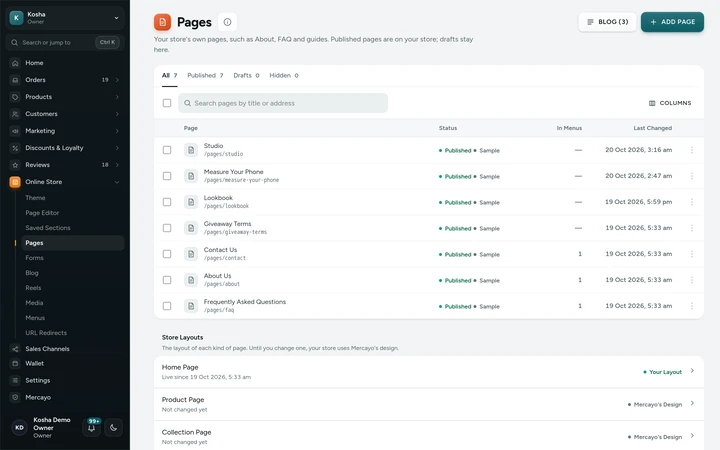
Online Store → Pages, with the store's content pages and their status, on Kosha, a demo store on Mercayo. Build the Page From Sections
In the editor, add sections from the content group, type your words, choose pictures from your store's media and set each section's style. Preview the draft at phone and computer widths, then publish. The Pages list shows which pages have unpublished changes. From a page's row menu you can edit its content, change its title, address and search engine words, view it on the store, publish, unpublish, duplicate or delete it. See Page Editor.
Write Your FAQ
The Questions and Answers section holds groups of questions, such as Orders, Delivery, Payments and Returns. A group can be tied to one of your policies, so its questions also show under that policy as related questions. The answers live in the page itself: one place to edit. The page tells search engines it is a FAQ.
Take Messages Through the Contact Form
The Contact Form section is on the starter Contact page and can go on any page. Messages arrive in Customers → Inbox, where your team marks them read, done or spam. With Email me each message on, each message is also emailed to the store owner and the extra addresses you chose for order alerts. Automated spam is quietly dropped, and nothing is ever emailed to the address a visitor typed. See Contact Inbox.
Write a Blog Post
Open Online Store → Blog and press NEW POST. Fill in the Title, an optional Line Under the Title, and the Post itself (a blank line starts a paragraph; ## Heading, - list item, bold, italics and links work). Add a Cover Picture with its description, choose up to 8 Topics, an Author, and the post's Address with its own title and description for search engines. Status Published puts it on the blog at once; Draft keeps it in the admin; Archived takes it off the blog and keeps it.
Link Pages From Menus and Sections
Add your pages and the blog to your header or footer in Online Store → Menus, or show your newest posts on the home page with Latest Blog Posts. Menus never point at a page that is not live: a draft or unpublished page, a draft post or a switched-off blog simply drops out of the menu until it is live again. If you change a page's address, its old address keeps working through an automatic redirect.

Your shoppers
What Your Shoppers See
Shoppers find your About, FAQ and Contact pages in your footer or menus, laid out in your store's colours and readable on a phone. FAQ answers open with one tap. The contact form asks only for what it needs, says your details are used only to answer, and thanks them with the email you will reply to. Your blog shows the newest post first, topics to filter by and MORE POSTS; each post has its reading time, its author and more posts to read next. Policy pages open with the key points (your return window, cash on delivery, delivery) before the full text.

Settings
Settings You Control
Each one is in your admin. A new store starts with the value shown.
Mercayo
Mercayo's Controls
Mercayo's team can switch your blog or your contact form off or on for your store, with a written reason your admin shows beside the locked setting and a record in Mercayo's audit log. Three limits are Mercayo's alone: the content pages a store may have (200 to start with), the contact messages it takes in 24 hours (200, against floods), and the section types it may use. Mercayo's team does not write your pages, posts or answers for you; when Mercayo support opens your admin to help, the visit is recorded in Mercayo's own log (see Support Access).
Limits today
Good to Know Before You Start
- The contact form has fixed fields (name, email, phone, order number, topic, message); forms of your own are made in the forms builder and placed with the page editor.
- Blog posts have no comments, and a post cannot be scheduled for a future day.
- Dates on blog posts are shown with English month names.
- Content pages and blog posts are listed in your store's sitemap with your products.
- Blog posts are not translated into your store's other languages; they show as written.
Questions
About Content Pages and Blog
Which pages does a new store start with?
An FAQ and a Contact page, published, and an About page as a draft, all with your store's name. The FAQ answers only what is true on every Mercayo store (delivery charges are shown at checkout, orders can be tracked, the ways to pay are listed at checkout), so add your own answers before you launch.
Can I write in Hindi or another language?
Yes. Pages and posts take any text you type, in any script. If your store offers more than one language, each content page can have its own translation in the Translate screen; blog posts are not translated and show as written. See Languages and Currencies.
Can I embed a video?
Yes, from YouTube or Vimeo. You give the video's address once; the page shows your own picture first and loads the player only when a shopper taps it, so the page stays fast. YouTube videos play from YouTube's privacy-enhanced address.
Who on my team can write pages and posts?
Staff with the right to edit content can write pages and posts. Publishing a page's layout for the first time needs the right to publish layouts; without it, the Pages screen says who to ask. Staff roles are set in Settings → Staff and Roles, so a writer can edit content without seeing orders or money.
What happens to links if I delete a page?
The page, its content and its saved versions go for good, and its address shows your page-not-found page. Menu links to it stop showing on your store. To take a page down for a while instead, unpublish it. If the page only changed address, do not delete it: change its address instead, and the old one keeps working through an automatic redirect.
Does the blog slow my store down?
No. The blog and each post are kept ready in the page cache like your product pages, and each loads with one request. Pictures come from your media at full quality. A new or changed post shows at once: publishing marks the kept pages as old, and they are rebuilt.
Related
Related Features
- Page EditorArrange the sections of every page in a visual editor with a live preview, private drafts, share links and 30 published versions to go back to.
- Contact InboxShoppers write from your Contact page; each message lands in the admin's Inbox to read, answer by email and mark done, and can be emailed to your team.
- URL RedirectsSend old addresses to new ones by hand or from a Shopify-style CSV, and get automatic redirects whenever a product or page changes its address.
- Search EnginesClean addresses, your own titles and descriptions, product details Google can read, a sitemap and link previews for WhatsApp, on every store.
- Menus and Mega MenuBuild header, phone and footer menus up to three levels deep, with pictures, tags and icons, and a mega menu panel on computers.
- Languages and CurrenciesOffer your store in Hindi beside English, translate your products, pages and menus, and show prices in other currencies as a guide.
More in Online Store: Product Pages · Product Stories and Details · Collections and Filters · Store Search · Shop by Fit · Wishlist · Customer Accounts · After the Order · Personalisation · Shoppable Videos · Languages and Currencies · Installable Store · Page Speed · Search Engines · URL Redirects · Opening-Soon Page · Custom Domains
Try It on Your Own Store
Every feature is in every plan, free for 14 days.